ShopReady Cabinets Standalone · Features
Coming soonEvery feature, one clip at a time.
26 narrated clips, each about a minute. Every one is the program itself at work.
Design
 Clip · 37 s
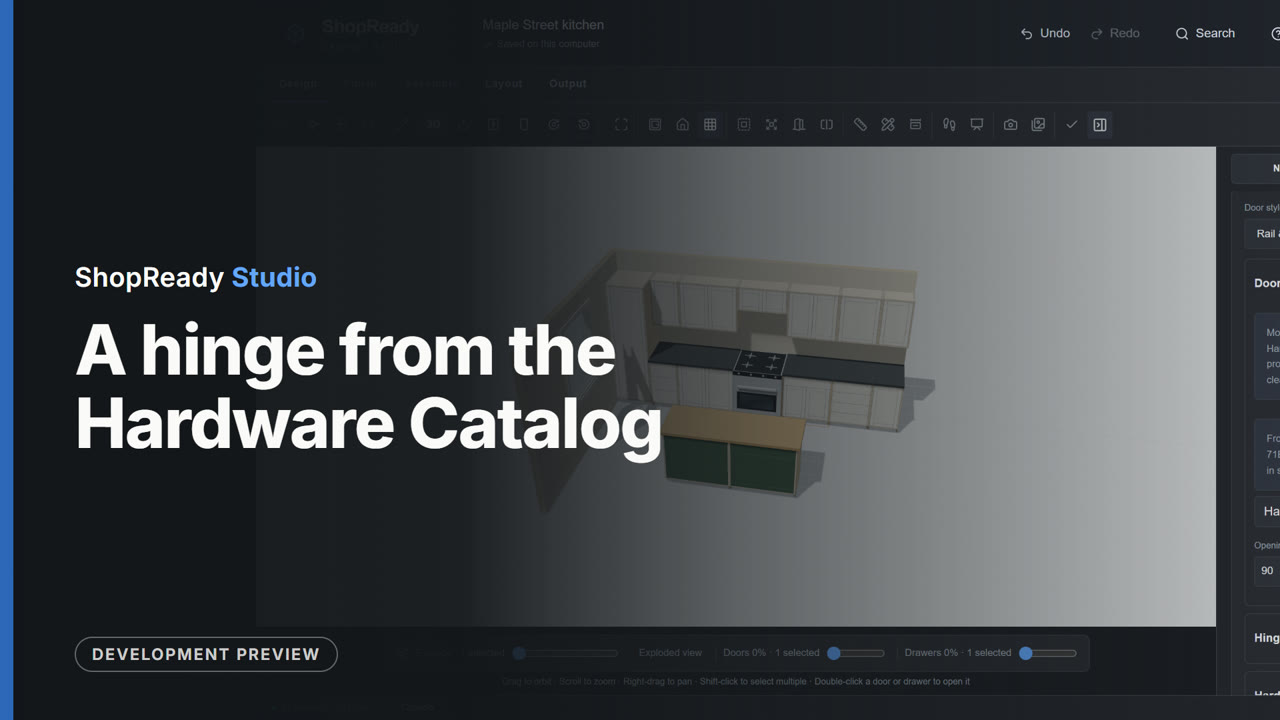
A hinge from the Hardware Catalog
A base cabinet is picked, the Hardware Catalog is opened from its Doors card, a hinge is found by typing its model number, its figures are read, and it is put on the cabinet. Back in the Studio the Doors card of that cabinet names the hinge.
 Clip · 37 s
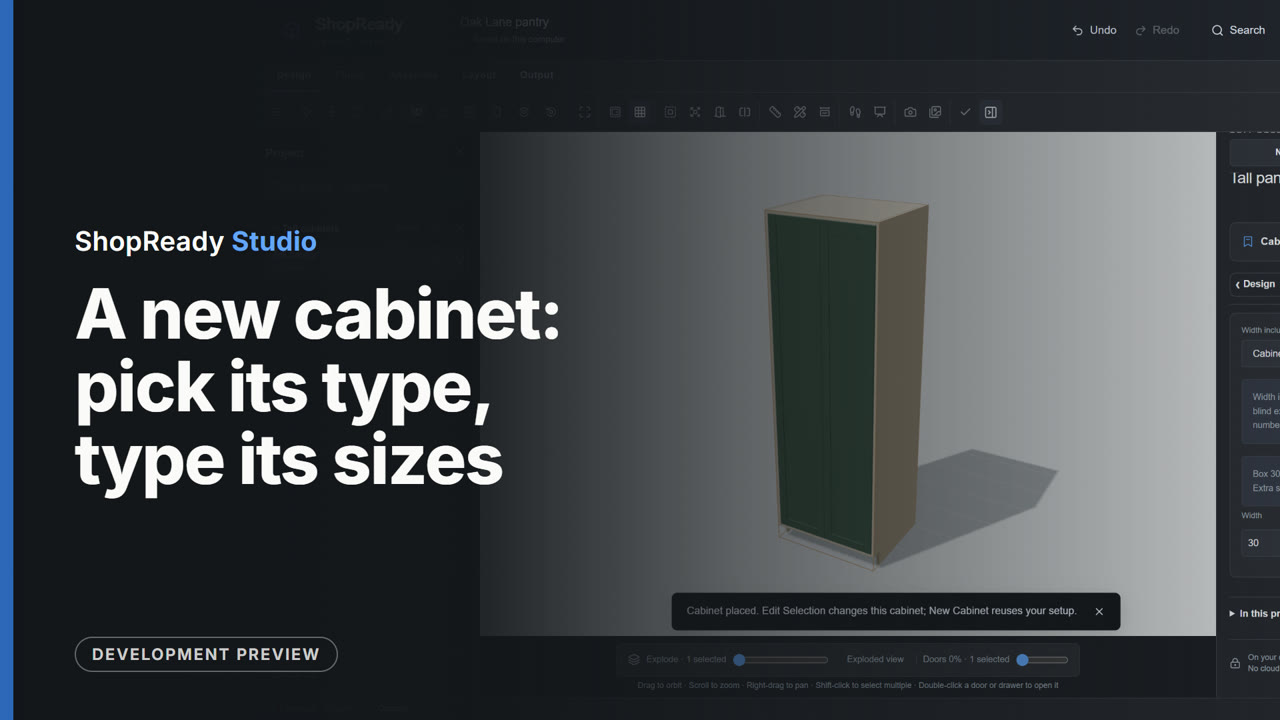
A new cabinet: pick its type, type its sizes
On an empty job, New Cabinet shows a base, a wall and a tall cabinet as each type is picked. In Size and Type the width is typed in feet and inches, the height with a fraction and the depth in millimeters; the preview follows each one. Place Cabinet adds it to the job.
 Clip · 38 s
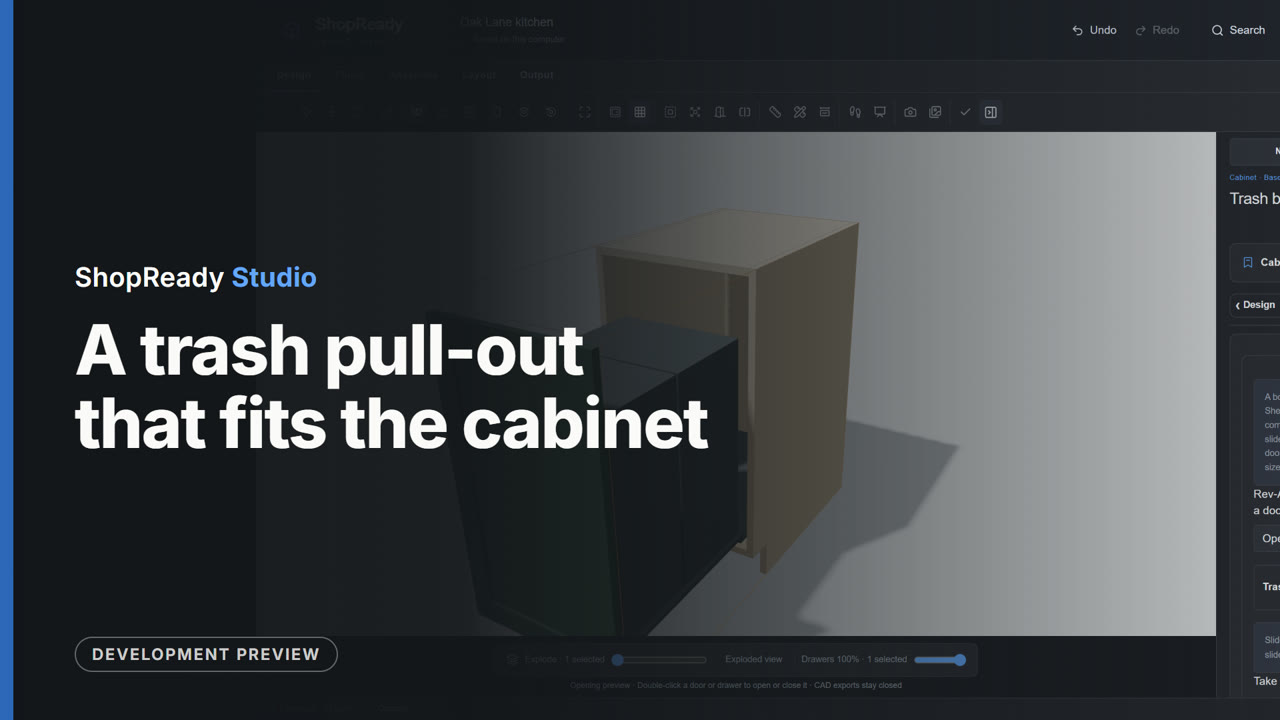
A trash pull-out that fits the cabinet
One 18 inch base cabinet. The Trash Pull-out tool is opened from the cabinet's Design tiles, the kind of front is chosen, the tool names the unit that fits the cabinet, Add to cabinet sets it up, and back in 3D the front slides out with the bins.
 Clip · 38 s
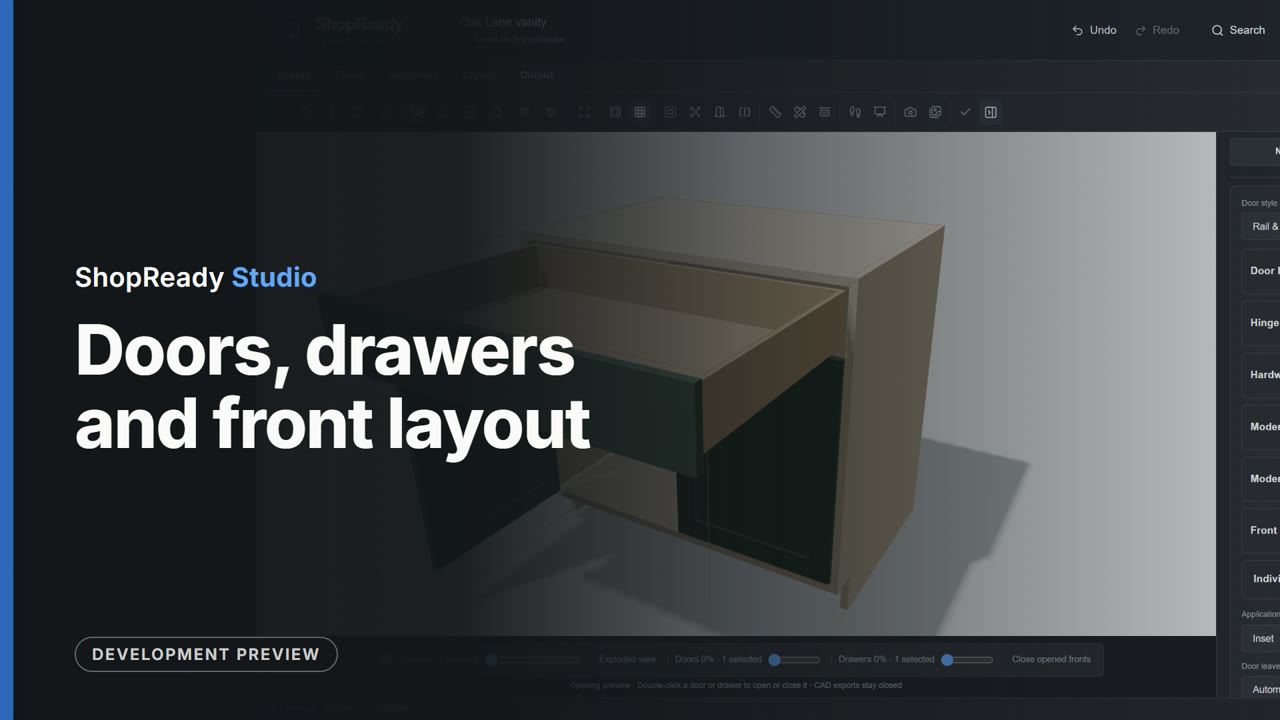
Doors, drawers and front layout
One 36 inch base cabinet. Front Layout changes it from two doors to a drawer over doors, to a stack of drawers and back; the Doors card changes the door style to slab and back to rail and stile; then a door and the drawer are opened with a double-click and closed again.
 Clip · 52 s
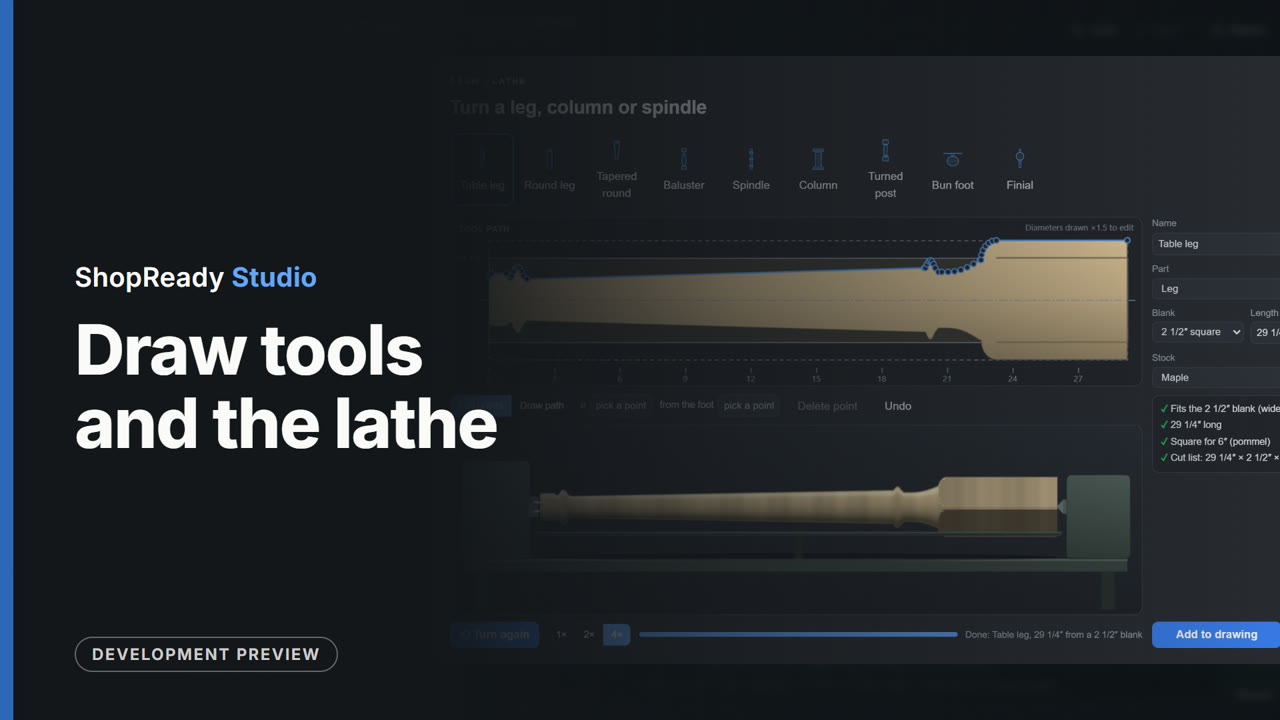
Draw tools and the lathe
On an empty job the Draw tools make a hall table: a board is drawn with a click and a typed size (60 by 30), lifted to table height, and four tapered legs and aprons are built under it. Then the lathe is opened, a turned leg is picked, and Turn it shows it cut from the square blank, with its cut-list size.
 Clip · 52 s
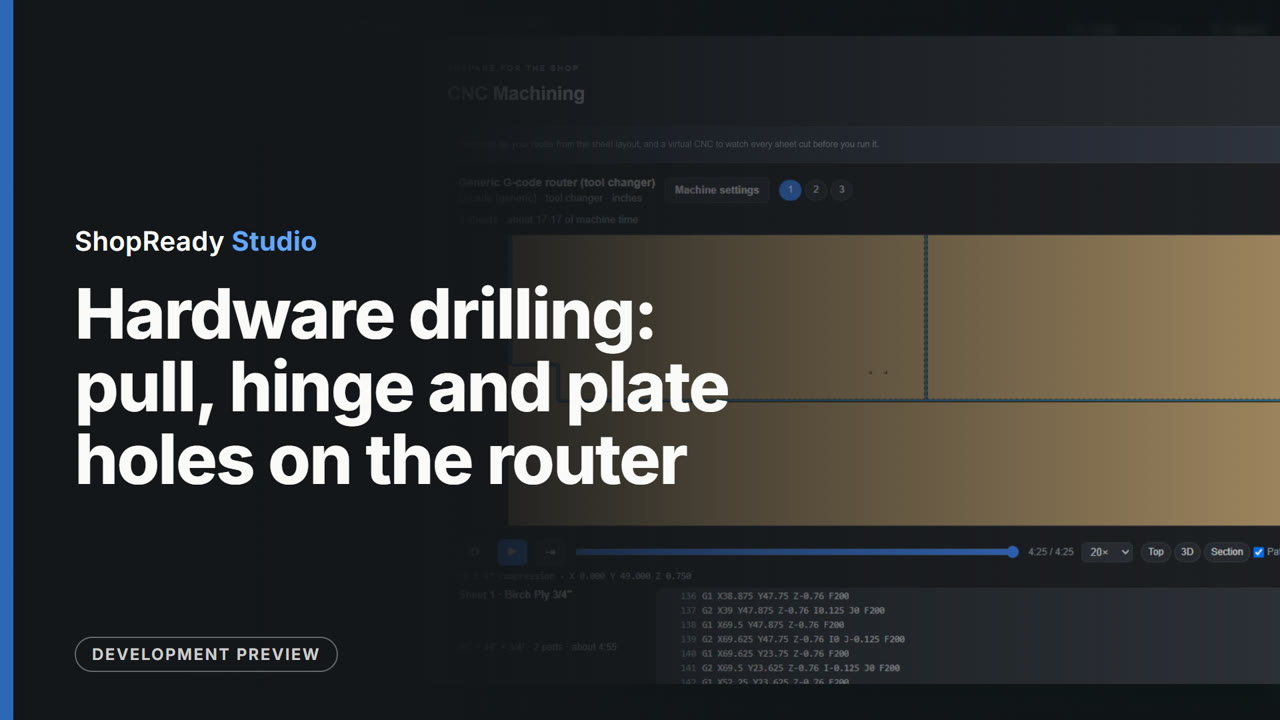
Hardware drilling: pull, hinge and plate holes on the router
One base cabinet with slab doors cut from sheet stock. In its Doors card, Hardware drilling is opened, pull holes are chosen and hinge plate holes are ticked. In CNC Machining, looking down on the sheet, one door is played on the virtual CNC with its pull holes and hinge cups, and a cabinet side is shown with its hinge plate holes.
 Clip · 28 s
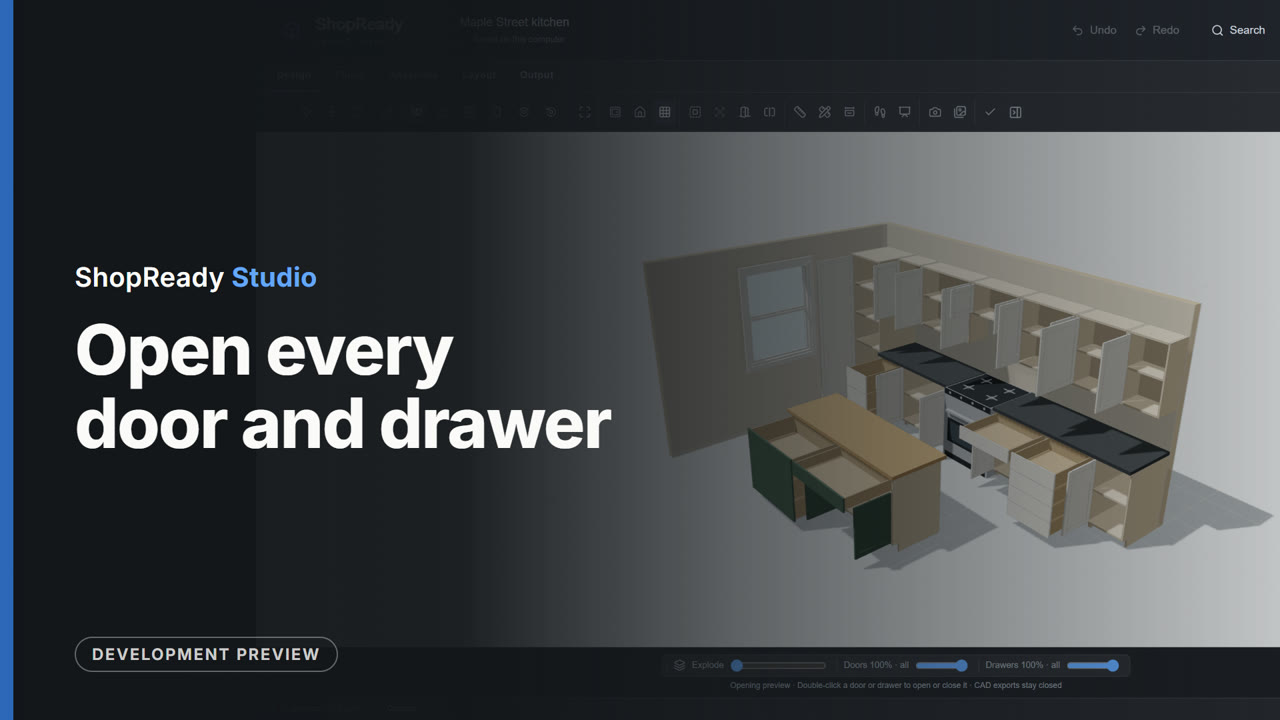
Open every door and drawer
The sample kitchen in 3D: every door swings open, every drawer pulls out, and the kitchen is turned to look inside the cabinets.
 Clip · 35 s
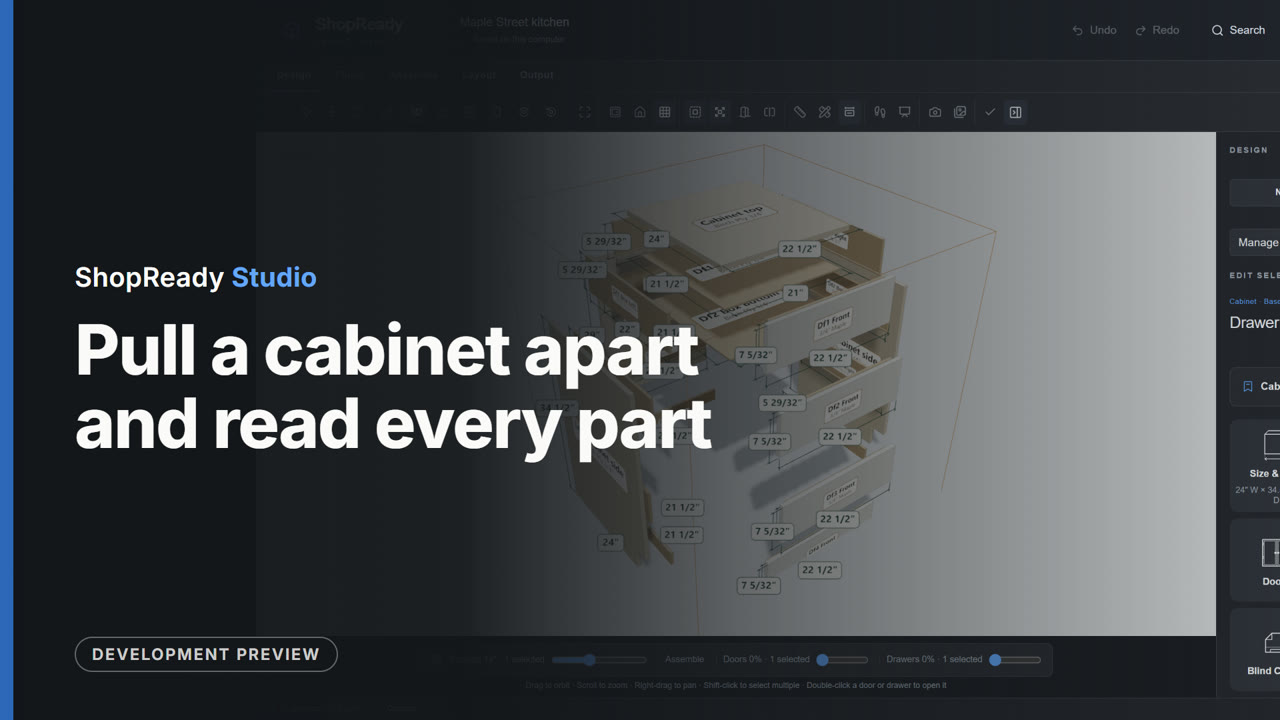
Pull a cabinet apart and read every part
A drawer cabinet is picked in the 3D kitchen, shown alone and pulled apart, turned, and then every part shows its name and cut size.
 Clip · 35 s
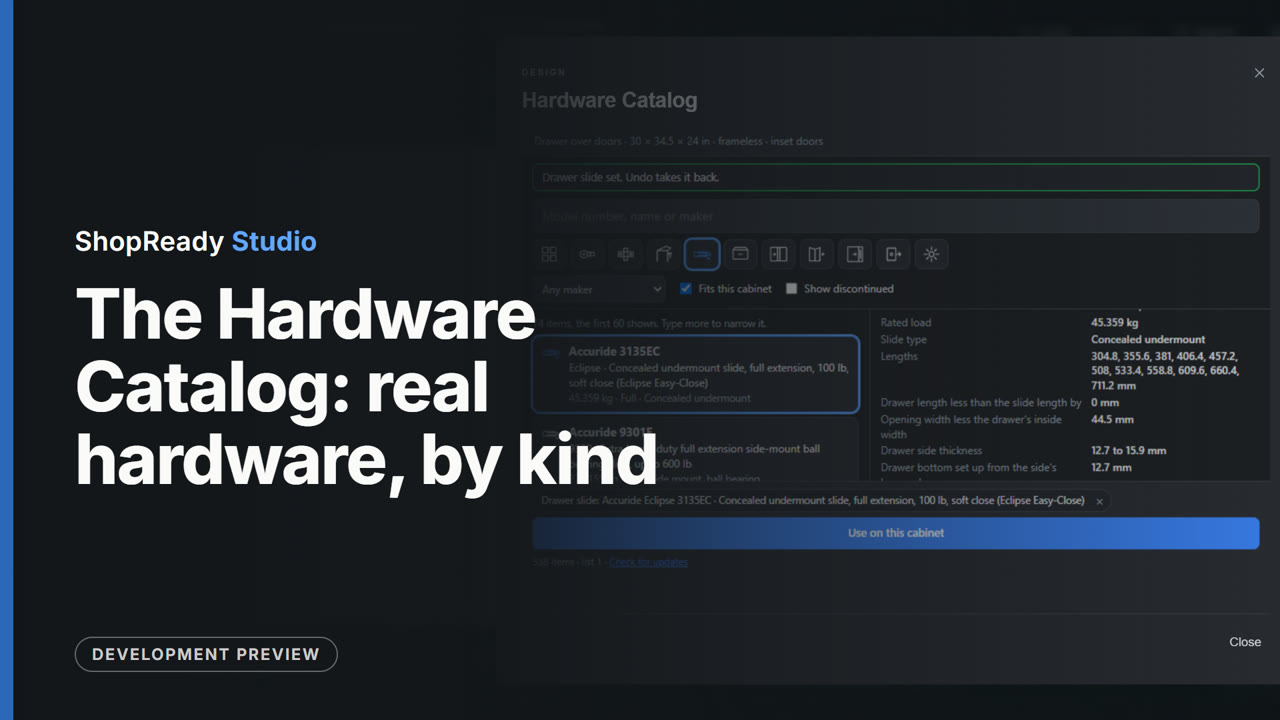
The Hardware Catalog: real hardware, by kind
The Hardware Catalog is opened for a cabinet in the sample kitchen. Its kinds are stepped through (hinges, lift and flap fittings, drawer slides), the list is narrowed to what fits this cabinet, a drawer slide is picked and its figures and their source are read, and Use on this cabinet puts it on the cabinet.
Layout
 Clip · 45 s
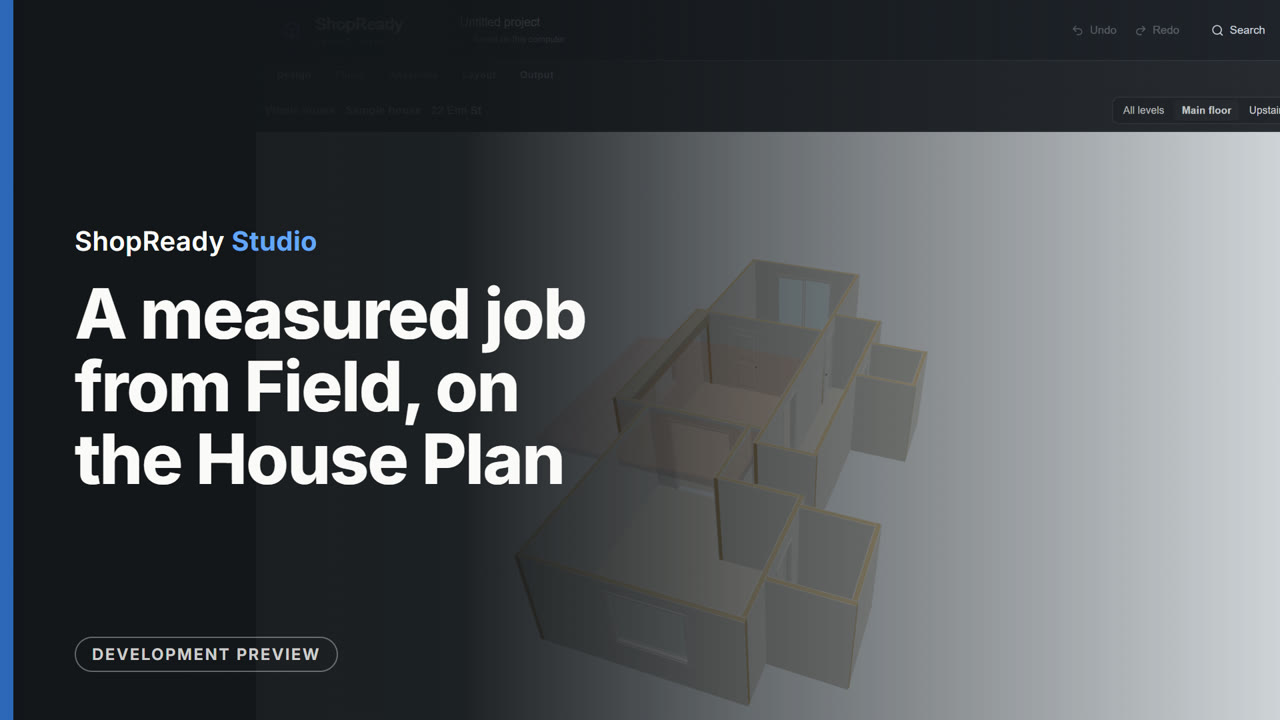
A measured job from Field, on the House Plan
A sample job file from ShopReady Field (a house of nine rooms) is brought in from Projects. The import report lists every room; Import job builds them and opens the House Plan with the main floor's rooms joined at their doorways. Checks points to a doorway that misses by a quarter inch, the upstairs level is shown, and the whole house is seen in 3D.
 Clip · 56 s
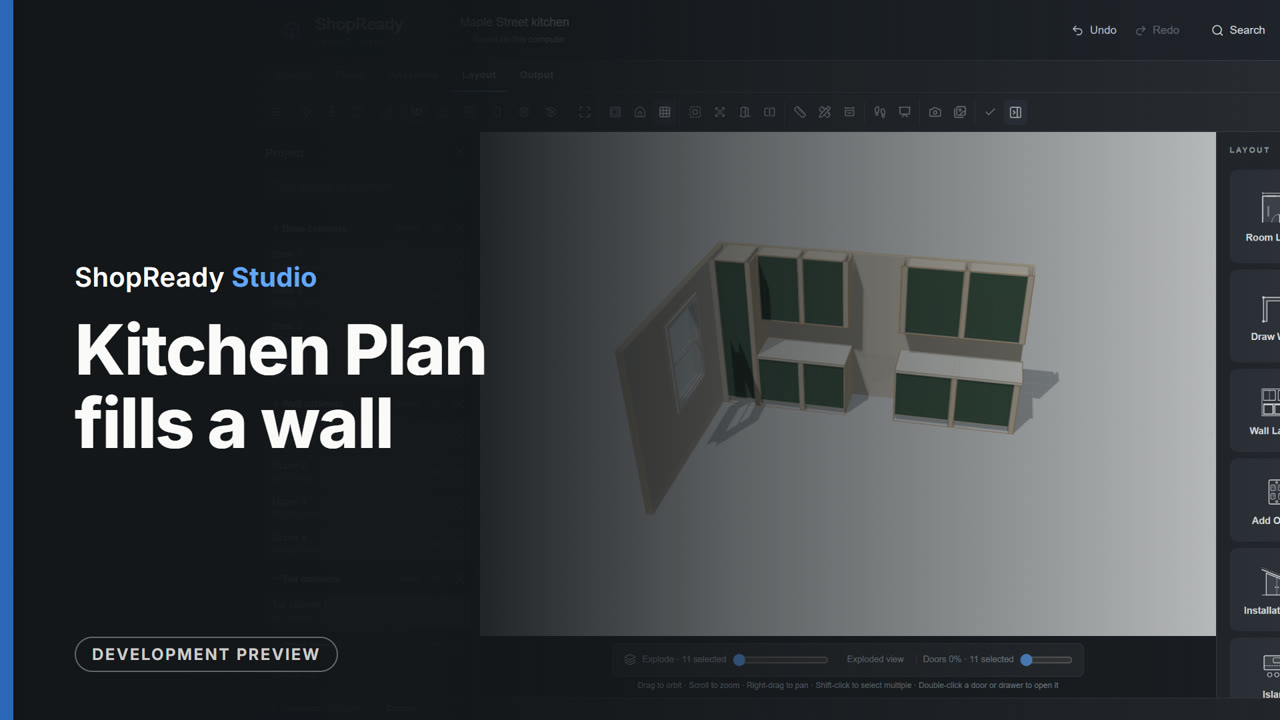
Kitchen Plan fills a wall
On an empty 15 foot wall, a tall cabinet, the range and the hood are marked, then four cabinet runs; cabinets fill each run with their widths shown. Review passes the set, Build makes the cabinets, and the kitchen is seen in 3D.
 Clip · 49 s
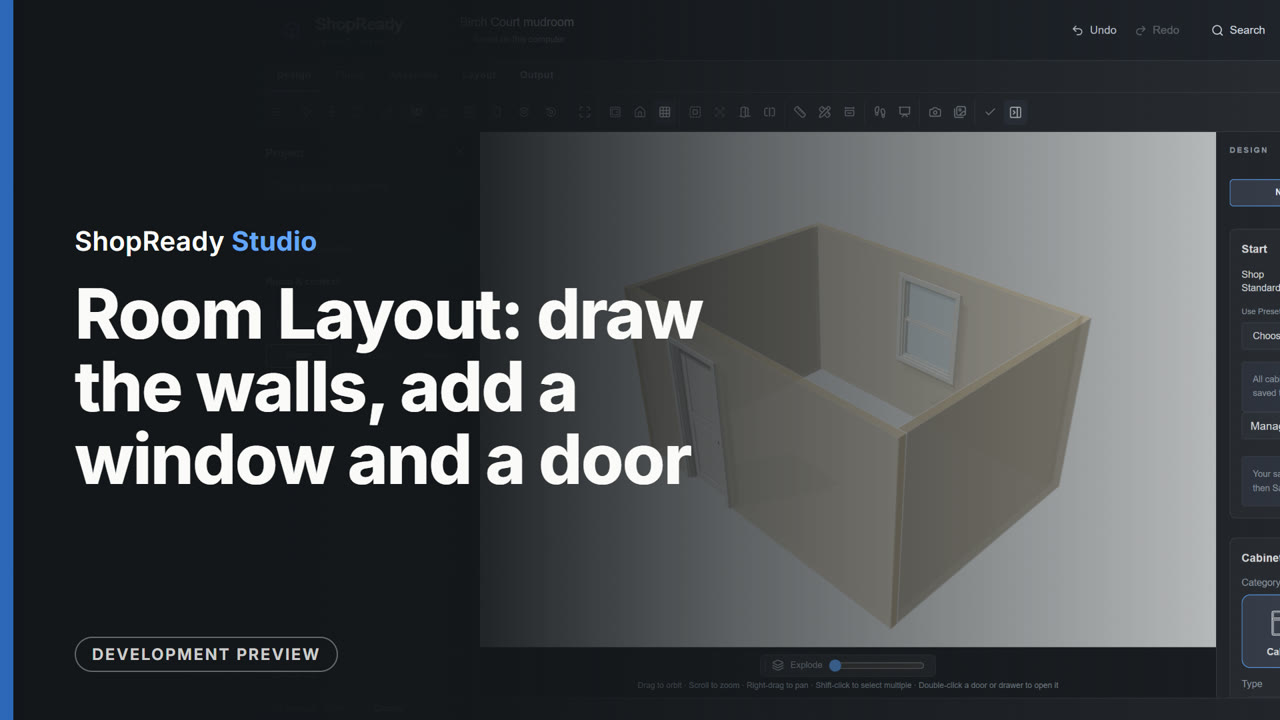
Room Layout: draw the walls, add a window and a door
On an empty job, Room Layout's Draw walls draws a room corner to corner: a click for each corner and a typed length for each wall (14 feet, 10 feet, 14 feet), closed on the first corner. A window and a door are added with a click on their walls, the wall is seen straight on, and Done shows the room in 3D.
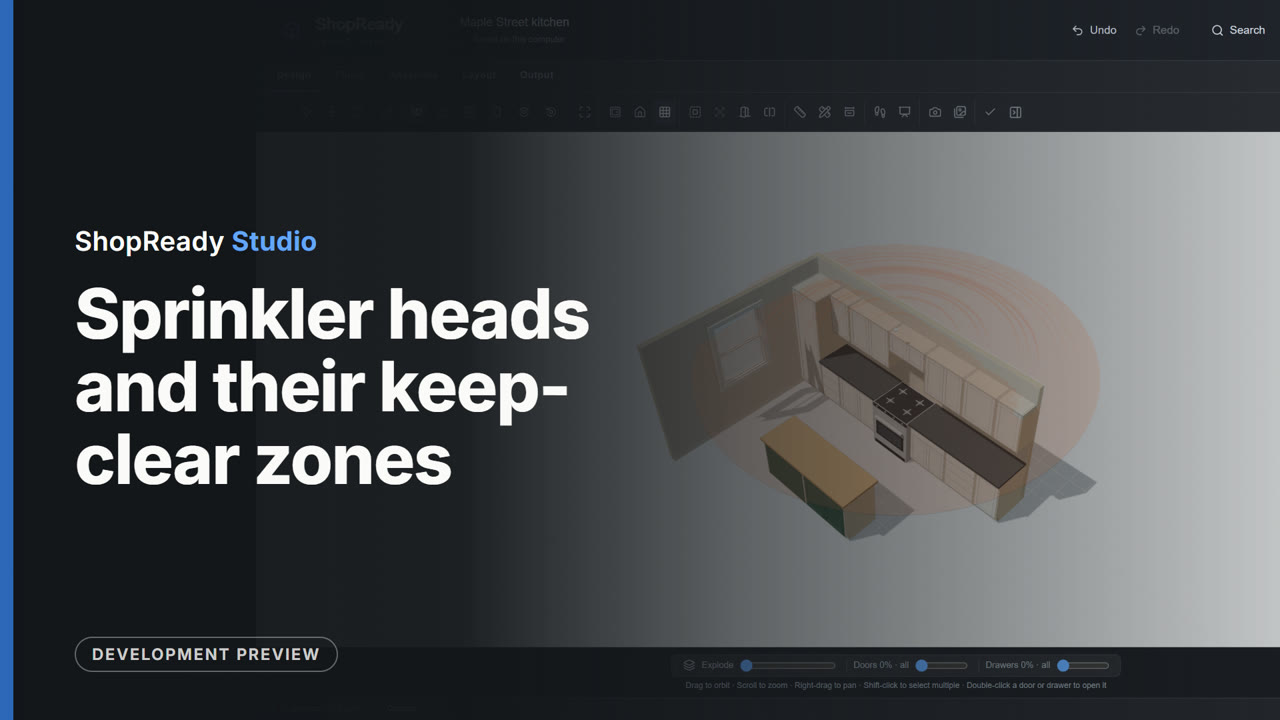 Clip · 43 s
Sprinkler heads and their keep-clear zones
In the sample kitchen the Sprinklers tool is opened, a ceiling head is added 18 inches off the back wall, the tool draws its keep-clear zone, Check the millwork lists the cabinets that sit in the zone, and the zone is seen in 3D with the cabinets.
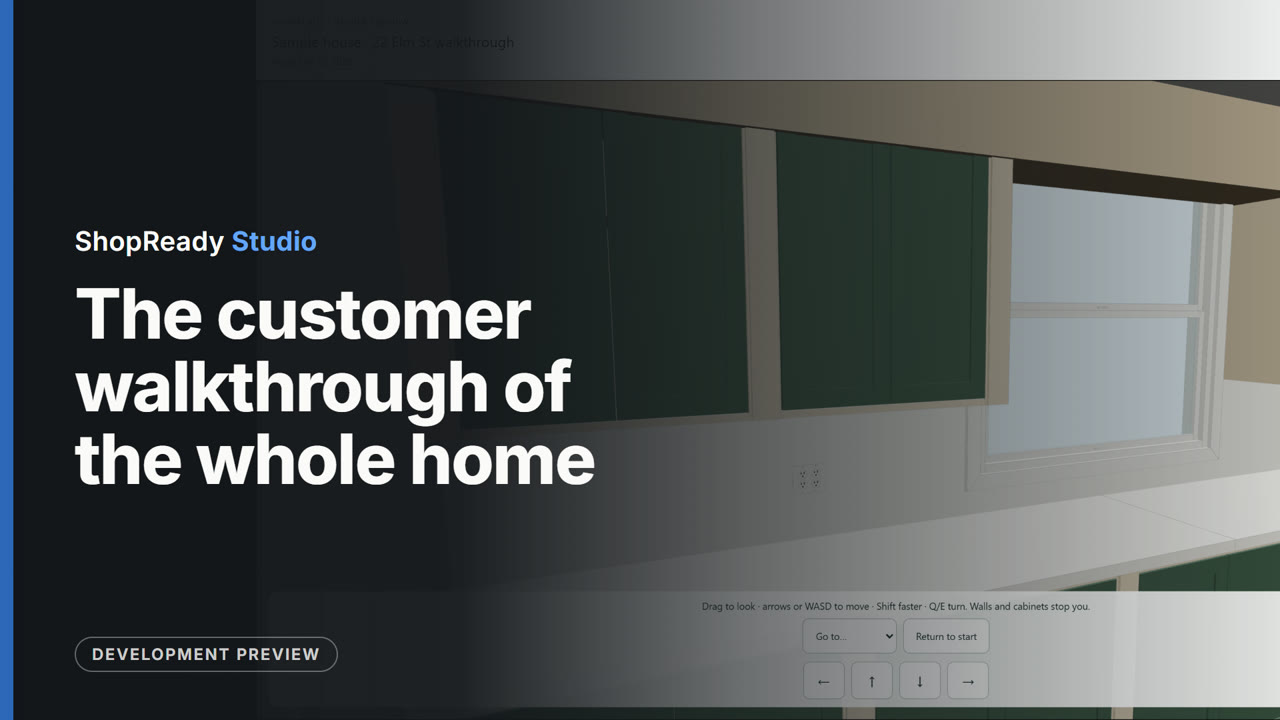 Clip · 47 s
The customer walkthrough of the whole home
A sample house brought in from a Field job file, with cabinets laid out in its kitchen. From the House Plan the customer's walkthrough is built: a read-only 3D copy of every room. It is published as a link on this computer and opened: the whole home is turned in 3D, then the view walks into the kitchen and looks round at the cabinets.
Output
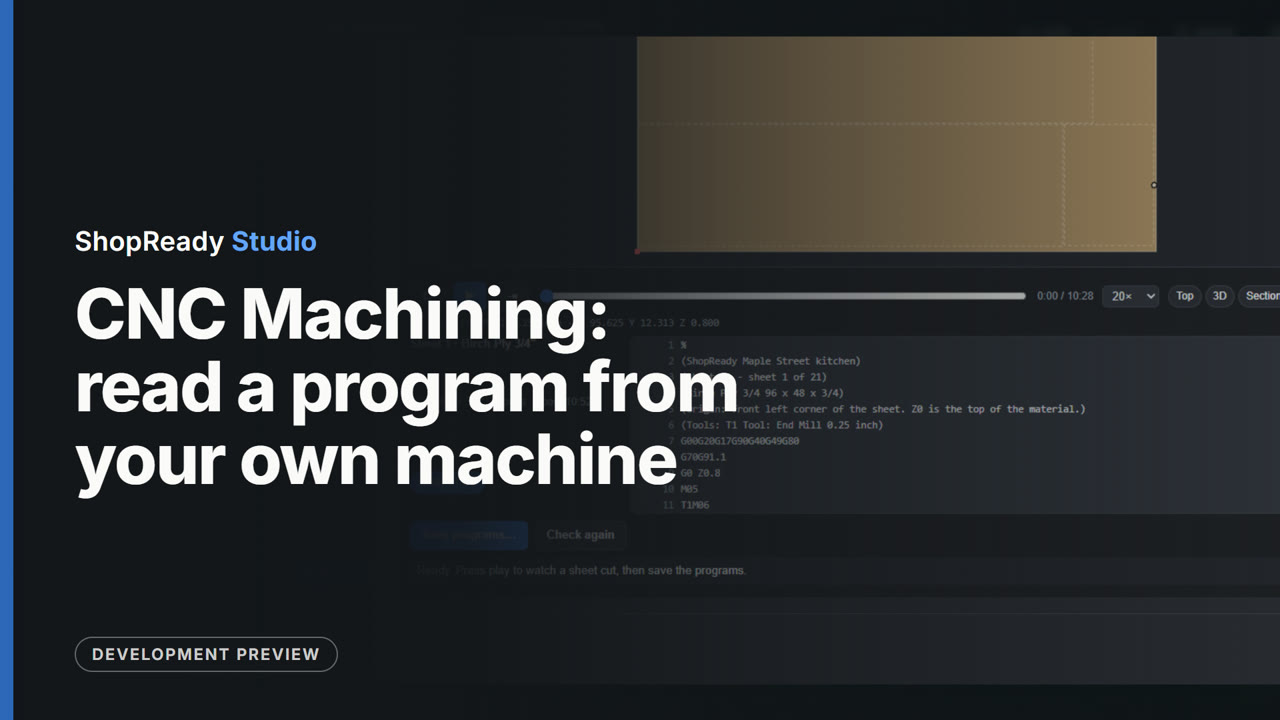 Clip · 41 s
CNC Machining: read a program from your own machine
In CNC Machining for the sample kitchen, Machine settings is opened and a sample program is read with Read a program from your machine. The tool lists what it learned from it, the Program text tab shows the program's own start and end, and Use these settings writes every sheet's program that way.
 Clip · 23 s
Customer Package: one PDF for the customer
From the Output screen of the sample kitchen, Customer Package opens, says what the PDF holds, and Make customer package saves it and lists its pages.
 Clip · 44 s
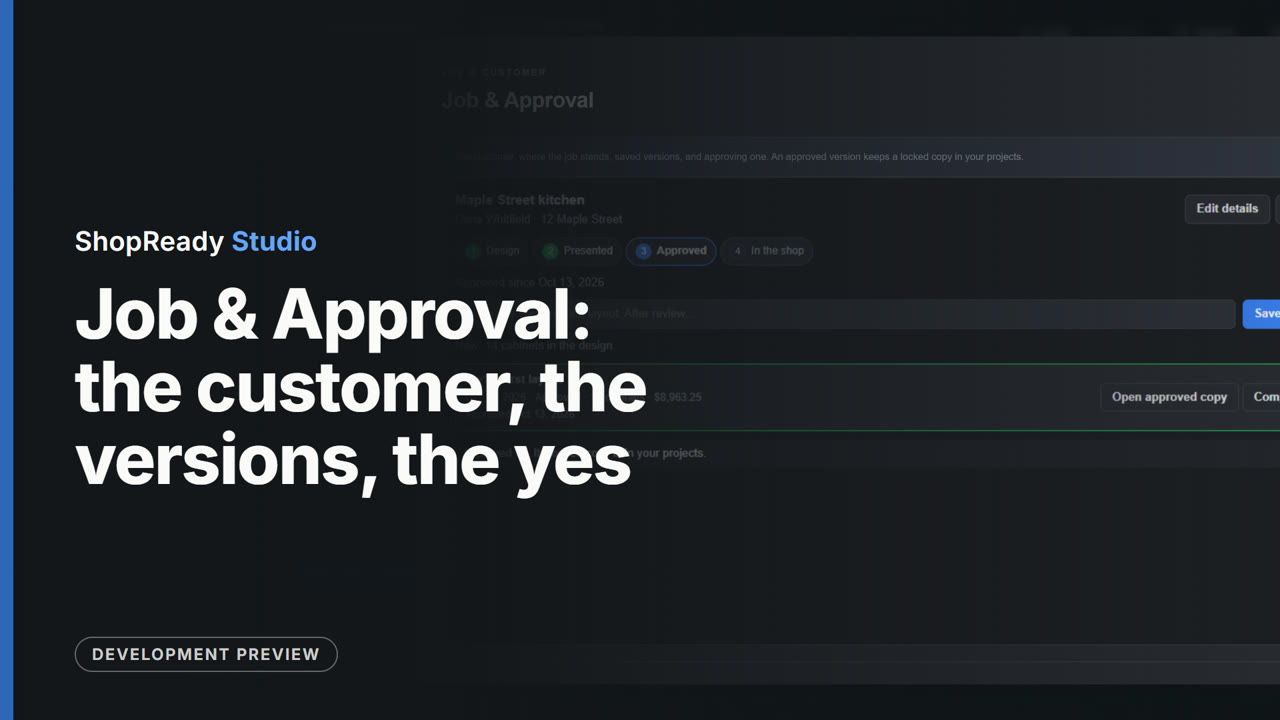
Job & Approval: the customer, the versions, the yes
Job and Approval for the sample kitchen: a customer and address are typed in, a version of the design is saved with its cabinet count and price, the job is marked Presented, and the version is approved, which keeps a locked copy.
 Clip · 29 s
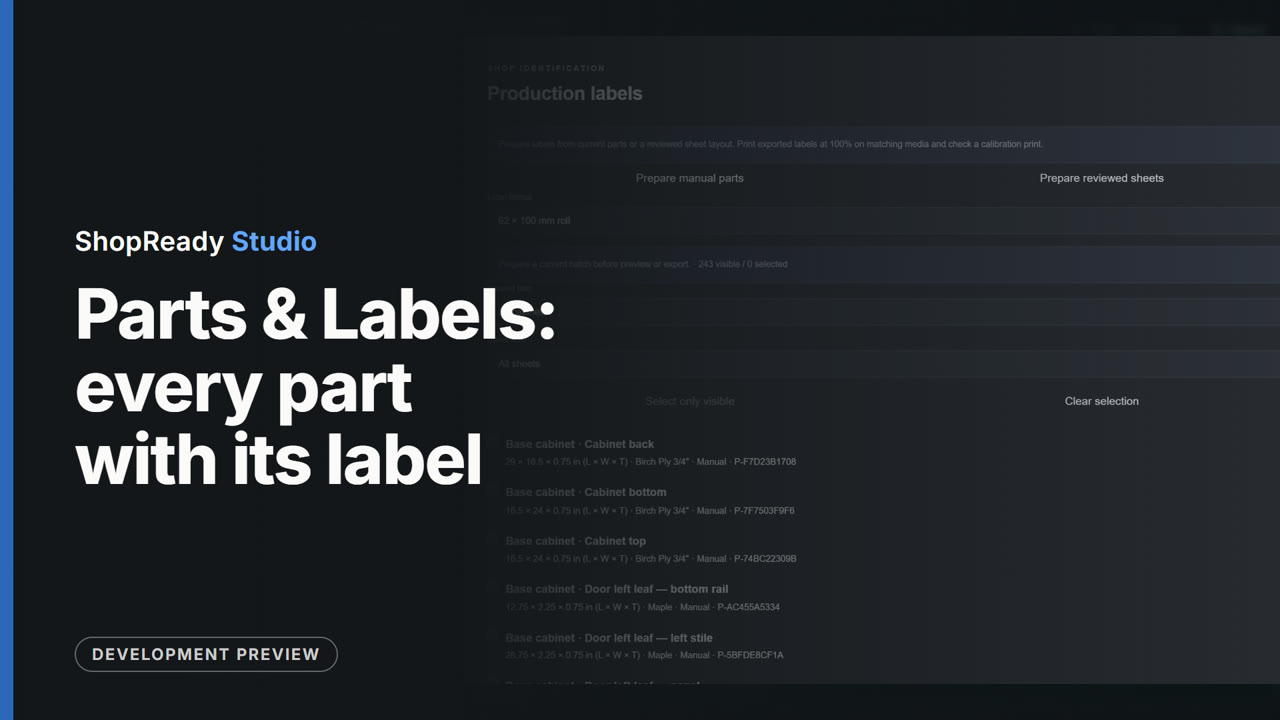
Parts & Labels: every part with its label
The Parts and Labels screen of the sample kitchen: the parts of one cabinet are stepped through and each shows its label, a search narrows the list across the whole job, and Print or save labels opens the Production labels window.
 Clip · 41 s
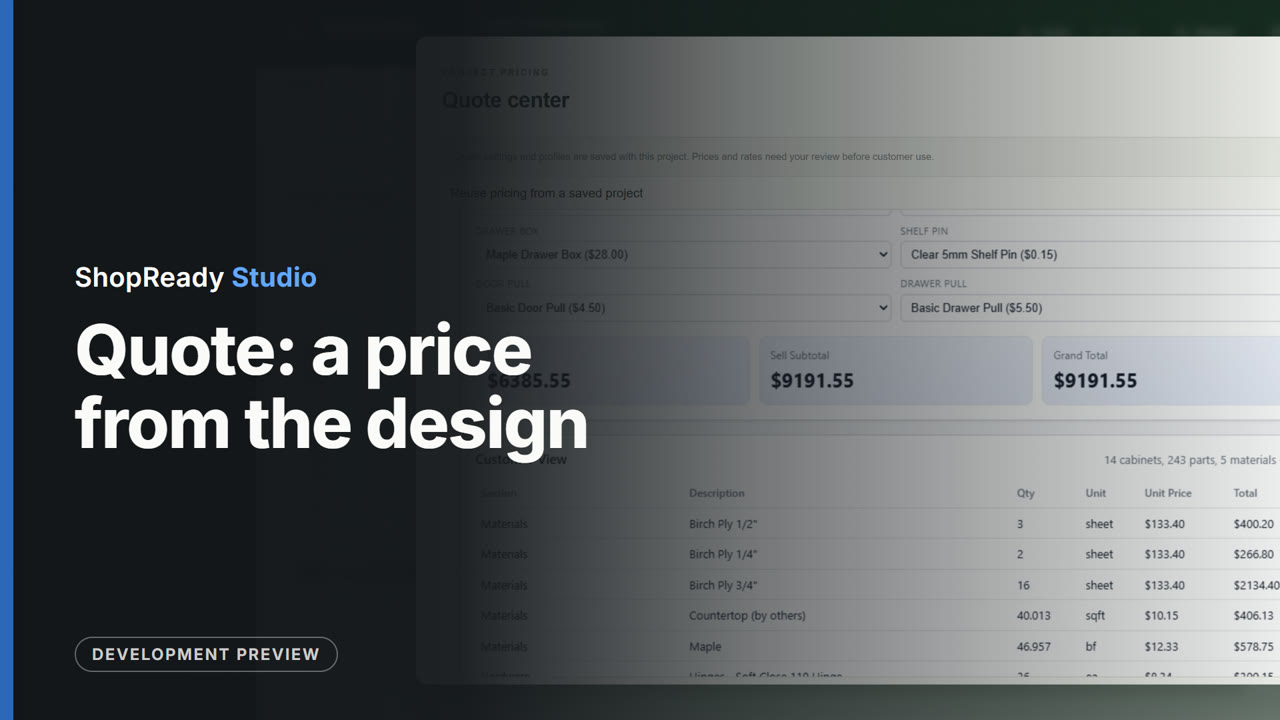
Quote: a price from the design
The Quote Center for the sample kitchen: the price is built from the design's own counts of sheets, boards and hardware. A hardware choice is changed and the totals follow; a line of the shop's own is added and the total rises by it.
 Clip · 32 s
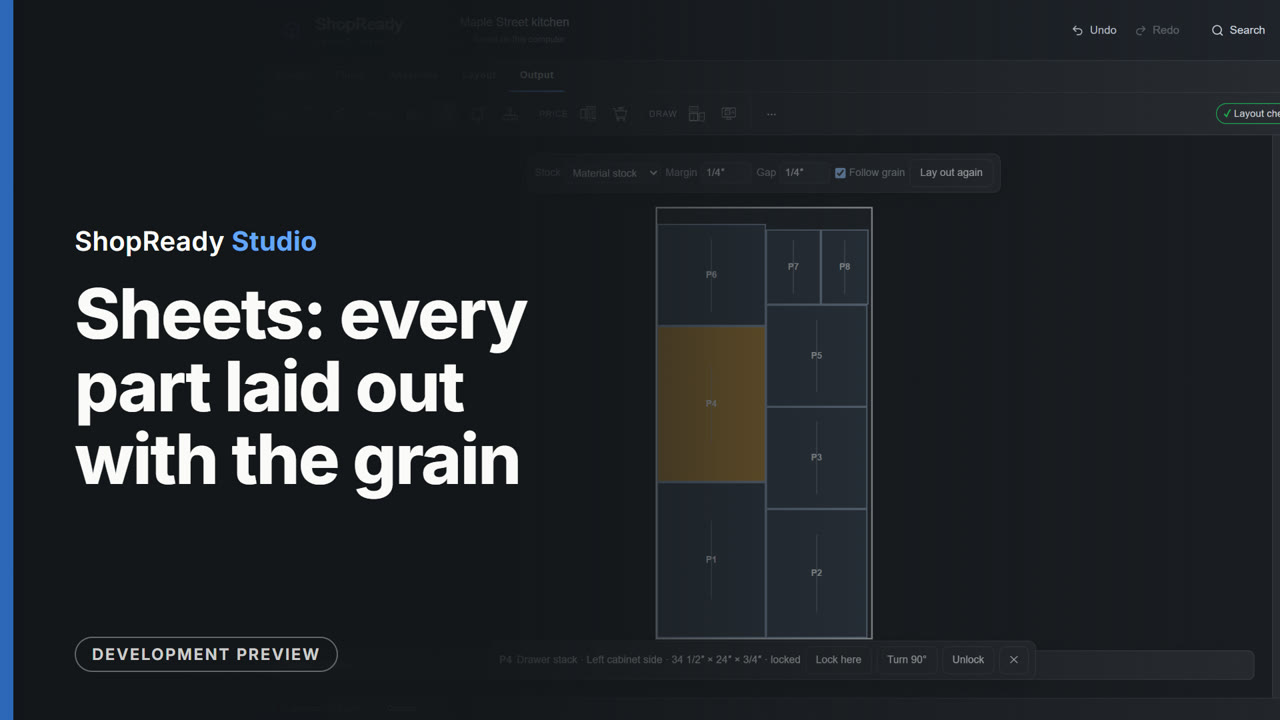
Sheets: every part laid out with the grain
The Sheets screen of the sample kitchen: the sheets are stepped through, Follow grain is seen ticked, a part is locked where it lies, and the layout is marked checked.
 Clip · 30 s
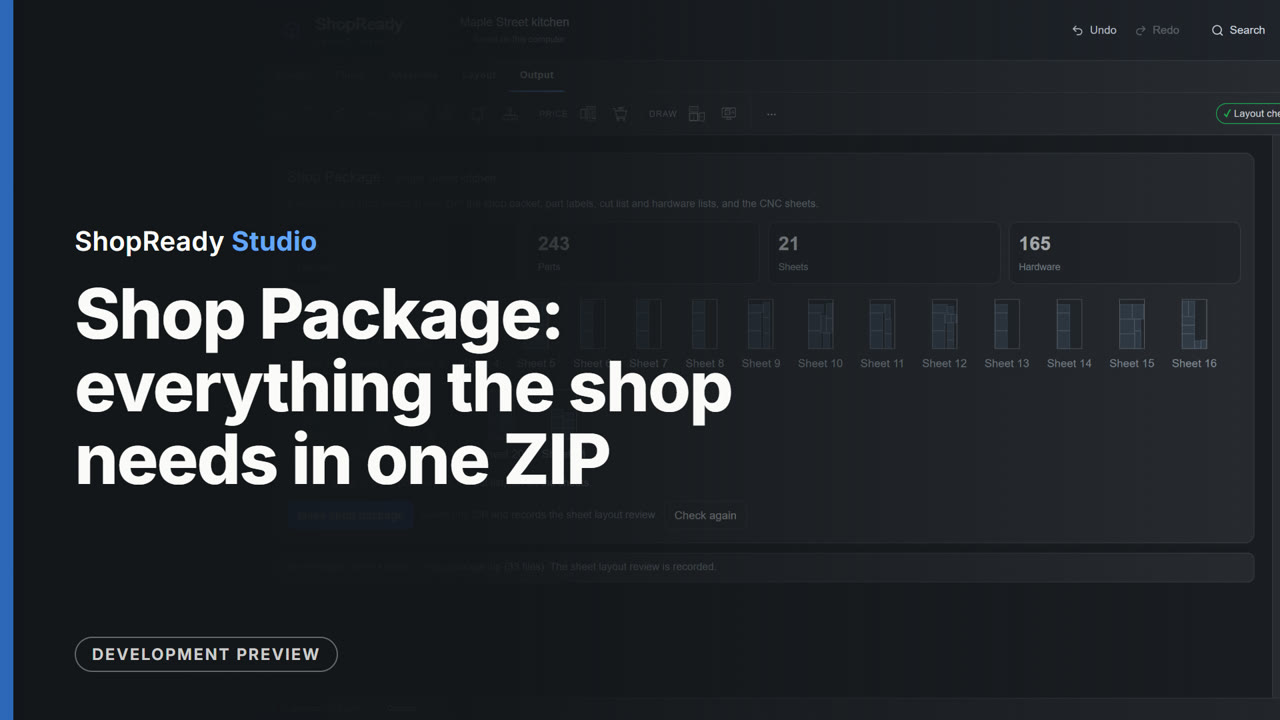
Shop Package: everything the shop needs in one ZIP
The Shop Package screen of the sample kitchen: the counts of cabinets, parts, sheets and hardware, a small picture of every sheet, the stock and hardware lists at the right, and Make shop package, which saves the ZIP and lists what is in it.
 Clip · 45 s
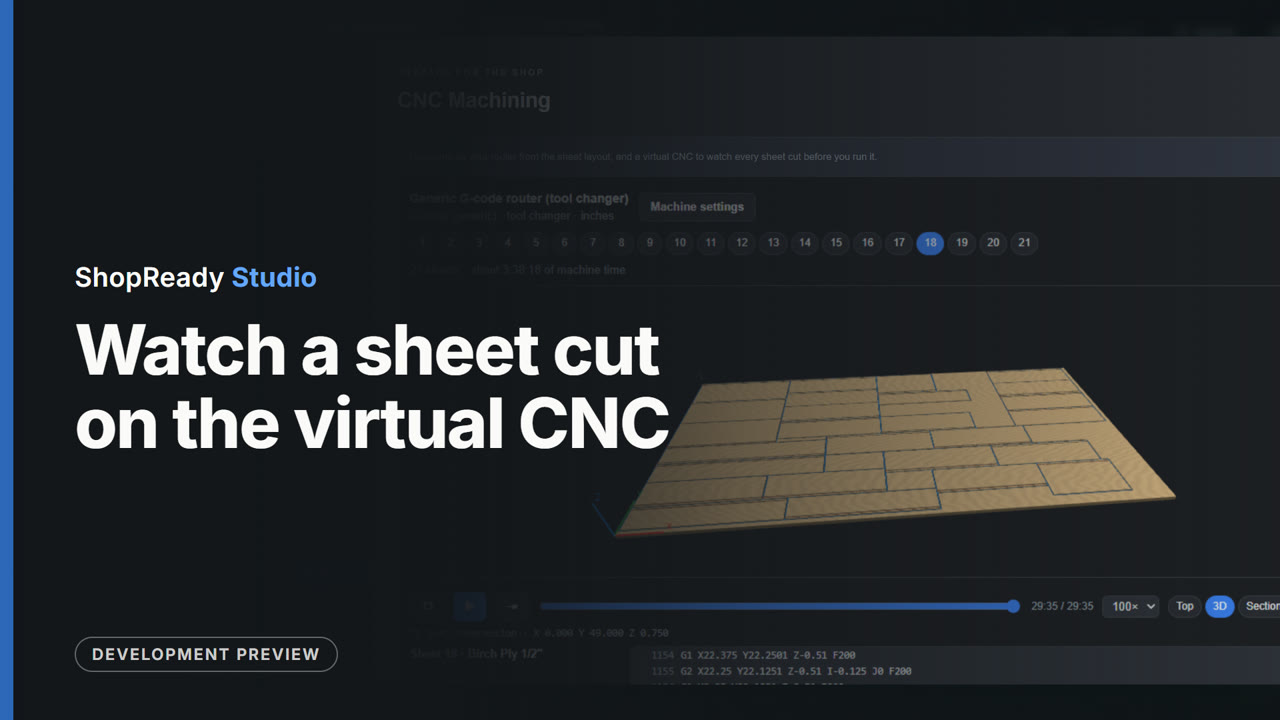
Watch a sheet cut on the virtual CNC
From the Output screen, CNC Machining opens with a program for each of the sample kitchen's 21 sheets. One sheet is picked and played on the virtual CNC, from above and then in 3D, to its end.