Learn
392 videos.Find the one you need.
Pick a tool, pick a kind of video, or type what you want to do. There are 107 short lessons, 166 feature clips, 20 whole projects in 70 chapters, and 29 tours and longer films. Every one is the program itself at work, narrated, with captions.
392 videos
 Tour · 3:32
ShopReady Draft 2D in three minutes
The short tour, cut from the clips and projects below: snapping, typed sizes, editing, dimensions that follow, lettering, one picture five ways, a CNC job and its simulation, a carved sign, a relief, parts nested on sheets, a laser job previewed, a job sent to a pretend machine, gears that mesh, a trip hammer, a carriage run by switches and rules, a door on a gas strut, and Show me.
 Tour · 2:14
ShopReady Draft 3D in two minutes
The short tour, cut from the clips below: a block from a rectangle with its size typed, the marks the pointer is drawn to, Spin, Hole and Round, a bracket's boss and pocket, gears held where they mesh and set turning, a crank and piston, and a part sliced and looked into layer by layer.
 Film · 3:36
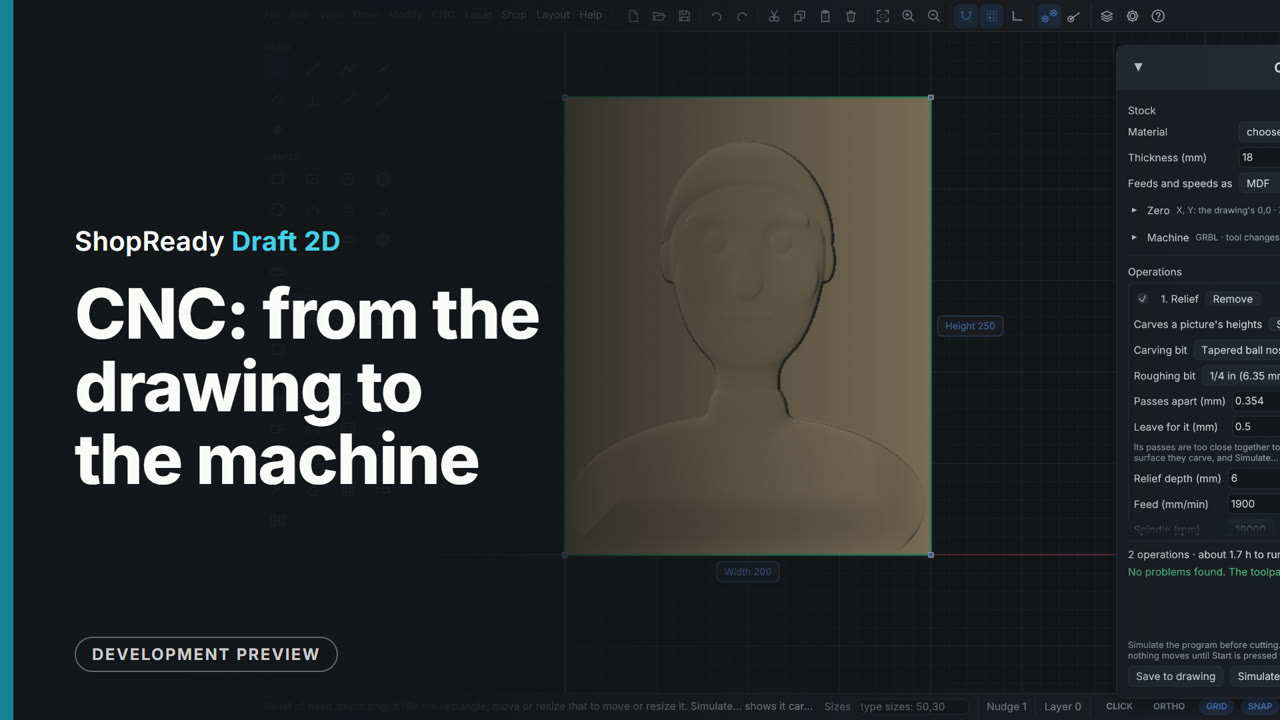
CNC: from the drawing to the machine
A job from a drawing, a V-carved sign, a picture traced and carved, a photo as shading lines and dots, and a relief, each followed by the simulator cutting it.
 Film · 1:58
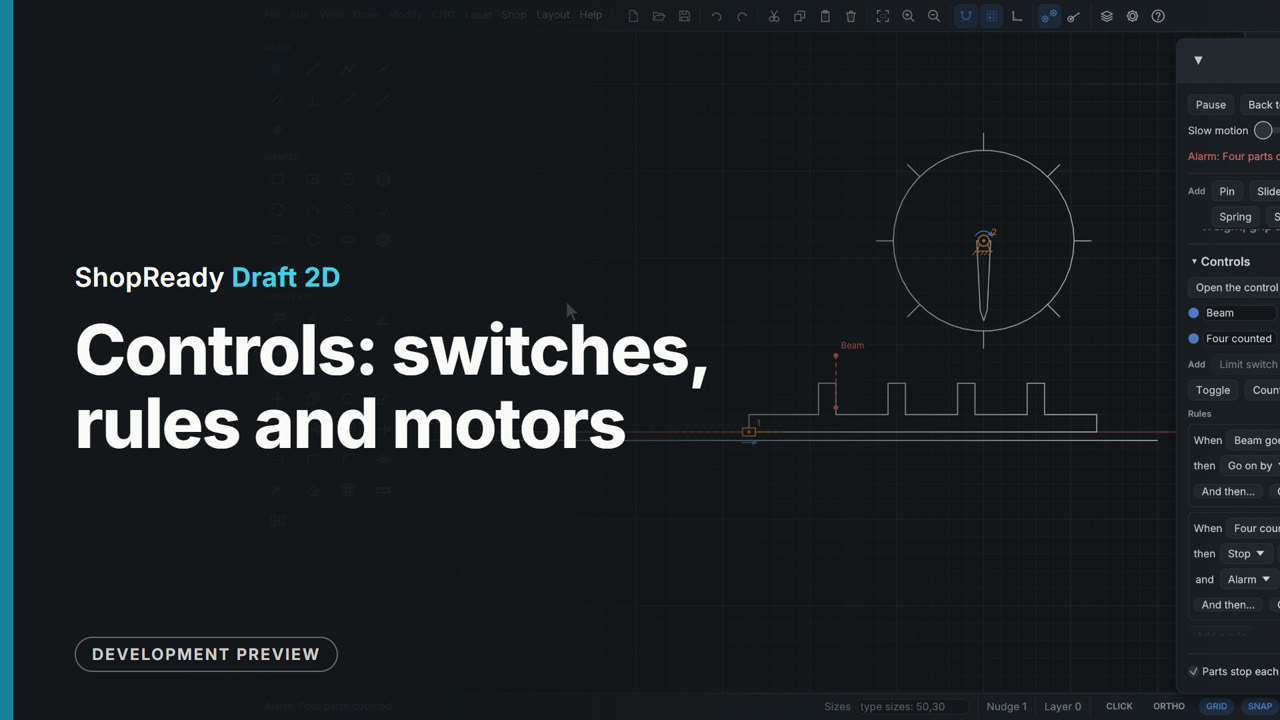
Controls: switches, rules and motors
A slide turned back at each end by limit switches and rules, a control panel of buttons, lamps and an alarm running a barrier arm, and a beam that counts pegs and steps a dial.
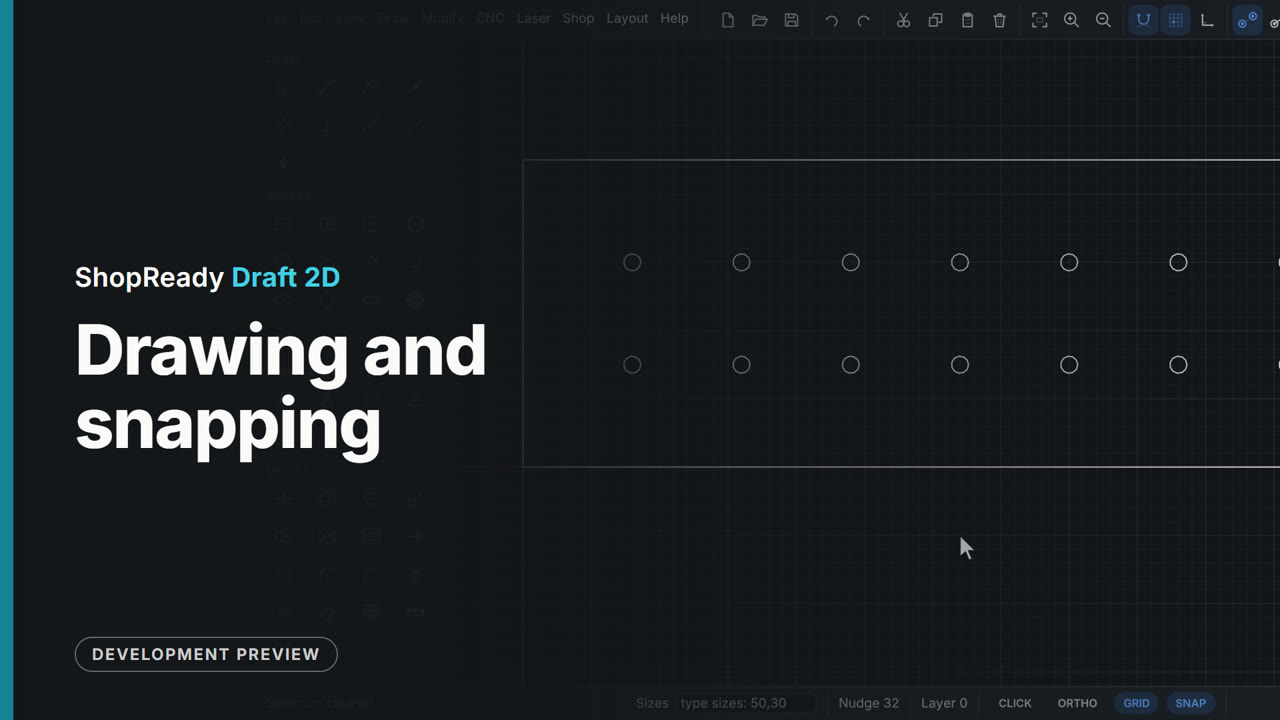 Film · 5:06
Drawing and snapping
How drawing works: click or type a size at any time, shapes, a real part outline, points that wake up and the lines through them, every kind of snap, angles taken from a line, and the small things that save time.
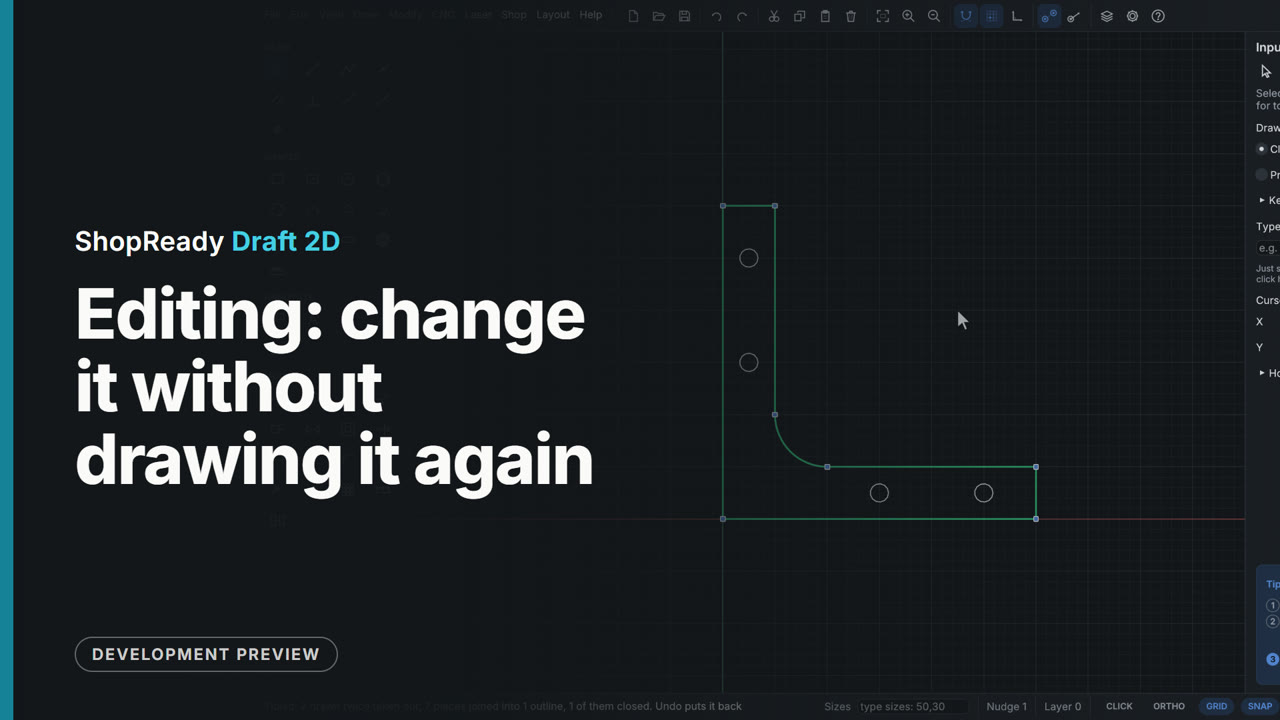 Film · 6:17
Editing: change it without drawing it again
Corners rounded and cut, outlines offset, pieces trimmed and joined, parts moved, copied, turned and mirrored, holes repeated in rows and circles, parts stretched, sizes locked, assemblies, layers, and the room working parts need. Then shapes made from shapes: welded, cut away, kept where they overlap, and tidied for cutting.
 Film · 10:31
Every tool, shown
All forty-four tools in the palette, each demonstrated by the program itself on a scratch drawing, with the tool's name, its key and what it does beside it. Chapters for every tool.
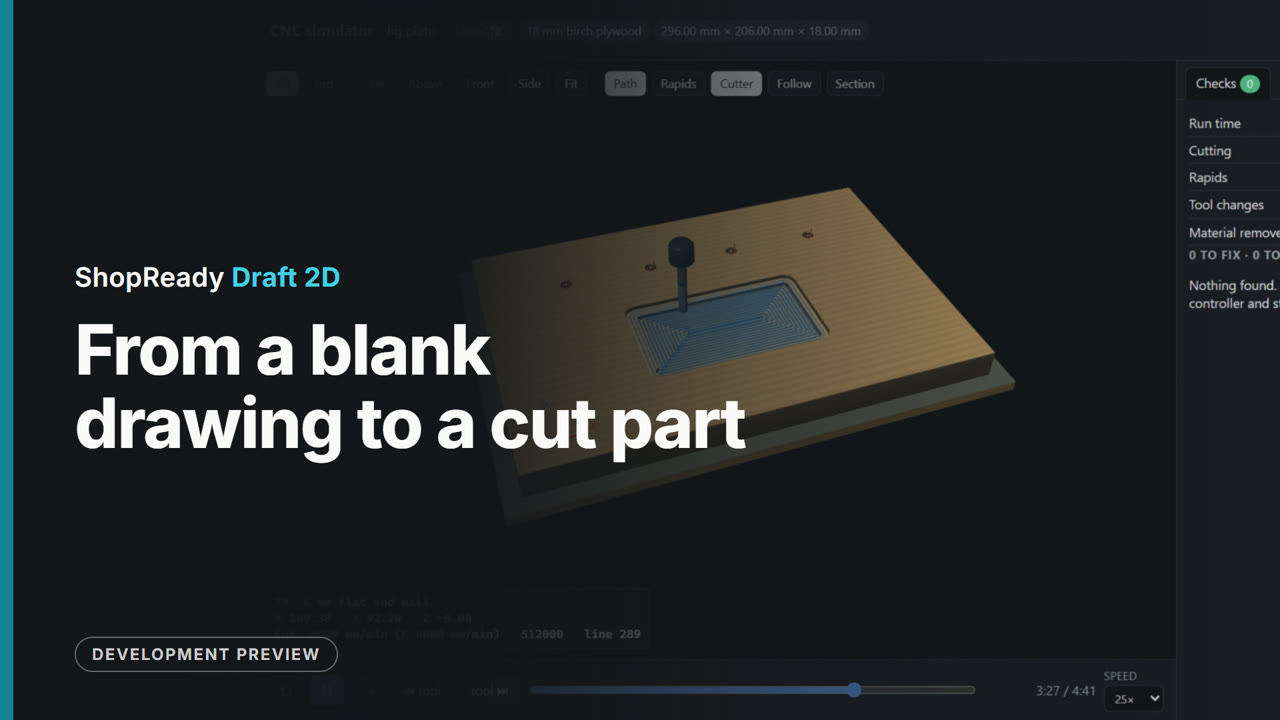 Film · 2:04
From a blank drawing to a cut part
One job all the way through: a jig plate drawn from nothing with every size typed, made a CNC job (holes, a pocket, the outline on tabs), its G-code written, and the cut watched in the simulator.
 Film · 11:48
How to, and things that move
The program's demonstrations of snapping, typing sizes, angles, editing and notes, then the fourteen on things that move: joints, motors, springs, weight, struts, and parts that stop each other.
 Film · 3:31
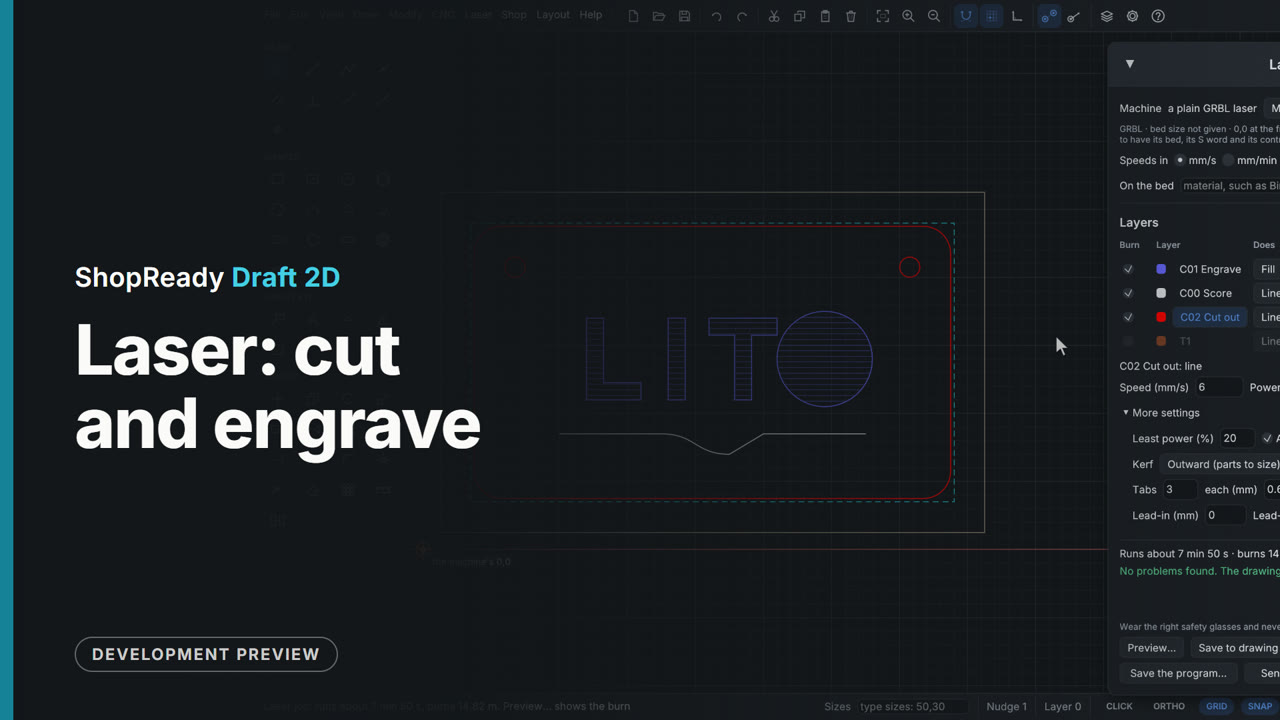
Laser: cut and engrave
The laser job: layers with their own speed, power and passes, the preview with its clock, a material test grid, only the selected shapes with lead-ins, and a laser project file opened with its layers and settings.
 Film · 4:16
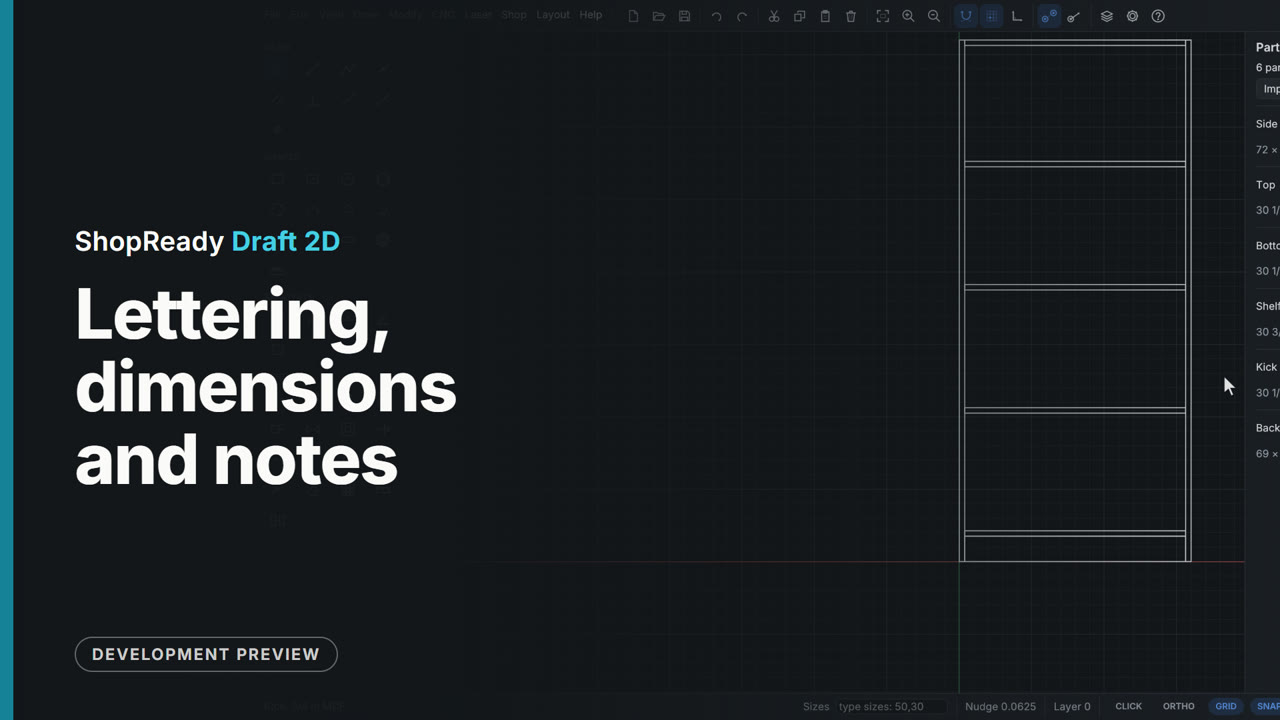
Lettering, dimensions and notes
Dimensions that follow the part, callouts that are never cut, lettering in carving fonts, letters along a curve, hatching and the paper sheet, and the shop's materials and parts list.
 Film · 2:31
Machines: connect, move, frame and send
The Machine window on a pretend machine, with nothing plugged in: a router added by hand with its bed and corner, connected, homed, moved by click and by hold, zero set, the console, then a job framed, started, paused, resumed and stopped.
 Film · 5:46
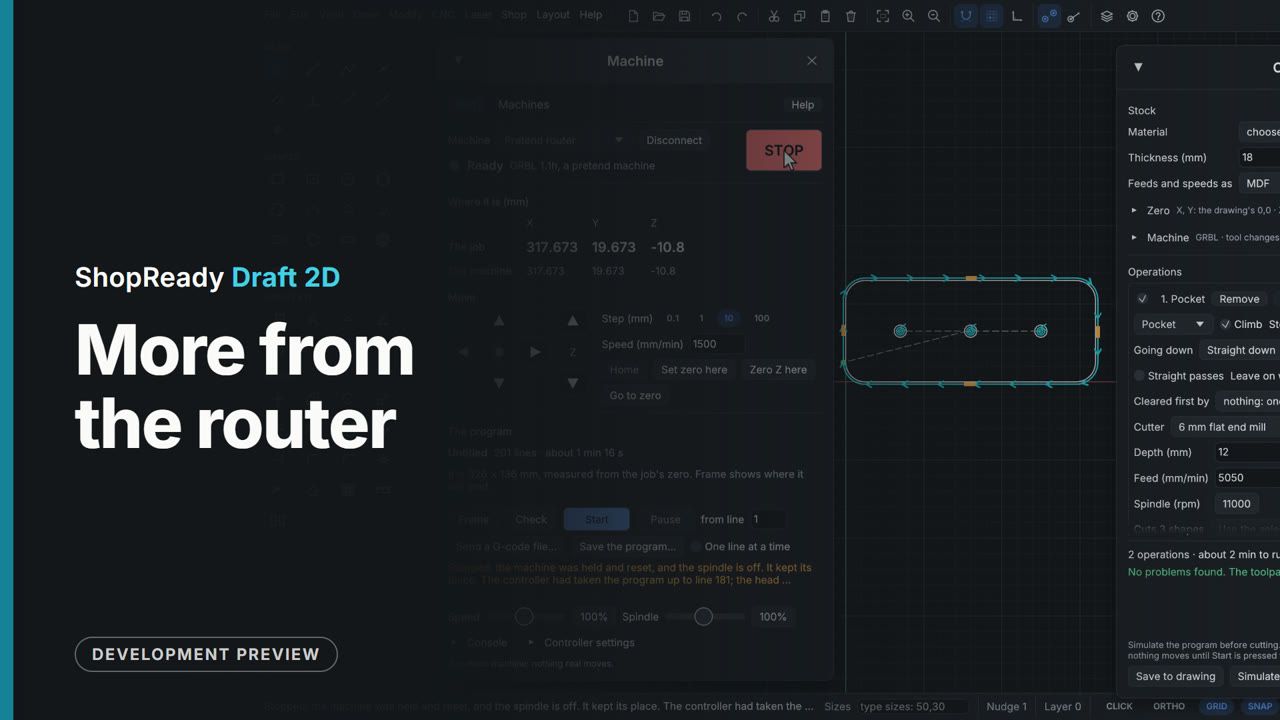
More from the router
Inlays with their cross-section, dogbones and T-bones, tabs and start points placed by hand, chamfers, grooves, flutes, texture and raised carving, the job sheet, a long part cut in tiles, a part cut from two sides, and the job sent to a pretend machine.
 Film · 5:45
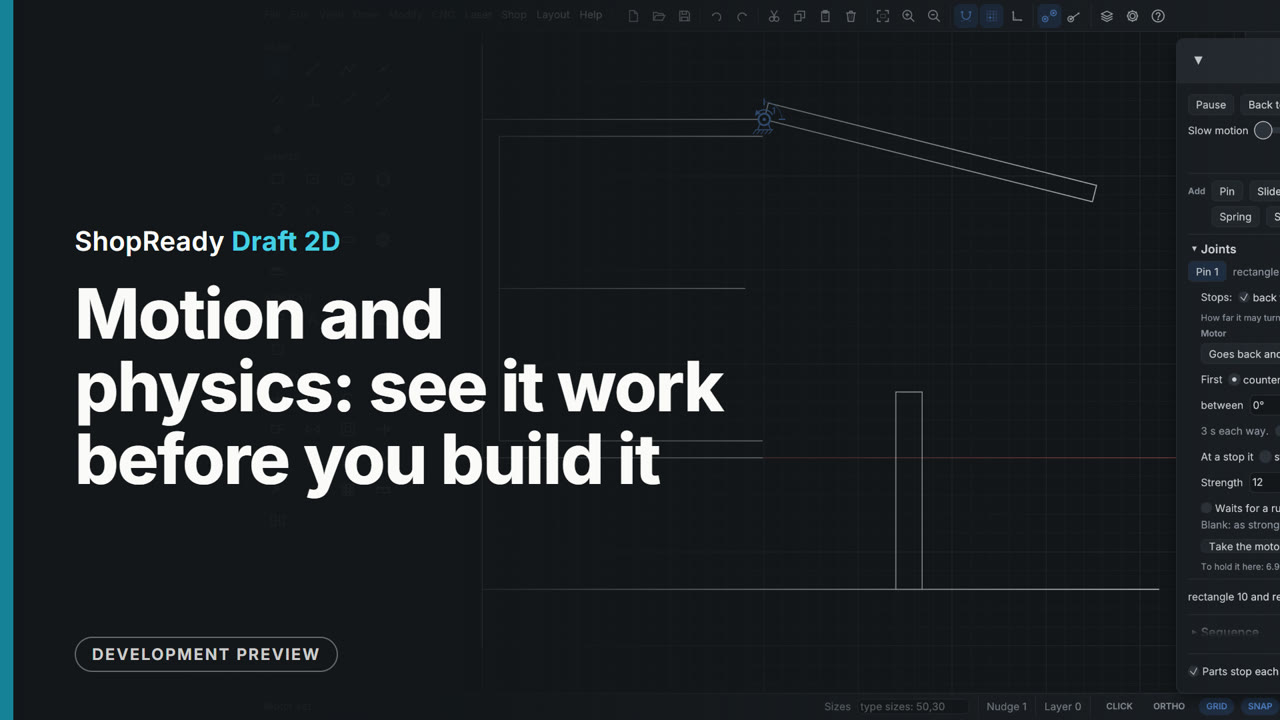
Motion and physics: see it work before you build it
Gears that mesh with no sums, trains, racks and belts, a crank and slide, cams and ratchets that work by touching, a lid on a gas strut, grip, rolling and bounce, parts moved by hand, hits found, and a motor's strength.
 Film · 3:47
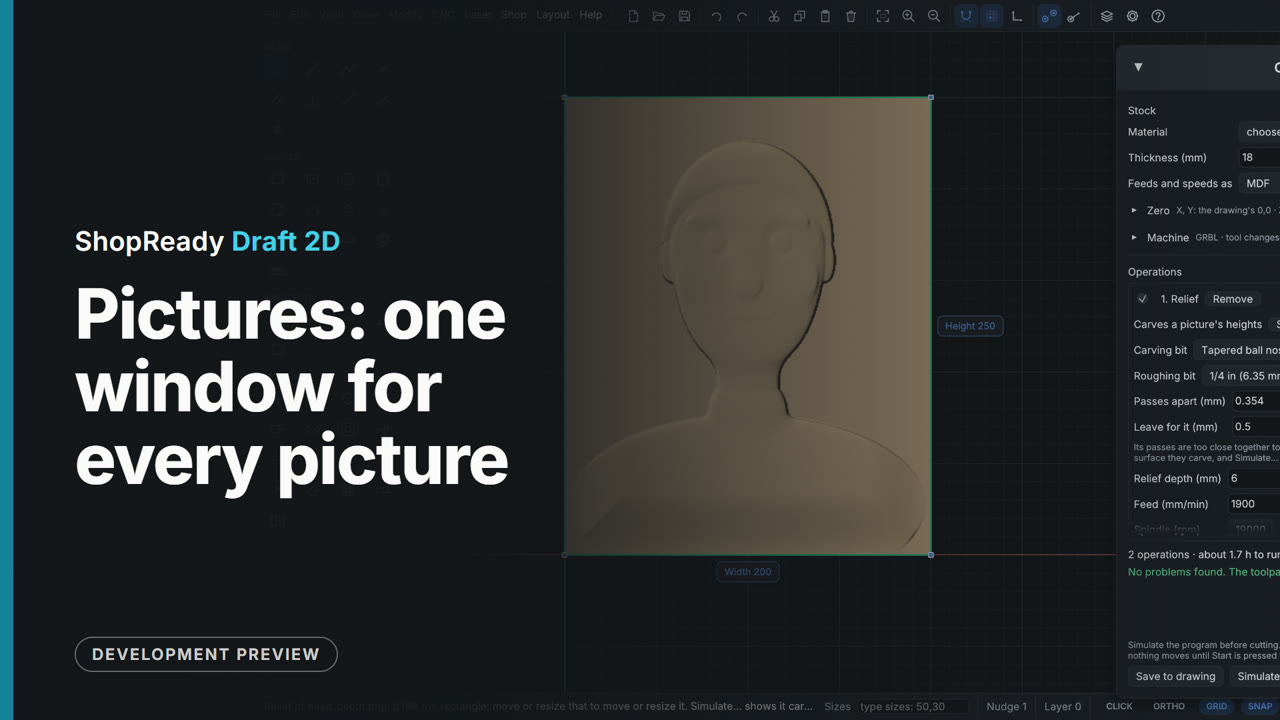
Pictures: one window for every picture
One picture window for all of it: a photo as outlines, shading lines, dots, a relief or a laser engraving; a relief shaped and shown lit; a 3D model opened as a relief; then a traced emblem, a photo and a relief carried through to a CNC job.
 Film · 5:28
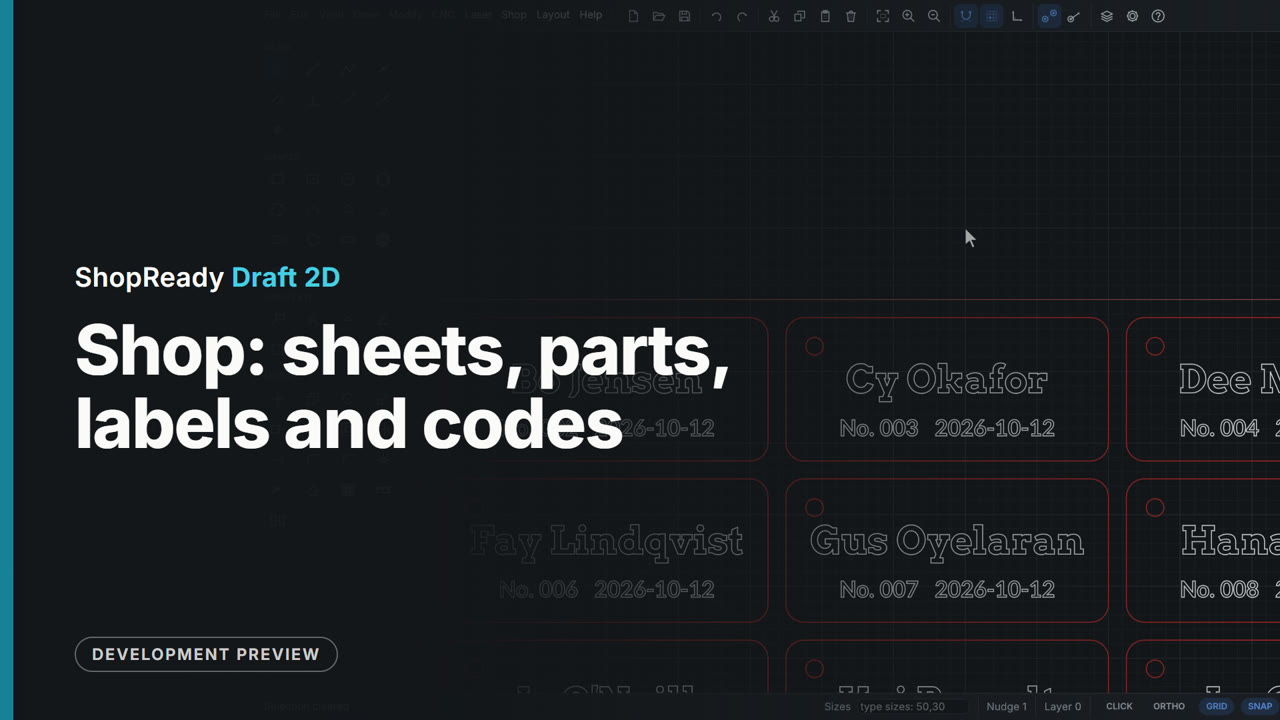
Shop: sheets, parts, labels and codes
Parts nested on the sheet by their true shape, the selected shapes packed into an offcut, a part moved by hand and the rest nested round it, materials and the parts list, a label for every piece with the sheet maps, QR codes and barcodes, numbered tags, and one tag made into many from a list.
 Film · 5:35
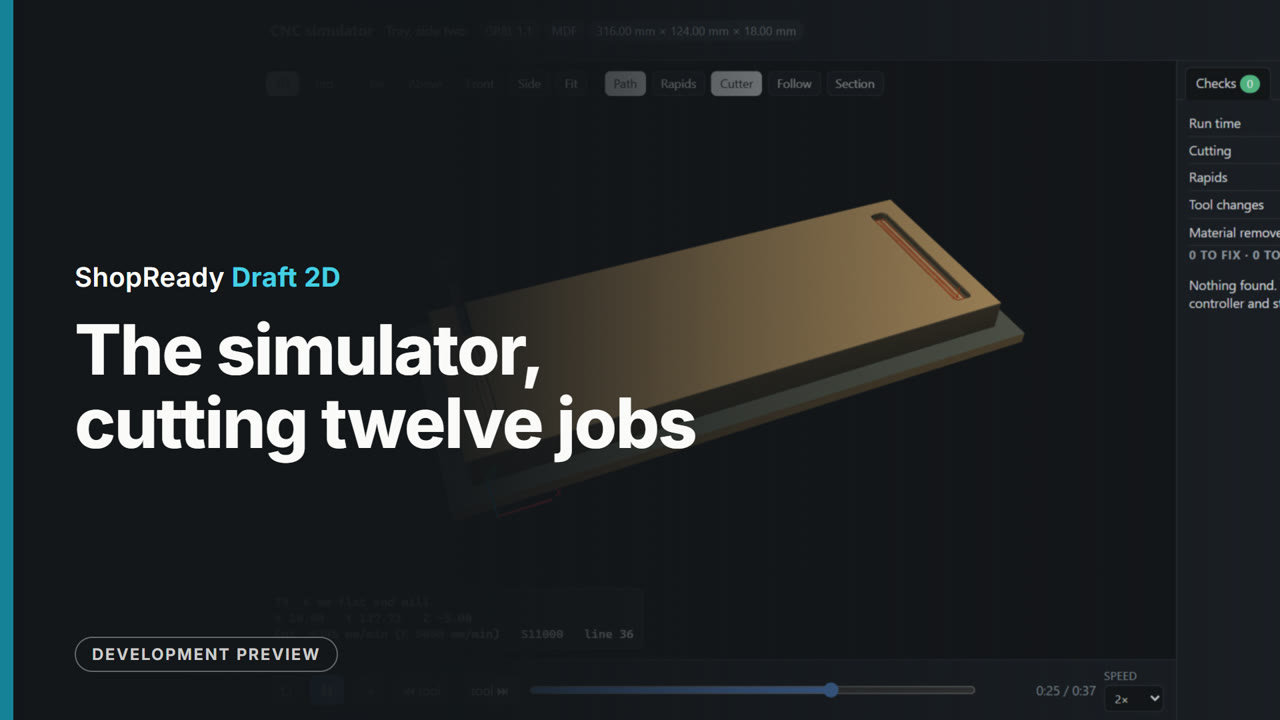
The simulator, cutting twelve jobs
The 3D simulator cutting twelve jobs on screen, from a jig plate to a carved relief.
 Film · 2:22
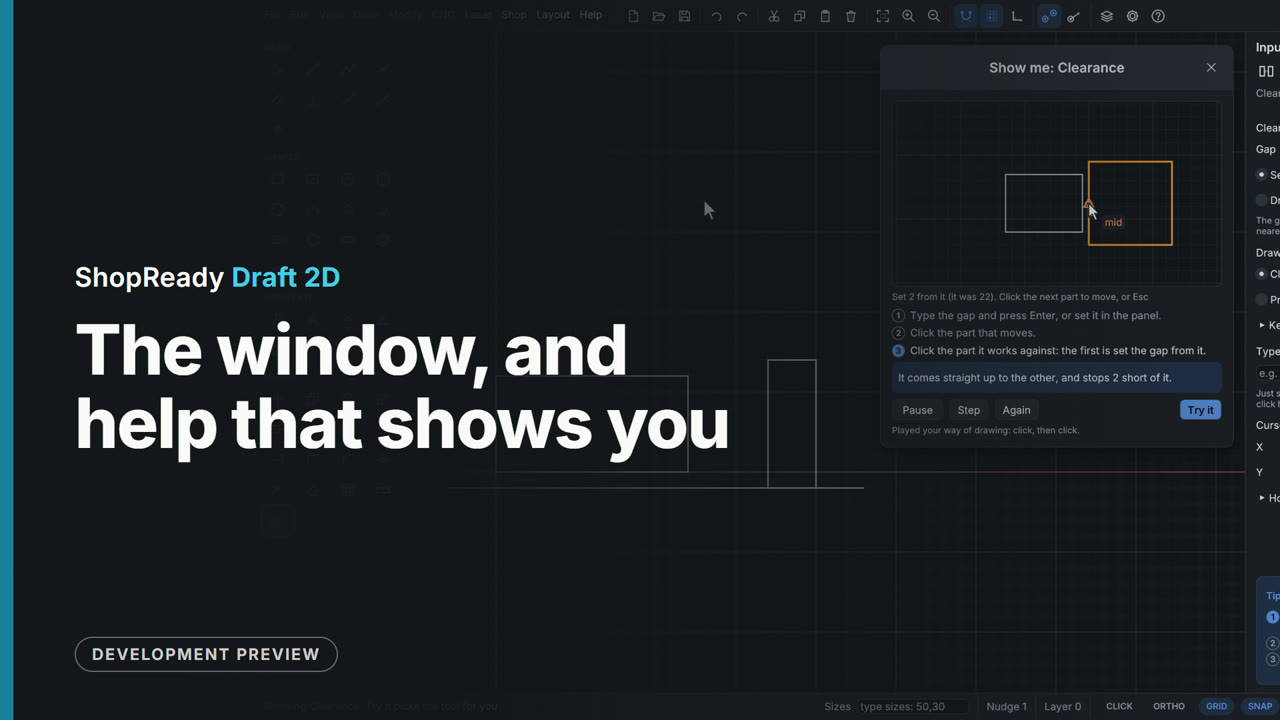
The window, and help that shows you
The window light or dark with the tools where you want them, the tip card that follows your steps, Show me, and the Help pages.
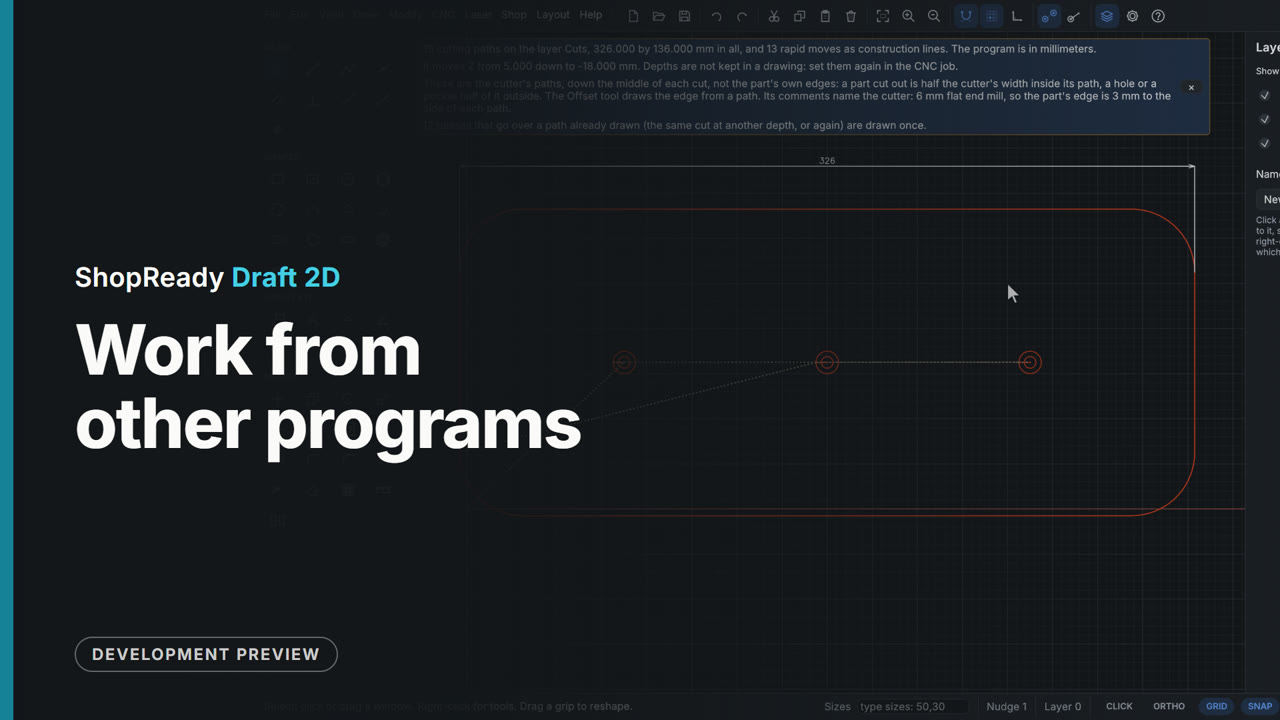 Film · 2:14
Work from other programs
A laser project file opened with its layers and settings, an SVG dropped on the drawing with its colors as layers, and a G-code program opened as a drawing and measured.
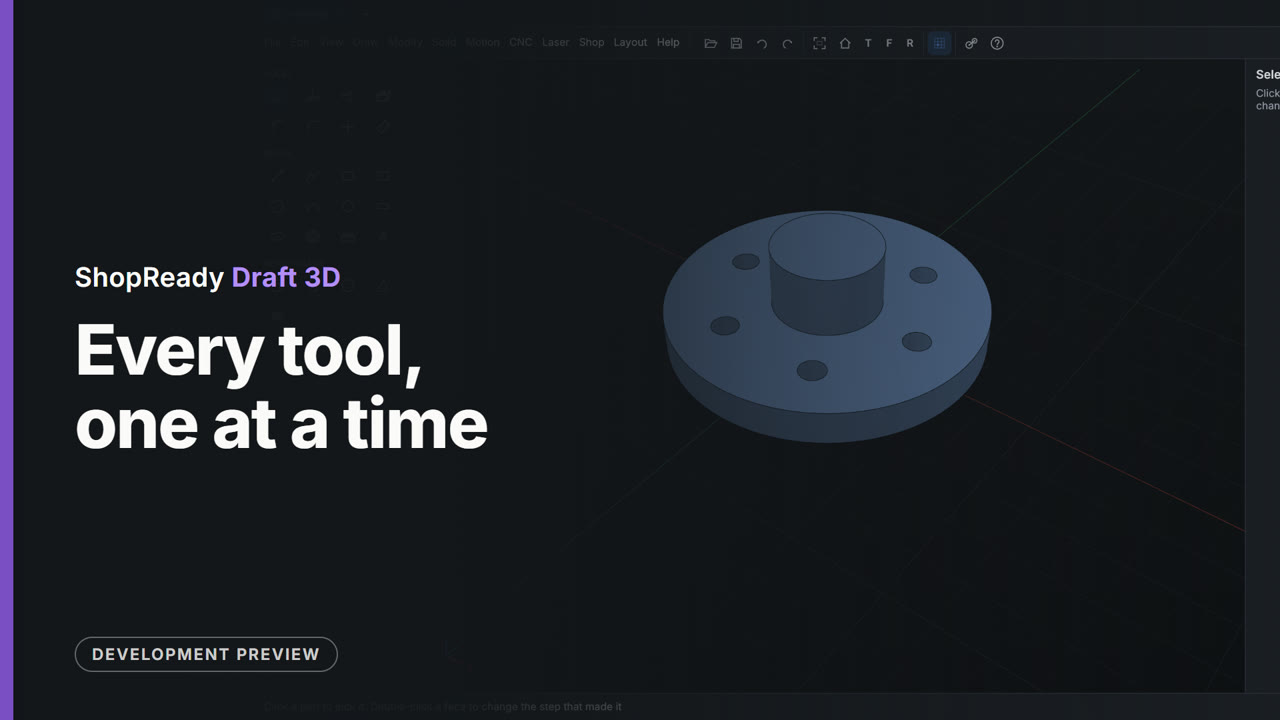 Film · 14:41
Every tool, one at a time
Every tool in Draft 3D, one at a time.
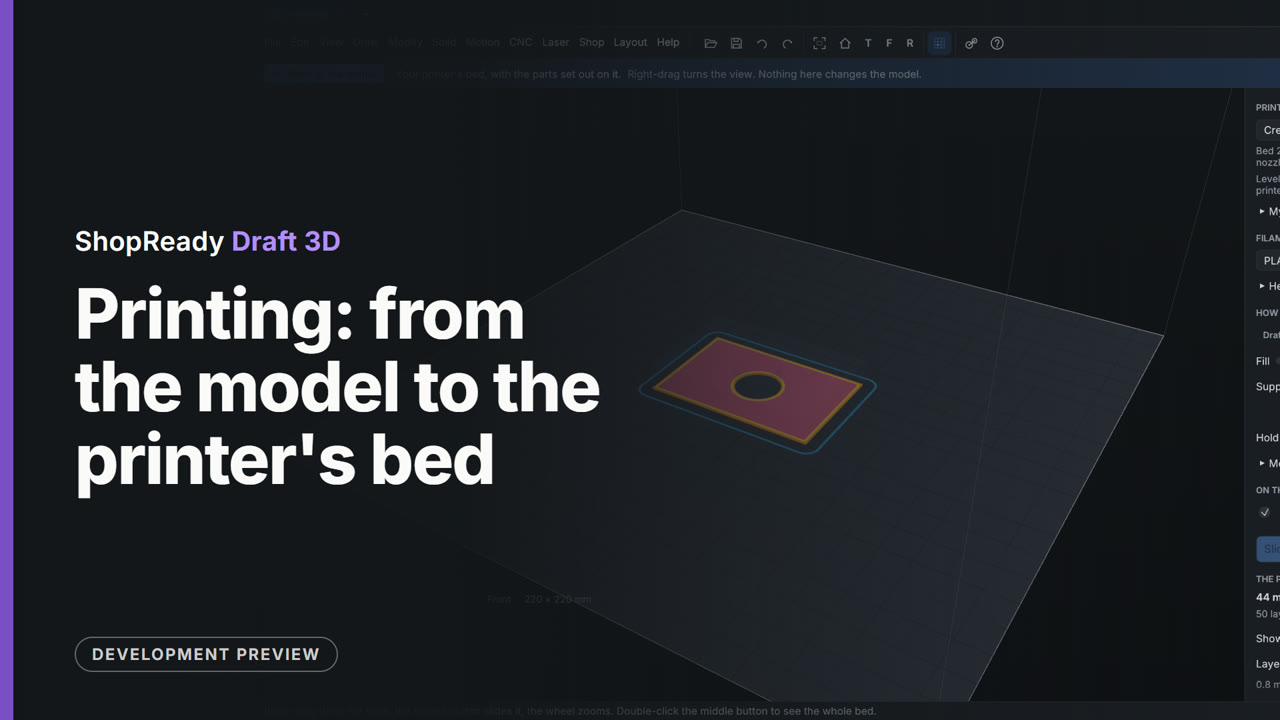 Film · 1:54
Printing: from the model to the printer's bed
Printing: how a part is sliced, looked into layer by layer, and saved as a print program.
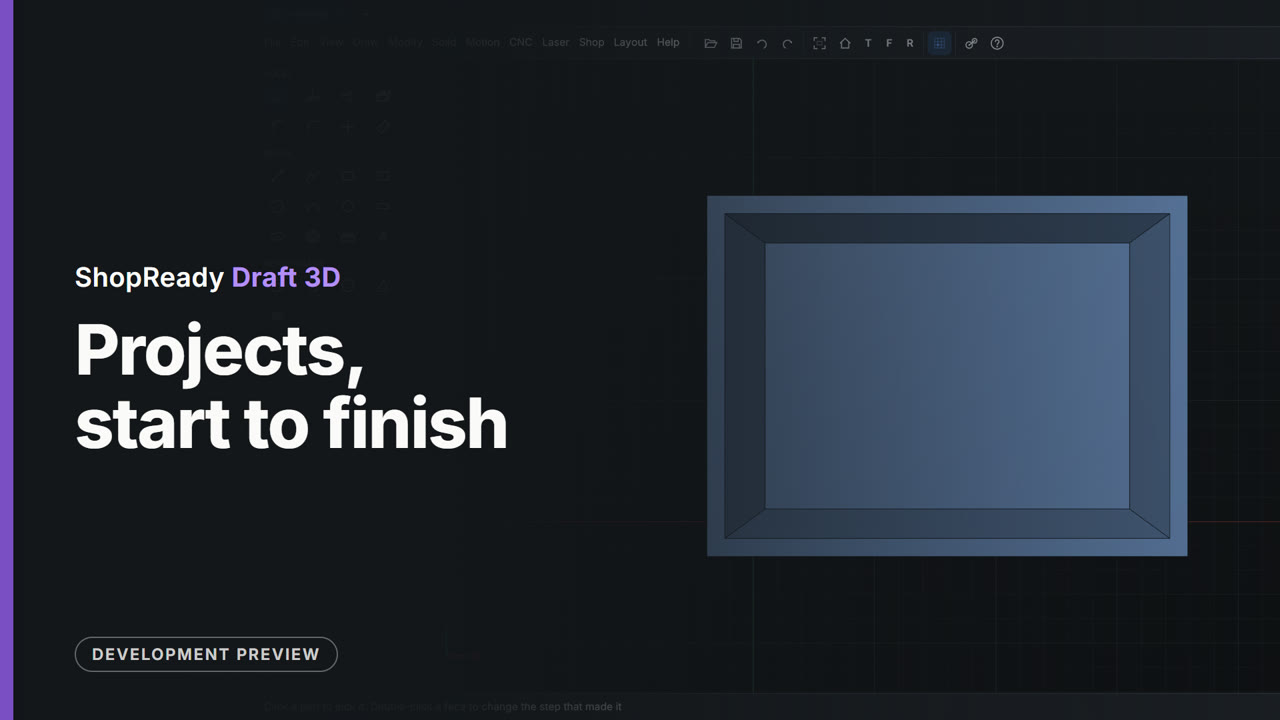 Film · 9:00
Projects, start to finish
Four projects from start to finish: a bracket, a box and its lid, a knob and its plate, and a phone stand.
 Film · 9:38
Snapping, planes and drawing
Snapping, planes and drawing: how parts line up by themselves, and how to draw on any face or plane.
 Film · 13:59
Things that move in 3D
Things that move: gear trains, a small engine and a Geneva wheel, each built and set turning.
 Film · 3:08
Field, clip by clip
The measuring app, a piece at a time: guided measuring, the reading guard, walking a room, the room in 3D, and more.
 Film · 6:33
Designing cabinets
Designing cabinets in Studio: new cabinets, doors and drawers, hardware, custom pieces and finishes.
 Film · 16:36
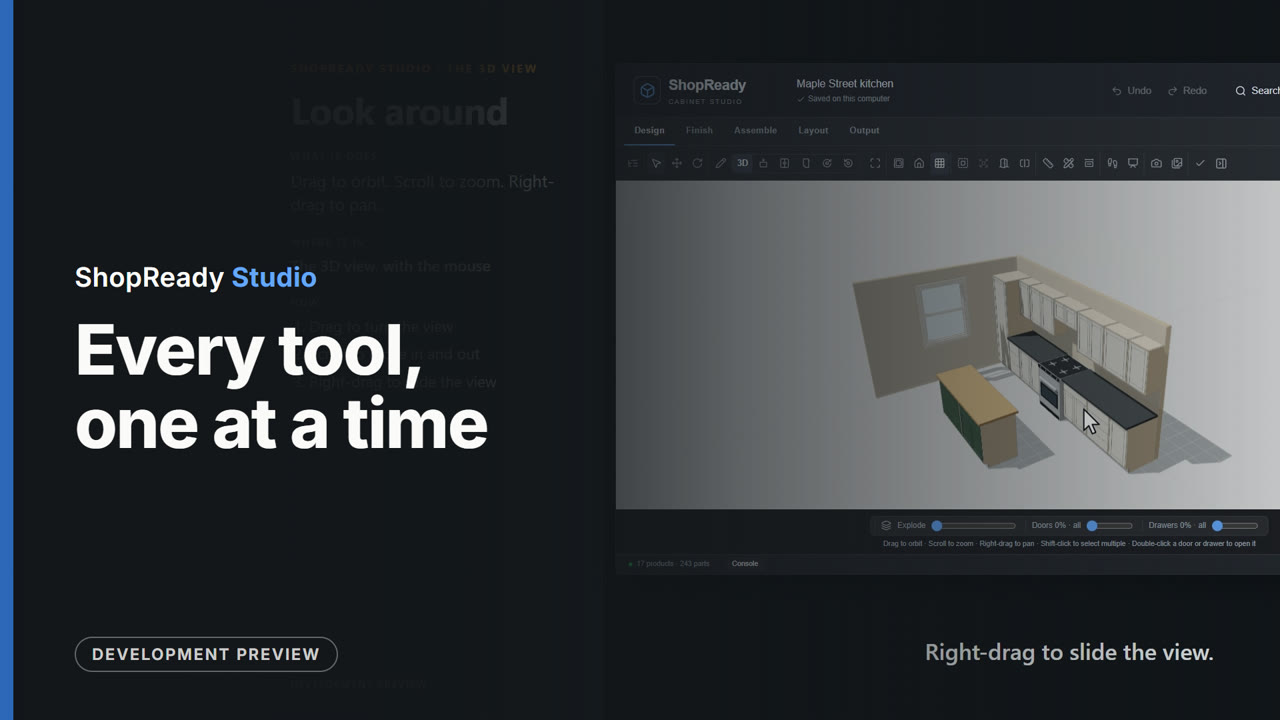
Every tool, one at a time
Every tool in Studio, one at a time: what it is called, where to find it, and what it does.
 Film · 4:09
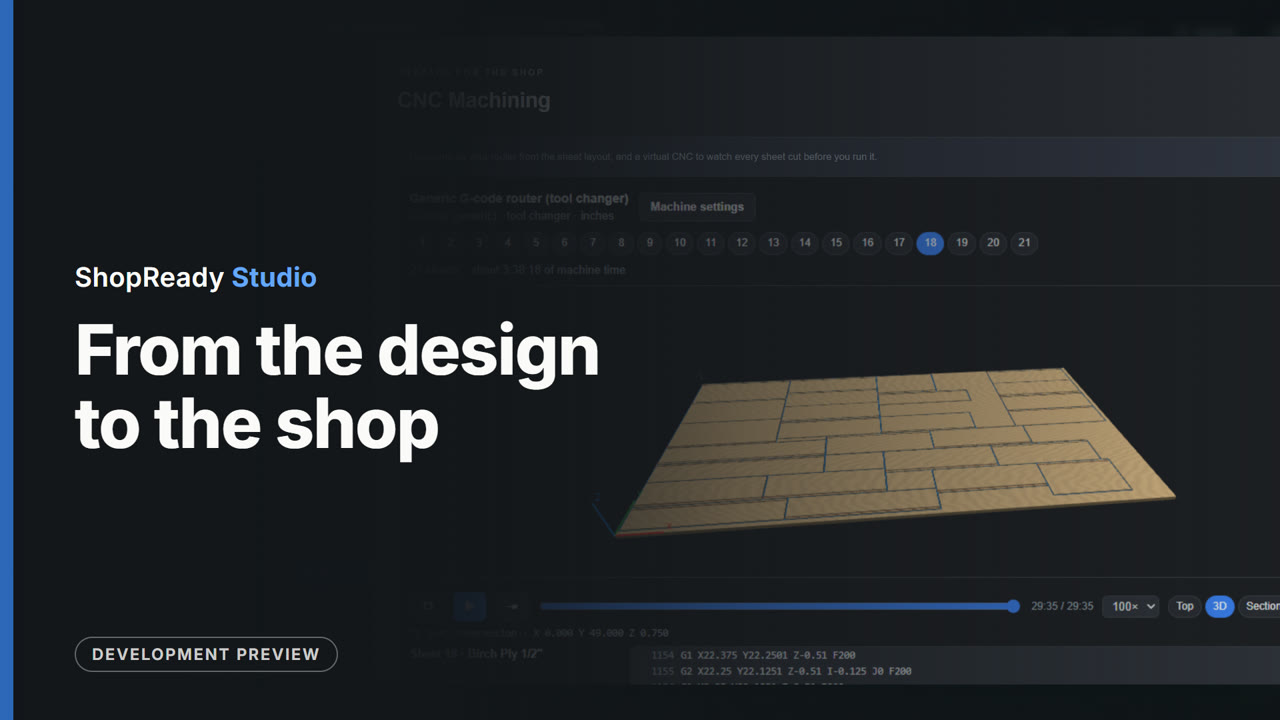
From the design to the shop
How a design gets to the shop: the quote and the approval, the sheets and the labels, the virtual CNC, and a package for the customer and one for the shop.
 Film · 3:30
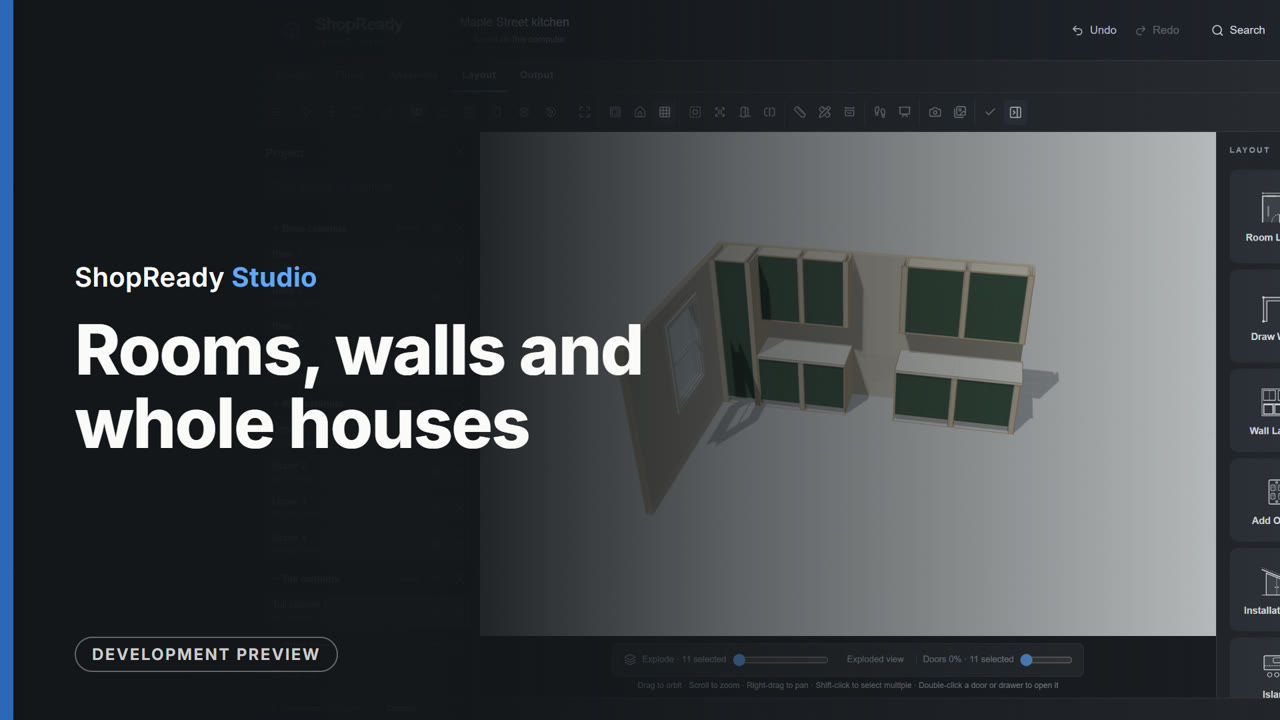
Rooms, walls and whole houses
Rooms and layout: drawing a room, filling a wall with cabinets, and a whole house on one plan.
 Lesson · 35 s
A belt: a short lesson
A belt: two wheels selected and belted: they turn together, by their sizes. One of the program's own built-in demonstrations, in its own words.
 Lesson · 42 s
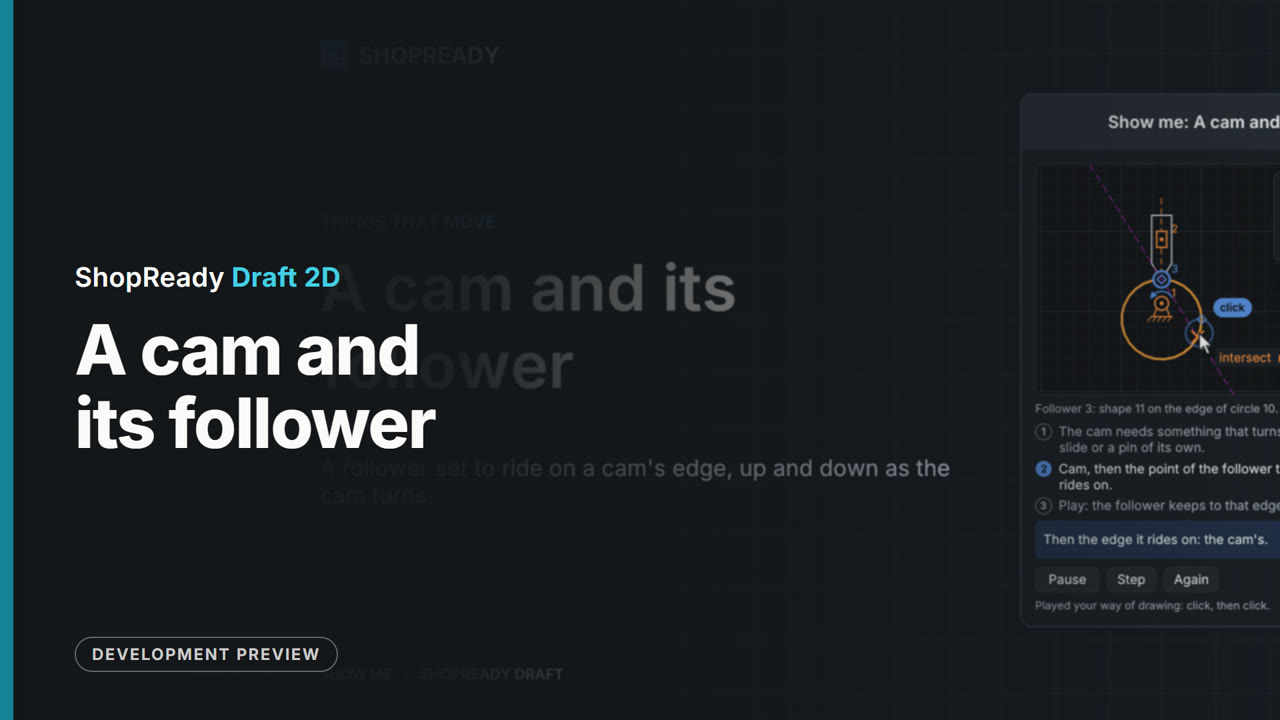
A cam and its follower: a short lesson
A cam and its follower: a follower set to ride on a cam's edge, up and down as the cam turns. One of the program's own built-in demonstrations, in its own words.
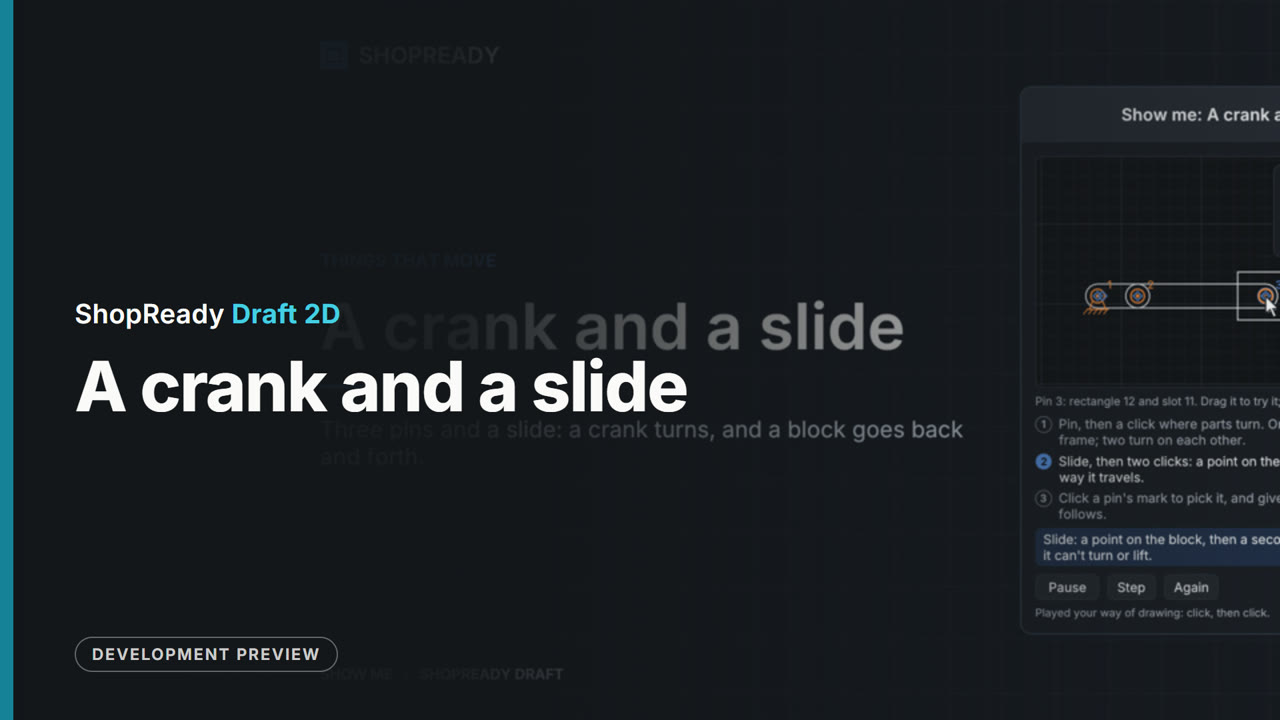 Lesson · 49 s
A crank and a slide: a short lesson
A crank and a slide: three pins and a slide: a crank turns, and a block goes back and forth. One of the program's own built-in demonstrations, in its own words.
 Lesson · 34 s
A gear on a rack: a short lesson
A gear on a rack: a gear driving a rack, with nothing set but the driver. One of the program's own built-in demonstrations, in its own words.
 Lesson · 1:08
A lid on a gas strut: a short lesson
A lid on a gas strut: what it takes to hold a lid, read at its hinge; a strut that starts with that push; more push, and a chain that stops the lid where it is taut. One of the program's own built-in demonstrations, in its own words.
 Lesson · 45 s
A motor's strength: a short lesson
A motor's strength: a heavy lever: a motor too weak for it gives all it has and the lever sinks; a stronger one lifts it and says how hard it works. One of the program's own built-in demonstrations, in its own words.
 Lesson · 37 s
A pin in a slot: a short lesson
A pin in a slot: a rod's end set to ride along a slot: it travels, and the rod turns on it. One of the program's own built-in demonstrations, in its own words.
 Lesson · 36 s
A point's path: a short lesson
A point's path: a point on a rod traced: the path it takes as the crank goes round. One of the program's own built-in demonstrations, in its own words.
 Lesson · 50 s
A sequence: a short lesson
A sequence: a door and a drawer moved in order: this one, then that, a wait, and back. One of the program's own built-in demonstrations, in its own words.
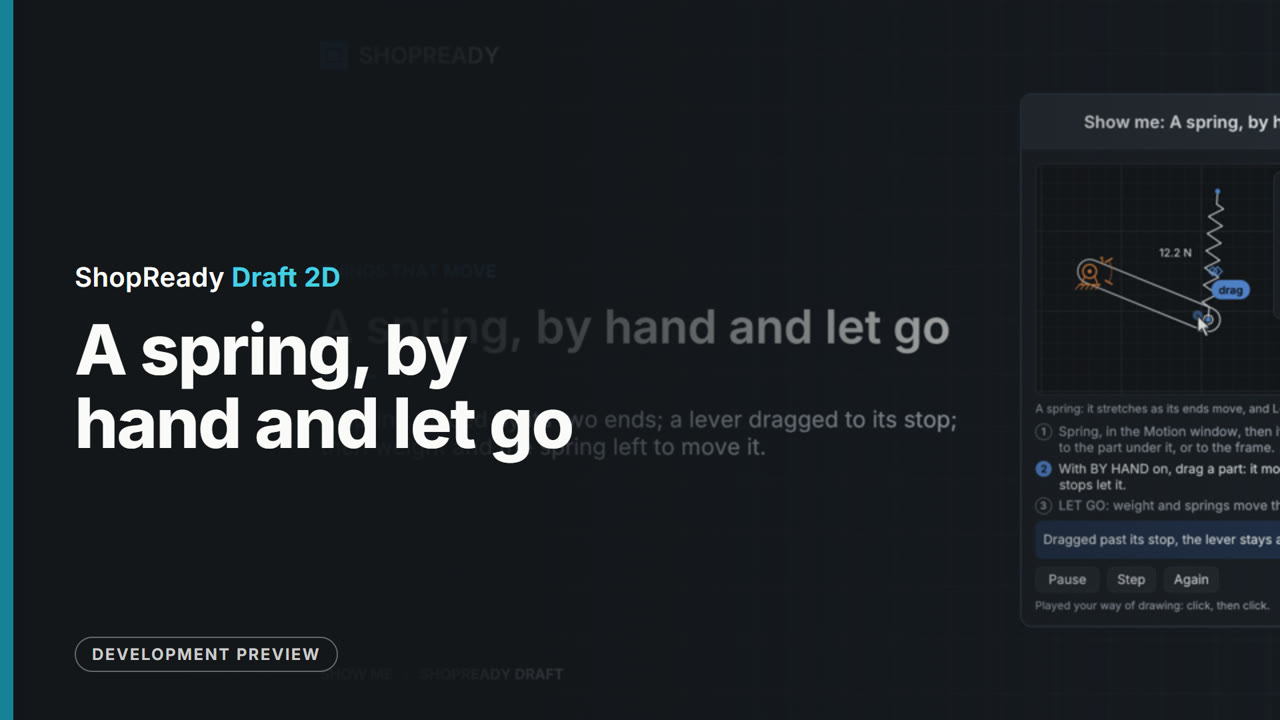 Lesson · 51 s
A spring, by hand and let go: a short lesson
A spring, by hand and let go: a spring placed by its two ends; a lever dragged to its stop; then weight and the spring left to move it. One of the program's own built-in demonstrations, in its own words.
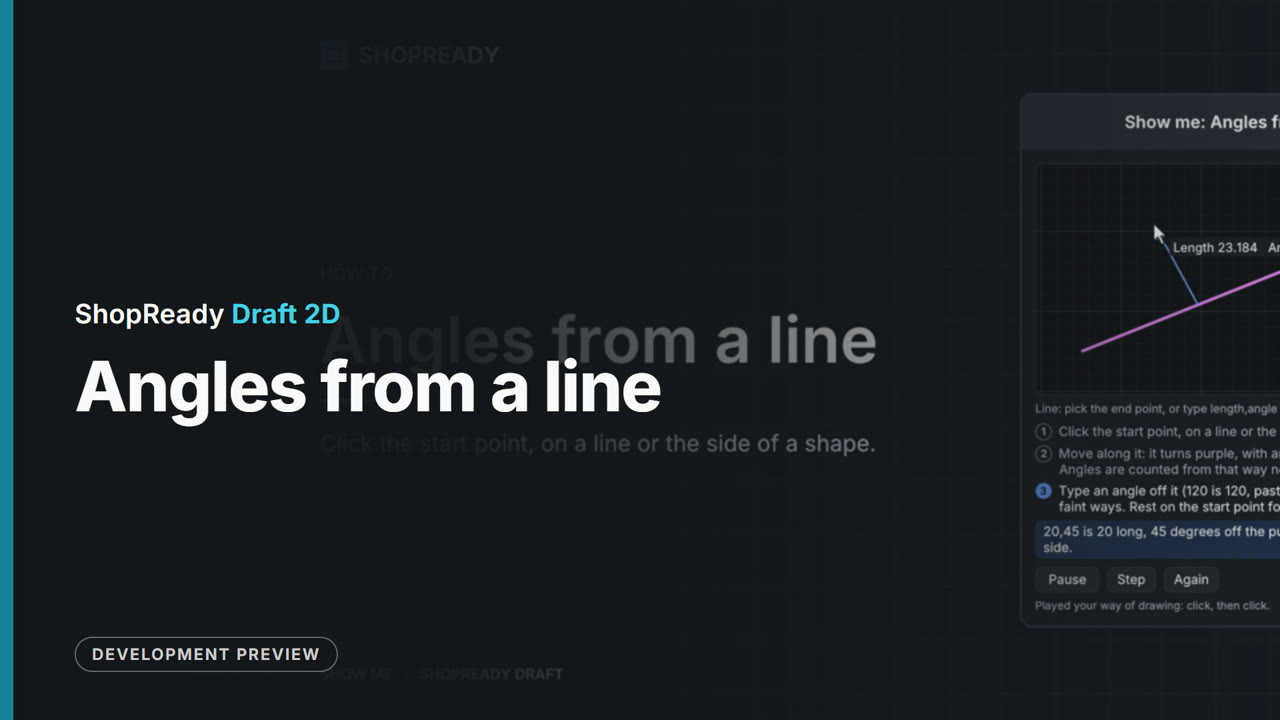 Lesson · 35 s
Angles from a line: a short lesson
Angles from a line. One of the program's own built-in demonstrations, in its own words.
 Lesson · 44 s
Check for hits: a short lesson
Check for hits: a door that runs into a post: found out of sight, then the two let pass. One of the program's own built-in demonstrations, in its own words.
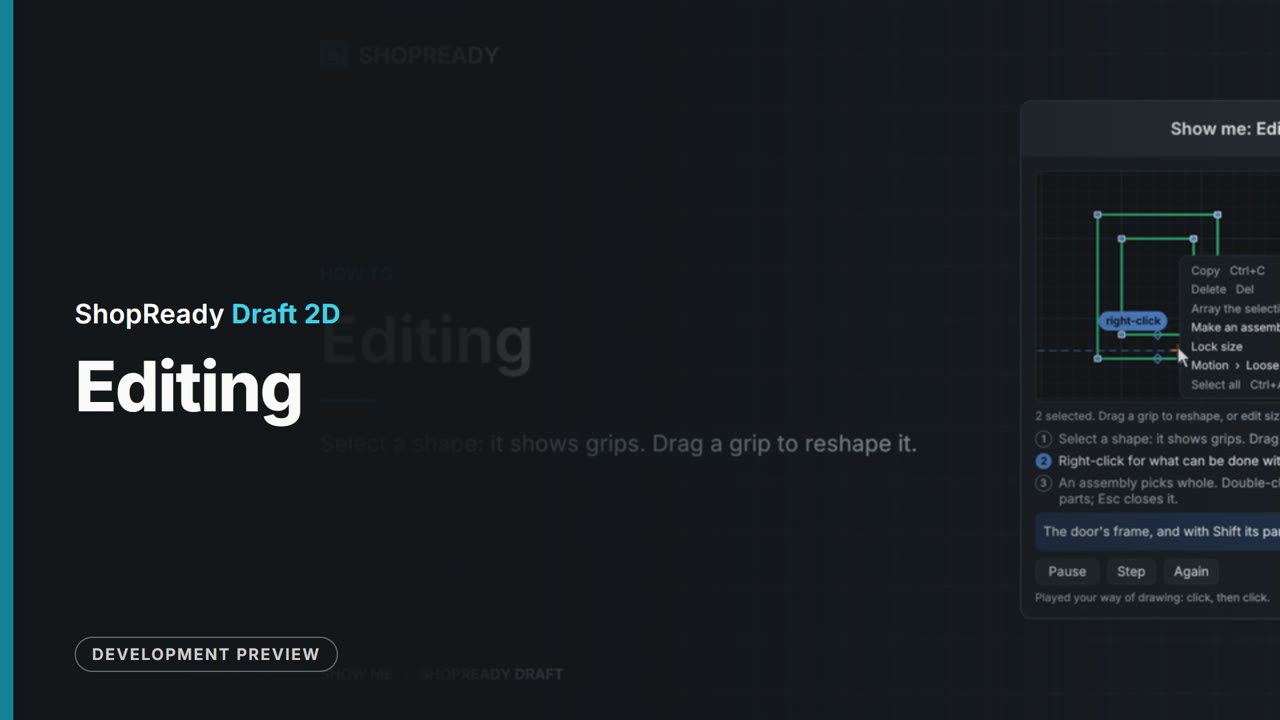 Lesson · 34 s
Editing: a short lesson
Editing. One of the program's own built-in demonstrations, in its own words.
 Lesson · 49 s
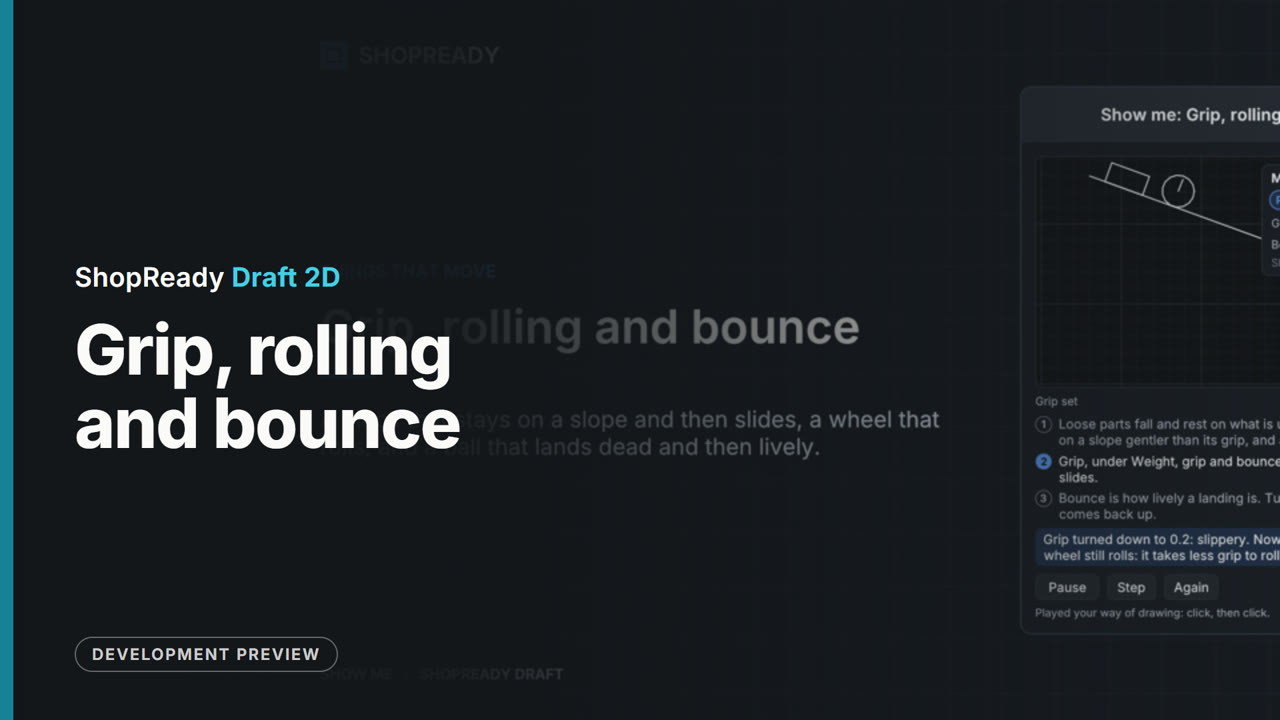
Grip, rolling and bounce: a short lesson
Grip, rolling and bounce: a block that stays on a slope and then slides, a wheel that rolls, and a ball that lands dead and then lively. One of the program's own built-in demonstrations, in its own words.
 Lesson · 1:02
Notes and text: a short lesson
Notes and text. One of the program's own built-in demonstrations, in its own words.
 Lesson · 1:00
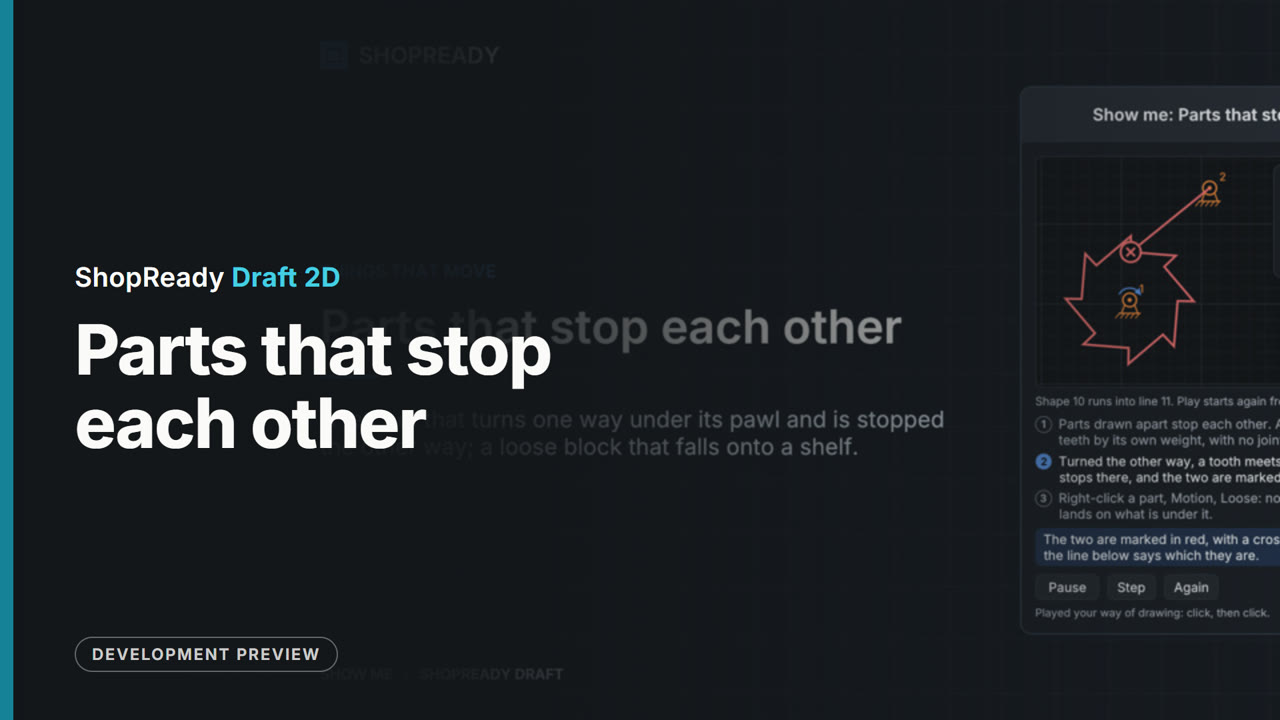
Parts that stop each other: a short lesson
Parts that stop each other: a ratchet that turns one way under its pawl and is stopped the other way; a loose block that falls onto a shelf. One of the program's own built-in demonstrations, in its own words.
 Lesson · 36 s
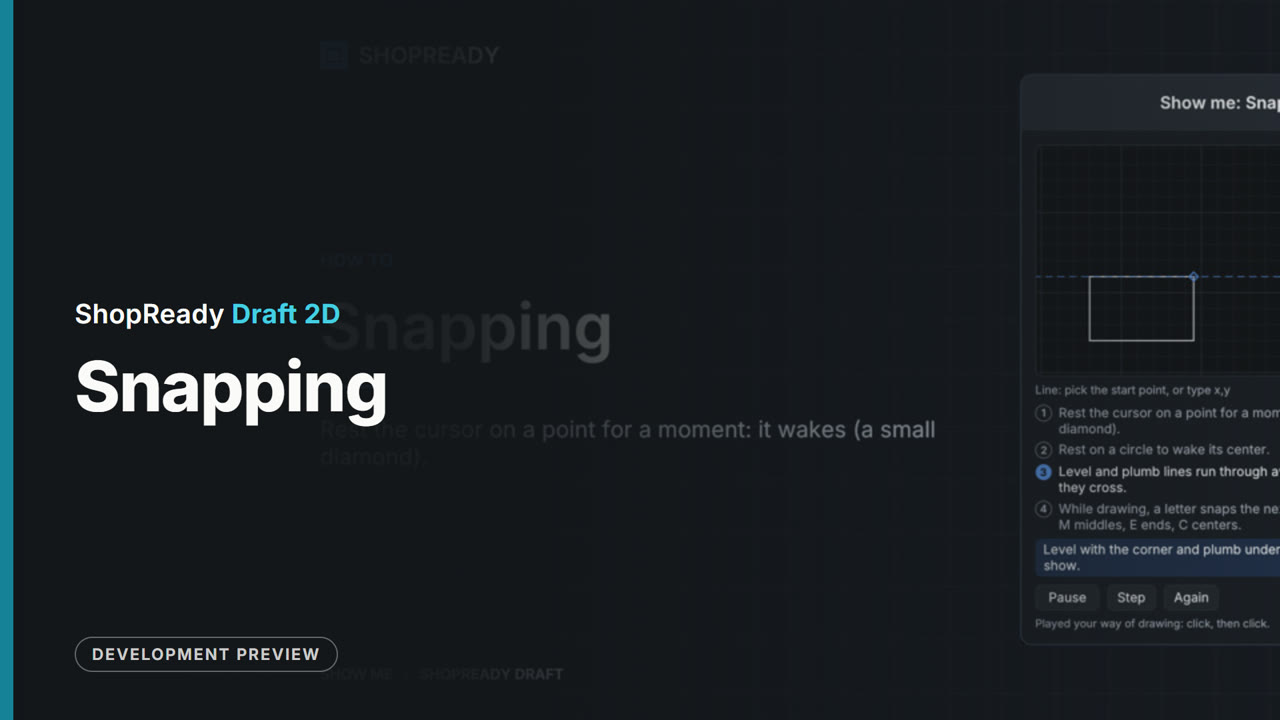
Snapping: a short lesson
Snapping. One of the program's own built-in demonstrations, in its own words.
 Lesson · 49 s
Switches and rules: a short lesson
Switches and rules: a door on a servo: a button sends it open, a limit switch sounds an alarm where it trips, and it goes home by itself. One of the program's own built-in demonstrations, in its own words.
 Lesson · 25 s
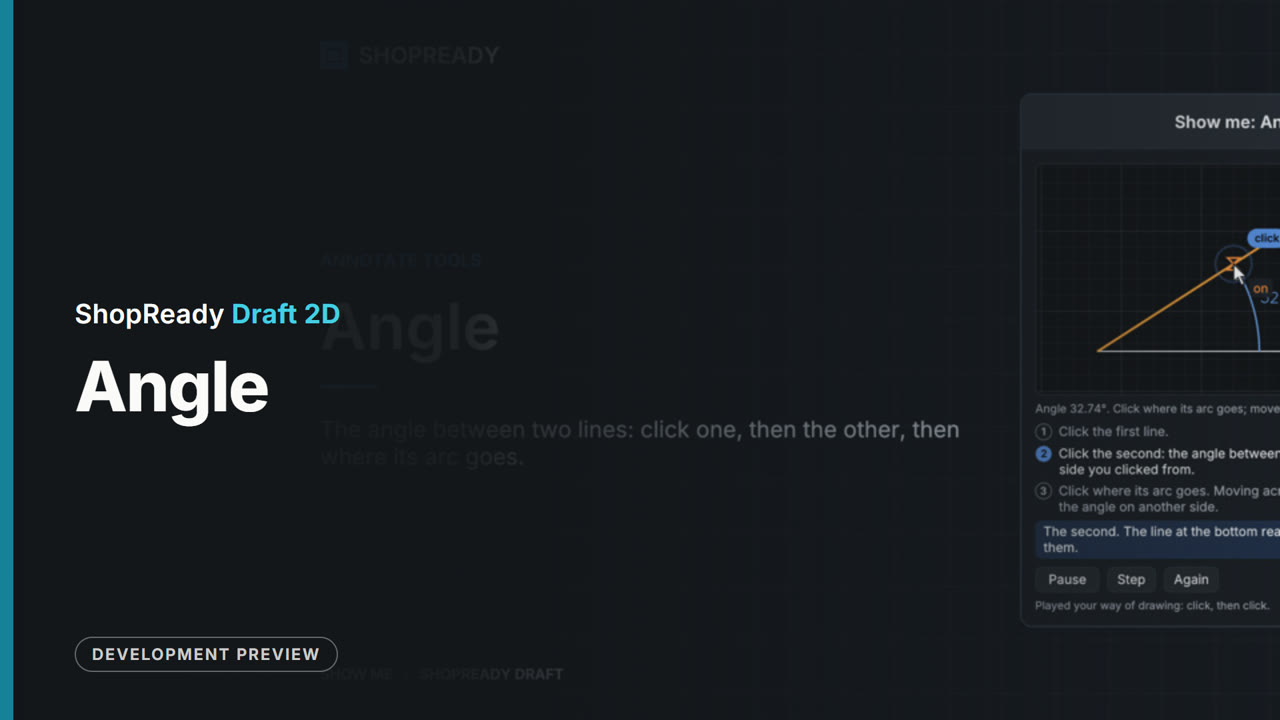
The Angle tool: a short lesson
The Angle tool: the angle between two lines: click one, then the other, then where its arc goes. One of the program's own built-in demonstrations, in its own words.
 Lesson · 20 s
The Arc 3-point tool: a short lesson
The Arc 3-point tool: arc through start, middle, and end. One of the program's own built-in demonstrations, in its own words.
 Lesson · 21 s
The Arc center tool: a short lesson
The Arc center tool: arc from center, start, and end. One of the program's own built-in demonstrations, in its own words.
 Lesson · 37 s
The Array tool: a short lesson
The Array tool: repeat the selection in a line, grid, circle, or along a path. One of the program's own built-in demonstrations, in its own words.
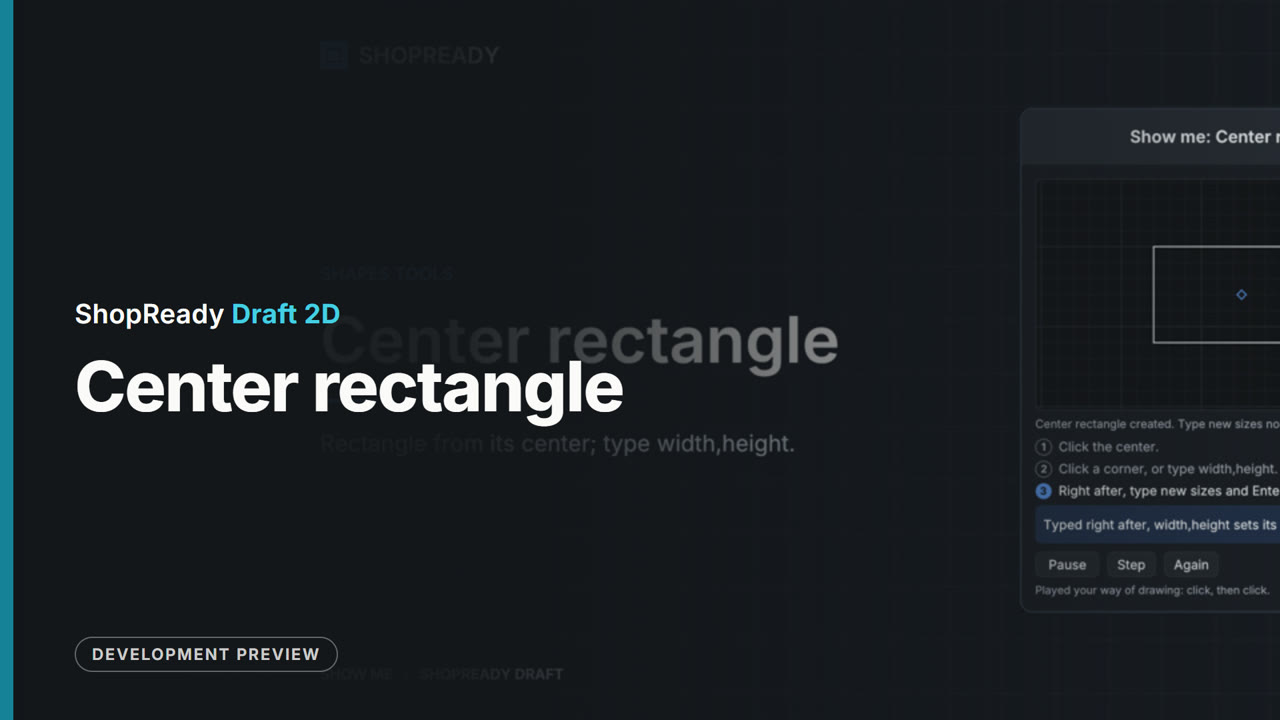 Lesson · 23 s
The Center rectangle tool: a short lesson
The Center rectangle tool: rectangle from its center; type width,height. One of the program's own built-in demonstrations, in its own words.
 Lesson · 24 s
The Chamfer tool: a short lesson
The Chamfer tool: cut a corner at an angle. One of the program's own built-in demonstrations, in its own words.
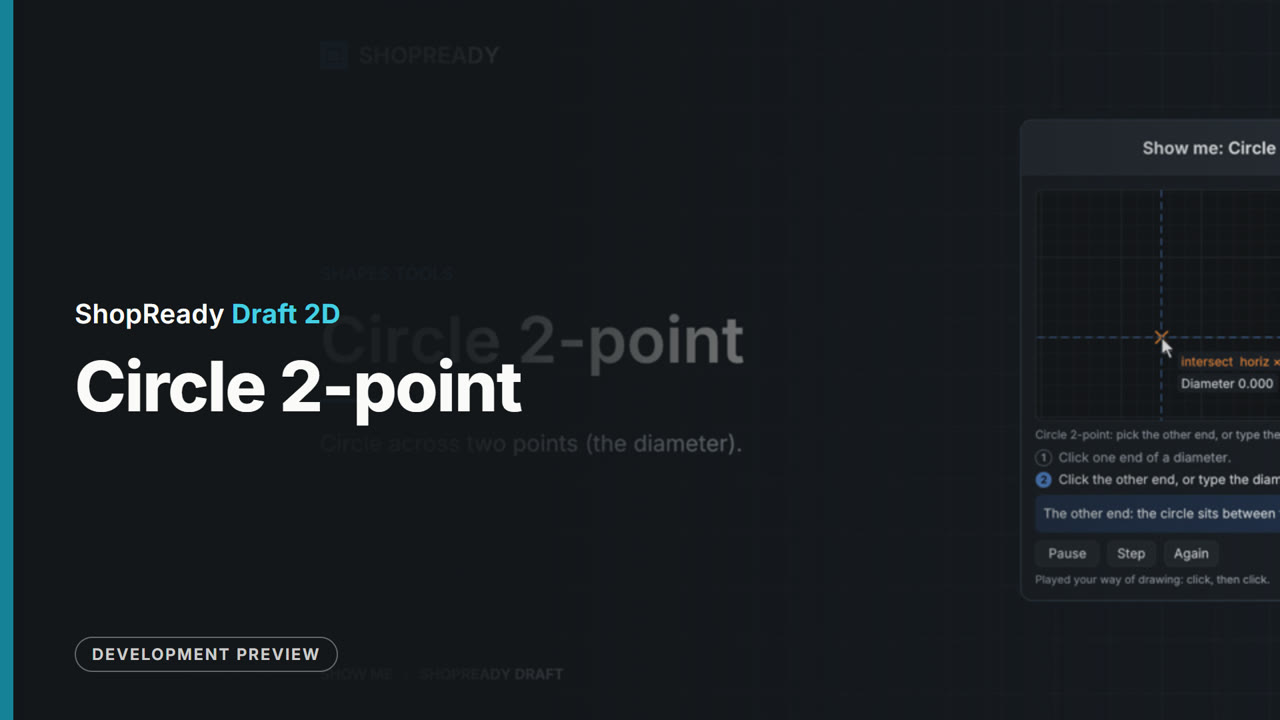 Lesson · 19 s
The Circle 2-point tool: a short lesson
The Circle 2-point tool: circle across two points (the diameter). One of the program's own built-in demonstrations, in its own words.
 Lesson · 19 s
The Circle 3-point tool: a short lesson
The Circle 3-point tool: circle through three points. One of the program's own built-in demonstrations, in its own words.
 Lesson · 22 s
The Circle tool: a short lesson
The Circle tool: circle from its center; type the radius. One of the program's own built-in demonstrations, in its own words.
 Lesson · 34 s
The Clearance tool: a short lesson
The Clearance tool: room between working parts: click the part to move, then the part it works against, and it is set the gap from it. Or an opening drawn for a part, with room all round. One of the program's own built-in demonstrations, in its own words.
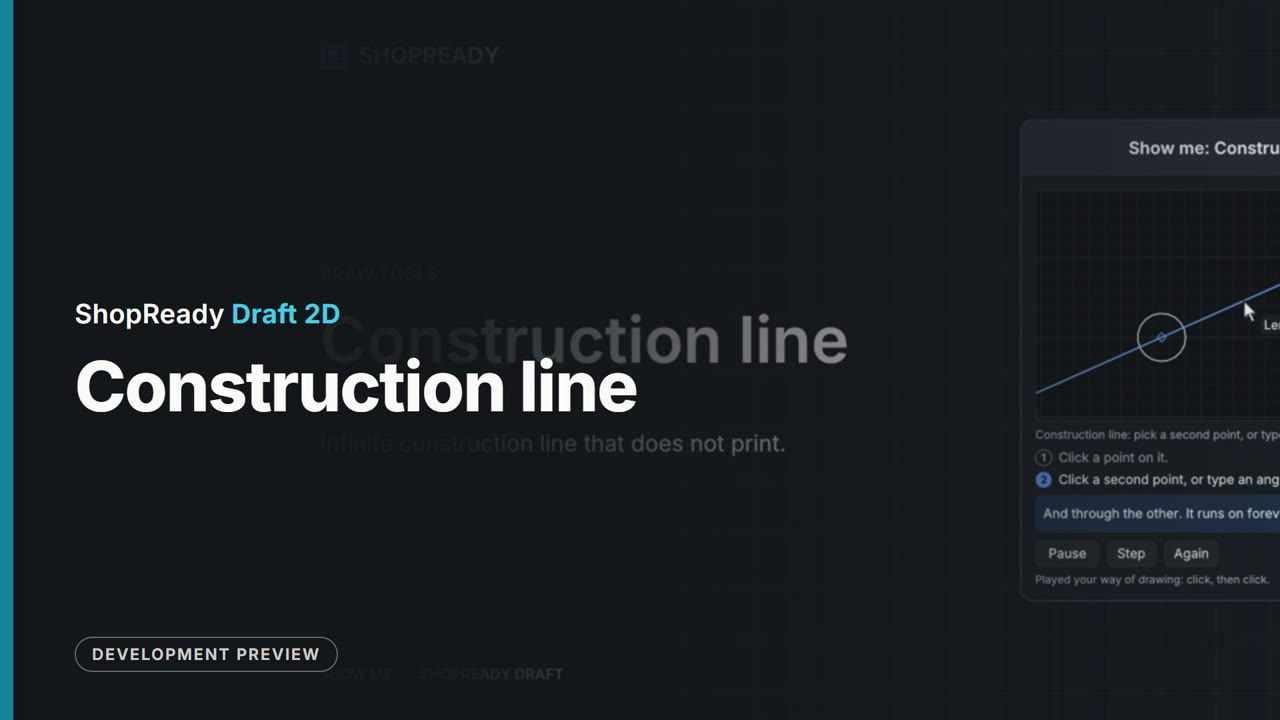 Lesson · 21 s
The Construction line tool: a short lesson
The Construction line tool: infinite construction line that does not print. One of the program's own built-in demonstrations, in its own words.
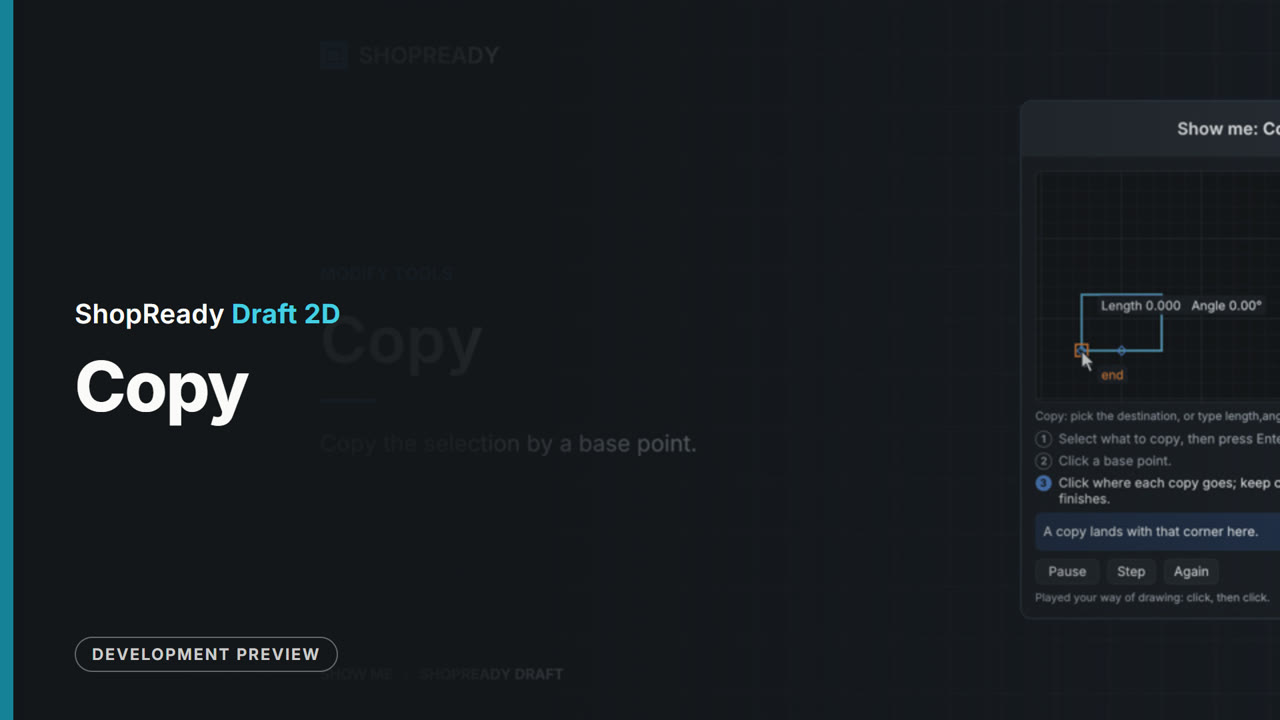 Lesson · 24 s
The Copy tool: a short lesson
The Copy tool: copy the selection by a base point. One of the program's own built-in demonstrations, in its own words.
 Lesson · 20 s
The Dimension tool: a short lesson
The Dimension tool: dimension between two points. One of the program's own built-in demonstrations, in its own words.
 Lesson · 20 s
The Ellipse tool: a short lesson
The Ellipse tool: ellipse from center, one axis, then the other. One of the program's own built-in demonstrations, in its own words.
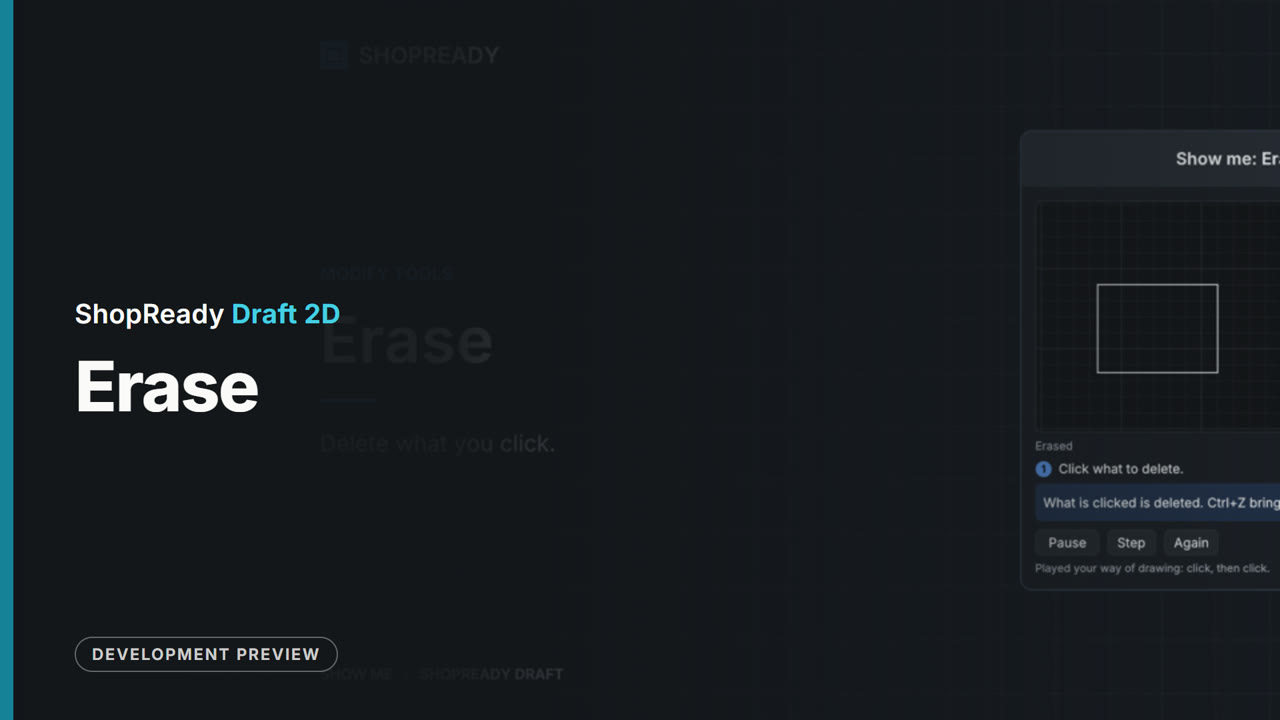 Lesson · 15 s
The Erase tool: a short lesson
The Erase tool: delete what you click. One of the program's own built-in demonstrations, in its own words.
 Lesson · 18 s
The Explode tool: a short lesson
The Explode tool: break polylines into lines and arcs, and text into its letters' shapes. One of the program's own built-in demonstrations, in its own words.
 Lesson · 16 s
The Extend tool: a short lesson
The Extend tool: stretch an end to the next edge. One of the program's own built-in demonstrations, in its own words.
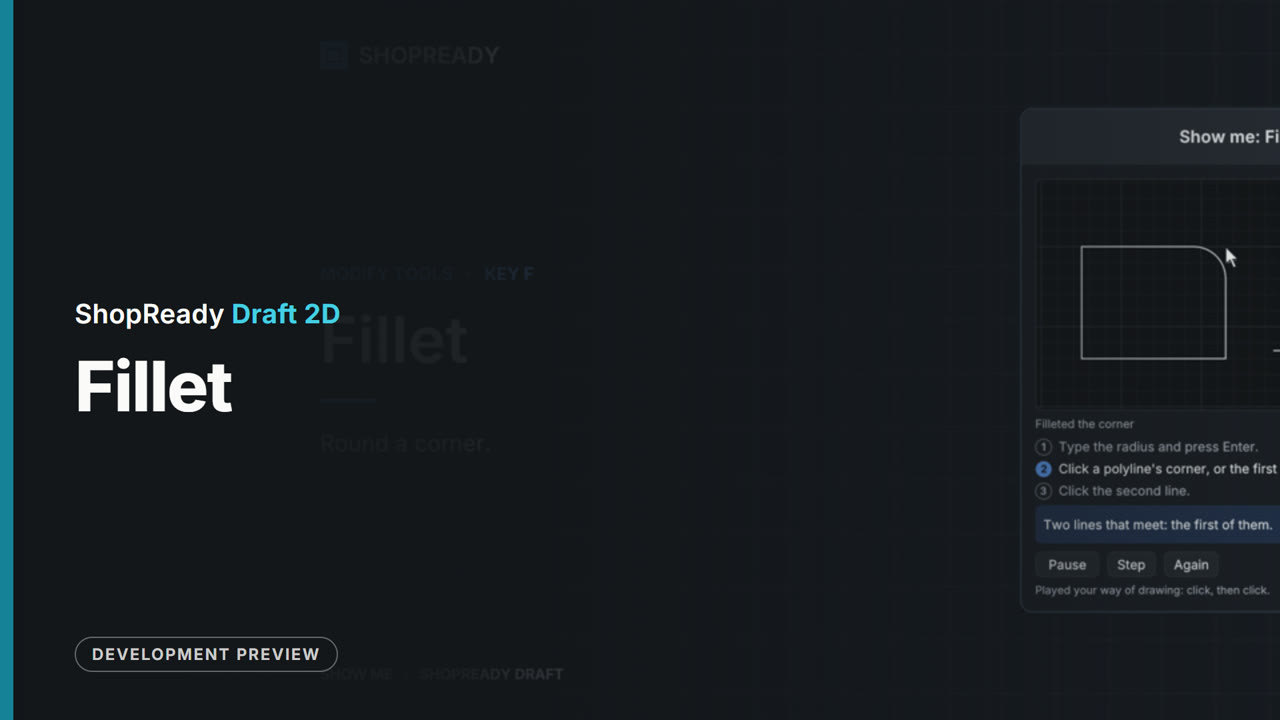 Lesson · 21 s
The Fillet tool: a short lesson
The Fillet tool: round a corner. One of the program's own built-in demonstrations, in its own words.
 Lesson · 29 s
The Gear tool: a short lesson
The Gear tool: involute spur gear from its center. One of the program's own built-in demonstrations, in its own words.
 Lesson · 15 s
The Hatch tool: a short lesson
The Hatch tool: fill a closed shape with hatch lines. One of the program's own built-in demonstrations, in its own words.
 Lesson · 18 s
The Join tool: a short lesson
The Join tool: join pieces that touch end to end into one shape; with a selection, joins it. One of the program's own built-in demonstrations, in its own words.
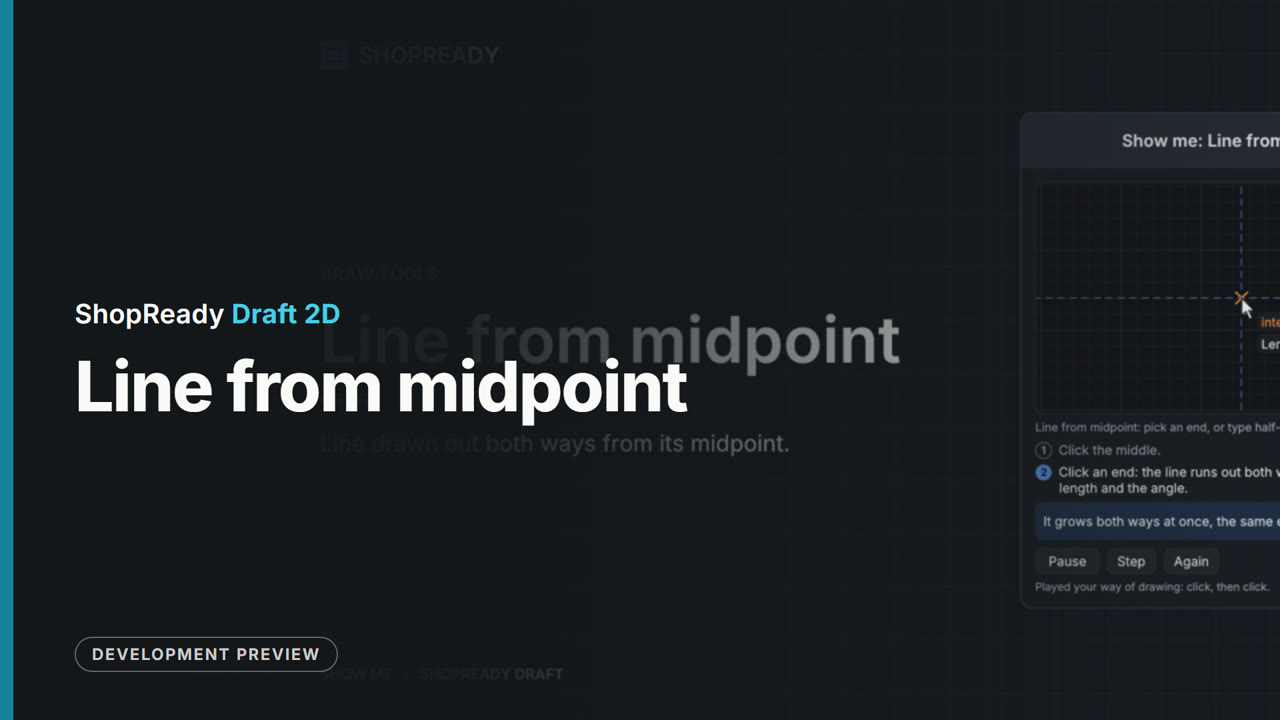 Lesson · 19 s
The Line from midpoint tool: a short lesson
The Line from midpoint tool: line drawn out both ways from its midpoint. One of the program's own built-in demonstrations, in its own words.
 Lesson · 25 s
The Line tool: a short lesson
The Line tool: line between two points. One of the program's own built-in demonstrations, in its own words.
 Lesson · 18 s
The Measure tool: a short lesson
The Measure tool: distance and angle between two points. One of the program's own built-in demonstrations, in its own words.
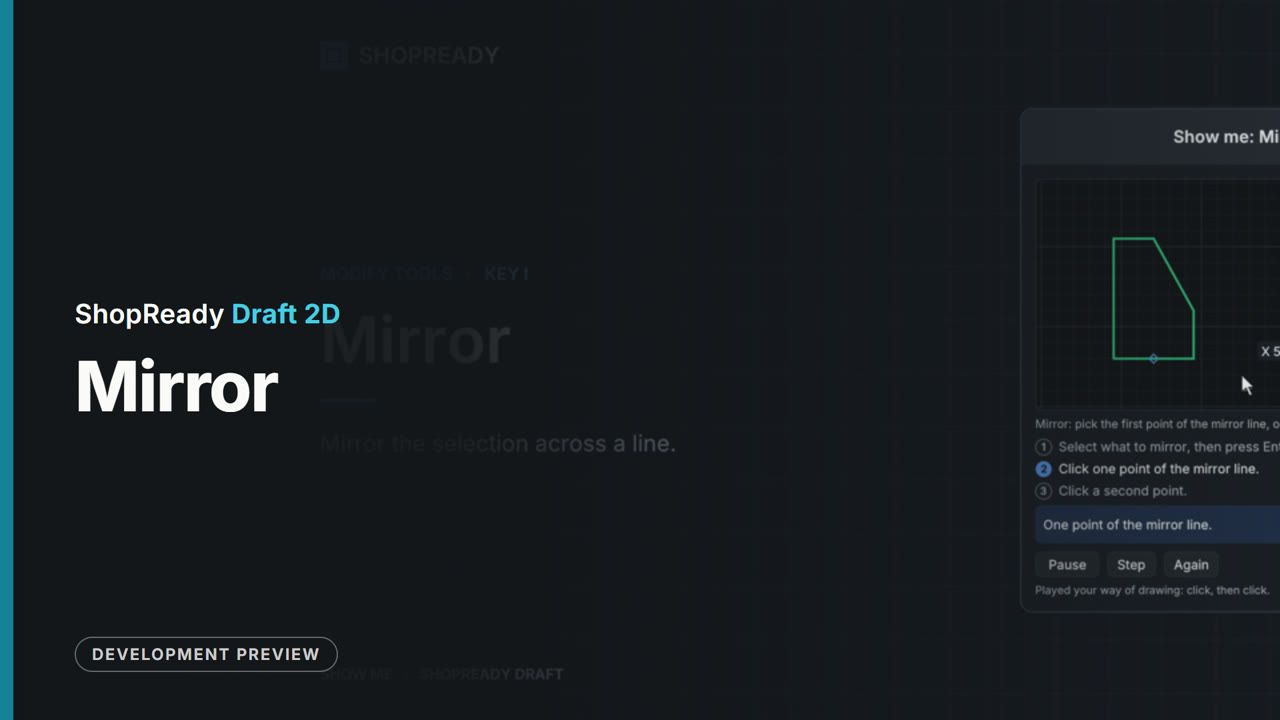 Lesson · 22 s
The Mirror tool: a short lesson
The Mirror tool: mirror the selection across a line. One of the program's own built-in demonstrations, in its own words.
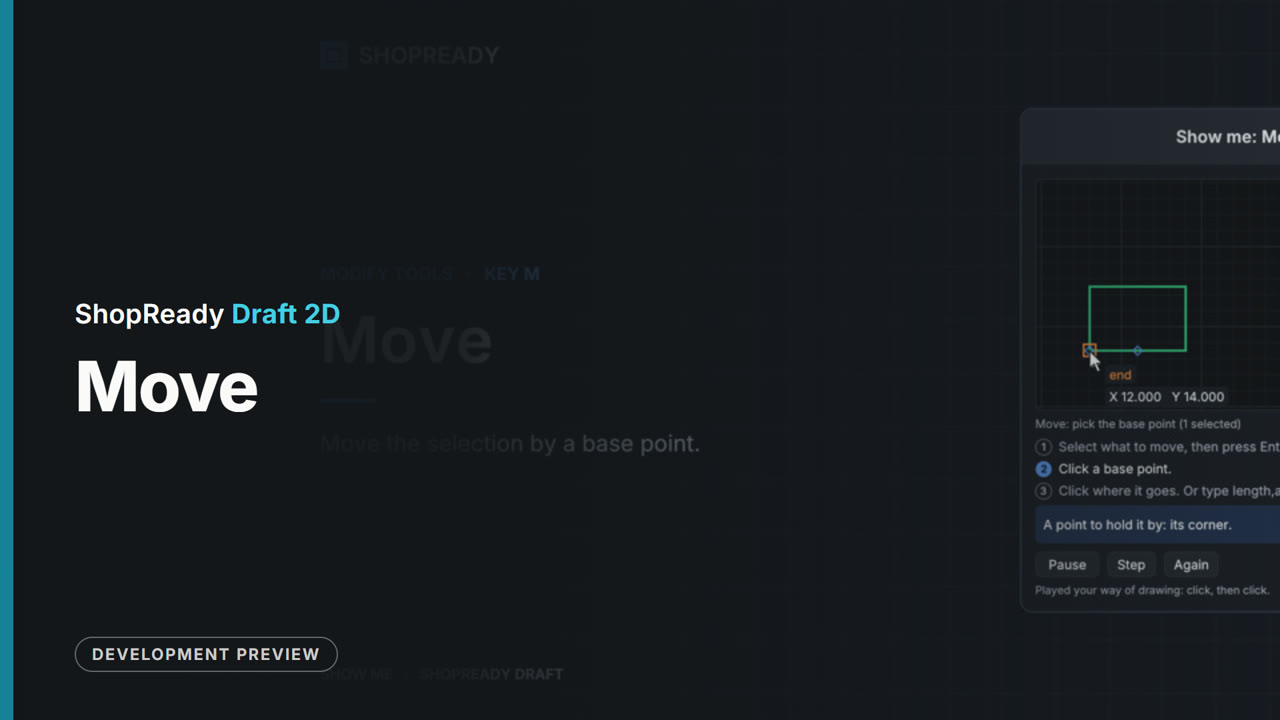 Lesson · 21 s
The Move tool: a short lesson
The Move tool: move the selection by a base point. One of the program's own built-in demonstrations, in its own words.
 Lesson · 27 s
The Note tool: a short lesson
The Note tool: a note, or drag from what it's about for a callout with an arrow. Not part of the drawing; never cut. One of the program's own built-in demonstrations, in its own words.
 Lesson · 22 s
The Offset tool: a short lesson
The Offset tool: parallel copy of an outline at a distance; touching pieces go together. One of the program's own built-in demonstrations, in its own words.
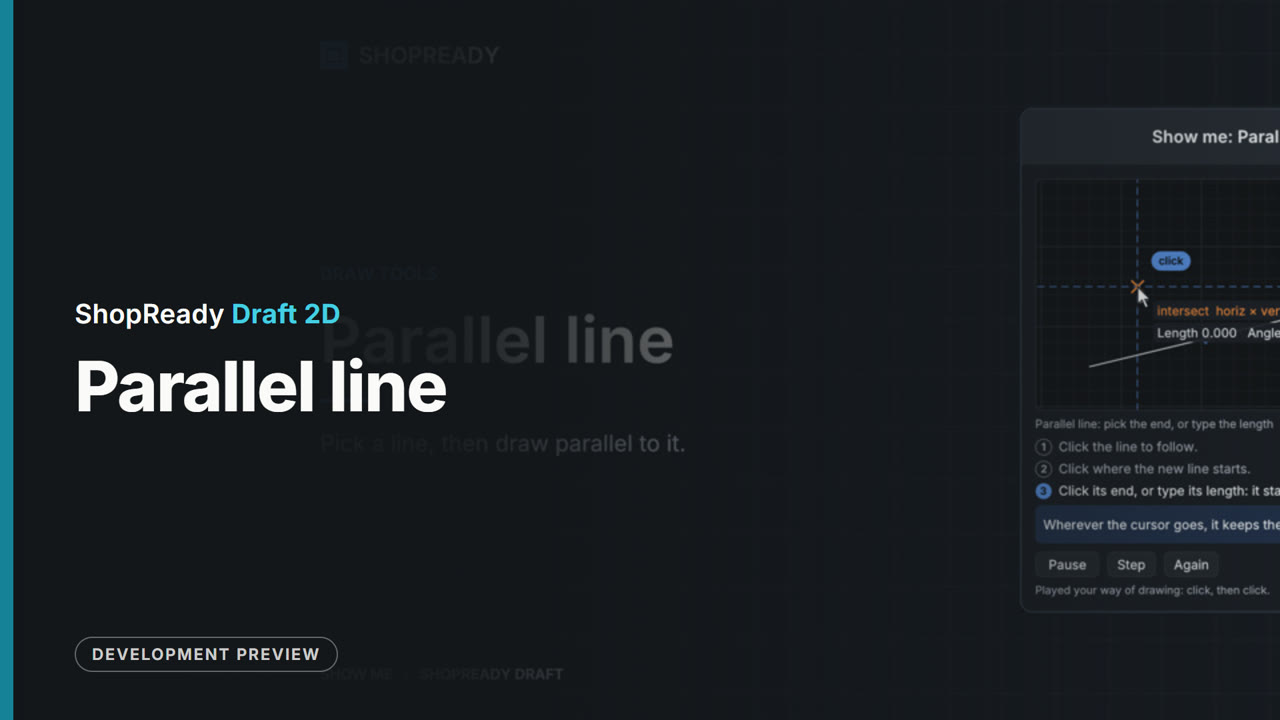 Lesson · 21 s
The Parallel line tool: a short lesson
The Parallel line tool: pick a line, then draw parallel to it. One of the program's own built-in demonstrations, in its own words.
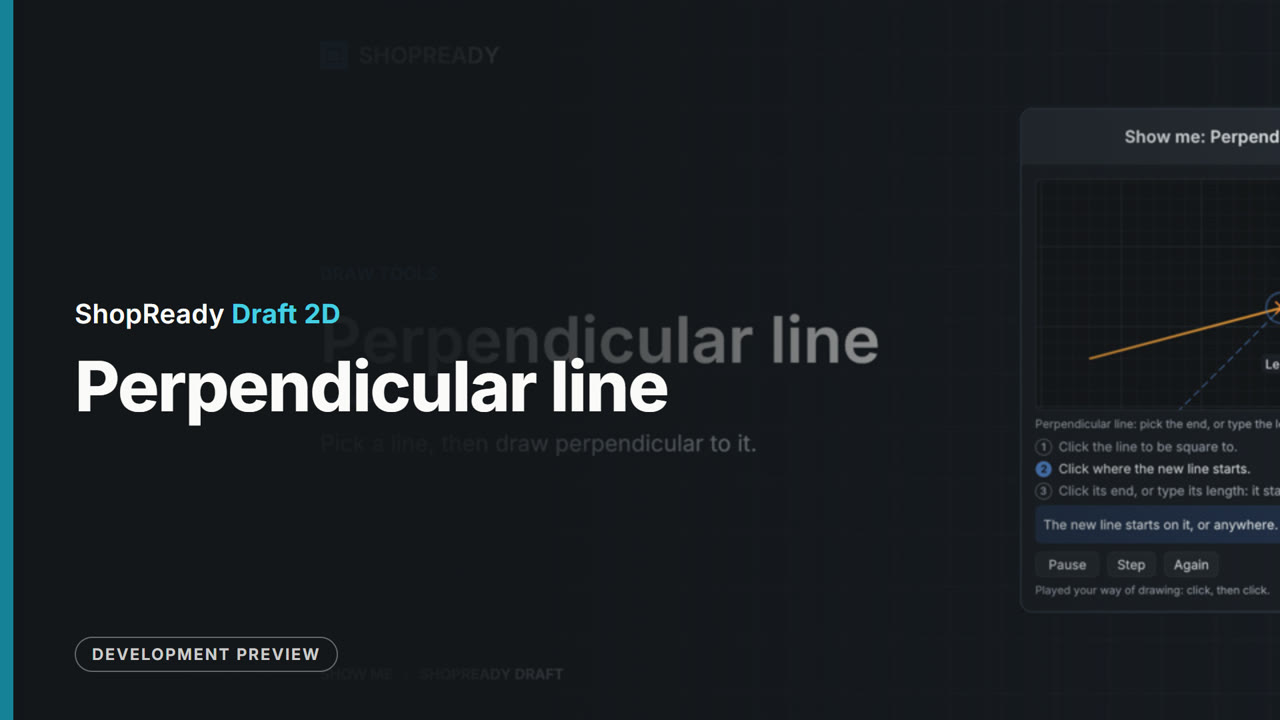 Lesson · 21 s
The Perpendicular line tool: a short lesson
The Perpendicular line tool: pick a line, then draw perpendicular to it. One of the program's own built-in demonstrations, in its own words.
 Lesson · 15 s
The Point tool: a short lesson
The Point tool: place a point. One of the program's own built-in demonstrations, in its own words.
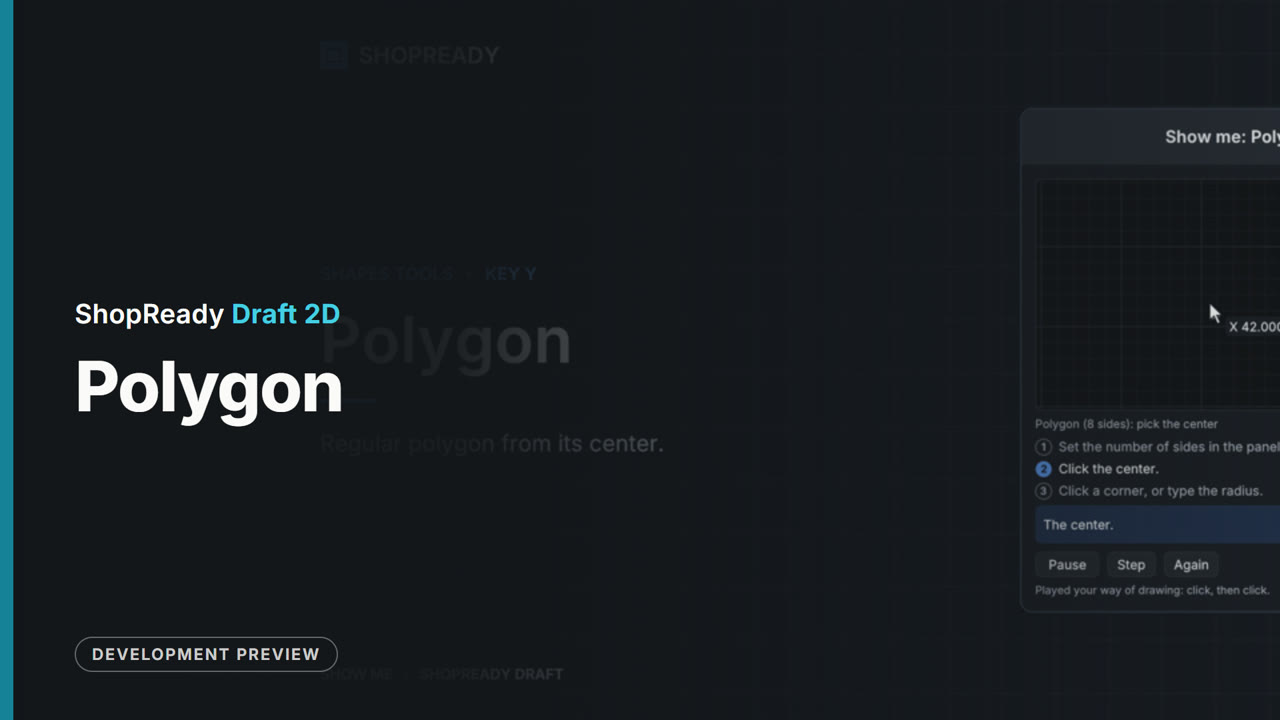 Lesson · 21 s
The Polygon tool: a short lesson
The Polygon tool: regular polygon from its center. One of the program's own built-in demonstrations, in its own words.
 Lesson · 23 s
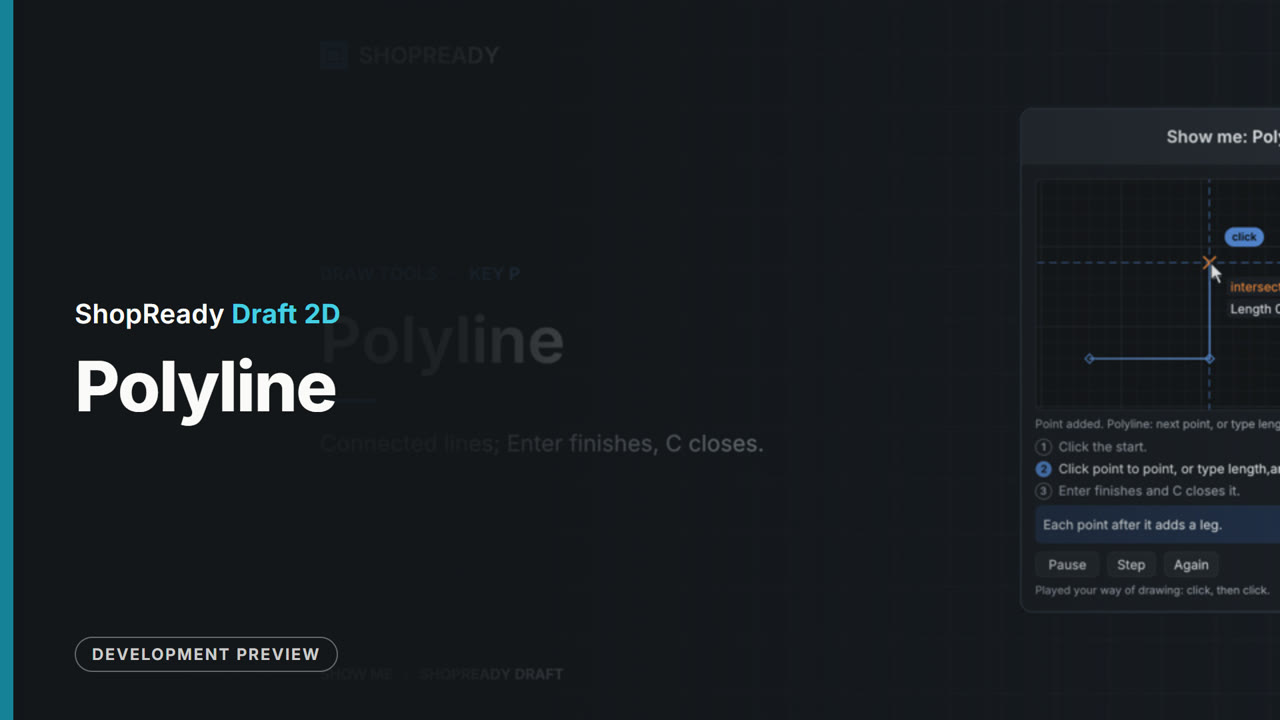
The Polyline tool: a short lesson
The Polyline tool: connected lines; Enter finishes, C closes. One of the program's own built-in demonstrations, in its own words.
 Lesson · 21 s
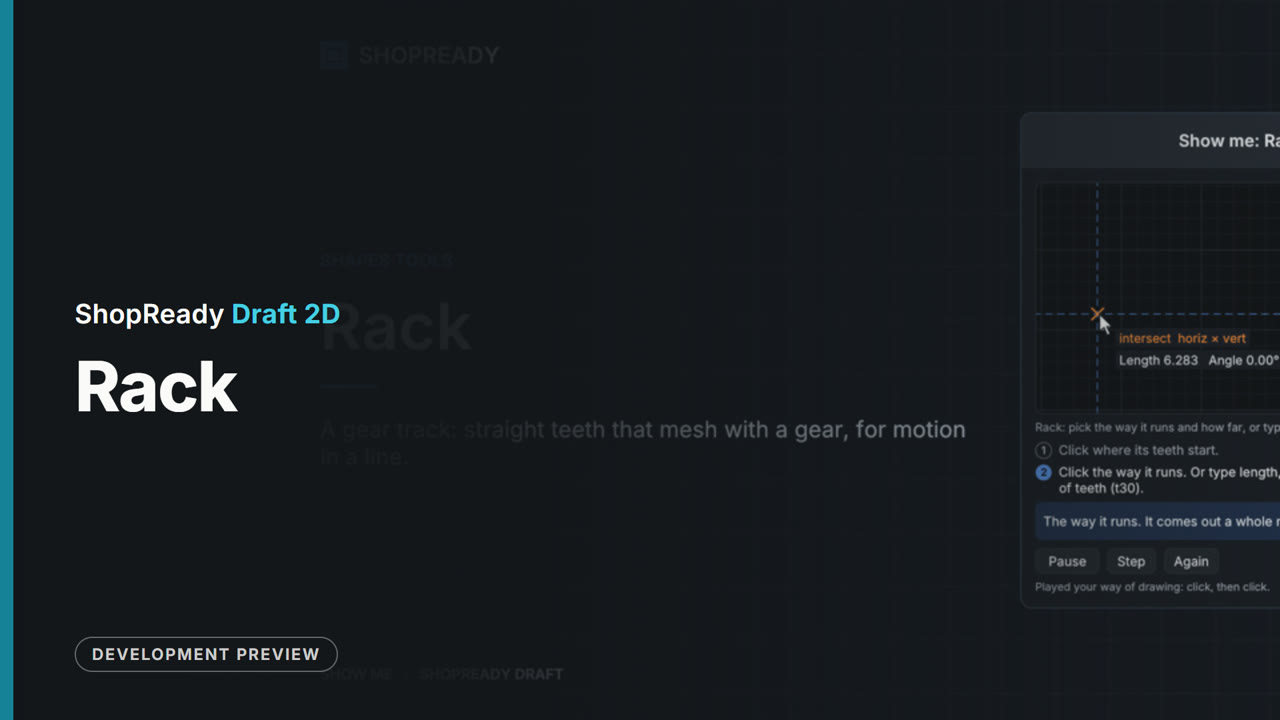
The Rack tool: a short lesson
The Rack tool: a gear track: straight teeth that mesh with a gear, for motion in a line. One of the program's own built-in demonstrations, in its own words.
 Lesson · 18 s
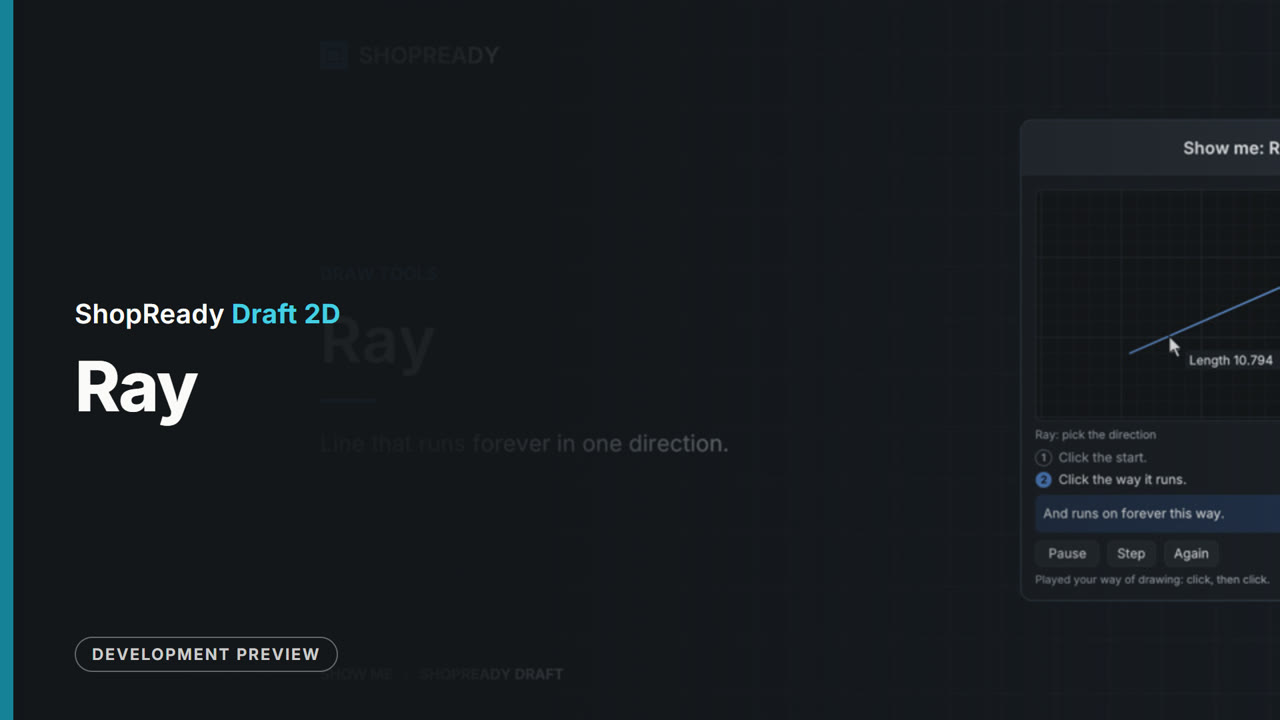
The Ray tool: a short lesson
The Ray tool: line that runs forever in one direction. One of the program's own built-in demonstrations, in its own words.
 Lesson · 23 s
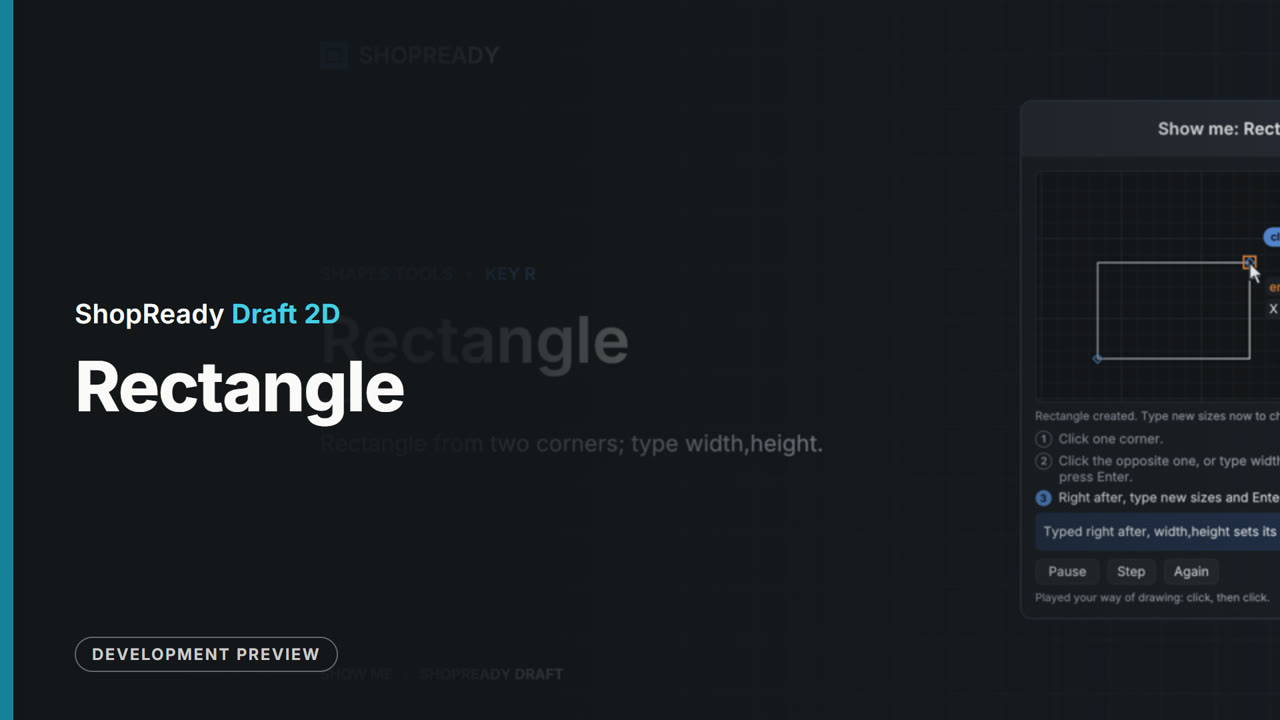
The Rectangle tool: a short lesson
The Rectangle tool: rectangle from two corners; type width,height. One of the program's own built-in demonstrations, in its own words.
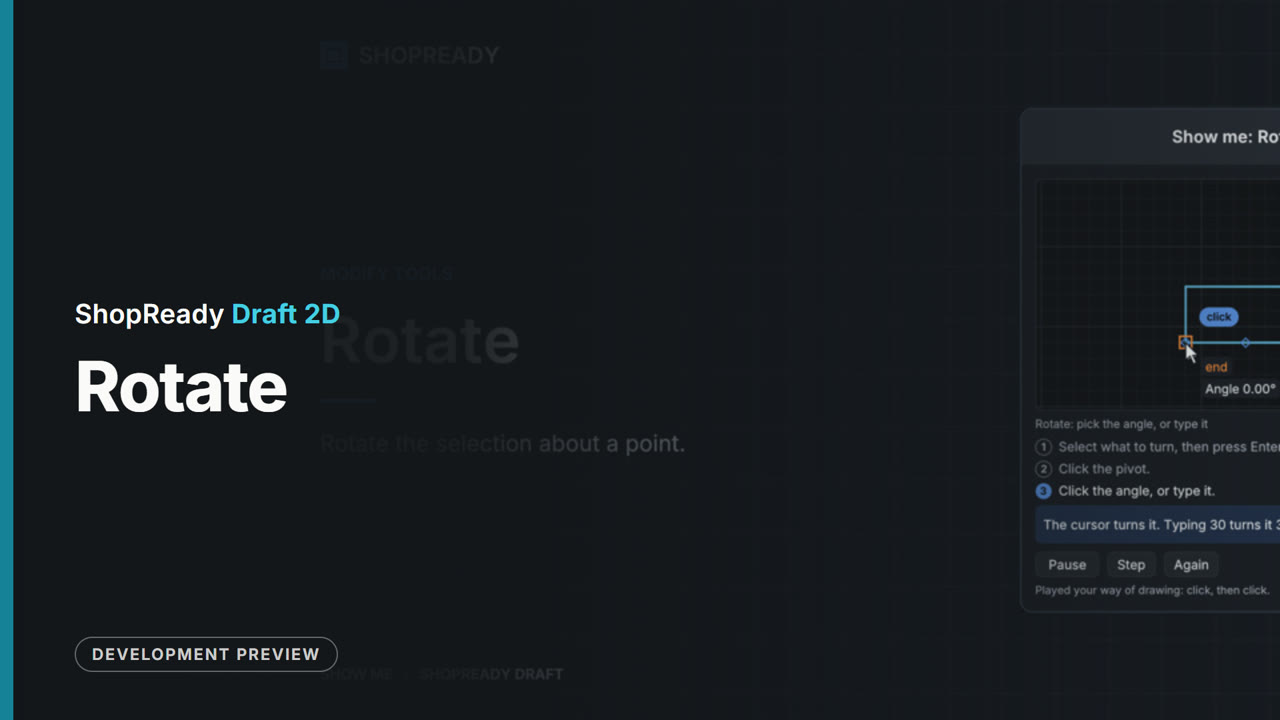 Lesson · 23 s
The Rotate tool: a short lesson
The Rotate tool: rotate the selection about a point. One of the program's own built-in demonstrations, in its own words.
 Lesson · 22 s
The Scale tool: a short lesson
The Scale tool: scale the selection about a point. One of the program's own built-in demonstrations, in its own words.
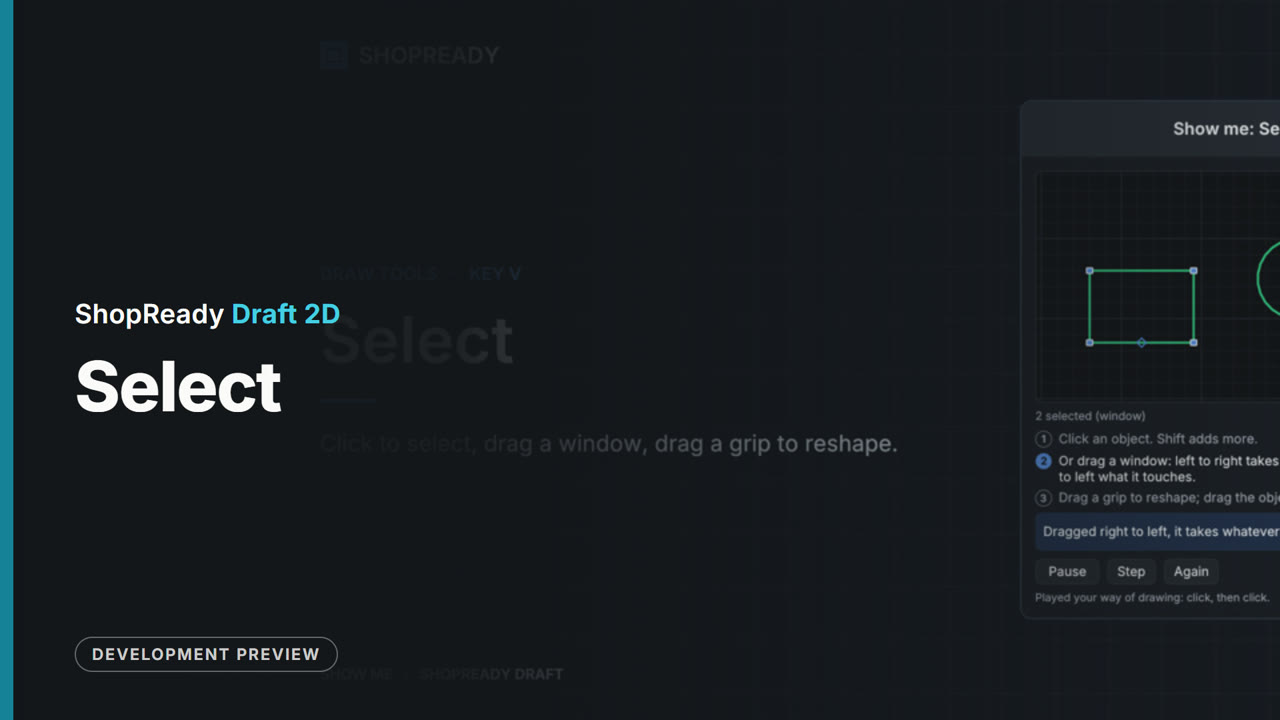 Lesson · 39 s
The Select tool: a short lesson
The Select tool: click to select, drag a window, drag a grip to reshape. One of the program's own built-in demonstrations, in its own words.
 Lesson · 21 s
The Slot tool: a short lesson
The Slot tool: straight slot between two centers. One of the program's own built-in demonstrations, in its own words.
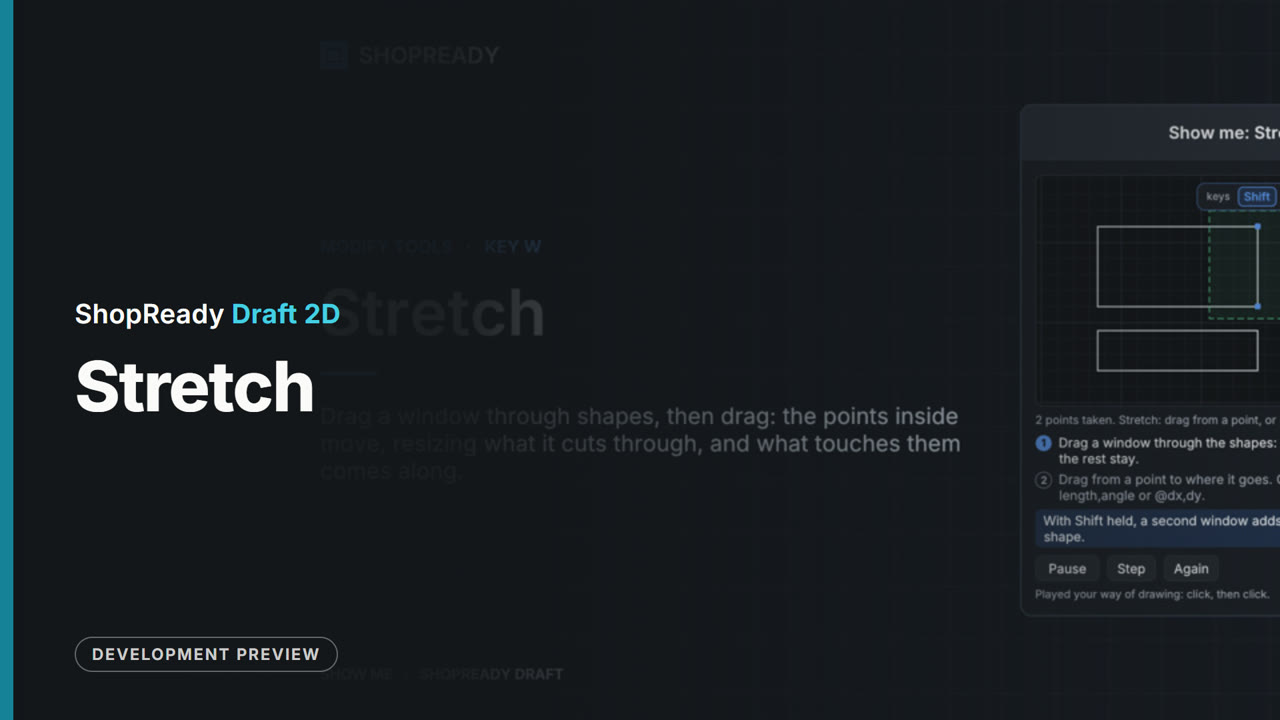 Lesson · 32 s
The Stretch tool: a short lesson
The Stretch tool: drag a window through shapes, then drag: the points inside move, resizing what it cuts through, and what touches them comes along. One of the program's own built-in demonstrations, in its own words.
 Lesson · 20 s
The Tangent arc tool: a short lesson
The Tangent arc tool: arc that goes on smoothly from the end of a line or arc. One of the program's own built-in demonstrations, in its own words.
 Lesson · 31 s
The Text tool: a short lesson
The Text tool: letters that are part of the drawing: they print to scale, and can be engraved, V-carved or cut out. One of the program's own built-in demonstrations, in its own words.
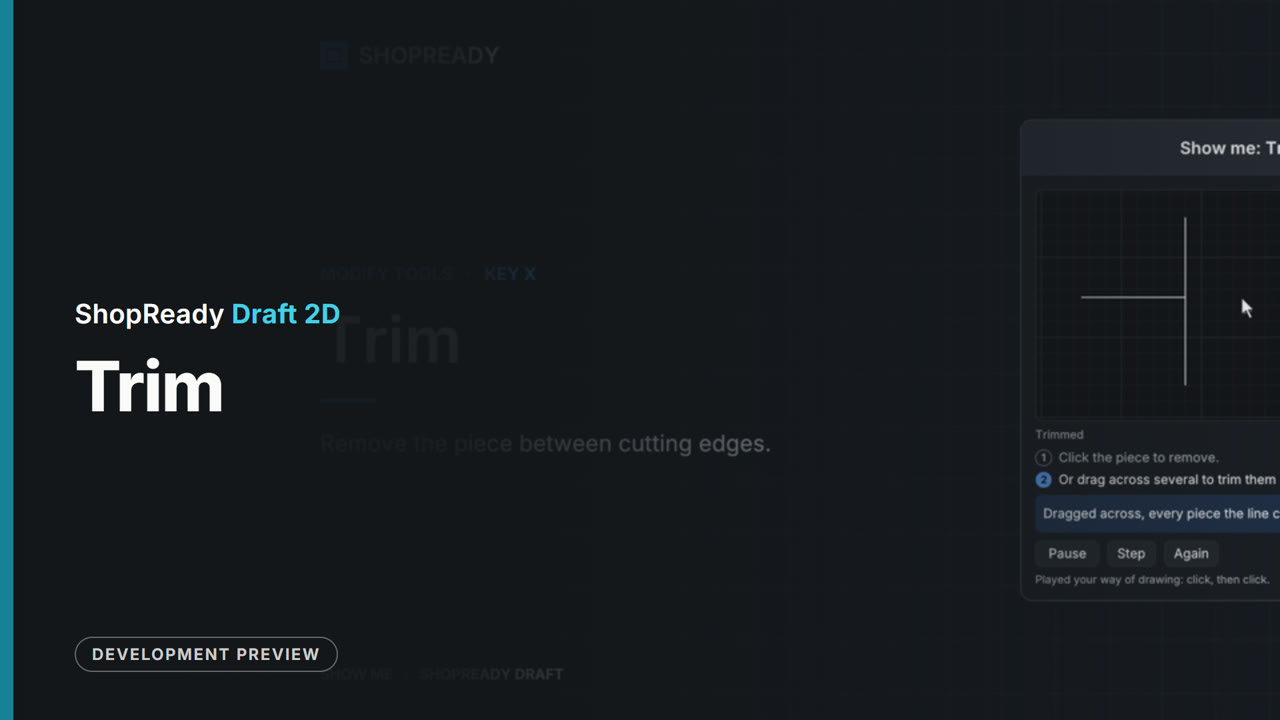 Lesson · 20 s
The Trim tool: a short lesson
The Trim tool: remove the piece between cutting edges. One of the program's own built-in demonstrations, in its own words.
 Lesson · 40 s
Things that move: a short lesson
Things that move: a pin, a motor and a stop. One of the program's own built-in demonstrations, in its own words.
 Lesson · 30 s
Typing sizes: a short lesson
Typing sizes. One of the program's own built-in demonstrations, in its own words.
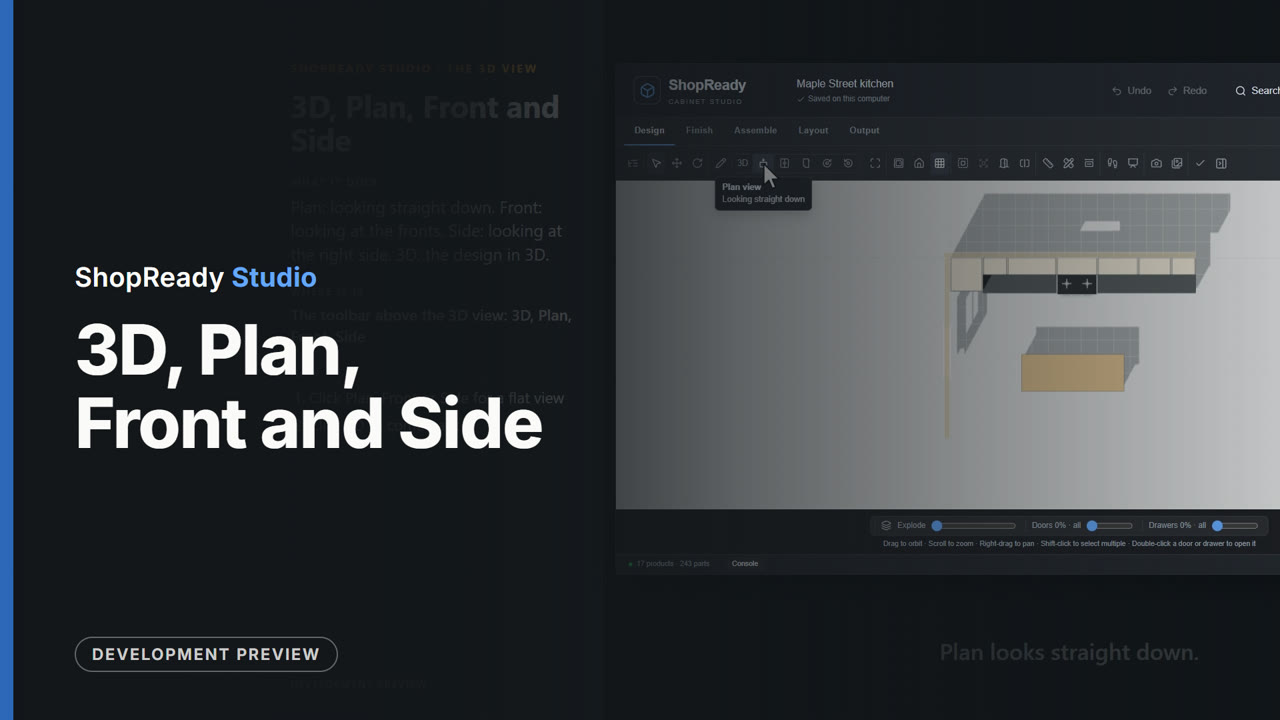 Lesson · 30 s
3D, Plan, Front and Side: a short lesson
Plan: looking straight down. Front: looking at the fronts. Side: looking at the right side. 3D: the design in 3D.
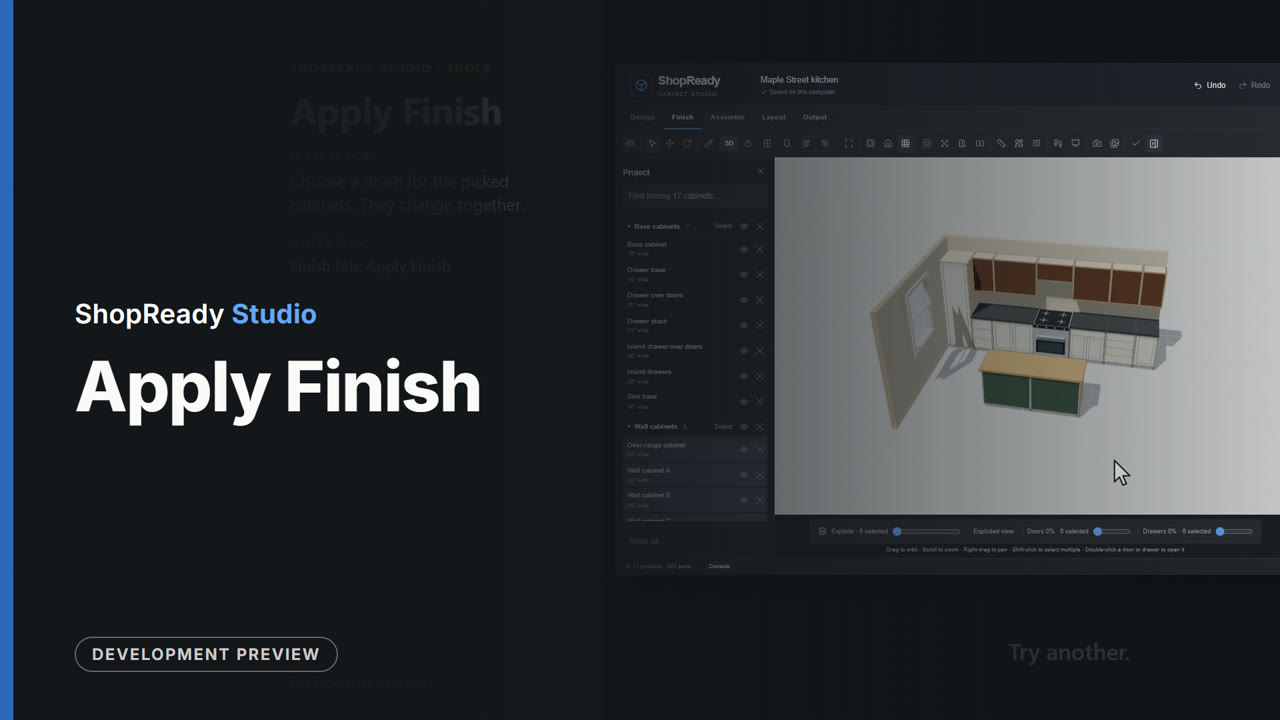 Lesson · 30 s
Apply Finish: a short lesson
Choose a finish for the picked cabinets. They change together.
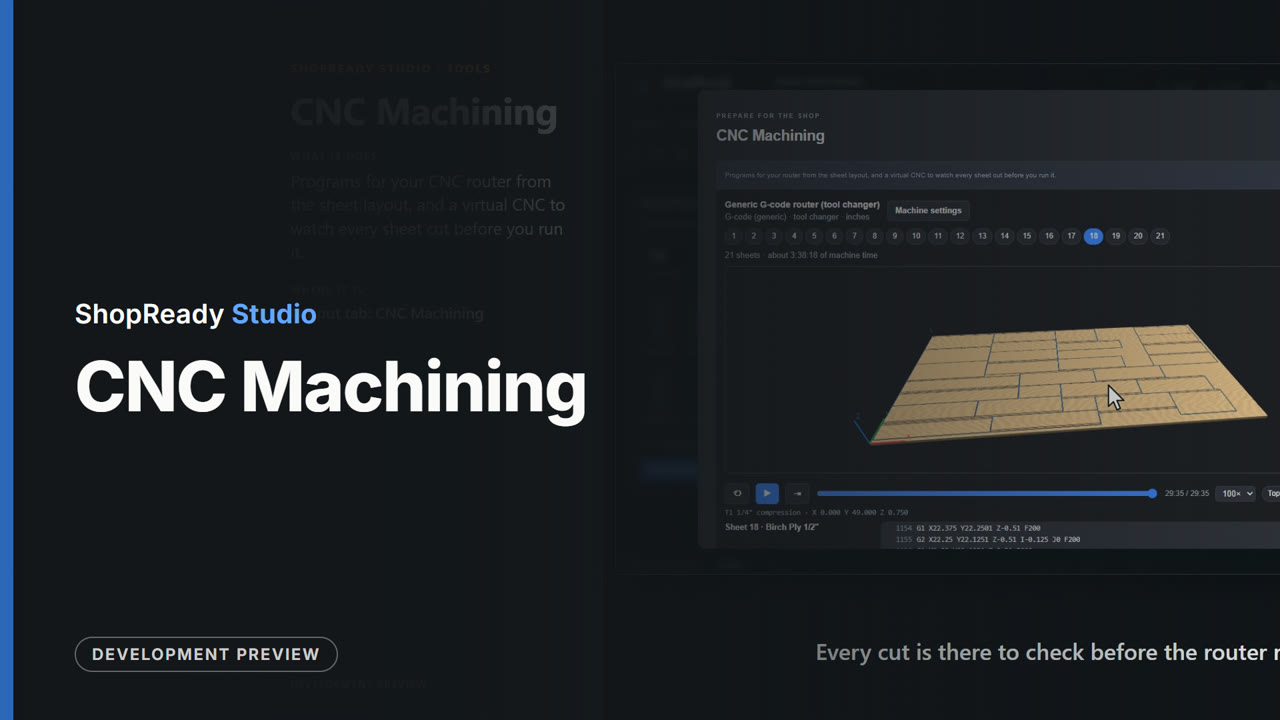 Lesson · 47 s
CNC Machining: a short lesson
Programs for your CNC router from the sheet layout, and a virtual CNC to watch every sheet cut before you run it.
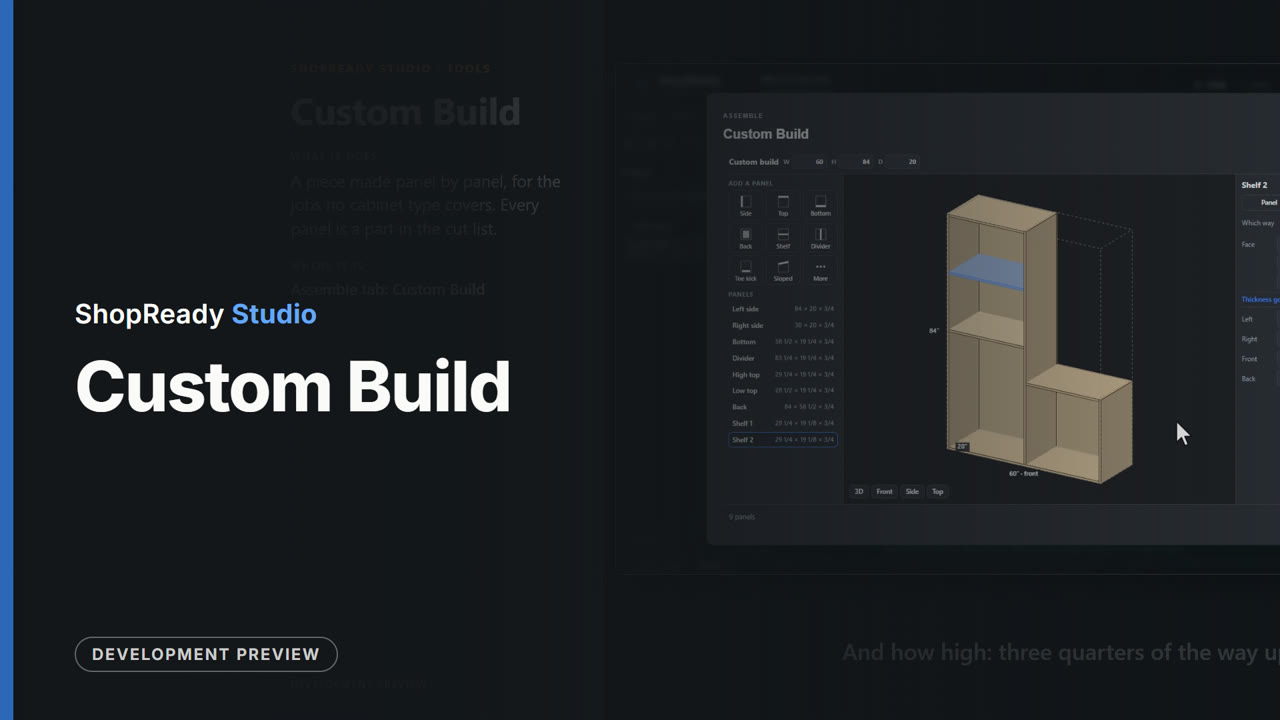 Lesson · 47 s
Custom Build: a short lesson
A piece made panel by panel, for the jobs no cabinet type covers. Every panel is a part in the cut list.
 Lesson · 23 s
Customer Package: a short lesson
One PDF for the customer: plan, wall elevations with dimensions, a picture, the price and a signature line.
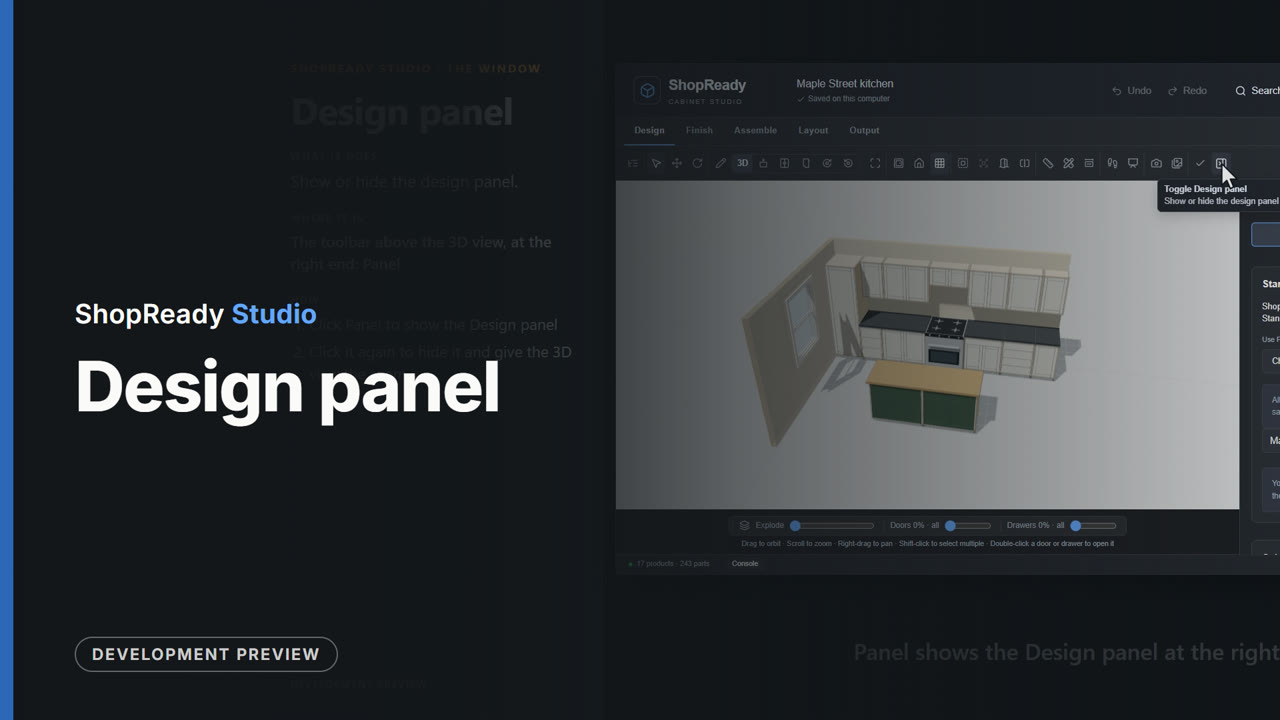 Lesson · 17 s
Design panel: a short lesson
Show or hide the design panel.
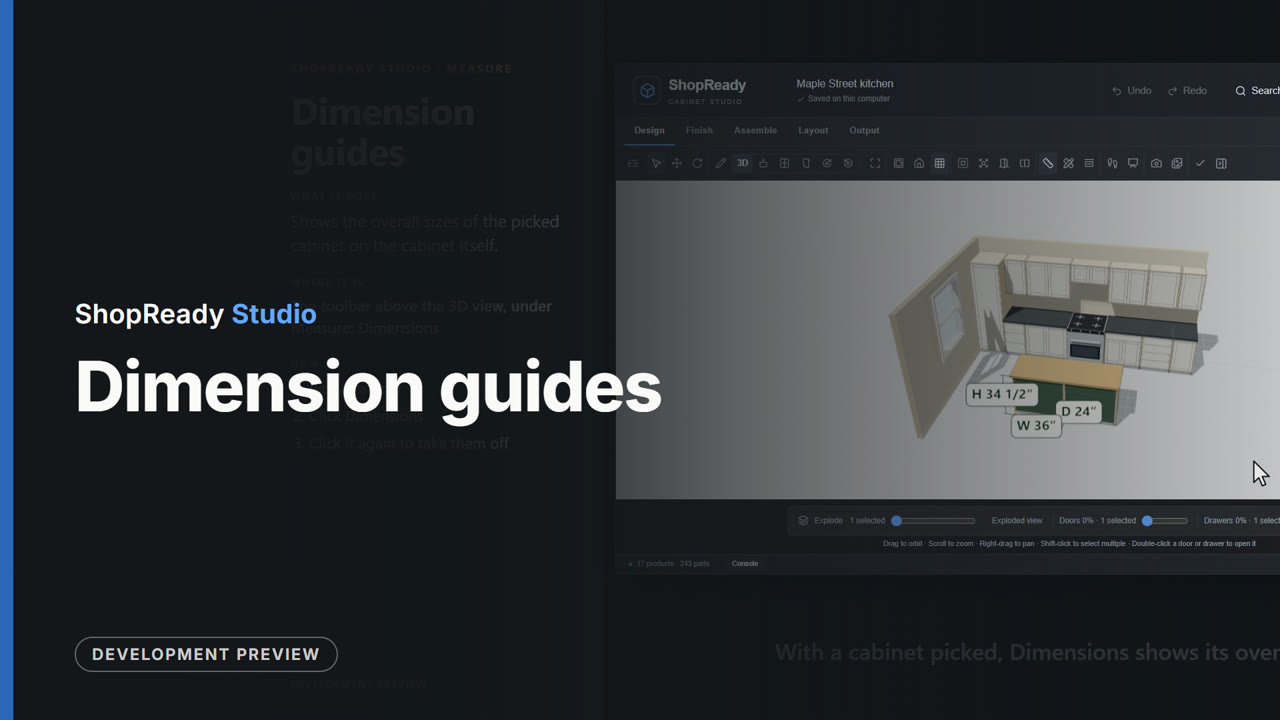 Lesson · 21 s
Dimension guides: a short lesson
Shows the overall sizes of the picked cabinet on the cabinet itself.
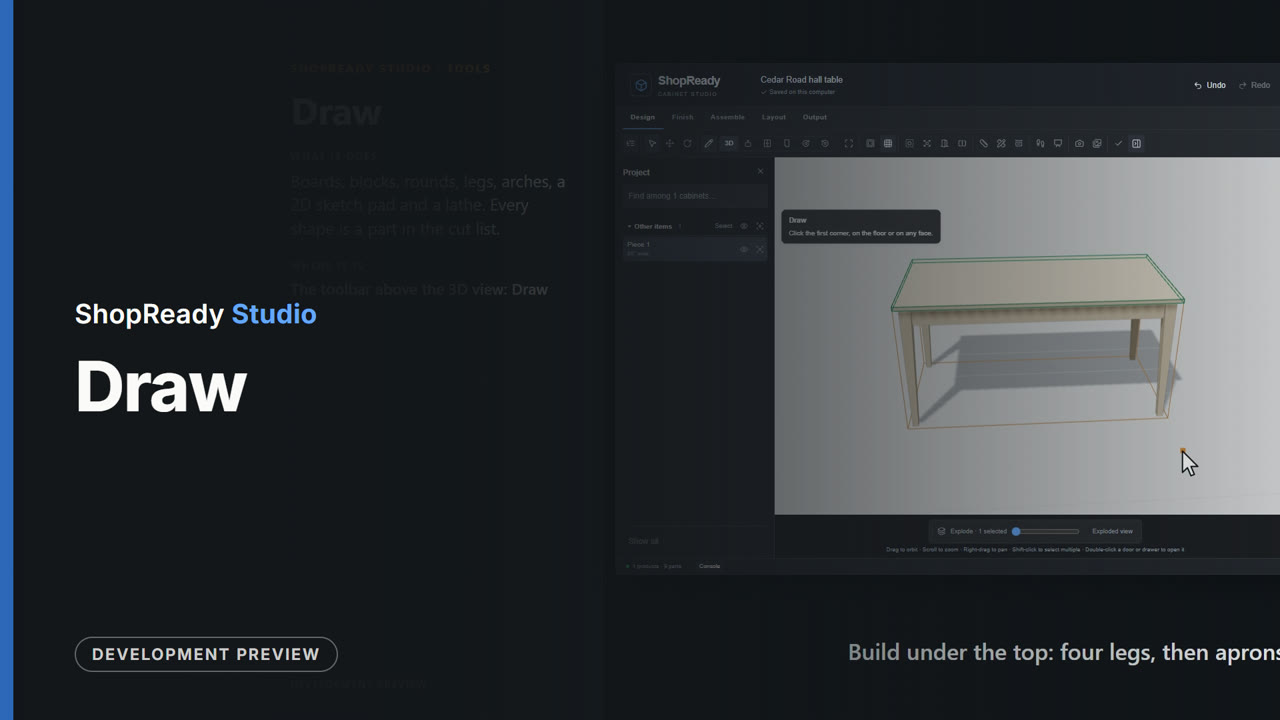 Lesson · 53 s
Draw: a short lesson
Boards, blocks, rounds, legs, arches, a 2D sketch pad and a lathe. Every shape is a part in the cut list.
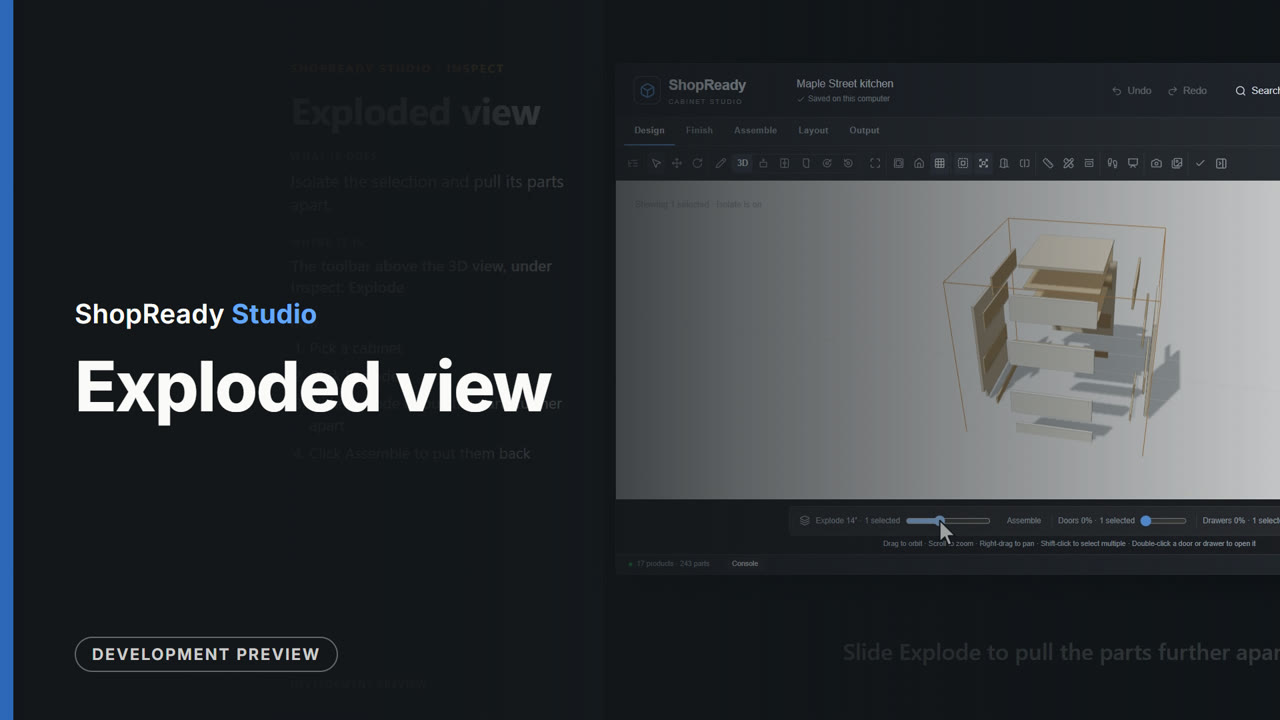 Lesson · 24 s
Exploded view: a short lesson
Isolate the selection and pull its parts apart.
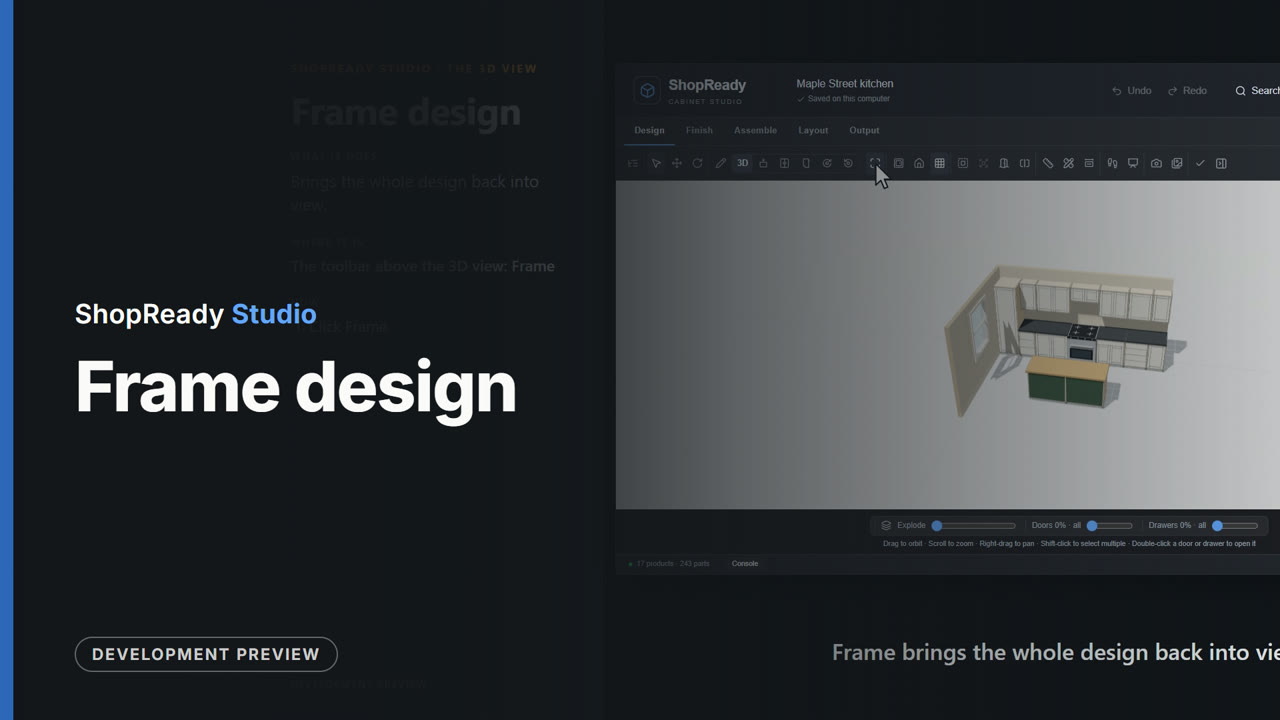 Lesson · 18 s
Frame design: a short lesson
Brings the whole design back into view.
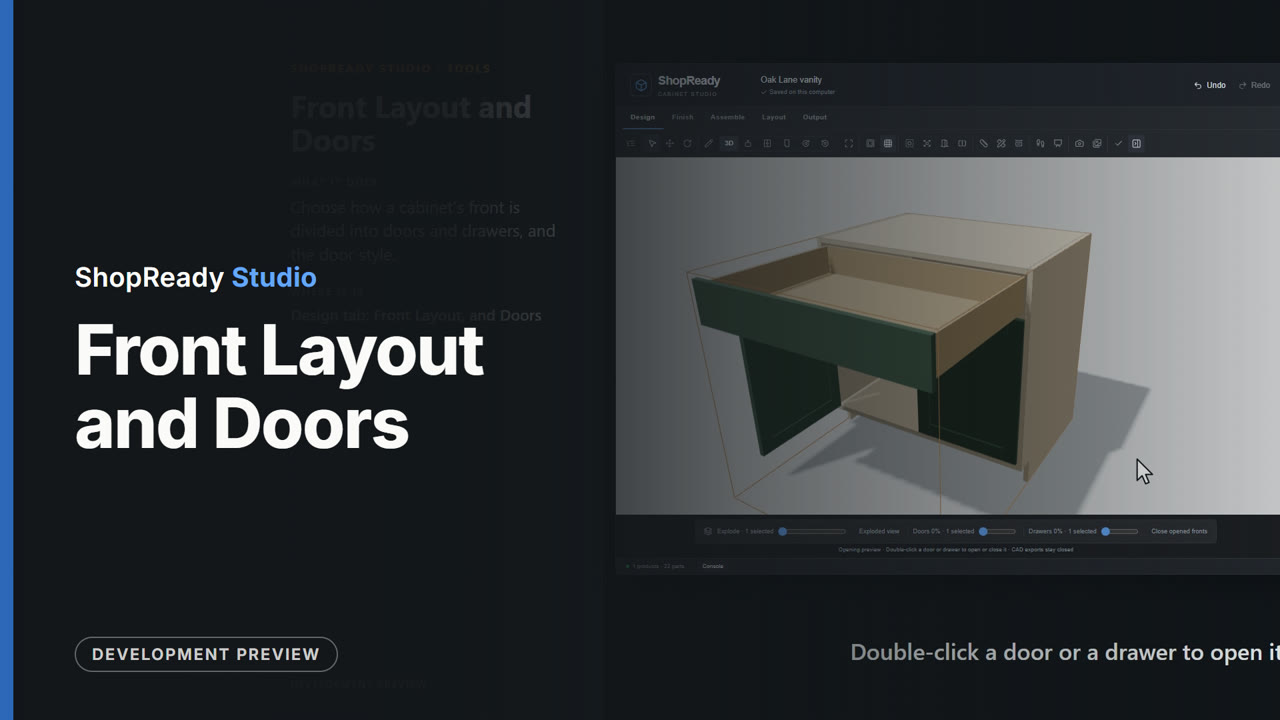 Lesson · 39 s
Front Layout and Doors: a short lesson
Choose how a cabinet's front is divided into doors and drawers, and the door style.
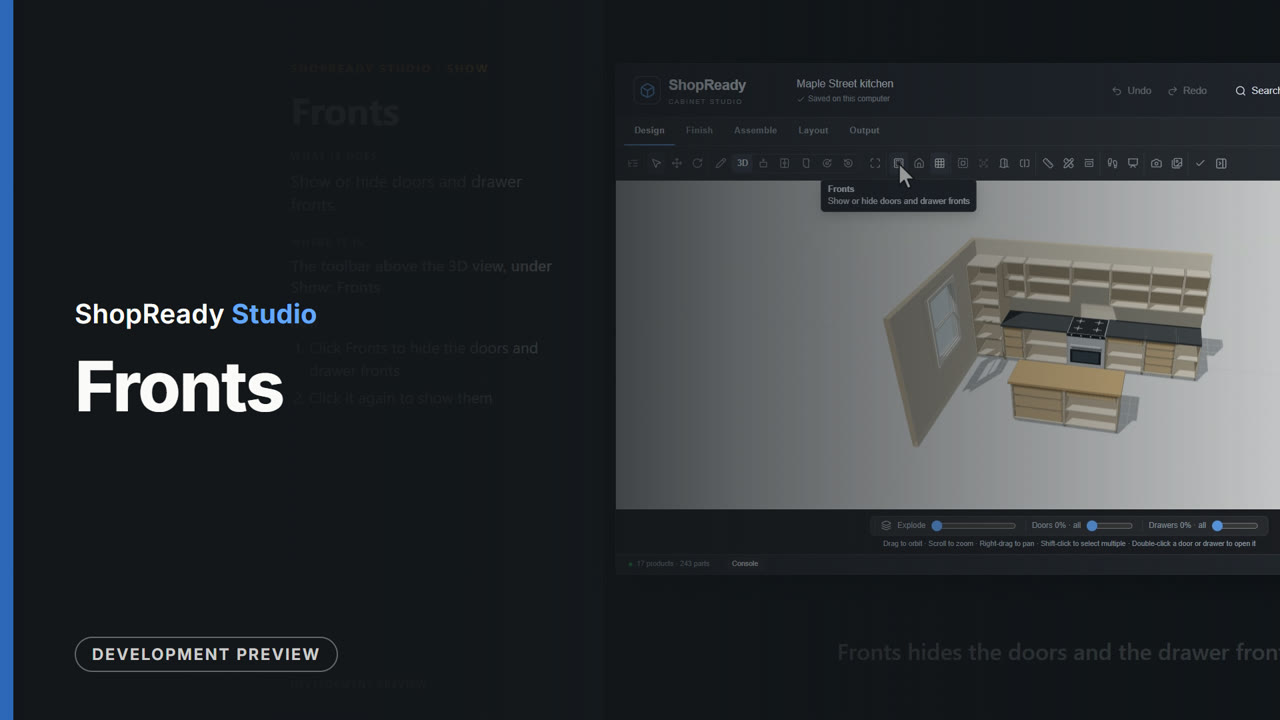 Lesson · 19 s
Fronts: a short lesson
Show or hide doors and drawer fronts.
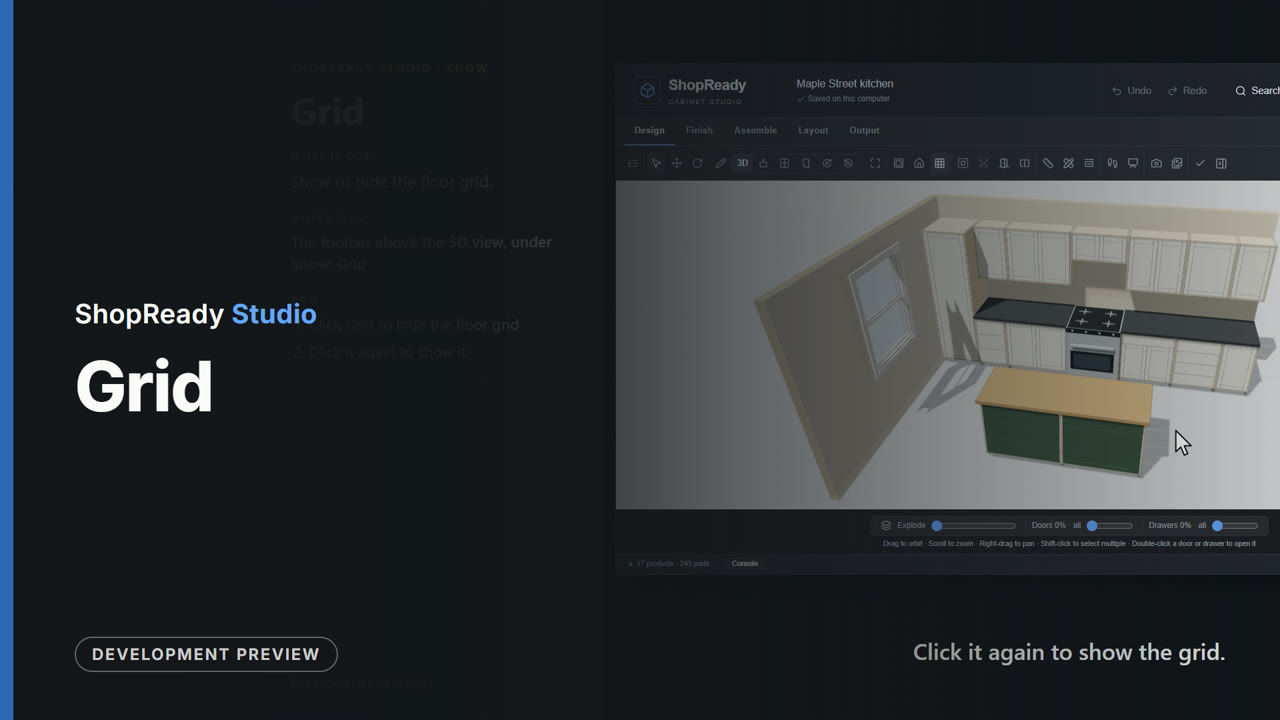 Lesson · 20 s
Grid: a short lesson
Show or hide the floor grid.
 Lesson · 34 s
Hardware Catalog: a short lesson
Real hinges, lifts, drawer slides and door fittings, found by model number, name or maker and put on a cabinet with their own figures.
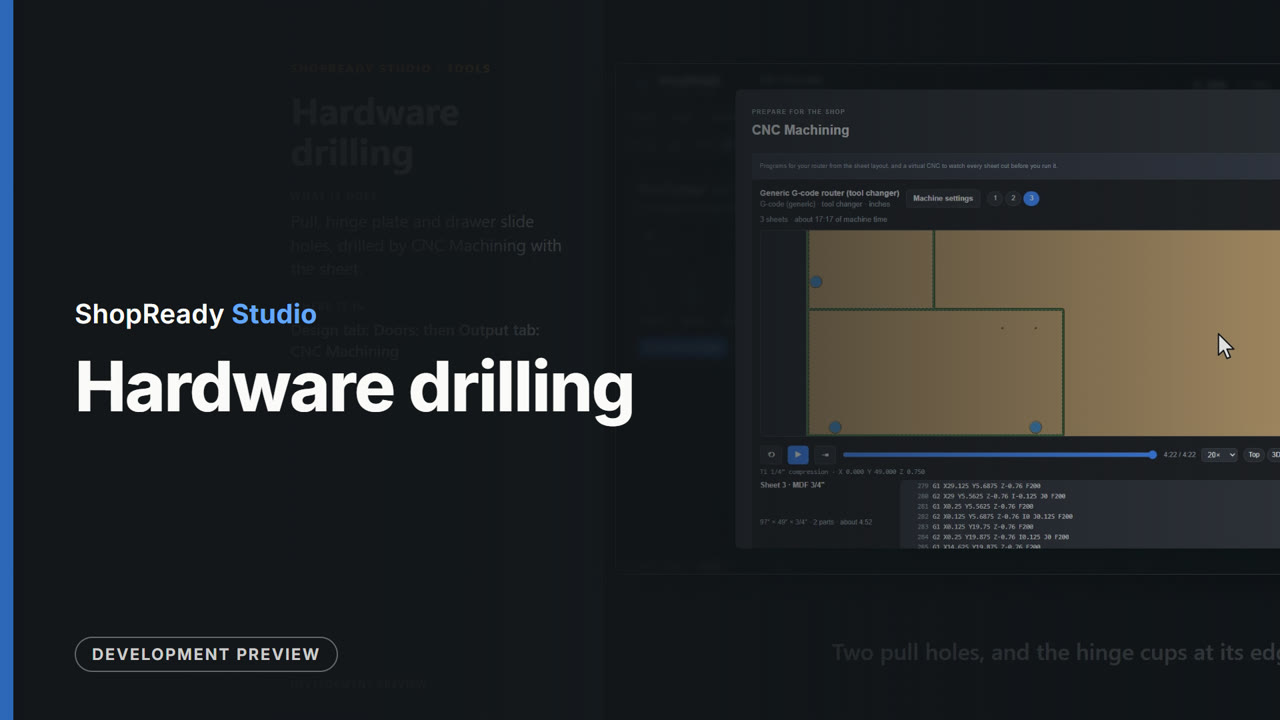 Lesson · 49 s
Hardware drilling: a short lesson
Pull, hinge plate and drawer slide holes, drilled by CNC Machining with the sheet.
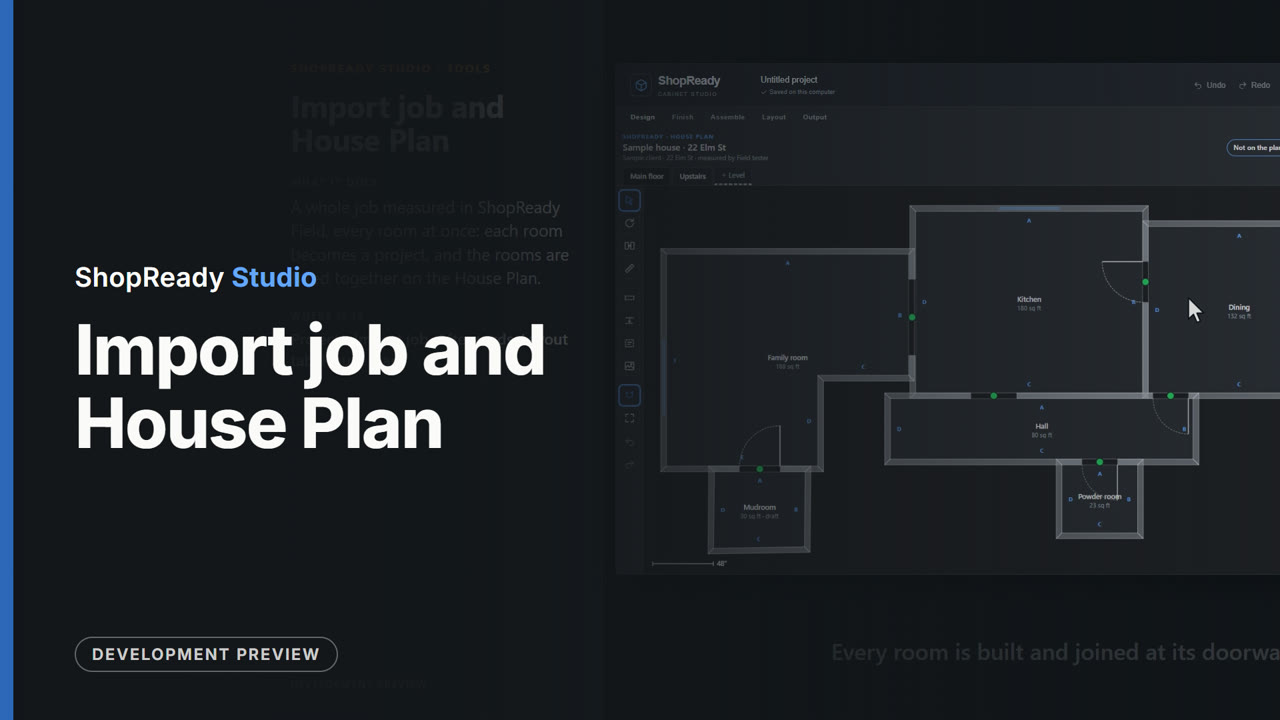 Lesson · 46 s
Import job and House Plan: a short lesson
A whole job measured in ShopReady Field, every room at once: each room becomes a project, and the rooms are fitted together on the House Plan.
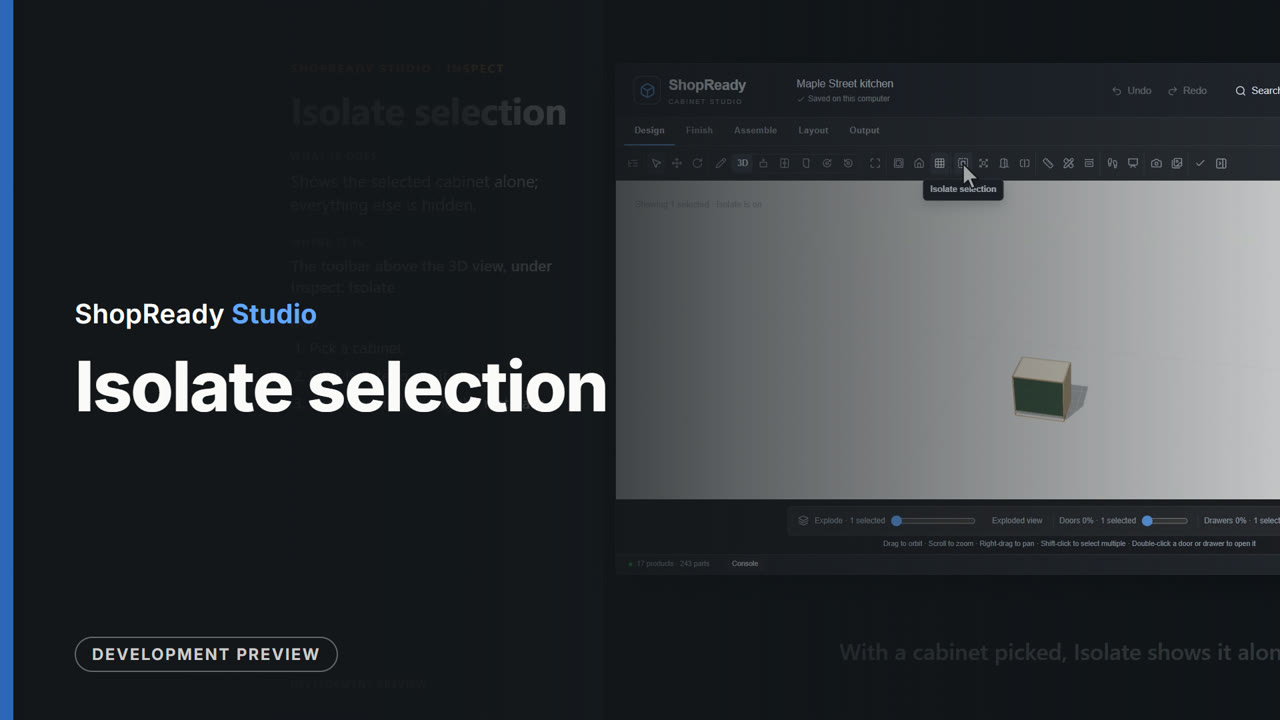 Lesson · 21 s
Isolate selection: a short lesson
Shows the selected cabinet alone; everything else is hidden.
 Lesson · 43 s
Job & Approval: a short lesson
The customer, where the job stands, saved versions, approving one and comparing two with their prices.
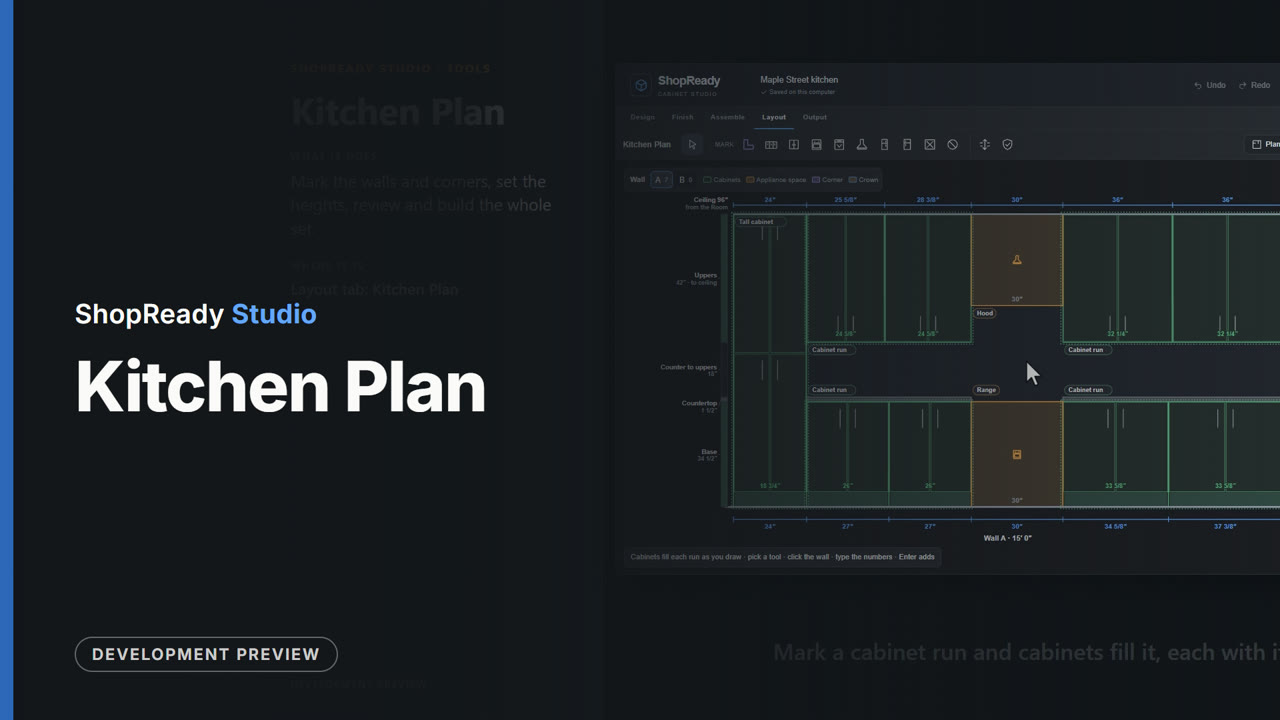 Lesson · 56 s
Kitchen Plan: a short lesson
Mark the walls and corners, set the heights, review and build the whole set.
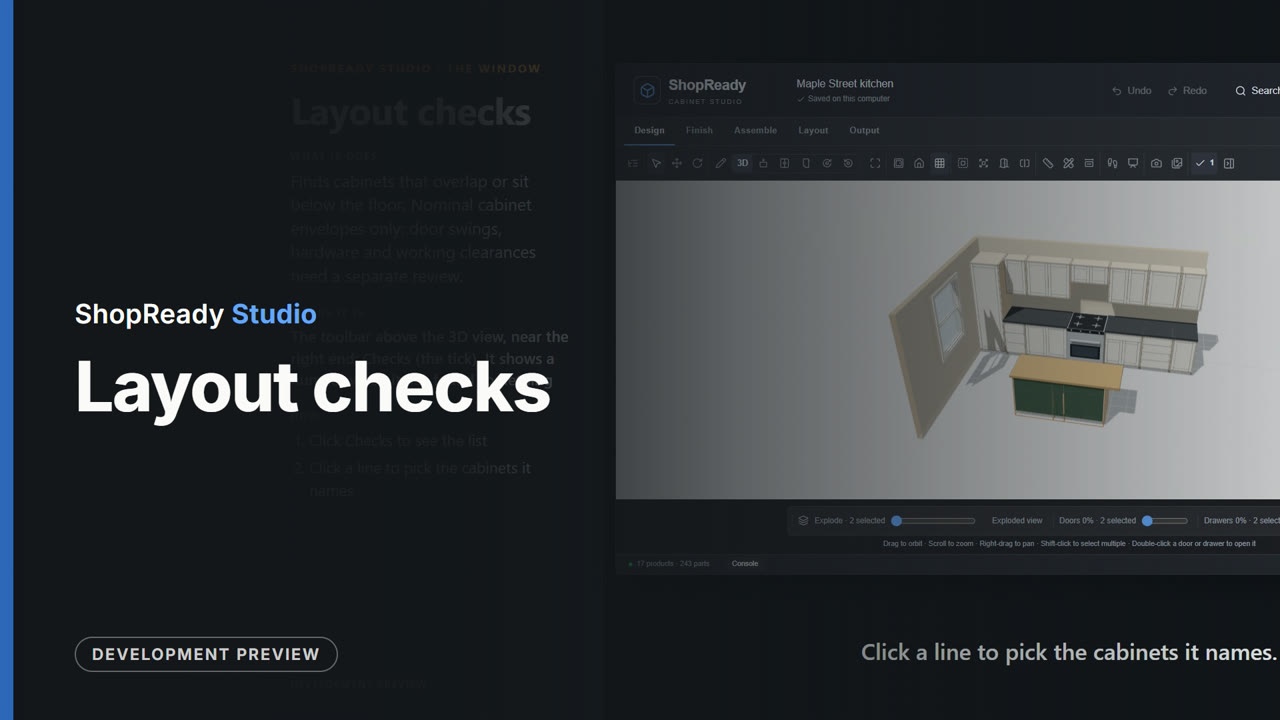 Lesson · 31 s
Layout checks: a short lesson
Finds cabinets that overlap or sit below the floor. Nominal cabinet envelopes only: door swings, hardware and working clearances need a separate review.
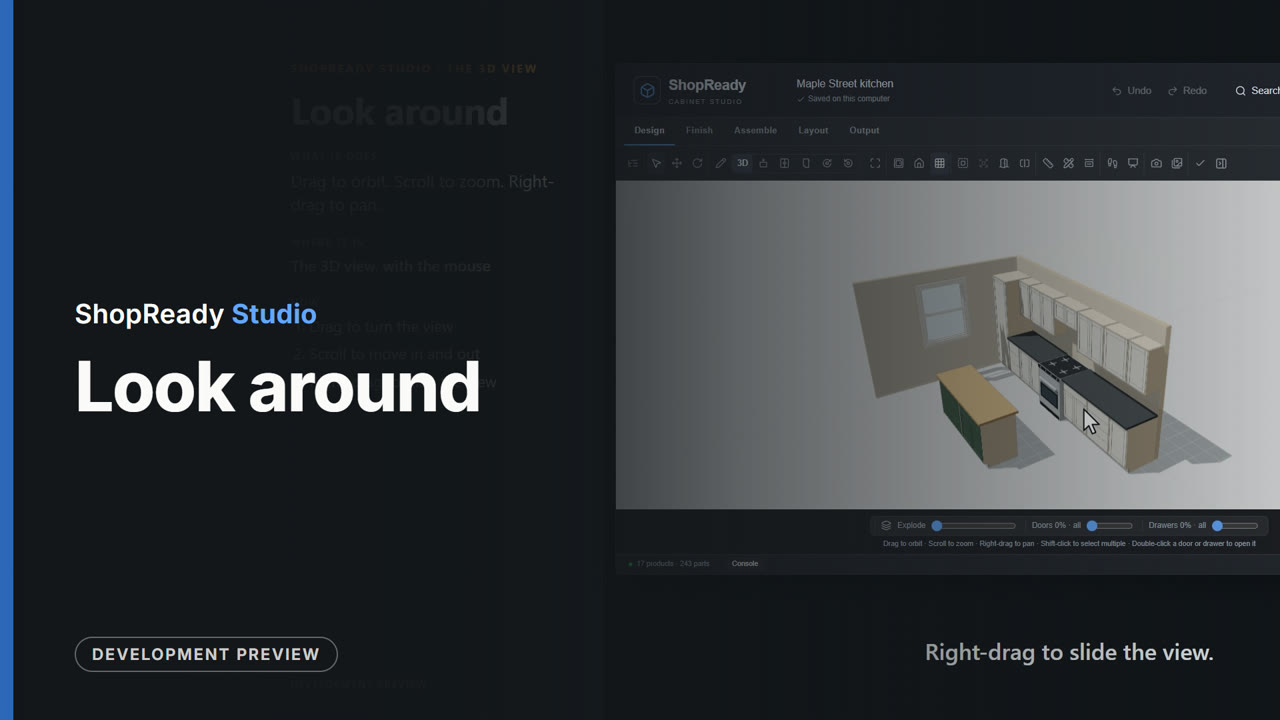 Lesson · 25 s
Look around: a short lesson
Drag to orbit. Scroll to zoom. Right-drag to pan.
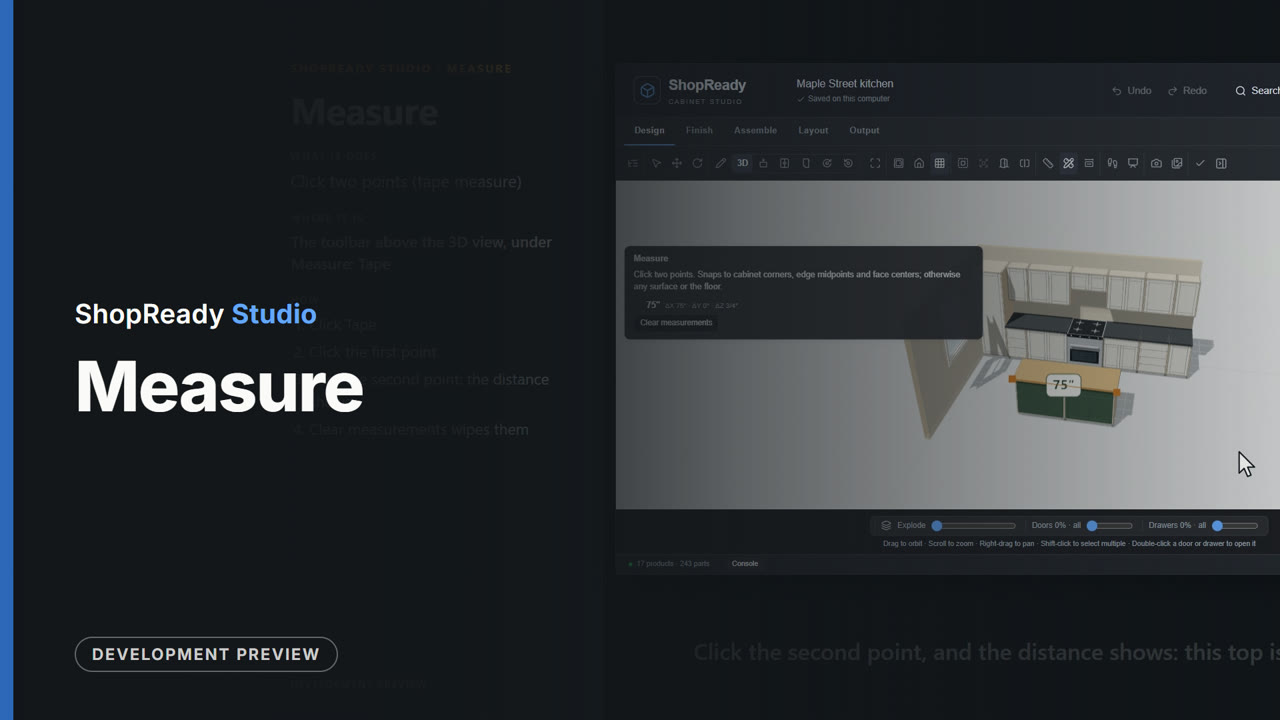 Lesson · 22 s
Measure: a short lesson
Click two points (tape measure)
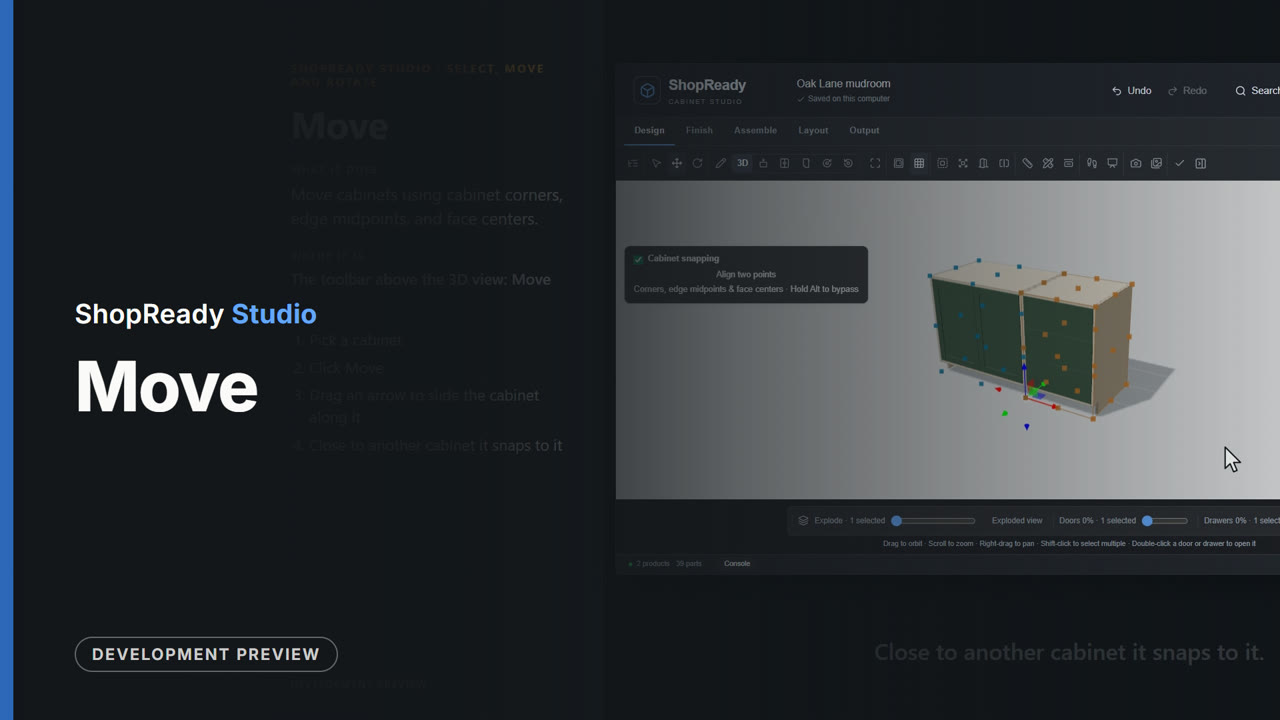 Lesson · 21 s
Move: a short lesson
Move cabinets using cabinet corners, edge midpoints, and face centers.
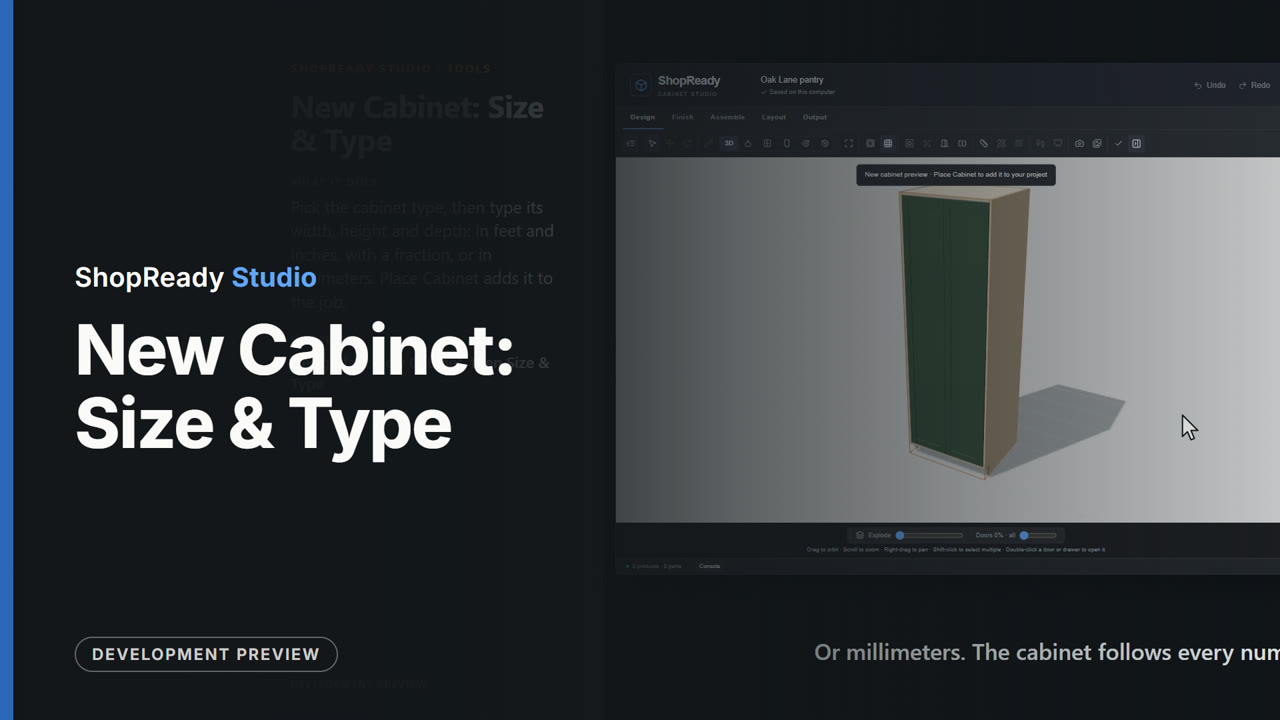 Lesson · 41 s
New Cabinet: Size & Type: a short lesson
Pick the cabinet type, then type its width, height and depth: in feet and inches, with a fraction, or in millimeters. Place Cabinet adds it to the job.
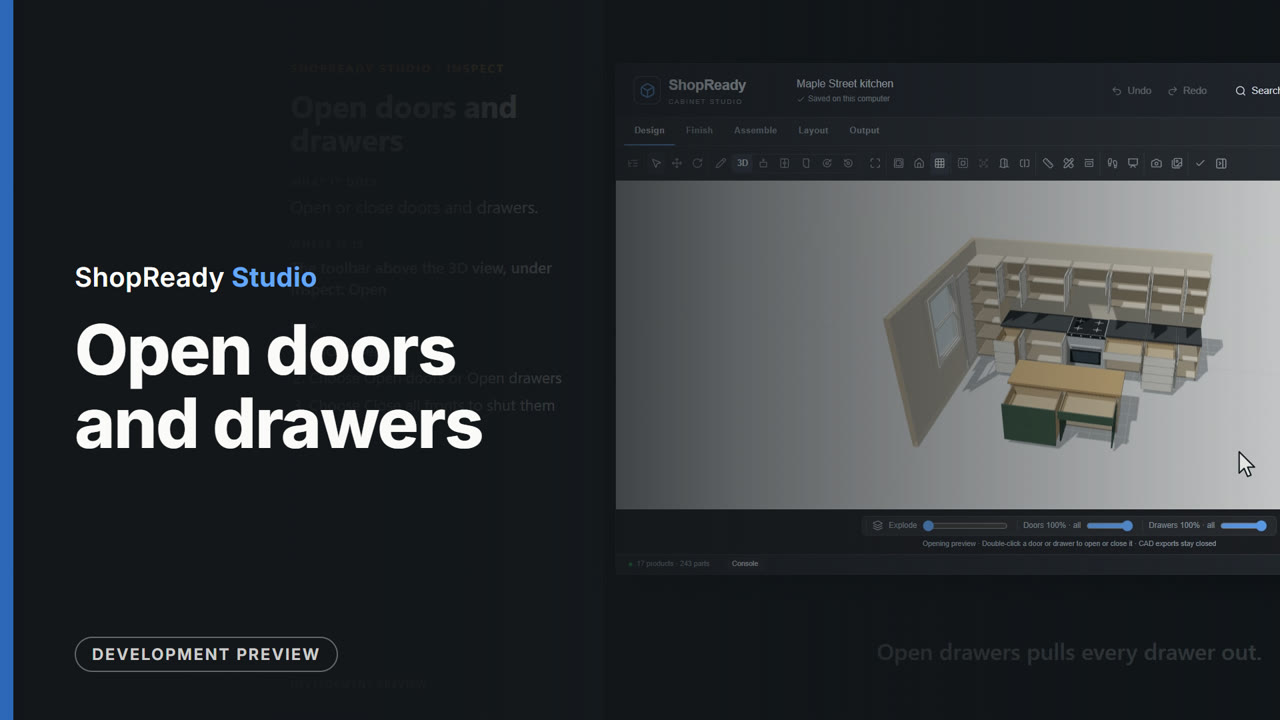 Lesson · 24 s
Open doors and drawers: a short lesson
Open or close doors and drawers.
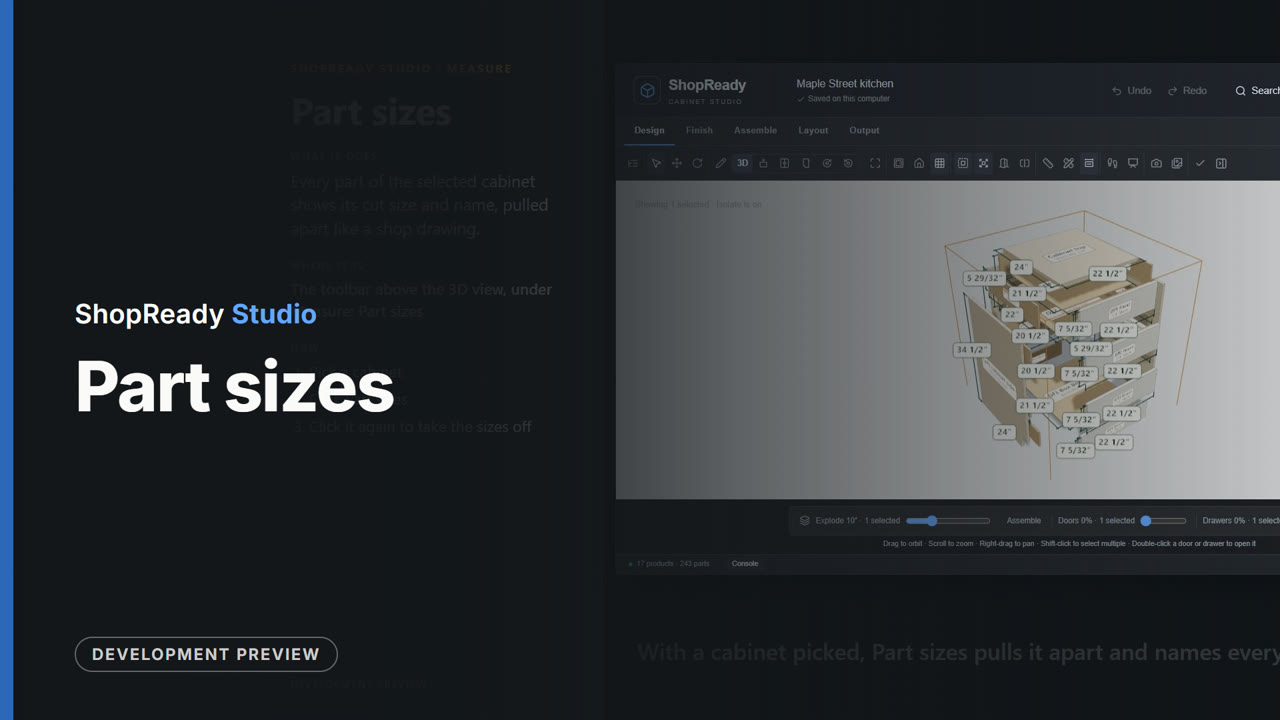 Lesson · 24 s
Part sizes: a short lesson
Every part of the selected cabinet shows its cut size and name, pulled apart like a shop drawing.
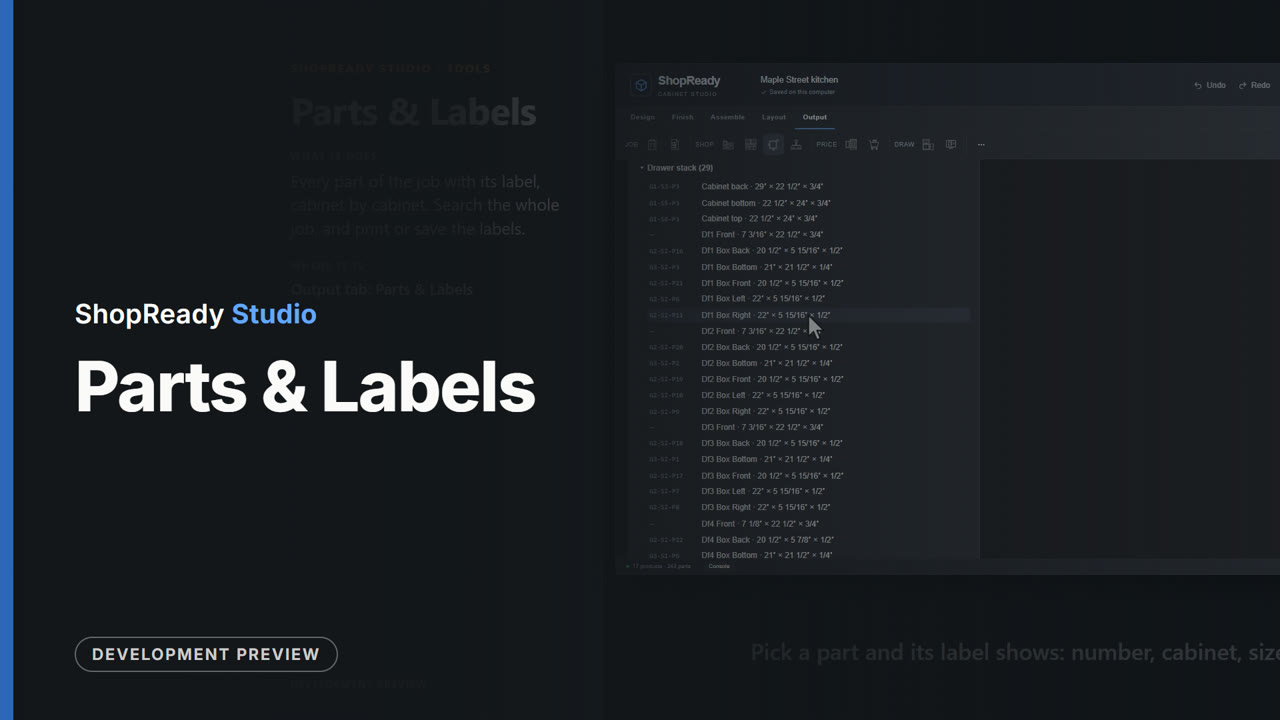 Lesson · 27 s
Parts & Labels: a short lesson
Every part of the job with its label, cabinet by cabinet. Search the whole job, and print or save the labels.
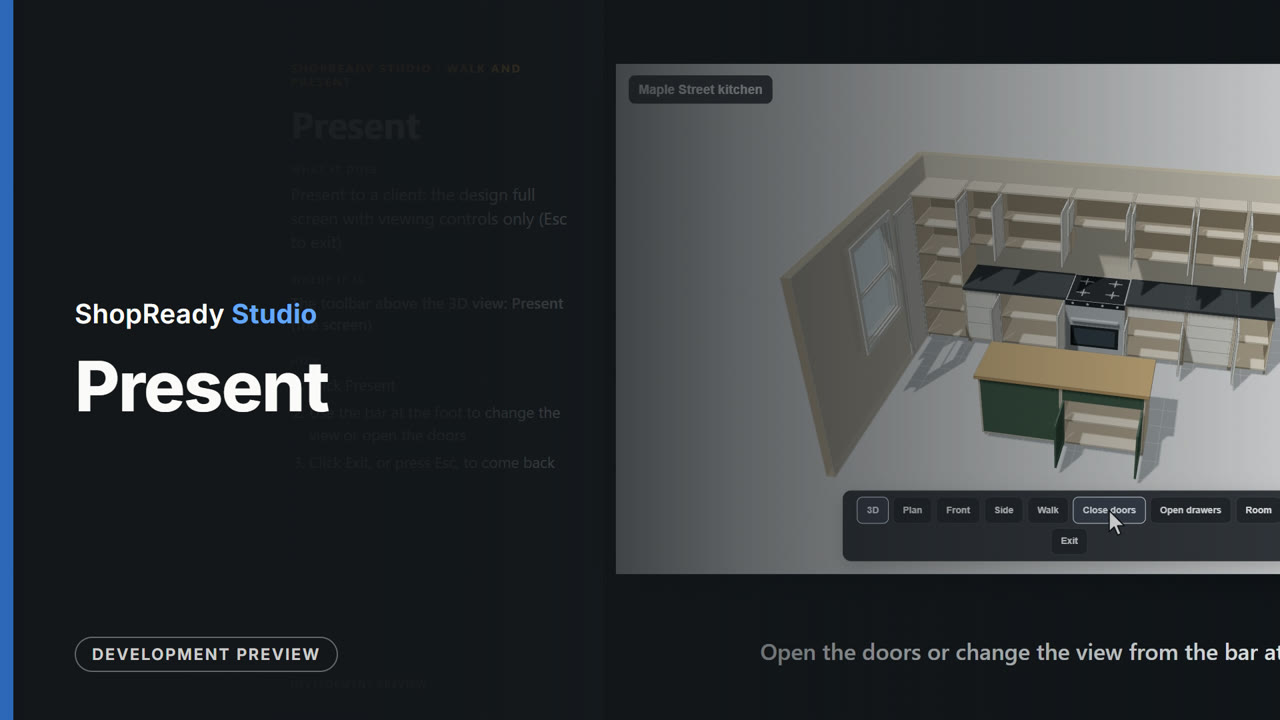 Lesson · 26 s
Present: a short lesson
Present to a client: the design full screen with viewing controls only (Esc to exit)
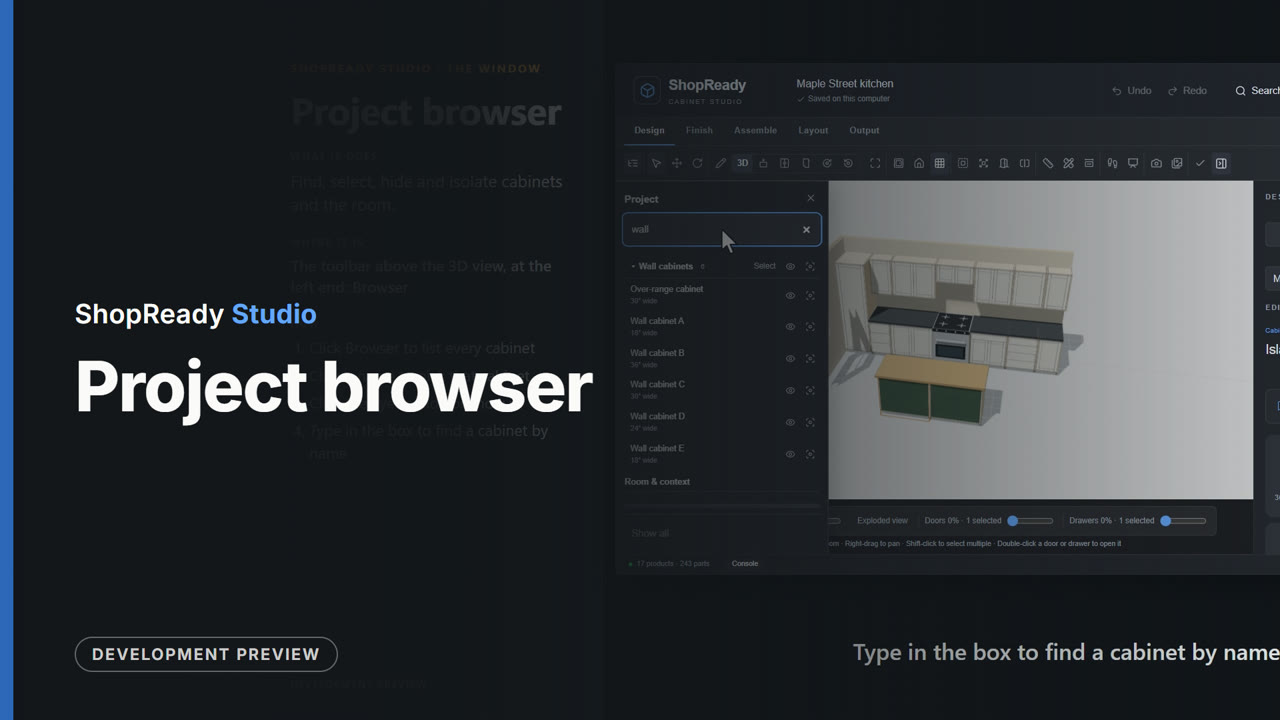 Lesson · 27 s
Project browser: a short lesson
Find, select, hide and isolate cabinets and the room.
 Lesson · 38 s
Quote: a short lesson
The price built from the design's own counts of sheets, boards and hardware. Change a choice and the totals follow.
 Lesson · 38 s
Read a program from your machine: a short lesson
Learn how your controller wants its programs written from a program that already runs on it.
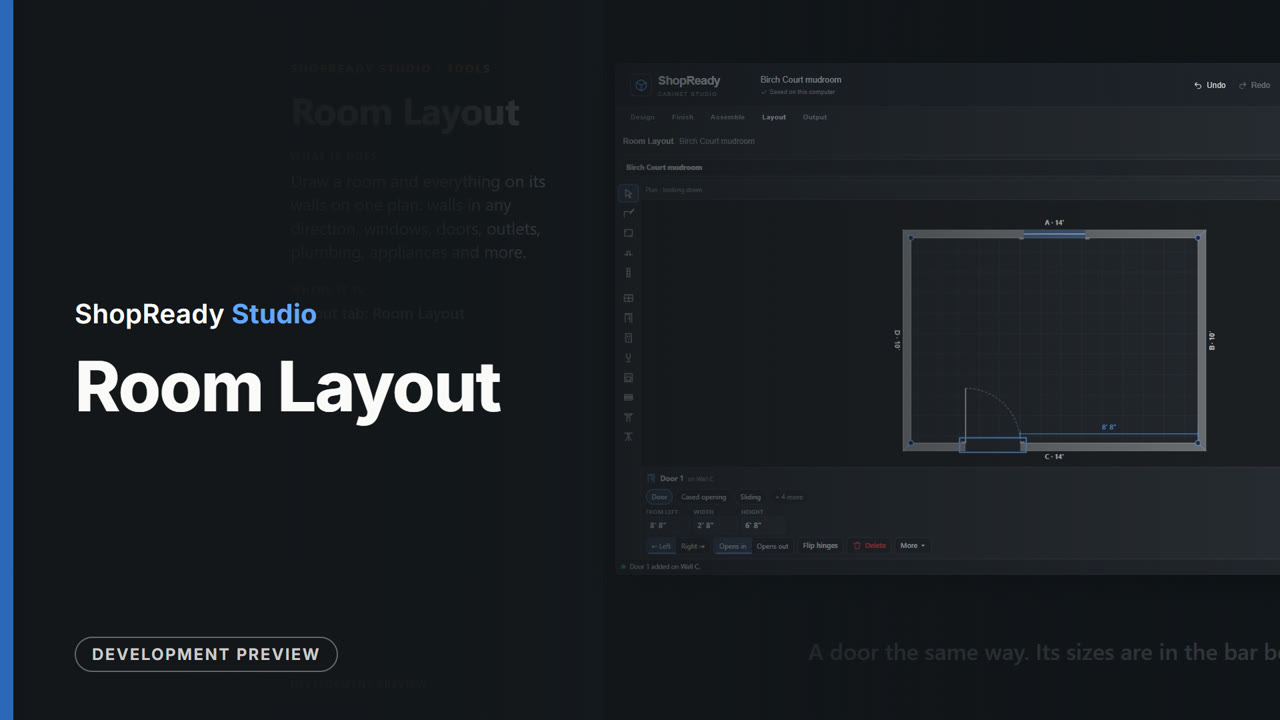 Lesson · 46 s
Room Layout: a short lesson
Draw a room and everything on its walls on one plan: walls in any direction, windows, doors, outlets, plumbing, appliances and more.
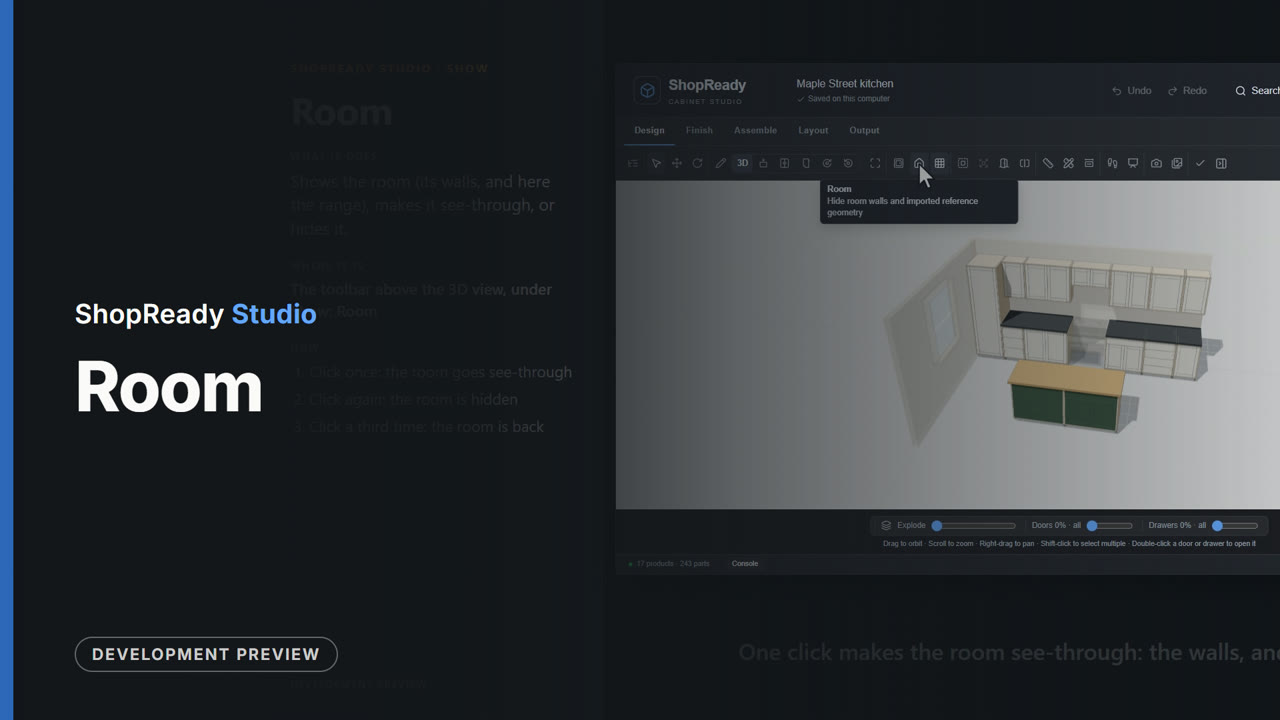 Lesson · 22 s
Room: a short lesson
Shows the room (its walls, and here the range), makes it see-through, or hides it.
 Lesson · 24 s
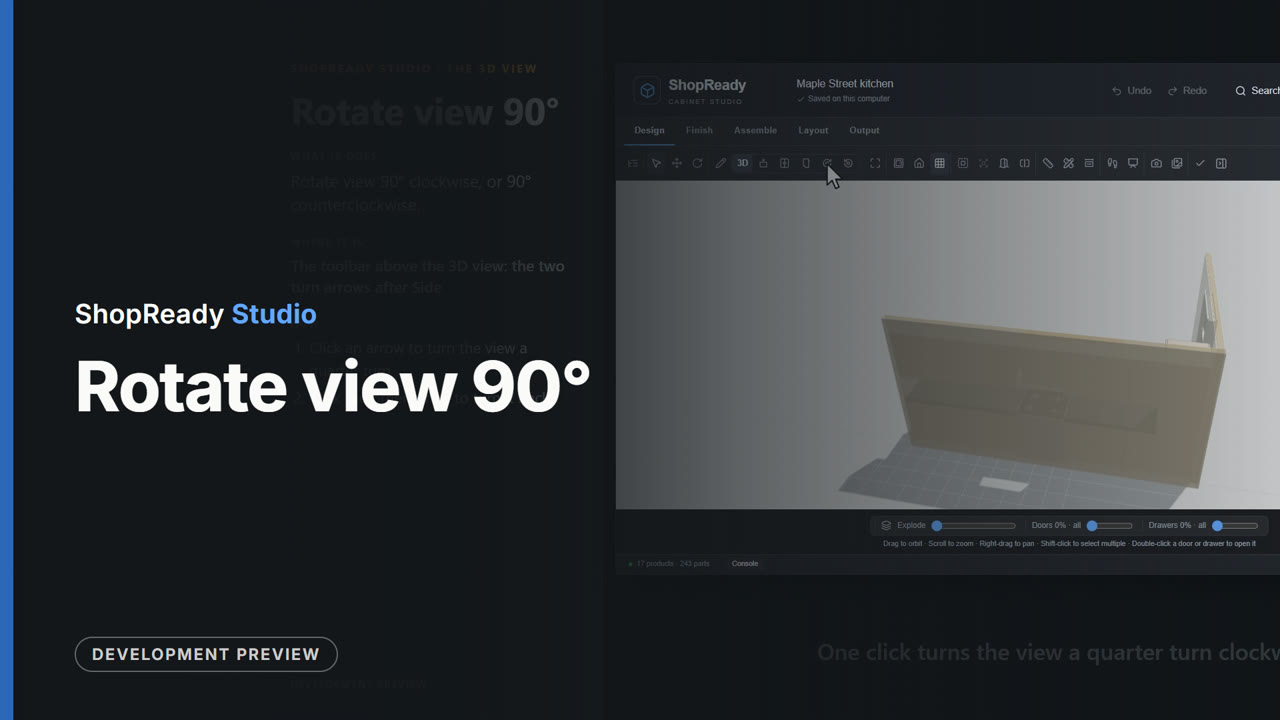
Rotate view 90°: a short lesson
Rotate view 90° clockwise, or 90° counterclockwise.
 Lesson · 19 s
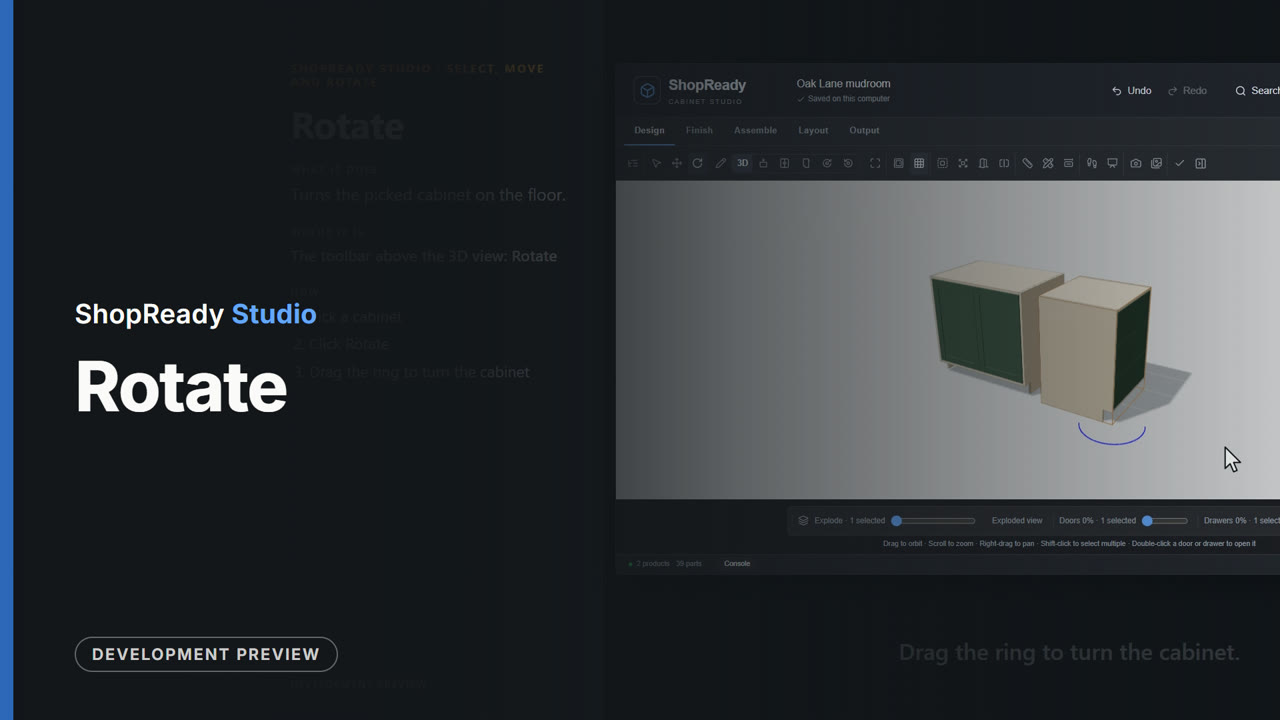
Rotate: a short lesson
Turns the picked cabinet on the floor.
 Lesson · 36 s
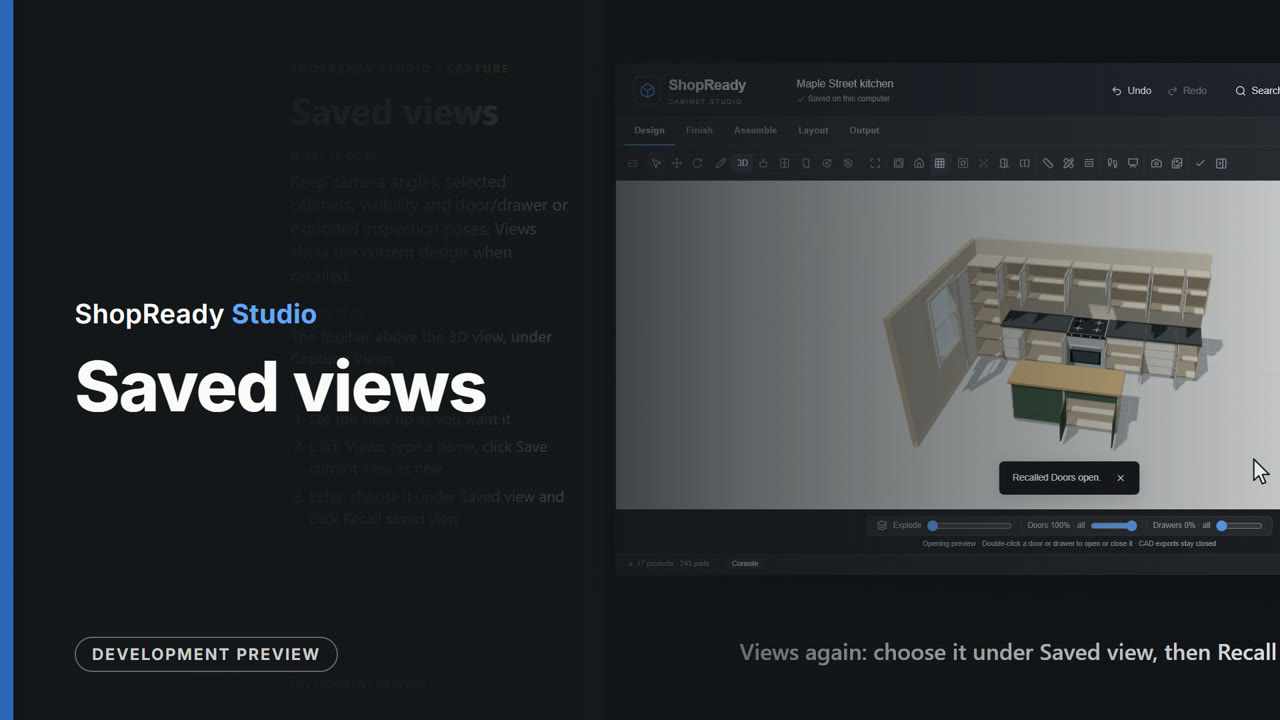
Saved views: a short lesson
Keep camera angles, selected cabinets, visibility and door/drawer or exploded inspection poses. Views show the current design when recalled.
 Lesson · 23 s
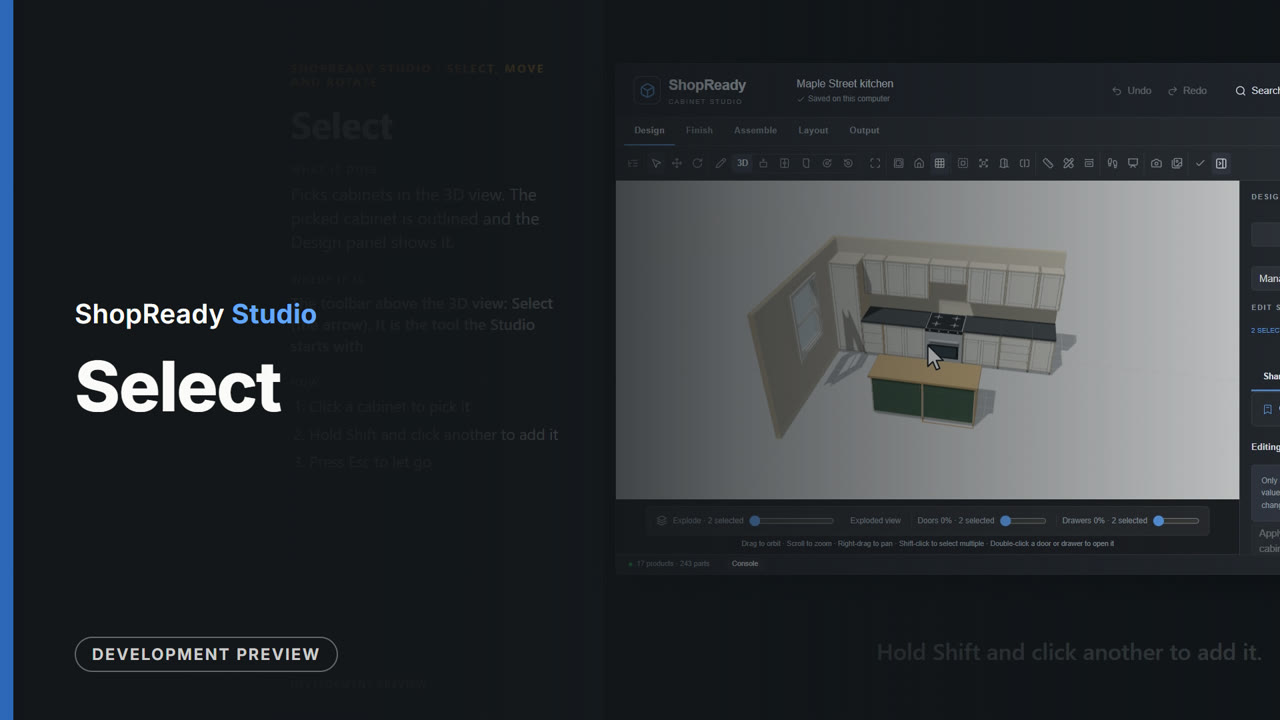
Select: a short lesson
Picks cabinets in the 3D view. The picked cabinet is outlined and the Design panel shows it.
 Lesson · 31 s
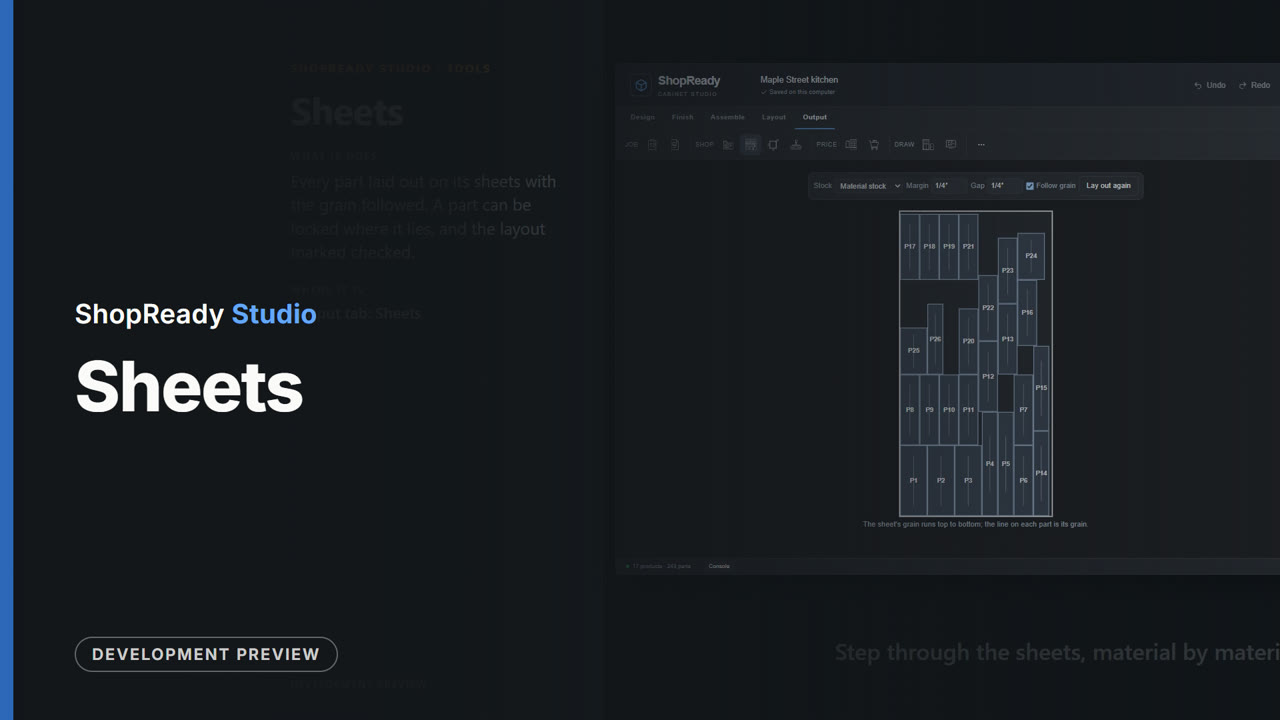
Sheets: a short lesson
Every part laid out on its sheets with the grain followed. A part can be locked where it lies, and the layout marked checked.
 Lesson · 28 s
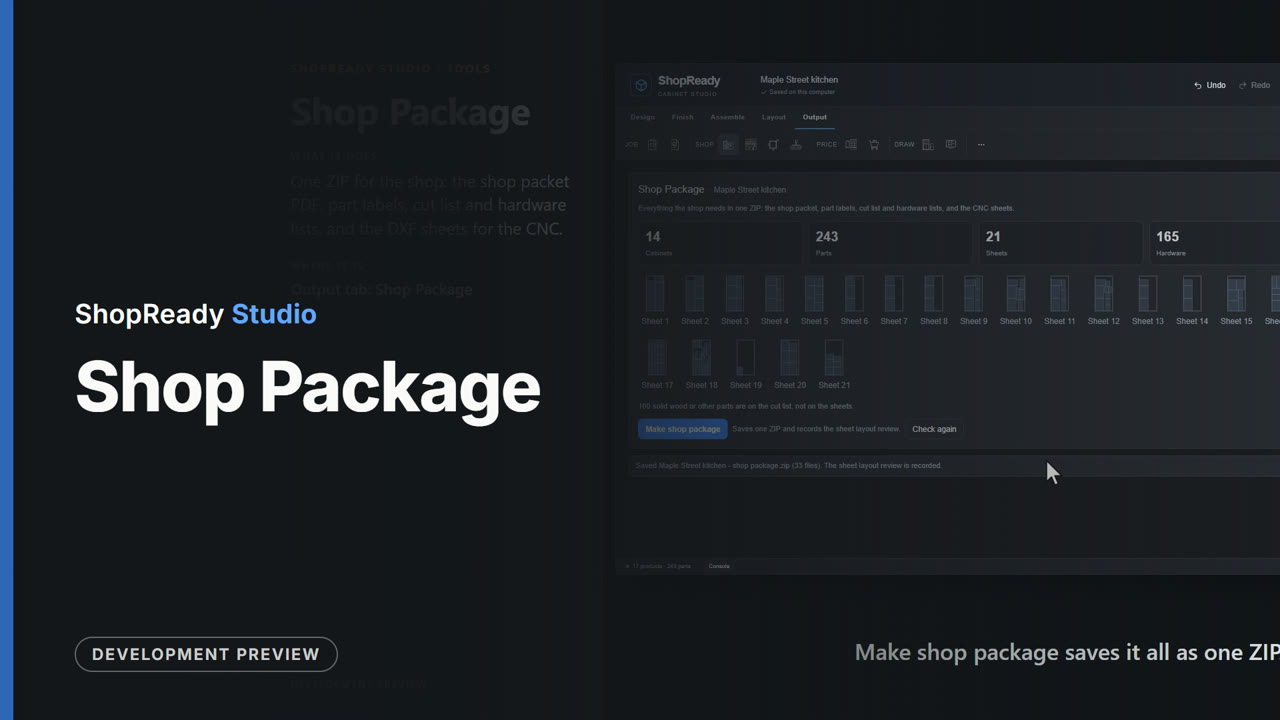
Shop Package: a short lesson
One ZIP for the shop: the shop packet PDF, part labels, cut list and hardware lists, and the DXF sheets for the CNC.
 Lesson · 30 s
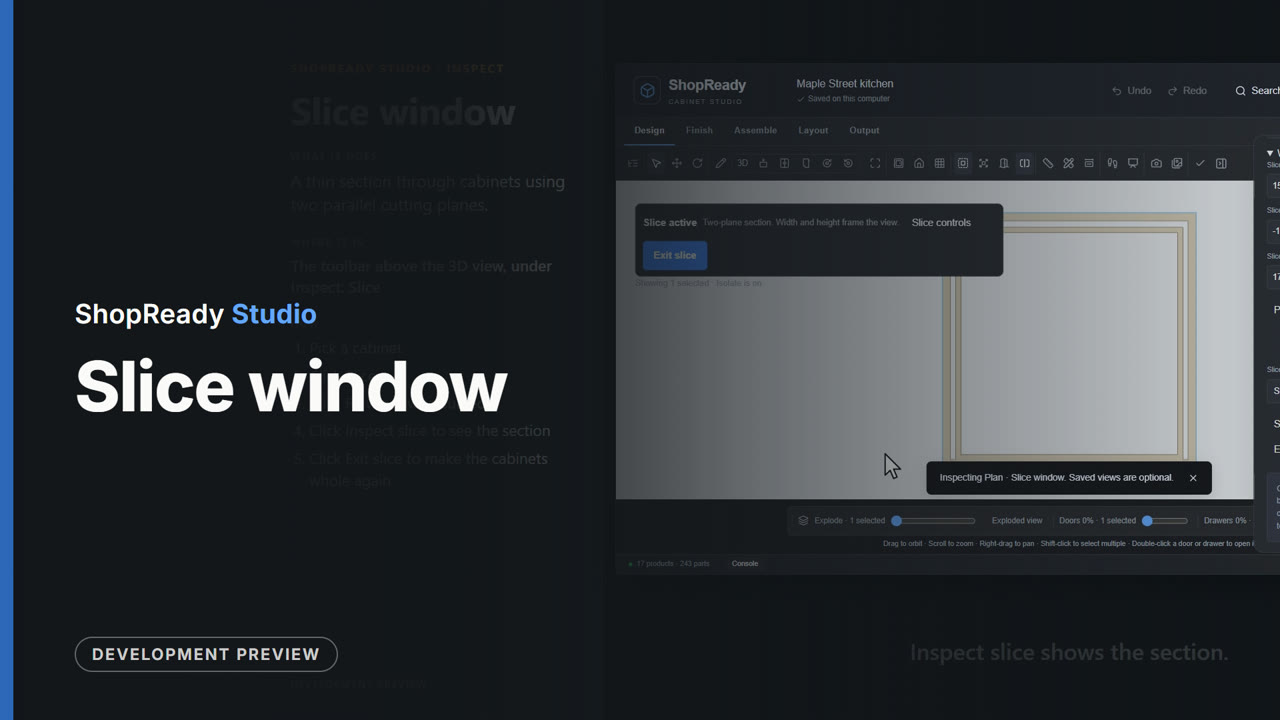
Slice window: a short lesson
A thin section through cabinets using two parallel cutting planes.
 Lesson · 44 s
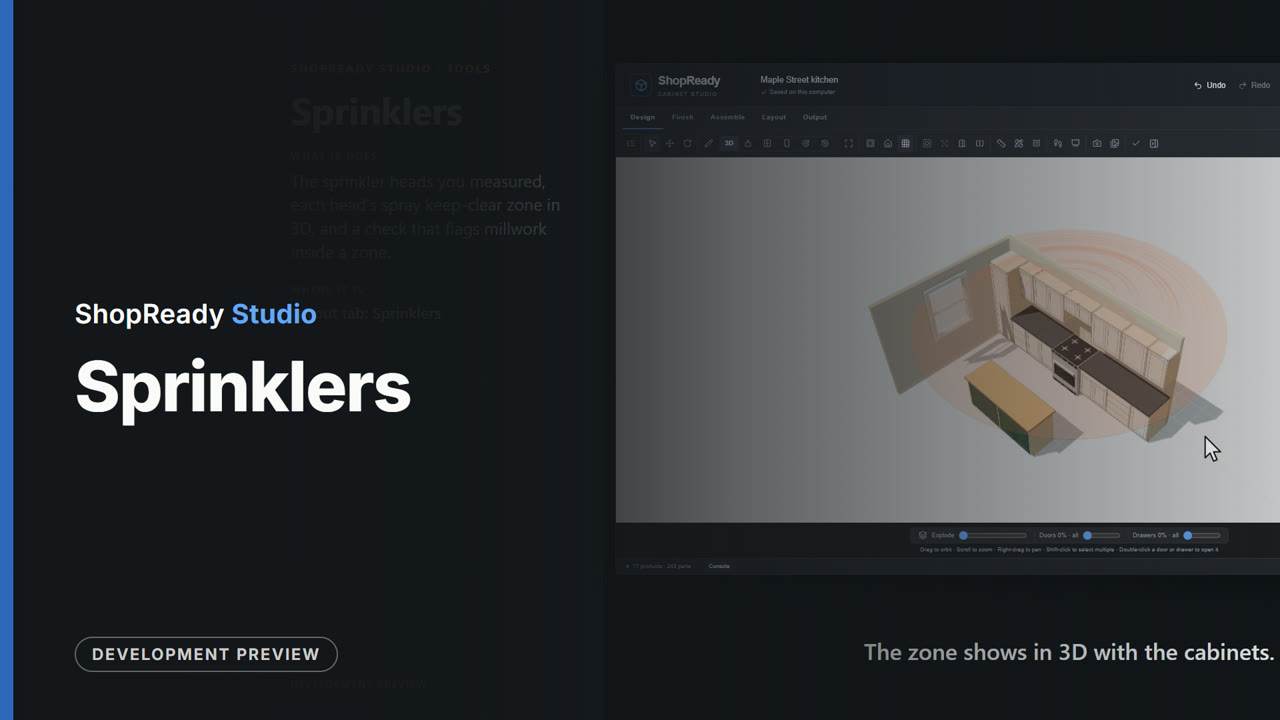
Sprinklers: a short lesson
The sprinkler heads you measured, each head's spray keep-clear zone in 3D, and a check that flags millwork inside a zone.
 Lesson · 36 s
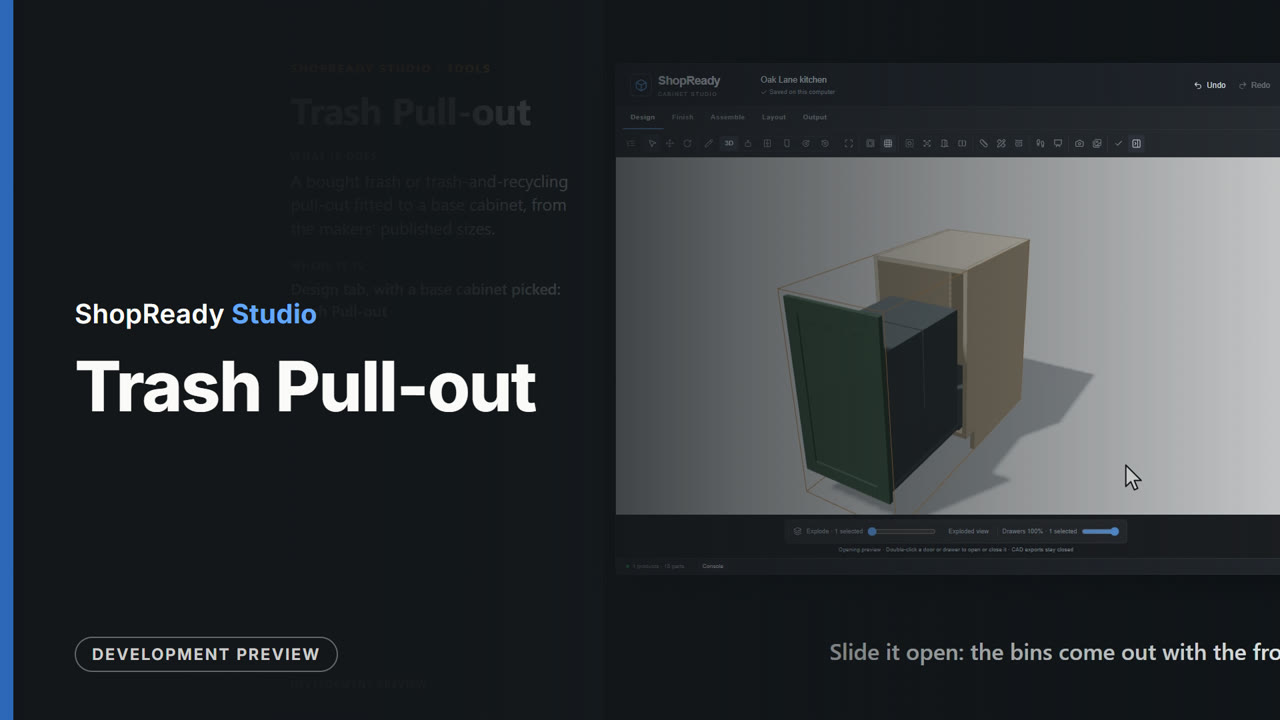
Trash Pull-out: a short lesson
A bought trash or trash-and-recycling pull-out fitted to a base cabinet, from the makers' published sizes.
 Lesson · 25 s
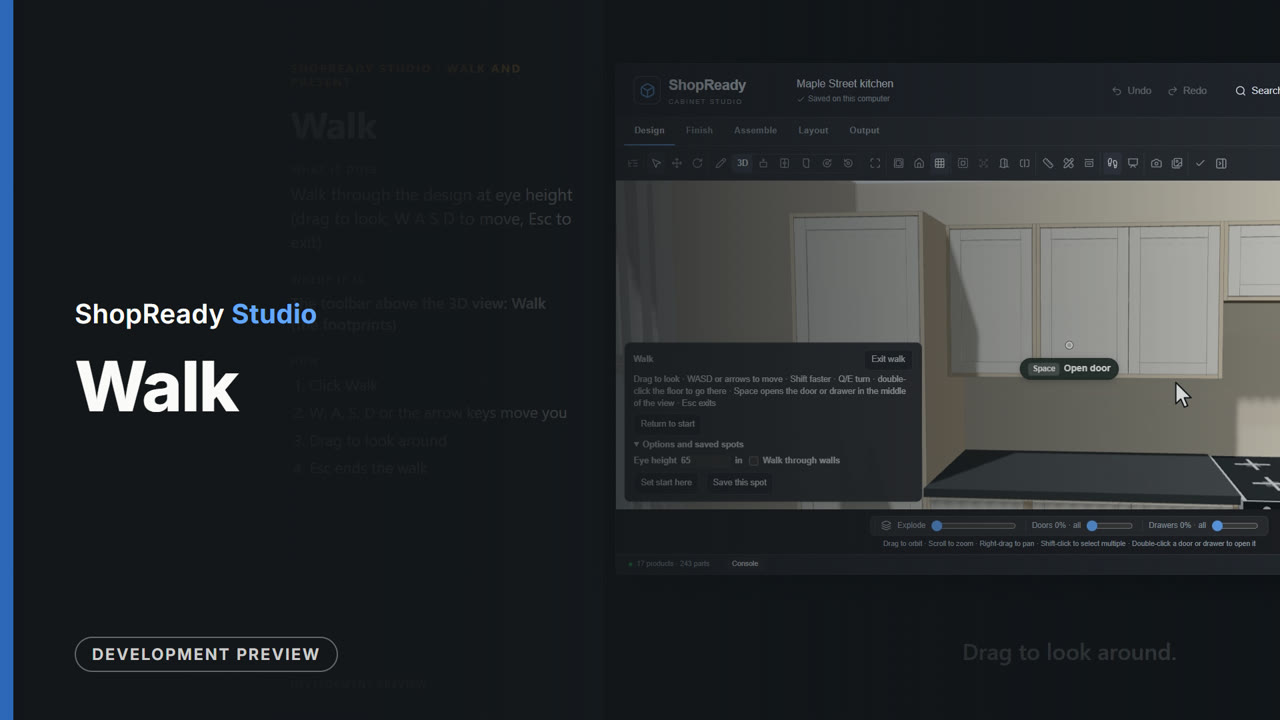
Walk: a short lesson
Walk through the design at eye height (drag to look, W A S D to move, Esc to exit)
 Clip · 51 s
One kitchen, from the wall to the shop
One sample job in one sitting: a wall is laid out in Kitchen Plan and built, a cabinet's height is typed and it rebuilds, the doors are opened, the sheets are laid out, one sheet is cut on the virtual CNC, and the shop and customer packages are made.
 Clip · 44 s
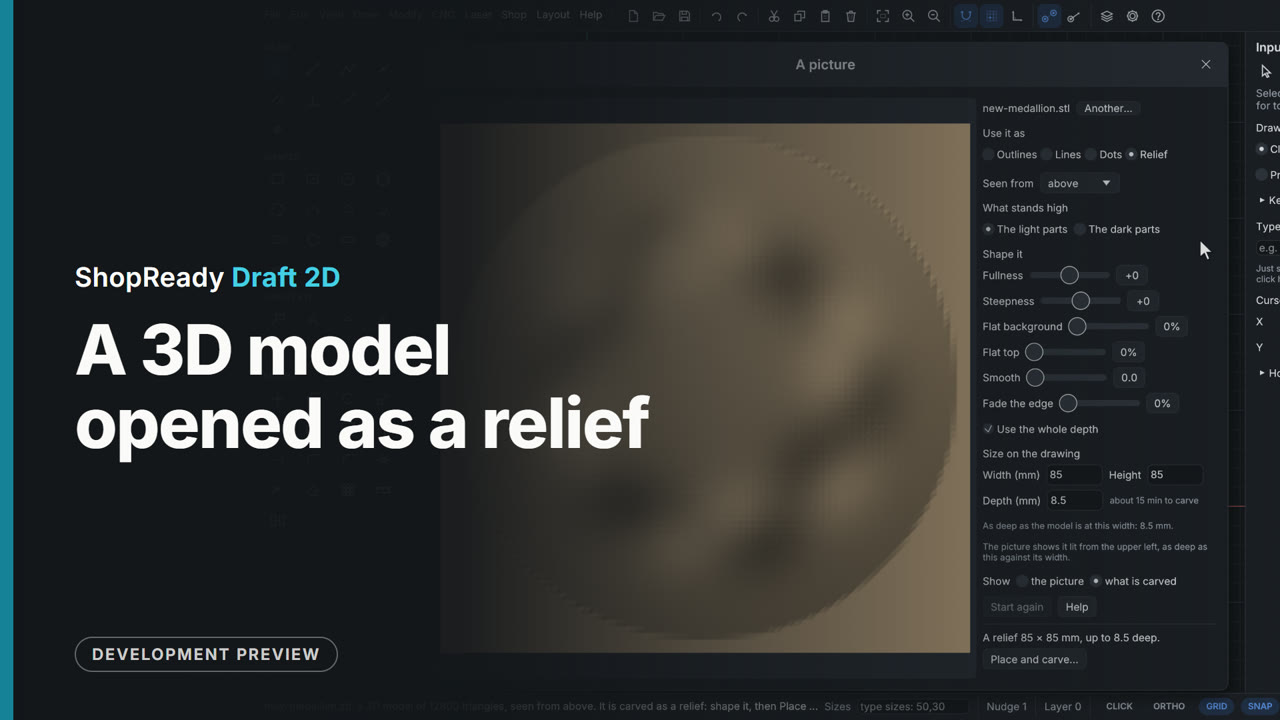
A 3D model opened as a relief
CNC, Carve a picture opens an STL file in the picture window: the model comes in as a relief, the surface nearest the eye, as deep against its width as the model is. Seen from picks which of its six sides faces the cutter: the clip looks at it from the front and from below, then from above again.
 Clip · 1:01
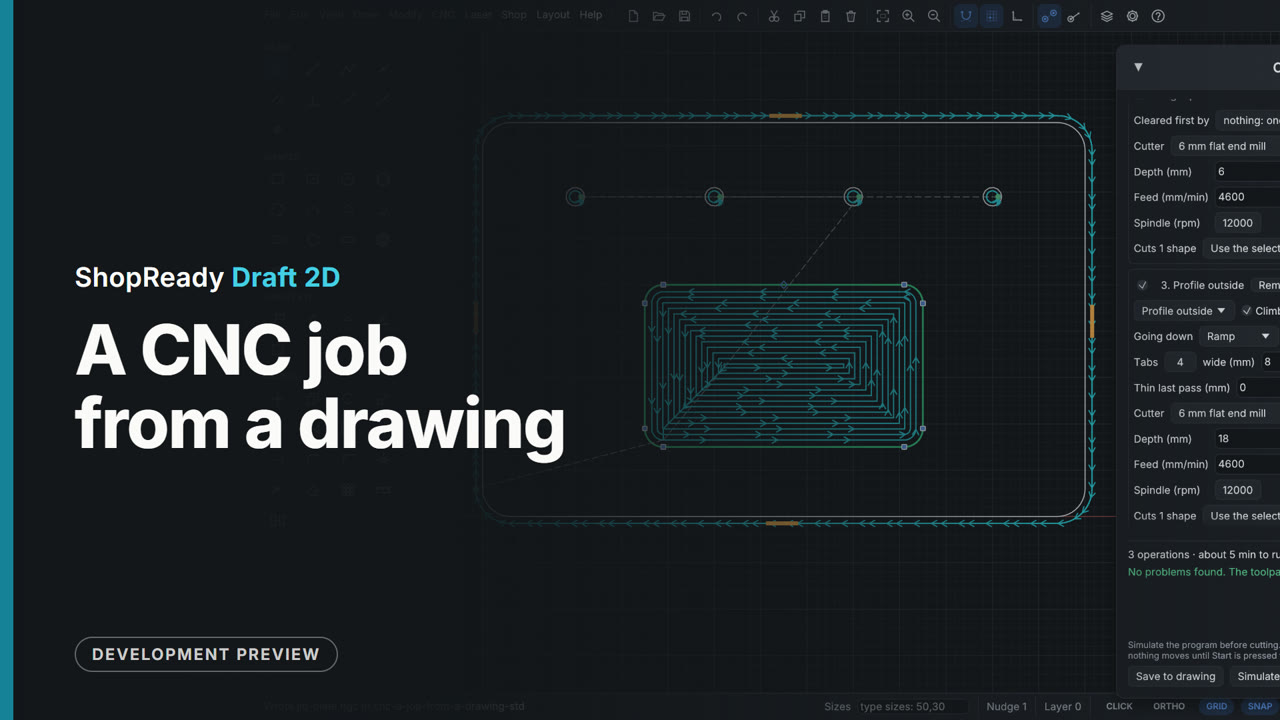
A CNC job from a drawing
A jig plate that is already drawn becomes a program for the router: stock, controller, an operation each for the holes, the pocket and the outline, the pocket moved ahead of the outline with Earlier, the toolpaths drawn over the part, the run time, and Export G-code.
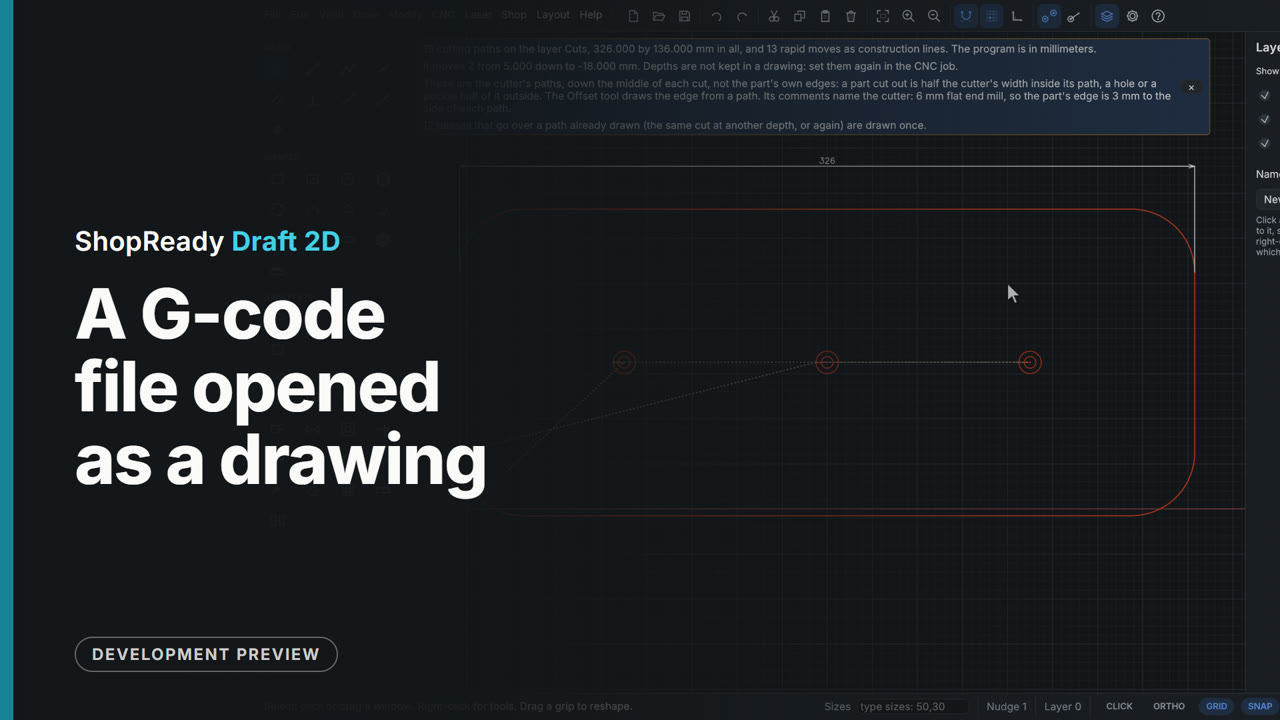 Clip · 46 s
A G-code file opened as a drawing
File, Open reads a G-code program from an old job and draws it: its cuts as lines and arcs on a layer called Cuts, its moves between cuts as guide lines. A note above the drawing says how many paths there are, how big it is, how deep it went, and that passes over the same path are drawn once. Because it is a drawing, it can be measured: a dimension across the outline reads 326, the 320 part and its 6 mm cutter.
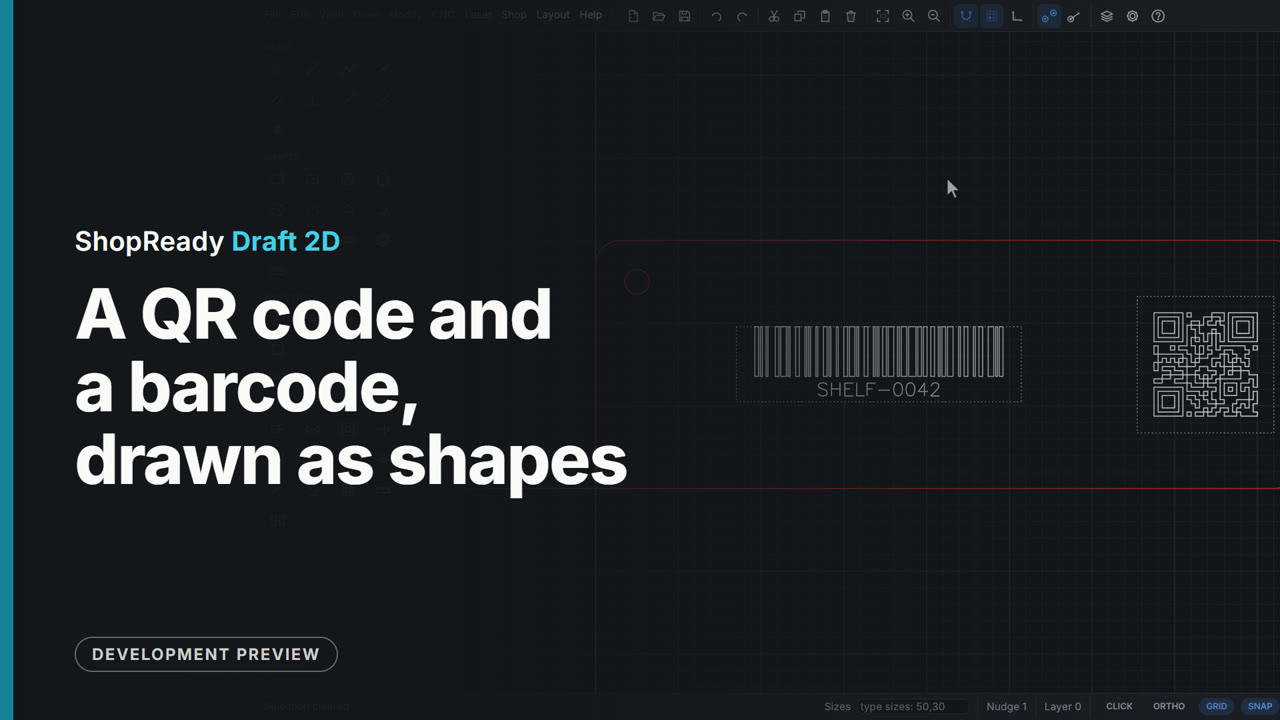 Clip · 55 s
A QR code and a barcode, drawn as shapes
A bin tag gets two codes. Edit, A QR code or barcode... takes what the code says and shows it with the size of its squares; Draw it puts it on the drawing as closed shapes, selected, with a guide rectangle for the clear margin a scanner needs, and it is dragged onto the tag. The Kind is changed to Code 128 for a part number, which comes with its words under the bars. Both are shapes to burn, V-carve or cut.
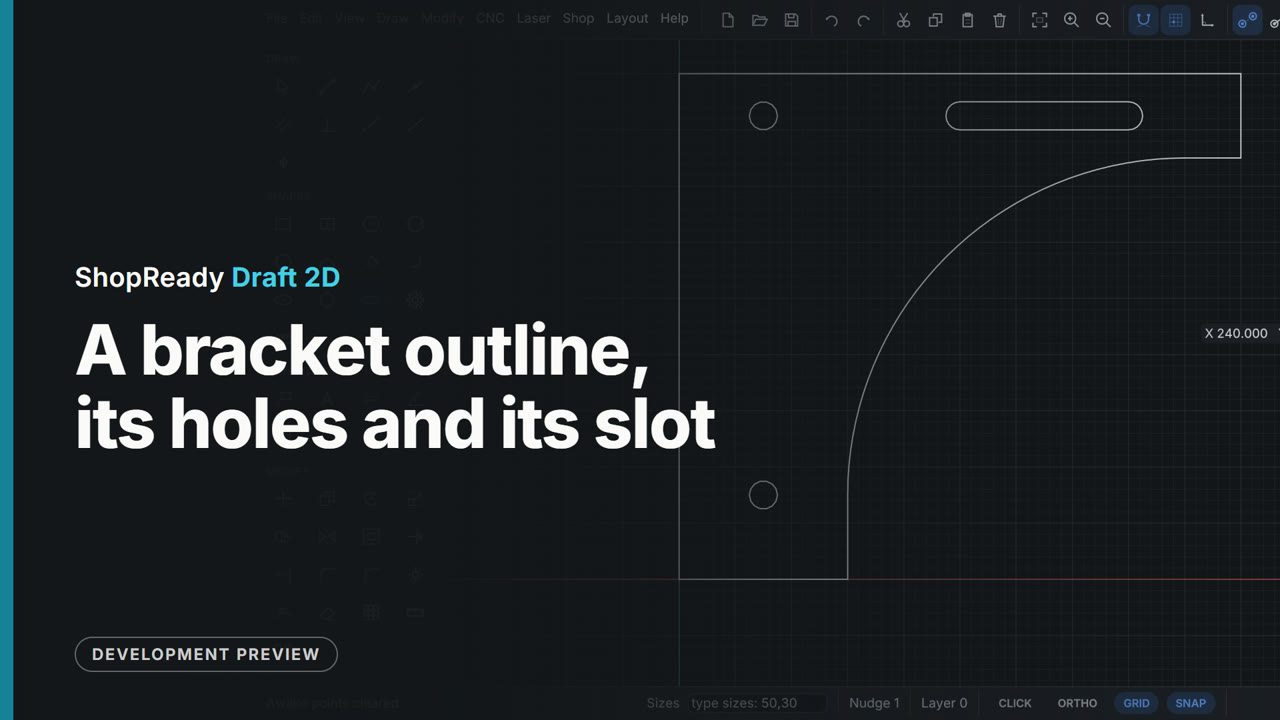 Clip · 55 s
A bracket outline, its holes and its slot
A shelf bracket drawn from nothing: six polyline legs by pointing the mouse and typing each length, a tangent arc that sweeps from the tip down onto the first leg with no corner, and Join to make it one closed shape. Two holes and a slot are then set in it by lining up with points of the outline, with nothing measured.
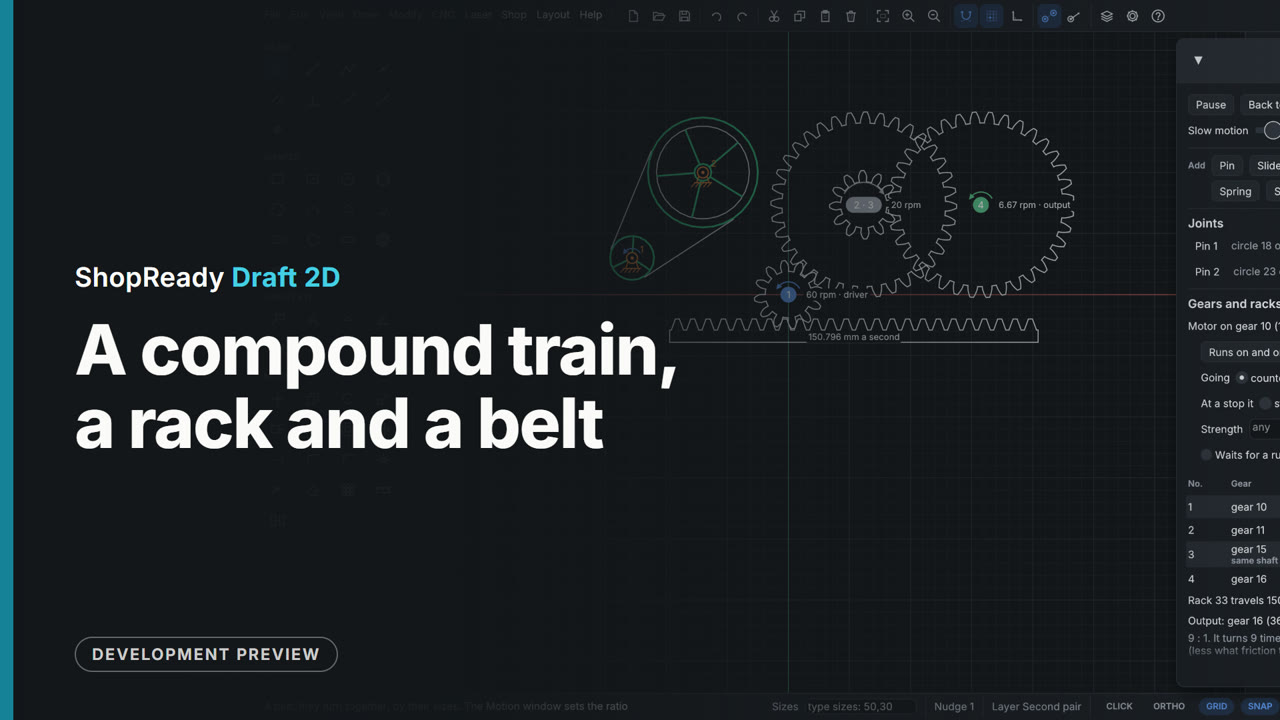 Clip · 51 s
A compound train, a rack and a belt
A compound gear train (two gears on the middle shaft) is driven from its first gear and reads 9 to 1 at the last. A rack is added to the gear from the right-click menu and slides with it as far as its end, where the train stops while a wheel on a motor of its own runs on; set to turn back at a stop, the rack slides out and back. Then two turning wheels are selected and joined by a belt, so the motor on the small one turns the big one.
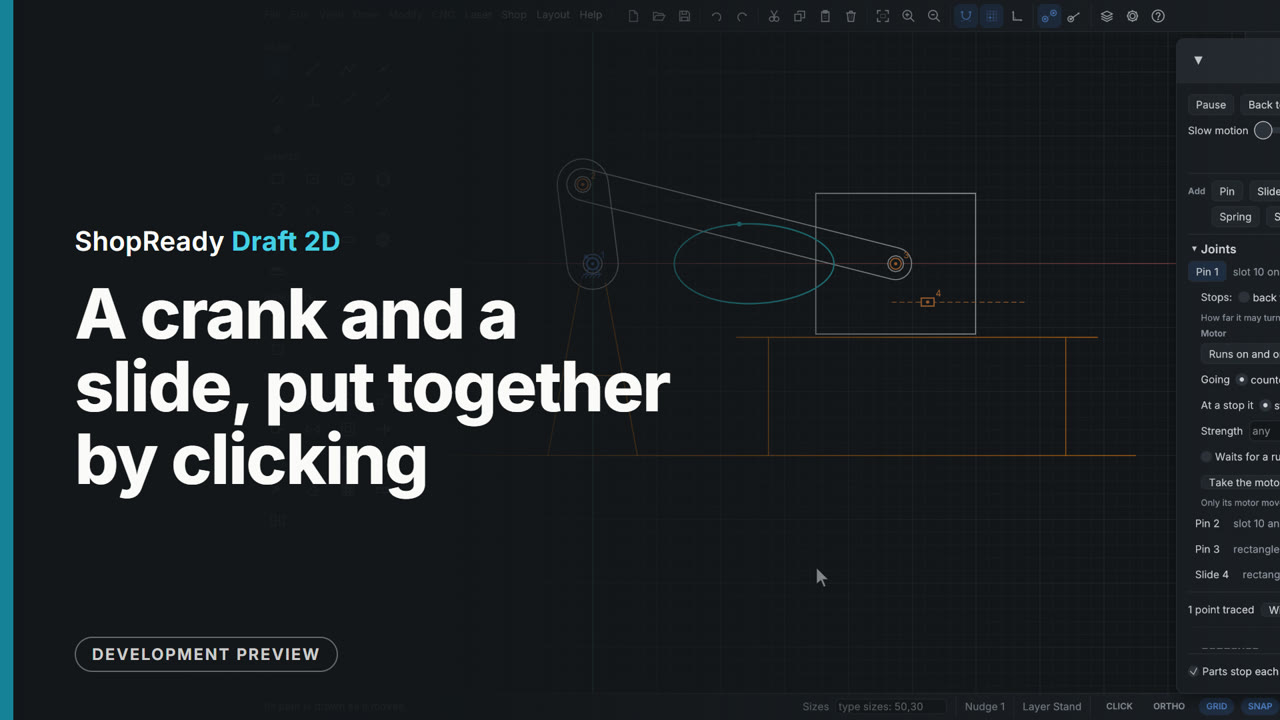 Clip · 48 s
A crank and a slide, put together by clicking
A crank, a rod and a block on a stand are made into a mechanism with the Motion window's buttons: three pins, each a click where parts turn, and a slide by two clicks. The crank's pin is given a motor and the block goes back and forth; then Trace draws the path a point of the rod takes.
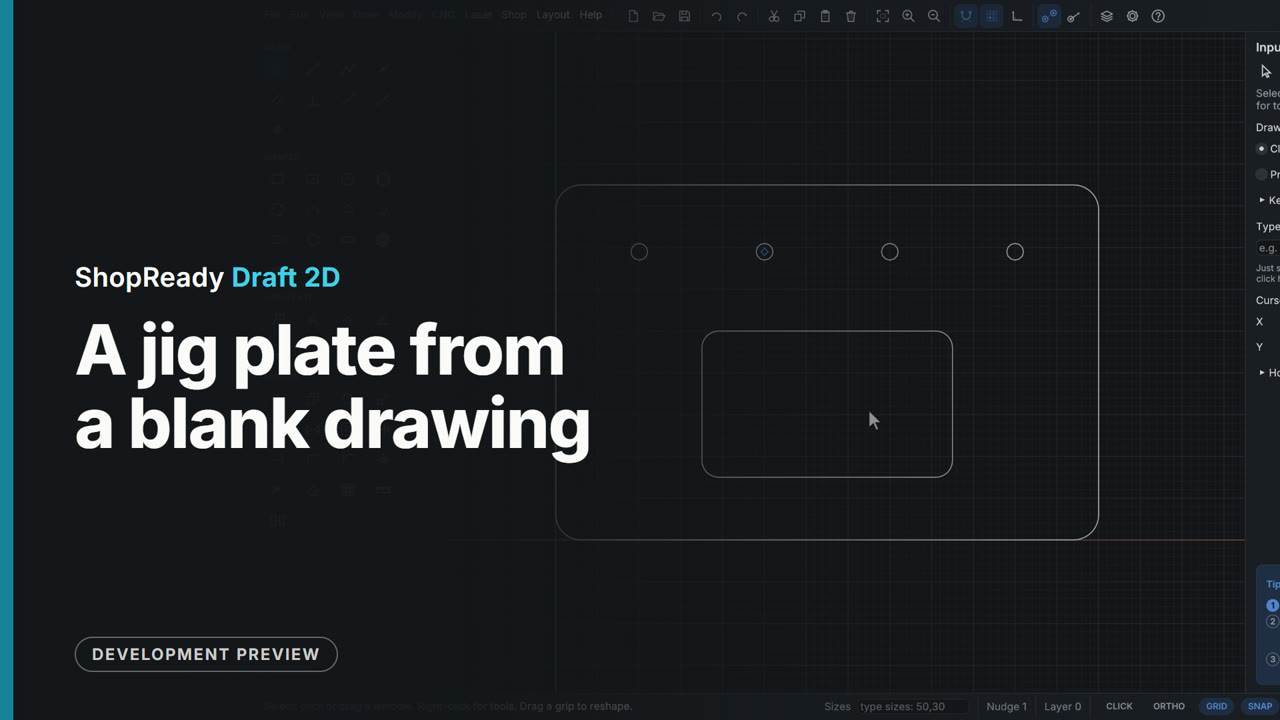 Clip · 55 s
A jig plate from a blank drawing
A whole part drawn in well under a minute, every size typed: a rectangle, its corners rounded, a pocket placed by its corner and size, a dowel hole and three copies 60 apart. It is the plate the CNC clip then cuts, so the two run on as one start-to-finish film.
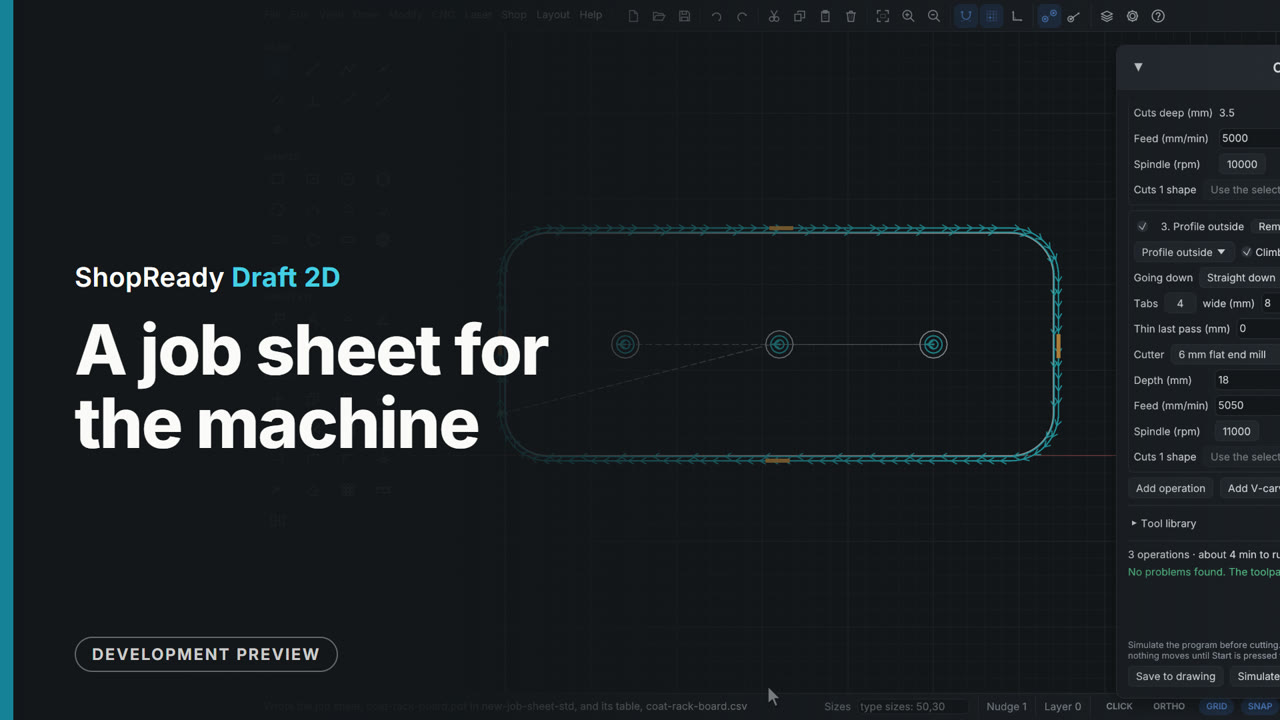 Clip · 39 s
A job sheet for the machine
A coat rack board's job has three operations and two cutters. Job sheet..., on the Add operation row of the CNC job window, saves a one-page PDF for whoever runs the machine, and the same as a table: where zero is with a picture of the part, each tool in turn with how deep it goes and how long it takes, and the program files' names in the order to run them.
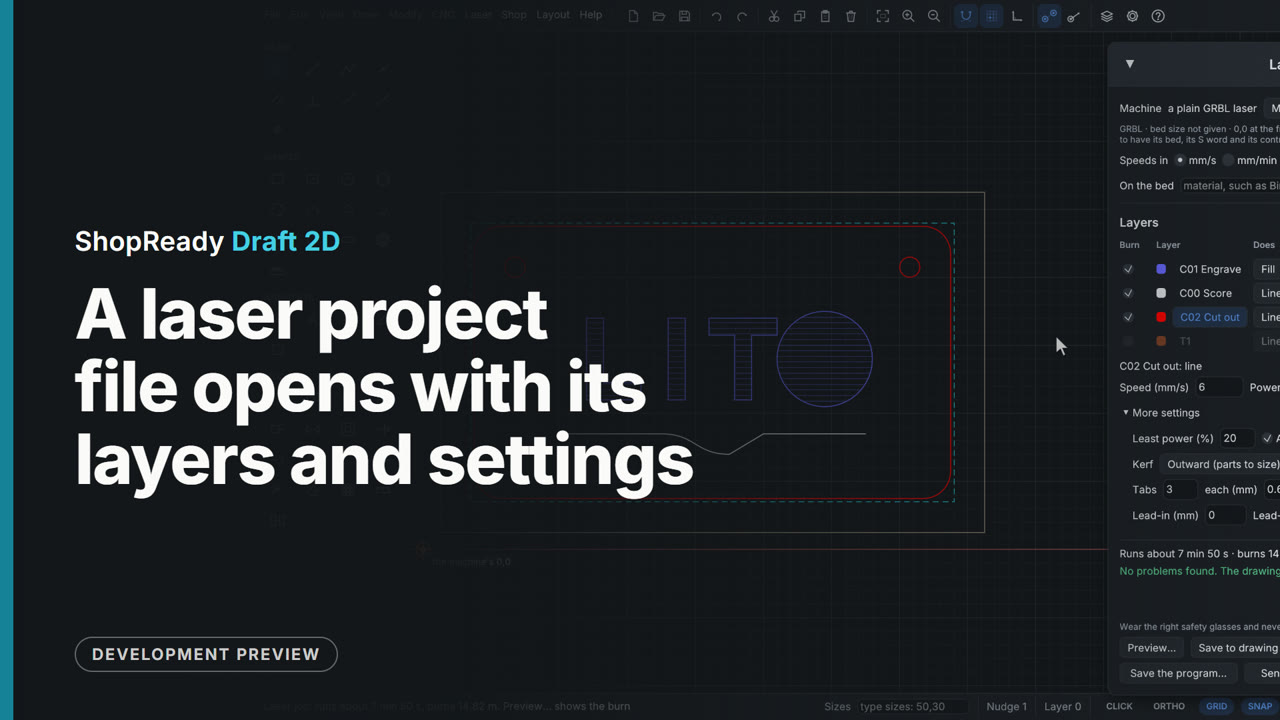 Clip · 49 s
A laser project file opens with its layers and settings
File, Open reads a laser project file made in another program. The sign comes in the right way up as a new drawing, and a note above it says what came in, what was changed and what was left out. The Layers tab has the project's layers with their names and colors, and Laser, Laser job... shows each layer with the speed, power and kind of burn the project gave it: the cut-out layer still has its two passes, its kerf and its three tabs.
 Clip · 39 s
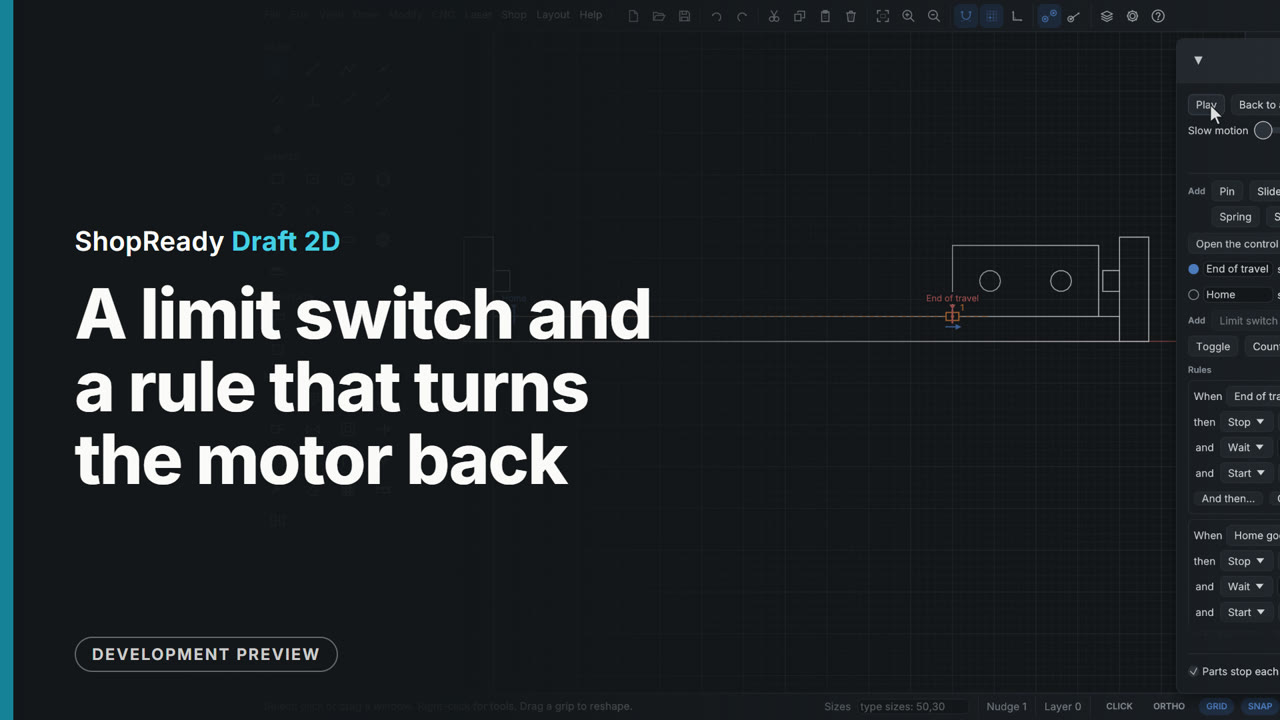
A limit switch and a rule that turns the motor back
A carriage on a slide runs on a motor between two limit switches. Controls, at the foot of the Motion window, lists the switches with a lamp each and the rules they set off: when a switch goes on, stop, wait, and start the other way. On Play the carriage trips each switch at its place, the lamp lights, and the rule sends it back.
 Clip · 50 s
A photo carved as lines and as dots
A picture with a photo's tones is carved two ways with a V-bit: as lines that are wider where the picture is darker, and as dots like old newsprint. The picture window shows each as it will carve, and both end up side by side on one board, in one job, with its run time.
 Clip · 56 s
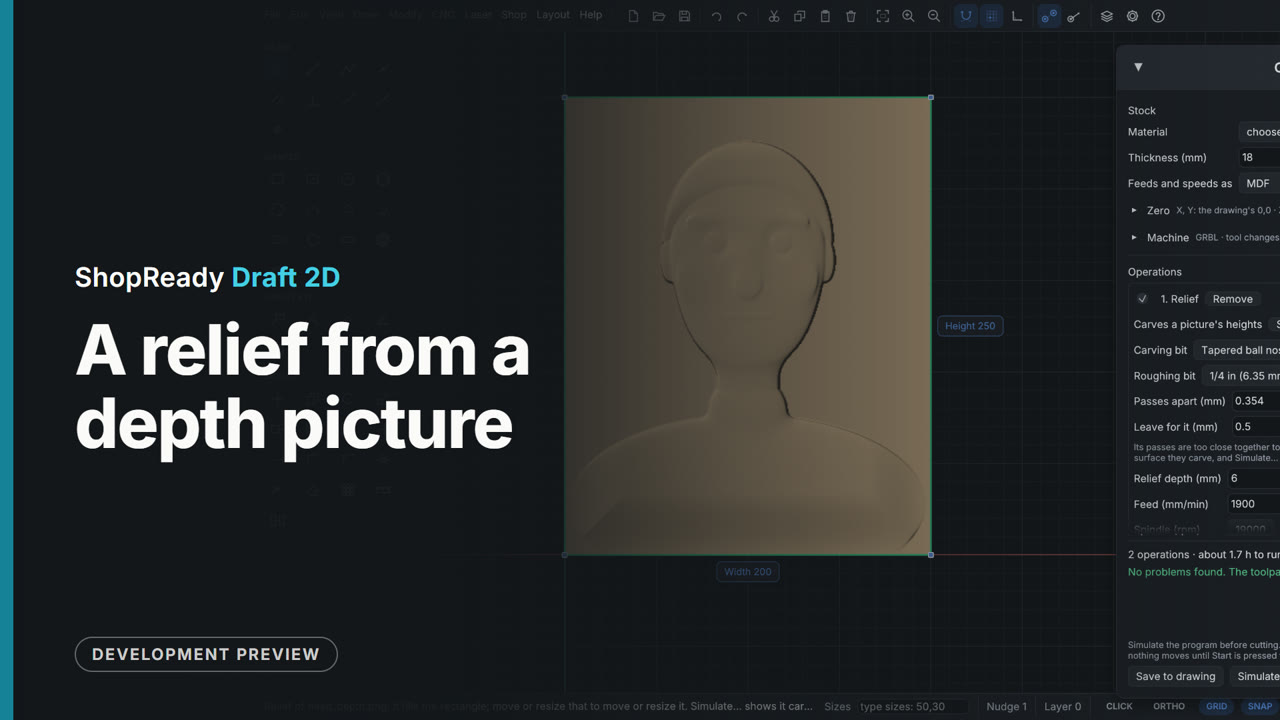
A relief from a depth picture
CNC > Carve a picture opens a picture of heights (light is high, dark is low), and the Relief choice shows it lit, as it will carve. Two settings shape it, then Place and carve draws its rectangle on the drawing and opens the CNC job: an end mill roughing, a tapered ball nose finishing, and the run time.
 Clip · 37 s
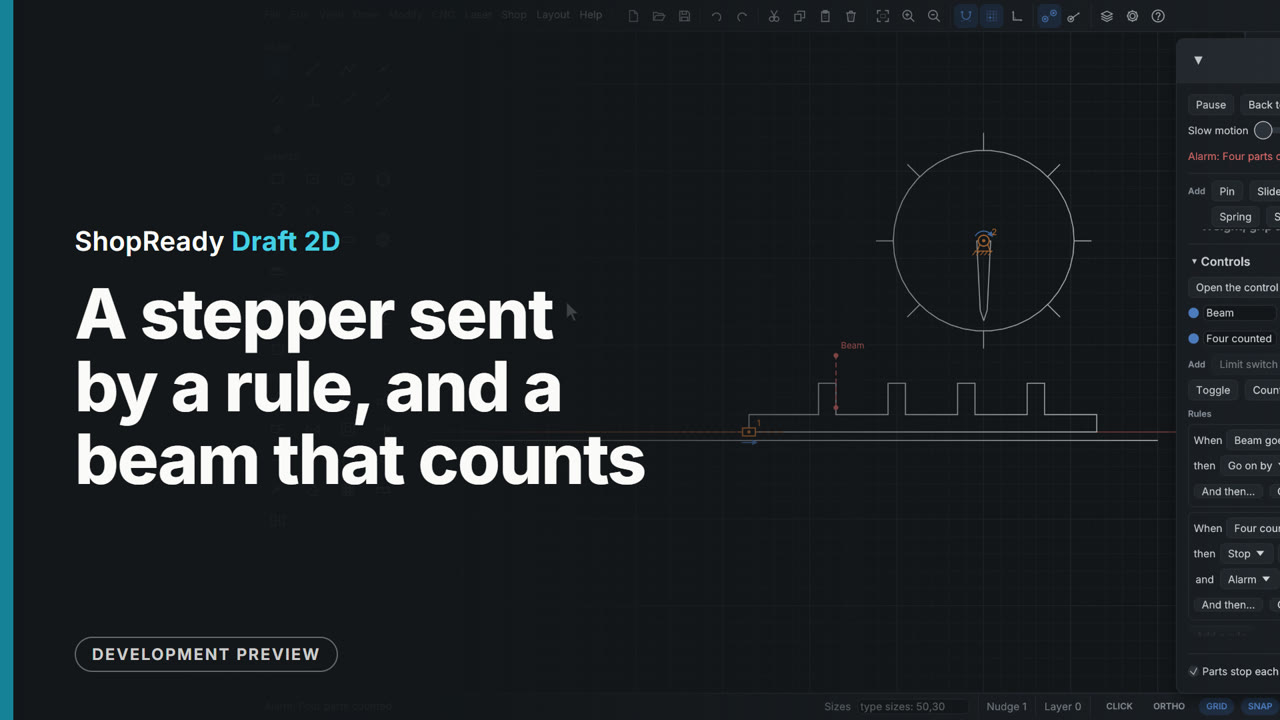
A stepper sent by a rule, and a beam that counts
A feed bar carries four pegs through a light beam. The beam is a gate; each time a peg breaks it, a rule sends a stepper 25 steps of 1.8 degrees and the dial's pointer moves on an eighth of a turn. A counter counts the crossings, and at four its rule stops the feed and sounds an alarm.
 Clip · 48 s
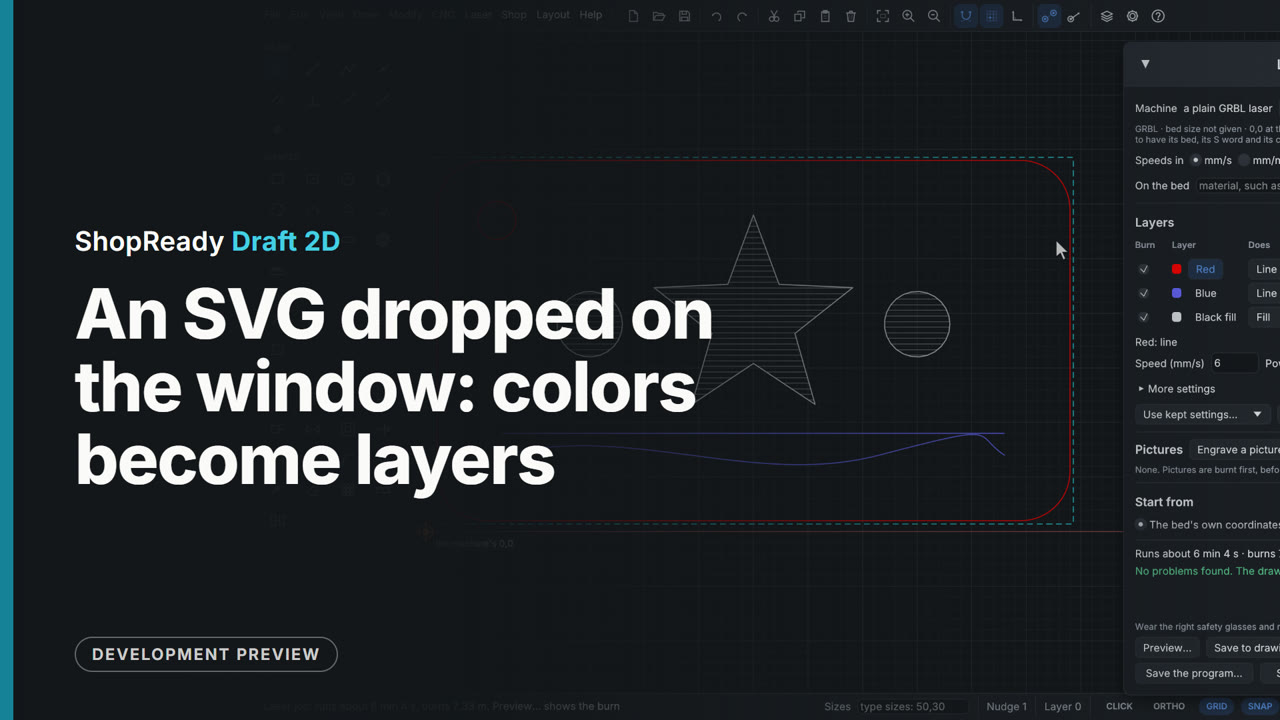
An SVG dropped on the window: colors become layers
An SVG file dropped on the window opens as a new drawing at its real size, with a note of what came in. Each color in the file is a layer, fills apart from lines: here Red, Blue and Black fill, as the Layers tab shows. In Laser, Laser job... the black filled shapes start as a fill to engrave and the red and blue start as lines, to cut and to score.
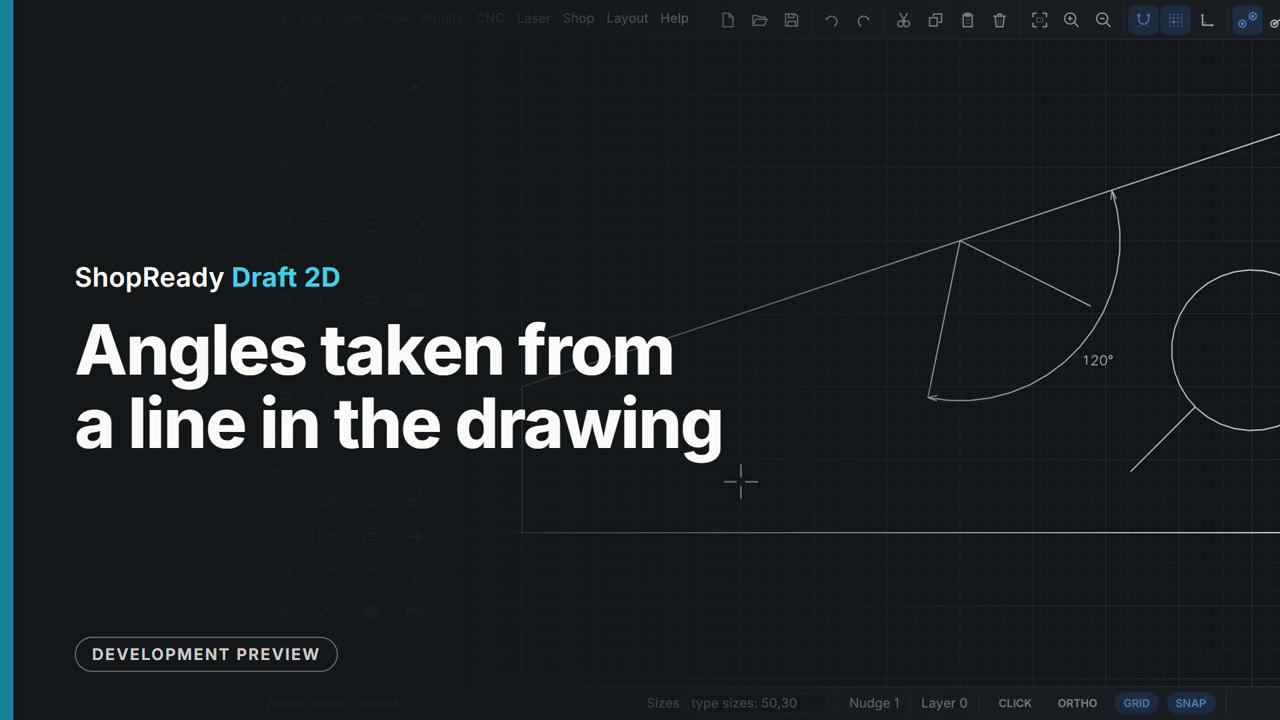 Clip · 54 s
Angles taken from a line in the drawing
A line is started on a plate's slanted edge and the cursor travels along it: the edge turns purple and angles are counted from it instead of from the X axis. Typed 40,45 gives 45 degrees off that edge; typed 40,120 gives 120, an obtuse angle leaning back, not 60. A line started on a circle goes straight out, square to it, and the Angle tool puts a 120 degree dimension between the edge and the line.
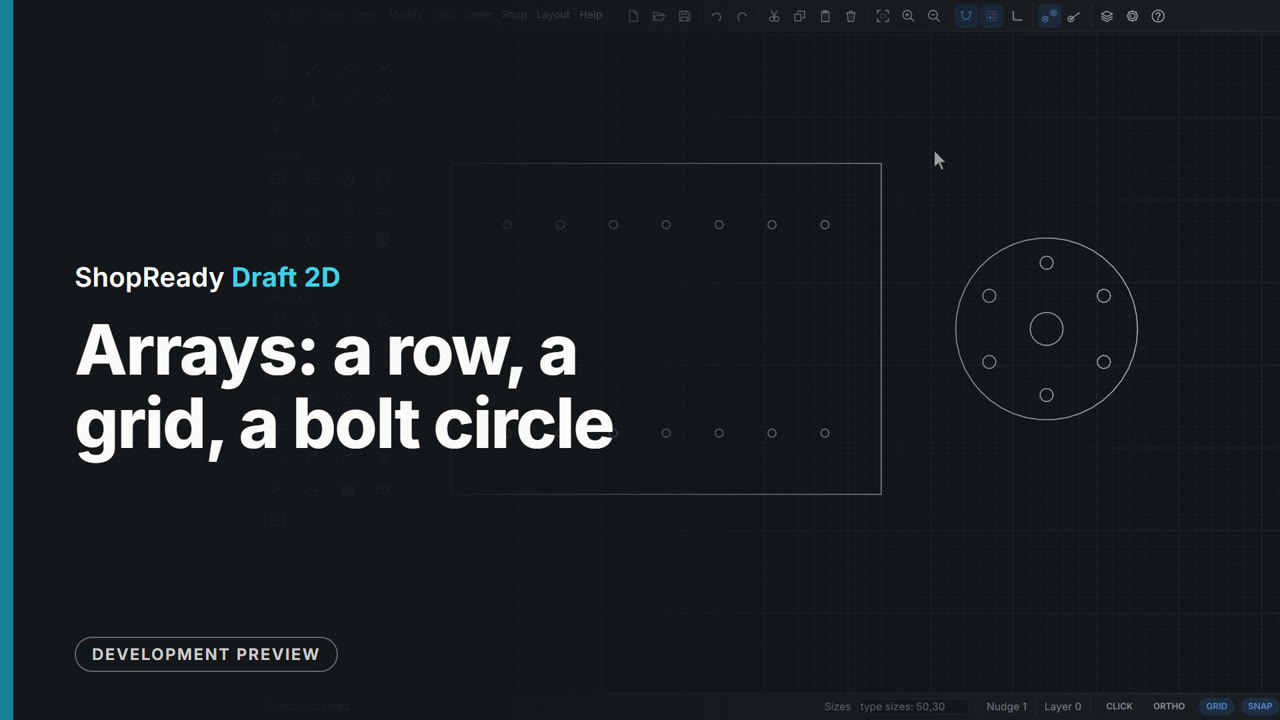 Clip · 48 s
Arrays: a row, a grid, a bolt circle
One 5 mm shelf-pin hole in a cabinet side becomes a row of seven at 32 apart, then a grid with the back row 126 away; one bolt hole on a round plate becomes six round its center. The Array window shows every copy and its sizes on the drawing as the numbers are typed, before anything is made.
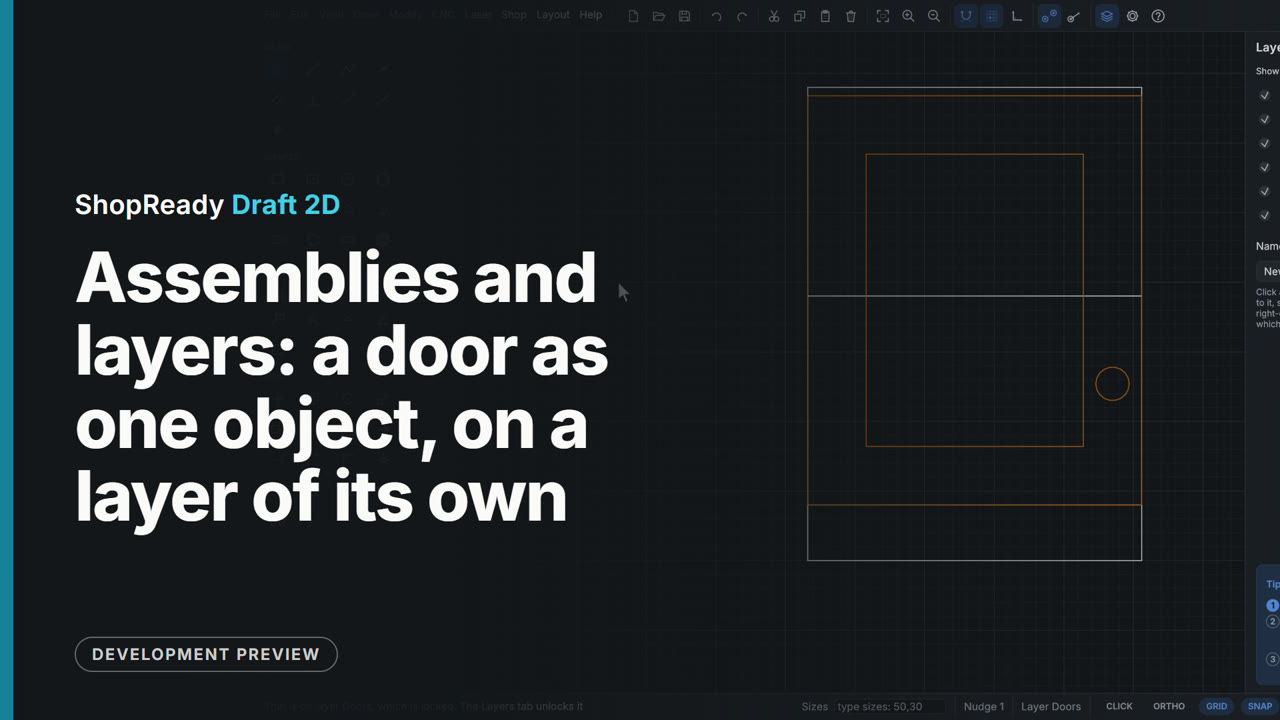 Clip · 50 s
Assemblies and layers: a door as one object, on a layer of its own
A door drawn as frame, panel and knob is made one assembly from the right-click menu, picked with one click and moved onto its cabinet as one, then opened by a double-click to set the knob lower and closed with Esc. Put on layer in the right-click menu puts it on the Doors layer, and the Layers tab hides that layer to show the cabinet behind, shows it again and locks it.
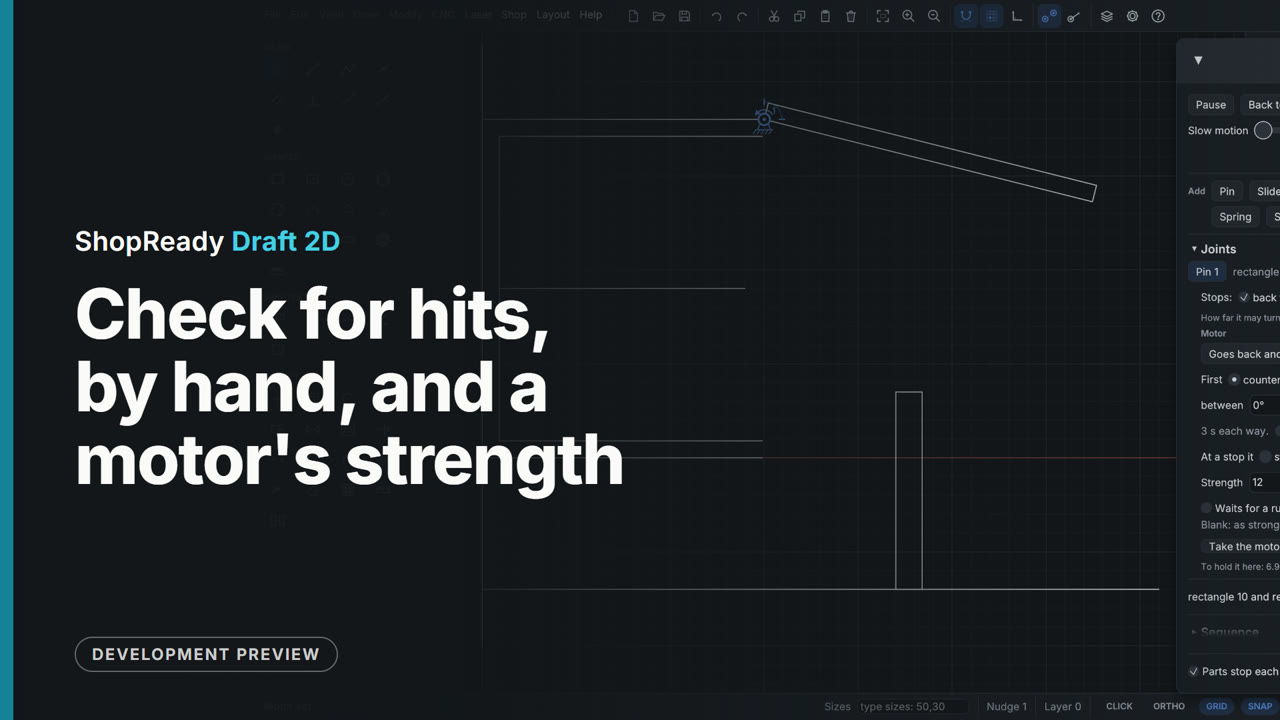 Clip · 50 s
Check for hits, by hand, and a motor's strength
A wall cabinet's lift-up door on a motor. Check for hits plays the motion through out of sight and shows where the door runs into a post; Let them pass, and nothing hits. Save a film writes one round of the motion as a GIF. Dragged by hand the door goes as far as its stop. Then the motor is given a strength: at 4 N m it is too weak for the 4 kg door and says so, at 12 N m it lifts it and says how hard it is working.
 Clip · 37 s
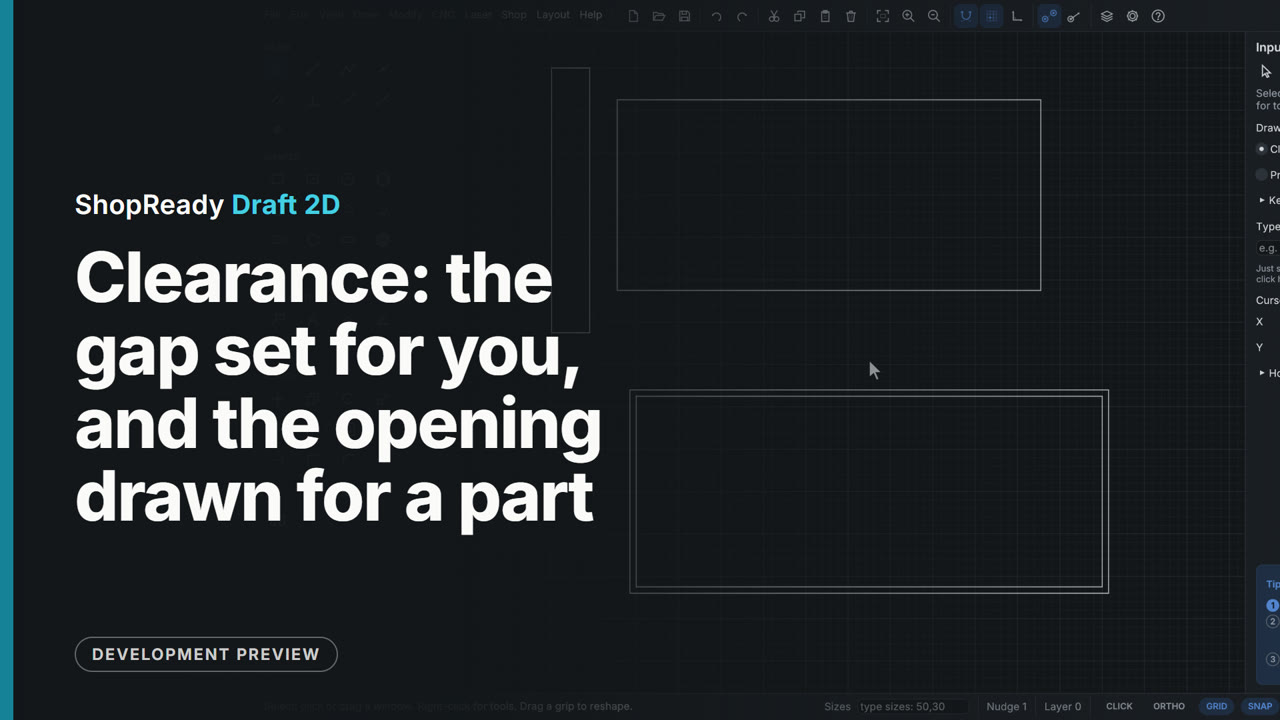
Clearance: the gap set for you, and the opening drawn for a part
A drawer box drawn any distance from the cabinet side is set exactly 13 from it: type the gap, click the drawer, click the side, and the drawer is shown where it will stand before the second click. Then Draw the opening for a part draws the opening for an inset drawer front, 3 bigger all round, with one click.
 Clip · 41 s
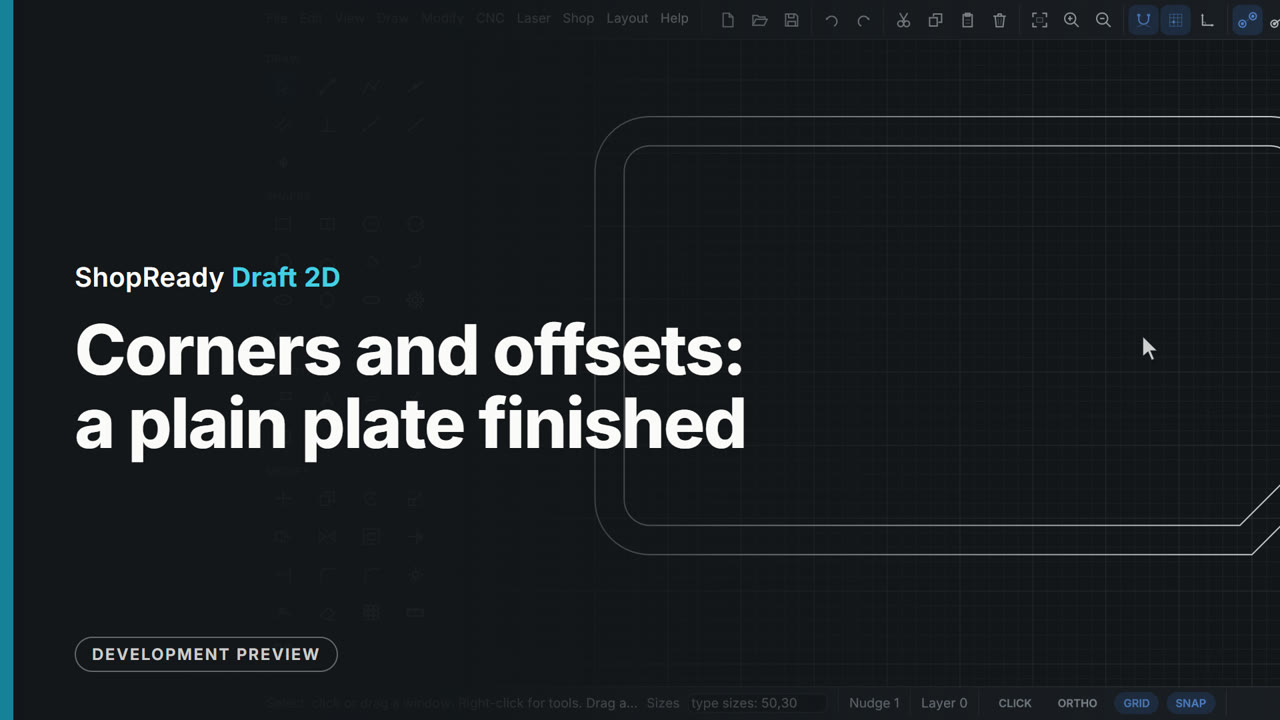
Corners and offsets: a plain plate finished
A plain 200 by 120 plate gets three corners rounded with Fillet, the fourth cut off with Chamfer, and an inner line 8 mm in with Offset. Each size is typed, and the offset follows the whole outline, round corners and chamfer included.
 Clip · 46 s
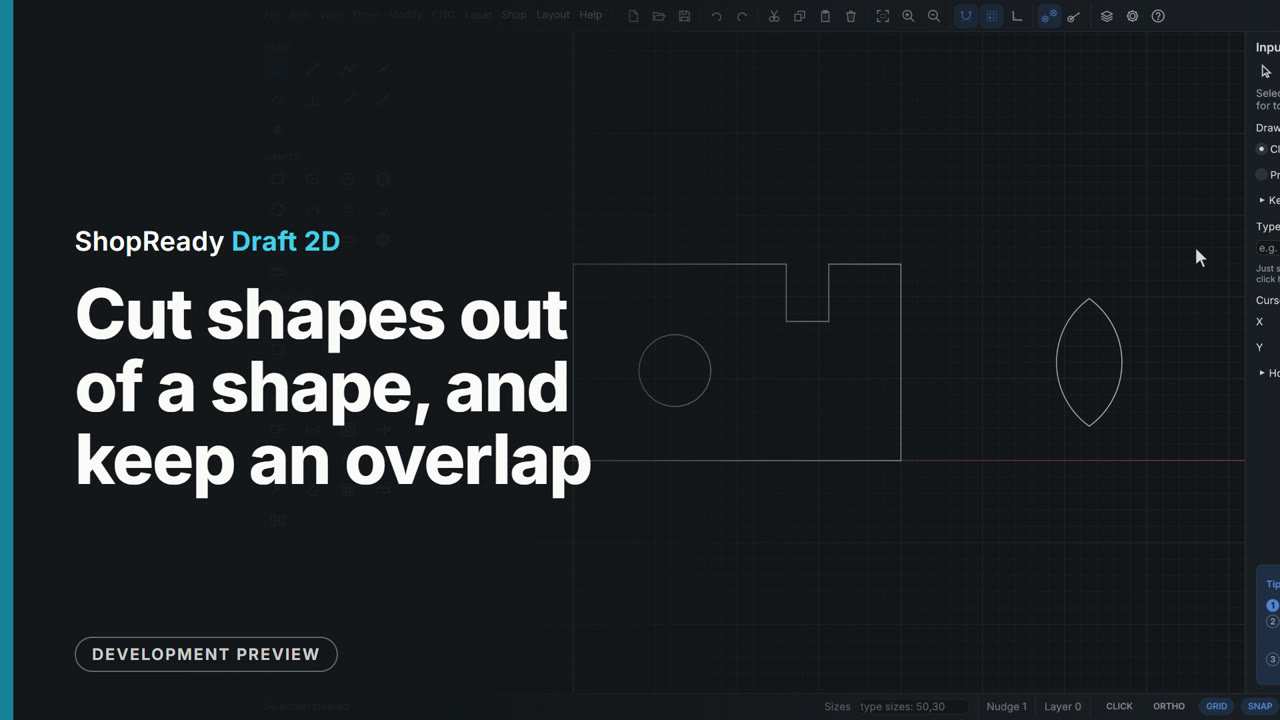
Cut shapes out of a shape, and keep an overlap
A cabinet divider gets a notch for a rail and a hole for cables by cutting a rectangle and a circle out of the board: the first shape picked is the one that stays. Then two overlapping circles are reduced to the leaf they share with Keep only the overlap.
 Clip · 49 s
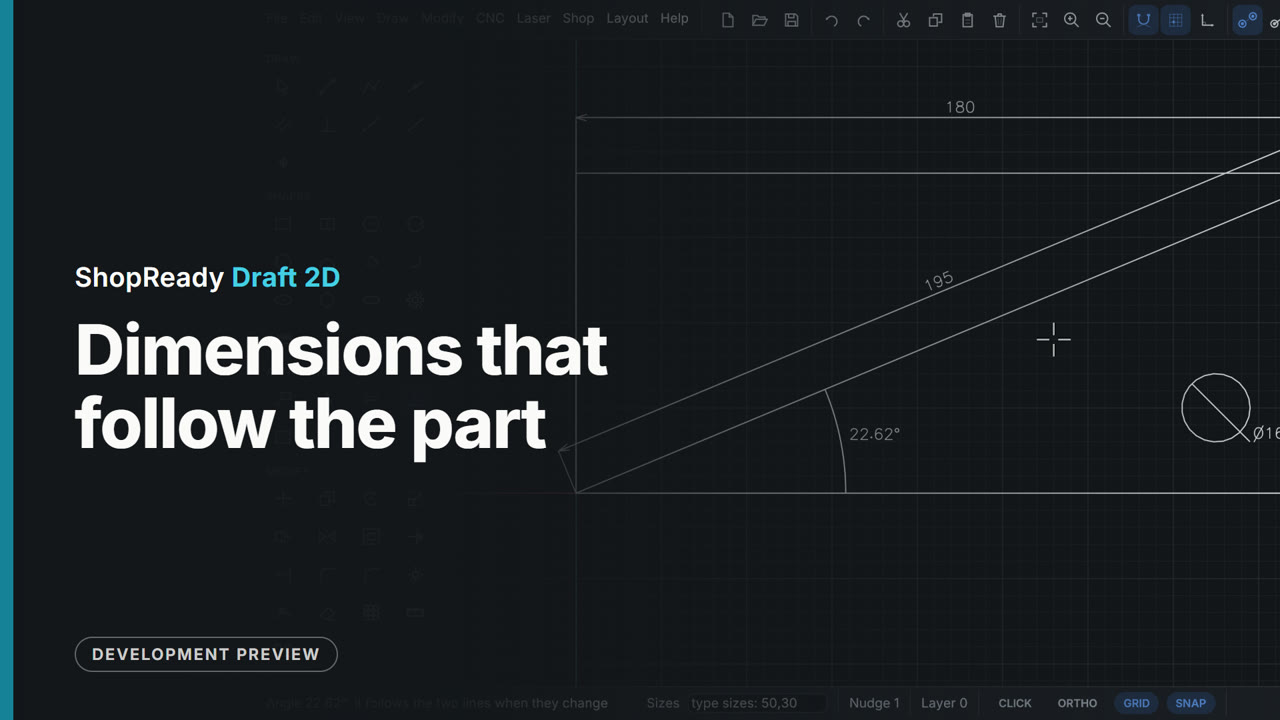
Dimensions that follow the part
Three dimensions go on a bracket blank: between two corners, on its cut line, on its hole. Then the part is stretched 80 wider and the hole typed to a new size, and every dimension reads the new size without being touched. An Angle dimension between two edges ends it.
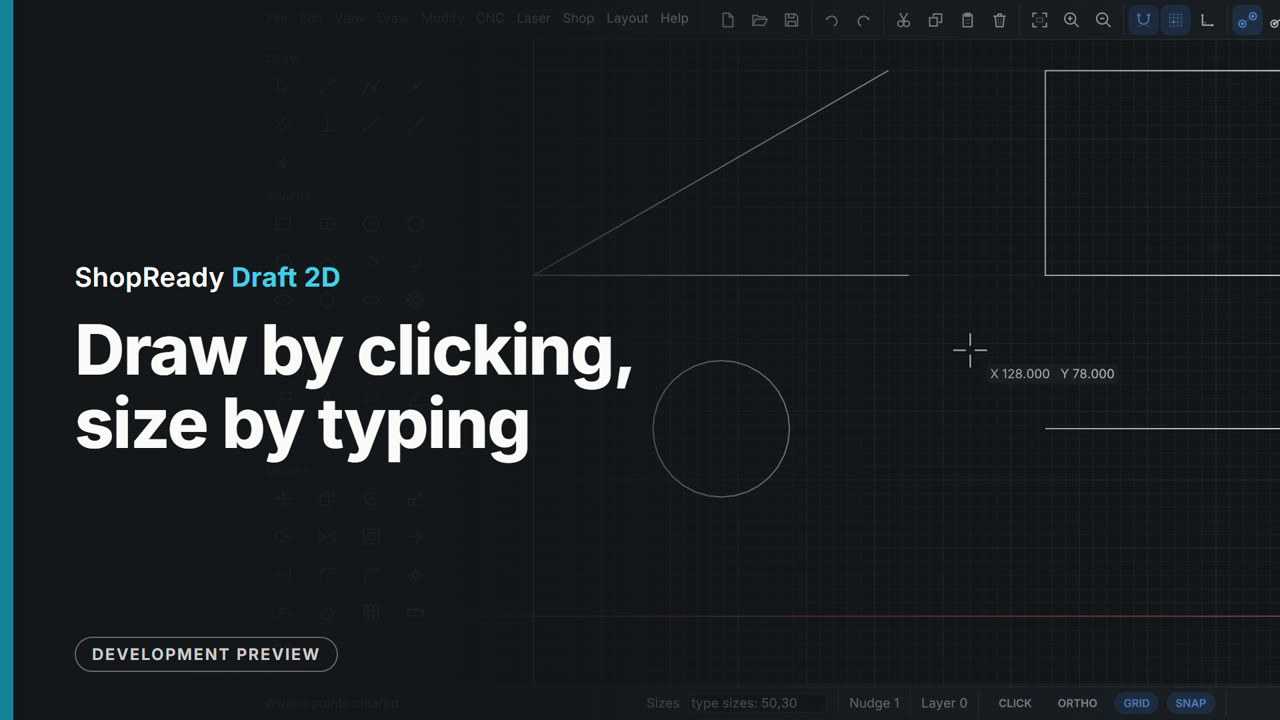 Clip · 50 s
Draw by clicking, size by typing
A line by two clicks, a line by its typed length and angle, a rectangle and a circle by typed sizes, a rectangle resized by typing again, and a length locked with Tab while the mouse aims it. Sizes go in at any moment while drawing, with nothing to open first.
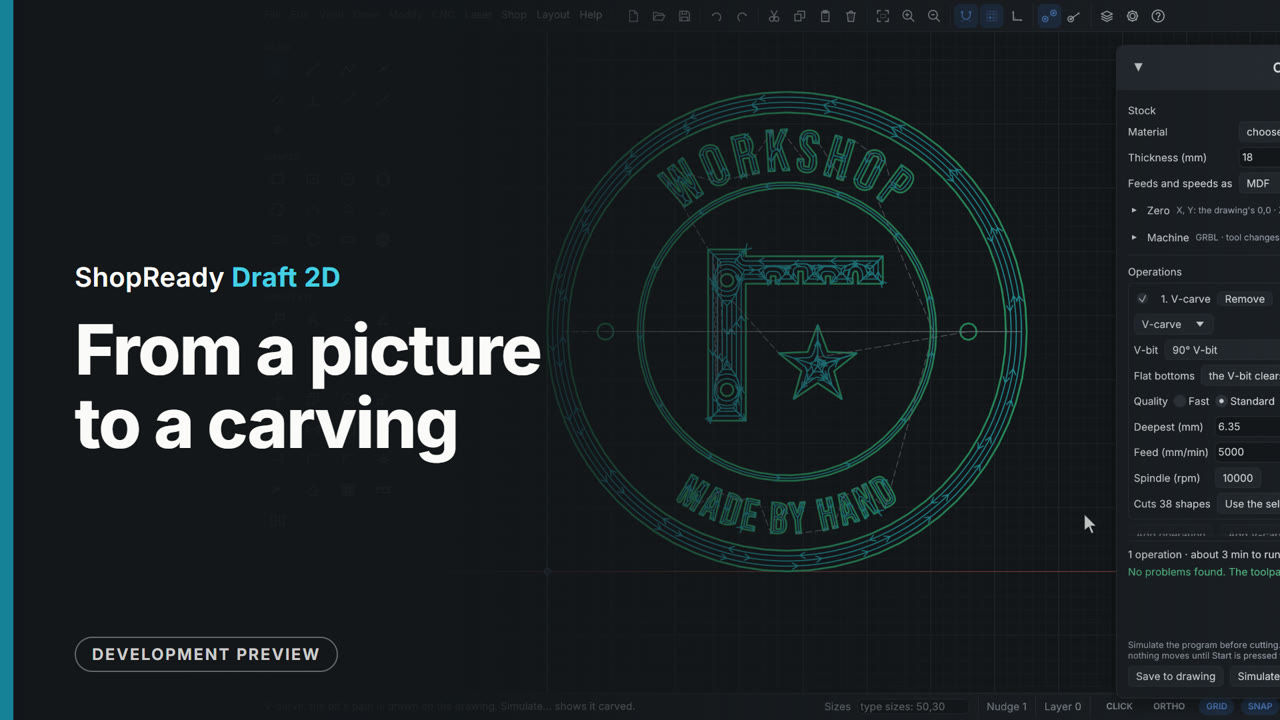 Clip · 40 s
From a picture to a carving
A phone photo of an emblem on paper is opened from the CNC menu and comes in already traced into outlines. The picture window shows what will be carved, one setting is loosened, and Place and V-carve puts the shapes on the drawing with a V-carve job ready to run.
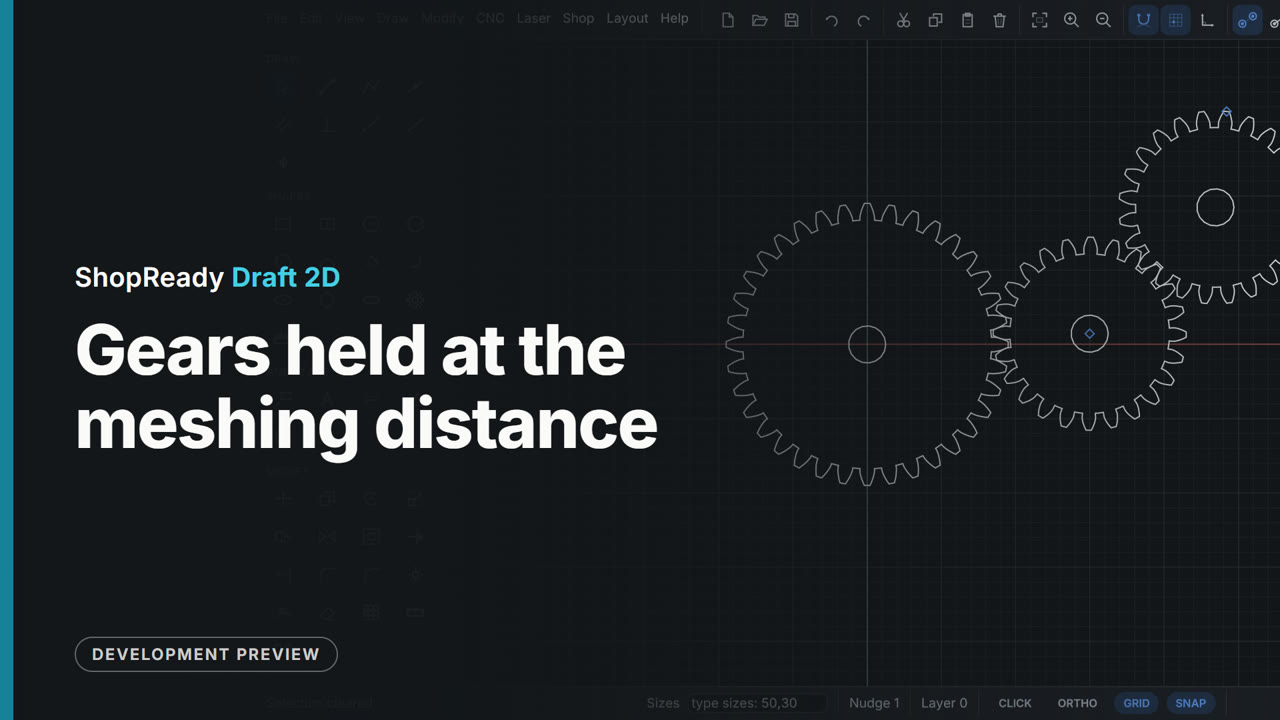 Clip · 52 s
Gears held at the meshing distance
With one gear drawn, the Gear tool holds the next on a dashed ring round it: anywhere on the ring is the meshing distance. One click places it with its teeth turned into the other's gaps, and a third gear goes on the second one's ring the same way. Then the third gear is clicked and dragged by its outline: it moves whole, held on the ring round its neighbour, and comes down in mesh again.
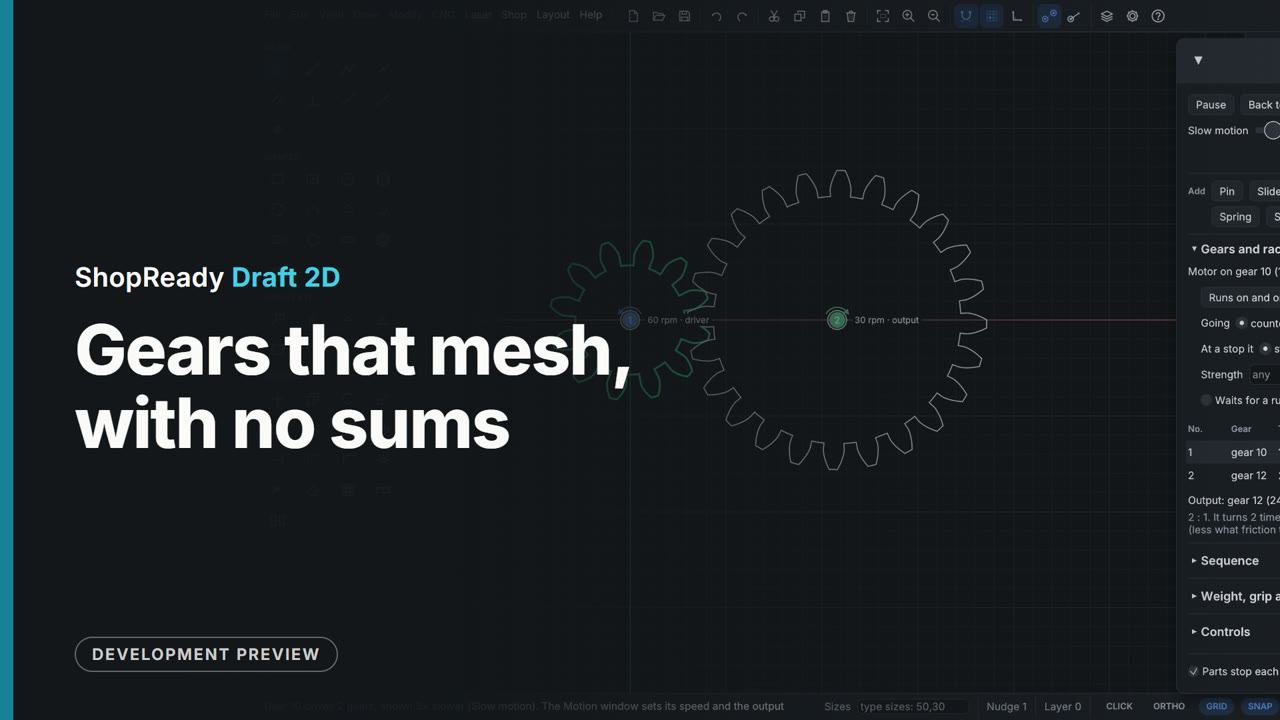 Clip · 51 s
Gears that mesh, with no sums
A 12-tooth wooden gear is drawn with the Gear tool, teeth and module typed at the top of the Input tab. The 24-tooth gear brought near it is held on a dashed ring at the meshing distance and comes down meshed with one click. Right-click, Motion, Drive this gear, and both turn on the drawing with their speeds, the output read at the last gear.
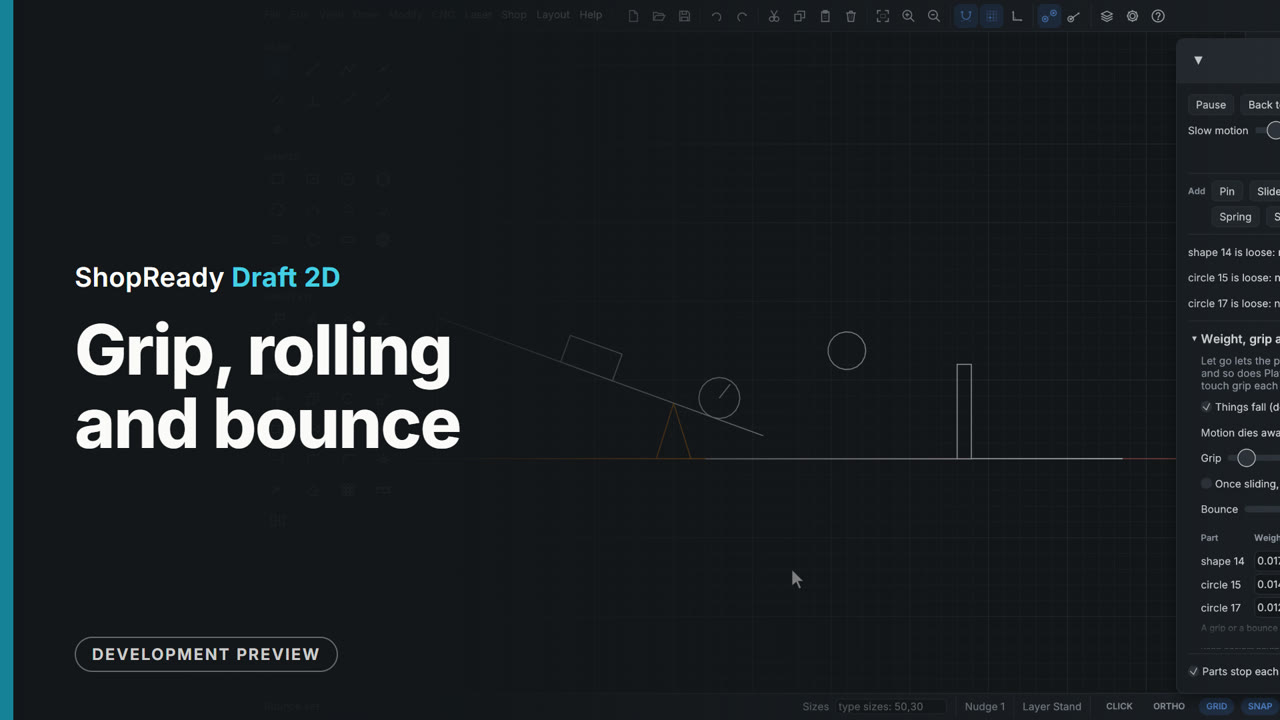 Clip · 43 s
Grip, rolling and bounce
A block and a wheel on a ramp and a ball over the floor in the wheel's path, all loose. With a grip of 0.5 the block stays on the ramp while the wheel rolls down, runs into the ball that has landed dead and pushes it to a stop board. Grip turned down to 0.2 and the block slides too; bounce turned up to 0.7 and what lands comes back up.
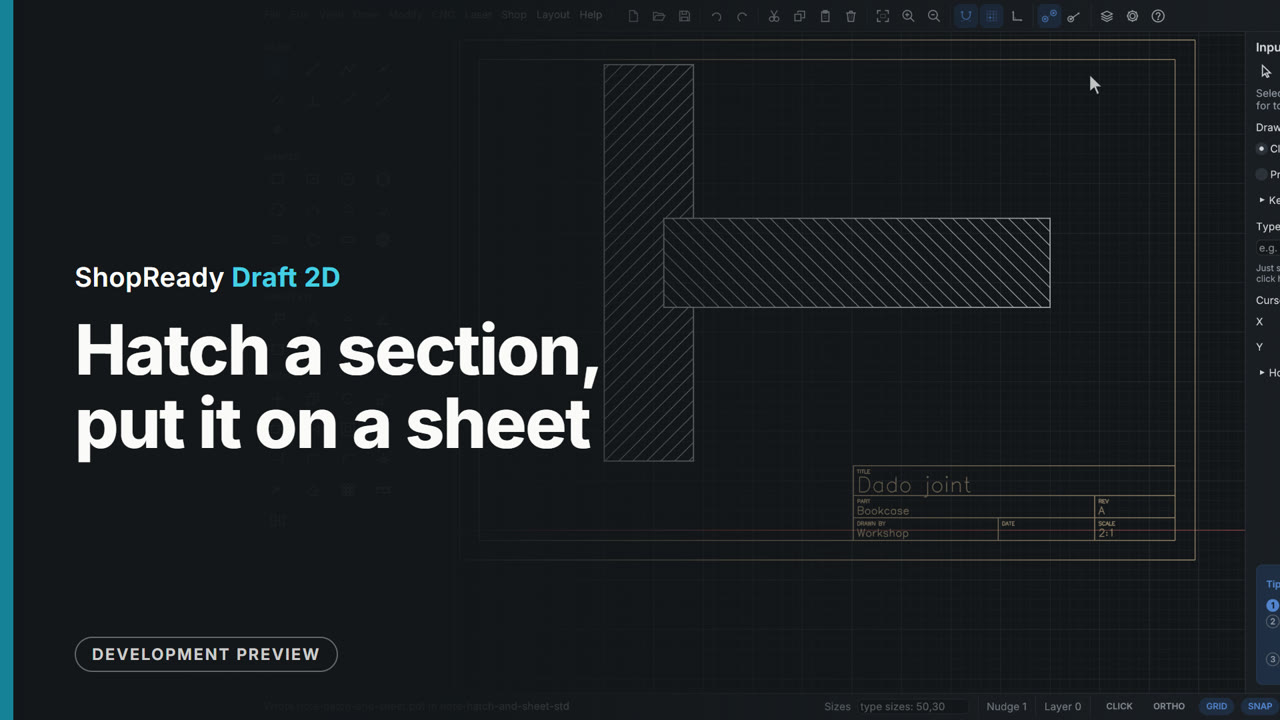 Clip · 51 s
Hatch a section, put it on a sheet
A section through a dado joint is hatched with one click in each part, the shelf at 135 degrees so the two parts read apart. Layout, Sheet and title block then puts the drawing on an A4 sheet: the scale is set to 2:1, the title, the part and who drew it are typed into the title block, Center it puts the joint in the middle of the paper, and Export sheet PDF writes the sheet as it is drawn.
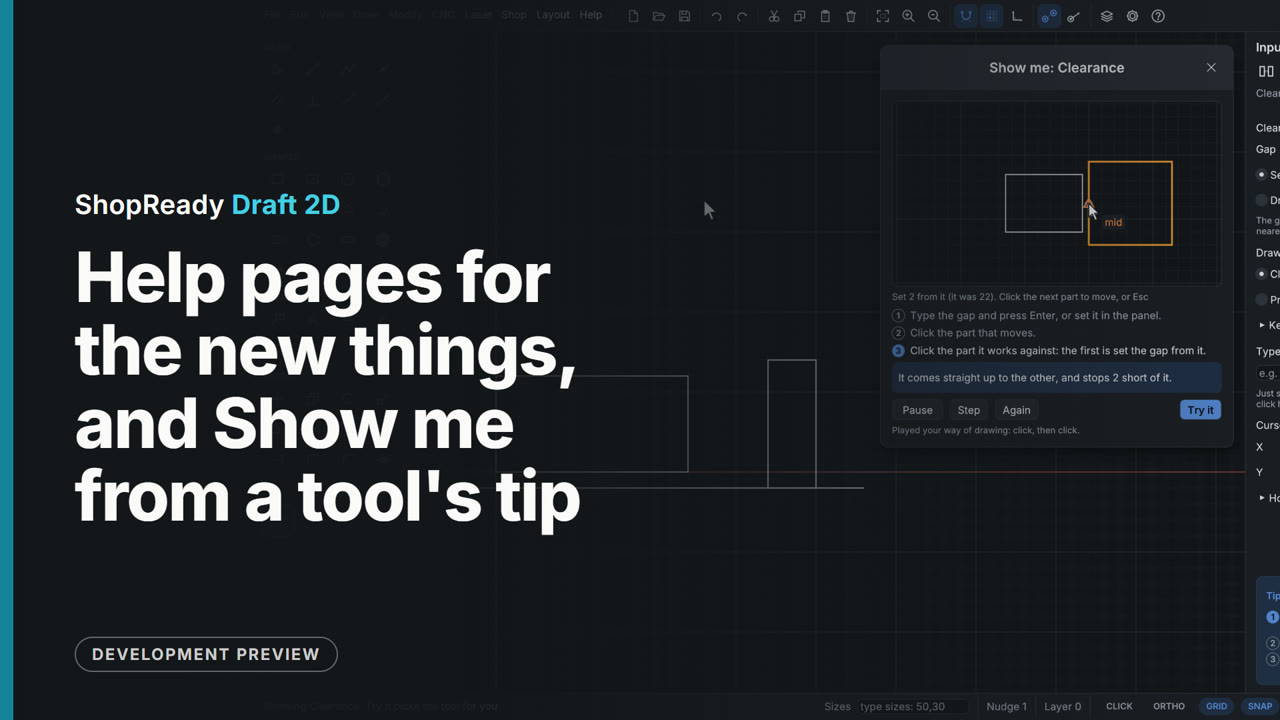 Clip · 51 s
Help pages for the new things, and Show me from a tool's tip
The Help menu has a page at its foot for each of the new parts of the program: Laser, Machines, Inlays and more cuts, Sheets and shapes, Codes, Router, and Work from other programs. The clip opens three of them, each written in plain words. Then the Clearance tool is picked with its key, B: its tip card has Show me, which plays the tool on a scratch drawing in a window of its own, a step at a time, and offers Try it.
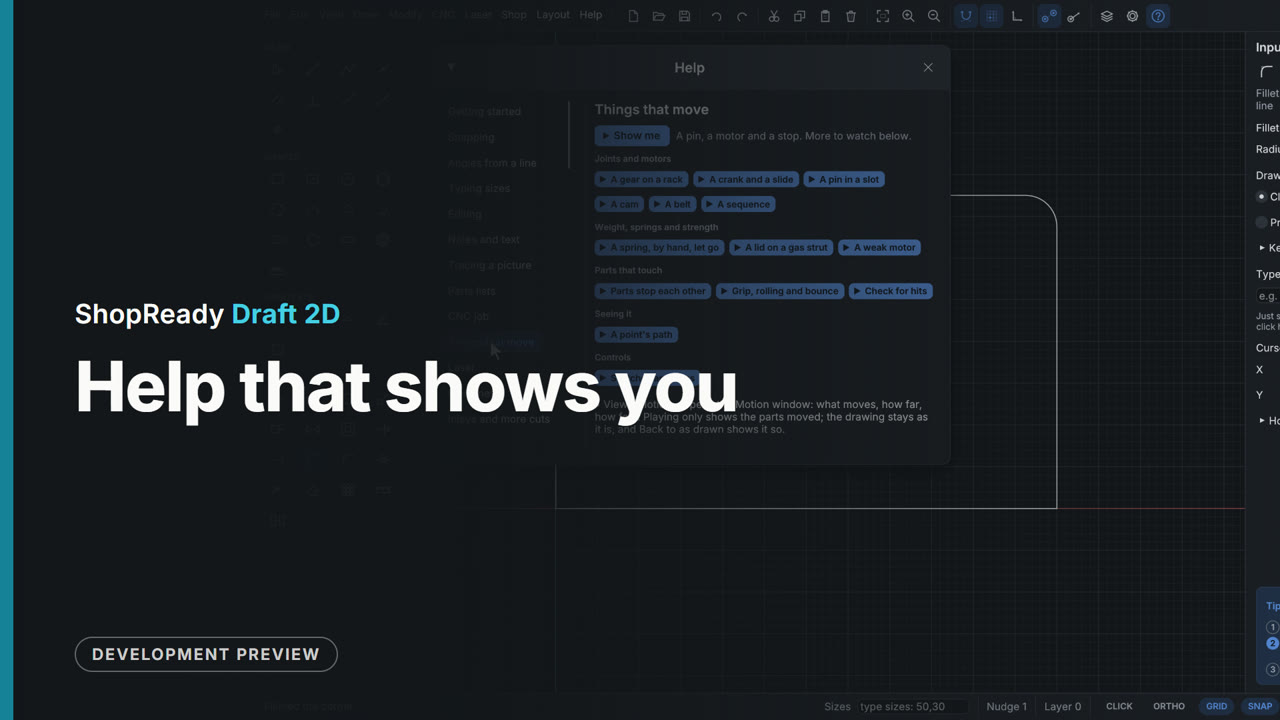 Clip · 54 s
Help that shows you
The tip card marks the step you are on as you work, Show me plays any tool on a scratch drawing, Try it hands the tool over, and Help has a page for every tool and subject. No manual to read first.
 Clip · 50 s
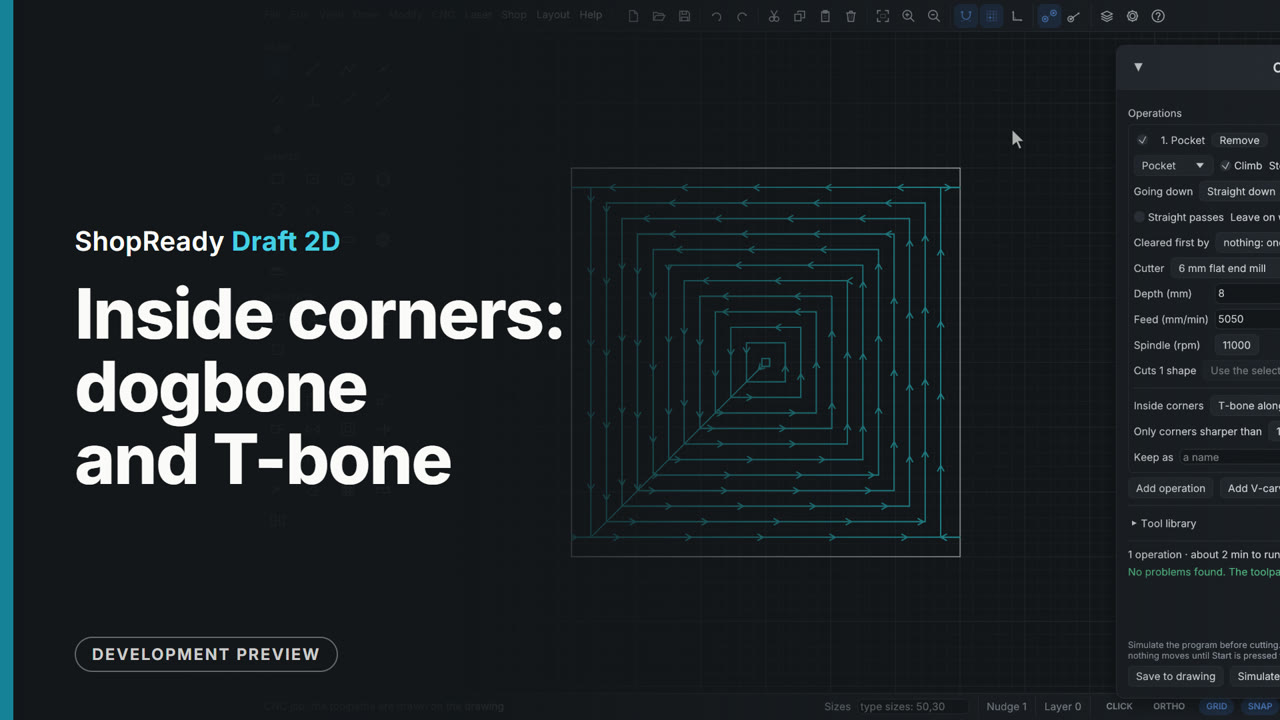
Inside corners: dogbone and T-bone
A pocket that a square foot must fit is cleared with a 6 mm cutter, which leaves every inside corner round. In the operation's More..., Inside corners is set to Dogbone and each corner of the path gets a spur out along its middle; set to T-bone, the spur runs along one side. The drawing stays the part as designed: only the cutter's path changes.
 Clip · 51 s
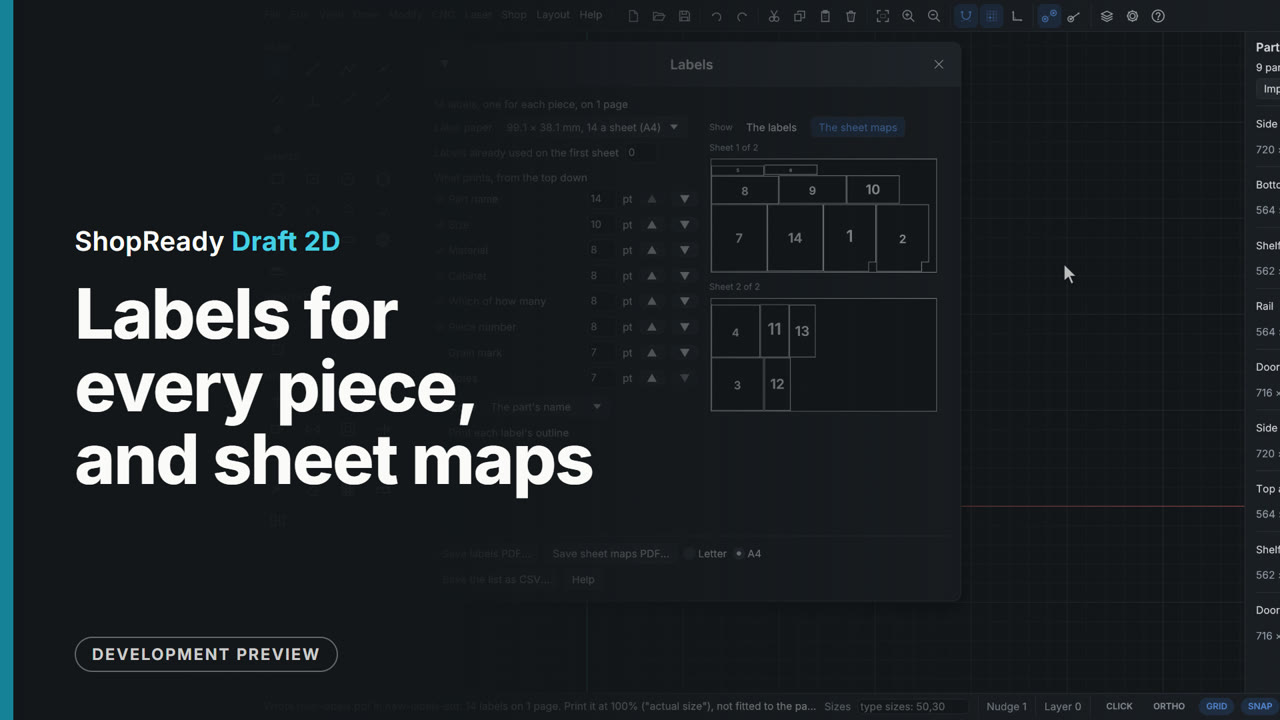
Labels for every piece, and sheet maps
Two kitchen cabinets make 14 pieces. Shop, Labels... makes a label for each one: its name, size, material, cabinet, which of how many, a number and a QR code. The label paper is picked by the size of a label and how many are on a sheet, the lines that print are ticked and sized, and Save labels PDF... writes the page. The sheet maps show each sheet the parts nest on, each part in its true shape (the base cabinet's sides have their toe-kick notch), with every piece numbered as its label is.
 Clip · 52 s
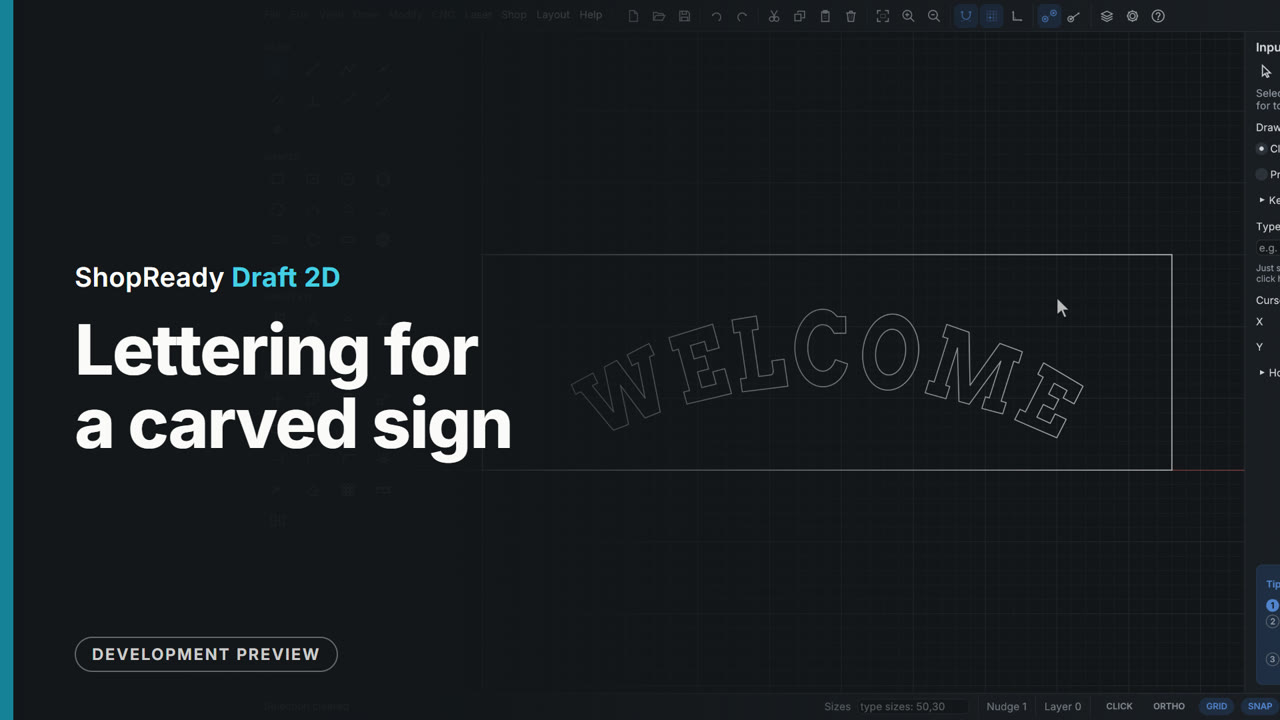
Lettering for a carved sign
The Text tool opens a box on the sign board: the words go in, the font comes from a list of carving fonts that are built in, and the size from the heights a shop uses. While the box is open, the tool's own panel sets the letters round an arc, bulges the middle, opens the spacing and mirrors them; Enter sets them down, and a double-click changes the words where they stand.
 Clip · 45 s
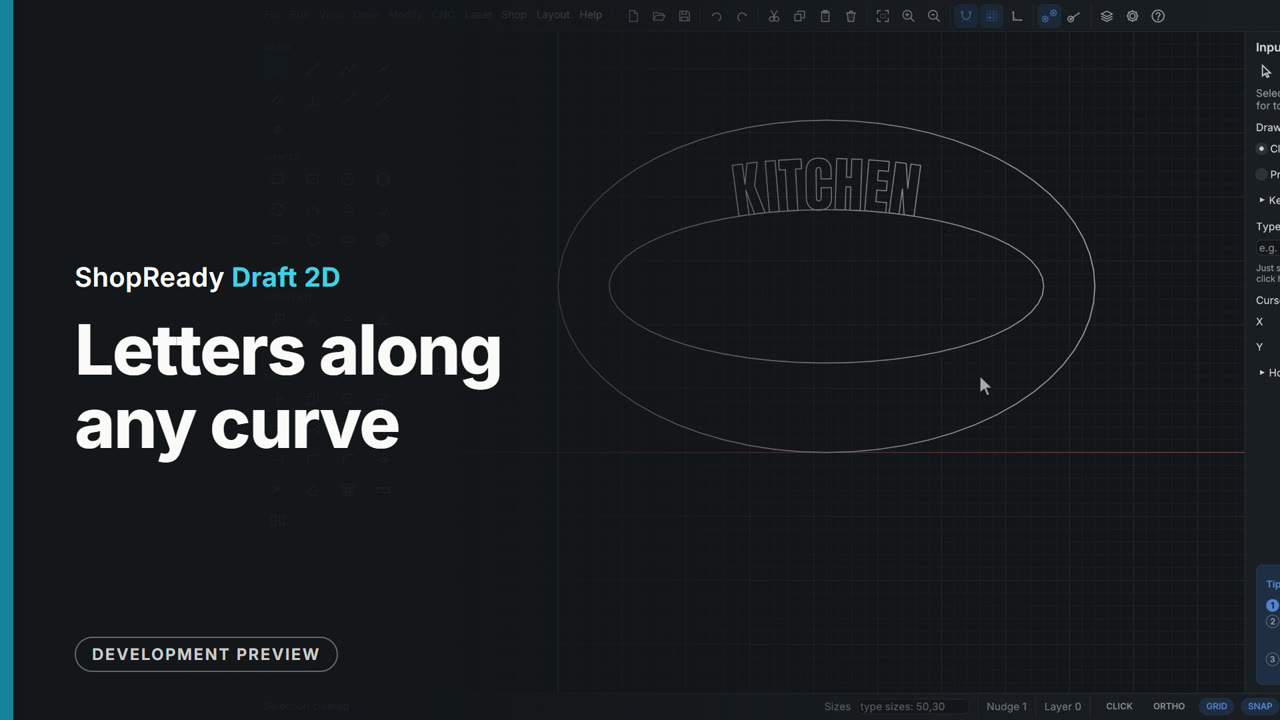
Letters along any curve
On an oval sign the word and an inner oval are selected together, and a right-click sets the letters along the oval. The oval is reshaped by a grip and the letters are shown following it while the grip is still held. Then the words are opened by a double-click and the gap between two letters is set by hand from the keyboard, with the caret on the drawing standing in that gap.
 Clip · 50 s
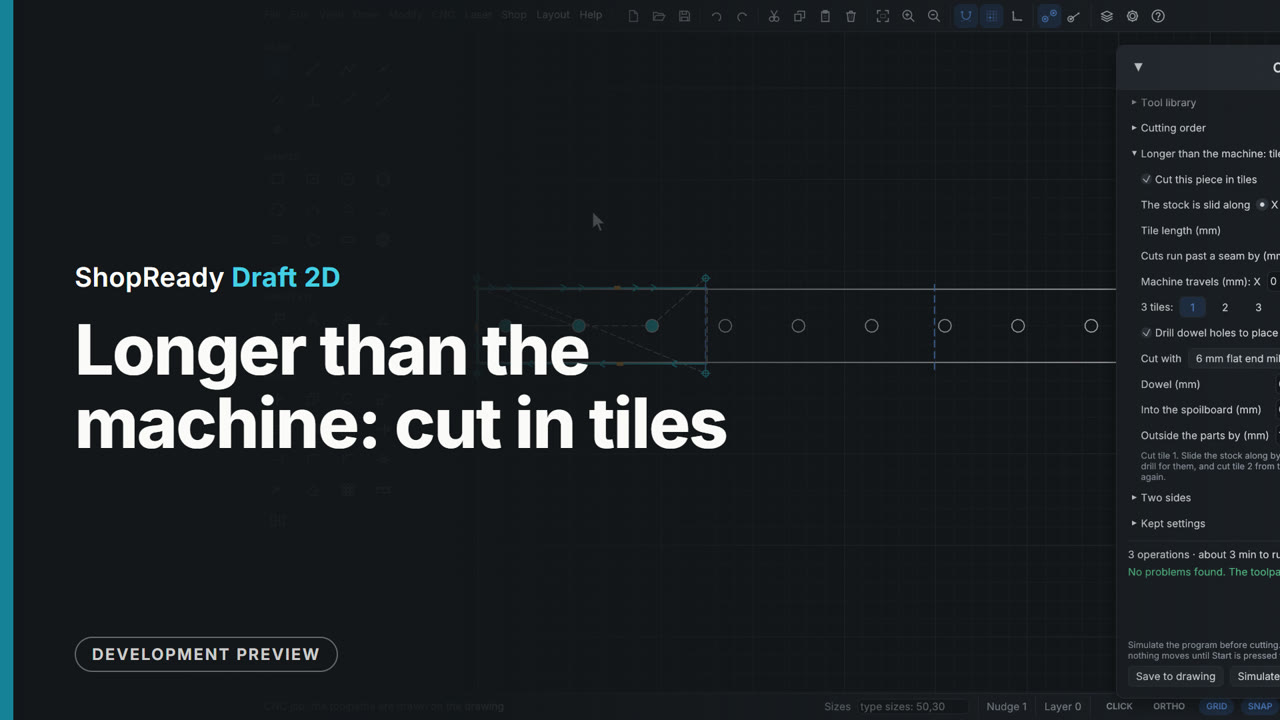
Longer than the machine: cut in tiles
A peg rail 1400 mm long is cut on a machine that reaches 500. In the CNC job's More..., Longer than the machine: tiles is ticked and the tile length typed: the seams are drawn on the rail and each of the three tiles is its own program, shown by clicking its number. Dowel holes drilled with tile 1 place the stock for the next tile.
 Clip · 40 s
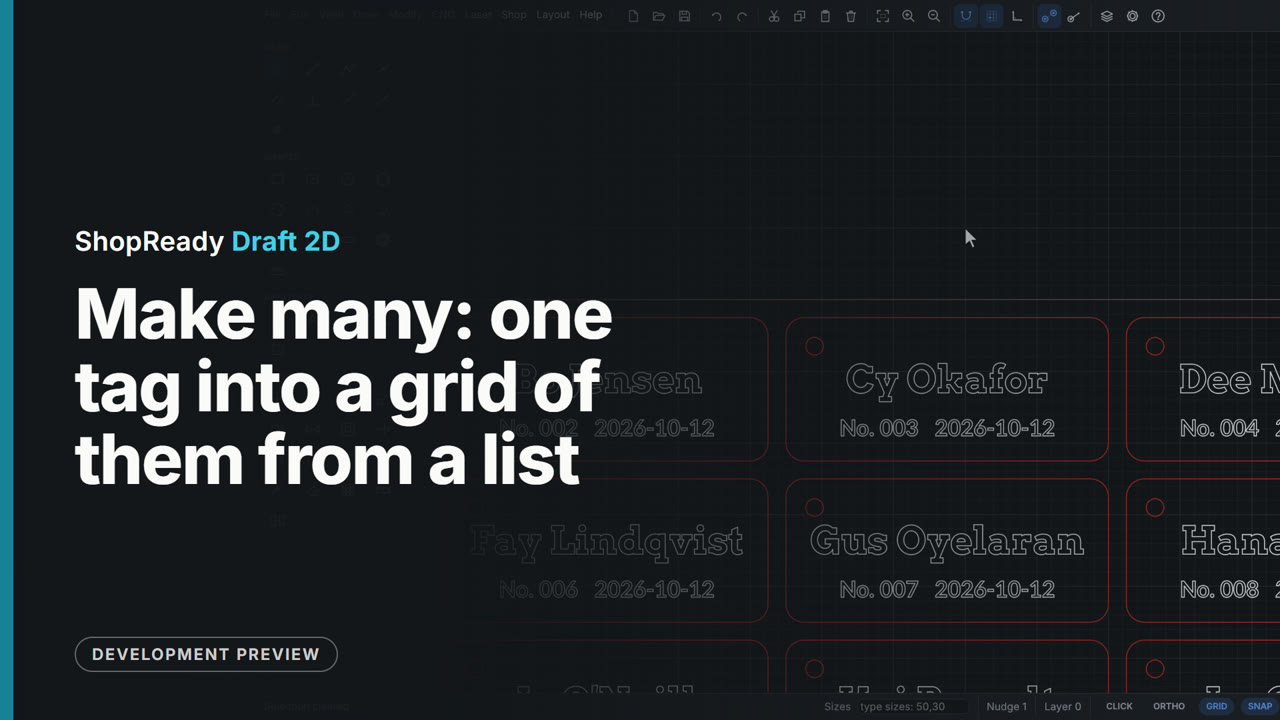
Make many: one tag into a grid of them from a list
One locker tag has fields in its text and a list of twelve names is read in. The tag is selected, and Make many, at the foot of the Numbering and lists window, is set to one for each row of the list, four side by side. Make them lays twelve copies out in a grid under the pattern, each with its own name and number as plain text. One undo takes them all back.
 Clip · 47 s
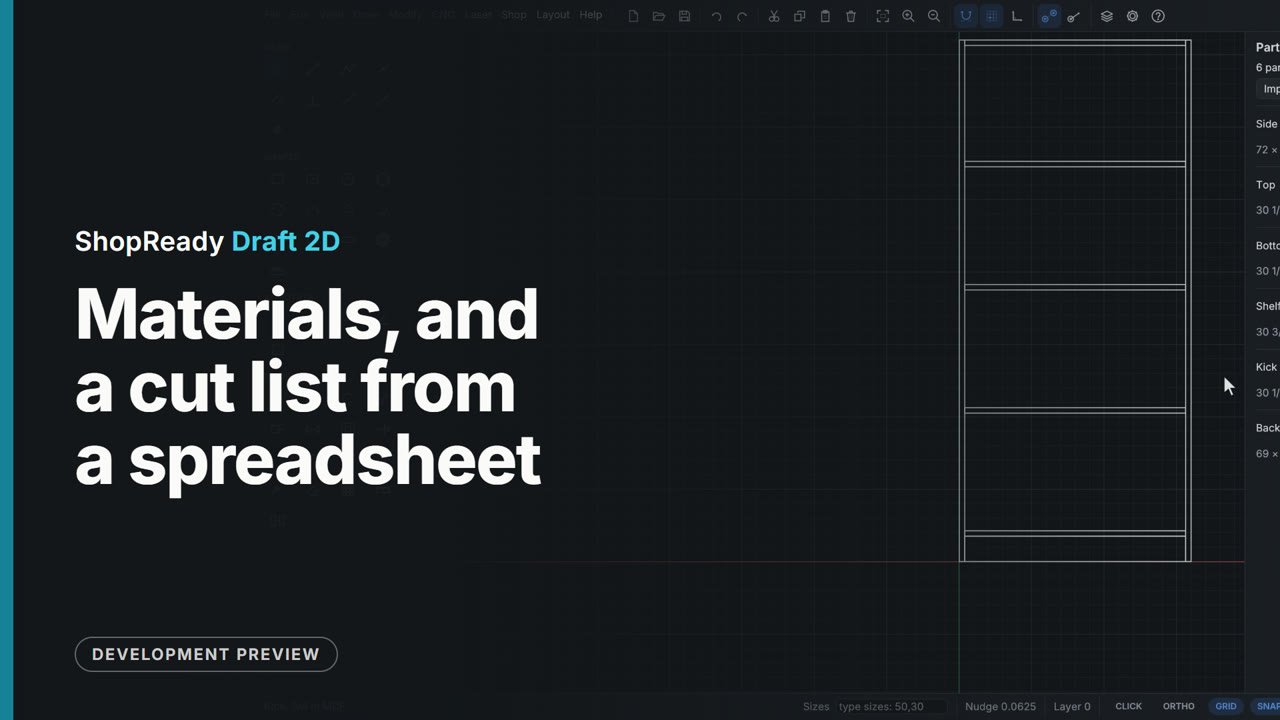
Materials, and a cut list from a spreadsheet
The Shop menu opens the Materials window: each sheet good with its measured thickness and the stock sheets it comes in. Then the Parts tab takes a bookcase's cut list straight from a spreadsheet file: the columns are found by their headings, six parts come in with their sizes, counts, grain and material, and a part's material is changed from the shop's own list.
 Clip · 52 s
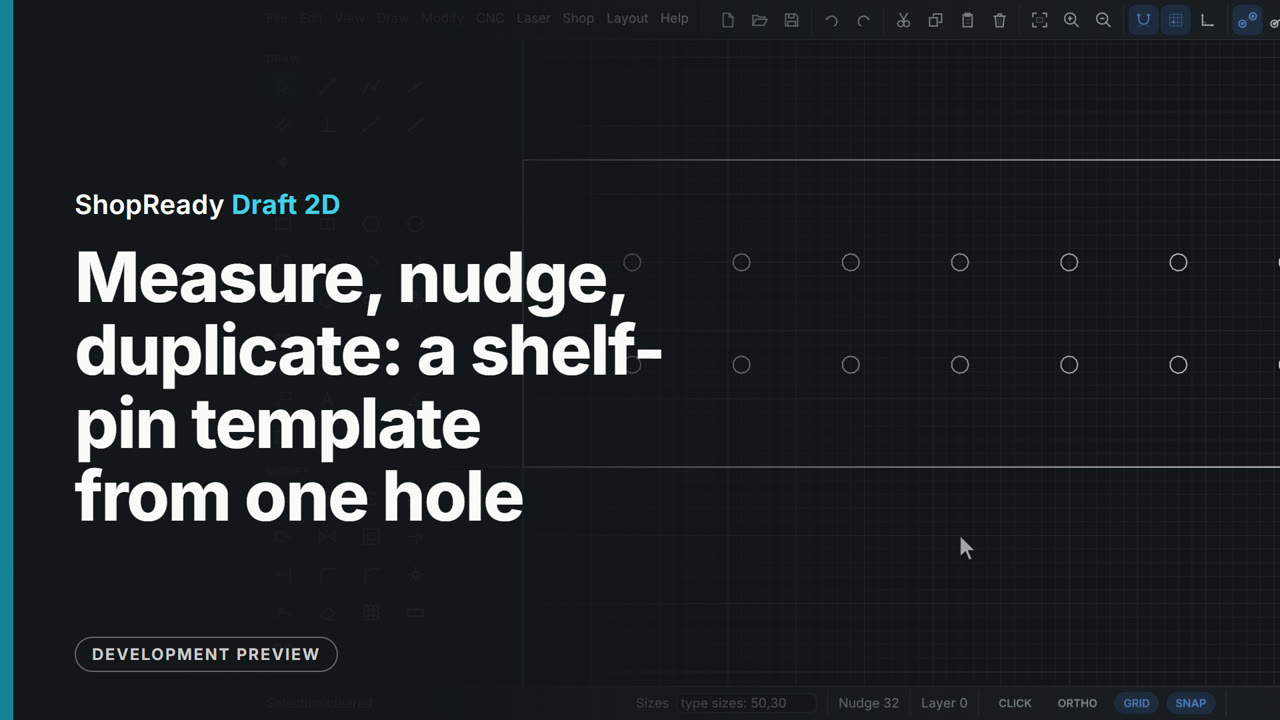
Measure, nudge, duplicate: a shelf-pin template from one hole
Keyboard work on a shelf-pin drilling template. Measure reads how far the first hole is from the corner; the arrow keys nudge it 1 mm a press; Ctrl+D duplicates it and Shift with an arrow moves the duplicate ten steps at a time; Ctrl+Z and Ctrl+Y undo and redo. With the step set to 32 mm in the status bar, Ctrl and the right arrow lays out two rows of holes, one copy a press.
 Clip · 52 s
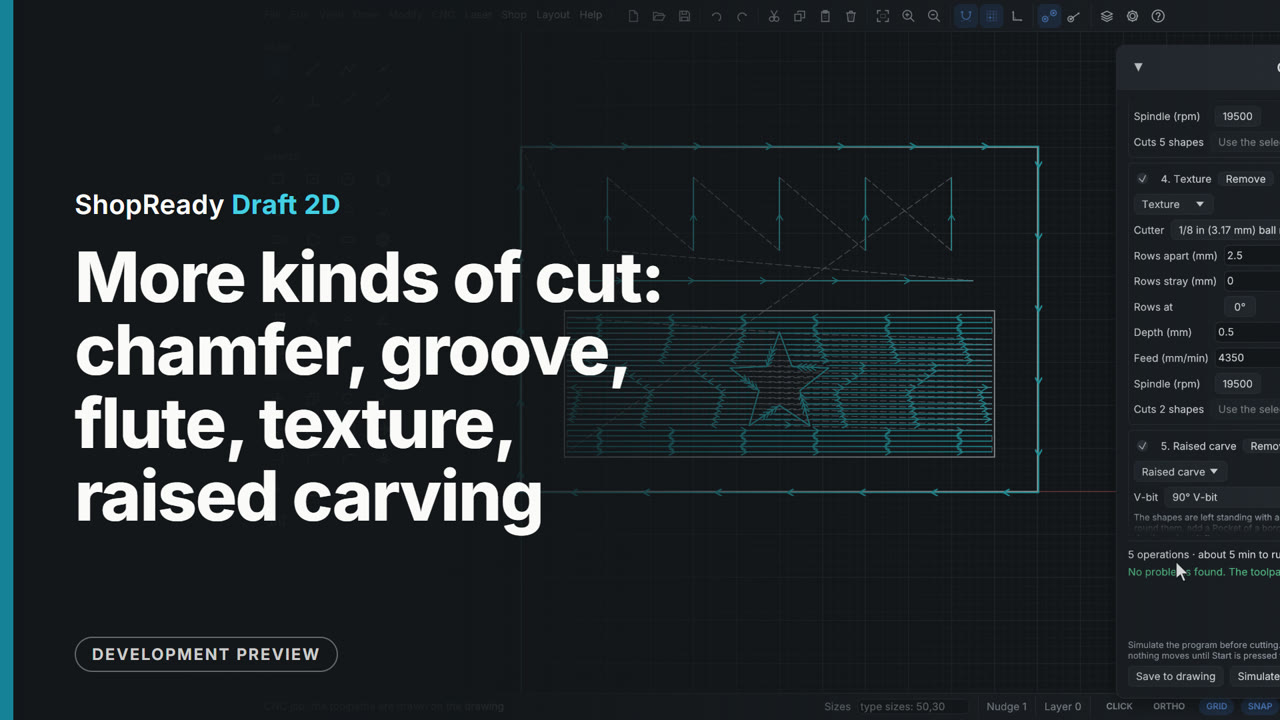
More kinds of cut: chamfer, groove, flute, texture, raised carving
One small sample panel carries the five newer kinds of cut, each switched on in turn in the CNC job window so its path is drawn alone and then with the rest: a chamfer along the panel's edge, a groove on a line, flutes along five short lines, a texture of scoops on a ground, and a star left standing as a raised carving.
 Clip · 49 s
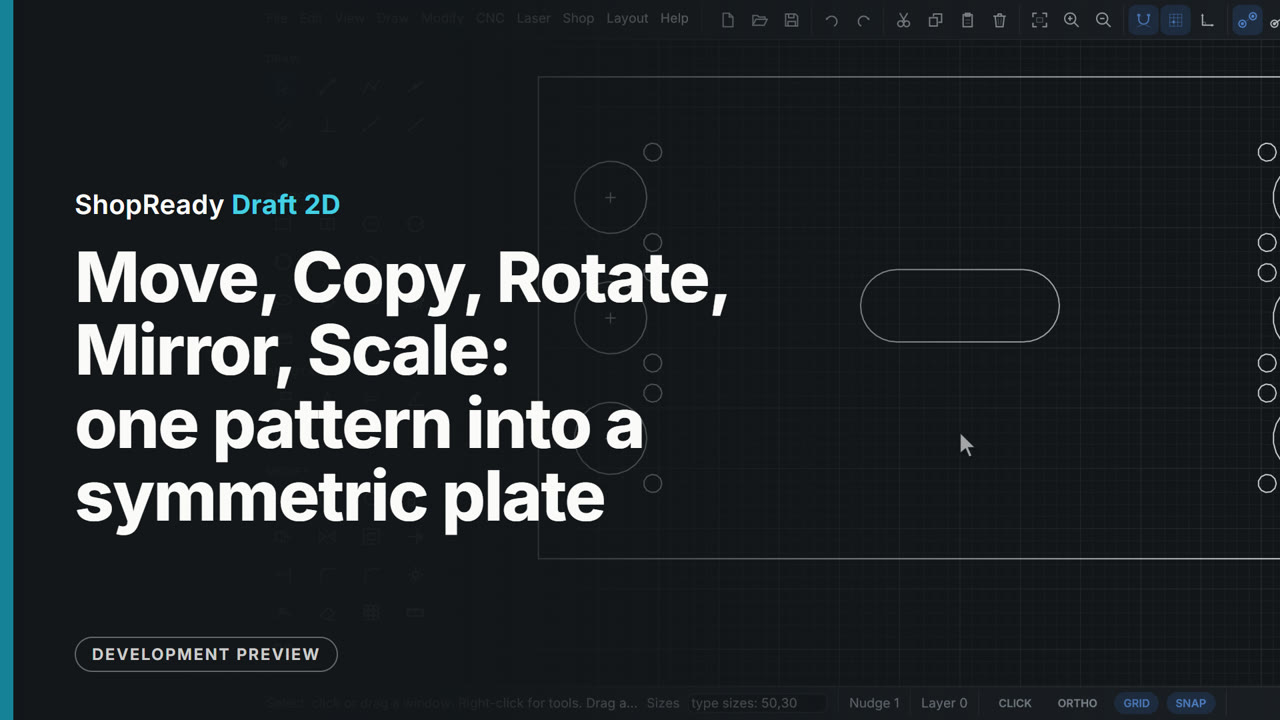
Move, Copy, Rotate, Mirror, Scale: one pattern into a symmetric plate
One hinge hole pattern (a cup and two screw holes) is turned 90 degrees about its own center, moved onto a center mark, copied to two more marks, and mirrored across the plate's center line; then the hand hole is scaled up by 1.5. Every point is snapped and every number typed, so nothing is placed by eye.
 Clip · 40 s
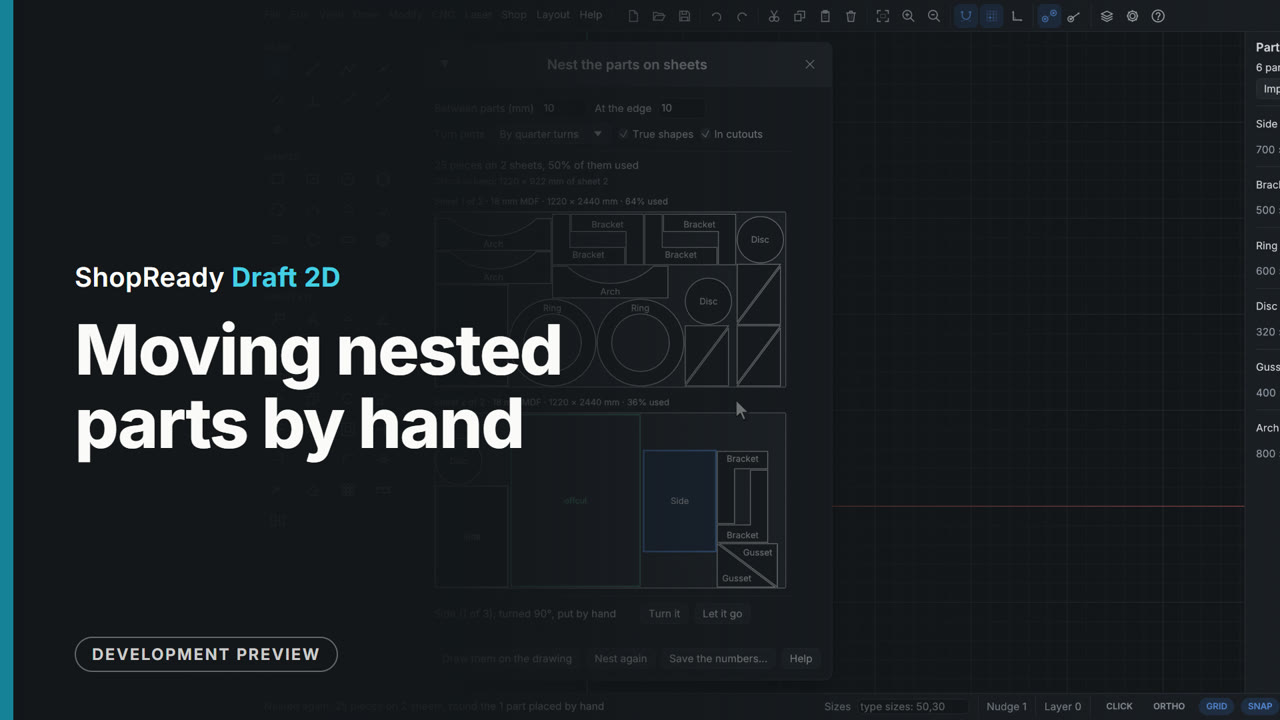
Moving nested parts by hand
In the Nest window a part can be dragged to another place or another sheet. A Side is dragged onto the Side beside it: both turn red and the window says which two are too close. Dragged again to the free end of sheet 2 it stays where it is put, in a color of its own, and Nest again packs the other 24 pieces round it.
 Clip · 47 s
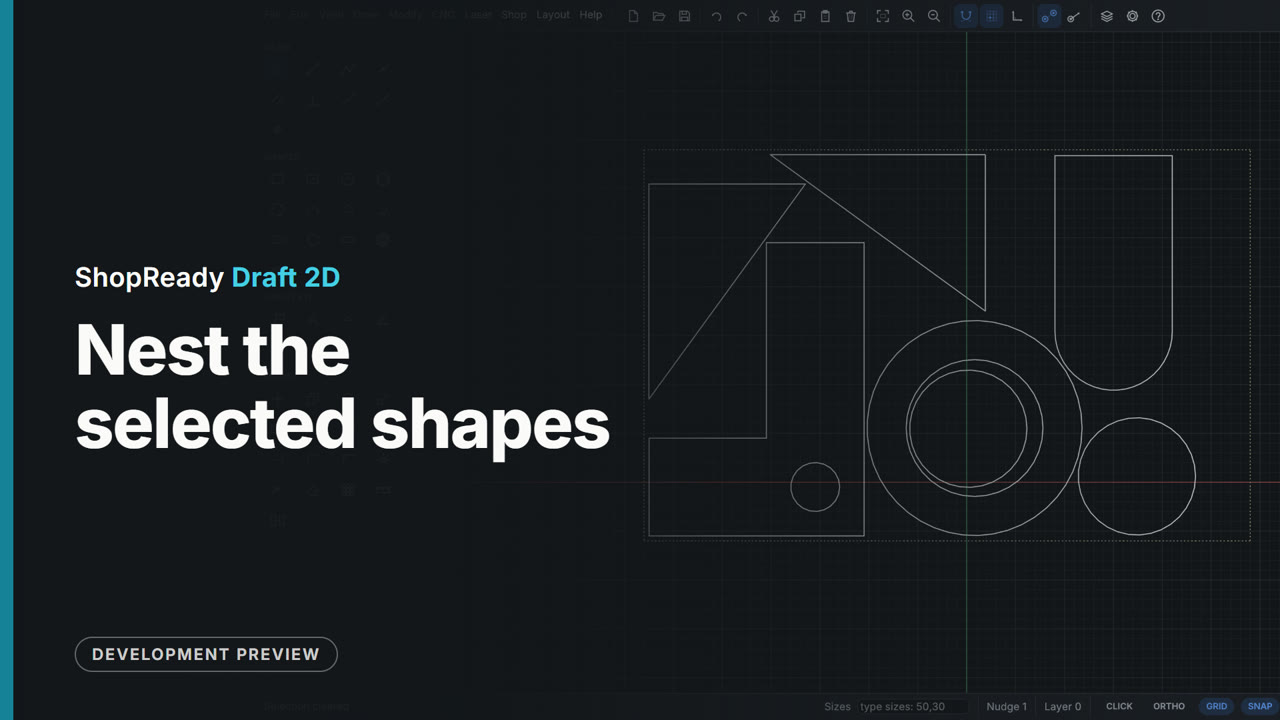
Nest the selected shapes
Parts for a toy box are drawn wherever there was room, with no parts list. They are selected with a window and Shop, Nest the selected shapes... is given the sheet's size, an offcut 620 by 400. The window says all seven pieces fit on one sheet before anything moves; Nest them packs them into the sheet where they are, each with what is drawn inside it: the disc goes inside the ring and the L keeps its hole.
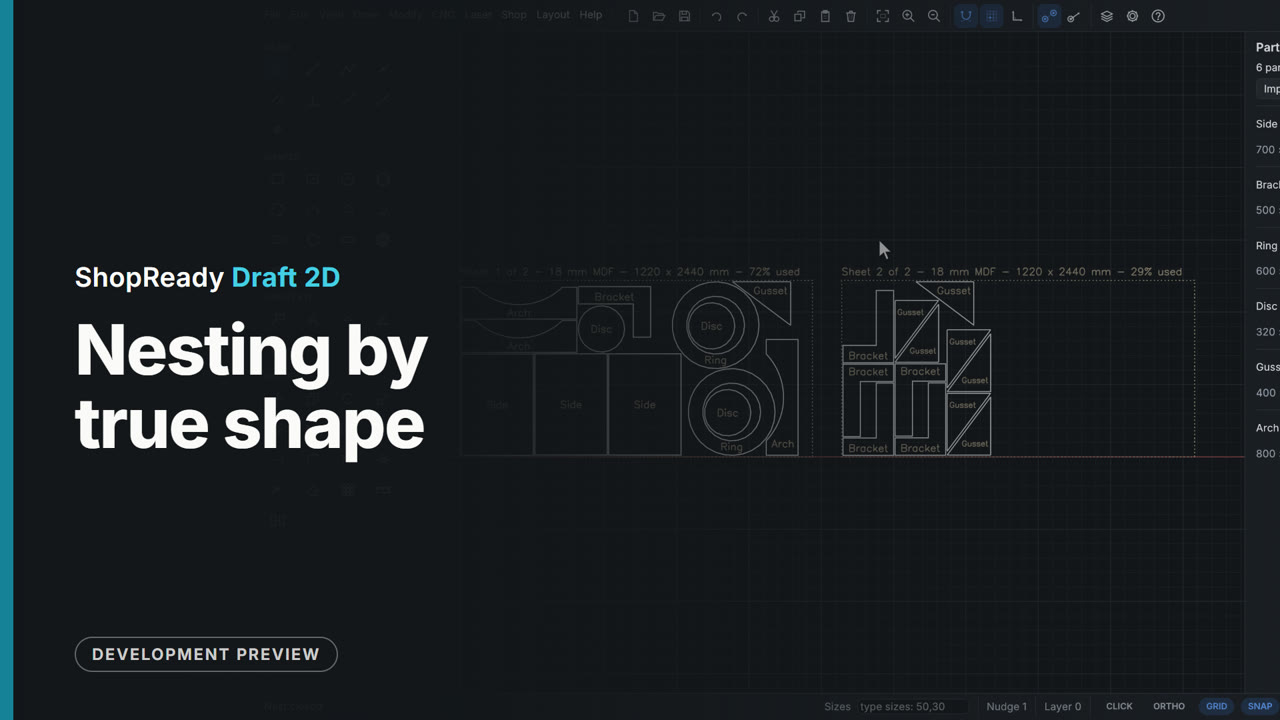 Clip · 46 s
Nesting by true shape
A parts list holds plain sides and shaped parts: L brackets, rings, discs, gussets and arched rails. Shop, Nest the parts on sheets... lays all 25 pieces on two sheets by their true shapes: a disc goes inside each ring's cutout, an arch nests into an arch, an L into an L, and the offcut worth keeping is marked. Draw them on the drawing puts the sheets beside the drawing, each part drawn as it lies.
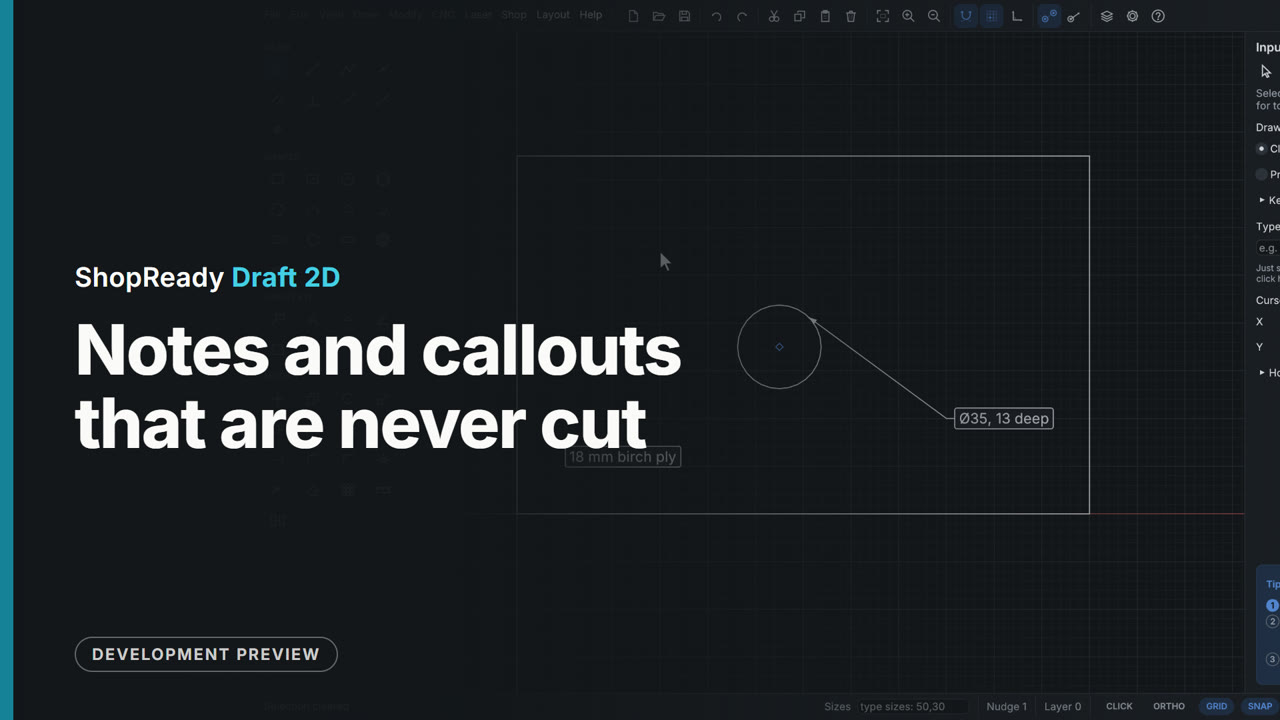 Clip · 47 s
Notes and callouts that are never cut
The Note tool pressed on a hinge-cup hole and dragged out makes a callout that offers the hole's size; a click elsewhere makes a plain note. The card is dragged to move the words, double-clicked to change them, and when the hole is moved the callout goes with it. Notes keep their size at any zoom and never reach a cutting file.
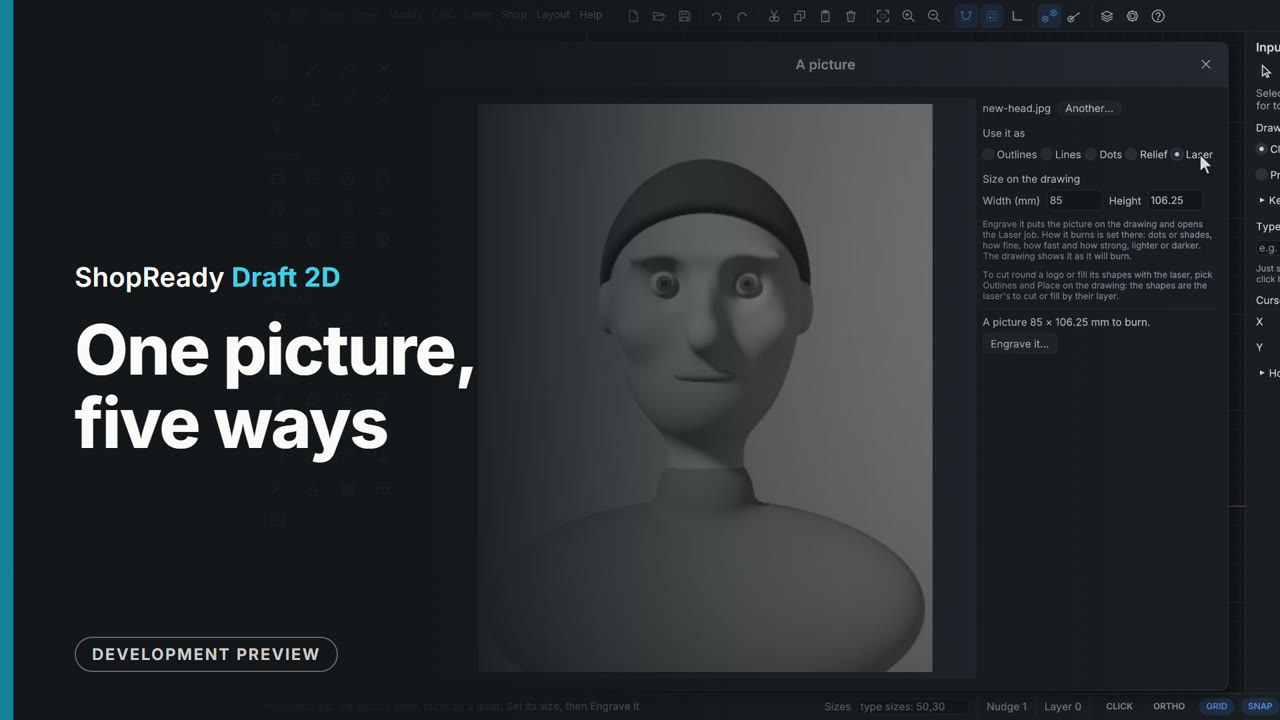 Clip · 39 s
One picture, five ways
CNC, Carve a picture opens a photo in the one picture window. One row of choices turns the same picture into shading lines, outlines, dots, a relief shown lit, or the picture itself for a laser, each with its own settings under it.
 Clip · 52 s
Only what is selected, and lead-in and lead-out
A strip of three key tags is in the laser job, and one more of the middle tag is wanted. With that tag selected, Only what is selected, under Cutting order, burns just it, with a box, an origin and a run time of its own. Then Lead-in and Lead-out, under More settings, are set to 3 mm, and the preview shows each cut starting and ending a little way off in the waste: outside the tag's edge, inside its hole.
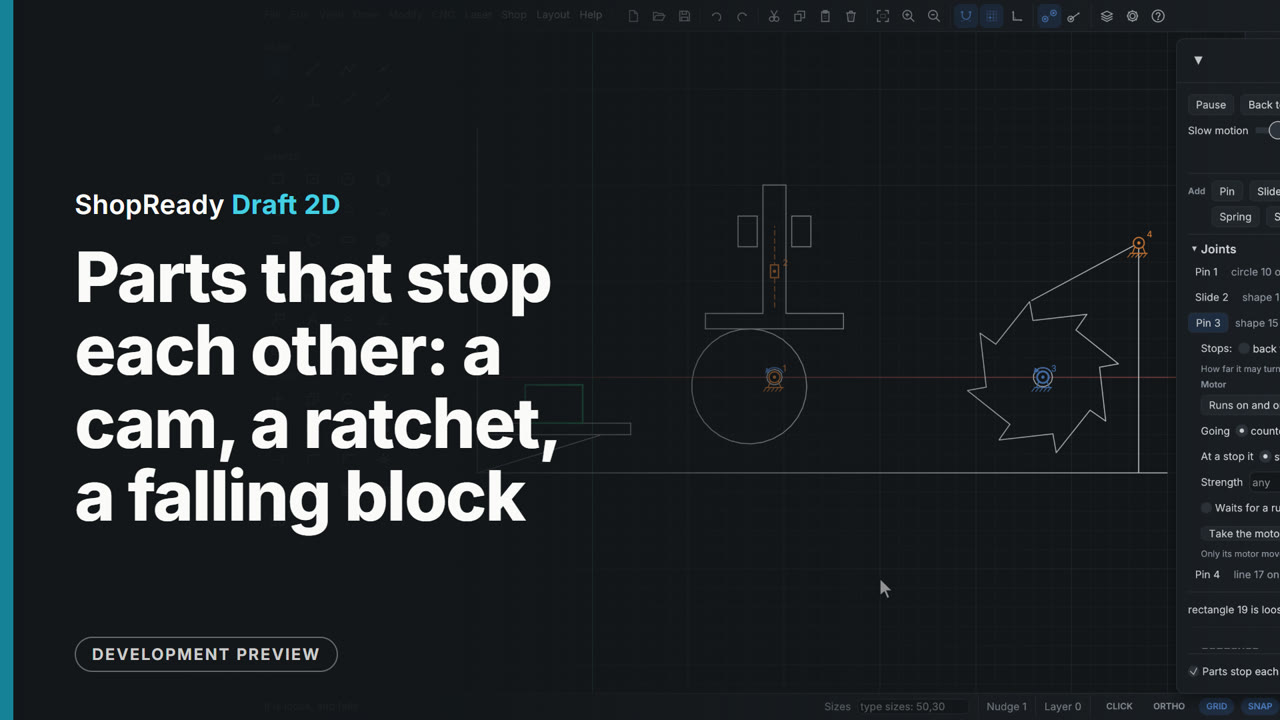 Clip · 50 s
Parts that stop each other: a cam, a ratchet, a falling block
Three things that work by touching, with no joint between the parts. A round cam on an off-center shaft lifts a follower that only rests on it. A ratchet wheel turns one way under a pawl that rides its teeth by its own weight; turned the other way a tooth meets the pawl and the wheel stops, the Motion window says which two parts met, and the cam on its own motor turns on. A block made loose from the right-click menu falls and lands on a shelf while everything runs.
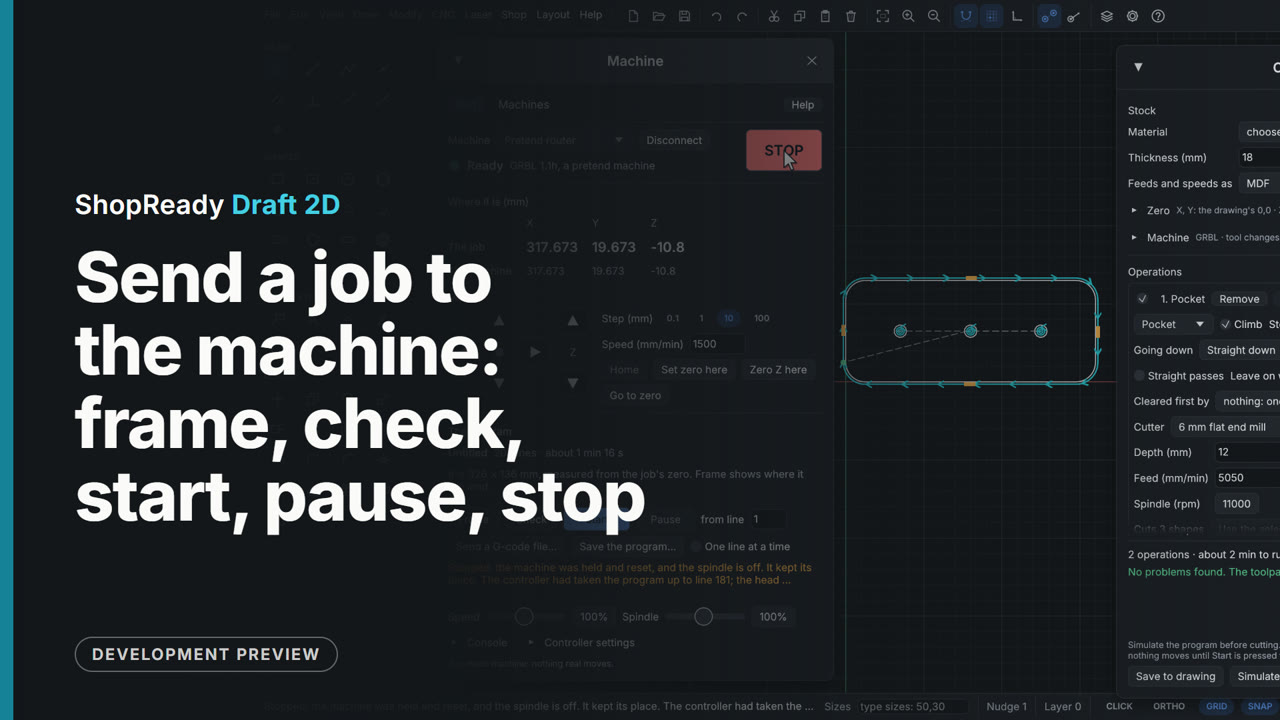 Clip · 54 s
Send a job to the machine: frame, check, start, pause, stop
From the CNC job window, Send... hands the program to the Machine window, where a pretend router is connected (it behaves on screen as a real one does, with nothing plugged in). Frame runs the head round the program's box, Check has the controller read every line with nothing moving, Start asks once and sends, Pause holds it, Resume goes on, and STOP ends it.
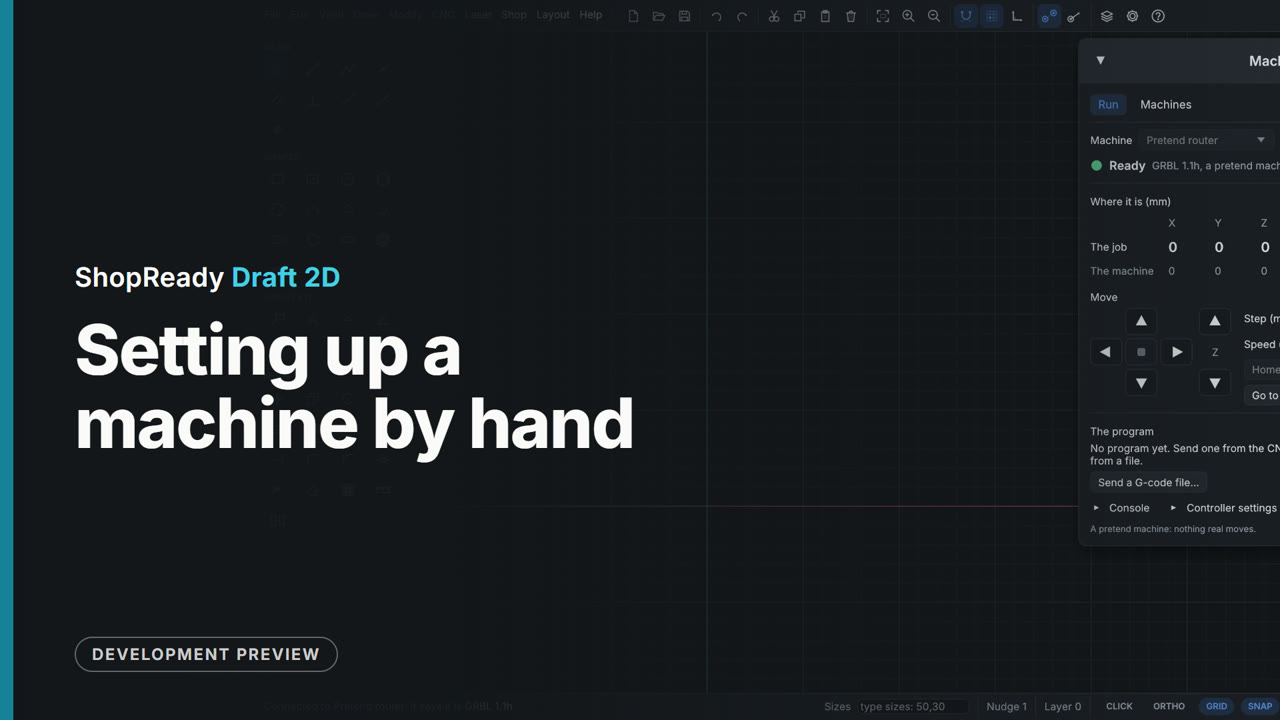 Clip · 53 s
Setting up a machine by hand
CNC, Machine... opens the Machine window. Add one by hand lists a laser, a CNC router and three pretend machines; a pretend router is added, which behaves on screen as a real one does with nothing plugged in. Its page says what it is, its controller and how it is linked; the bed is set to 600 by 400 and the rear left corner made its 0,0. Then Go to Run and Connect: the lamp says Ready.
 Clip · 39 s
Shaping a relief
A depth picture of a head and shoulders is carved as a relief and shaped in the picture window, which shows it lit as it will carve. Fade the edge lets the shoulders fall away to the floor, Flat background cuts the low places to one clean floor, and What stands high turns it over into a mold.
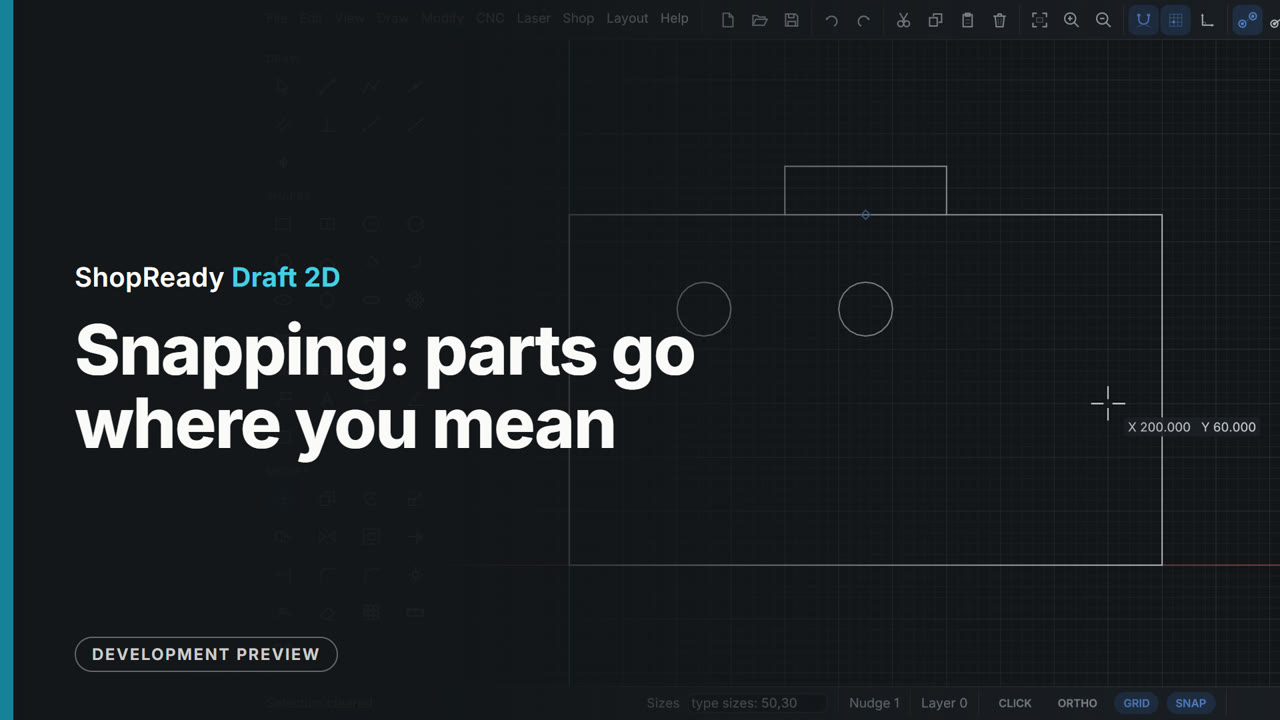 Clip · 35 s
Snapping: parts go where you mean
Rest the cursor on a point and it wakes up; level and plumb lines run through awake points, so a hole lands level with one thing and plumb with another without a construction line or a sum. Then a part is moved by its own midpoint and snaps onto the middle of an edge.
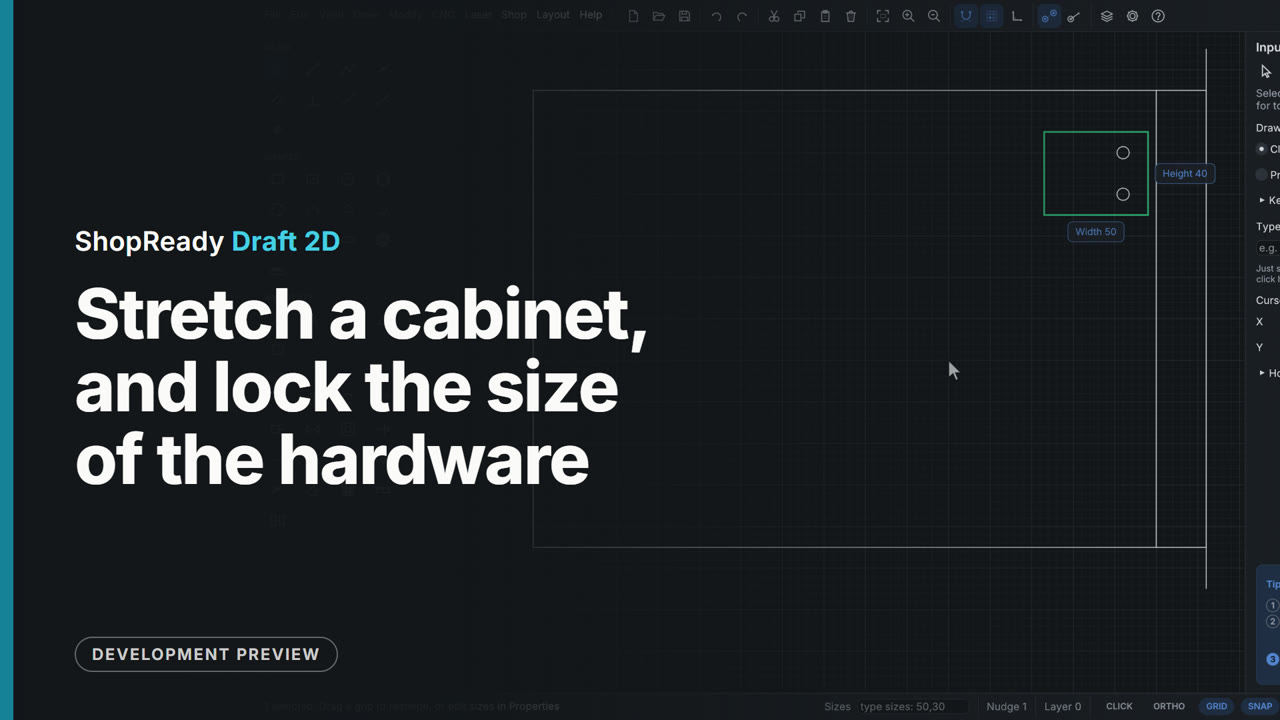 Clip · 47 s
Stretch a cabinet, and lock the size of the hardware
A cabinet door is made 60 wider by dragging a window right to left through its end and then dragging what the window took onto the wall line: the door grows and the end panel moves. The hinge plate was cut by the window and grew too, so it is undone, the plate gets Lock size from the right-click menu, and the same stretch then carries the plate whole, still 50 wide.
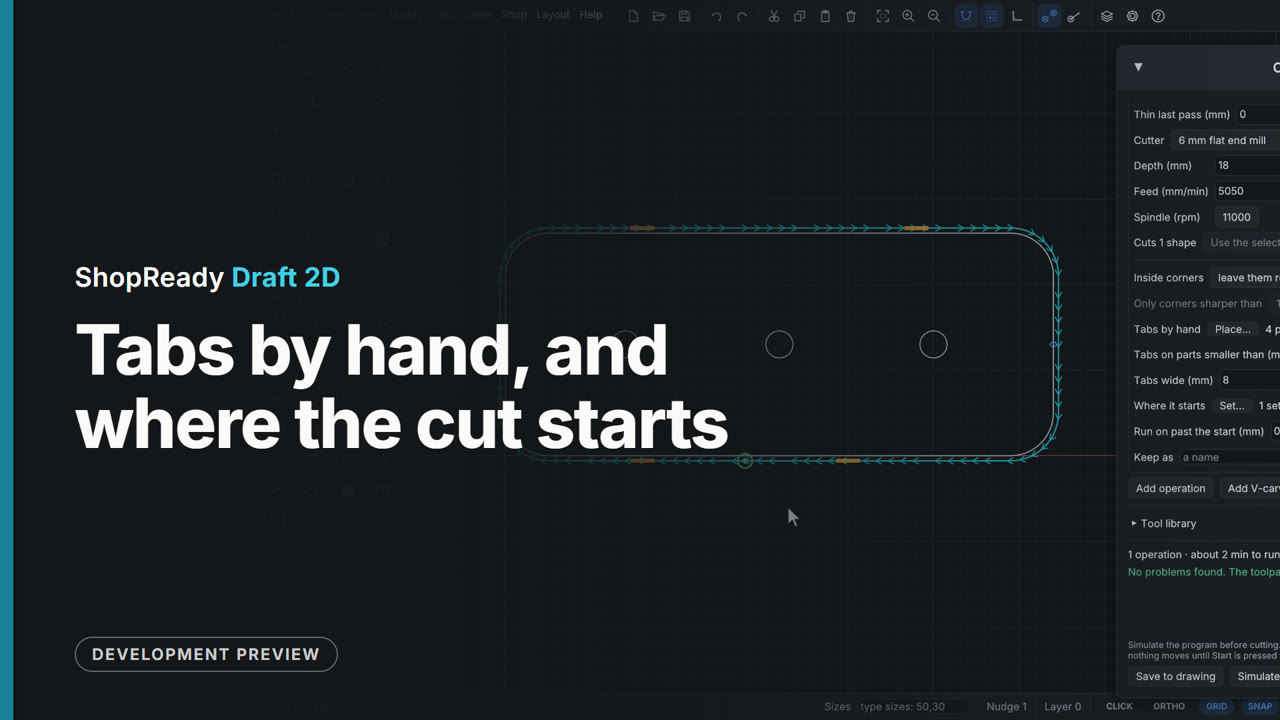 Clip · 51 s
Tabs by hand, and where the cut starts
A coat rack's back board is cut free by a profile, which the job warns has no tabs. In the operation's More..., Tabs by hand, Place... puts a tab wherever the outline is clicked; one is dragged along the edge and one is clicked off. Where it starts, Set... puts the start of the cut on the bottom edge, between two tabs.
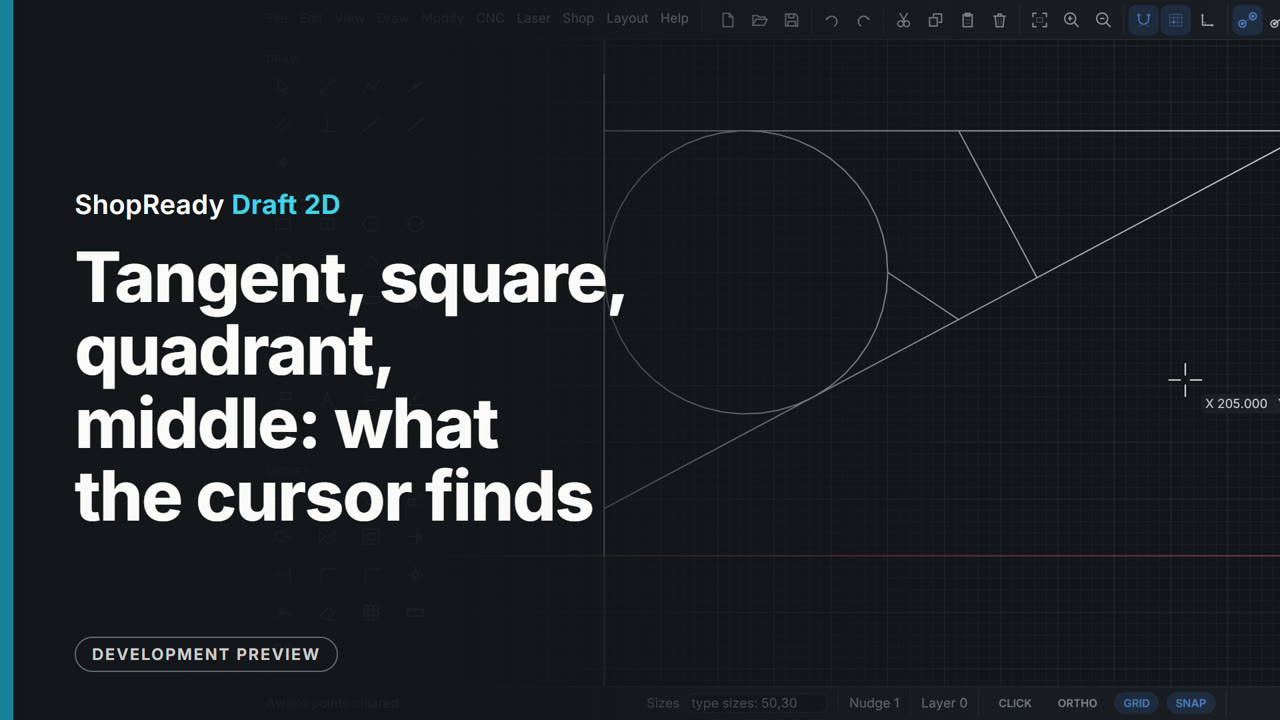 Clip · 43 s
Tangent, square, quadrant, middle: what the cursor finds
A sign bracket is laid out with three lines, each landing on a different kind of snap: a brace tangent to the ring and carried on to the wall with Shift holding its direction, a strut square to the brace, and a tie from the ring's quadrant point to the brace's middle with M pressed so only a middle is taken. The label beside the cursor names what it has found each time.
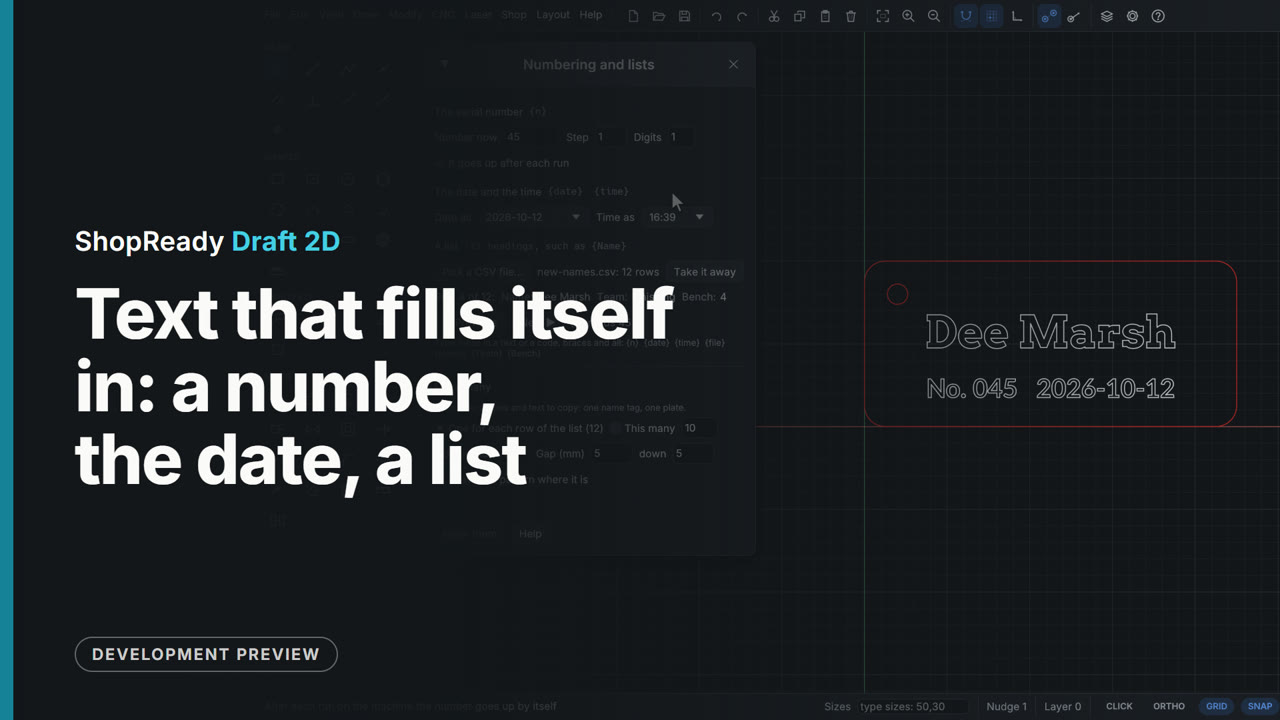 Clip · 47 s
Text that fills itself in: a number, the date, a list
A locker tag's text holds fields in braces: {Name}, {n:3} and {date}. The drawing shows them filled; the braces show while the text is typed. Edit, Numbering and lists... sets the number now, and the drawing follows at once. A CSV file is picked and each of its headings becomes a field, so {Name} reads the first row's name; Next brings the next row and the next number. Ticked, the number goes up by itself after each run on the machine.
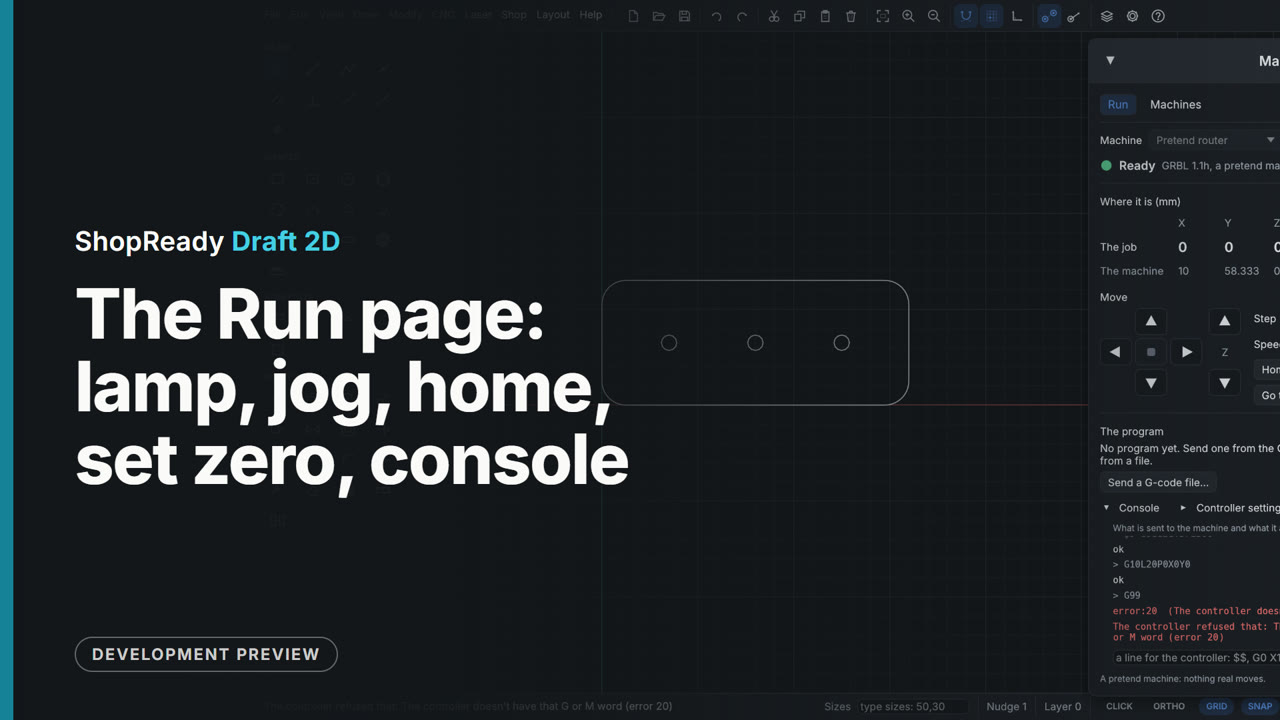 Clip · 56 s
The Run page: lamp, jog, home, set zero, console
The Machine window's Run page with a pretend router (it behaves on screen as a real one does, with nothing plugged in). Connect only asks the machine how it is; the lamp says Alarm, what that means and which button clears it. Home clears it and the lamp says Ready. An arrow jogs the head one step at a click and keeps it moving while held; Set zero here makes where it stands the job's 0,0. The console lists what was sent and answered, and a refused line comes back in plain words.
 Clip · 51 s
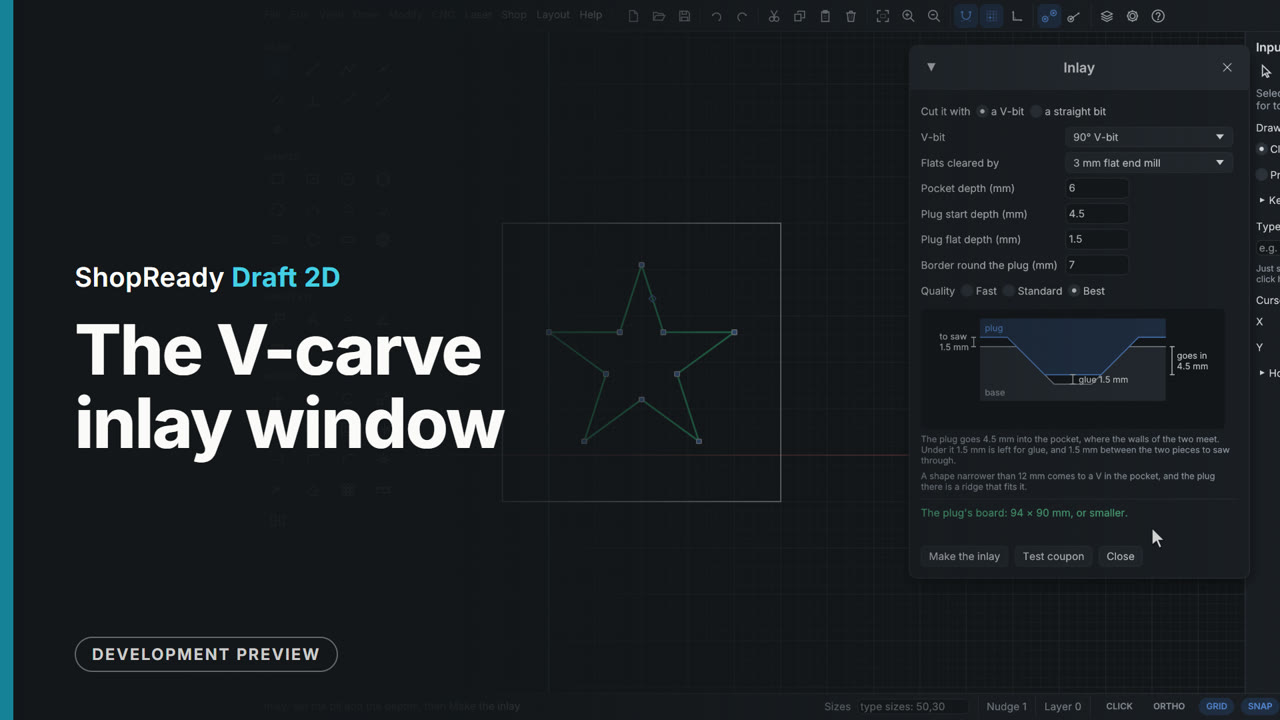
The V-carve inlay window
A star is selected and CNC, V-carve inlay opens the Inlay window, which draws the plug seated in its pocket to scale. As the pocket depth, the plug's start depth and its flat depth are typed, the cross-section and its three sizes follow: the glue room, how far the plug goes in, what is left to saw off. A pocket deeper than the V-bit can cut is refused in plain words.
 Clip · 48 s
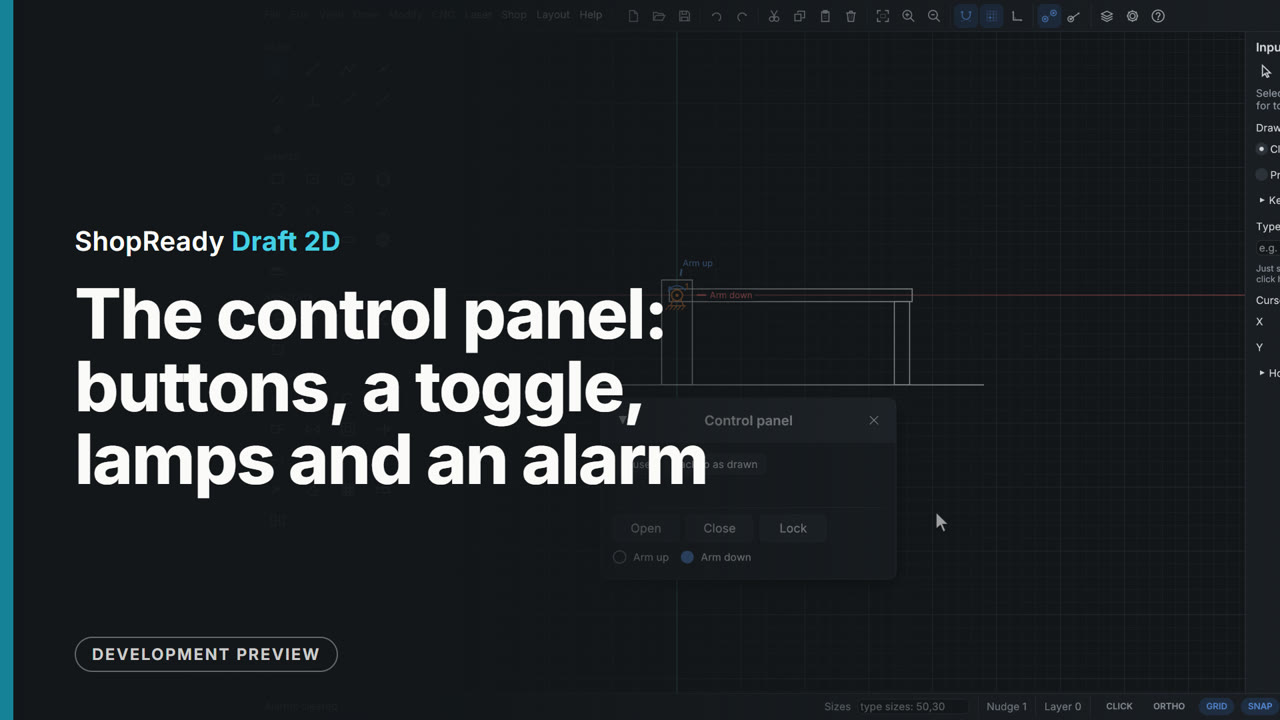
The control panel: buttons, a toggle, lamps and an alarm
A barrier arm on a servo is run from the control panel, a small window of its own that stays up with the Motion window closed. Open and Close are buttons whose rules send the servo to a place, two lamps follow the limit switches, Lock is a toggle, and pressing Open while it is locked sounds an alarm in red.
 Clip · 41 s
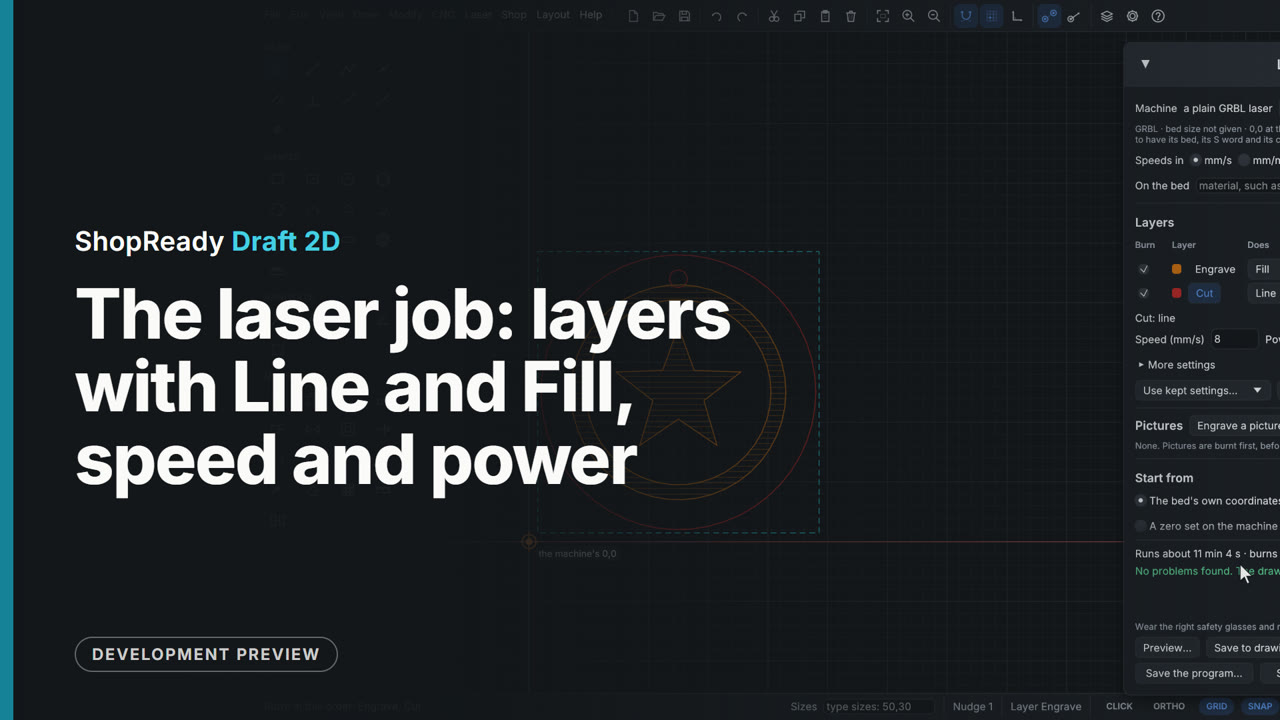
The laser job: layers with Line and Fill, speed and power
A coaster has its edge on a Cut layer and a ring and a star on an Engrave layer. In Laser, Laser job... each layer is a row: Engrave is set to Fill at 100 mm/s and 30%, and the drawing shows its fill lines; Cut stays Line at 8 mm/s and 100% with two passes. The arrows put the engraving first, and the foot of the window says how long the job runs and how far it burns and travels.
 Clip · 46 s
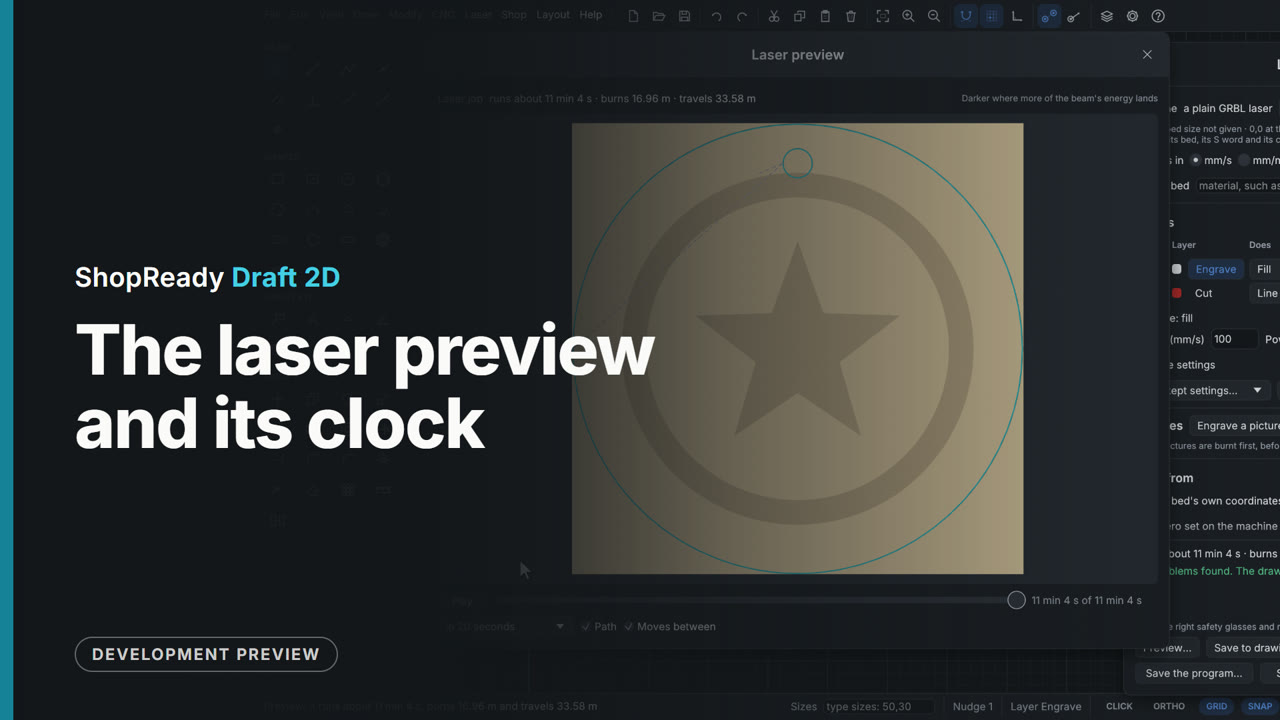
The laser preview and its clock
From the coaster's laser job, Preview... shows the finished burn on the sheet with how long it runs and how far it burns and travels. The clock beside Play is dragged back to the start and forward again: the picture shows what is burnt by each moment and a dot shows where the head is. The engraving's fill builds up line by line, the cut comes last, and Play runs it on from where the clock stands, at the rate of the whole job in 20 seconds.
 Clip · 47 s
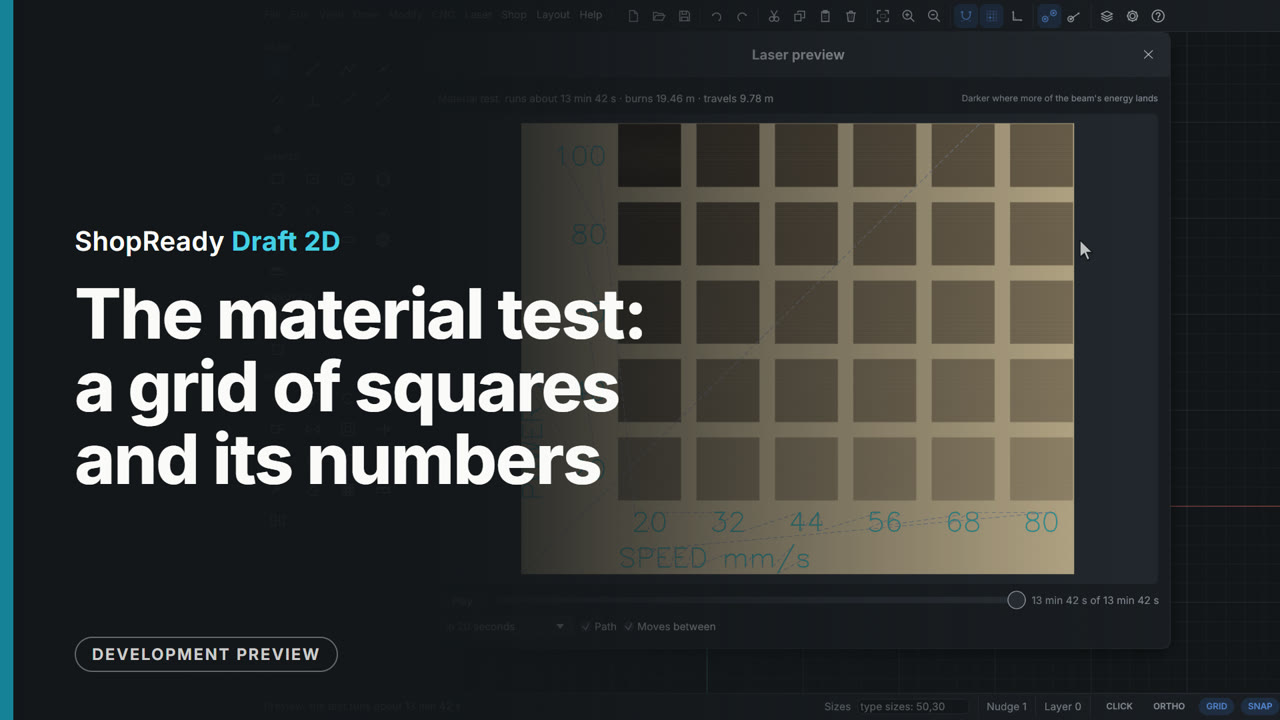
The material test: a grid of squares and its numbers
Laser, Material test... makes a grid of small squares to burn on an offcut, each at its own speed and power, with the numbers engraved beside them. The window shows the grid as it is set: six columns, speeds from 20 to 80 mm/s, powers from 20 to 100%. The squares can be filled or cut round, and Preview... shows the whole test with its numbers and how long it runs.
 Clip · 57 s
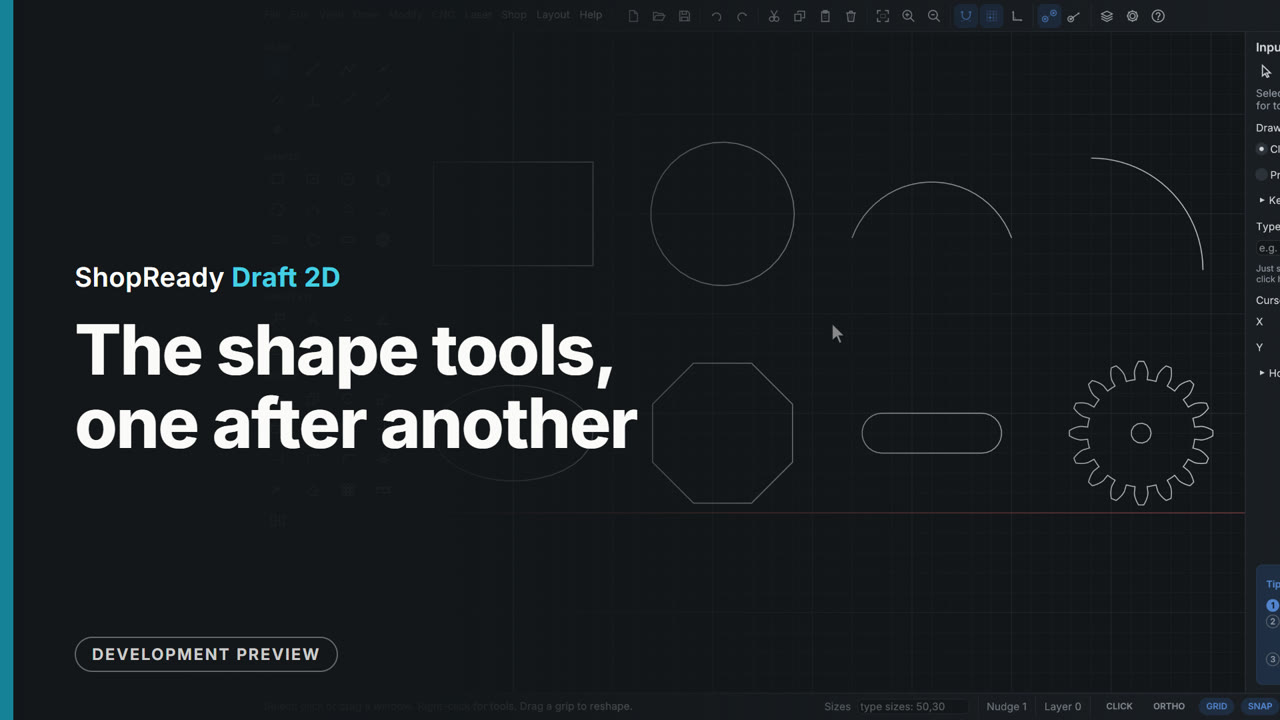
The shape tools, one after another
Eight shape tools each drawn once, in two tidy rows: a center rectangle, a circle through three points, an arc through three points, an arc from its center, an ellipse, an eight-sided polygon, a slot and a gear. The side panel is open: it takes the polygon's sides, the slot's width and the gear's teeth and module, and its tip card follows each tool's steps.
 Clip · 54 s
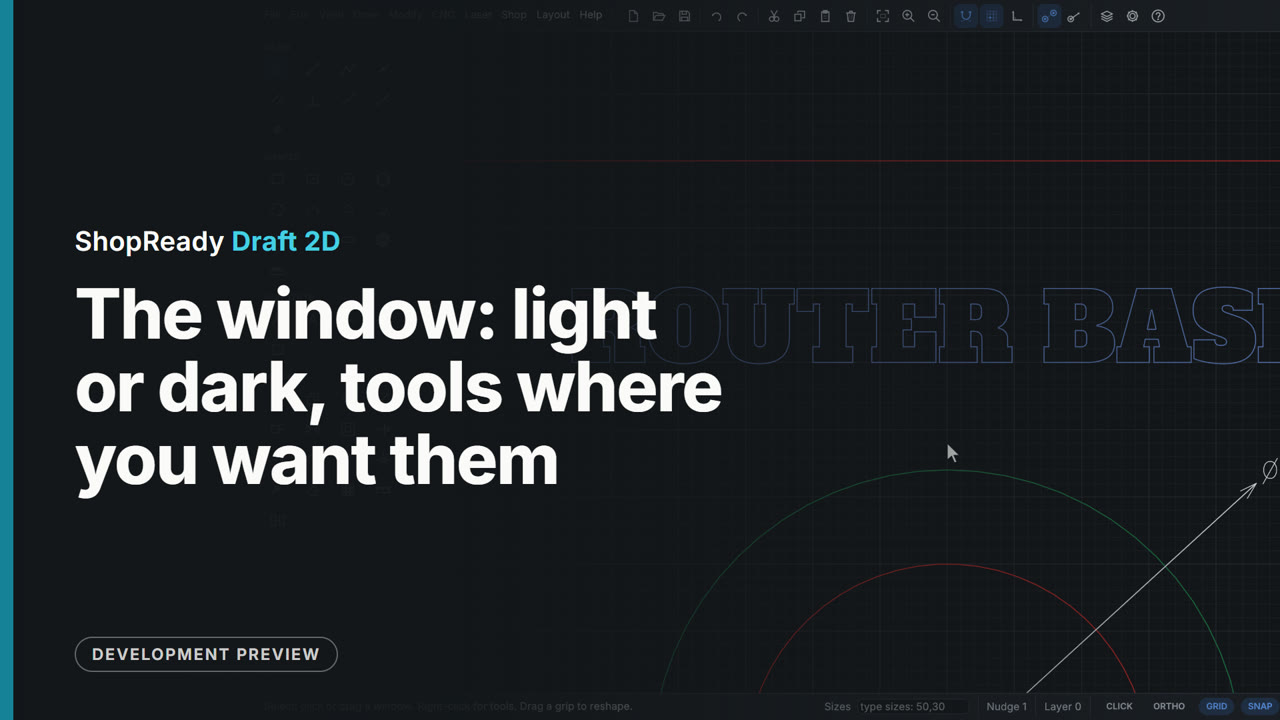
The window: light or dark, tools where you want them
One window holds the drawing, the tools and what you are doing. It comes light or dark, the drawing tools sit down the side or along the top, the side panel folds away, and the drawing zooms to the smallest detail.
 Clip · 43 s
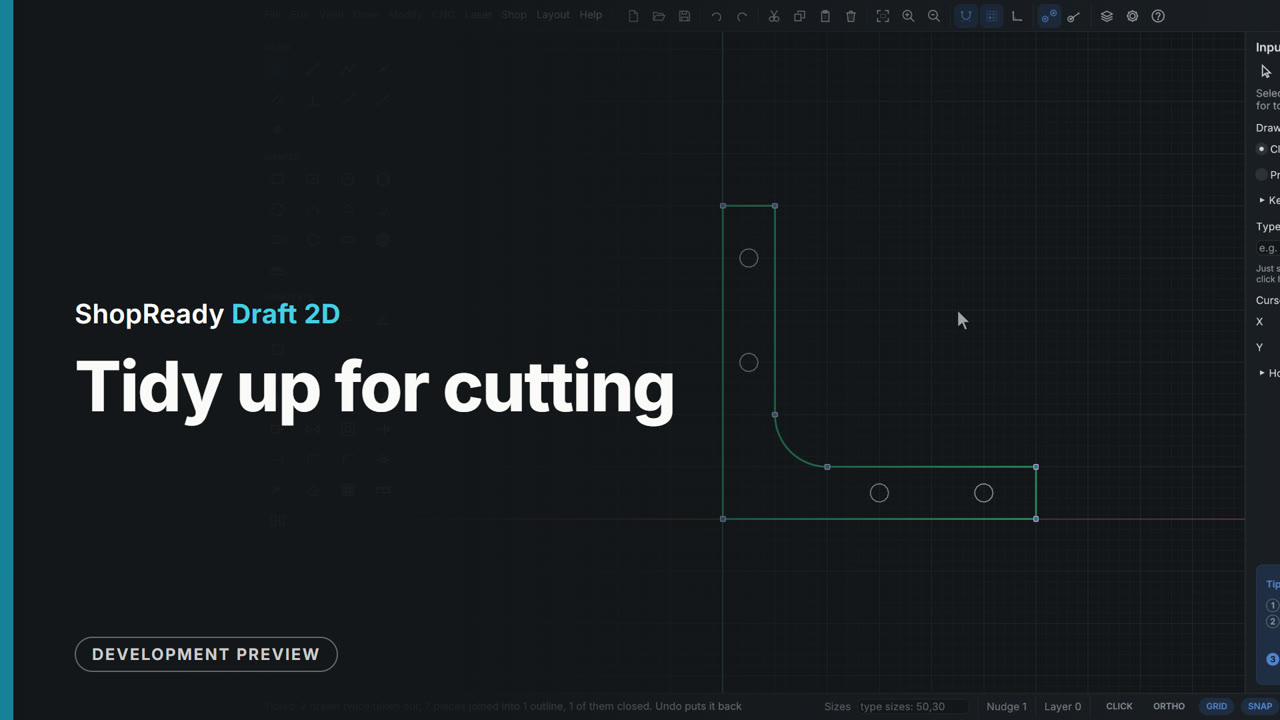
Tidy up for cutting
A bracket as another program left it: loose lines, a side and a hole drawn twice, and a corner open by 0.04 mm. Modify, Tidy up for cutting takes out the doubles, joins the pieces and closes the corner, so the outline can be pocketed, filled or cut out once.
 Clip · 43 s
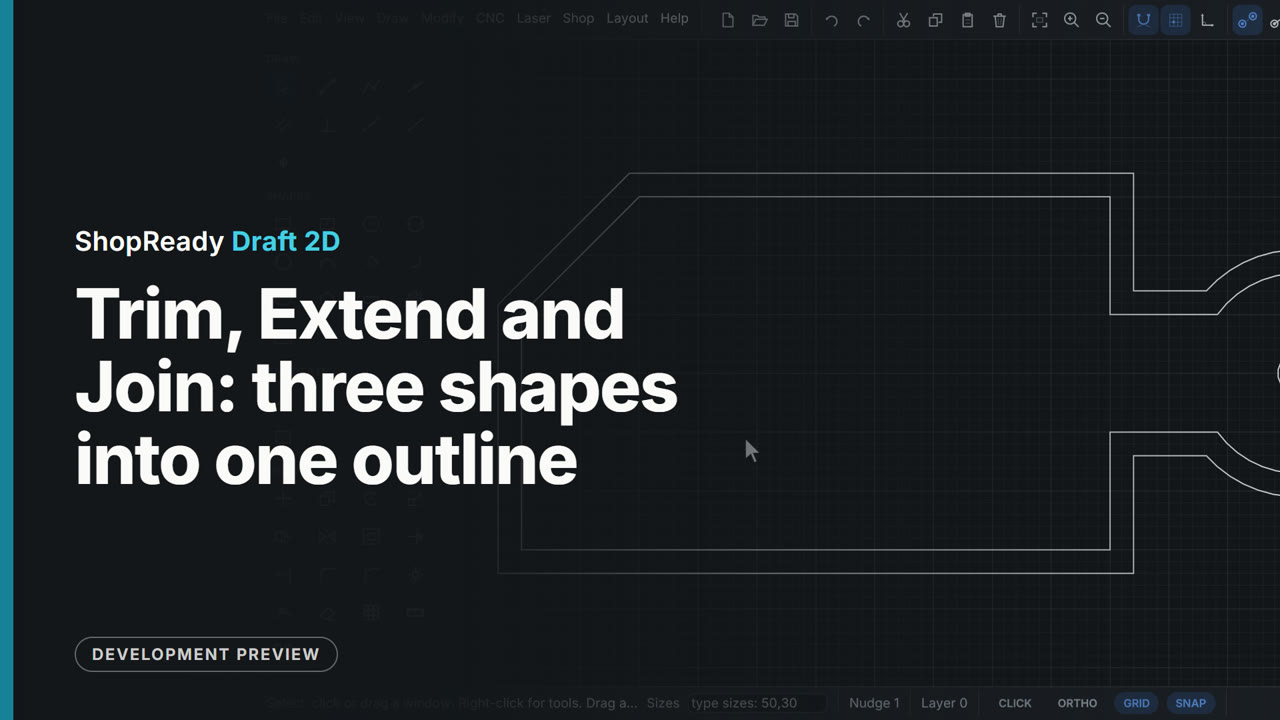
Trim, Extend and Join: three shapes into one outline
A serving board is laid out as a rectangle, a handle rectangle and a circle drawn across each other, with a corner line that stops short. Extend runs the line to the edge, Trim takes the corner with a click and four inside pieces with one drag, Join makes the pieces one shape, and one Offset goes all the way round it.
 Clip · 47 s
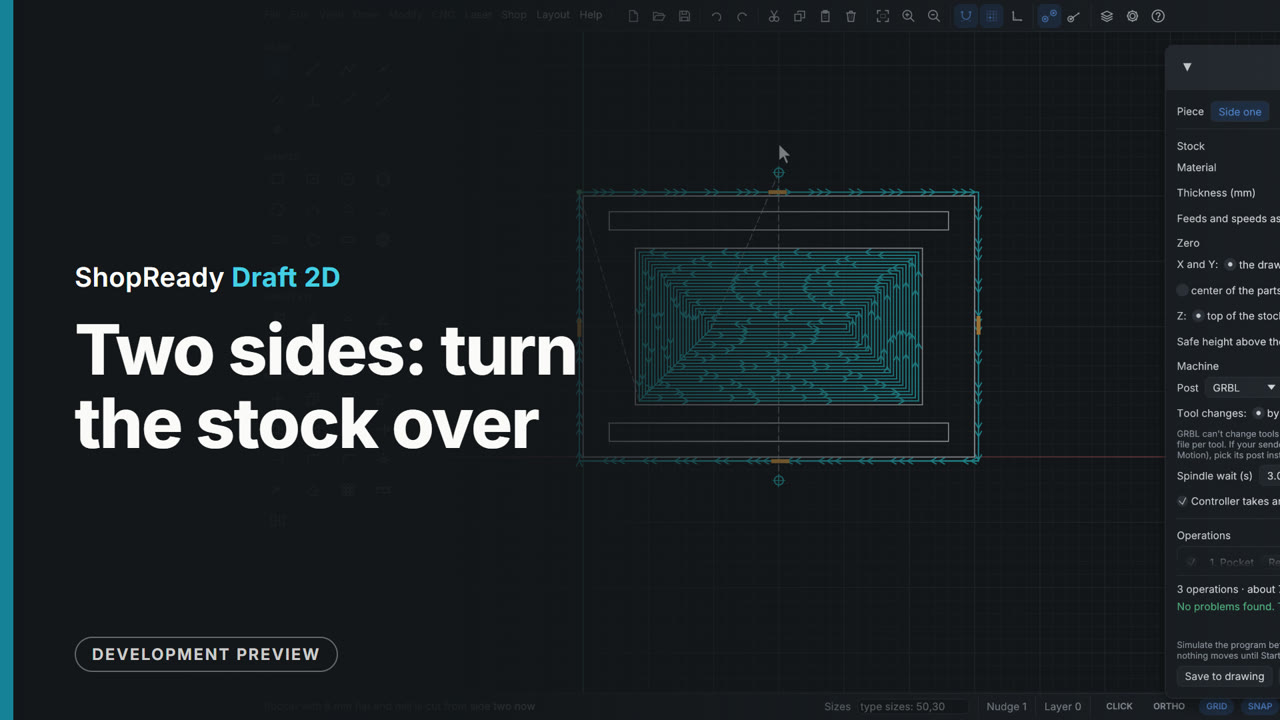
Two sides: turn the stock over
A tray has a recess on its face and two runner grooves on its underside, drawn where they are as seen through the stock. In the CNC job's More..., Two sides, Add side two makes a second piece of the job; the grooves' operation is sent To Side two, and the Piece row at the top switches between the sides. Side one also drills two dowel holes on the turn-over line, to place the stock when it is turned.
 Clip · 51 s
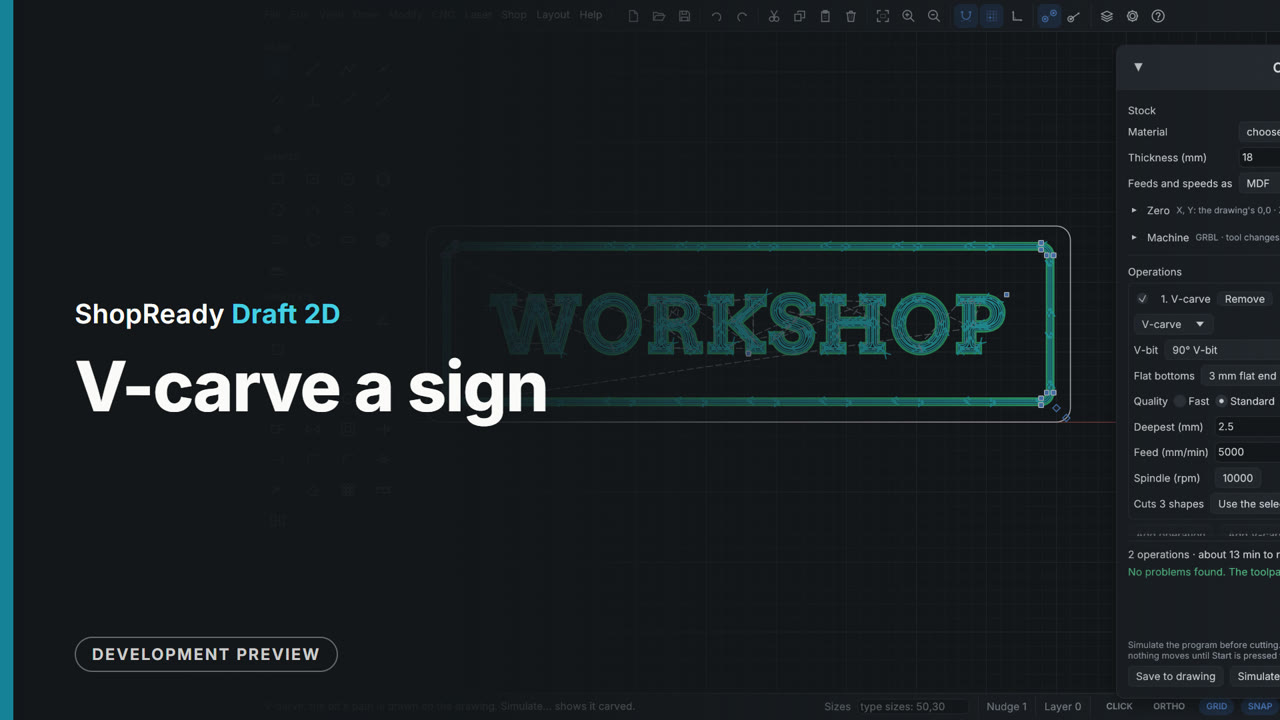
V-carve a sign
WORKSHOP in a carving font inside a border is selected and V-carved from the CNC menu. The bit's paths are drawn on the sign, inside corners come to a point, and the job window sets the bit, the deepest cut, what clears the flat bottoms and the quality, with the run time following each change.
 Clip · 32 s
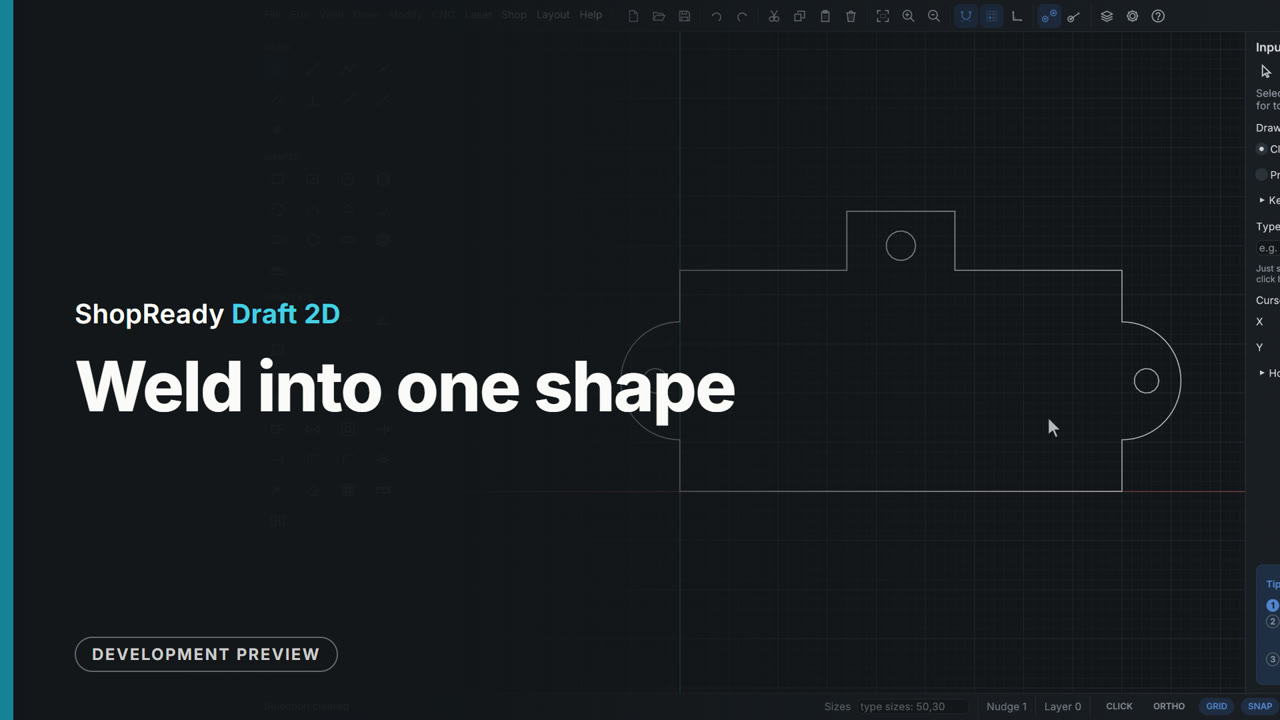
Weld into one shape
A key rack's back plate is drawn as four shapes that overlap: the plate, two round ears and a hanger tab. Modify, Weld into one shape makes them one outline, so the part cuts out as one piece with no lines across it.
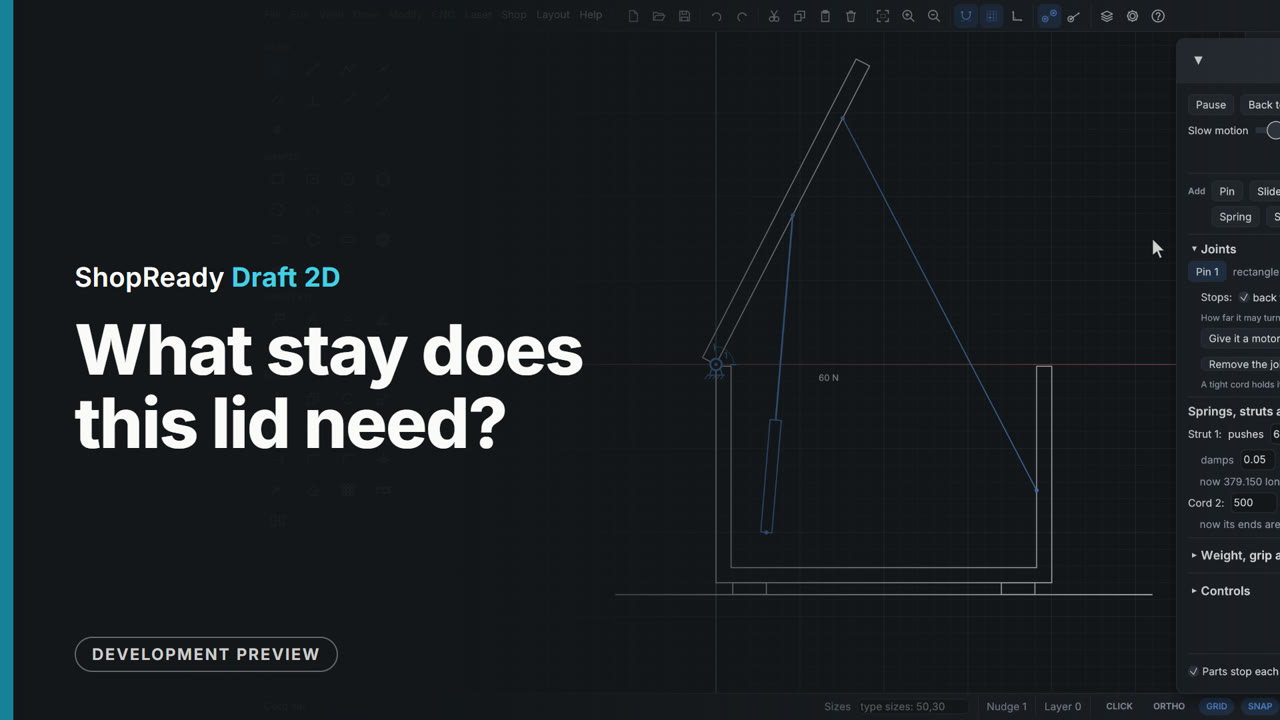 Clip · 47 s
What stay does this lid need?
A chest lid of 4 kg on its hinge. A click on the hinge's pin and the Motion window says what it takes to hold the lid there. A gas strut placed by its two ends comes with the push that holds the lid as drawn, 47.9 N; with a little more push and a chain to stop it, LET GO lifts the lid until the chain is tight.
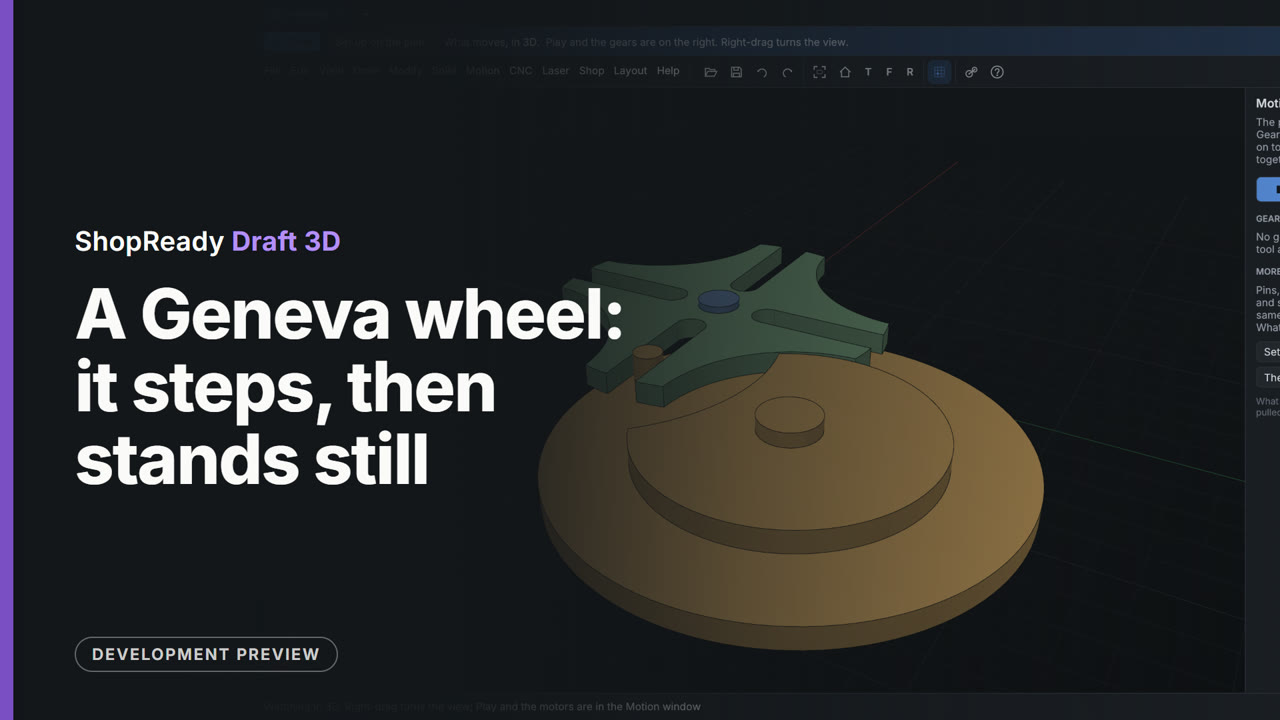 Clip · 3:12
A Geneva wheel: it steps, then stands still
A wheel with four slots and a driver with one pin and a locking disc. Both outlines are made in the flat drawing by cutting simple shapes out of circles, then pulled into three parts and pinned on the flat plan. Nothing joins the wheel to the driver: the pin turns it a quarter turn by touching it, and the locking disc holds it still until the pin comes round again.
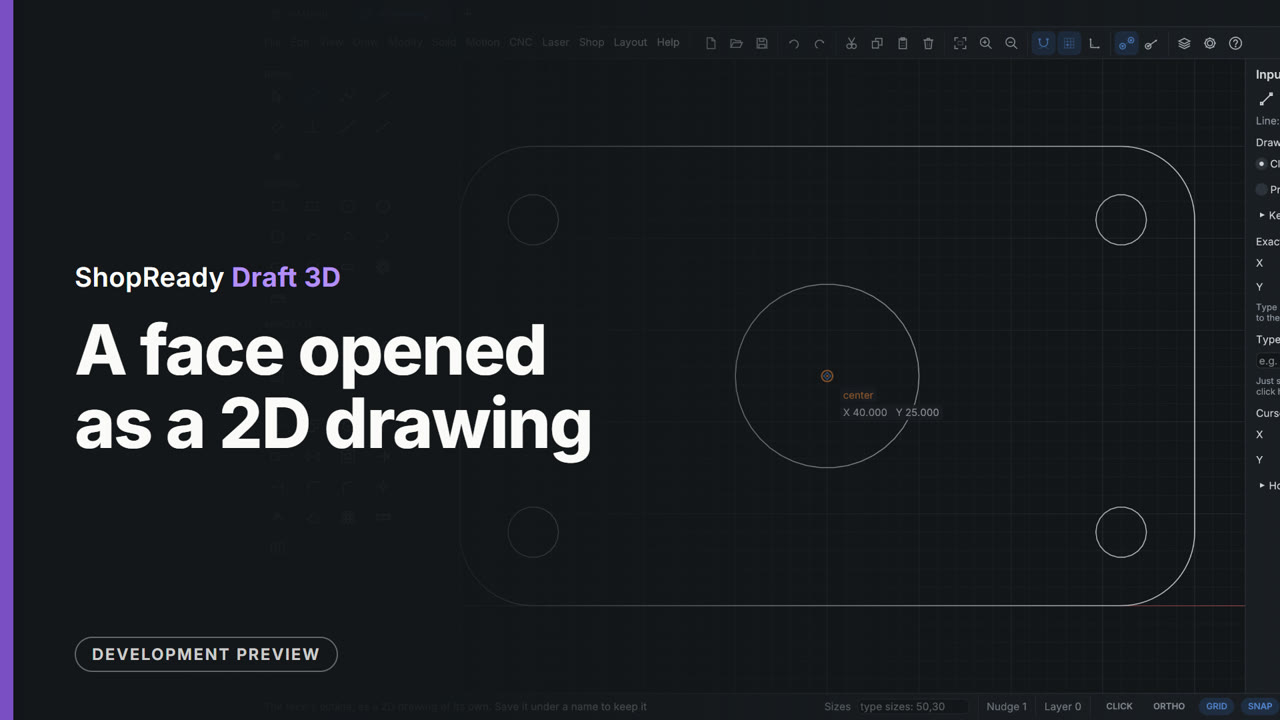 Clip · 37 s
A face opened as a 2D drawing
The top of a drilled plate is wanted as a flat drawing. A right-click on the face and Open this face as a 2D drawing gives its outline, as lines, arcs and circles, in a 2D tab of its own with every 2D tool; the model stays in its tab.
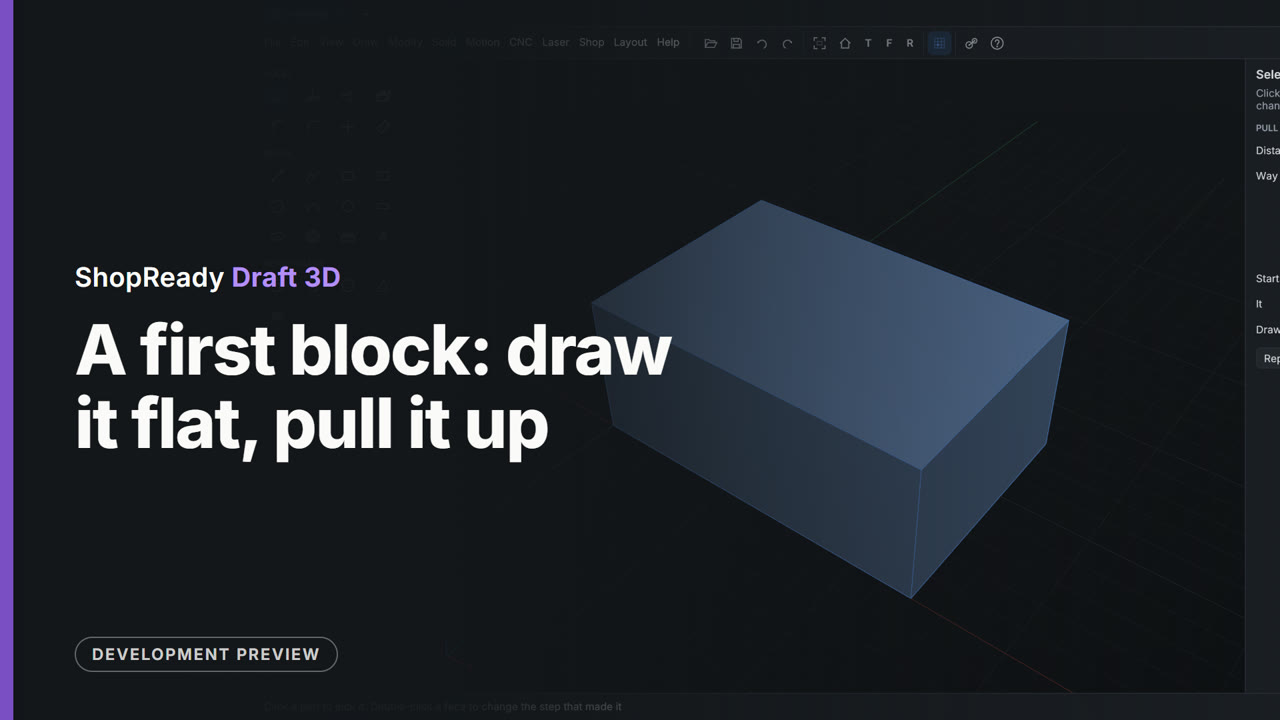 Clip · 48 s
A first block: draw it flat, pull it up
A rectangle is drawn on the ground with its size typed, the drawing is put back in the model, and Pull lifts it into a block 25 tall. Then the view is turned all the way round it.
 Clip · 40 s
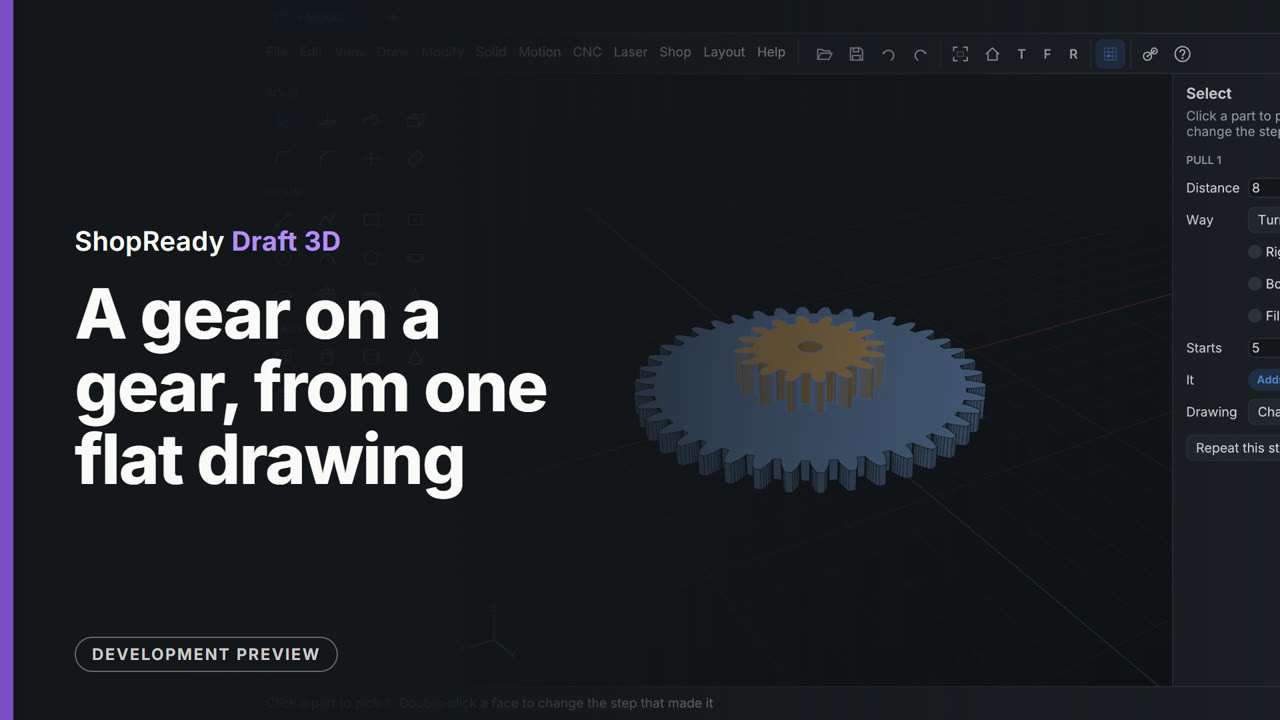
A gear on a gear, from one flat drawing
One drawing holds a big gear, a small gear drawn inside it about the same middle, and a shaft hole. The big gear is pulled 5 thick: the small gear inside it is no hole in it, and shows through its top. Clicked through the top, the small gear is taken up onto that face and pulled 8 from there, standing on the big one, with the shaft hole through both.
 Clip · 2:16
A gear train standing upright, as a clock's does
A back plate is drawn on the front plane and pulled toward the front. Four gears are drawn on its front face, their shaft holes pulled out into posts and the gears pulled round them on two levels. Set turning, the train moves in its own upright plane, and the flat plan stands upright with it: 9 to 1.
 Clip · 44 s
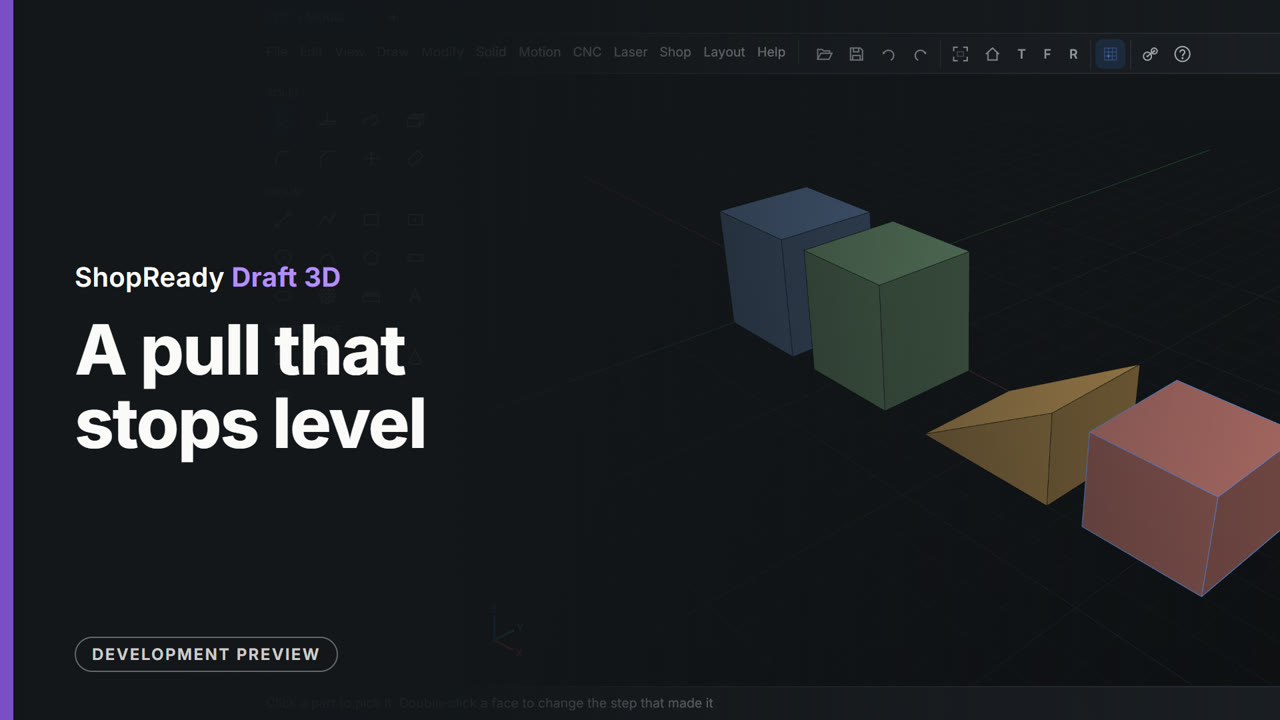
A pull that stops level
A square drawn beside a tall block is pulled up, and as it nears the block's top it stops there by itself: level with a face of Part 1, 35 mm. A second square is pulled with the pointer on the tip of a wedge, and stops level with that corner, 24 mm. No distance is typed.
 Clip · 57 s
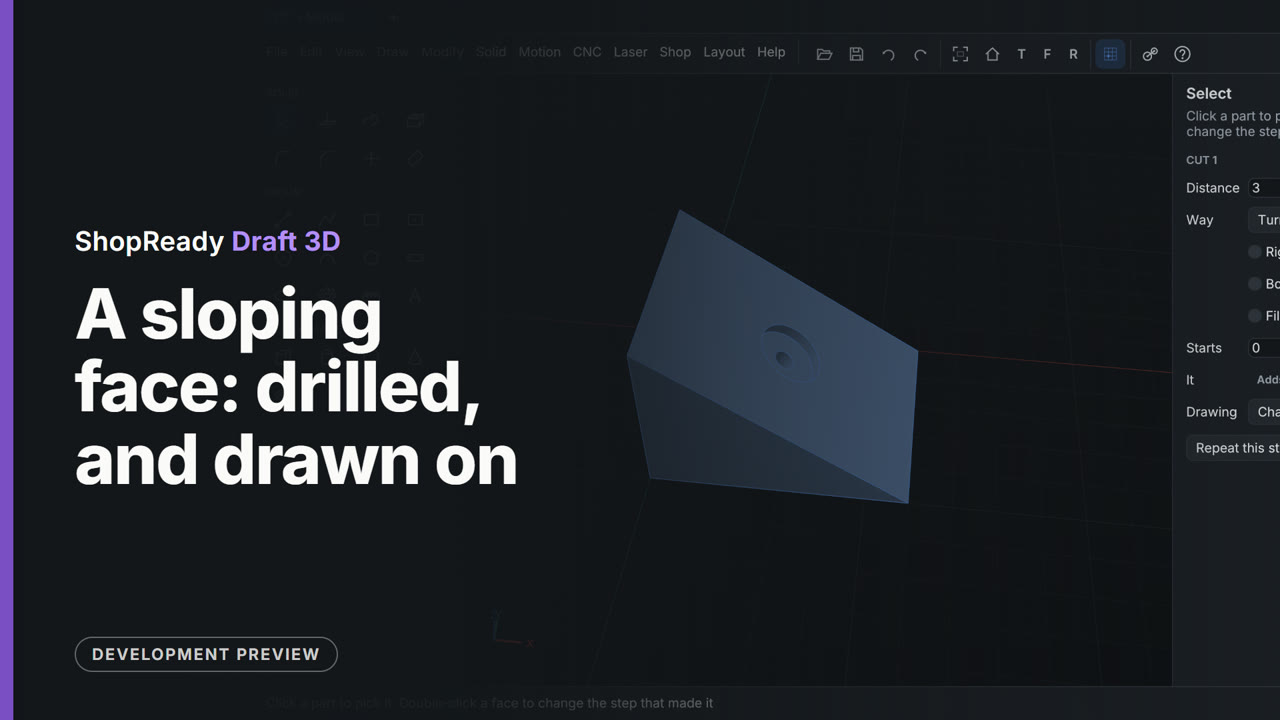
A sloping face: drilled, and drawn on
A wedge's sloping face is treated like any other. The Hole tool is drawn to the middle of the face and drills square into the slope. Then the circle tool is picked and the slope clicked: the view turns to look straight at it, the hole is there to snap to, and a circle of radius 8 is drawn about its center. Pull pushes the ring in 3 mm for a seat round the hole.
 Clip · 3:04
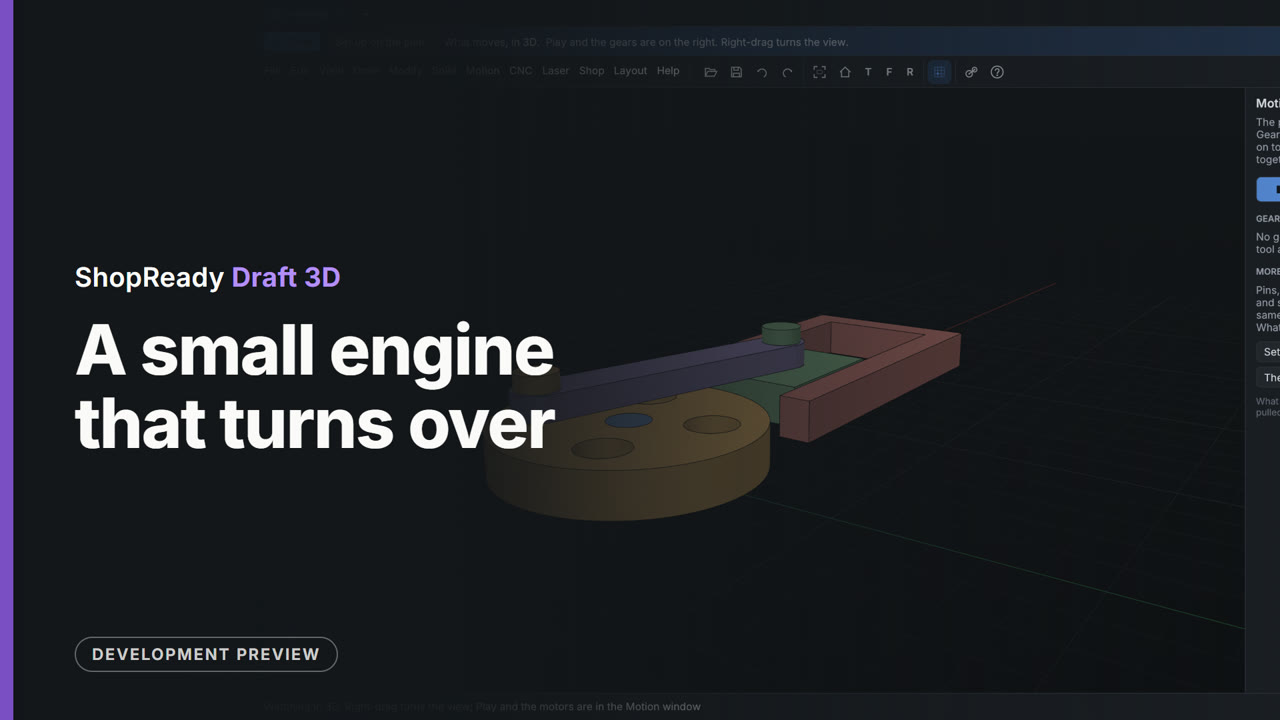
A small engine that turns over
A crank disc on its shaft, a connecting rod, a piston on its pin and a block open on top, all drawn in one flat drawing with every size typed, pulled into five parts, pinned on the flat plan and given a motor. The crank goes round and the piston slides in its bore, seen in 3D from every side.
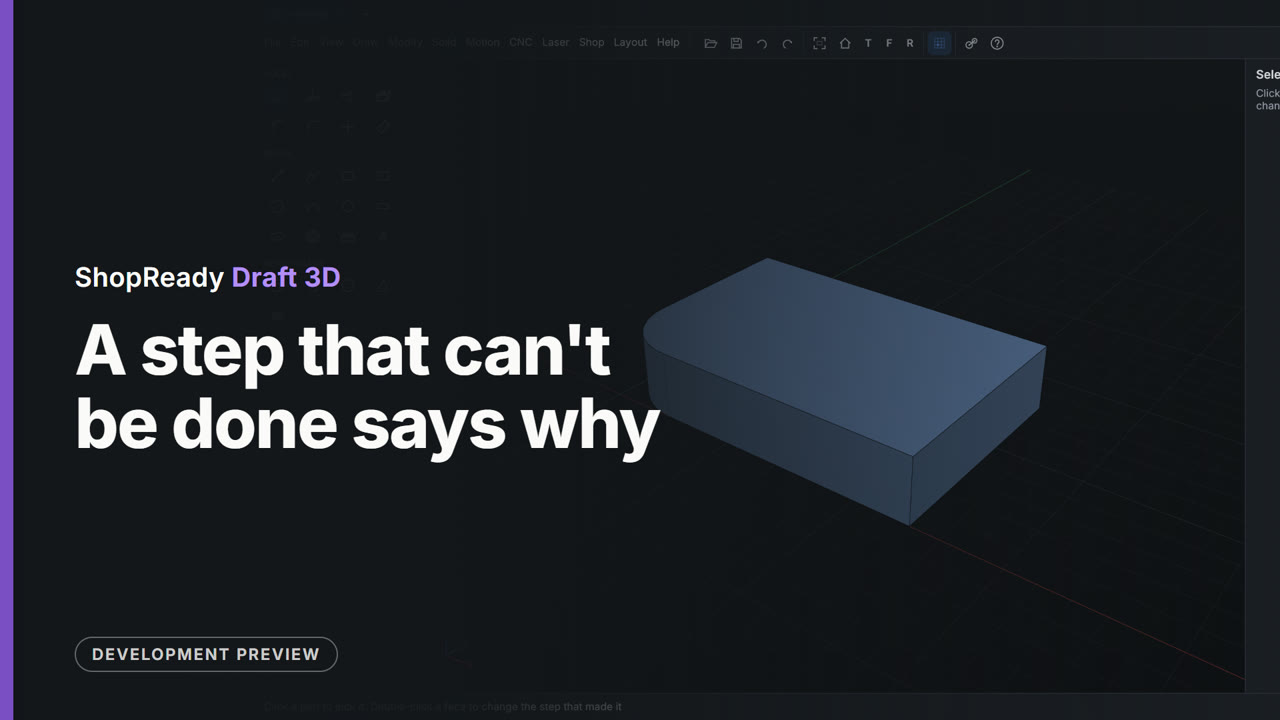 Clip · 43 s
A step that can't be done says why
A round of radius 50 is asked for on a plate whose side is 40 long. It isn't made, nothing is spoiled, and the status line says why: too big for the faces beside the edge, 40 is the most that fits. The edge is still picked, so 12 is typed and the round goes in.
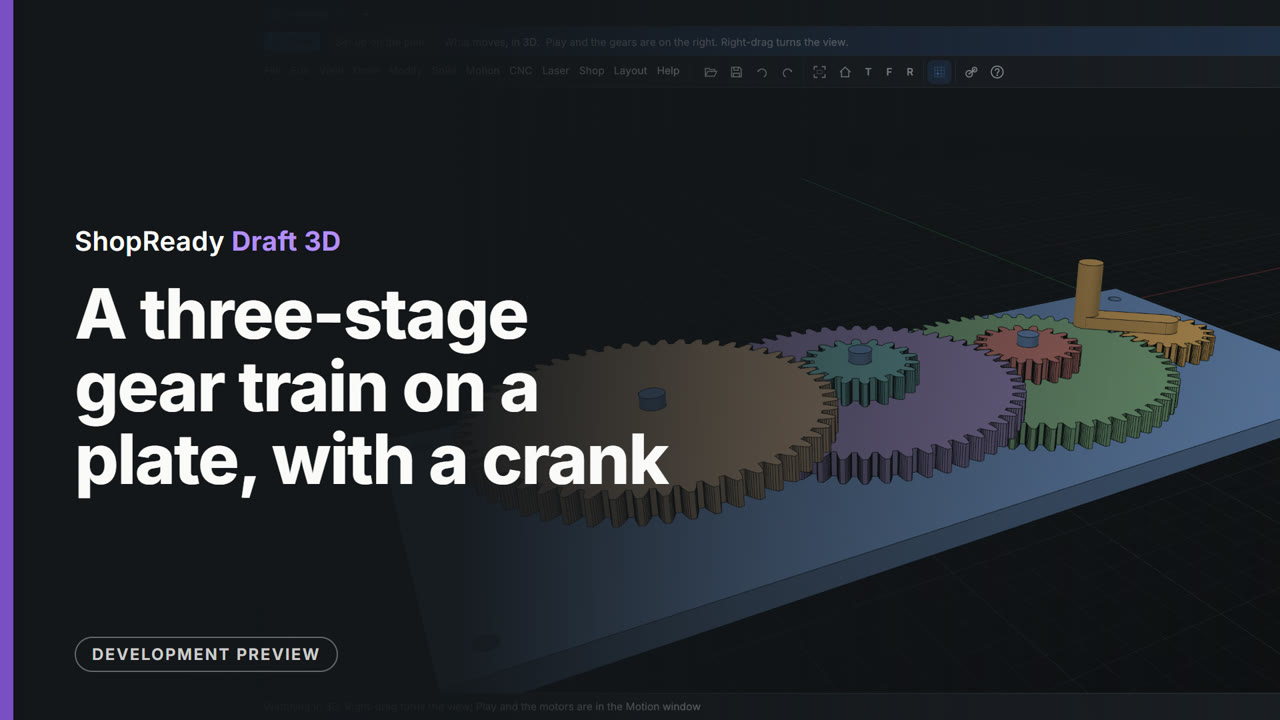 Clip · 3:11
A three-stage gear train on a plate, with a crank
A base plate is drawn, pulled up and drilled for its screws. Six gears are drawn on its top face with the Gear tool, each held where it meshes; their shaft holes are pulled up into posts, the gears are pulled round the posts on three levels, and a crank is drawn on the first gear. The Motion tab turns the whole train: 27 turns of the crank for one of the last gear.
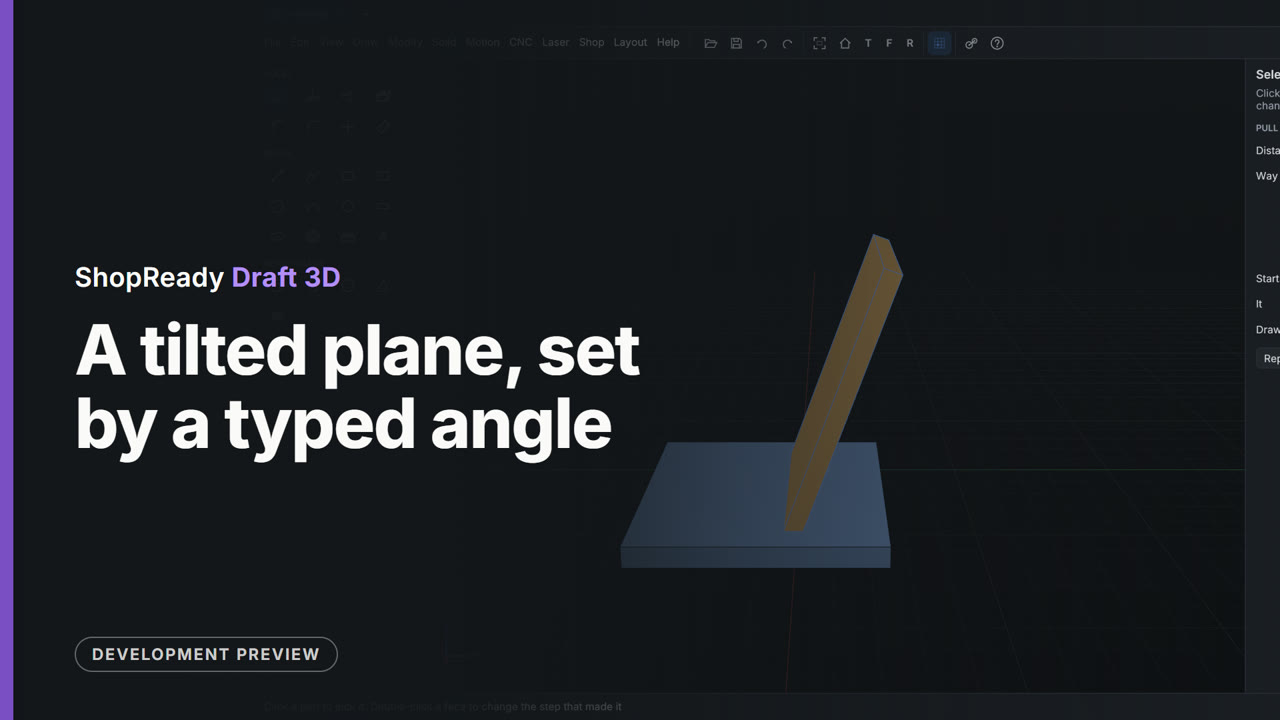 Clip · 58 s
A tilted plane, set by a typed angle
A base plate wants a back rest leaning at 70 degrees, and there is no face at that angle to draw on. Draw, On a tilted plane opens a small window; 70 is typed and the plane shows in the view at that angle. Draw on it turns the view square to the plane, a rectangle 60 by 80 is drawn from the point the plane hinges on, and Pull makes it 5 thick.
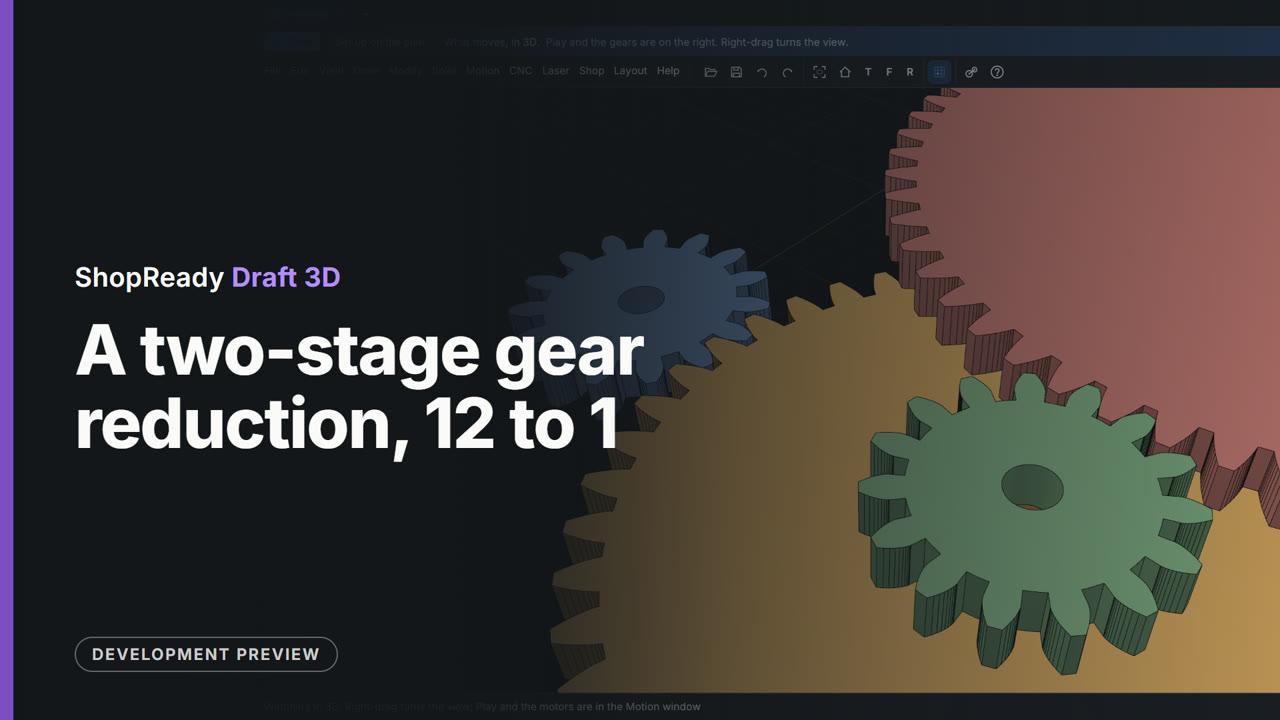 Clip · 2:12
A two-stage gear reduction, 12 to 1
Four gears are drawn with the Gear tool on one flat drawing, each held at its meshing distance from the last and turned to mesh. They are pulled up gear by gear, two of them on one shaft, and set turning; the flat plan lists each gear's speed and the ratio.
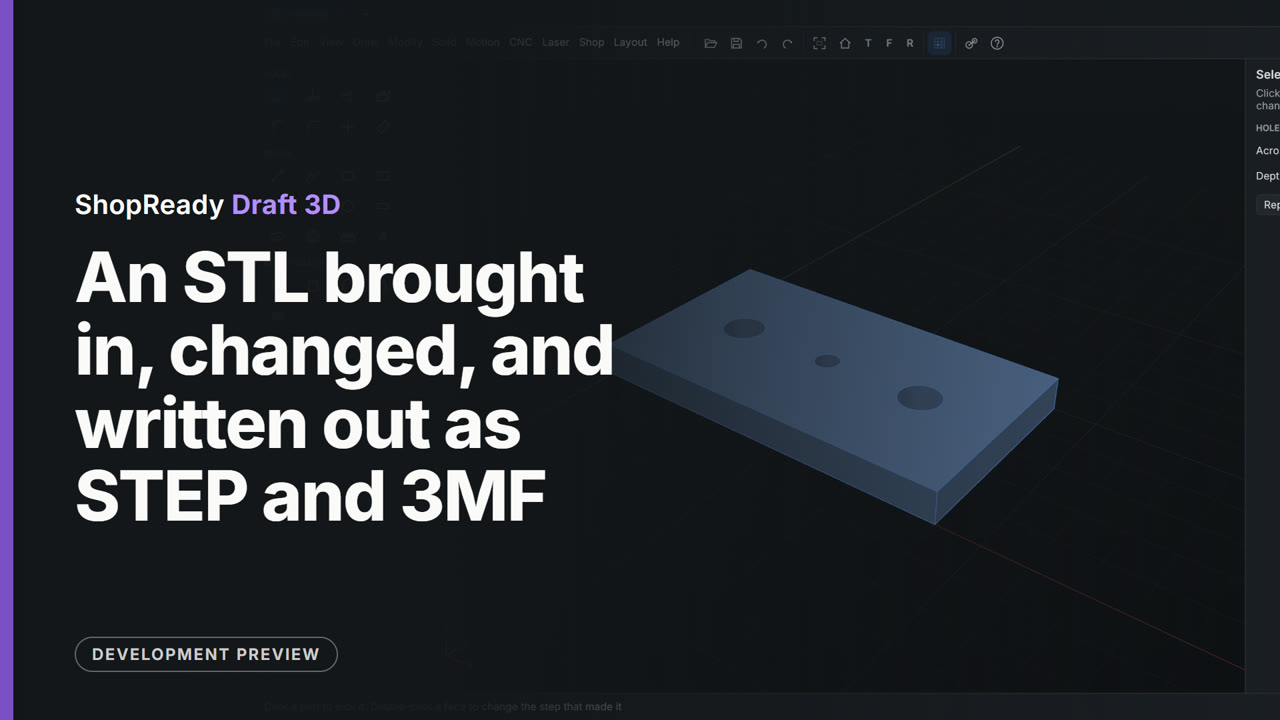 Clip · 1:10
An STL brought in, changed, and written out as STEP and 3MF
A plate with two holes arrives as an STL file, which is only triangles. File, Import a solid brings it in; Measure shows that the round holes are round holes again (the mark finds a hole's center) and the flat sides are flat faces. So the Hole tool works on it as on a part made here: a third hole is added, 6 across. Then File, Export writes it for another CAD program as STEP, and for a slicer as 3MF.
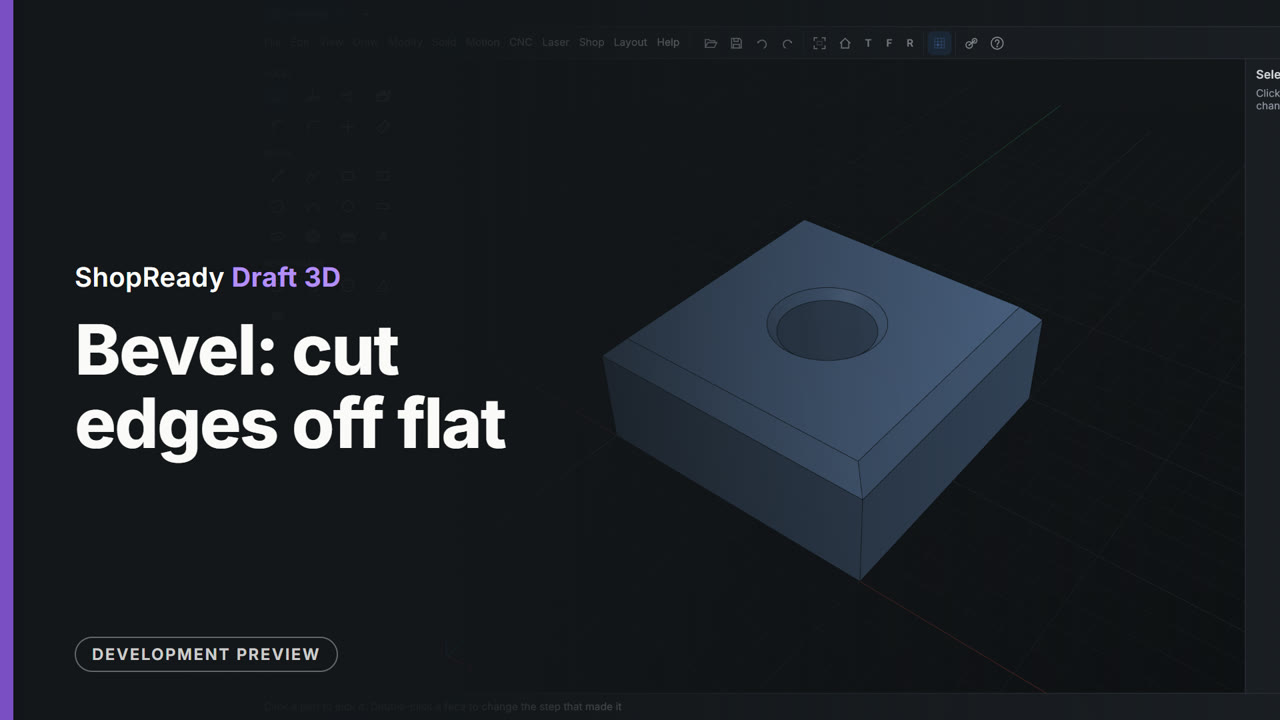 Clip · 41 s
Bevel: cut edges off flat
The four top edges of a block are picked and beveled by 3, and the rim of the hole through it by 1.5. Bevel works the same way Round does: click the edges, type the size.
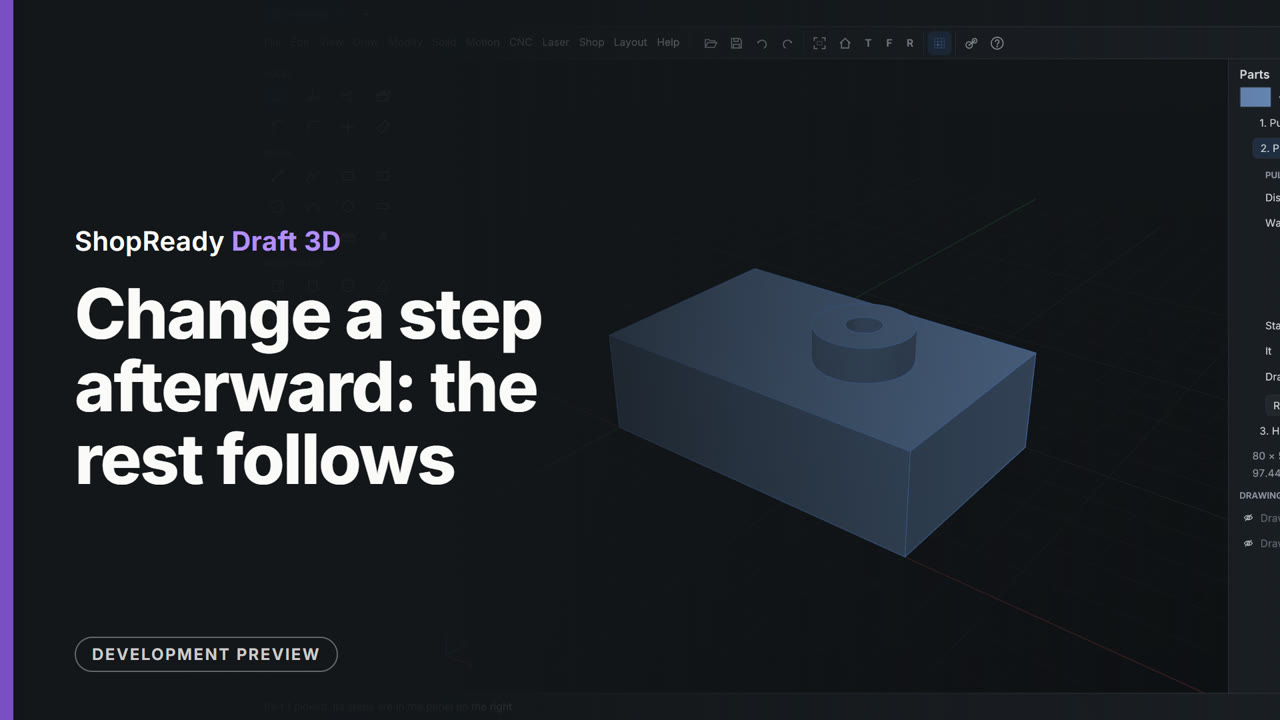 Clip · 48 s
Change a step afterward: the rest follows
A part's steps are listed in the Parts panel. The first step's distance is typed from 12 to 24, and the boss and the hole made after it are worked out again on the thicker plate; then the boss's own step is typed from 18 to 8.
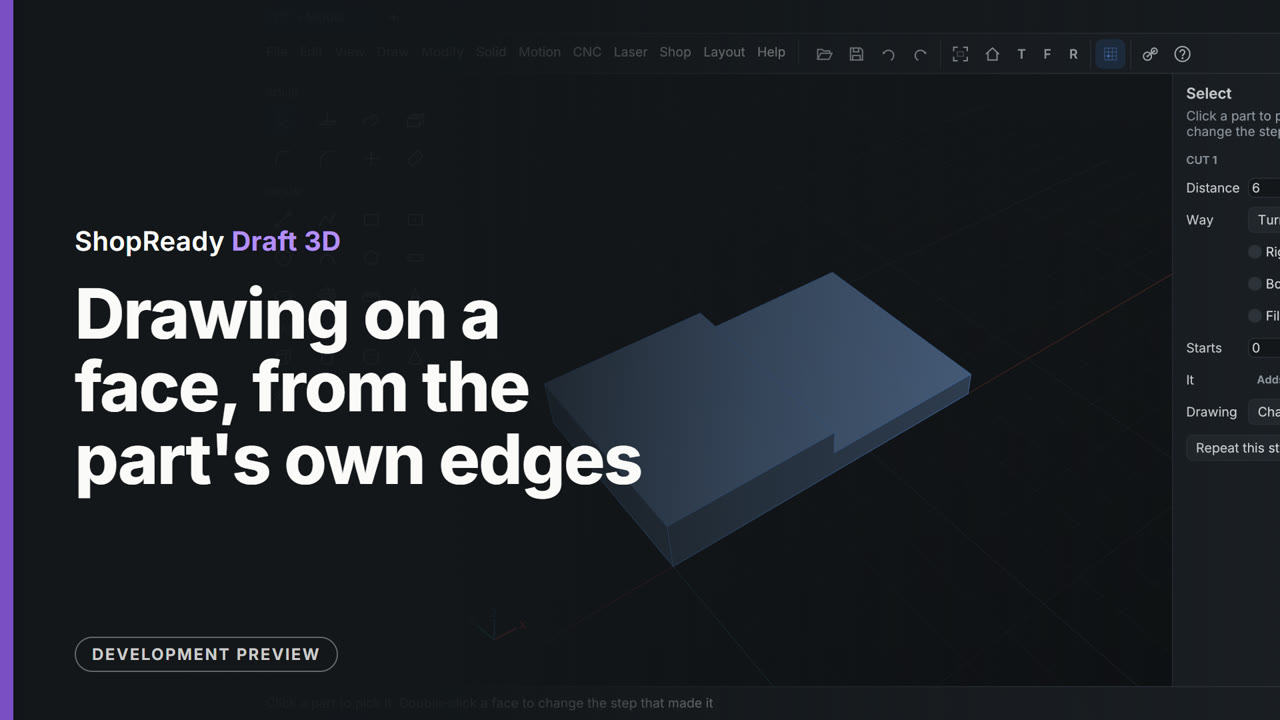 Clip · 55 s
Drawing on a face, from the part's own edges
The rectangle tool is picked and the top of a plate is clicked. The view turns square to the face with the plate's edges there to draw from: the pointer is drawn to the plate's corner, then to the middle of its far edge, and the rectangle is half the plate exactly with no size typed. Pull pushes it in 6 mm for a half lap.
 Clip · 43 s
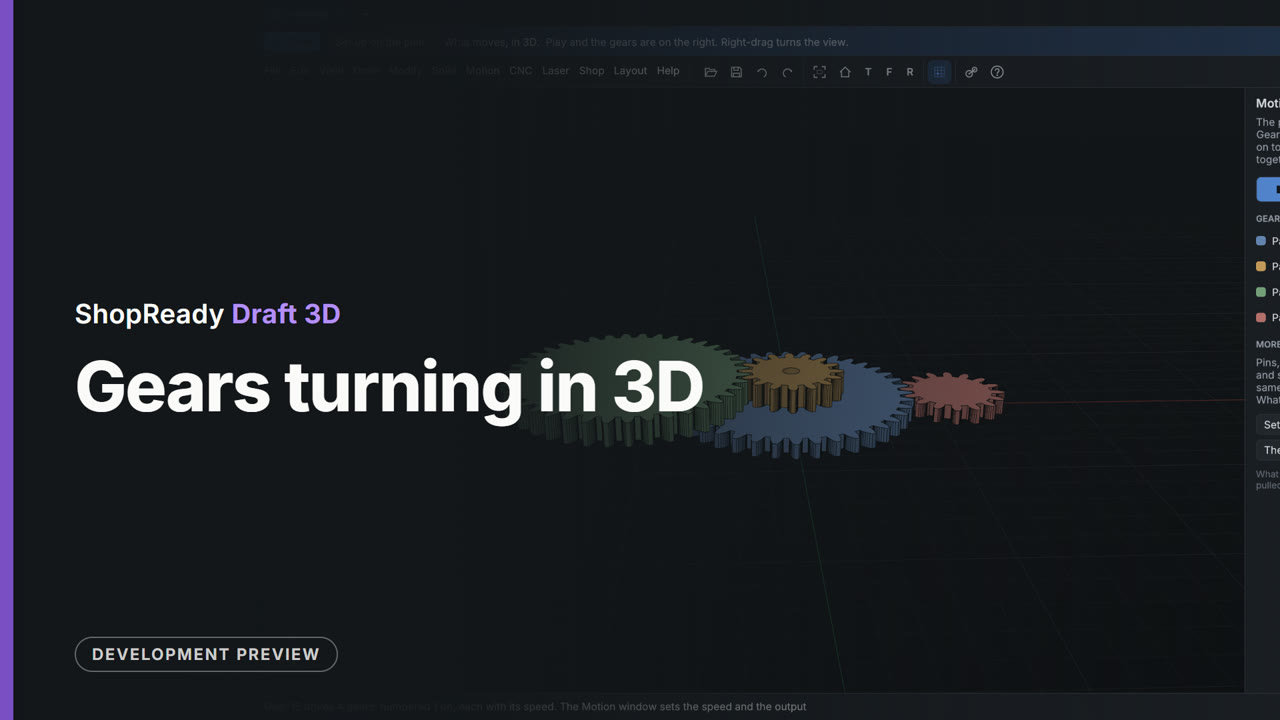
Gears turning in 3D
Four gears pulled from one flat drawing, two of them one on top of the other on a shaft. The Motion tab opens, one gear is set to drive, and the whole train turns while the view goes round it.
 Clip · 1:18
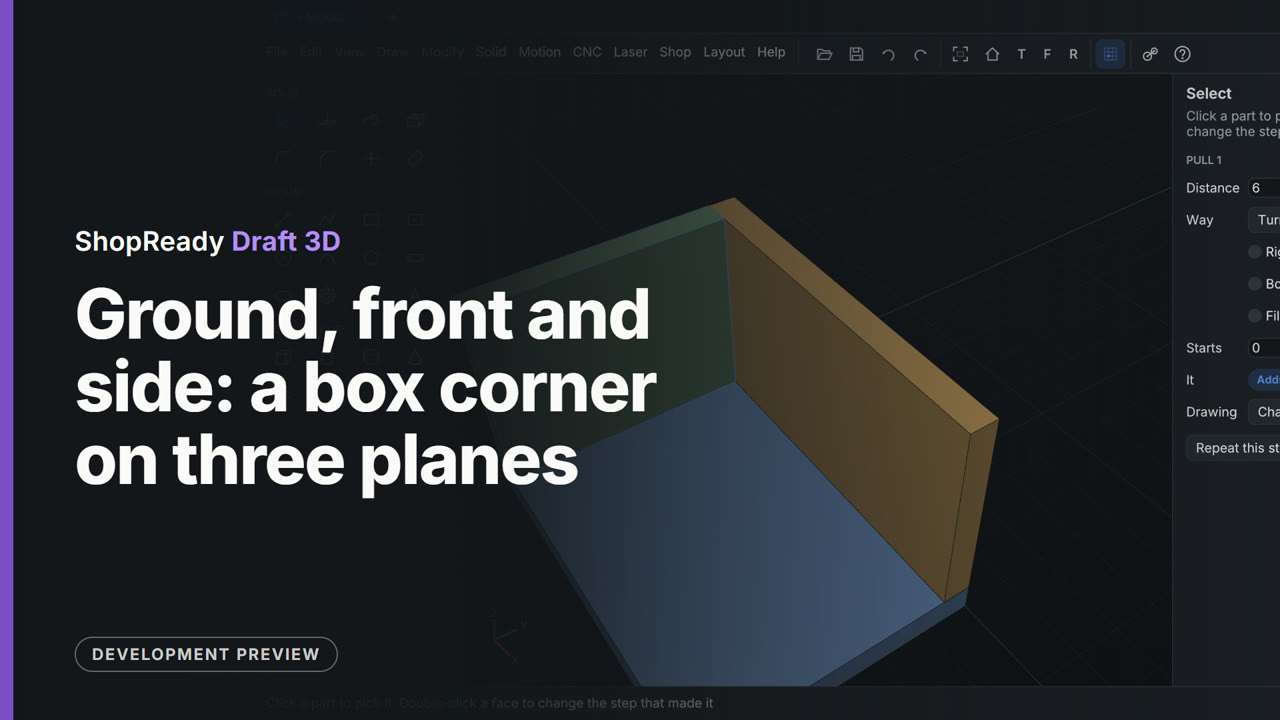
Ground, front and side: a box corner on three planes
Three boards of a box corner, each drawn on a plane of its own and pulled 6 thick. The floor is a rectangle on the ground. The back board is drawn with Draw, On the front plane, starting from the floor's edge. In the second clip the end board is drawn with Draw, On the side plane, from the floor's corner to the back board's corner with no size typed.
 Clip · 46 s
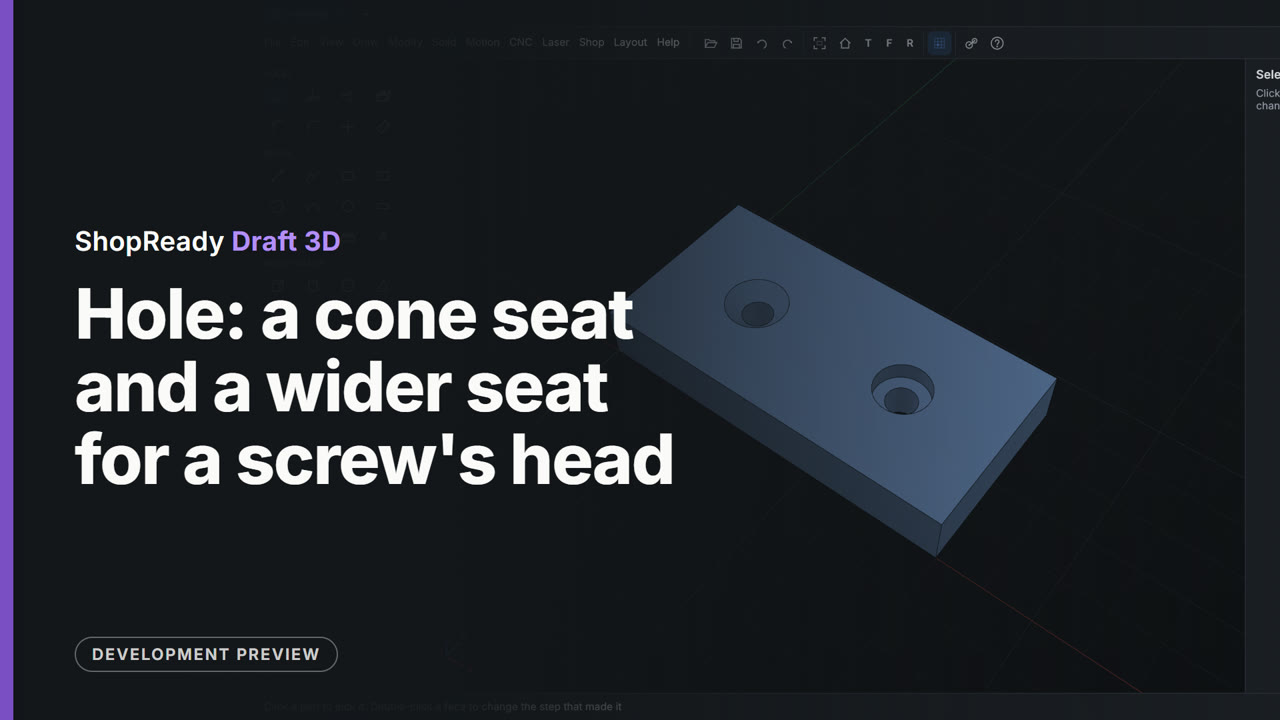
Hole: a cone seat and a wider seat for a screw's head
With M6 picked from the screw sizes, Cone makes a hole with a cone at the top for a flat-head screw, and Wider makes one with a flat-bottomed seat for a screw's head to sit below the face. Each is one click on the plate.
 Clip · 47 s
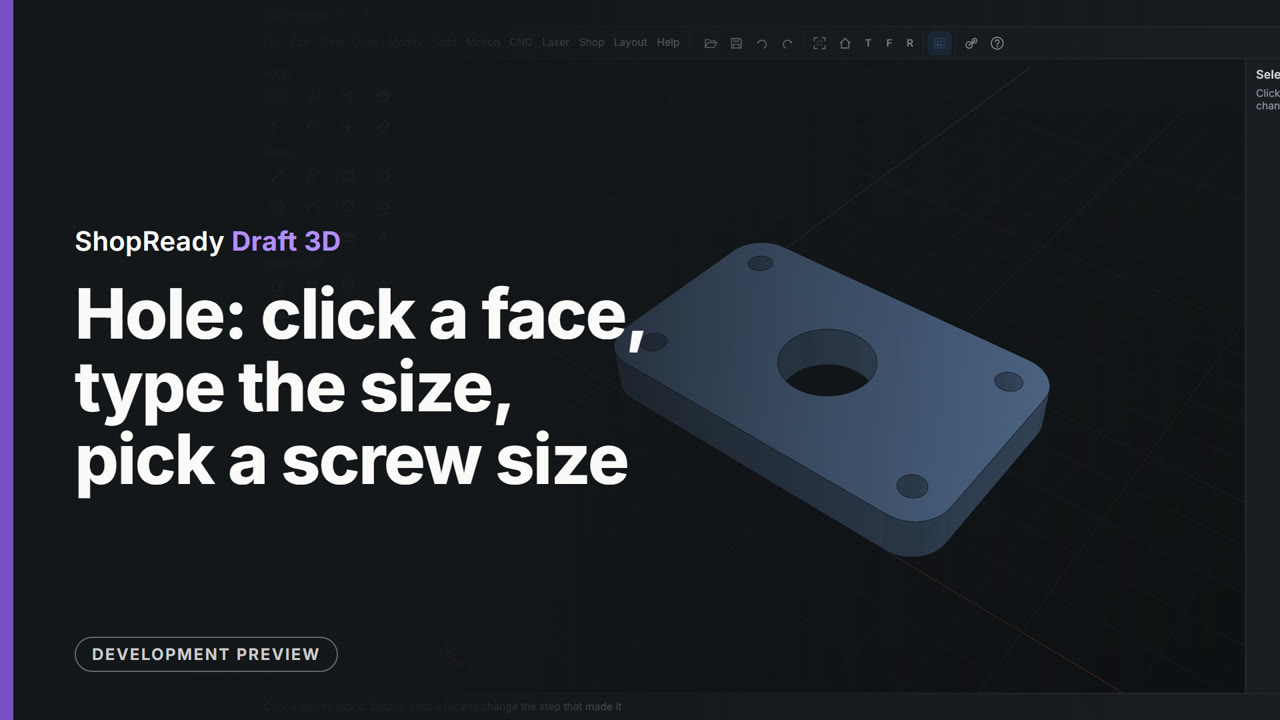
Hole: click a face, type the size, pick a screw size
The Hole tool drills the middle of a plate where the cursor is drawn to it, and 20 typed straight after changes its size. Then M5 is picked from the screw sizes and a hole goes at the center of each rounded corner.
 Clip · 42 s
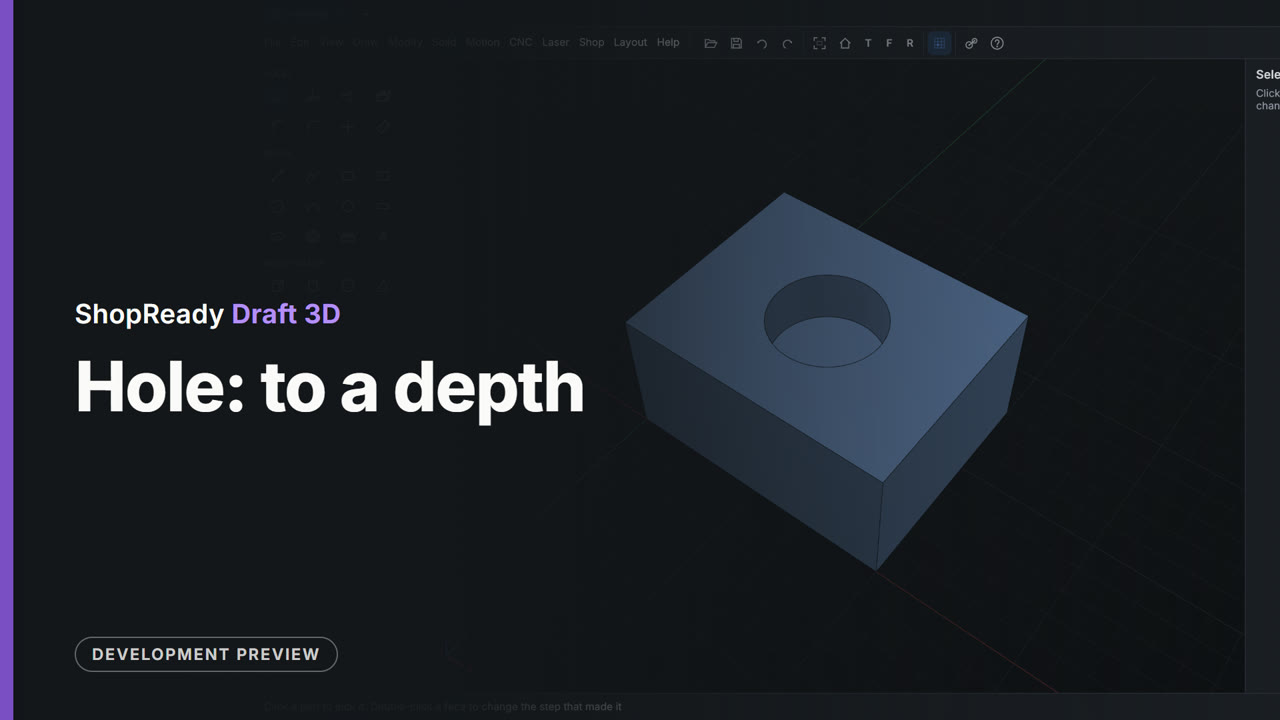
Hole: to a depth
In the Tool panel the hole's size is typed as 20, Right through is unticked and a depth of 10 typed; one click at the middle of the block's top then makes a hole that stops inside the block.
 Clip · 55 s
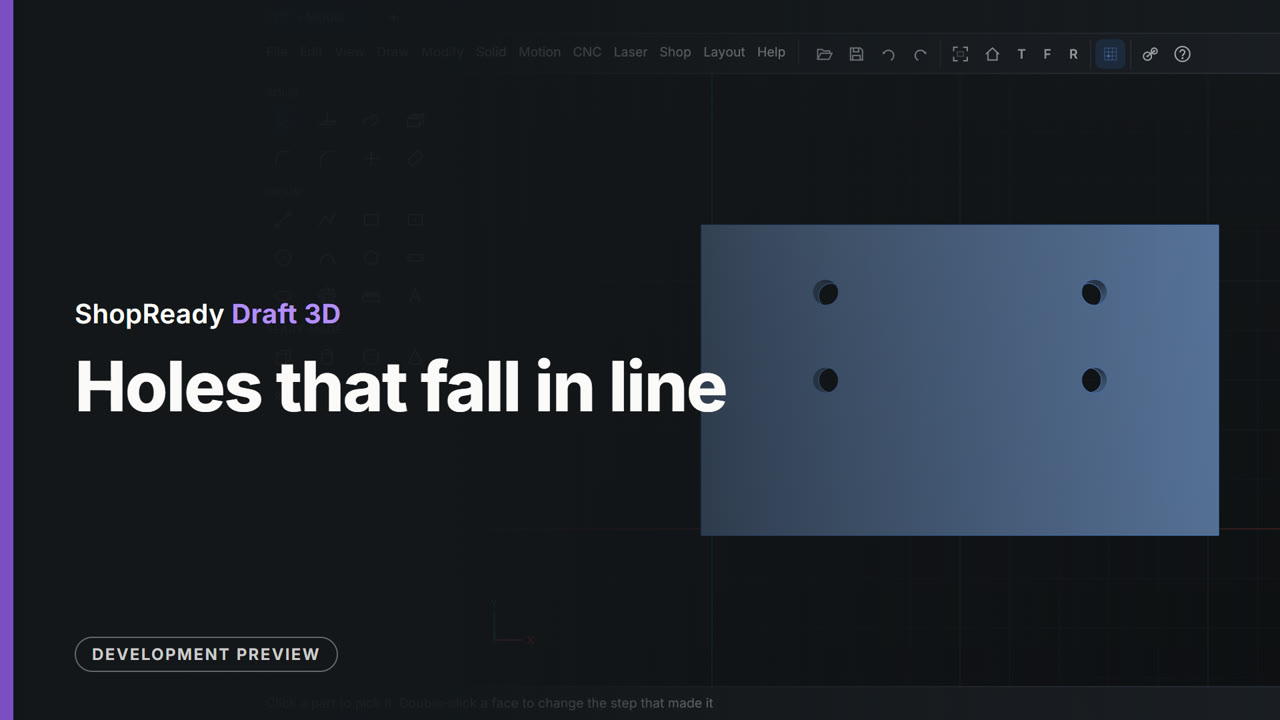
Holes that fall in line
Four holes are drilled in a plate with the Hole tool. As the pointer nears a line through the middle of an edge or through an earlier hole, a dashed line appears and the hole is drawn into line: first one way, then the other, then both at once. Seen from the top, the four holes sit square to each other and nothing was measured.
 Clip · 47 s
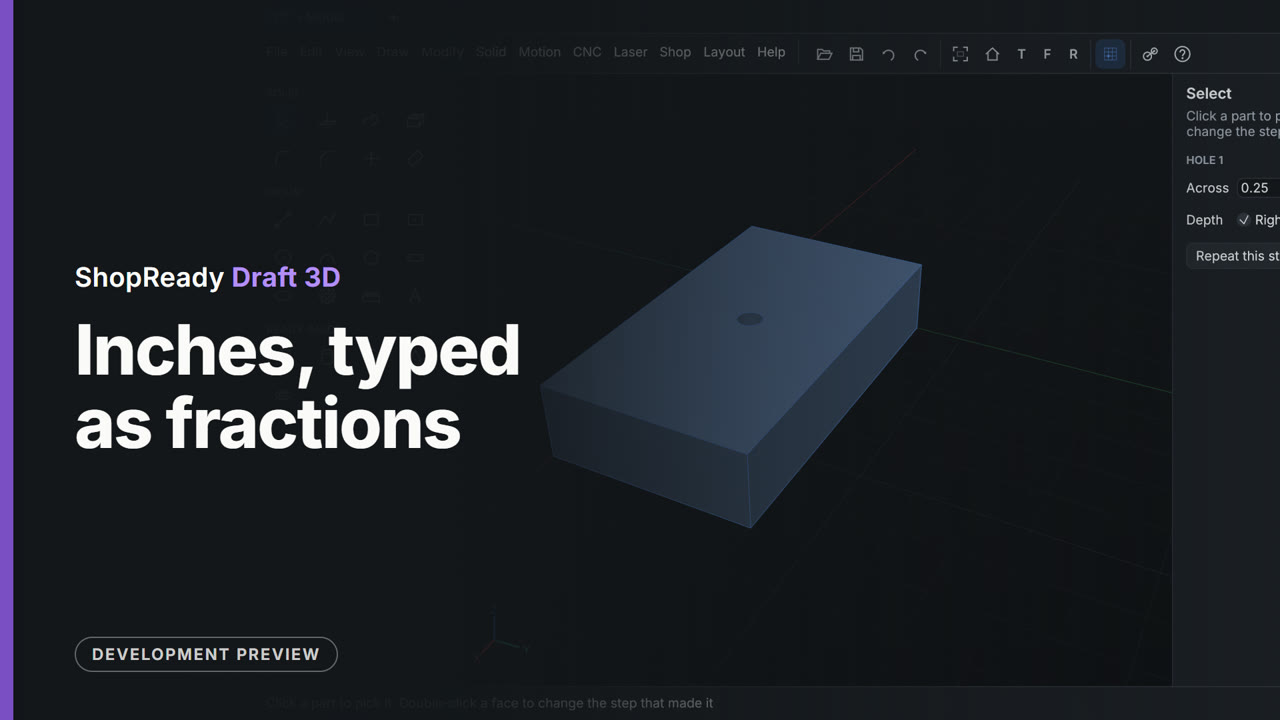
Inches, typed as fractions
A model in inches. A rectangle is typed as 3 1/2,2 and pulled 3/4 thick; the status line answers Pulled 0.75 in. A hole, 1/4 across, goes at the middle of the face, and the Tool panel offers inch screw sizes.
 Clip · 51 s
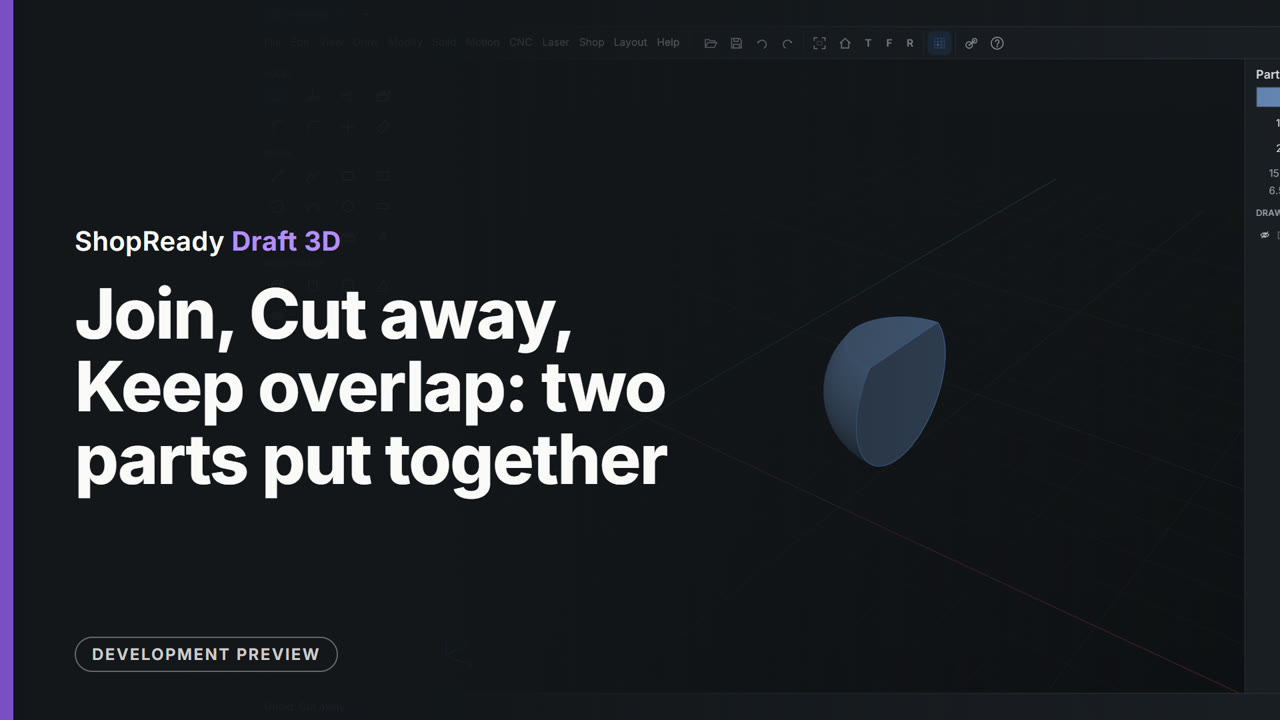
Join, Cut away, Keep overlap: two parts put together
A block and a ball overlap. With both picked, the Parts panel offers three ways to put them together, and each is tried in turn: Join makes one part of the two, Cut away takes the ball out of the block, and Keep overlap leaves only what the two share.
 Clip · 42 s
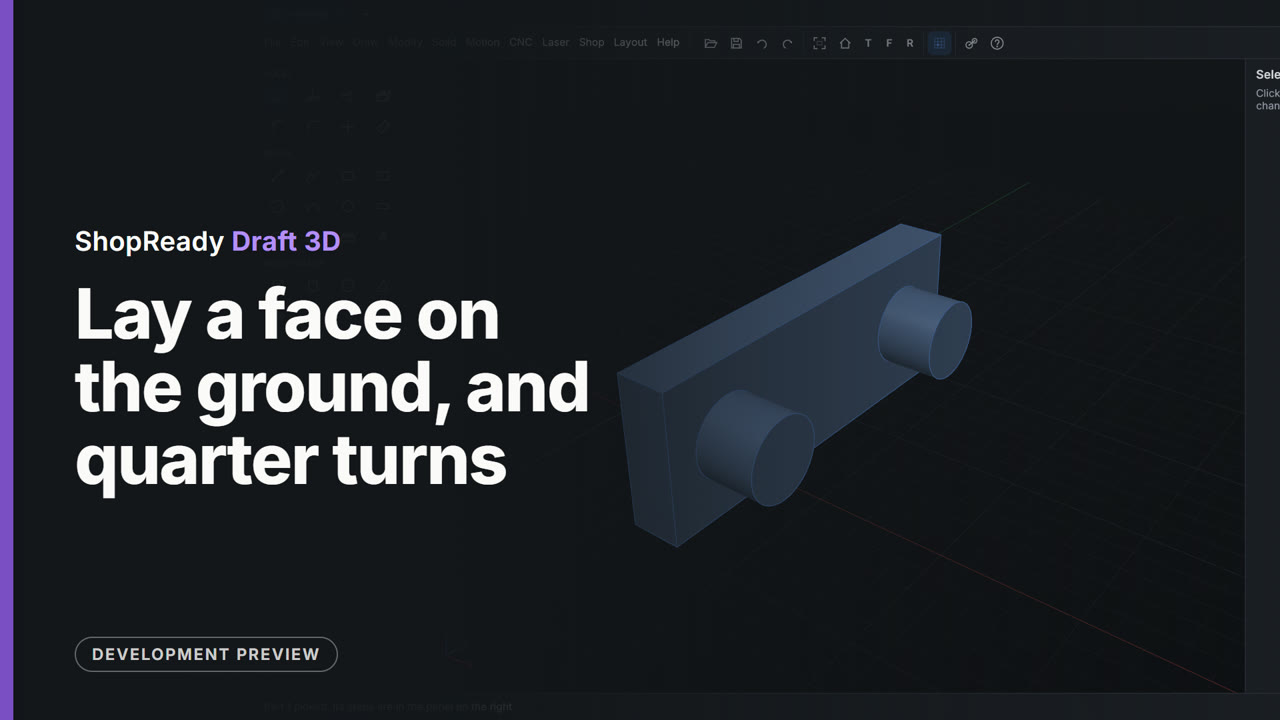
Lay a face on the ground, and quarter turns
A plate with two bosses is to be printed on its front. A right-click on that face and Lay this face on the ground turns the part and sets it down; Turn a quarter turn, About Z, turns it a quarter round. No angle is typed.
 Clip · 45 s
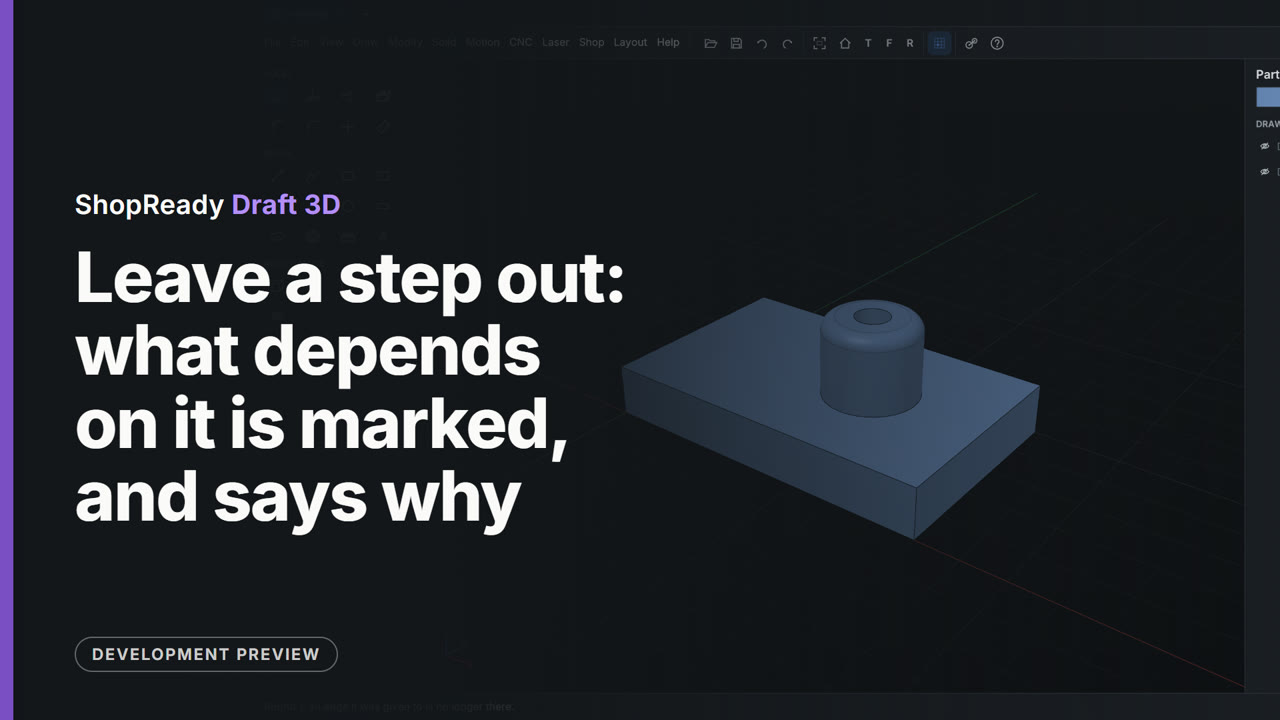
Leave a step out: what depends on it is marked, and says why
In the Parts panel the eye beside the boss's step leaves it out. The hole is still drilled, in the plate, but the round on the boss's rim has no edge to go on: its step is marked, and a click on it says why. The eye again puts the boss back, and everything after it is made again.
 Clip · 44 s
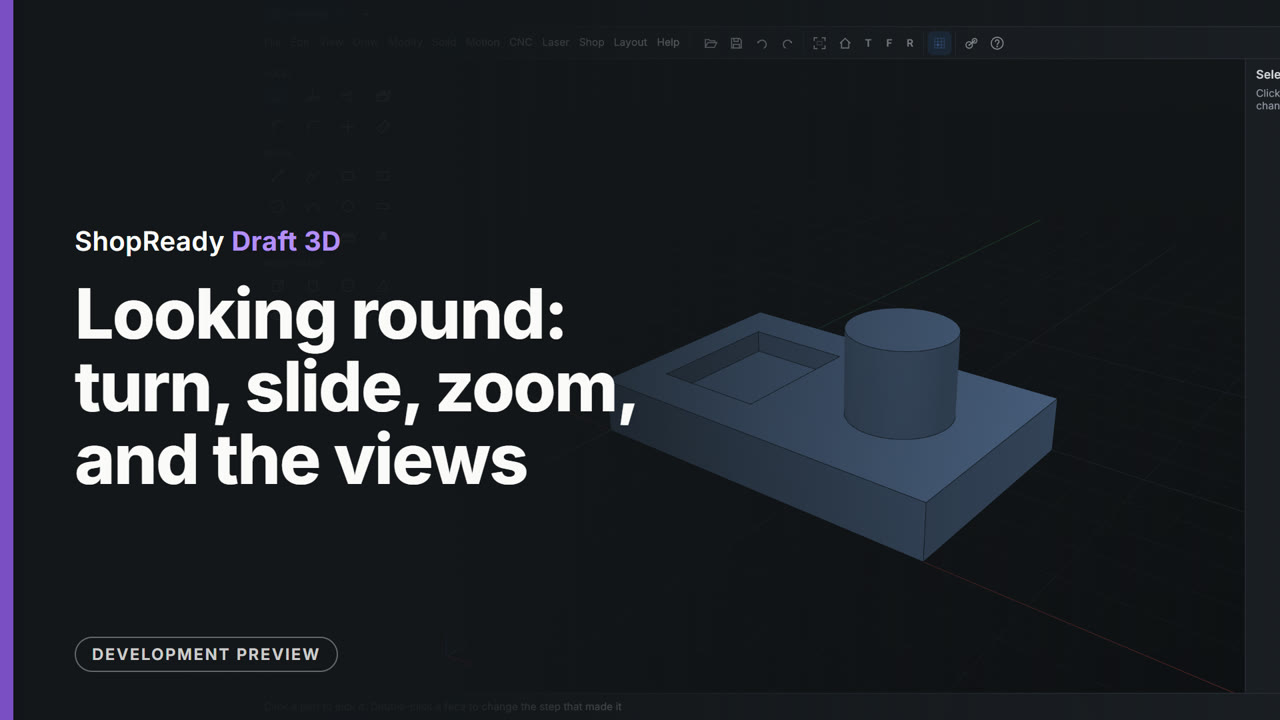
Looking round: turn, slide, zoom, and the views
The view of a part is turned with a right-drag, slid with a middle-drag and zoomed with the wheel toward what the pointer is on. Then T, F and R look from the top, the front and the right, and the house goes back to the view from front, right and above.
 Clip · 49 s
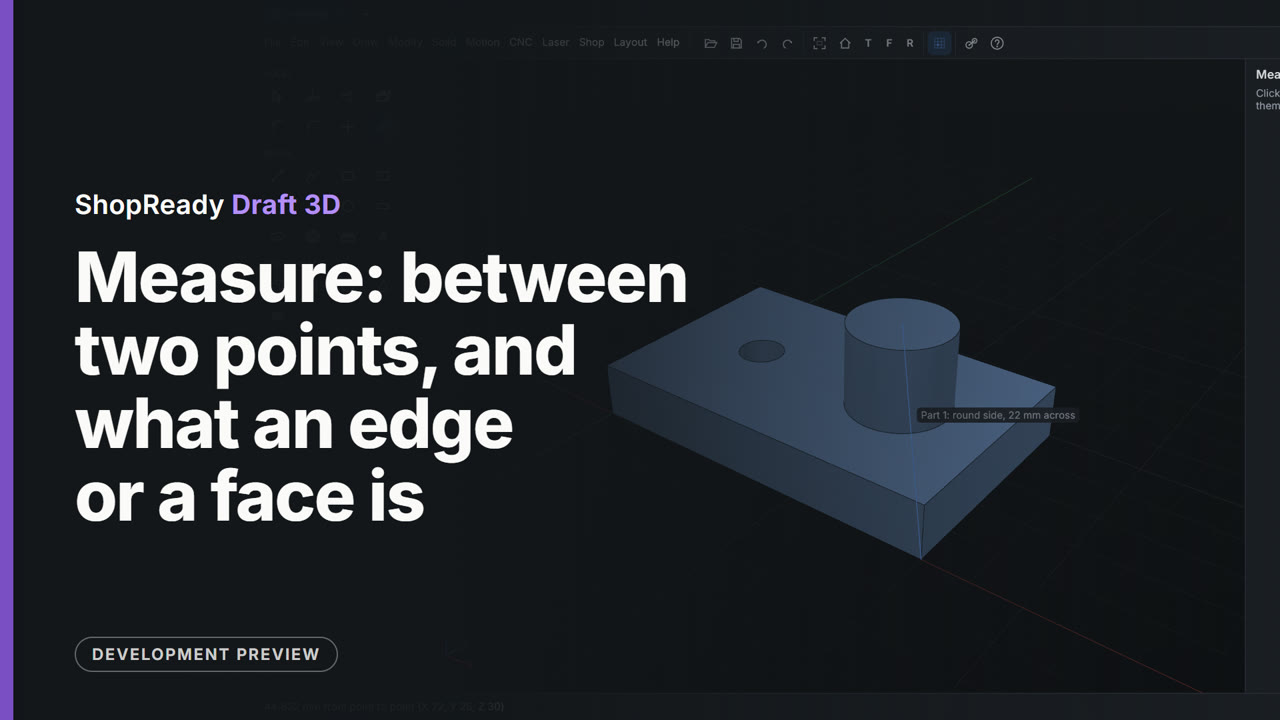
Measure: between two points, and what an edge or a face is
Measure is clicked from corner to corner for a length of 80, then from a bottom corner to the middle of the boss's top, where the status line gives the distance and how far along X, Y and Z. Resting on the boss's side, the hole's rim and an edge says what each is.
 Clip · 34 s
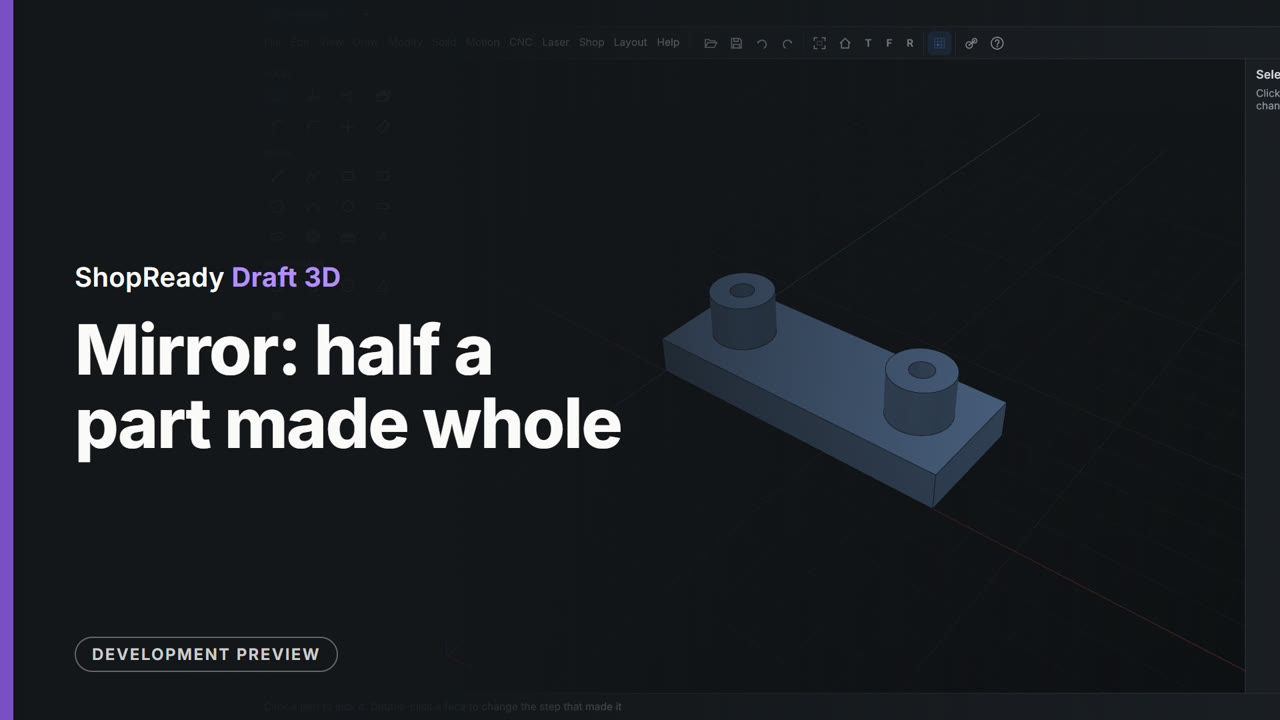
Mirror: half a part made whole
Half a part is made: a plate with a boss and a hole. A right-click on the face where the two halves meet and Mirror the part across this face makes the other half, as one more step.
 Clip · 47 s
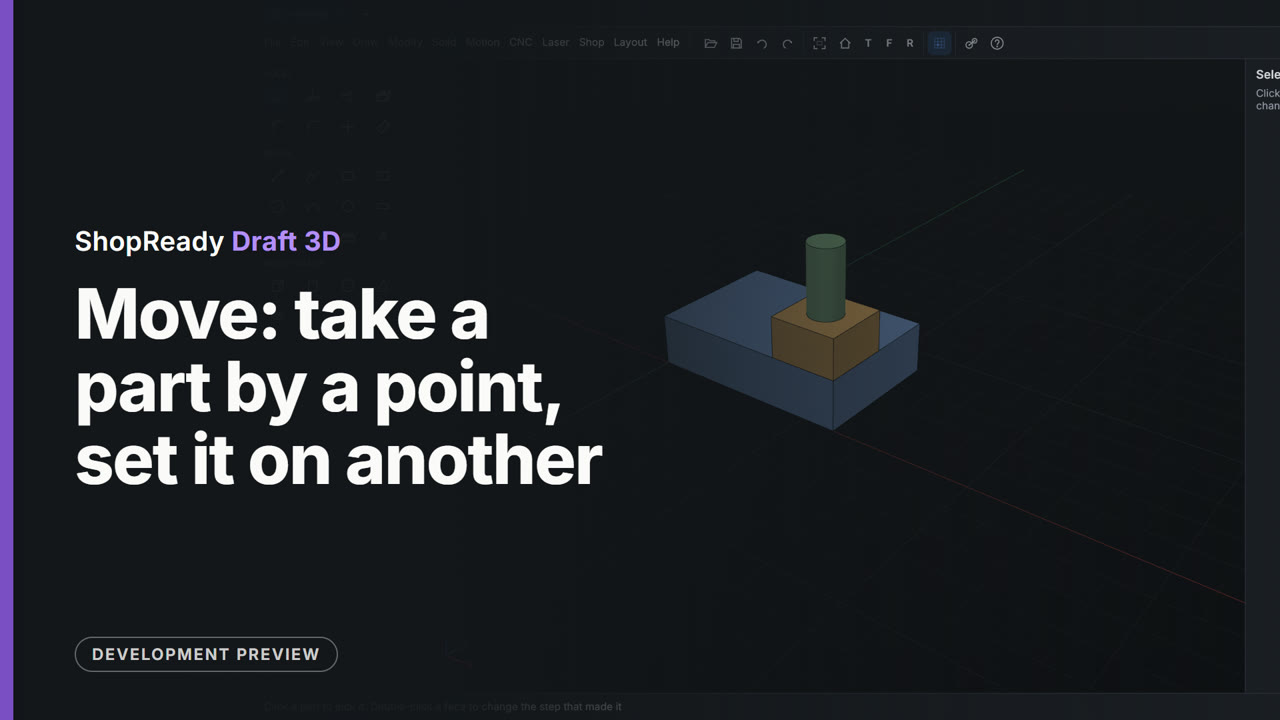
Move: take a part by a point, set it on another
A small block is taken by a bottom corner and set on a top corner of the base; then a peg is taken by the center of its foot and set on the middle of the block's top. The marks show which point the cursor has been drawn to, and nothing is typed.
 Clip · 42 s
One row of menus, over a model and over a drawing
The File menu is opened three times: over a 3D model, over a drawing on the model's face, and over a 2D drawing in a tab of its own. The row of menus is the same each time, File to Help in the same places, and File holds the same lines.
 Clip · 1:22
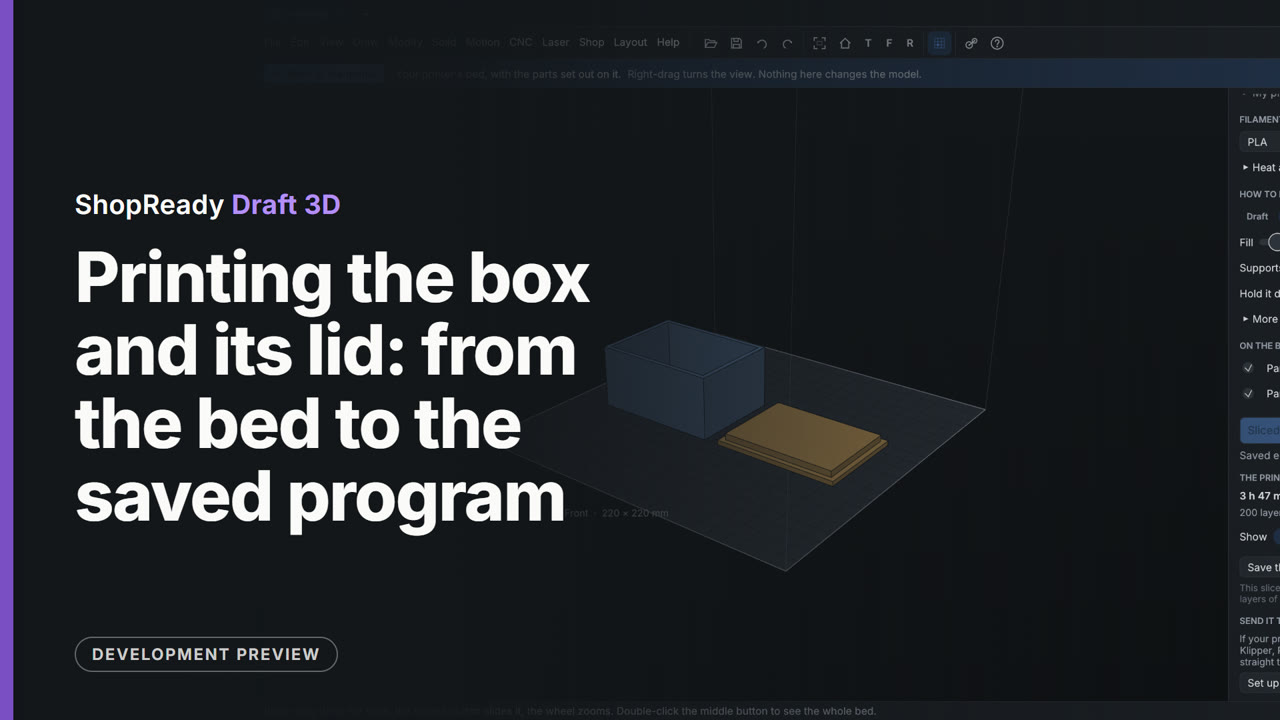
Printing the box and its lid: from the bed to the saved program
The Print tab sets the box and its lid out on the printer's bed. A printer is picked from the list, the lid is laid on its flat top so that nothing hangs in the air, and Slice works out 200 layers. The time, the weight and the length of filament are read off, the Layer slider is dragged down to look inside, and the program is saved as a.gcode file.
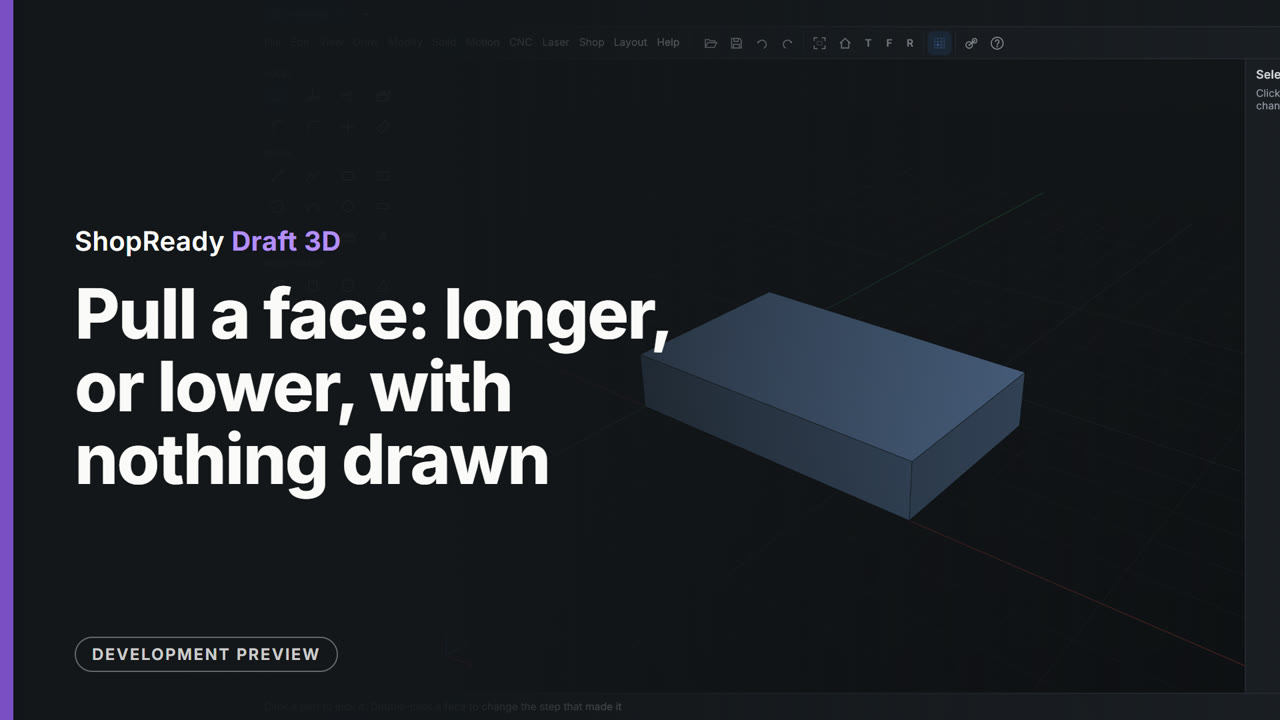 Clip · 41 s
Pull a face: longer, or lower, with nothing drawn
Pull is used straight on a block's faces: the end face is pulled out 15 to make the block longer, and the top face is pushed down 8 to make it lower. No drawing is needed.
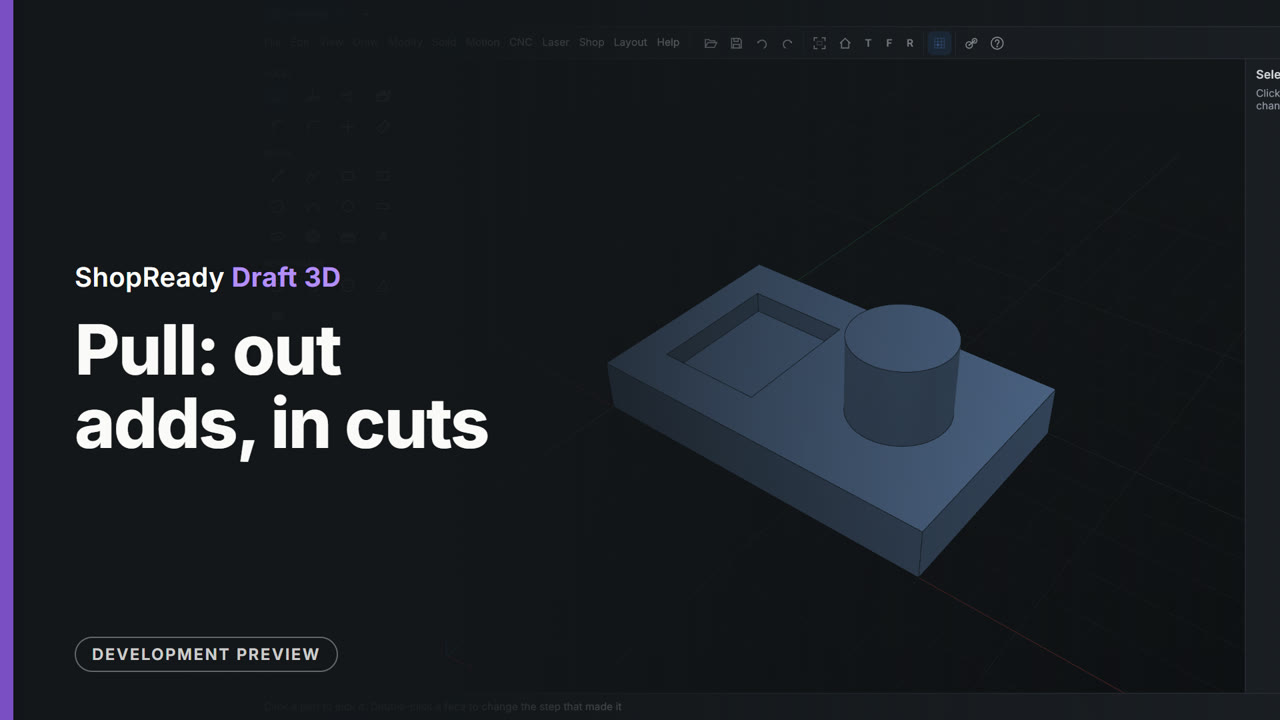 Clip · 41 s
Pull: out adds, in cuts
A circle on a plate's top is pulled up 18 into a boss, and a rectangle beside it is pushed down 5 into a pocket. The same tool adds or cuts by which way it goes, and both distances are typed.
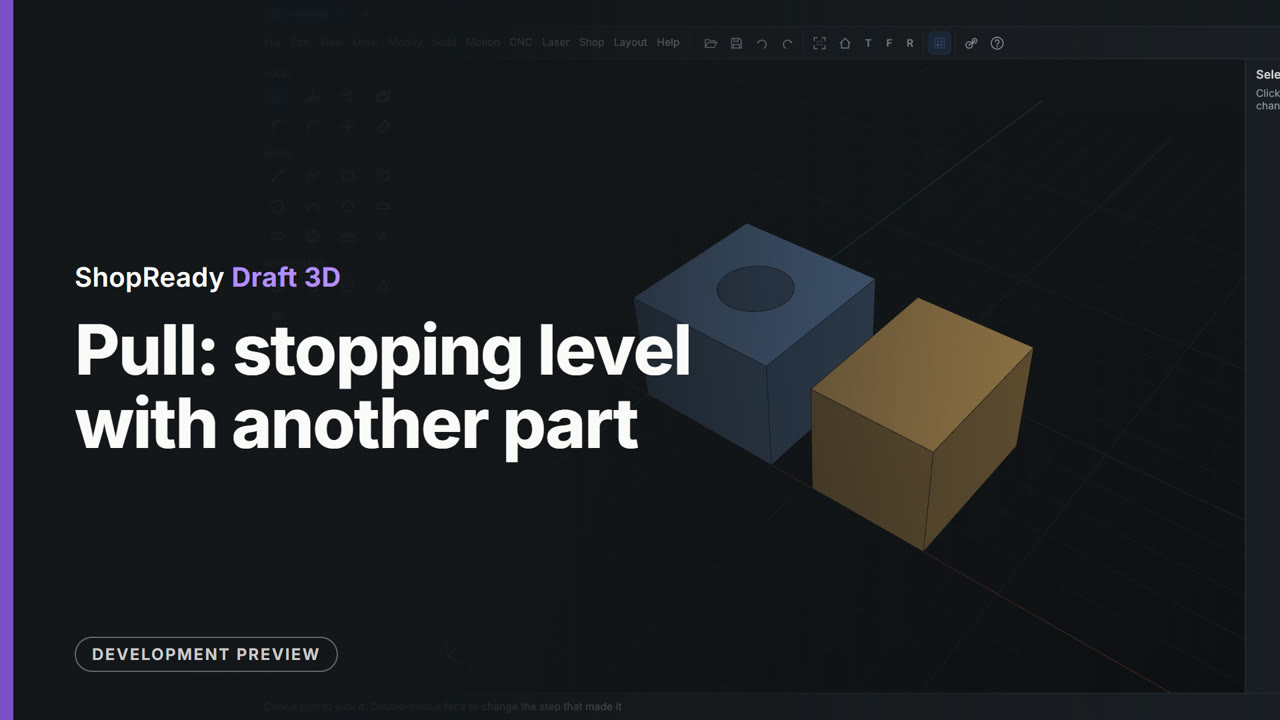 Clip · 47 s
Pull: stopping level with another part
A rectangle on the ground is pulled up beside a block and stops level with the block's top; a circle on the block is pushed down and stops flush with its far side, making a hole right through. Neither distance is typed.
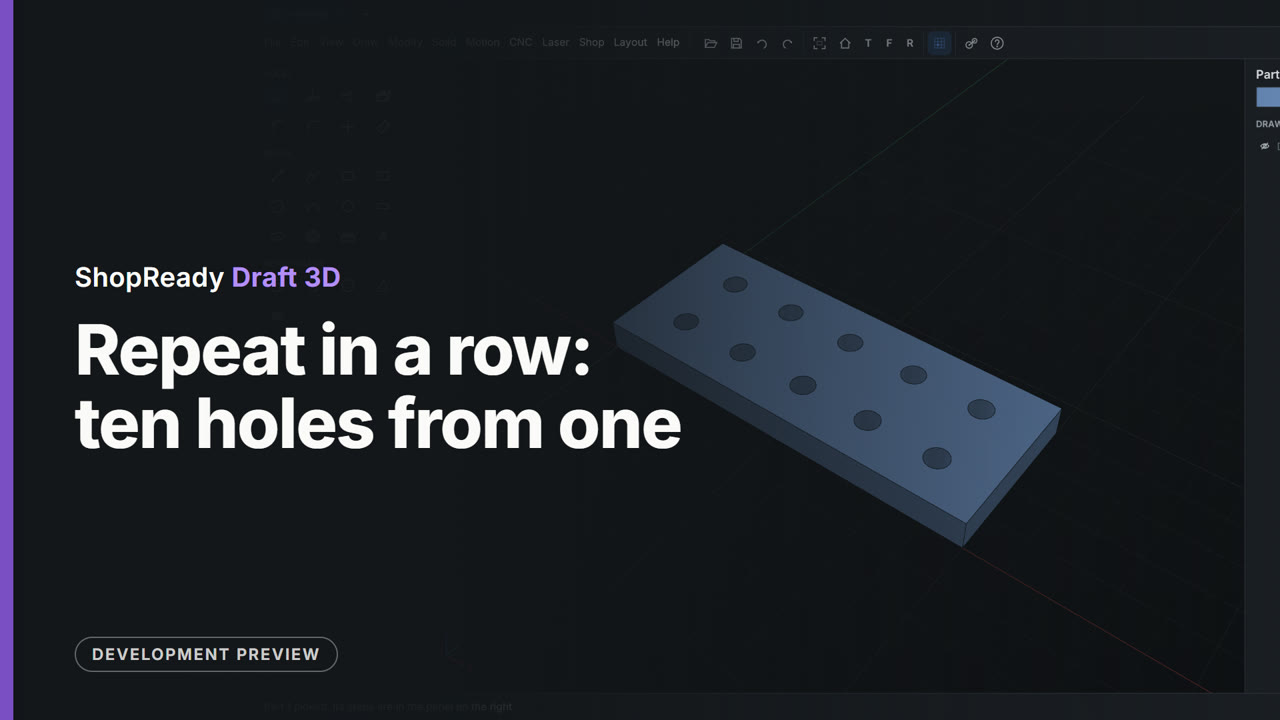 Clip · 44 s
Repeat in a row: ten holes from one
A plate has one hole. Its step is found in the Parts panel and repeated in a row; How many and Apart are typed to make five holes 18 apart, and A second way makes a second row, ten holes in all, from one step.
 Clip · 33 s
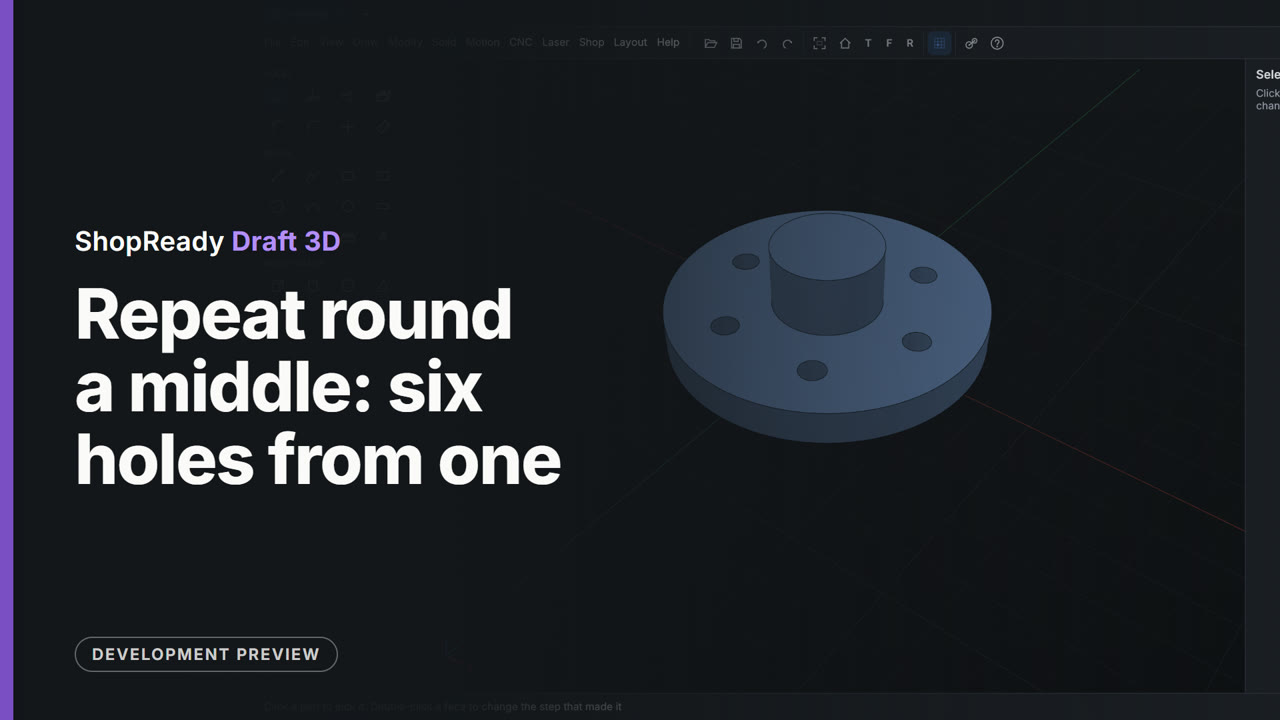
Repeat round a middle: six holes from one
A round flange has a boss in its middle and one hole. A right-click on the boss's round face and Repeat Hole 1 round this makes six, evenly spaced round the boss, as one step whose count can be changed.
 Clip · 43 s
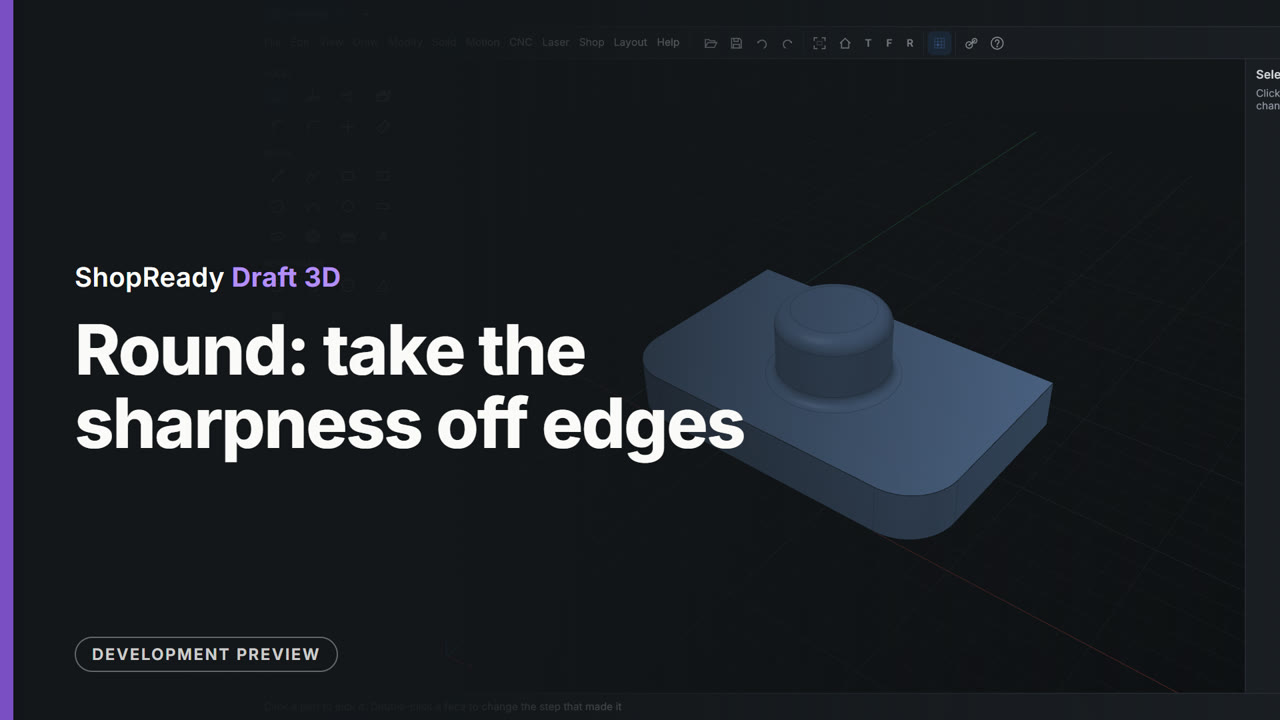
Round: take the sharpness off edges
Two corners of a plate are picked and rounded to 10, then the rim of a boss is rounded over to 3 and its foot filled in to 2. Each round is an edge clicked and a radius typed.
 Clip · 40 s
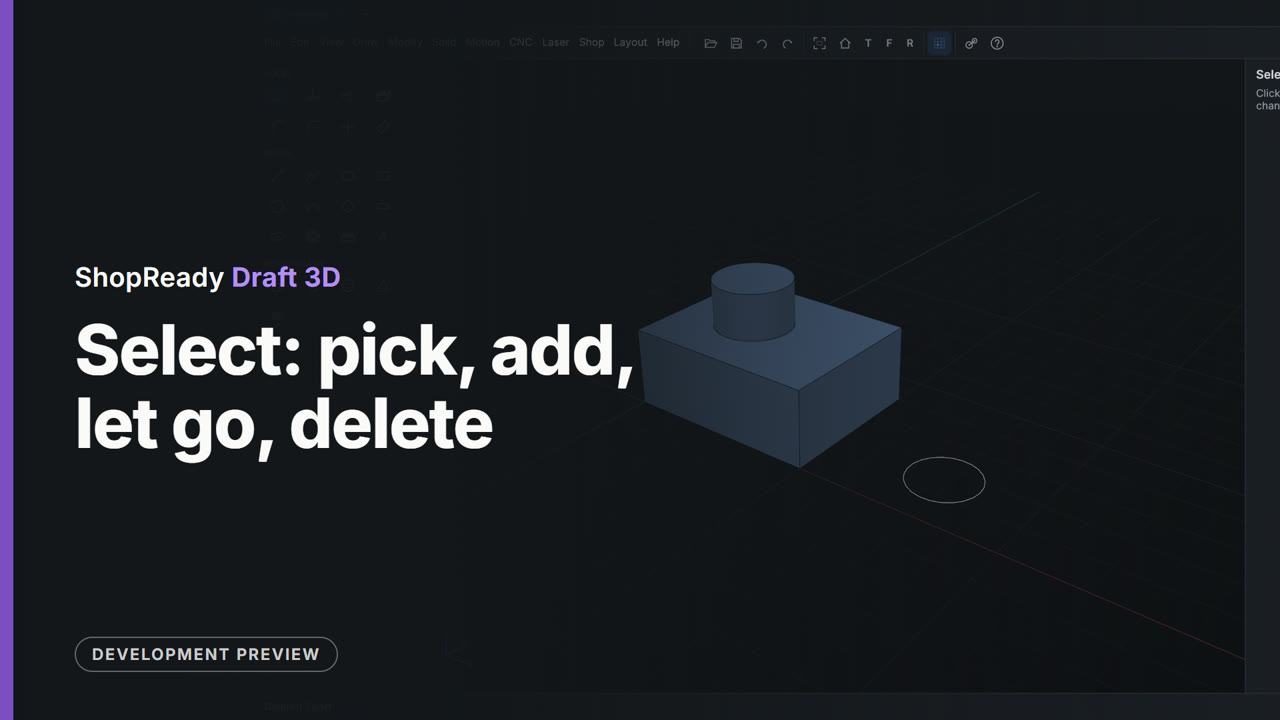
Select: pick, add, let go, delete
With the Select tool a click picks a part and a Shift-click adds another; Esc picks nothing. A picked part is deleted with Del and brought back with Ctrl+Z, and a click on the empty ground lets go of everything.
 Clip · 46 s
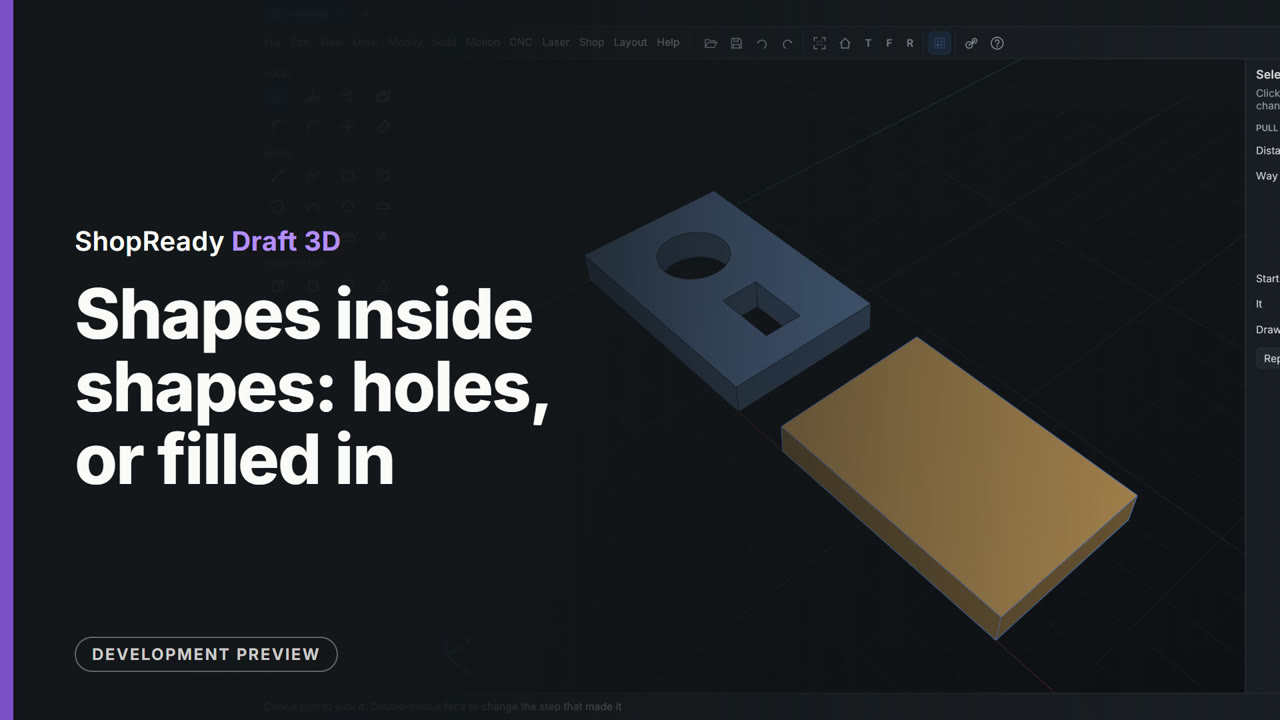
Shapes inside shapes: holes, or filled in
One drawing holds two rectangles, each with a circle and a small rectangle drawn inside. The first is pulled 8 mm and the shapes inside it are holes. Then Fill in what is drawn inside it is ticked in the Tool panel, and the second, drawn the same, is pulled solid.
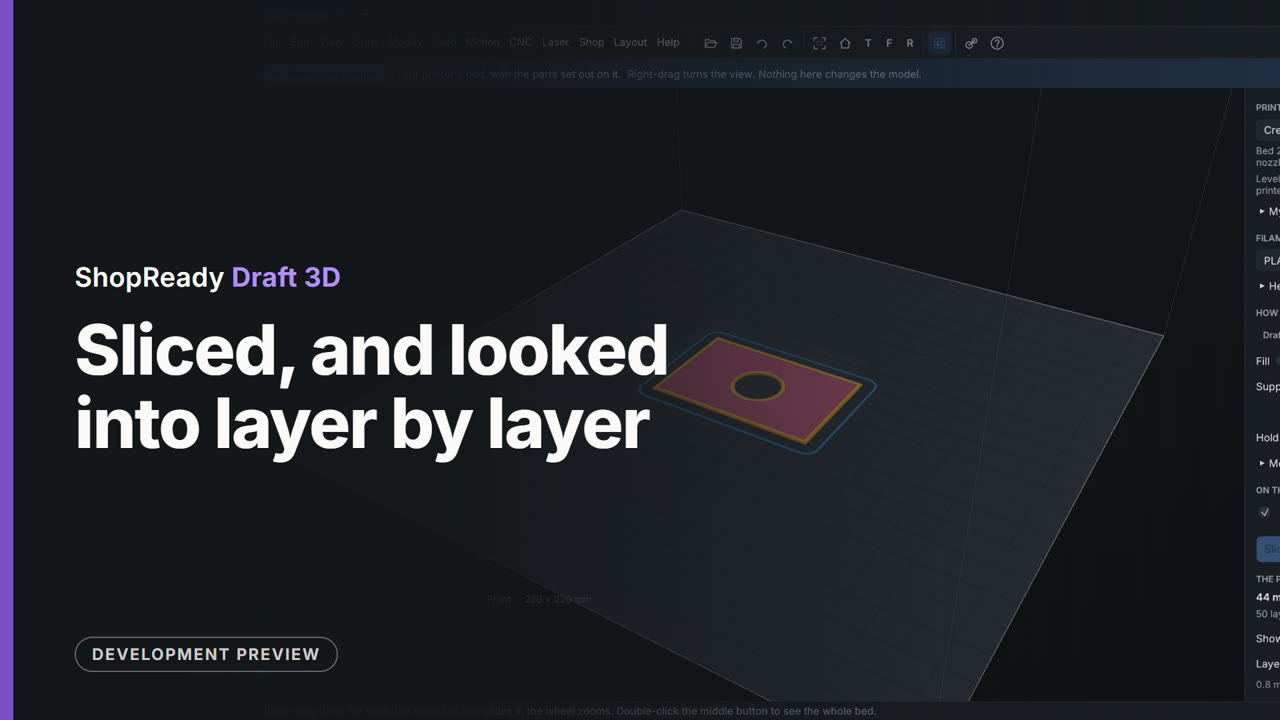 Clip · 35 s
Sliced, and looked into layer by layer
A plate with a hole stands on the printer's bed. Slice works out its fifty layers, and the Layer slider is dragged down and back to see the walls, the fill and the hole as the printer will lay them.
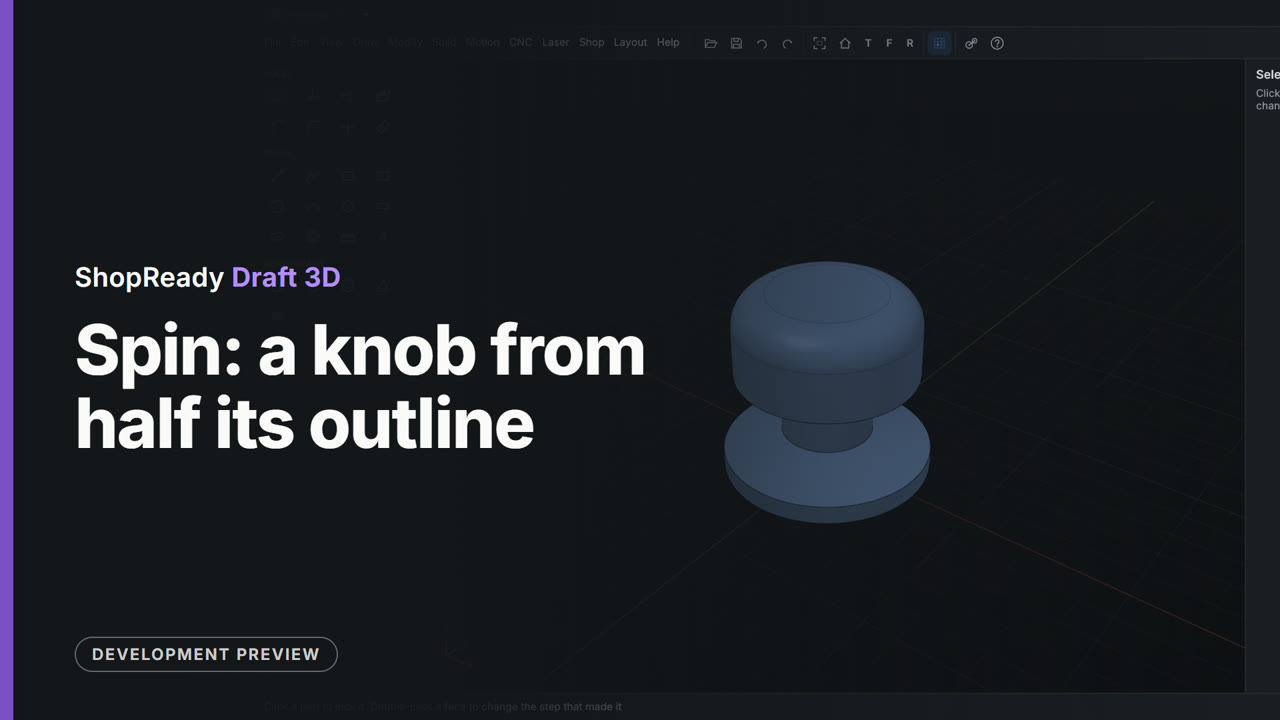 Clip · 43 s
Spin: a knob from half its outline
Half a knob's outline stands on the front plane with a line where its middle is. Spin turns the shape about the line into a knob; 270 typed straight after makes it three quarters of a turn, and 360 makes it whole again.
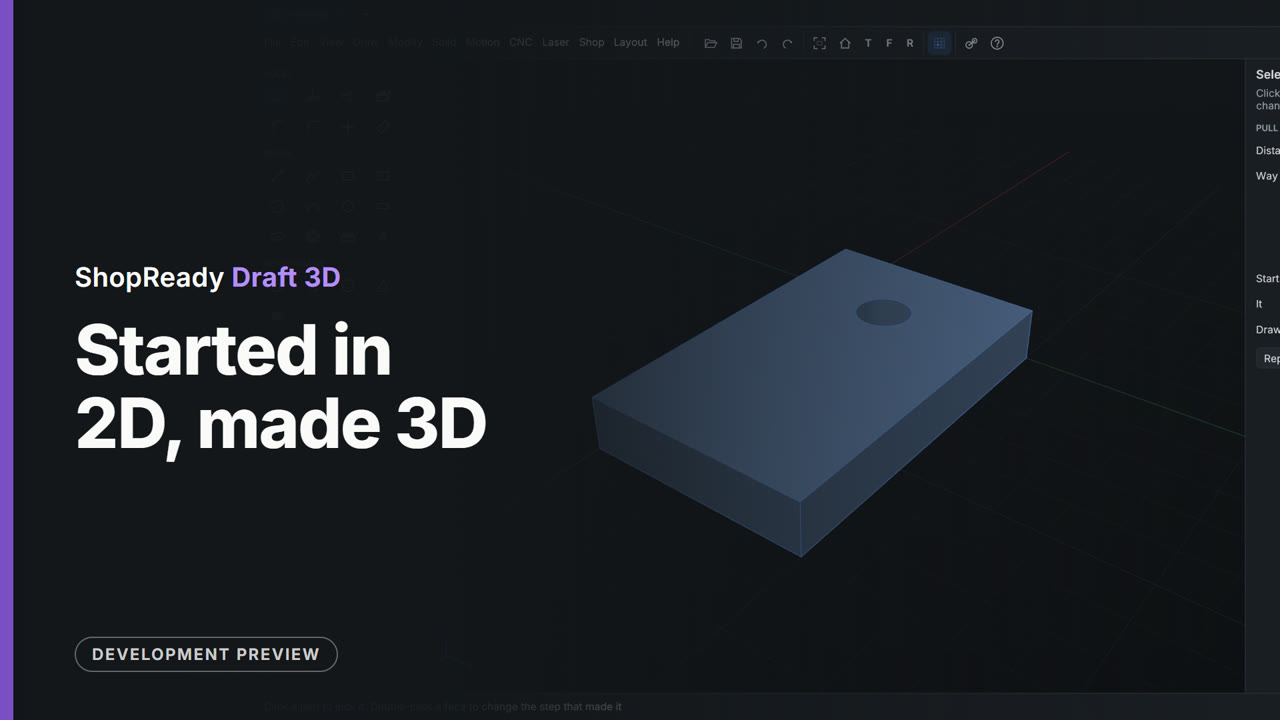 Clip · 56 s
Started in 2D, made 3D
A plate with a hole is drawn in a 2D drawing's own tab, with the 2D tools and typed sizes. Solid, Make this drawing 3D turns the same tab into a 3D model with the drawing lying on its ground, and Pull makes the plate 12 thick with the circle as a hole.
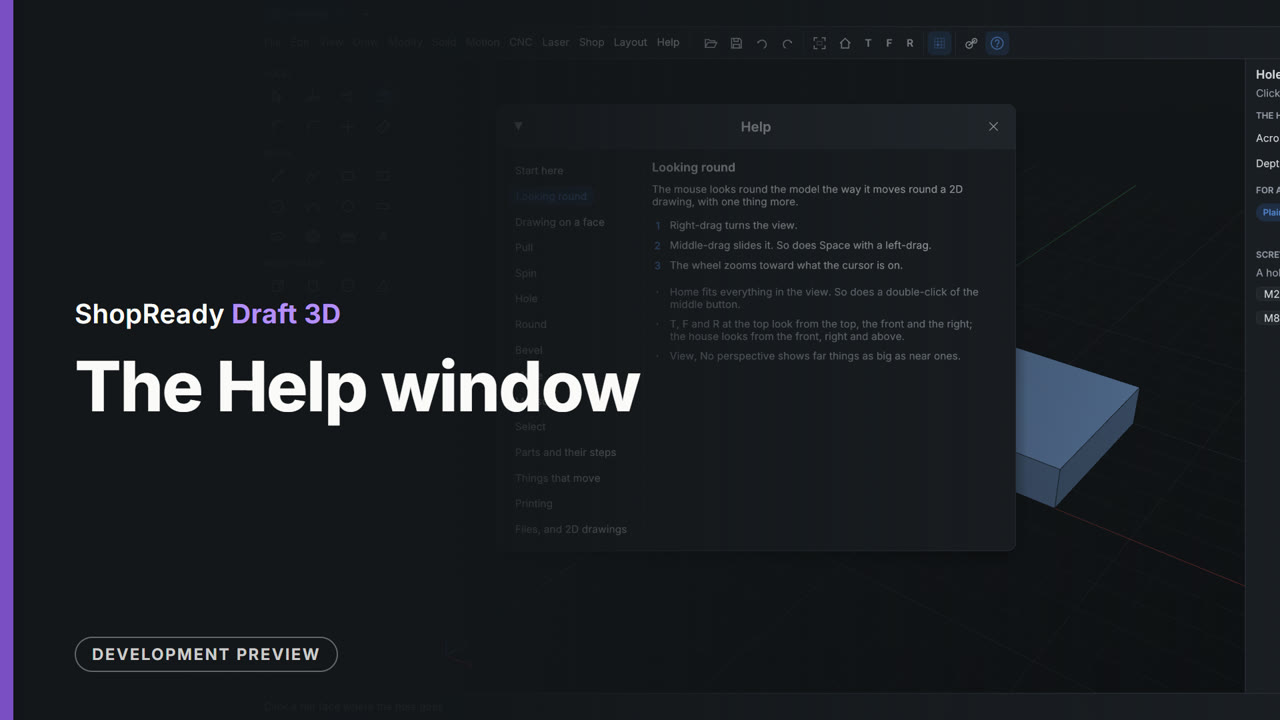 Clip · 32 s
The Help window
With the Hole tool in hand, the Help button opens Help at the Hole page: what the tool is for, its steps, and what else is worth knowing. Other pages are a click away in the list on the left, and Esc puts the window away.
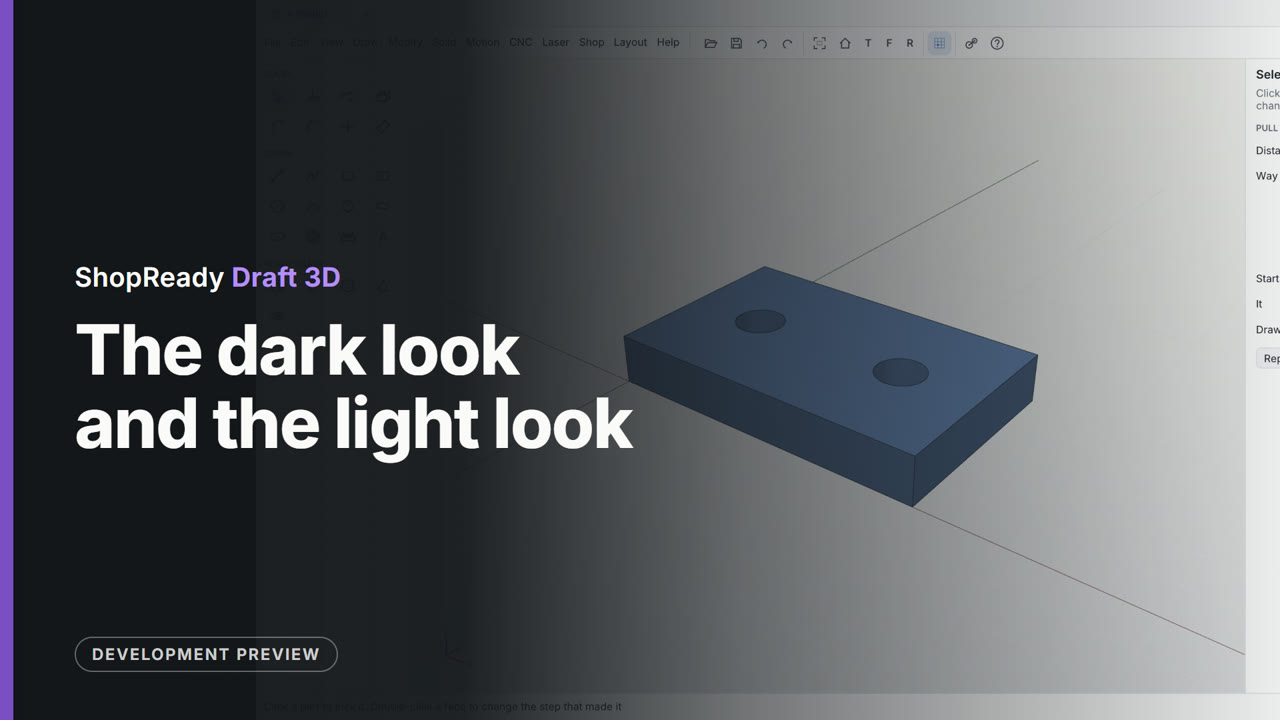 Clip · 36 s
The dark look and the light look
A plate's drawing is open in the dark look. View, Look, Light turns the whole window light, and after Done the 3D model is in the light look too. One clip that shows both looks, one after the other.
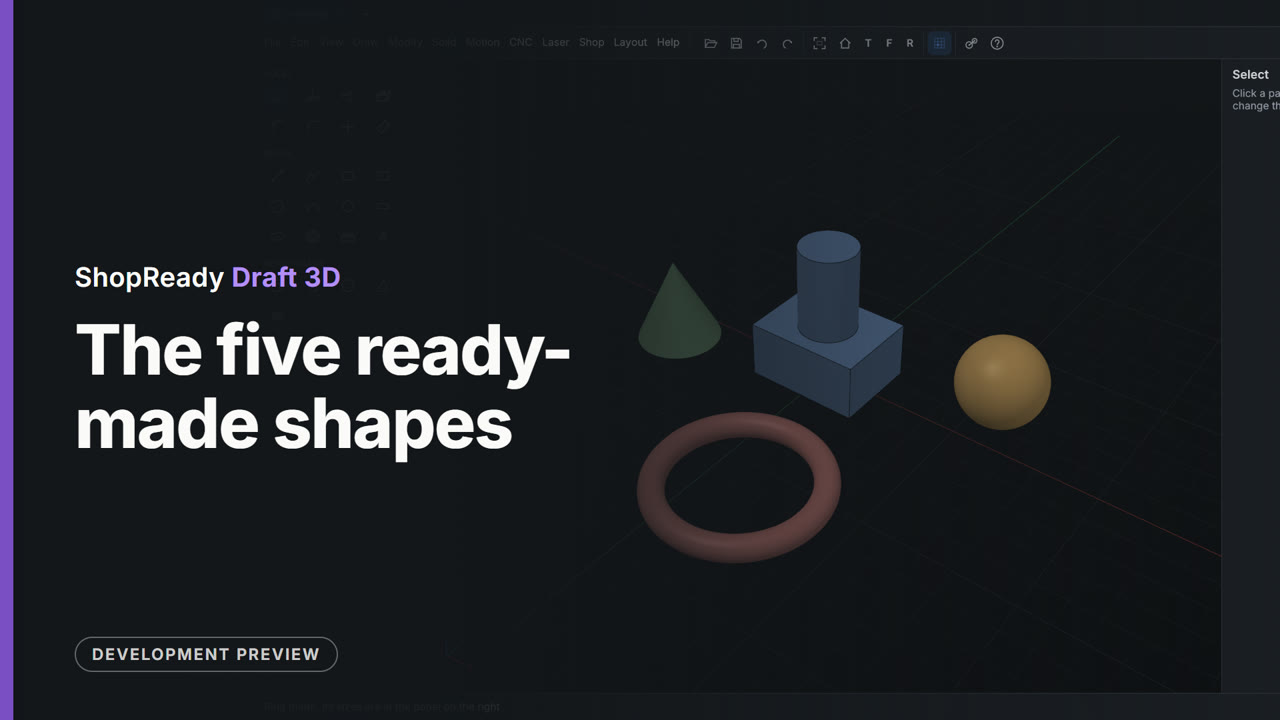 Clip · 51 s
The five ready-made shapes
From an empty model, a block is set on the ground with one click, a rod is stood on the block's top, and a ball, a cone and a ring are set on the ground around them. The ring's size is then typed in the panel on the right.
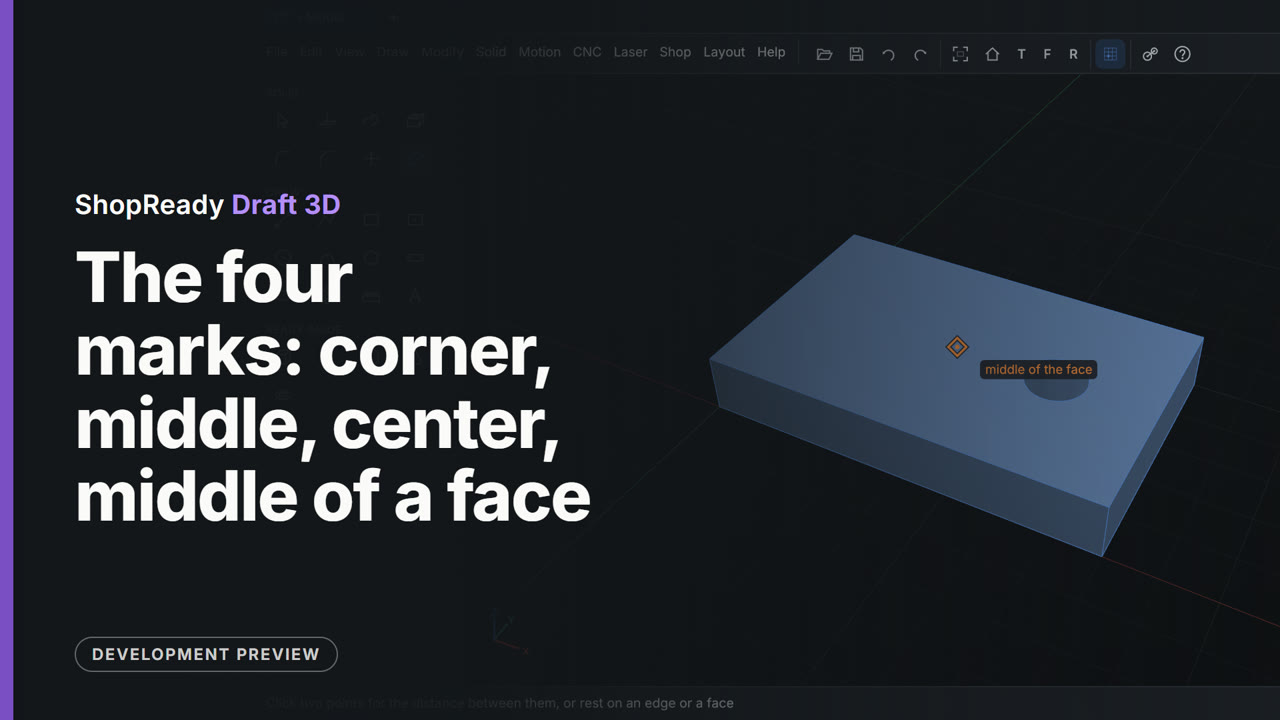 Clip · 49 s
The four marks: corner, middle, center, middle of a face
With Measure in hand the pointer rests near a corner, the middle of an edge, the center of a hole and the middle of a face, and each time the program draws its mark there and says its name. Then two clicks measure from the corner to the hole's center, exactly.
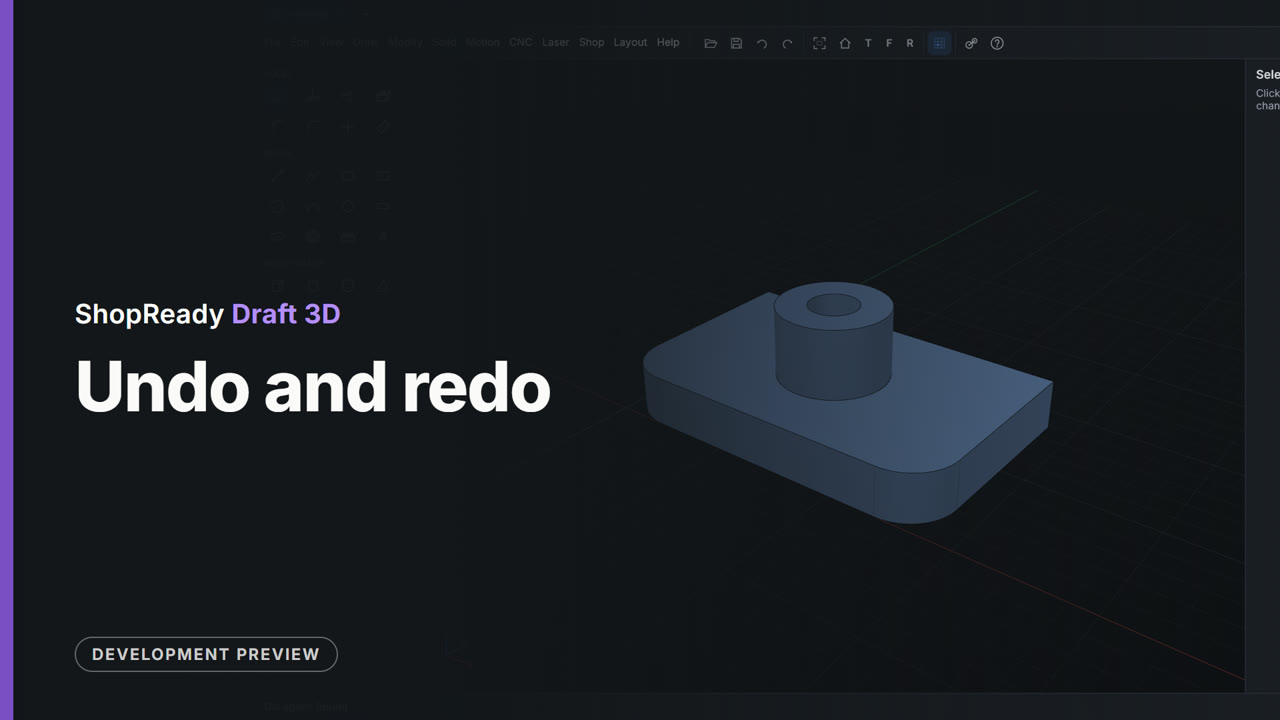 Clip · 41 s
Undo and redo
A part four steps along is taken back three steps, with the Undo button and Ctrl+Z, to the bare plate; then Redo and Ctrl+Y put the boss, the hole and the rounds back one at a time. The status line names each step as it goes and comes back.
 Clip · 23 s
A whole house, joined at its doorways
The house plan, and the whole house in 3D.
 Clip · 18 s
A wrong reading doesn't get in
The reading guard: a reading sent in feet is held, and the size it meant is one tap.
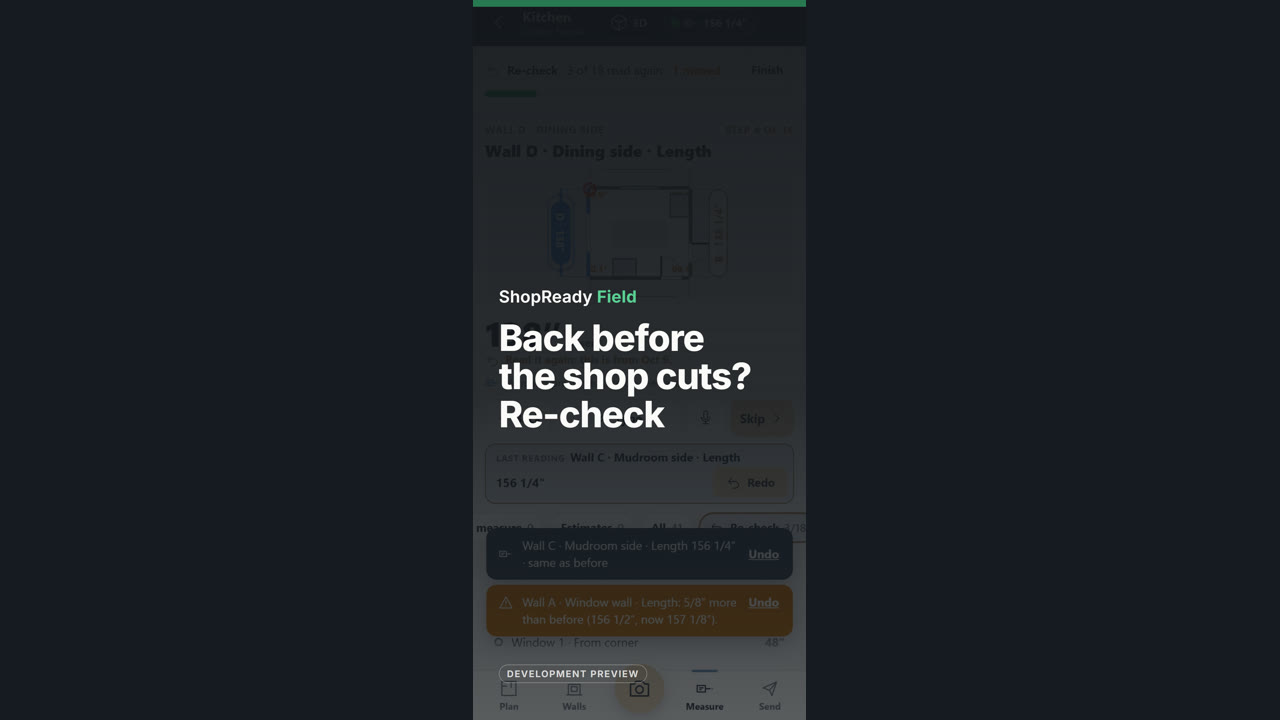 Clip · 26 s
Back before the shop cuts? Re-check
The re-check visit: read the sizes that matter again and see what moved.
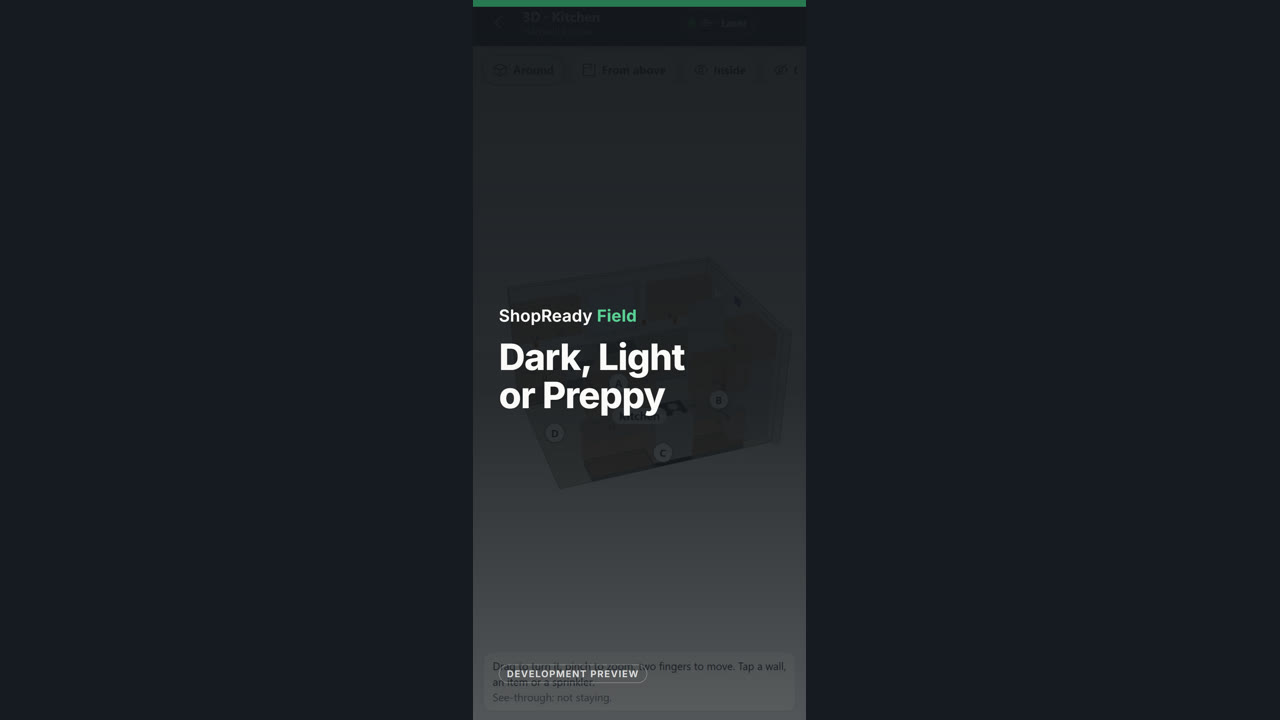 Clip · 23 s
Dark, Light or Preppy
The three looks, switched live.
 Clip · 24 s
It tells you what to measure next
Guided measuring: each laser reading lands on the lit size and the next one lights up.
 Clip · 26 s
One measure, every file
Send in three steps: check, mark it final, send.
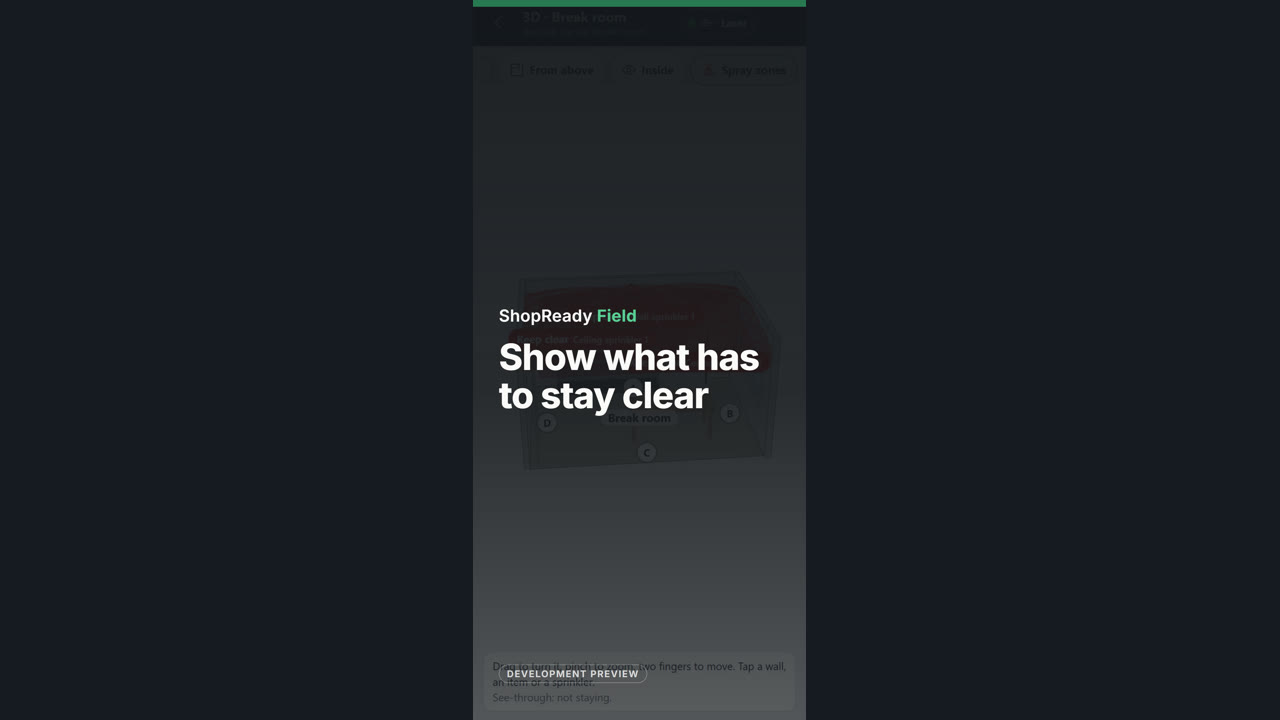 Clip · 26 s
Show what has to stay clear
Sprinkler keep-clear zones in 3D, from the fire code’s own tables.
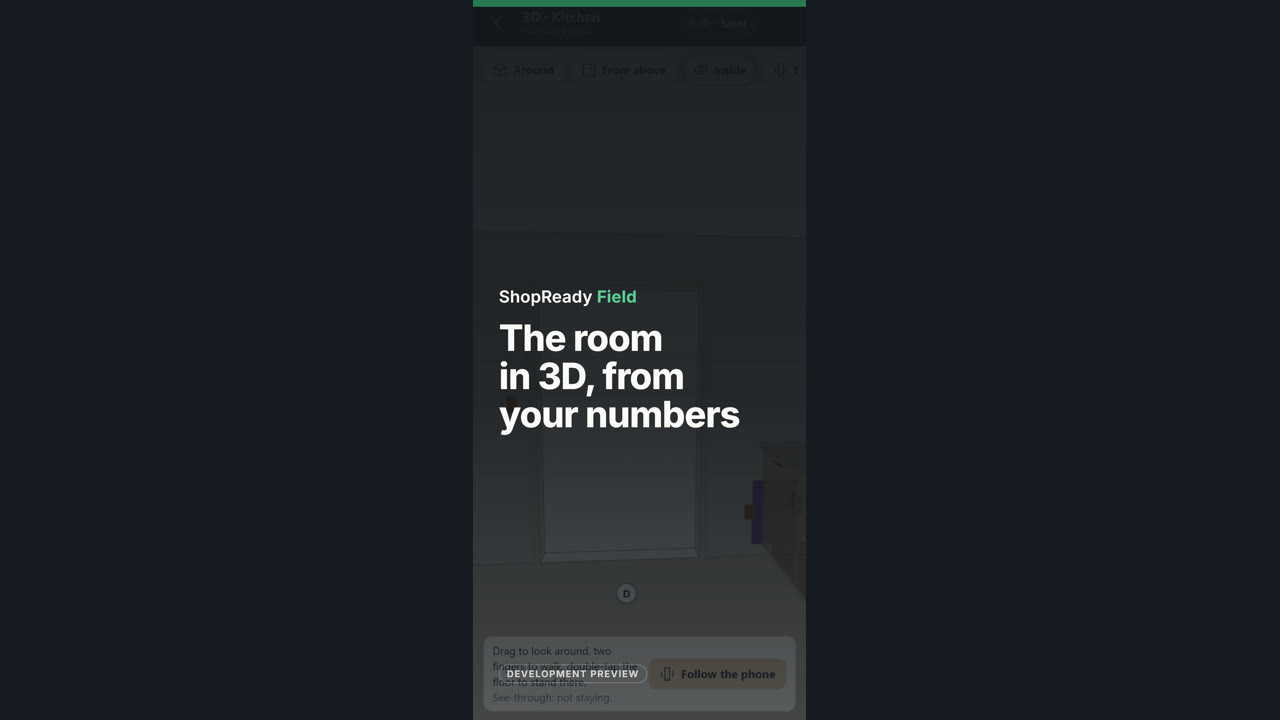 Clip · 35 s
The room in 3D, from your numbers
3D: turn the room, look from above, stand inside it.
 Clip · 26 s
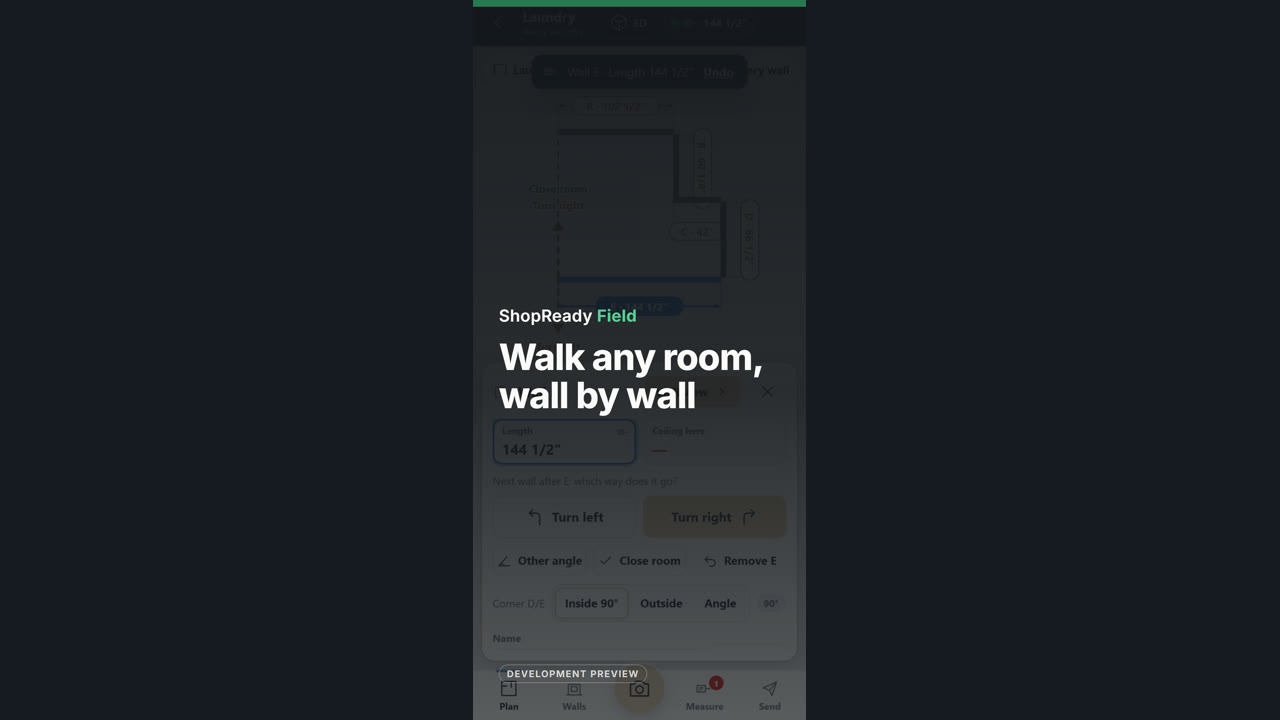
Walk any room, wall by wall
Walk it: fire along each wall and say which way the next one turns.
 Clip · 26 s
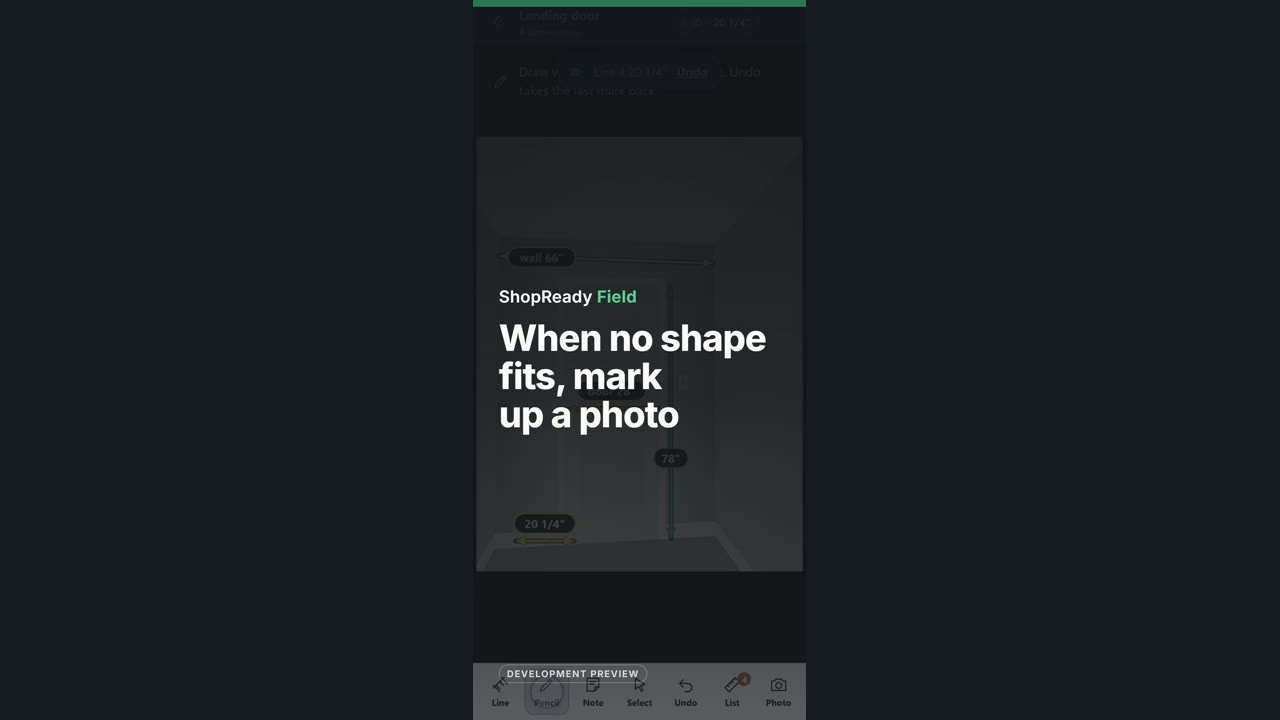
When no shape fits, mark up a photo
A marked-up photo: drag a line, fire the laser, ring what matters.
 Clip · 37 s
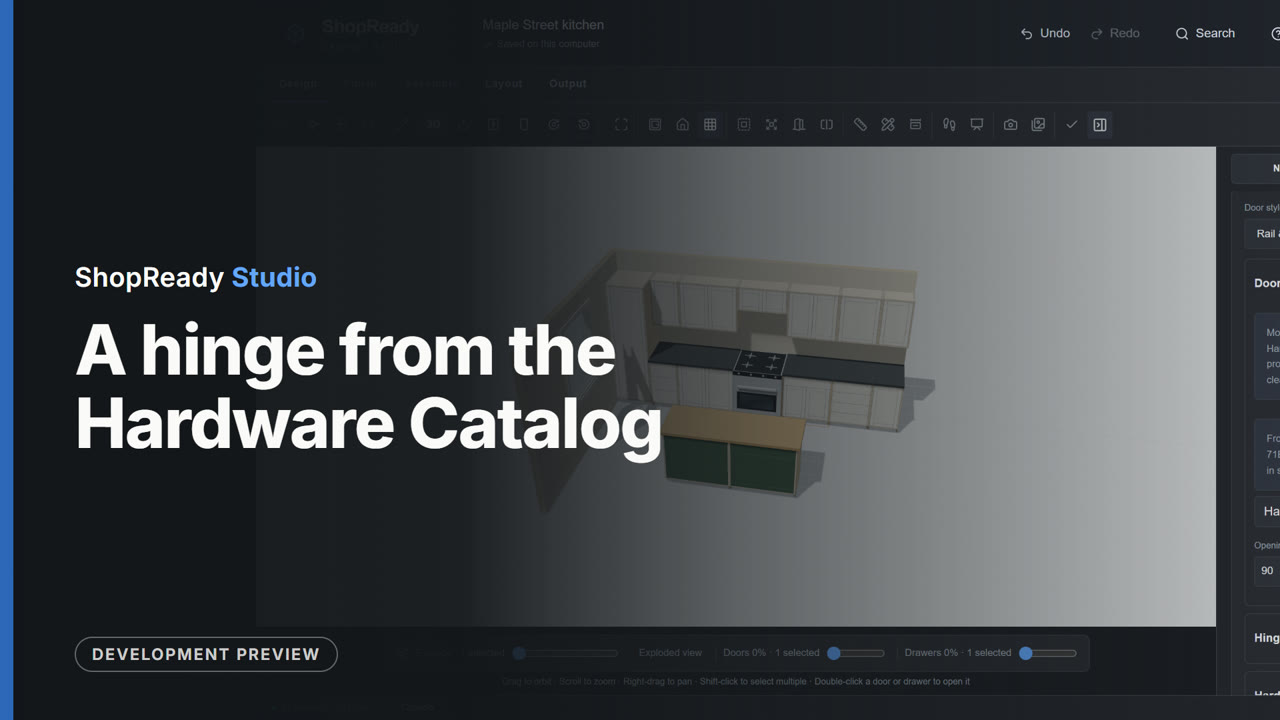
A hinge from the Hardware Catalog
A base cabinet is picked, the Hardware Catalog is opened from its Doors card, a hinge is found by typing its model number, its figures are read, and it is put on the cabinet. Back in the Studio the Doors card of that cabinet names the hinge.
 Clip · 45 s
A measured job from Field, on the House Plan
A sample job file from ShopReady Field (a house of nine rooms) is brought in from Projects. The import report lists every room; Import job builds them and opens the House Plan with the main floor's rooms joined at their doorways. Checks points to a doorway that misses by a quarter inch, the upstairs level is shown, and the whole house is seen in 3D.
 Clip · 37 s
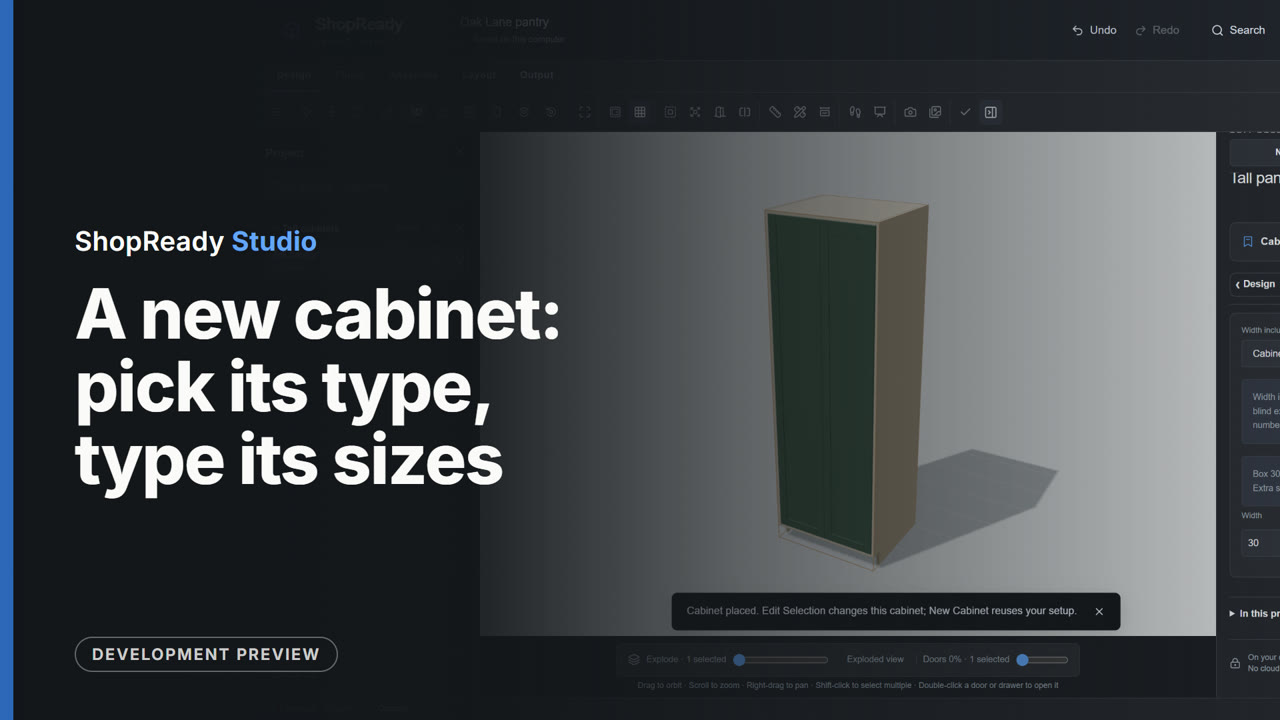
A new cabinet: pick its type, type its sizes
On an empty job, New Cabinet shows a base, a wall and a tall cabinet as each type is picked. In Size and Type the width is typed in feet and inches, the height with a fraction and the depth in millimeters; the preview follows each one. Place Cabinet adds it to the job.
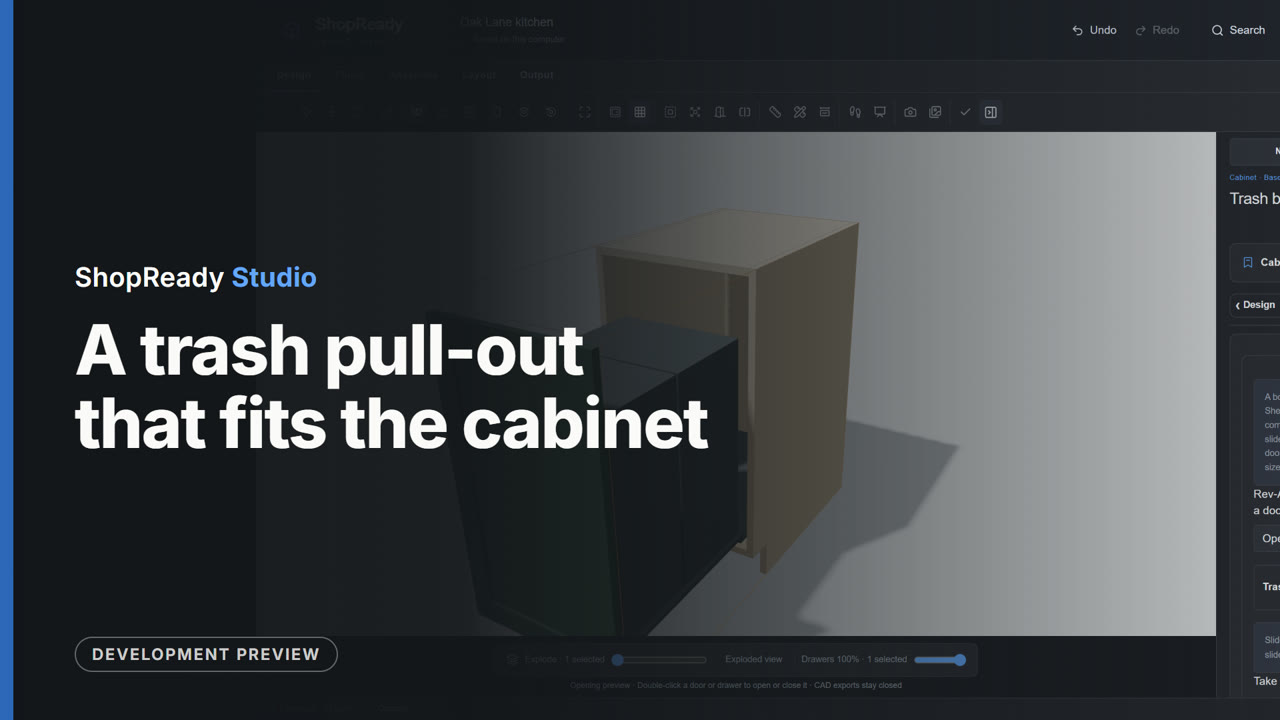 Clip · 38 s
A trash pull-out that fits the cabinet
One 18 inch base cabinet. The Trash Pull-out tool is opened from the cabinet's Design tiles, the kind of front is chosen, the tool names the unit that fits the cabinet, Add to cabinet sets it up, and back in 3D the front slides out with the bins.
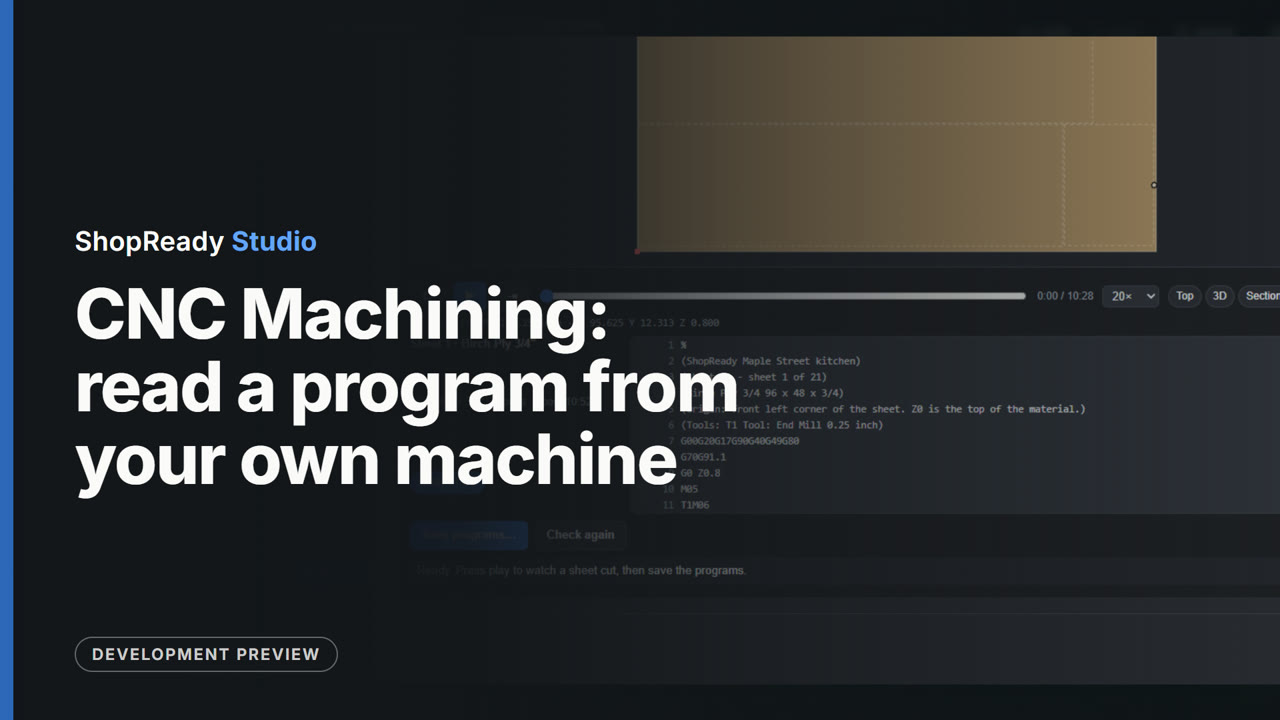 Clip · 41 s
CNC Machining: read a program from your own machine
In CNC Machining for the sample kitchen, Machine settings is opened and a sample program is read with Read a program from your machine. The tool lists what it learned from it, the Program text tab shows the program's own start and end, and Use these settings writes every sheet's program that way.
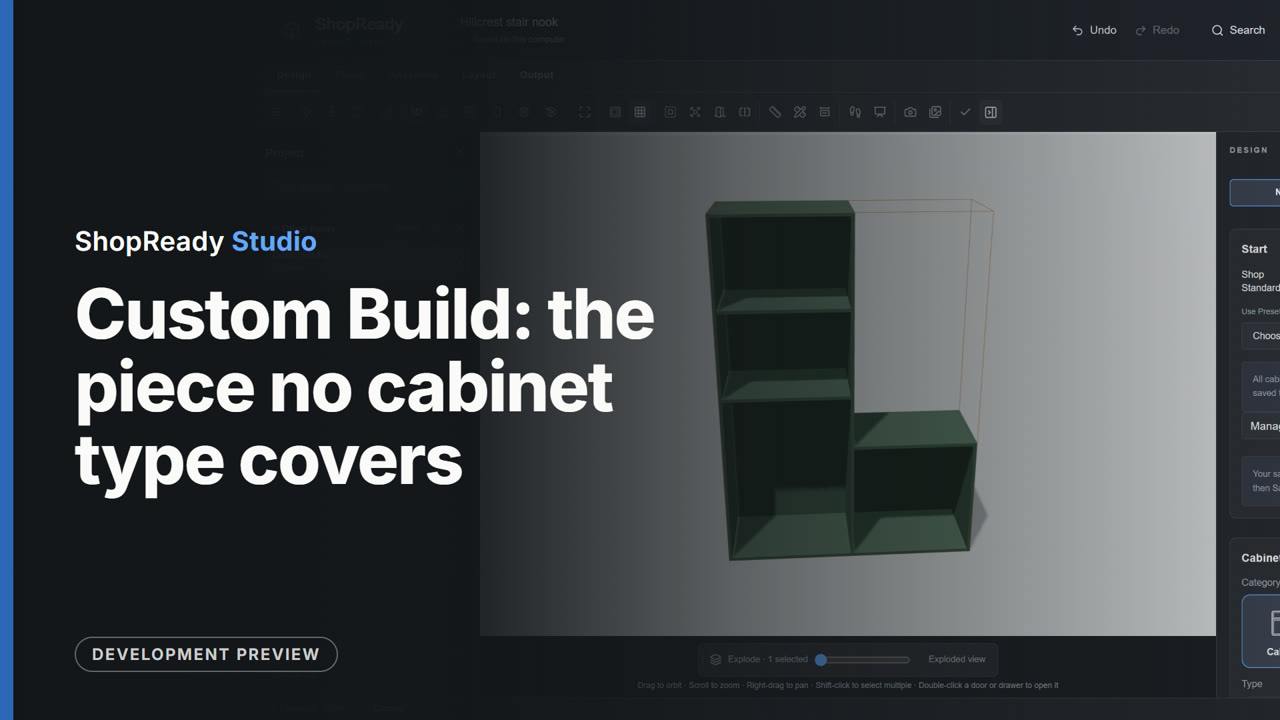 Clip · 47 s
Custom Build: the piece no cabinet type covers
Custom Build is opened from Assemble. A stepped piece for under a stair is started, its width, height and depth are typed and every panel follows, and a shelf is added. The tool calls out that the shelf runs into another panel; its edge and height are set and the call-out goes. Apply puts the piece in the job.
 Clip · 23 s
Customer Package: one PDF for the customer
From the Output screen of the sample kitchen, Customer Package opens, says what the PDF holds, and Make customer package saves it and lists its pages.
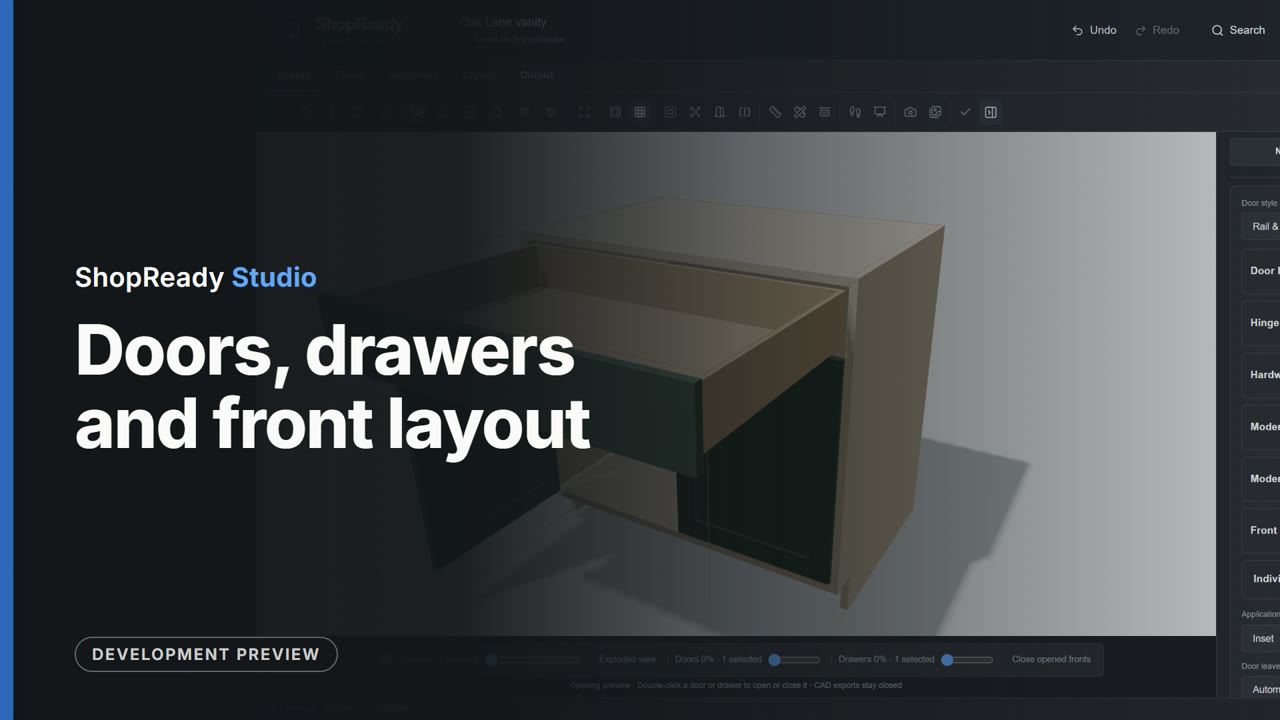 Clip · 38 s
Doors, drawers and front layout
One 36 inch base cabinet. Front Layout changes it from two doors to a drawer over doors, to a stack of drawers and back; the Doors card changes the door style to slab and back to rail and stile; then a door and the drawer are opened with a double-click and closed again.
 Clip · 52 s
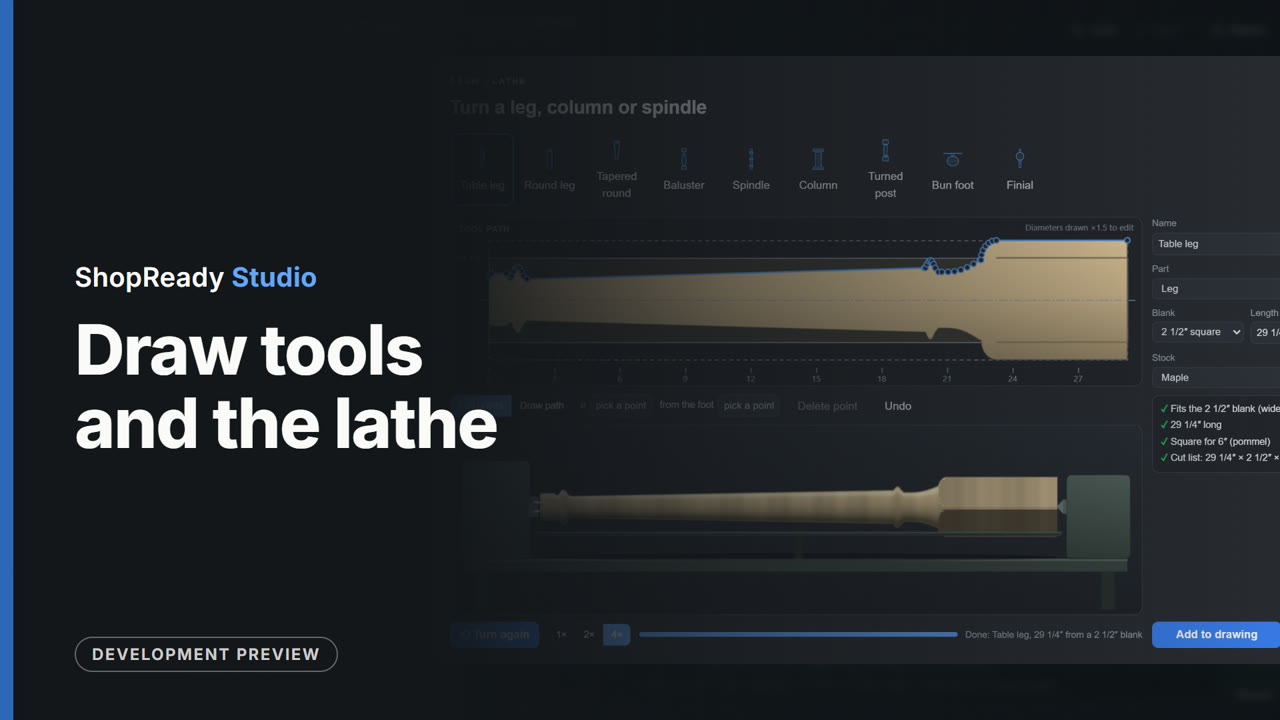
Draw tools and the lathe
On an empty job the Draw tools make a hall table: a board is drawn with a click and a typed size (60 by 30), lifted to table height, and four tapered legs and aprons are built under it. Then the lathe is opened, a turned leg is picked, and Turn it shows it cut from the square blank, with its cut-list size.
 Clip · 32 s
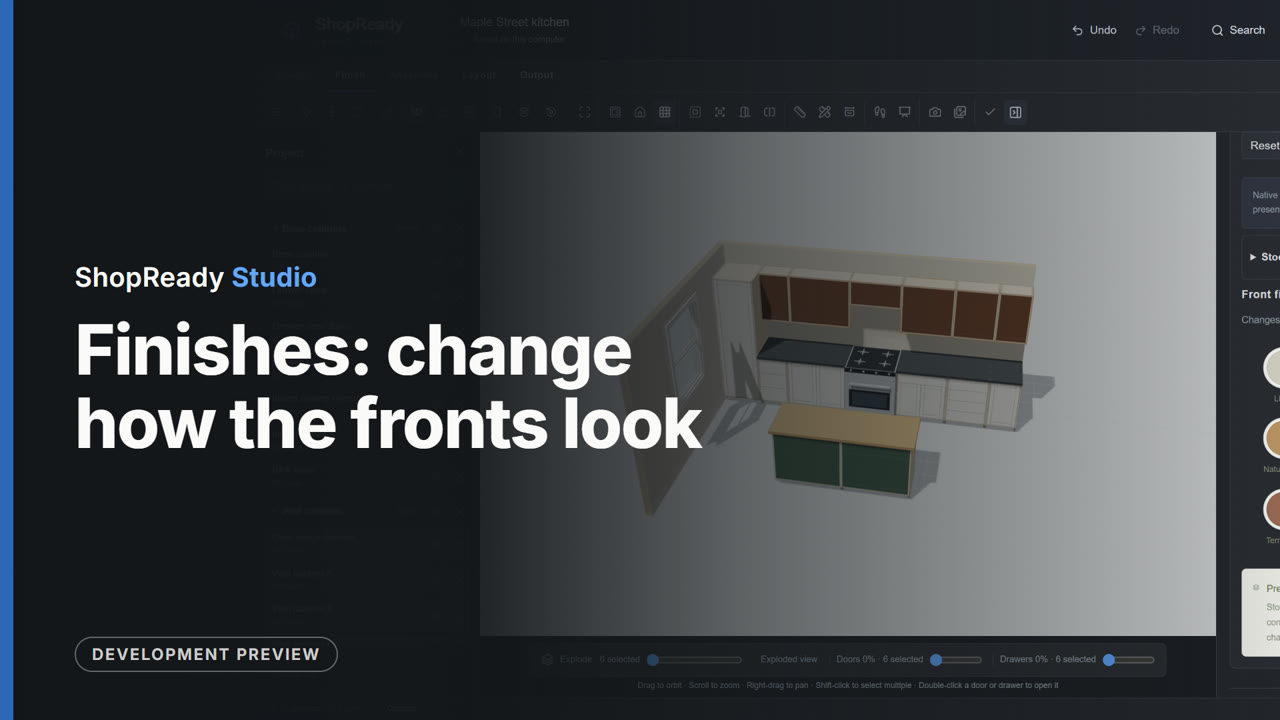
Finishes: change how the fronts look
In the sample kitchen every wall cabinet is picked from the Project list, Apply Finish is opened, and the front finish is changed three times; the six cabinets change together each time.
 Clip · 52 s
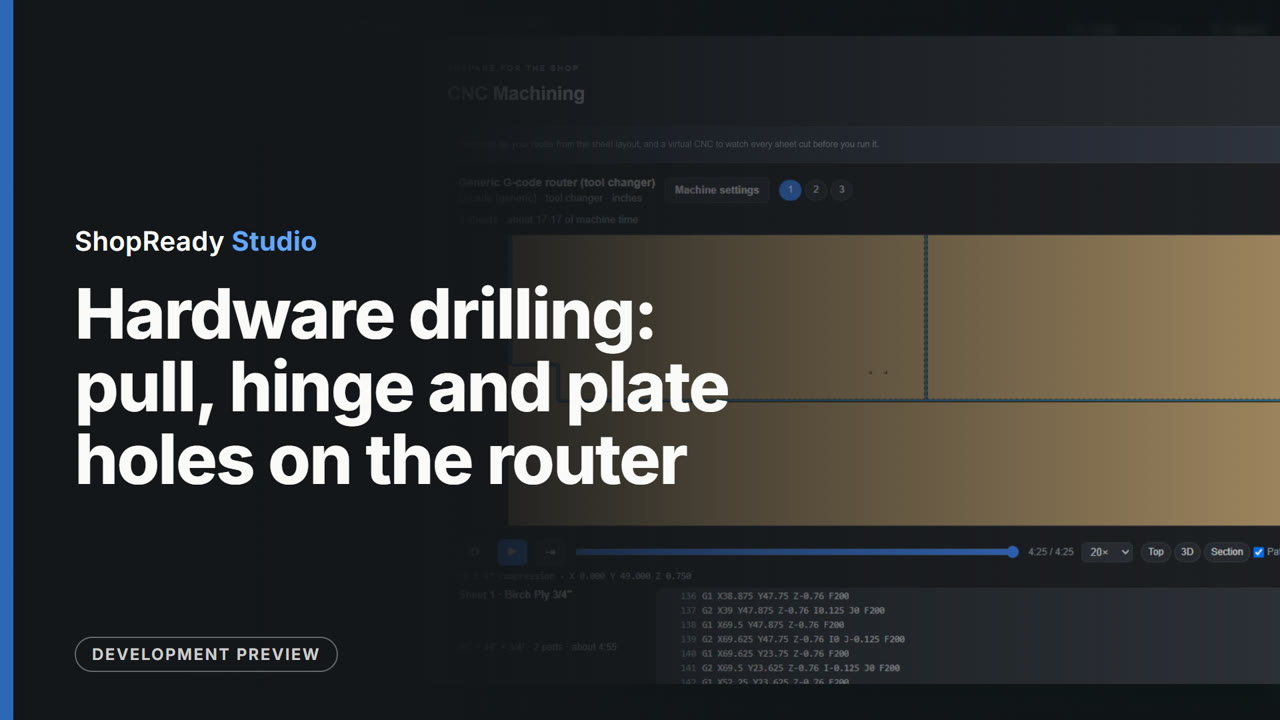
Hardware drilling: pull, hinge and plate holes on the router
One base cabinet with slab doors cut from sheet stock. In its Doors card, Hardware drilling is opened, pull holes are chosen and hinge plate holes are ticked. In CNC Machining, looking down on the sheet, one door is played on the virtual CNC with its pull holes and hinge cups, and a cabinet side is shown with its hinge plate holes.
 Clip · 44 s
Job & Approval: the customer, the versions, the yes
Job and Approval for the sample kitchen: a customer and address are typed in, a version of the design is saved with its cabinet count and price, the job is marked Presented, and the version is approved, which keeps a locked copy.
 Clip · 56 s
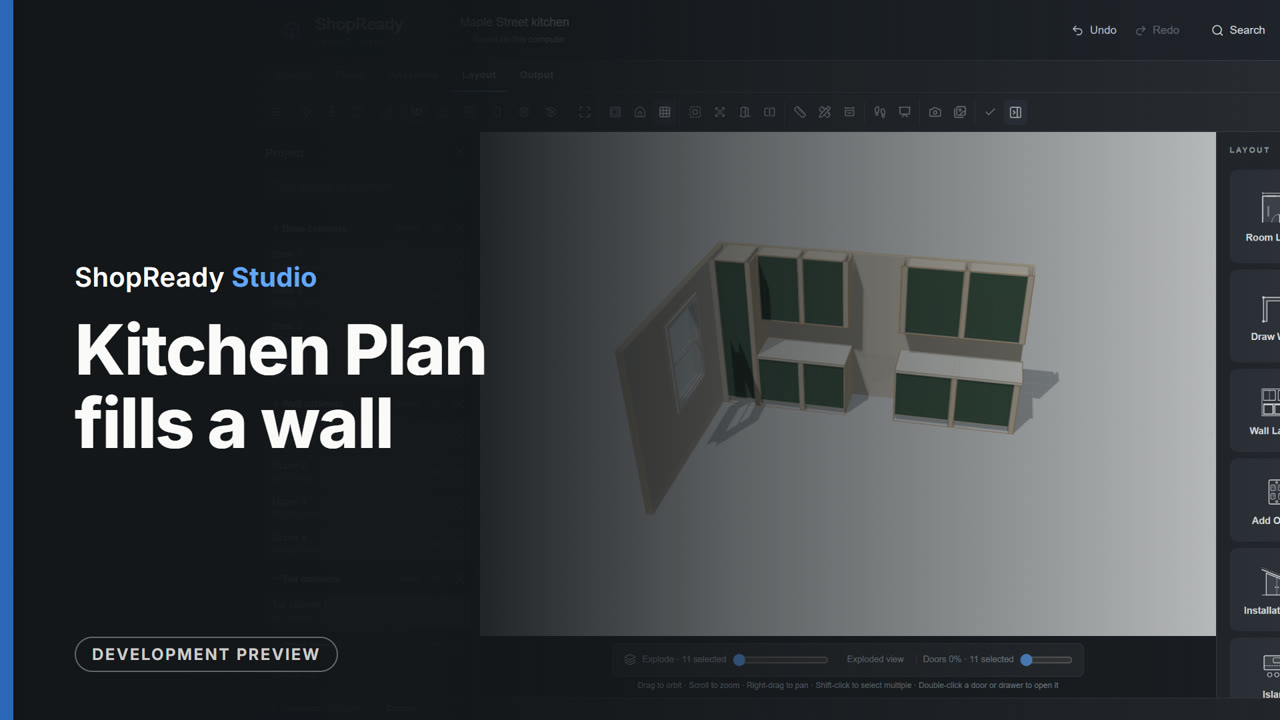
Kitchen Plan fills a wall
On an empty 15 foot wall, a tall cabinet, the range and the hood are marked, then four cabinet runs; cabinets fill each run with their widths shown. Review passes the set, Build makes the cabinets, and the kitchen is seen in 3D.
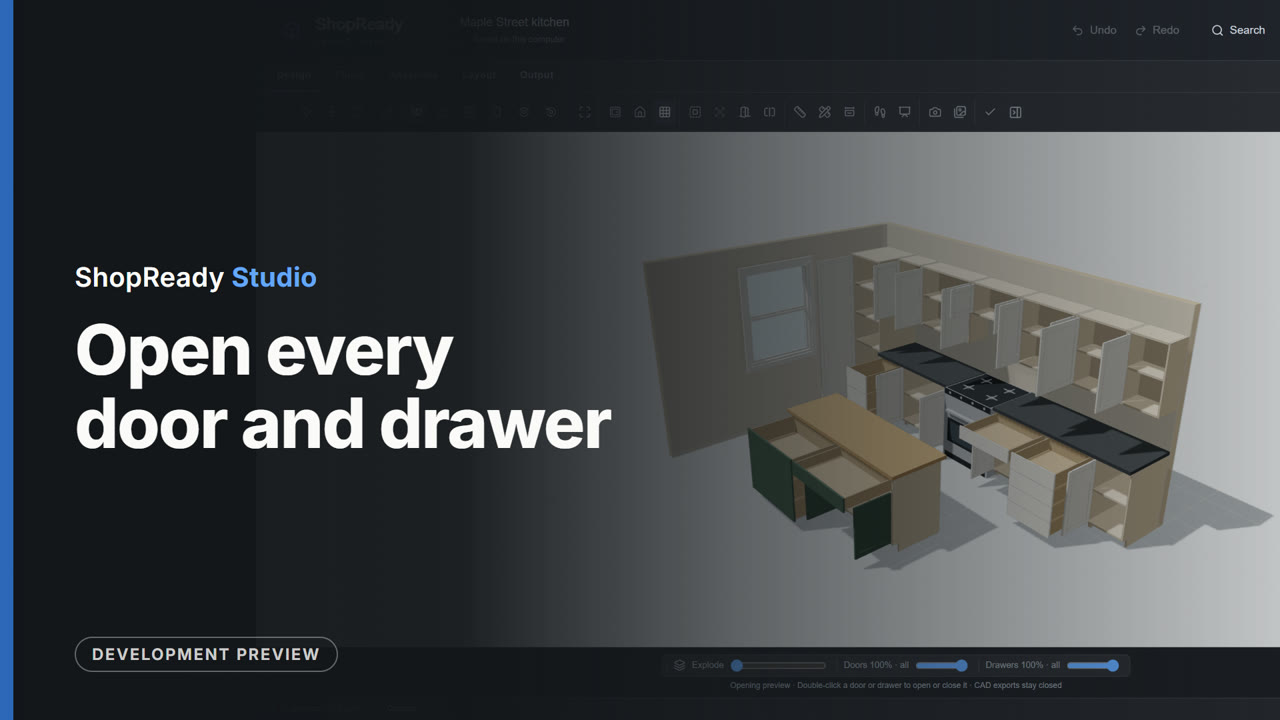 Clip · 28 s
Open every door and drawer
The sample kitchen in 3D: every door swings open, every drawer pulls out, and the kitchen is turned to look inside the cabinets.
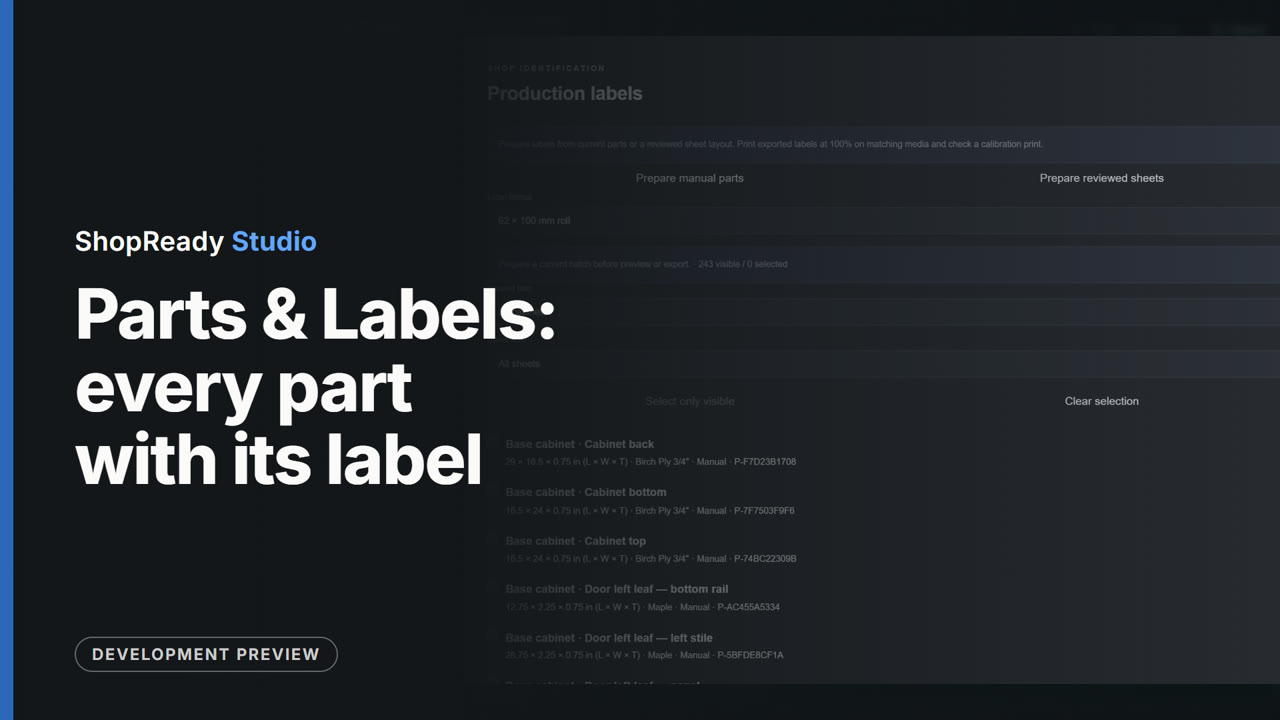 Clip · 29 s
Parts & Labels: every part with its label
The Parts and Labels screen of the sample kitchen: the parts of one cabinet are stepped through and each shows its label, a search narrows the list across the whole job, and Print or save labels opens the Production labels window.
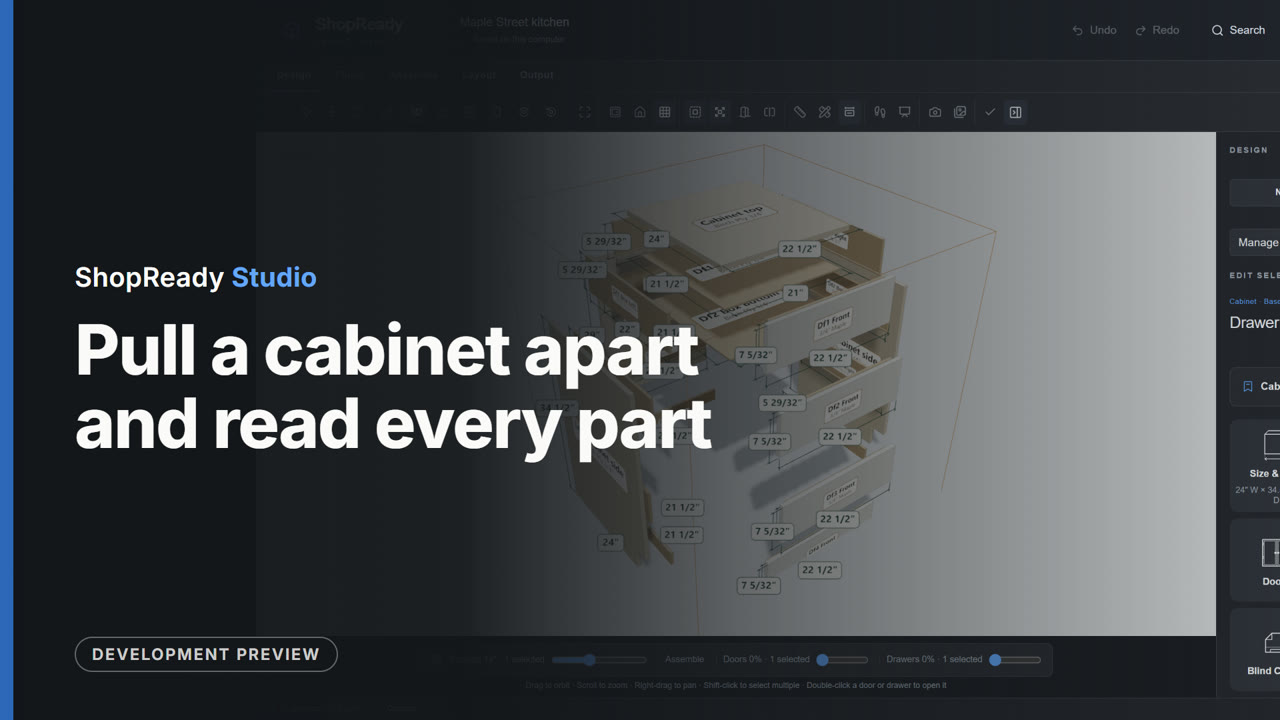 Clip · 35 s
Pull a cabinet apart and read every part
A drawer cabinet is picked in the 3D kitchen, shown alone and pulled apart, turned, and then every part shows its name and cut size.
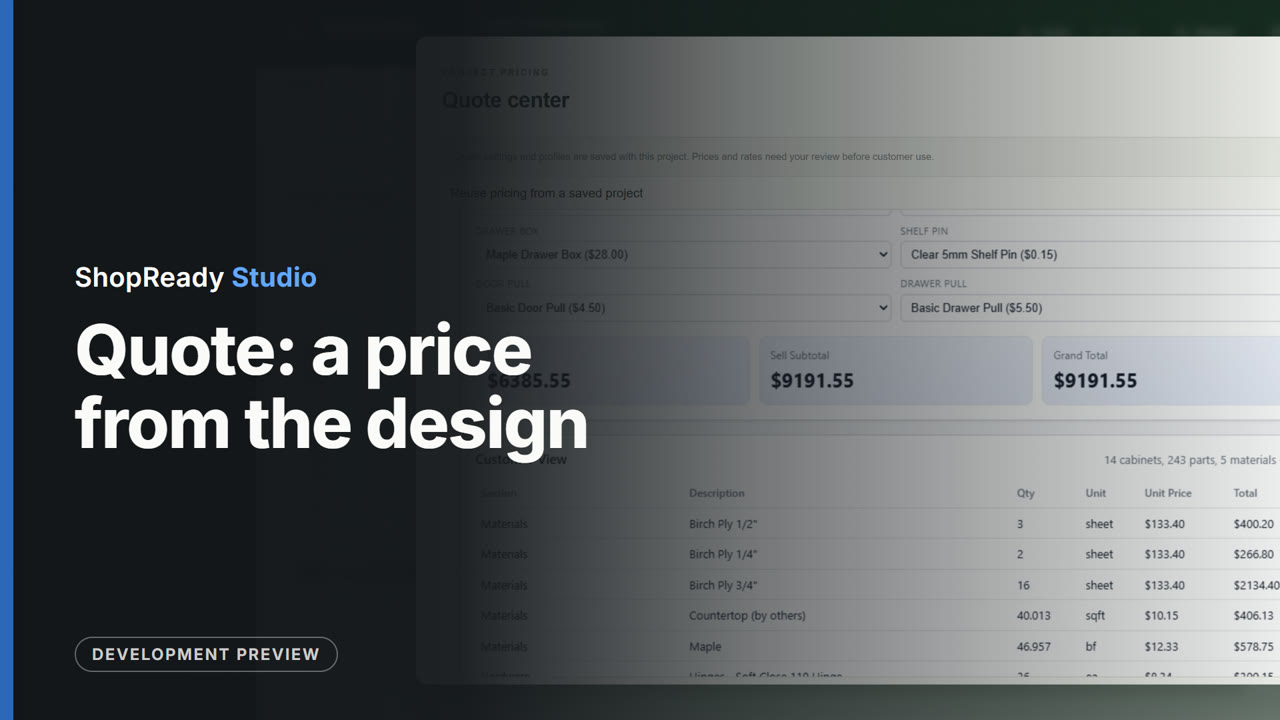 Clip · 41 s
Quote: a price from the design
The Quote Center for the sample kitchen: the price is built from the design's own counts of sheets, boards and hardware. A hardware choice is changed and the totals follow; a line of the shop's own is added and the total rises by it.
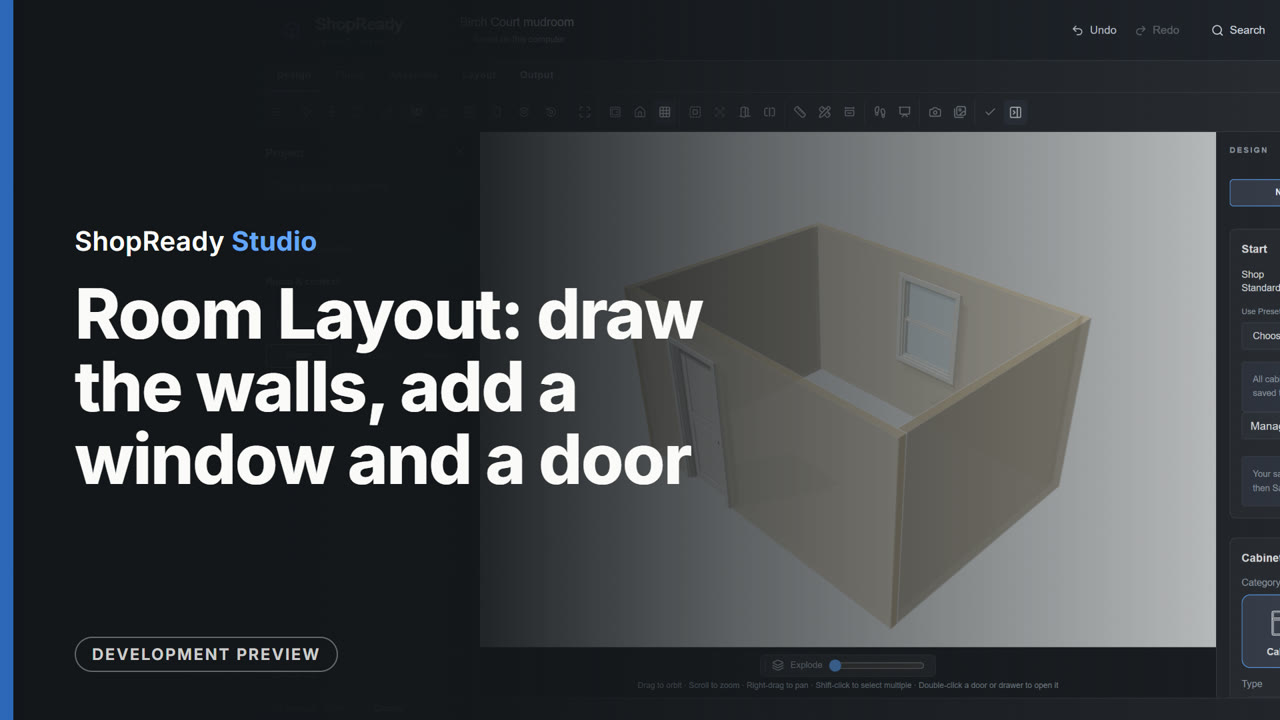 Clip · 49 s
Room Layout: draw the walls, add a window and a door
On an empty job, Room Layout's Draw walls draws a room corner to corner: a click for each corner and a typed length for each wall (14 feet, 10 feet, 14 feet), closed on the first corner. A window and a door are added with a click on their walls, the wall is seen straight on, and Done shows the room in 3D.
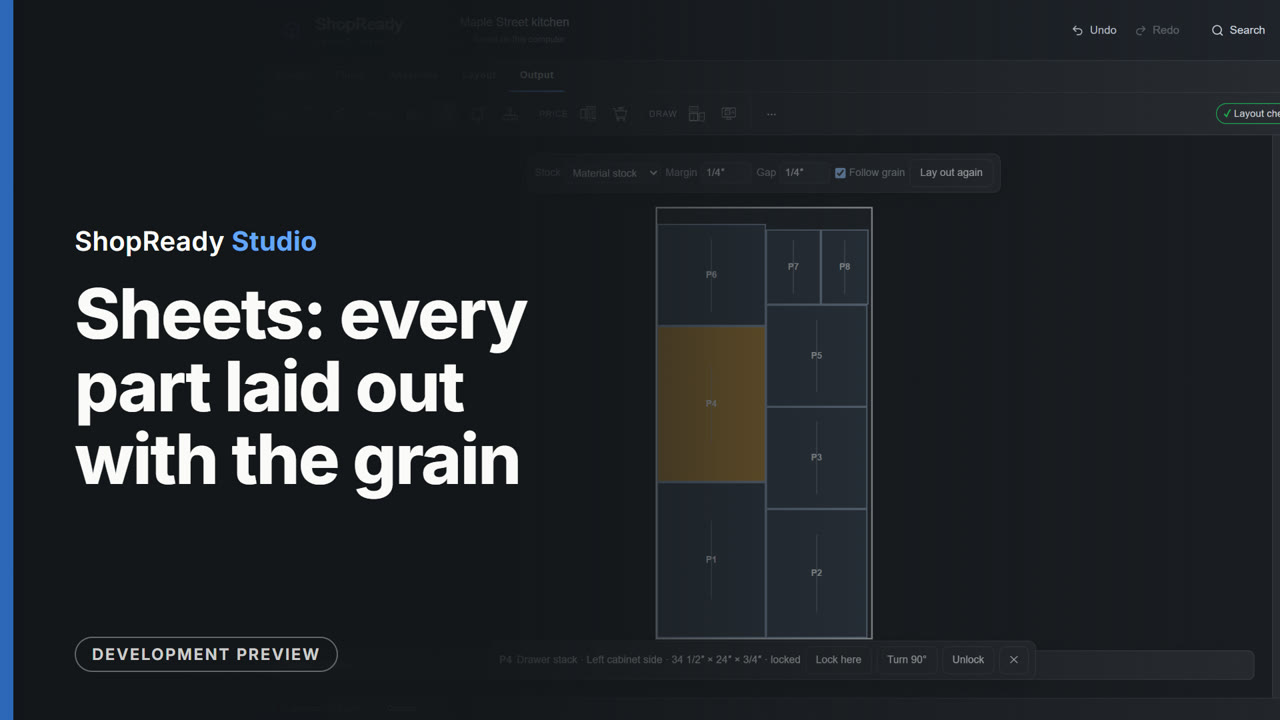 Clip · 32 s
Sheets: every part laid out with the grain
The Sheets screen of the sample kitchen: the sheets are stepped through, Follow grain is seen ticked, a part is locked where it lies, and the layout is marked checked.
 Clip · 30 s
Shop Package: everything the shop needs in one ZIP
The Shop Package screen of the sample kitchen: the counts of cabinets, parts, sheets and hardware, a small picture of every sheet, the stock and hardware lists at the right, and Make shop package, which saves the ZIP and lists what is in it.
 Clip · 43 s
Sprinkler heads and their keep-clear zones
In the sample kitchen the Sprinklers tool is opened, a ceiling head is added 18 inches off the back wall, the tool draws its keep-clear zone, Check the millwork lists the cabinets that sit in the zone, and the zone is seen in 3D with the cabinets.
 Clip · 35 s
The Hardware Catalog: real hardware, by kind
The Hardware Catalog is opened for a cabinet in the sample kitchen. Its kinds are stepped through (hinges, lift and flap fittings, drawer slides), the list is narrowed to what fits this cabinet, a drawer slide is picked and its figures and their source are read, and Use on this cabinet puts it on the cabinet.
 Clip · 47 s
The customer walkthrough of the whole home
A sample house brought in from a Field job file, with cabinets laid out in its kitchen. From the House Plan the customer's walkthrough is built: a read-only 3D copy of every room. It is published as a link on this computer and opened: the whole home is turned in 3D, then the view walks into the kitchen and looks round at the cabinets.
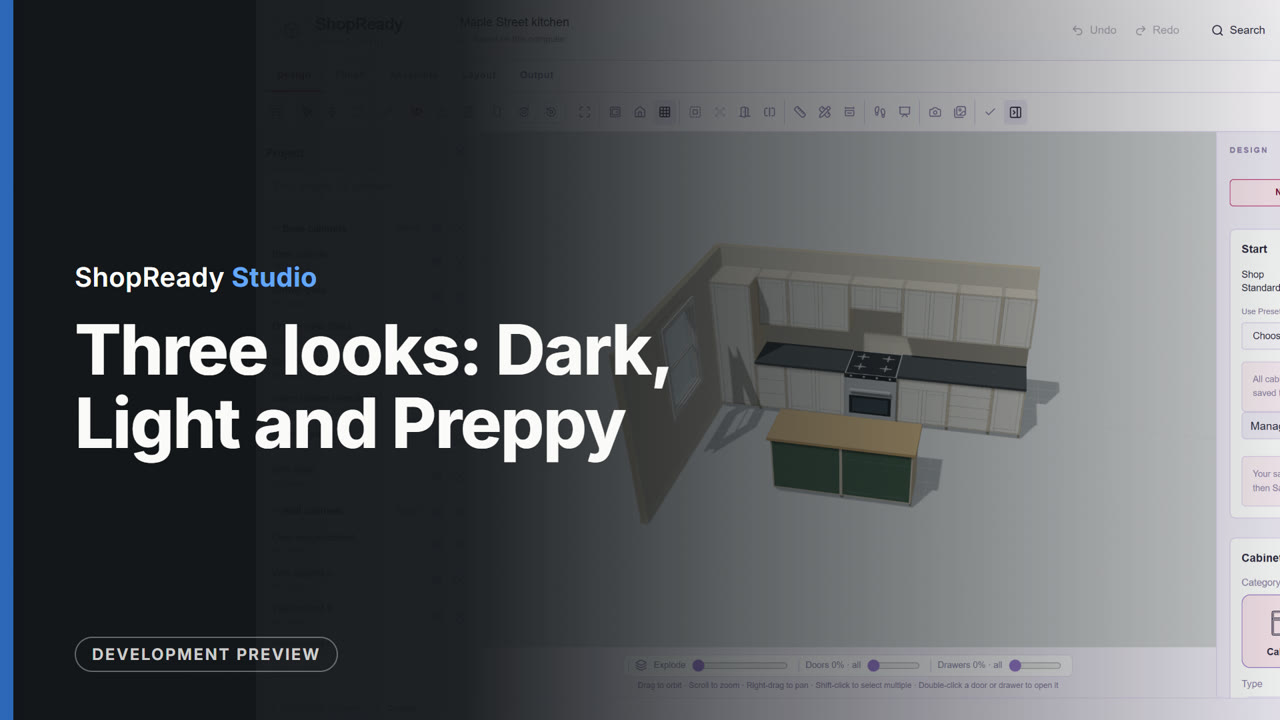 Clip · 26 s
Three looks: Dark, Light and Preppy
With the sample kitchen open, the Menu is opened and the look of the whole window is switched from Dark to Light to Preppy and back, live, with the work left as it was.
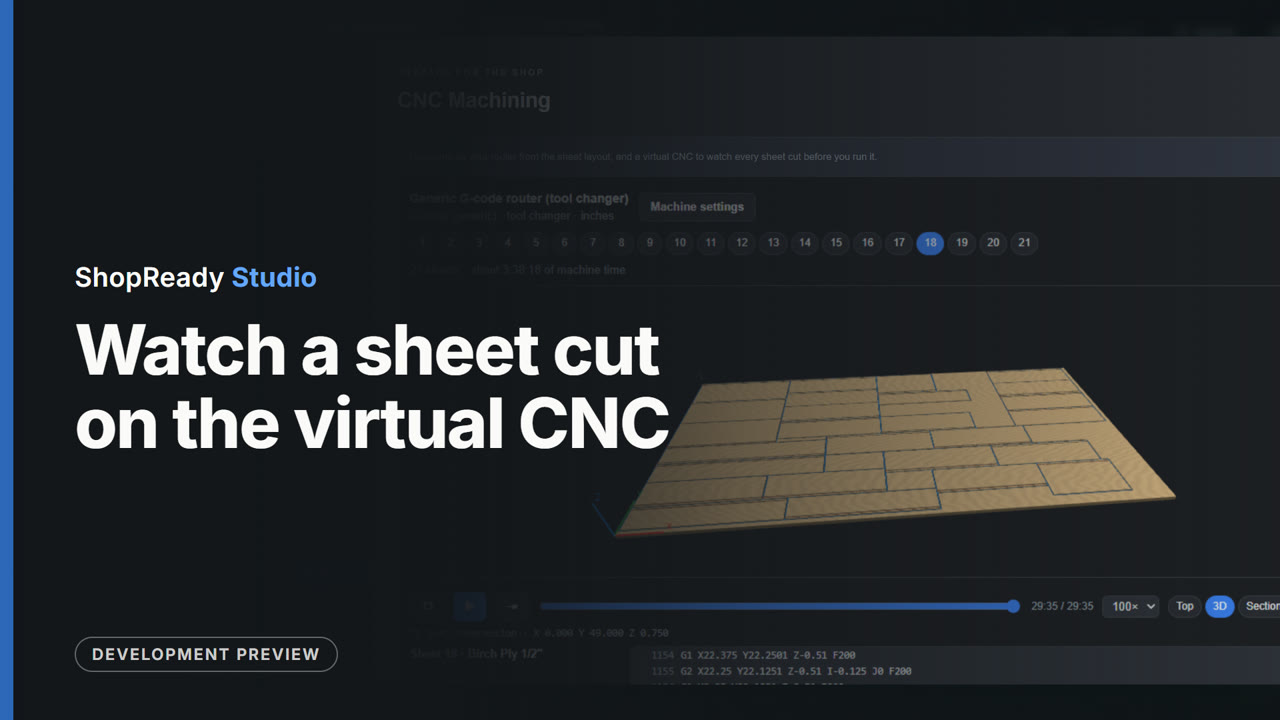 Clip · 45 s
Watch a sheet cut on the virtual CNC
From the Output screen, CNC Machining opens with a program for each of the sample kitchen's 21 sheets. One sheet is picked and played on the virtual CNC, from above and then in 3D, to its end.
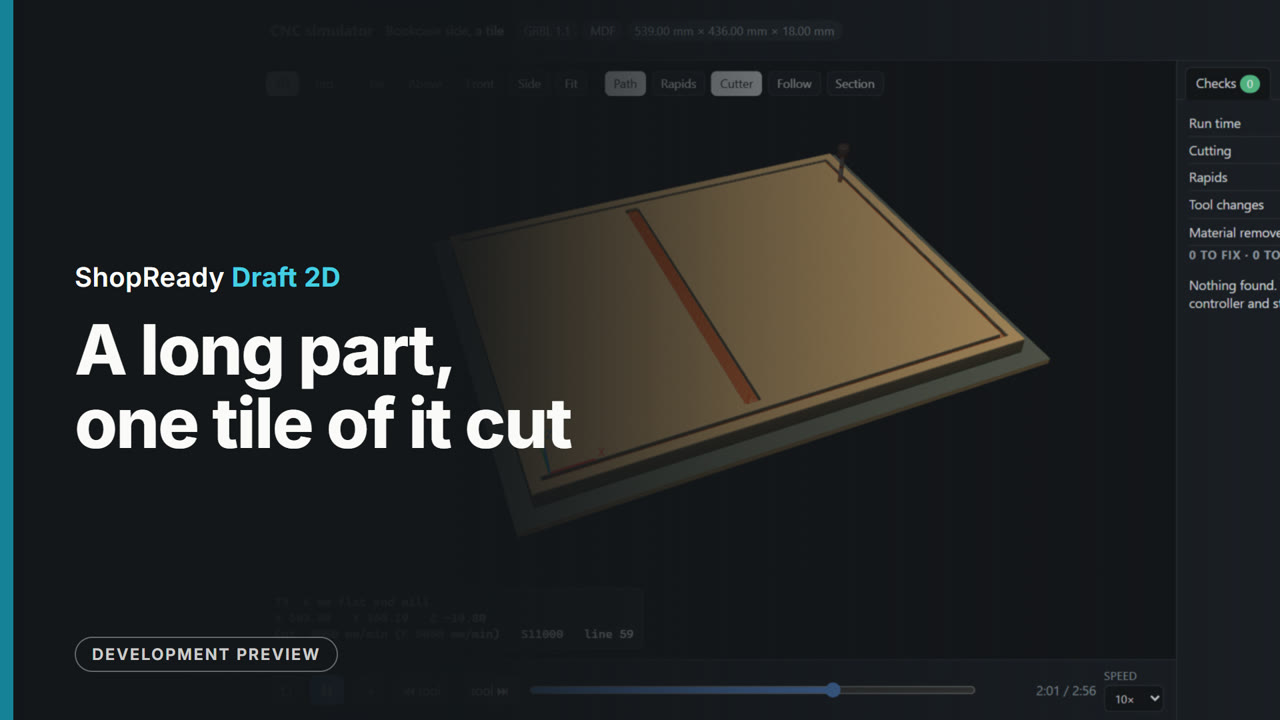 Simulator · 31 s
A long part, one tile of it cut, in the simulator
One tile of the 1800 mm bookcase side, 10 times real speed: the part is longer than the machine's bed, so it is cut a tile at a time and moved along on dowel holes.
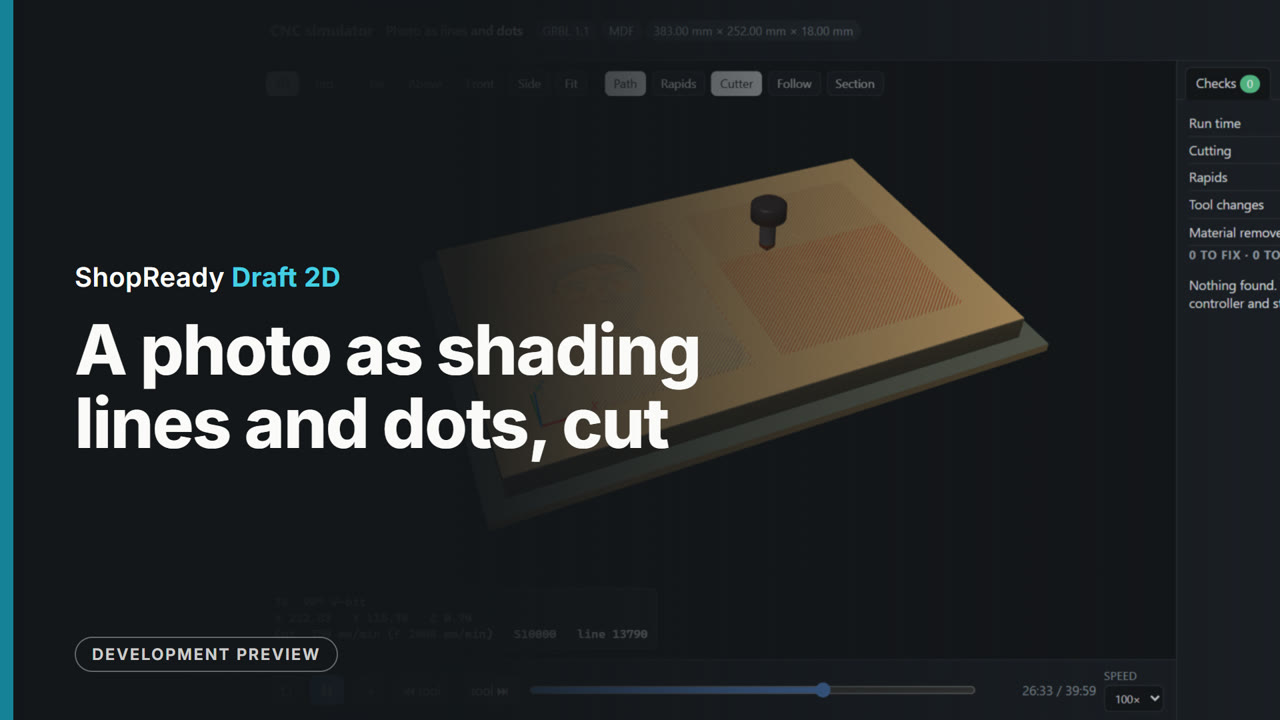 Simulator · 37 s
A photo as shading lines and dots, cut, in the simulator
The test head carved twice with a V-bit, 100 times real speed: as lines that are wider where the picture is darker, and as dots like old newsprint.
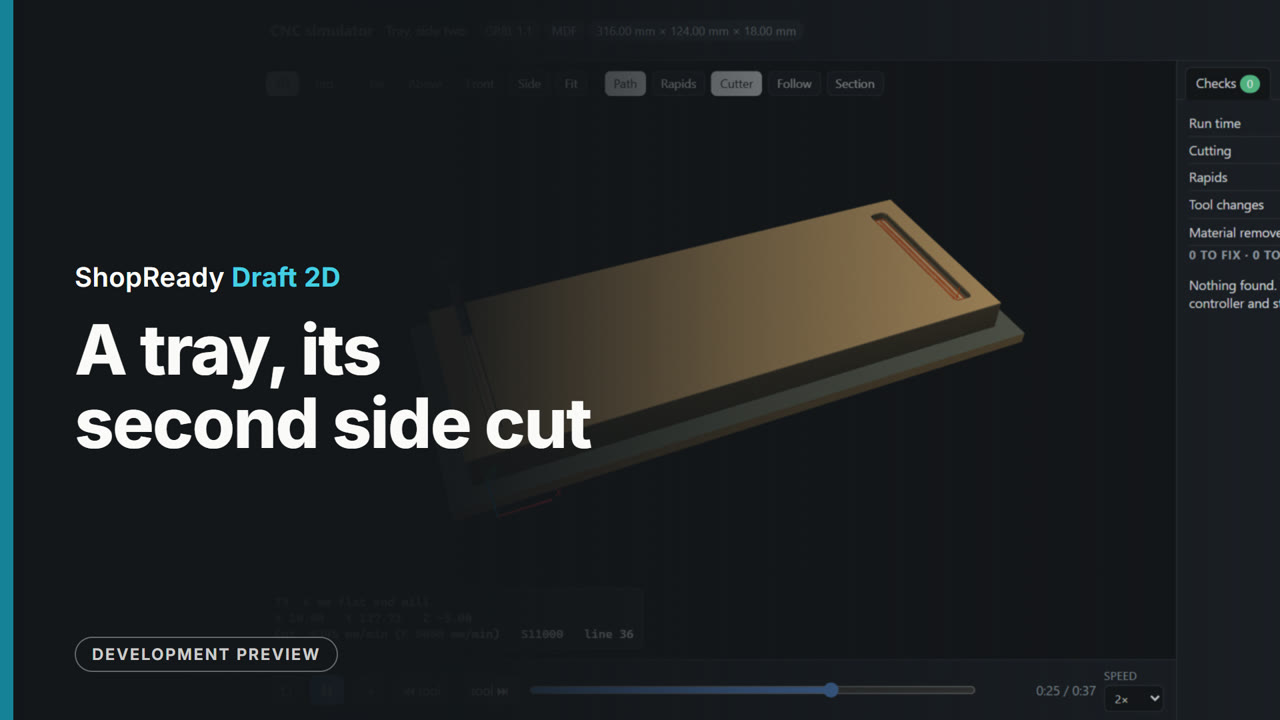 Simulator · 32 s
A tray, its second side cut, in the simulator
Side two of a tray cut from both faces, twice real speed: the board is turned over on its dowels and the underside is cut.
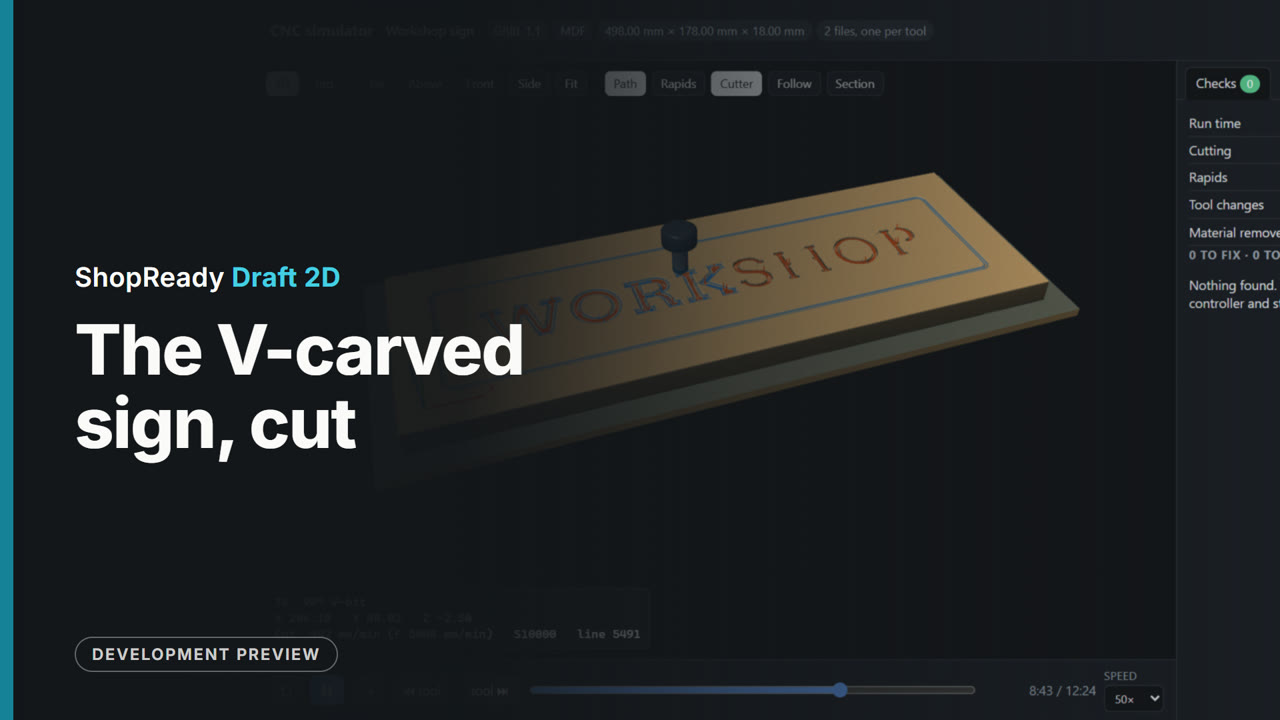 Simulator · 27 s
The V-carved sign, cut, in the simulator
WORKSHOP and its border carved with a V-bit, 50 times real speed: the bit rises into each inside corner so it comes to a point.
 Simulator · 50 s
The cabinet's first sheet, cut, in the simulator
Sheet 1 of the nested cabinet in the simulator, 50 times real speed, a job in inches: stopped dadoes as pockets with dogbone corners, thirty-two pin holes drilled, then fourteen parts cut out in order, the small ones on tabs.
 Simulator · 30 s
The inlaid lid, cut, in the simulator
The lid's V-carved pocket for the word, 25 times real speed. The plug is the job's second piece, cut from its own board.
 Simulator · 35 s
The inlay's test coupon, cut, in the simulator
The small test piece the Inlay window makes, 25 times real speed: a pocket and its plug, to try the fit in a scrap before the lid is cut.
 Simulator · 23 s
The jig plate, cut, in the simulator
The job from the CNC clip in the simulator, 25 times real speed: four holes with the 3 mm end mill, the pocket cleared, the outline ramped in and left on four tabs. The checks find nothing to fix.
 Simulator · 36 s
The relief, cut, in the simulator
A relief from a depth picture, 250 times real speed: level layers with an end mill, then finishing passes with a tapered ball nose.
 Simulator · 34 s
The relief, roughed and finished, in the simulator
The raised head from the relief project, 100 times real speed: the roughing bit takes the bulk in level layers, then the tapered ball nose carves the finishing passes.
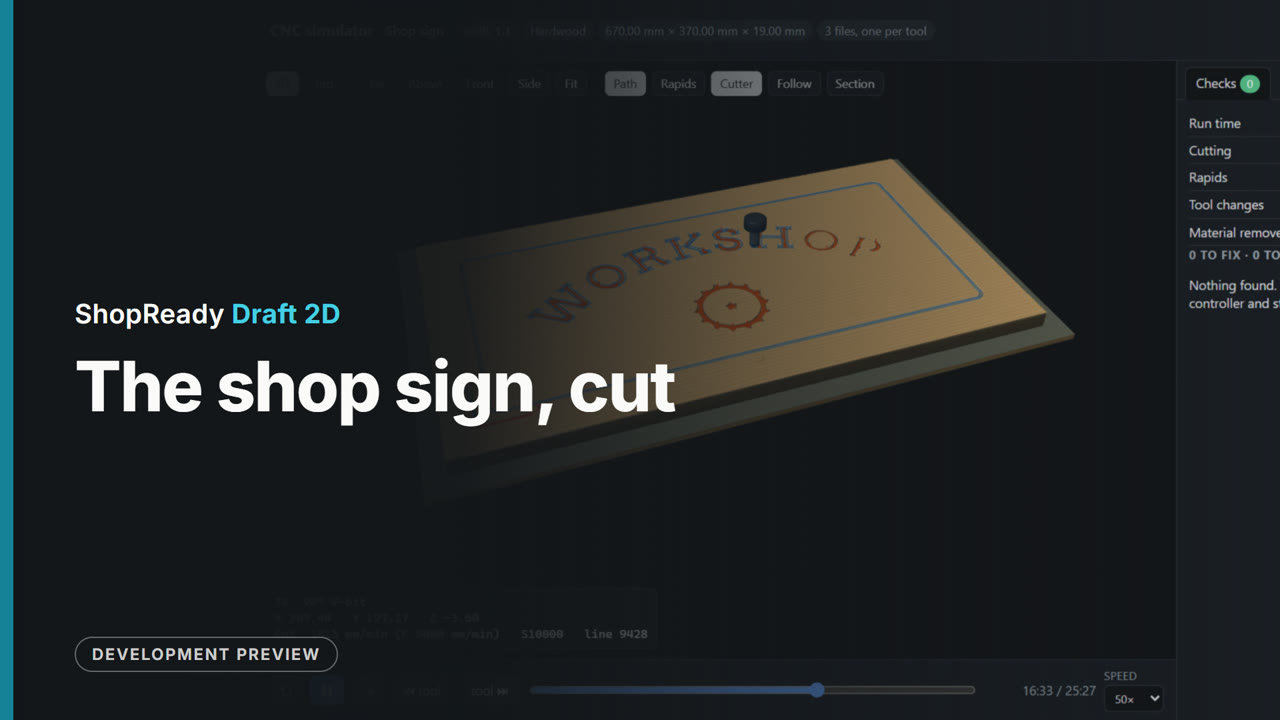 Simulator · 44 s
The shop sign, cut, in the simulator
The sign from the project in the simulator, 50 times real speed: the lettering, border and emblem V-carved, an end mill clearing the flat floors, then the outline ramped in and left on four tabs. The checks find nothing to fix.
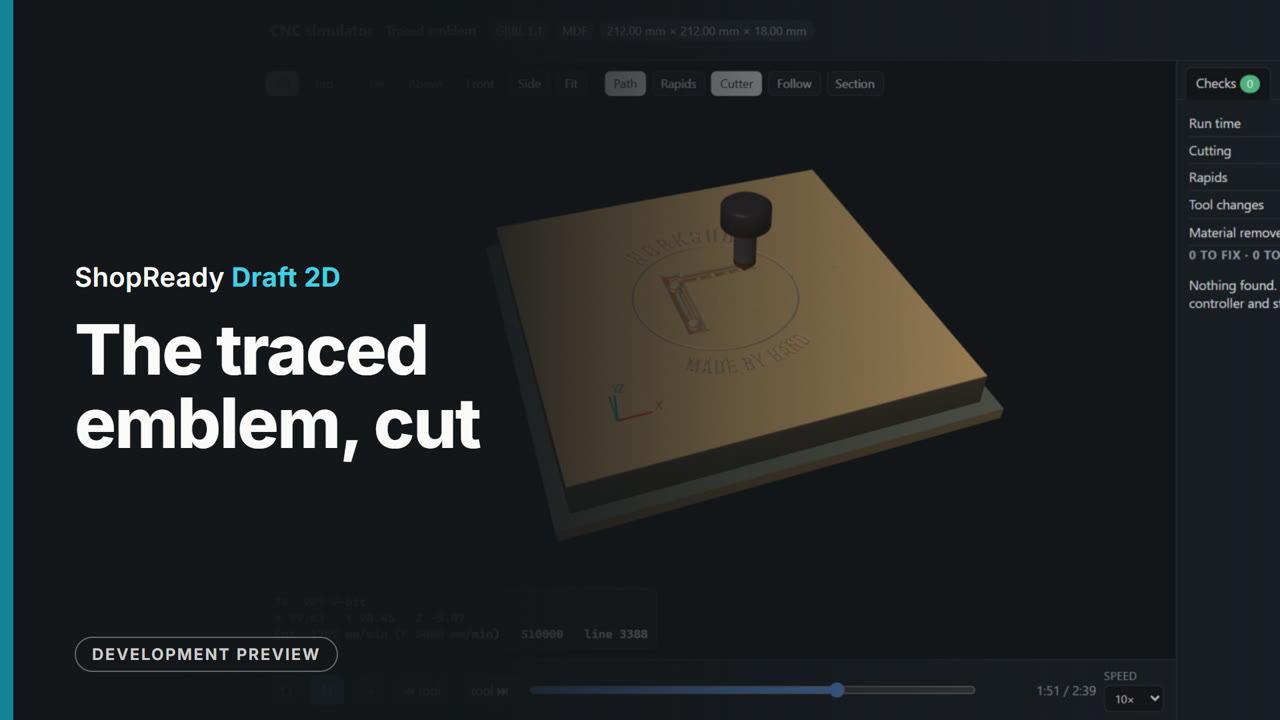 Simulator · 29 s
The traced emblem, cut, in the simulator
The emblem traced from a photographed picture, V-carved, 10 times real speed.
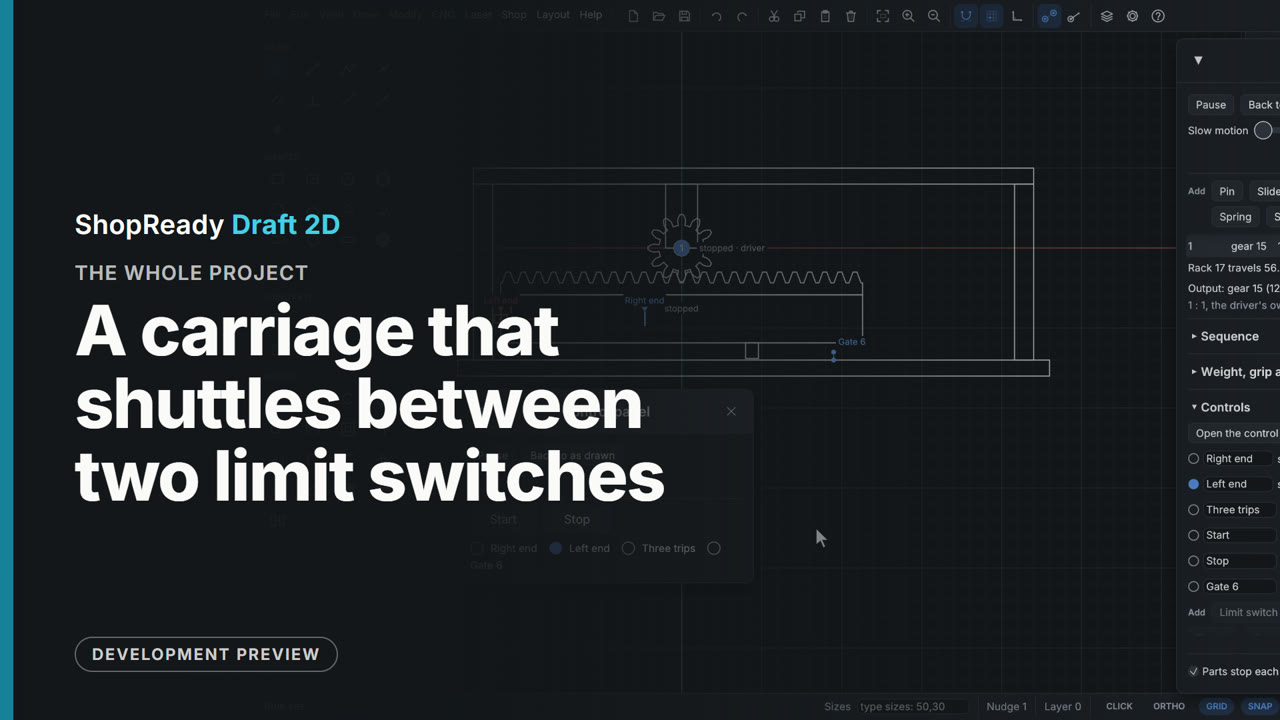 Whole project · 8:36
A carriage that shuttles between two limit switches: the whole project
A rack-and-pinion carriage and its control logic, built from a blank drawing in six steps. The drawing side is rectangles, the Gear tool, a rack added to the gear by a right-click, and an assembly. The Motion window gives it a slide and a motor; the Controls section adds two limit switches, a counter, two buttons and a gate, and five rules that read as plain sentences; the control panel runs it. It shows a machine's wiring tried out on the drawing before anything is built: what each switch is for, what each rule does, and the log of what happened.
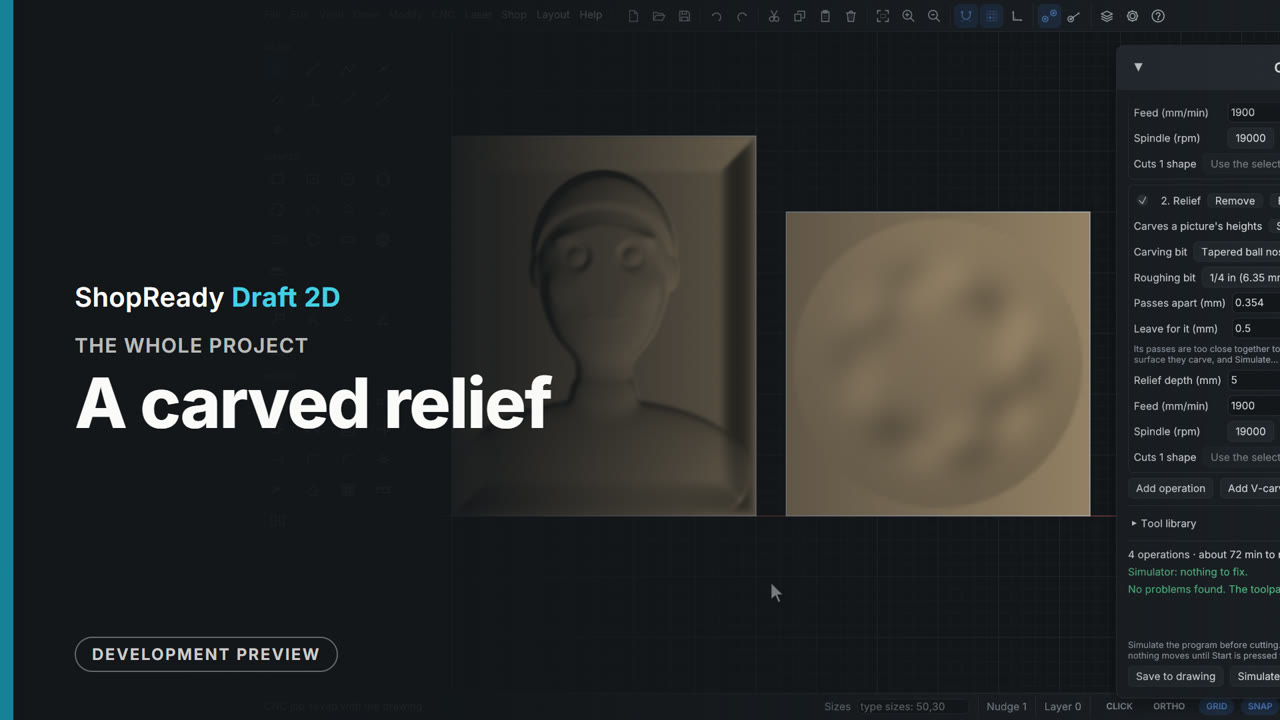 Whole project · 5:04
A carved relief: the whole project
A relief carved from a depth picture, start to finish in four chapters. The picture is opened in the picture window, carved as a Relief, shaped with Flat background, Fade the edge, Fullness and Depth, and placed; the CNC job roughs it with an end mill and carves it with a tapered ball nose, with the passes, ridges, depth and run time in plain sight. Shape it brings the picture back to turn the head into a mold, a 3D model is added beside it from an STL file, and the simulator carves the whole job and finds nothing to fix.
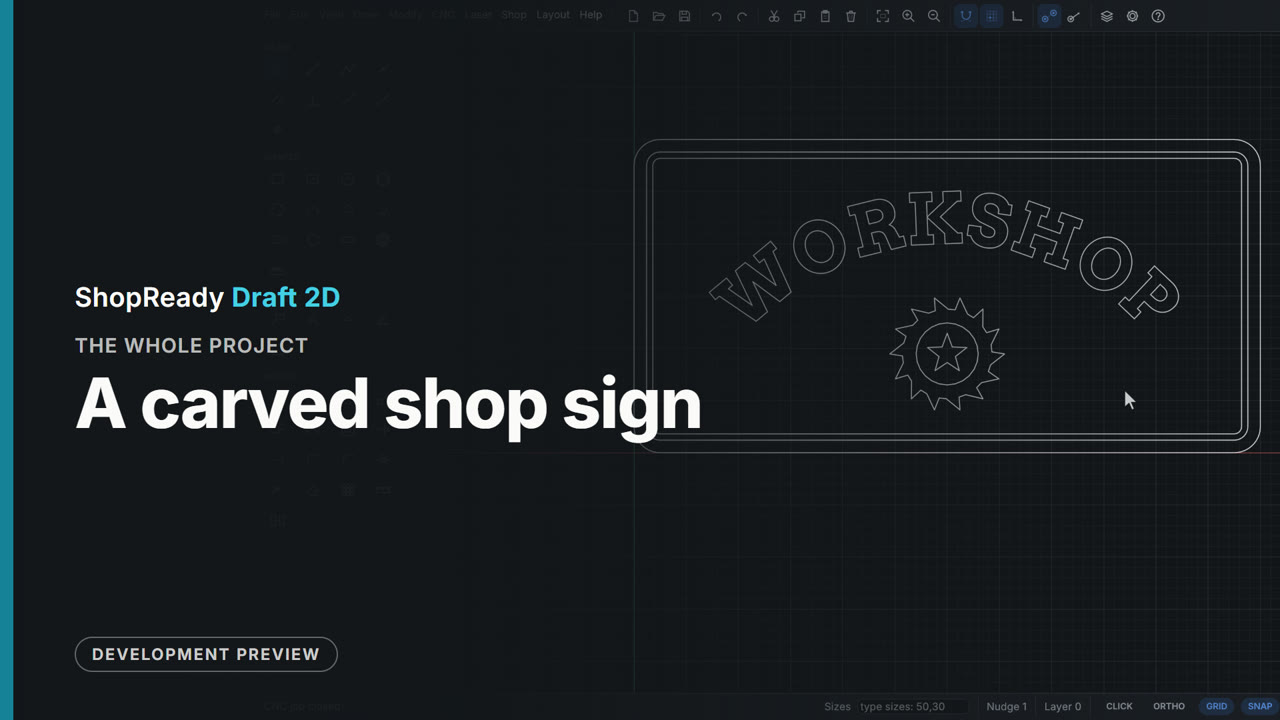 Whole project · 7:42
A carved shop sign: the whole project
A carved shop sign followed from a blank drawing to a machine. A 600 by 300 mm board is drawn by typing its size; WORKSHOP is set in a carving font round an arc; a border band is made by two offsets; an emblem is traced from a picture. Everything inside the edge is V-carved, with an end mill clearing the flat floors; the outline is cut out last, ramped in, on four tabs placed by hand, starting on the bottom edge. The simulator finds nothing to fix, a job sheet and three programs are written, and the first program is framed, checked, started, paused, resumed and run to its end on a pretend router.
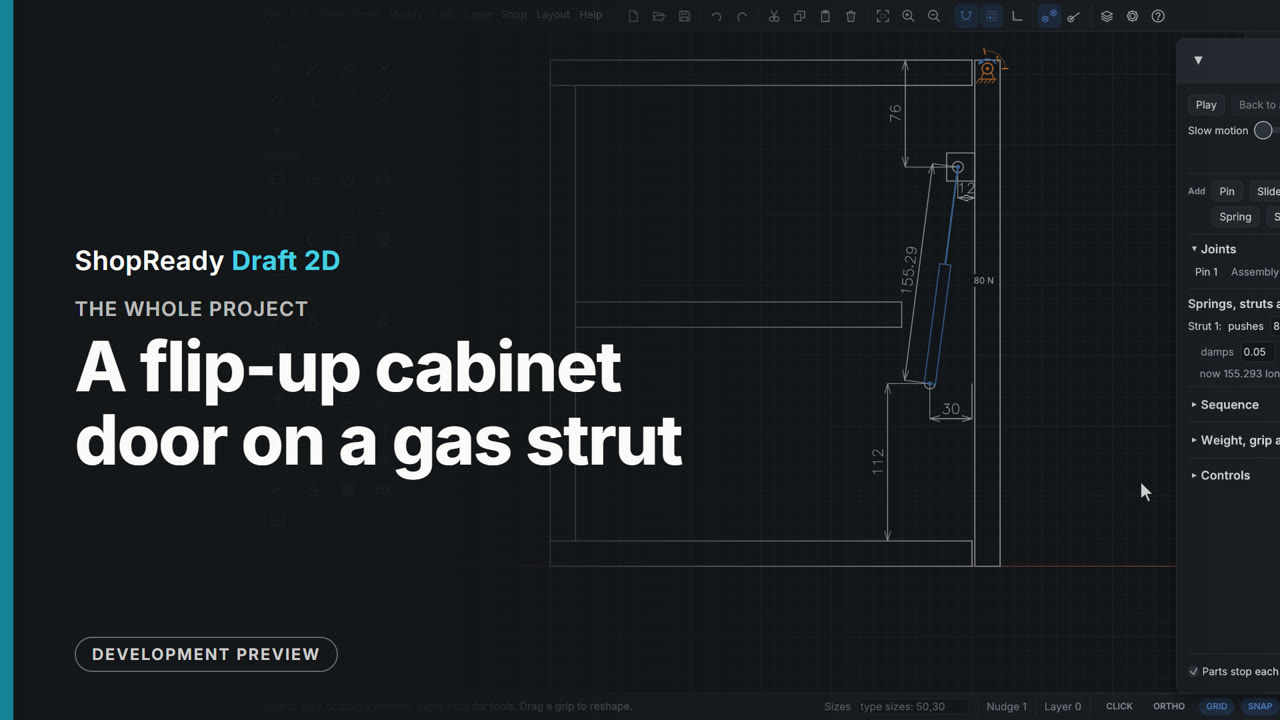 Whole project · 7:09
A flip-up cabinet door on a gas strut: the whole project
A wall cabinet's flip-up door, from a blank drawing to the strut to buy and where to screw it. The cabinet is drawn from the side with rectangles and typed sizes; the door is pinned at its hinge with stops and pulled by hand; Check for hits finds the door's back corner binding on the cabinet top and the Clearance tool gives it a 2 mm reveal. A gas strut between two drawn studs is sized by the program (71.6 N holds this 3 kg door level; an 80 N strut is fitted), let go to see the door stay shut and stay open, and its fixing point is tried in a worse place and put back. The last chapter reads off the strut's lengths, saves a film of the swing and dimensions the fixing points.
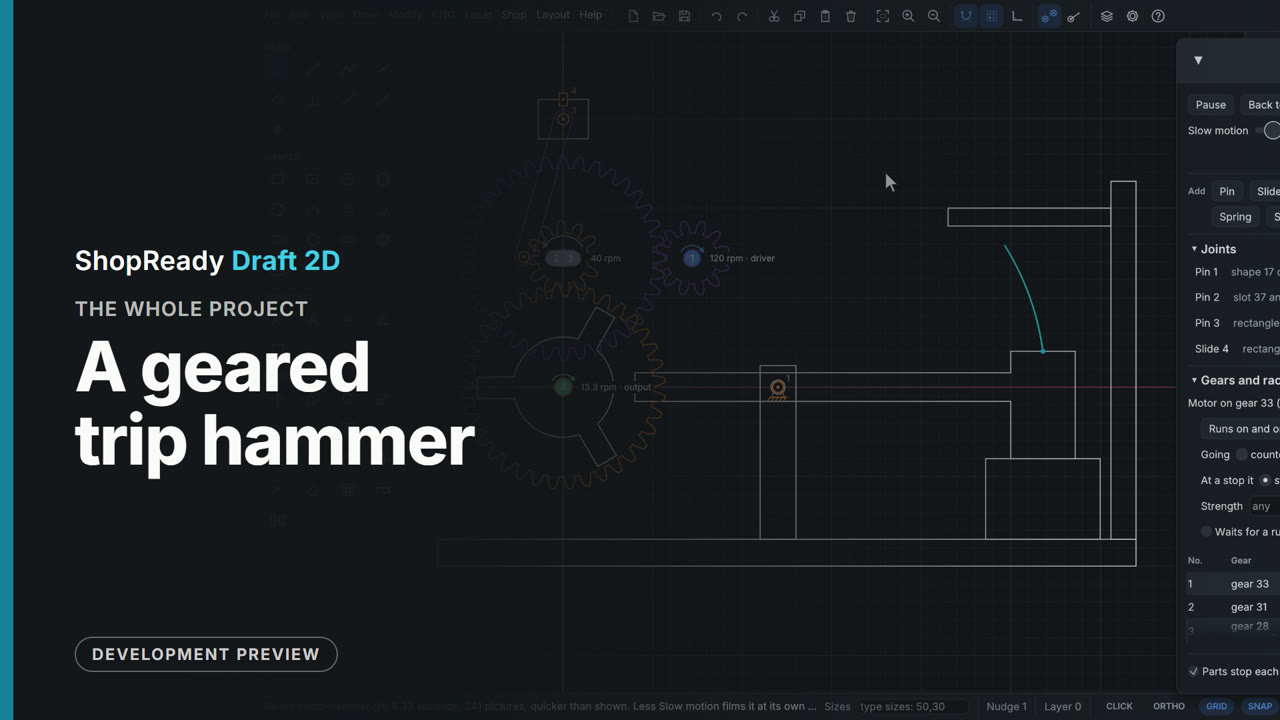 Whole project · 8:17
A geared trip hammer: the whole project
A geared trip hammer built from a blank drawing in seven steps: a frame and a hammer from rectangles with typed sizes, a cam wheel made with Array and Weld, two pairs of gears placed on the meshing ring, a pin, a motor and a crank with a slide. It shows the ordinary drawing tools and snaps, the Gear tool, layers as heights, assemblies, the Motion window's joints, the gear train's table and ratio, parts pushing each other by touch alone, weight, Check for hits and the Clearance tool, Trace, Slow motion and Save a film. Nothing in the machine is scripted to move: the motor turns one gear and everything else follows from how the parts are drawn.
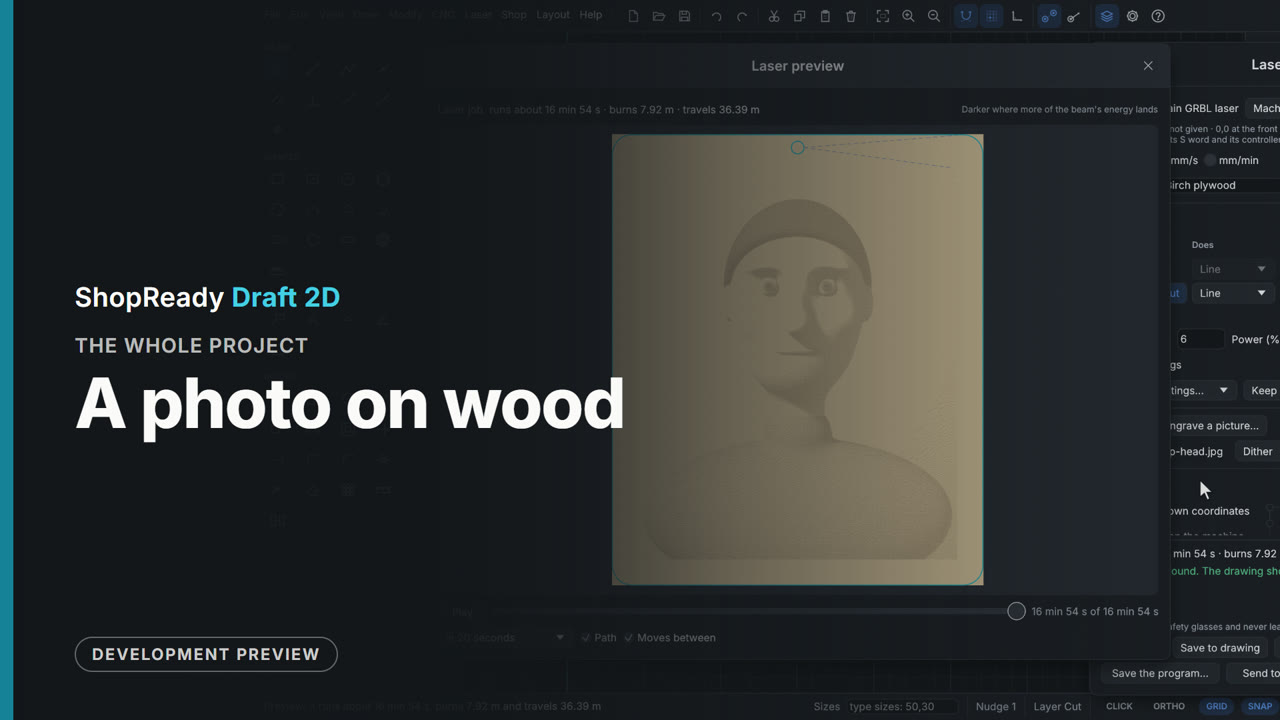 Whole project · 4:26
A photo on wood: the whole project
A photo was engraved on wood and cut out with a frame. The film shows the picture window at its Laser choice, the picture on the drawing shown as it will burn, the ways of burning it (Dither, Newsprint, Threshold, Grayscale), brightness, contrast and line spacing with the run time following, the dots seen close up, a material test made from its numbers, a frame drawn on a Cut layer, and the preview with its clock.
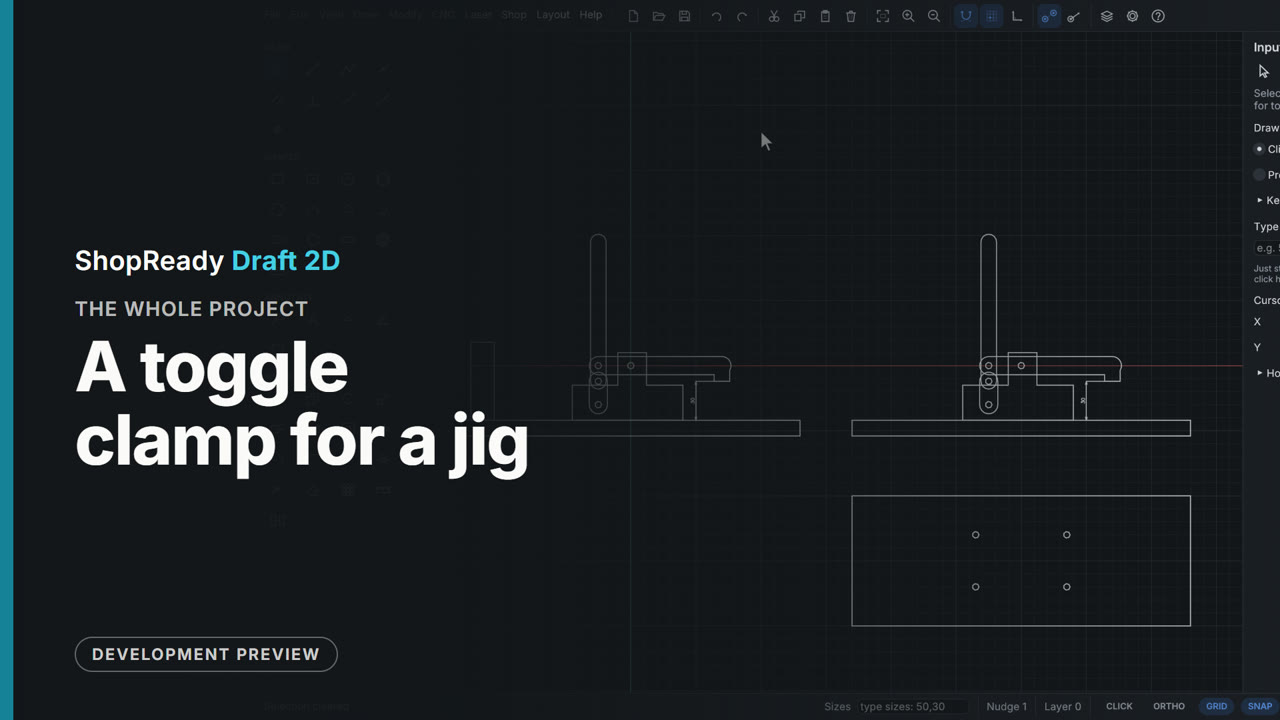 Whole project · 6:56
A toggle clamp for a jig: the whole project
A toggle clamp for a jig, from a blank drawing to two working clamps and a plate ready to cut. The four parts are drawn from the side as rectangles and slots with typed sizes and welded where two shapes make one part. Four clicks pin them into a four-bar linkage that is pulled by hand; stops on the link make the lock, and a spring under the pad shows it: short of center the clamp springs open, past center it holds. A fence in the handle's way is found with Check for hits and moved with the Clearance tool, the pad's path is traced, the spindle is stretched for thicker work with its dimension following, and the whole clamp is copied, joints and all, onto a second plate. The plate is drawn from above with mirrored holes and checked for cutting.
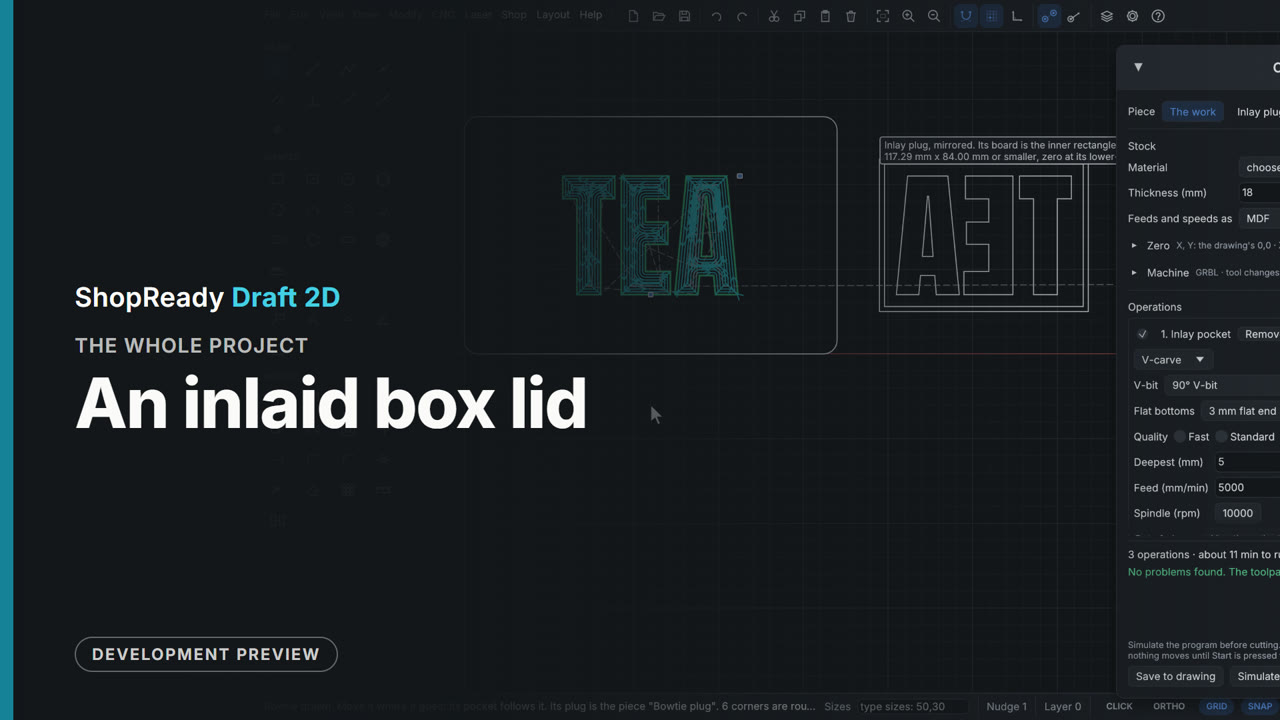 Whole project · 4:05
An inlaid box lid: the whole project
A box lid with a word inlaid in it. The lid and the word are drawn from a blank drawing; the Inlay window shows the pocket and the plug seated, to scale; a test coupon is drawn and simulated first; then Make the inlay carves the pocket in the lid and draws the mirrored plug on a board of its own, as a second piece of the job with its own zero and program. Each piece is simulated with nothing to fix. A last chapter shows the same window with a straight bit, and a bowtie.
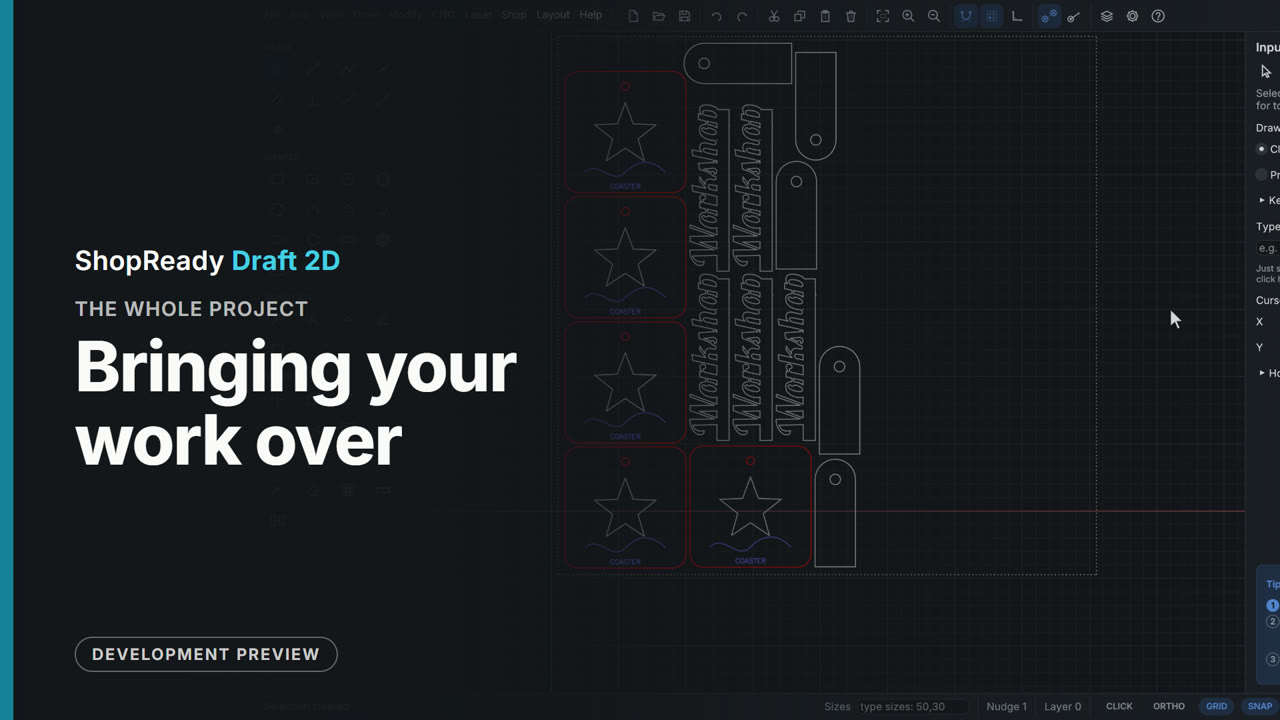 Whole project · 4:27
Bringing your work over: the whole project
Work made elsewhere was brought into the program and made ready to cut. The film shows a laser project file opening with its layers and cut settings in the laser job, an SVG dropped on the window with its colors as layers, Tidy up for cutting mending a drawing with doubled lines and an open corner, Weld making overlapping letters one outline, and Nest the selected shapes packing copies onto a sheet the size of a laser's bed.
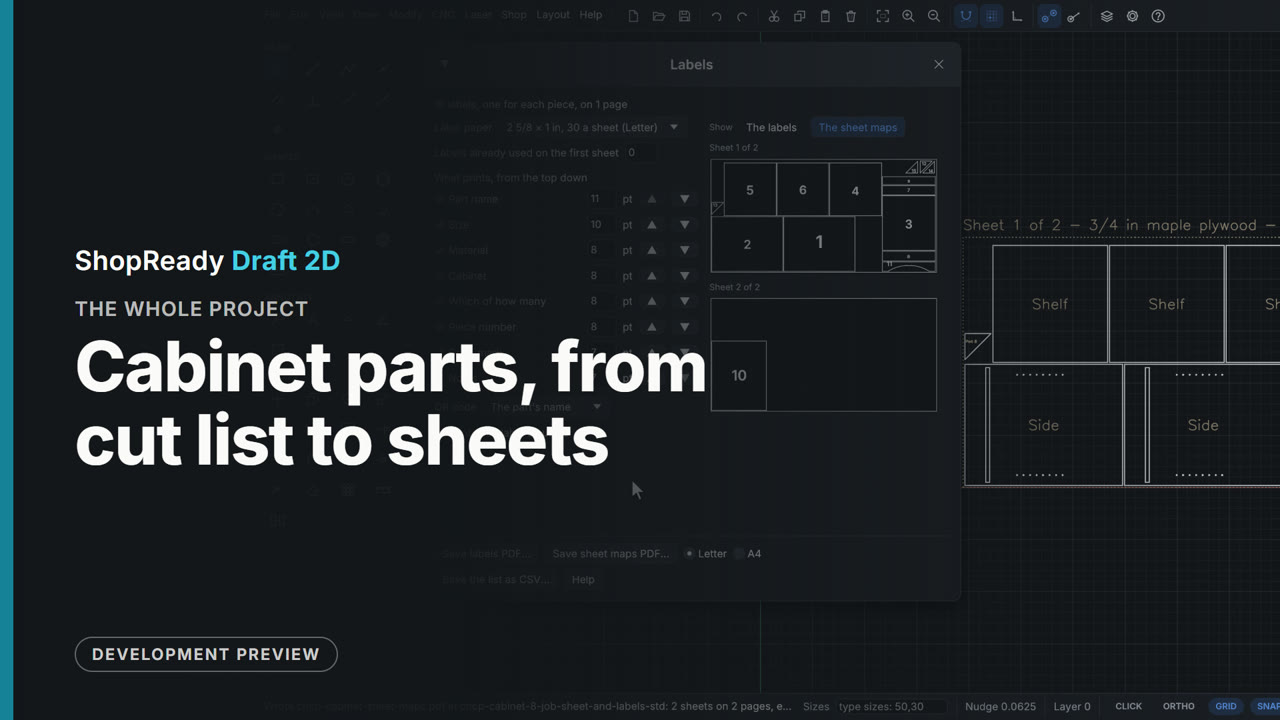 Whole project · 9:47
Cabinet parts, from cut list to sheets: the whole project
A 24 inch base cabinet taken from its cut list to labelled, nested sheets. The cut list is imported from a spreadsheet file, an arched toe valance and four corner gussets are drawn and added as shaped parts, and all fifteen pieces are nested on a sheet of 3/4 in plywood and one of 1/4 in, with parts moved by hand and the overlap warning shown. The CNC job comes ready with a piece for each sheet, its stock the sheet's material and zero at the sheet's corner. On the nested sheet the Sides get a dado and shelf-pin holes; Add operation makes the dadoes a pocket and the holes a drilling operation, the pocket gets dogbone corners, the parts are cut out in a safe order with tabs on the small ones, and the job comes out with no problems found. A job sheet, a label for every piece and a map of each sheet finish it.
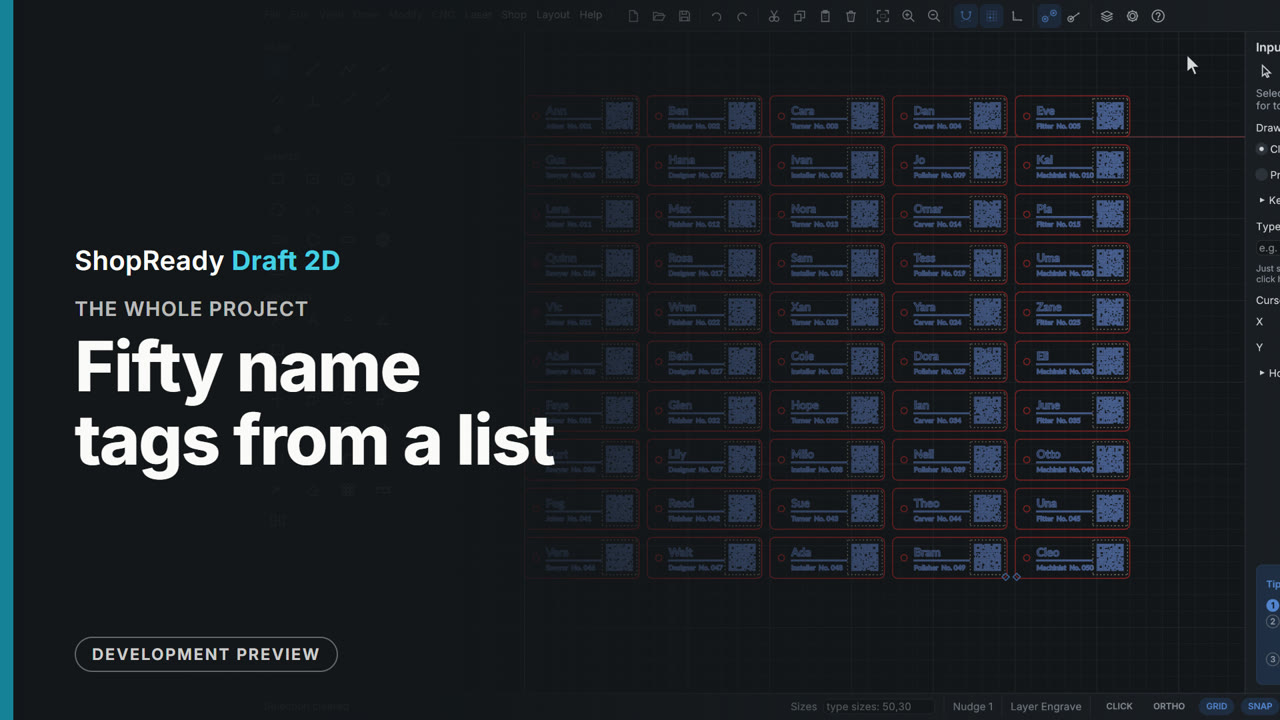 Whole project · 7:06
Fifty name tags from a list: the whole project
Fifty name tags were made from one drawn tag and a spreadsheet list. The film shows drawing with typed sizes and layers, text and a QR code with fields in braces, a CSV list filling them, Make many laying out a copy for every row, the laser job with its Fill and Line layers, tabs, order, run time, kept settings and start point, the preview with its clock, and the Machine window with a pretend laser: connect, home, frame, start, pause, resume.
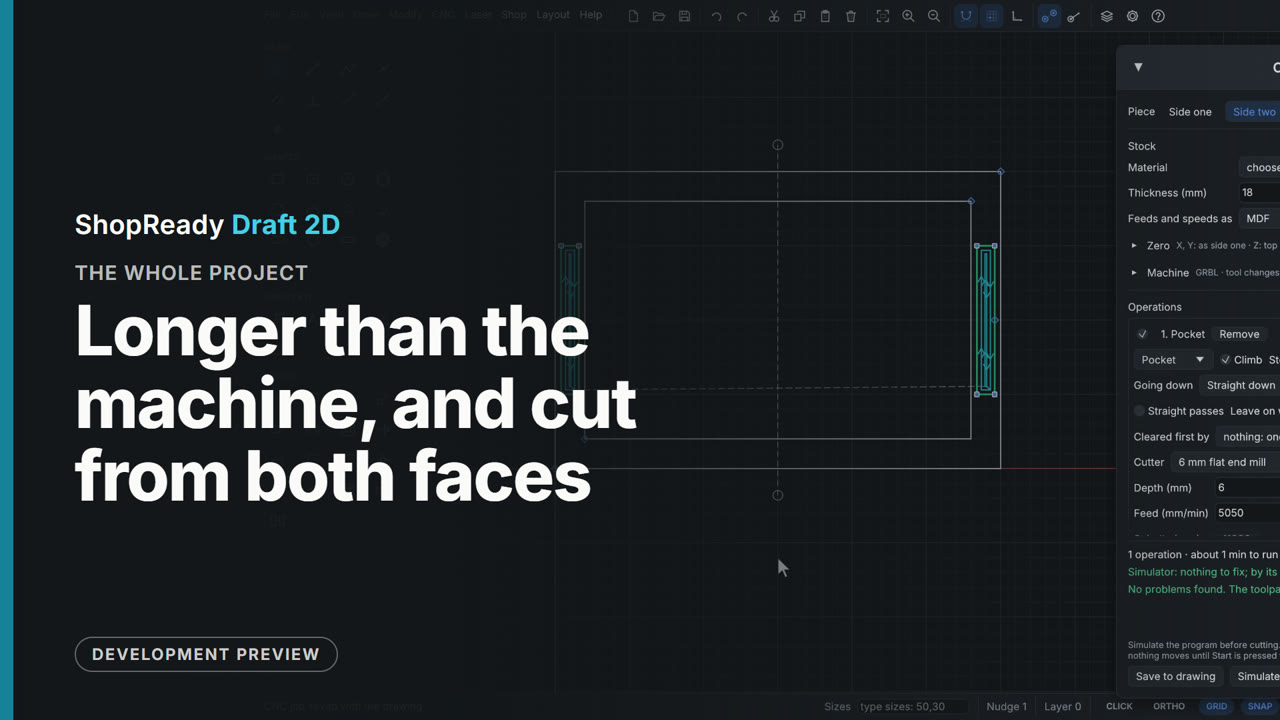 Whole project · 4:37
Longer than the machine, and cut from both faces: the whole project
Two router jobs that need the stock moved by hand, set up from blank drawings. A bookcase side 1800 mm long is drawn by typed sizes, its housings pocketed and its outline tabbed, then cut in three tiles with seams shown on the drawing and dowel holes that place the next tile. A tray is cut from both faces: side two is added as a second piece, an operation is sent to it, and side one drills the dowel holes the board is turned over on. Each tile and each side is its own program, checked in the simulator and saved with the drawing.
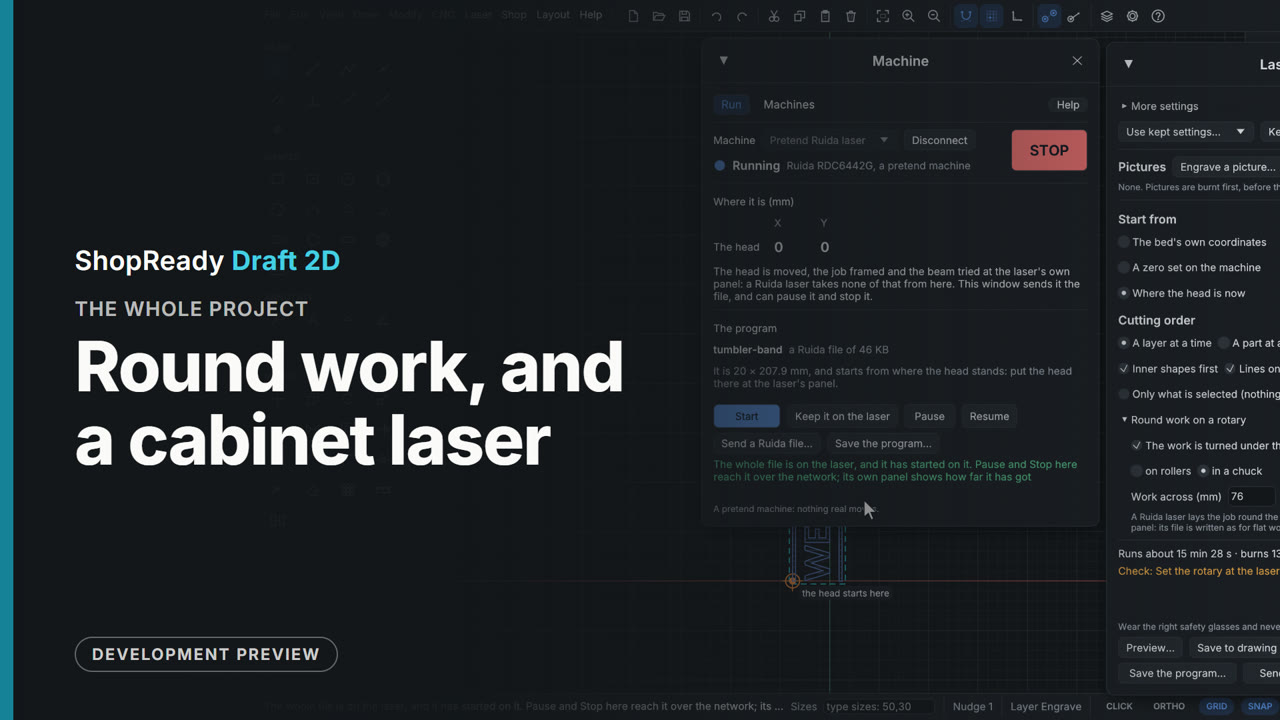 Whole project · 3:02
Round work, and a cabinet laser: the whole project
A band of lettering was made for a tumbler turned on a rotary, and the same job was then made for a cabinet laser. The film shows drawing the band flat and standing it on end, the laser job's Round work on a rotary with its warning and its sums, a pretend cabinet laser added by hand, the job checked against that laser's bed, the program saved as the laser's own kind of file and sent, and the plain words that the head is moved at the laser's own panel.
 Whole project · 1:28
A built-in under a stair, start to finish
A piece no cabinet type covers, taken through the program in five parts: a stepped built-in for under a stair is made panel by panel in Custom Build, with its sizes typed and a shelf added and fitted; it is put in the job, turned in 3D and given a finish; the Shop Package stops because the back is bigger than a 4 by 8 sheet, and Use 5 by 10 sheets lays the job out again; the sheets and part labels are looked through; and the shop package is made. One job all the way through.
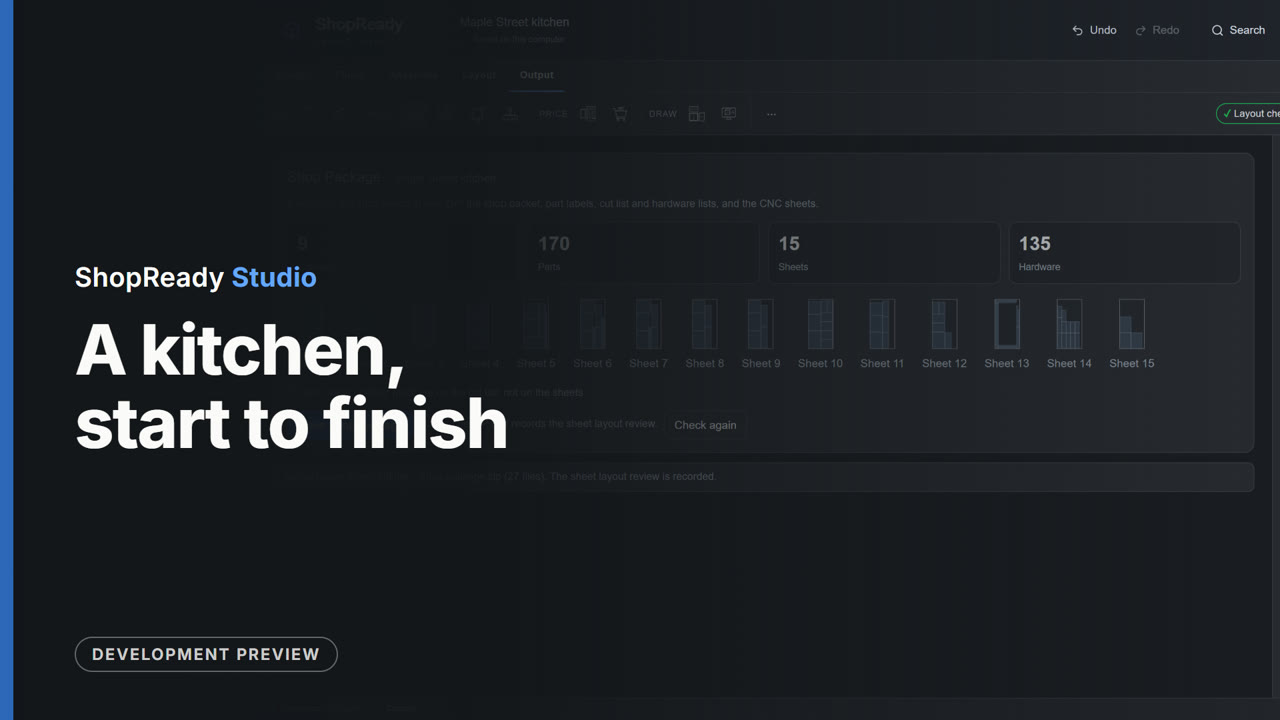 Whole project · 2:41
A kitchen, start to finish
One sample kitchen taken through the whole program in one sitting, in eight parts: the wall is laid out in Kitchen Plan and built; a cabinet's height is typed and another is changed to drawers; the doors and drawers are opened and a cabinet pulled apart; the wall cabinets are given another finish; the customer is entered, a version saved and the customer package made; the sheets and the part labels are looked through; a sheet is cut on the virtual CNC; and the shop package is made. One job all the way through.
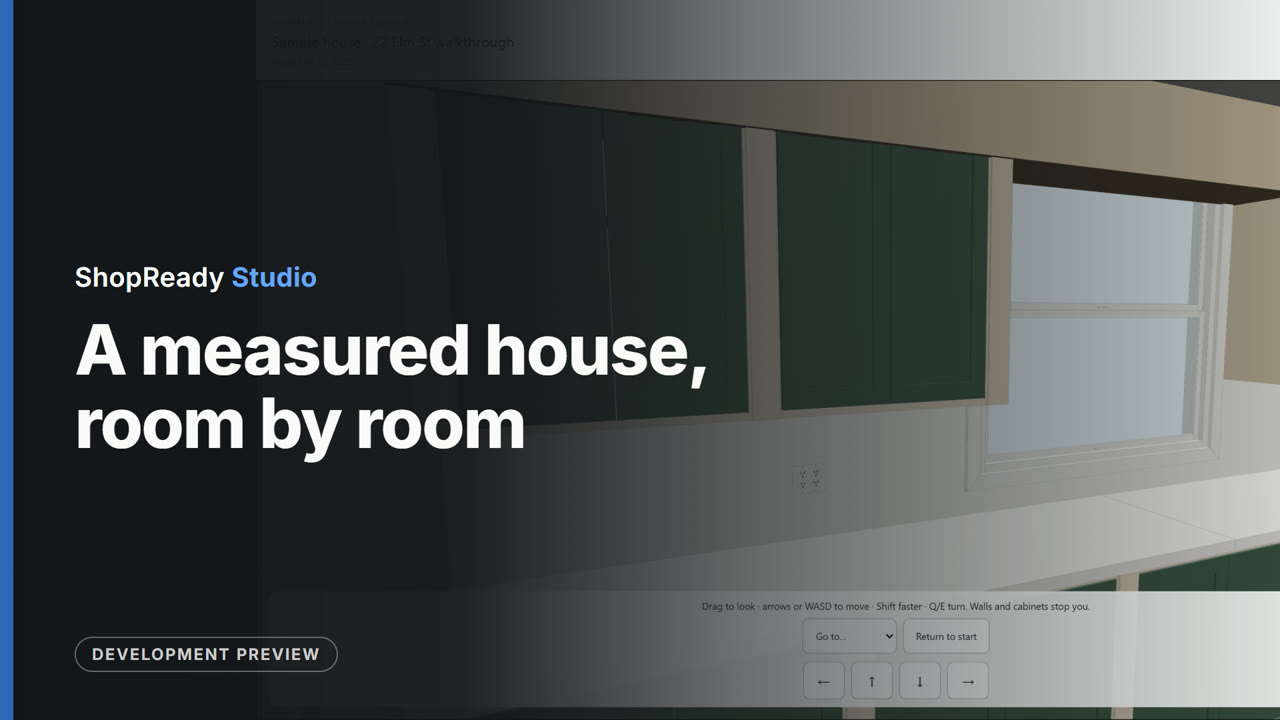 Whole project · 2:01
A measured house, room by room
A sample house of nine rooms is brought in from a ShopReady Field job file and taken through in five parts: the import and the House Plan with its checks and levels; the kitchen opened from the plan and laid out with Kitchen Plan; a second room opened and given a run of cabinets; the whole house seen in 3D with the cabinets in it; and the customer's walkthrough built, opened, and walked into the kitchen.
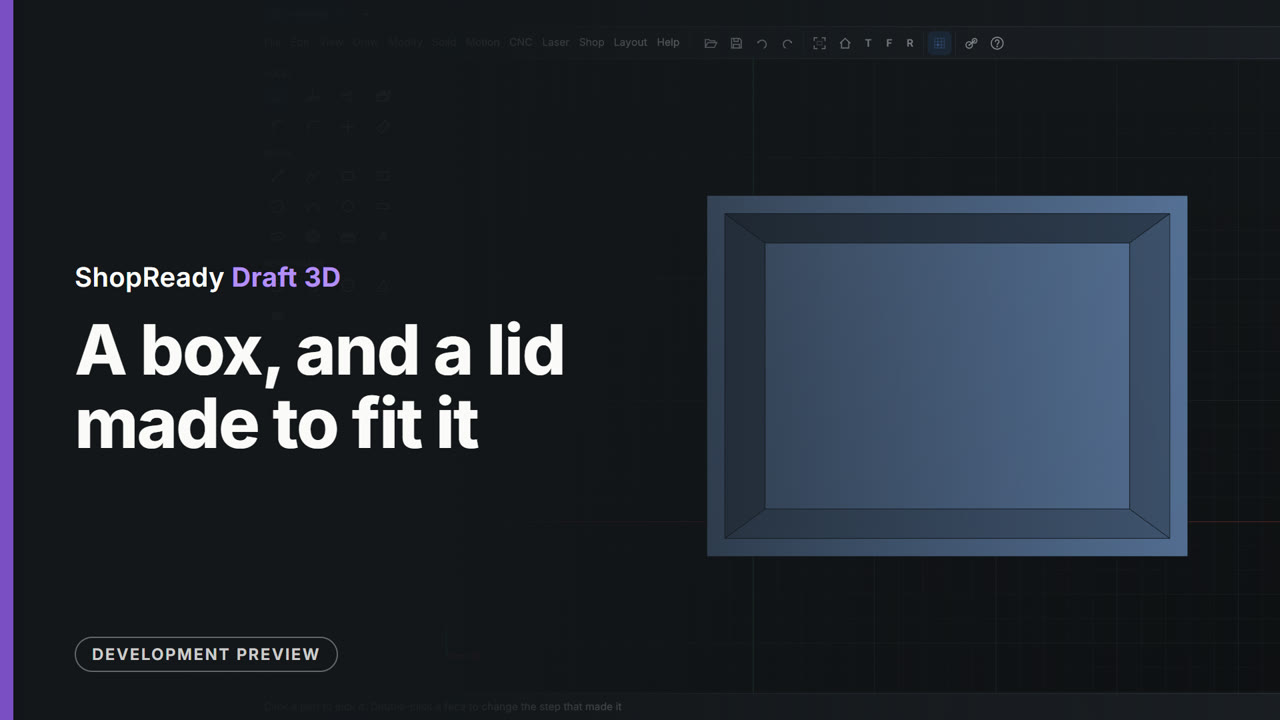 Clip · 2:14
A box, and a lid made to fit it
A box 80 by 60 by 40 is hollowed with a center rectangle pushed down 37, leaving walls and a floor 3 thick. The lid is drawn on the box's own rim, its two corners snapped to the box's corners, and pulled up 3 as a part of its own. A lip 0.2 smaller each side than the hollow is drawn on the lid's top and pushed down through it. The eyes in the Parts tab hide each part in turn to show the lip and the hollow.
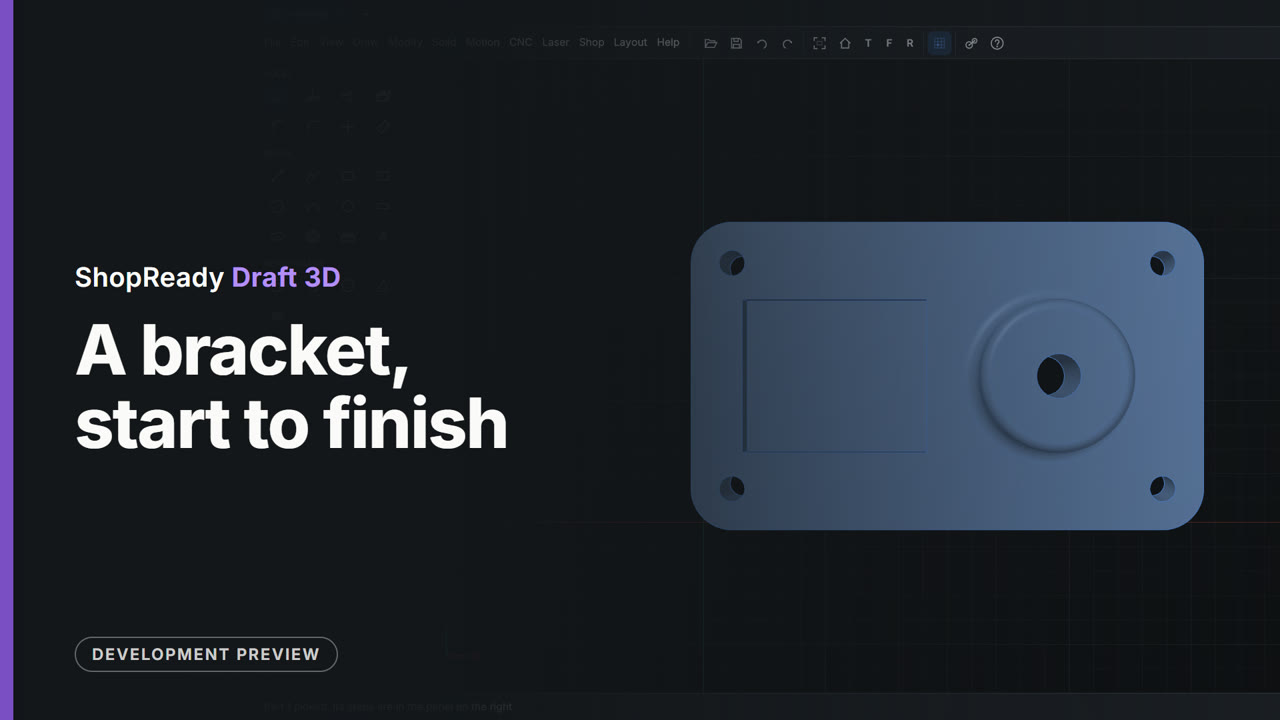 Clip · 2:25
A bracket, start to finish
A mounting bracket is made from nothing in about two minutes: a plate 100 by 60 by 10, a round boss pulled up from a circle drawn on its top, a pocket pushed in, the corners rounded, a hole through the boss and four screw holes set out as a pattern. Every size is typed.
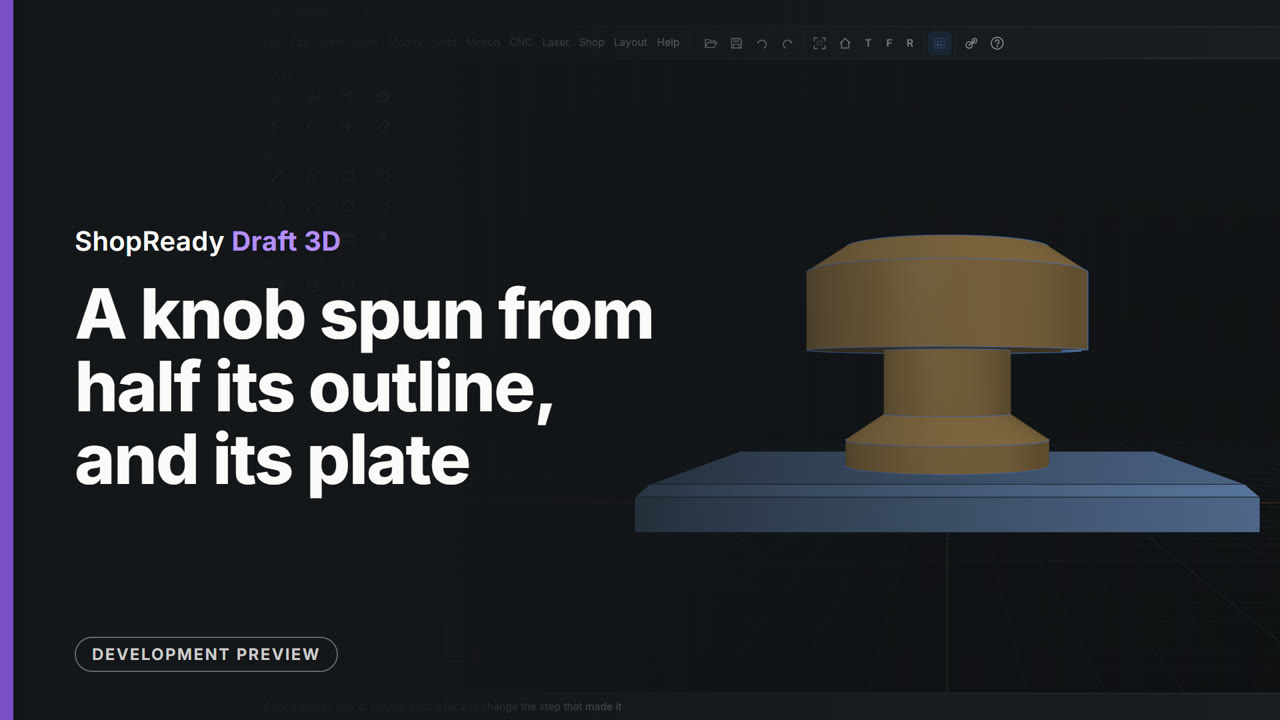 Clip · 2:21
A knob spun from half its outline, and its plate
A plate 80 by 60 by 6 gets a hole in its middle and beveled edges. Then half a knob's outline is drawn standing up on the front plane, with a line up its middle, and Spin turns it into a knob whose stem stands in the plate's hole. Typing 270 opens it to show the section; a notch cut in its rim marks where it points.
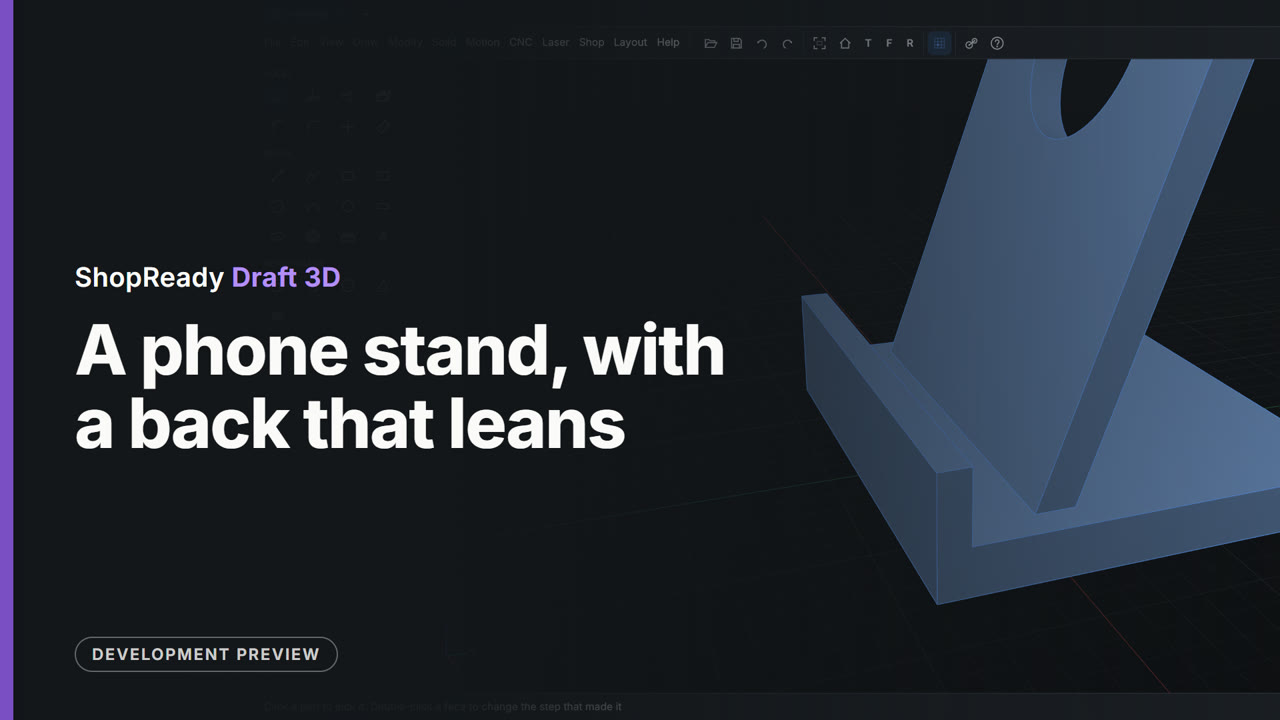 Clip · 2:19
A phone stand, with a back that leans
A base 80 by 70 by 8 is pulled up from the ground. The back leans at 70 degrees, so it is drawn on a plane of its own, set up with Draw, On a tilted plane: a rectangle 70 by 110 with a round opening, pulled 6 thick. The two parts are joined, a lip is drawn on the base's top from the base's own corner and pulled up 12, and the back's top corners are rounded.
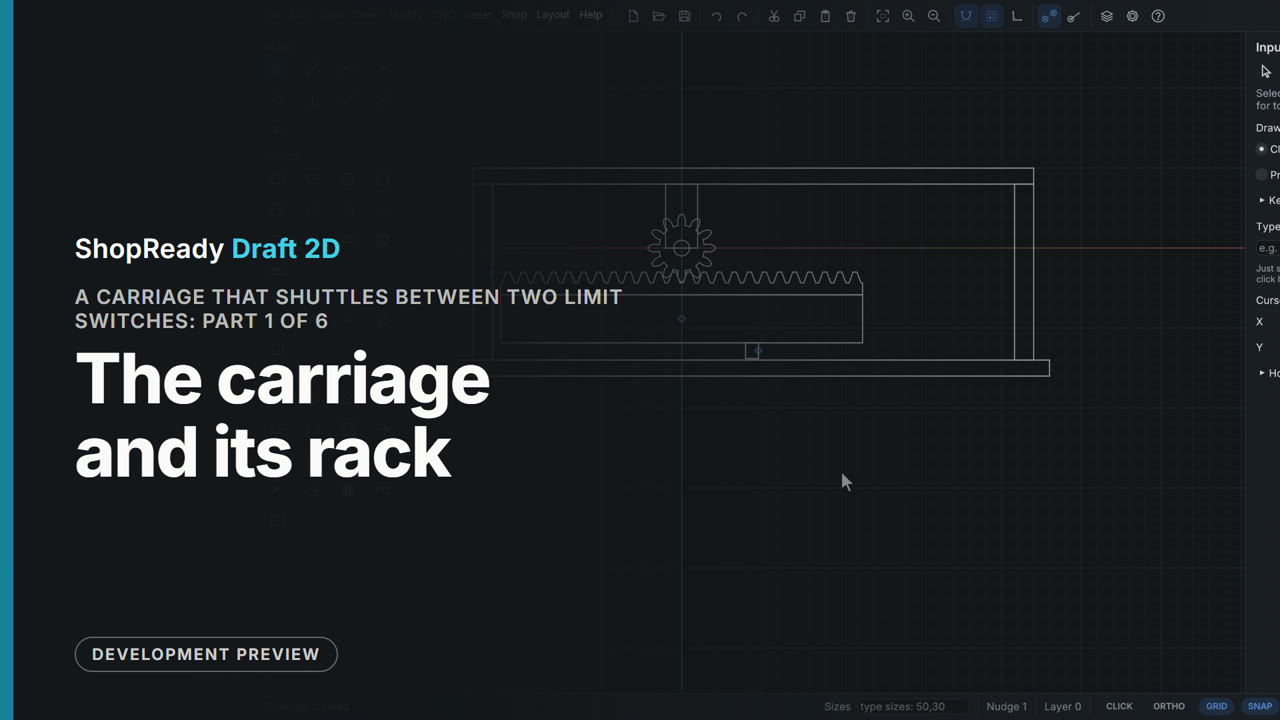 Chapter · 1:30
A carriage that shuttles between two limit switches, part 1 of 6: The carriage and its rack
The machine drawn from a blank drawing: a bed, end stops and a hanger as rectangles, a 12-tooth pinion with the Gear tool, a rack added under it already in mesh by one right-click, a carriage body and a small flag, and all three made one assembly named Carriage.
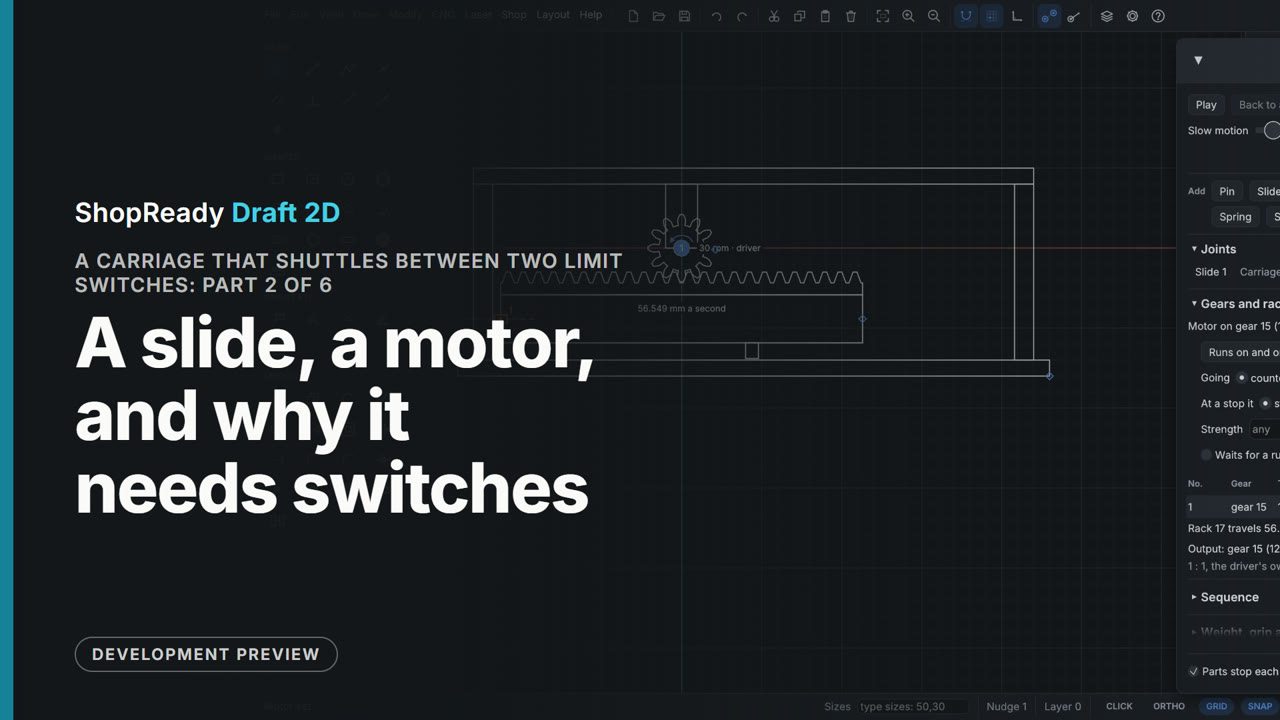 Chapter · 1:15
A carriage that shuttles between two limit switches, part 2 of 6: A slide, a motor, and why it needs switches
The carriage is put on a slide with two clicks and tried by hand: the pinion turns as the rack is pulled. A motor is put on the pinion with Drive this gear. The program sees that the carriage would run into its end stop and waits for Play; pressed anyway, with nothing to tell the motor where to stop, the carriage runs into the end stop and both turn red. The speed is set to 30 turns a minute and the window works out the rack's travel, 56.5 mm a second.
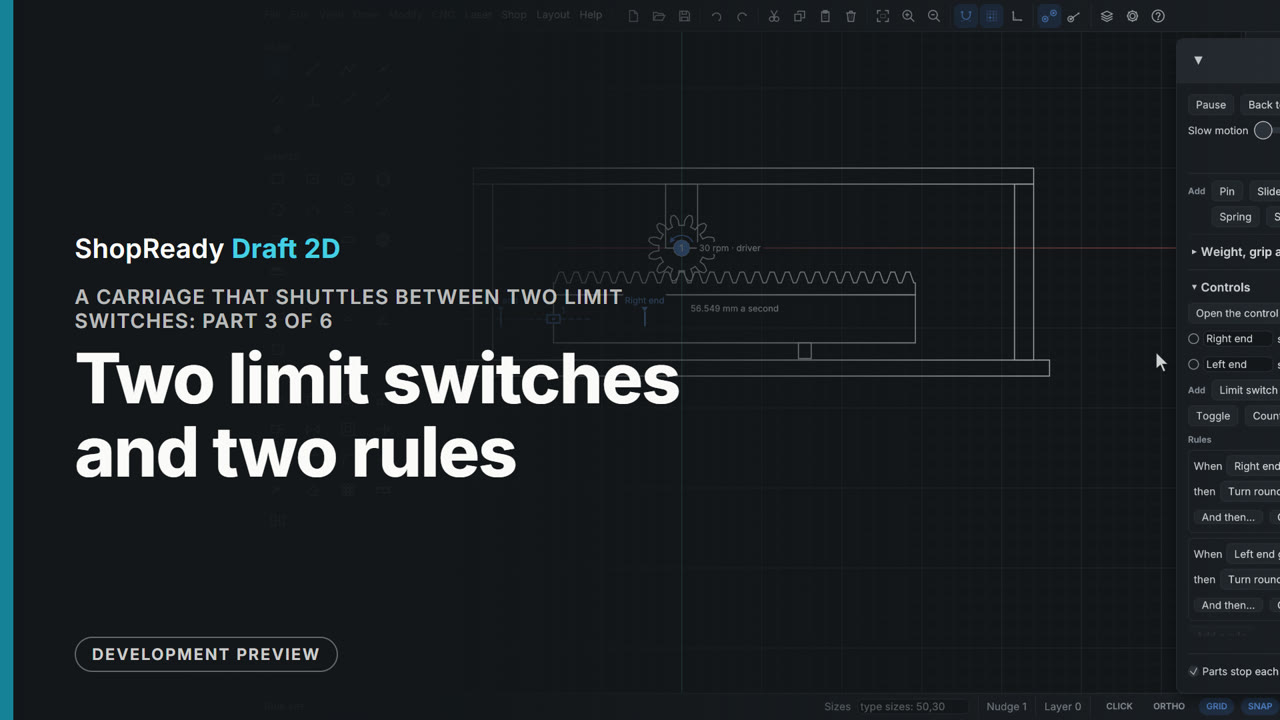 Chapter · 1:31
A carriage that shuttles between two limit switches, part 3 of 6: Two limit switches and two rules
The Controls section of the Motion window. The carriage is dragged to where the right switch should trip and a limit switch is added there, at 90; a second is added at 0 for the left end, and each is named by typing in its row. Two rules, each a When and a then, turn the motor round when a switch goes on. On Play the carriage shuttles between them, each lamp lighting as it trips.
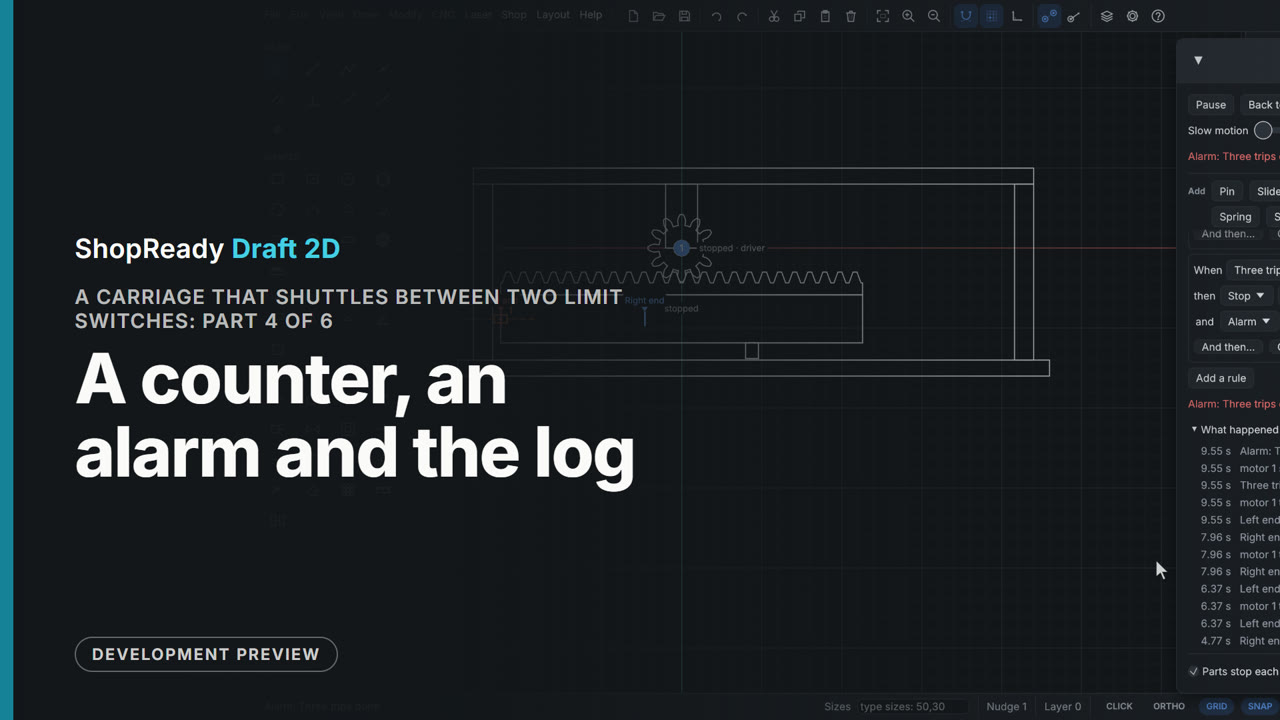 Chapter · 1:15
A carriage that shuttles between two limit switches, part 4 of 6: A counter, an alarm and the log
A counter switch goes on once the left limit switch has gone on three times; its name is typed in its row. A rule with two things to do stops the motor and sounds an alarm, whose words are typed in the rule. On Play each rule says how many times it has been set off; after three trips the motor stops, the alarm shows in red, and What happened lists every switch and rule with its time.
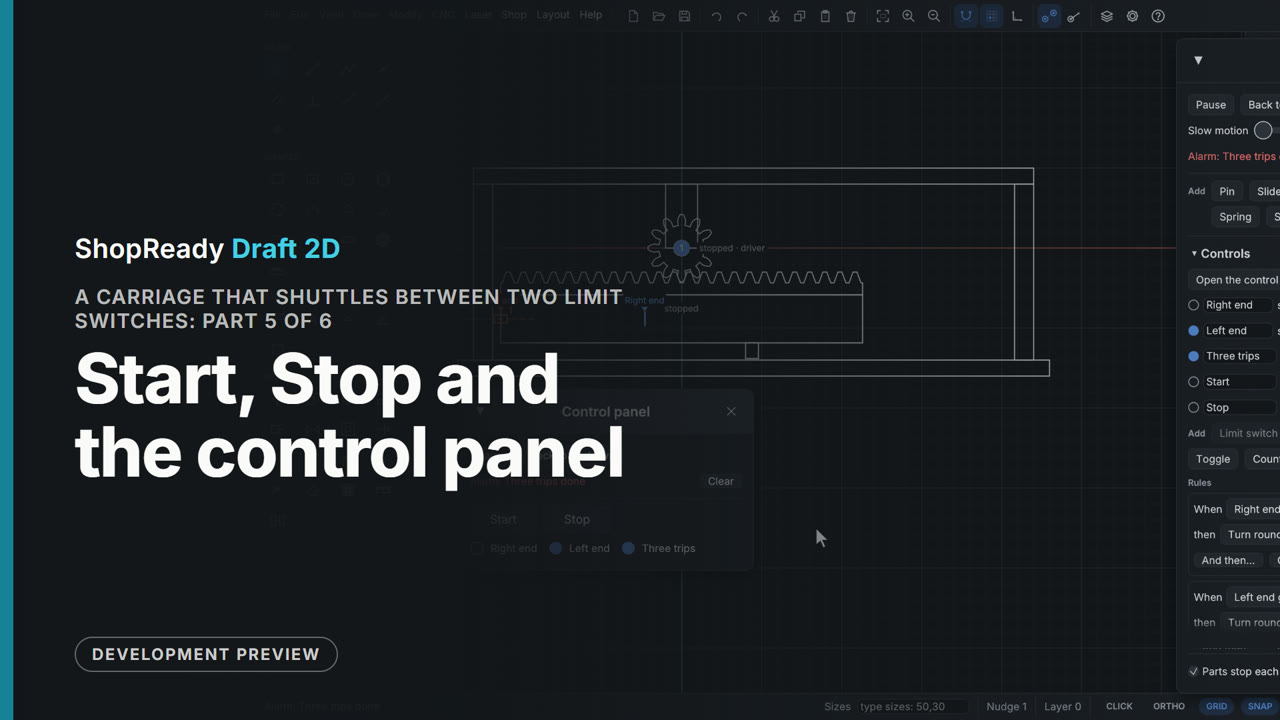 Chapter · 1:53
A carriage that shuttles between two limit switches, part 5 of 6: Start, Stop and the control panel
The motor is set to wait for a rule. Two buttons are added and named Start and Stop by typing, with a rule for each: Stop stops every motor; Start starts the motor, has the counter count again and clears the alarms. The control panel opens as a window of its own, under the machine and clear of its parts, and runs it: Start, Stop, Start again, lamps lighting, and the alarm after three trips.
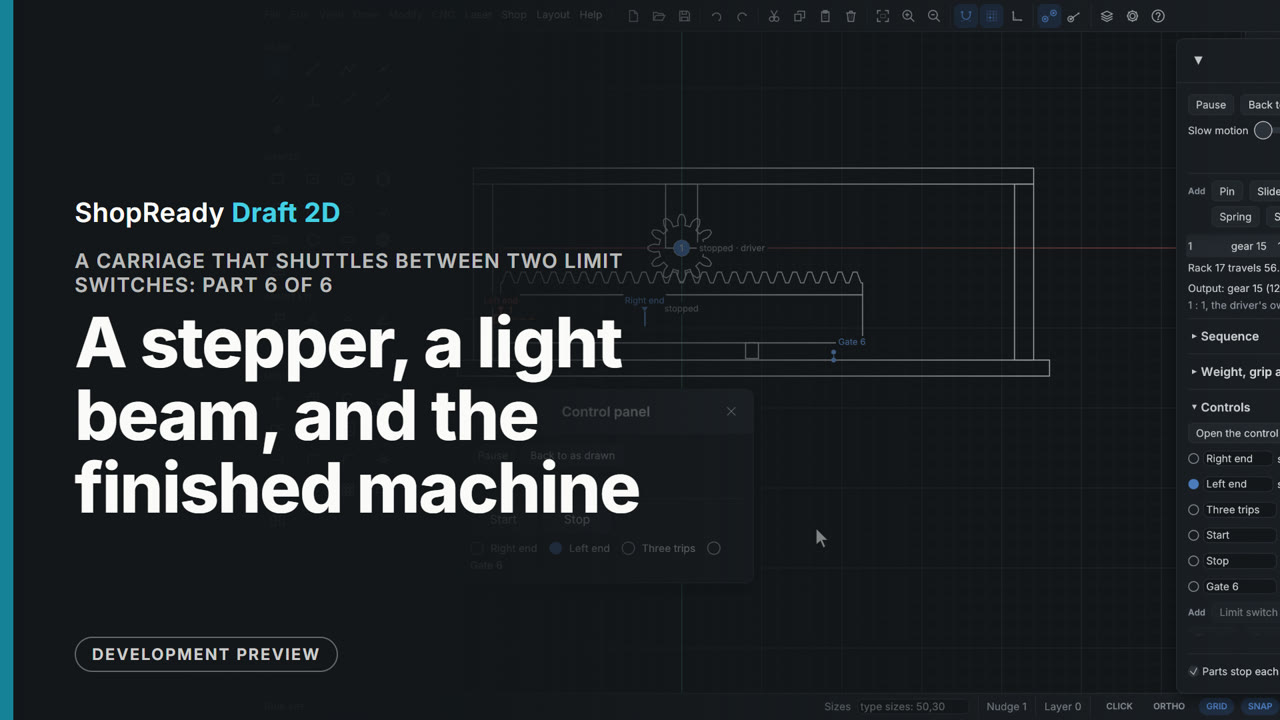 Chapter · 1:53
A carriage that shuttles between two limit switches, part 6 of 6: A stepper, a light beam, and the finished machine
The motor is made a stepper: 1.8 degrees a step, 200 a turn, holding until a rule sends it. A gate, a light beam, is added with two clicks across the flag's path. The Start rule is changed to go on by 90 steps, wait for the motor, wait 2 seconds and go back 90. From the control panel each press of Start sends the carriage out until its flag stands in the beam, the gate's lamp lights, and it comes home.
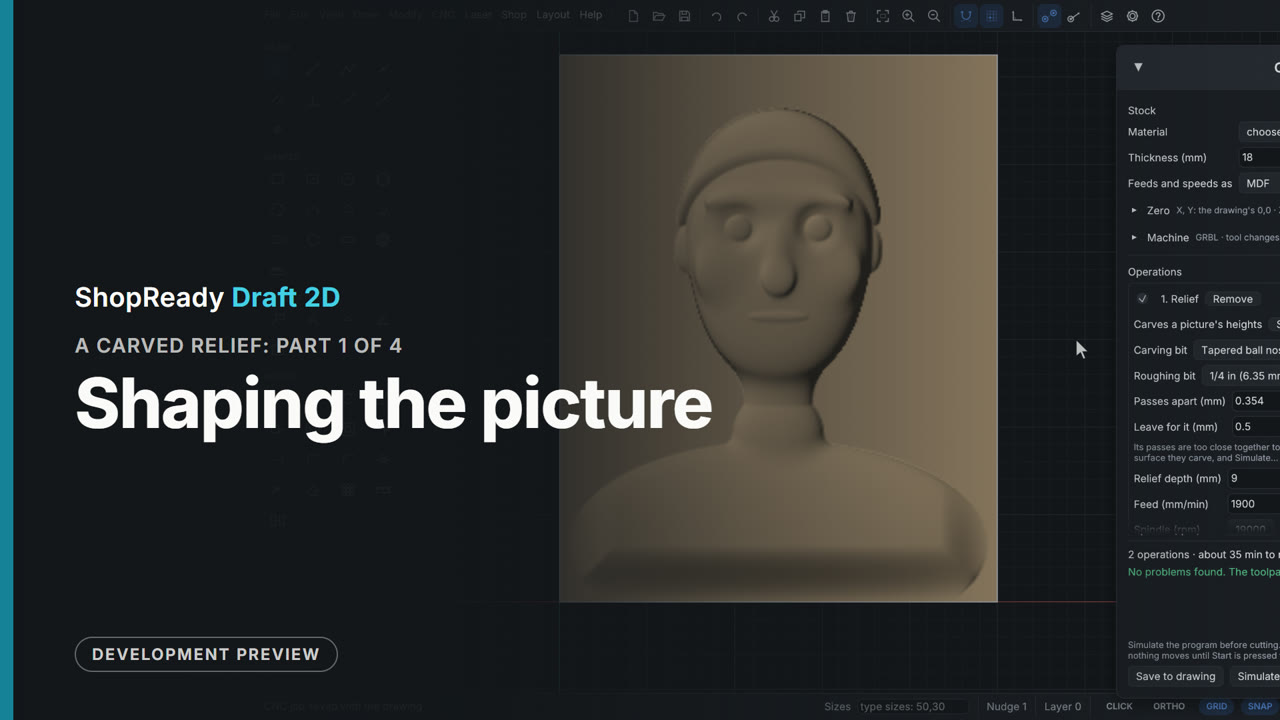 Chapter · 1:20
A carved relief, part 1 of 4: Shaping the picture
A depth picture of a head and shoulders is opened with CNC, Carve a picture and carved as a Relief. The window shows it lit, and Flat background, Fade the edge, Fullness and Depth each do one thing to it before Place and carve draws its rectangle and opens the CNC job.
 Chapter · 1:26
A carved relief, part 2 of 4: Two bits
The relief's rows in the CNC job: a tapered ball nose to carve, an end mill to rough the waste out in level layers, how far apart the passes are and the ridges they leave, the depth, and the run time. Wider passes are tried, to see what they save, and put back.
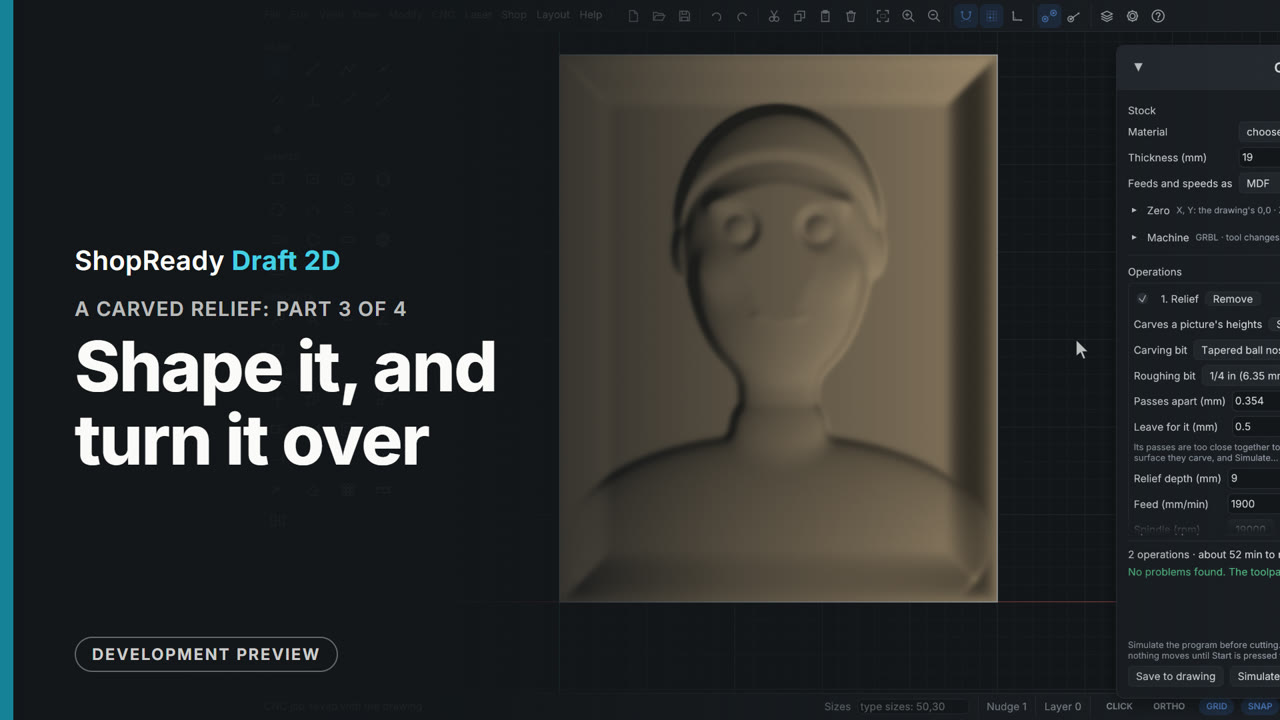 Chapter · 58 s
A carved relief, part 3 of 4: Shape it, and turn it over
Shape it... on the relief in the CNC job brings the picture window back with the same picture and settings. Steepness is tried, What stands high is set to The dark parts so the head becomes a mold, Smooth is raised, and Change the relief swaps the relief on the drawing: same rectangle, same bits, same job.
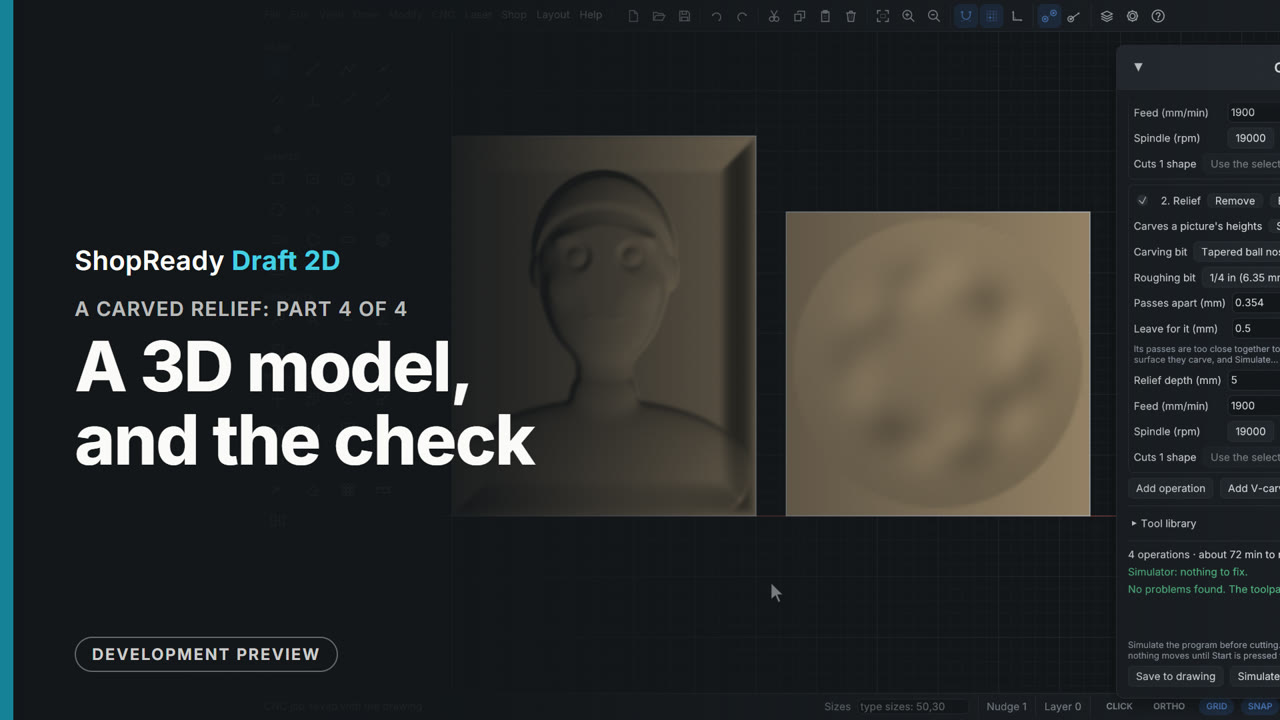 Chapter · 1:52
A carved relief, part 4 of 4: A 3D model, and the check
An STL model of a medallion opens in the same picture window as a relief. Seen from shows it from its sides, Smooth takes its facets out, and it starts as deep as the model really is; a shallower Depth flattens it. Place and carve sets it beside the head, and Simulate carves the whole job in the simulator: nothing to fix.
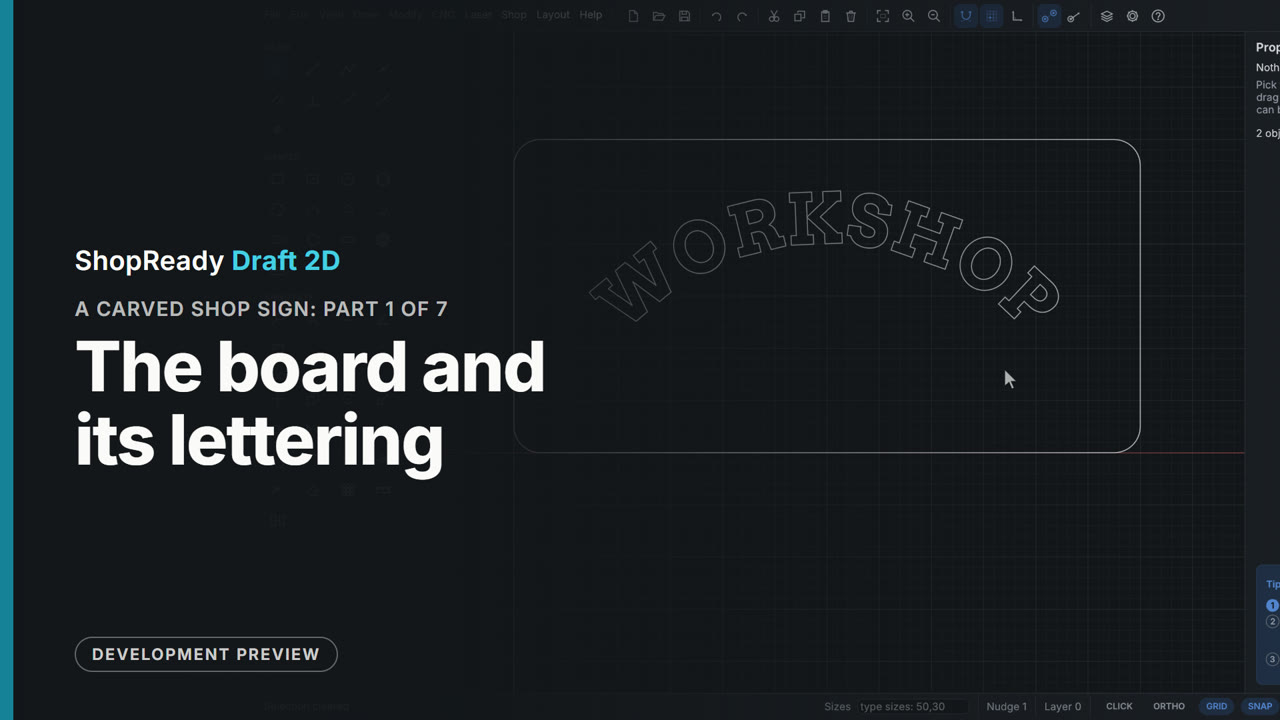 Chapter · 1:12
A carved shop sign, part 1 of 7: The board and its lettering
From a blank drawing: a 600 by 300 mm board drawn by typing its size, its corners rounded, and WORKSHOP set in a carving font, 50 mm tall, round an arc.
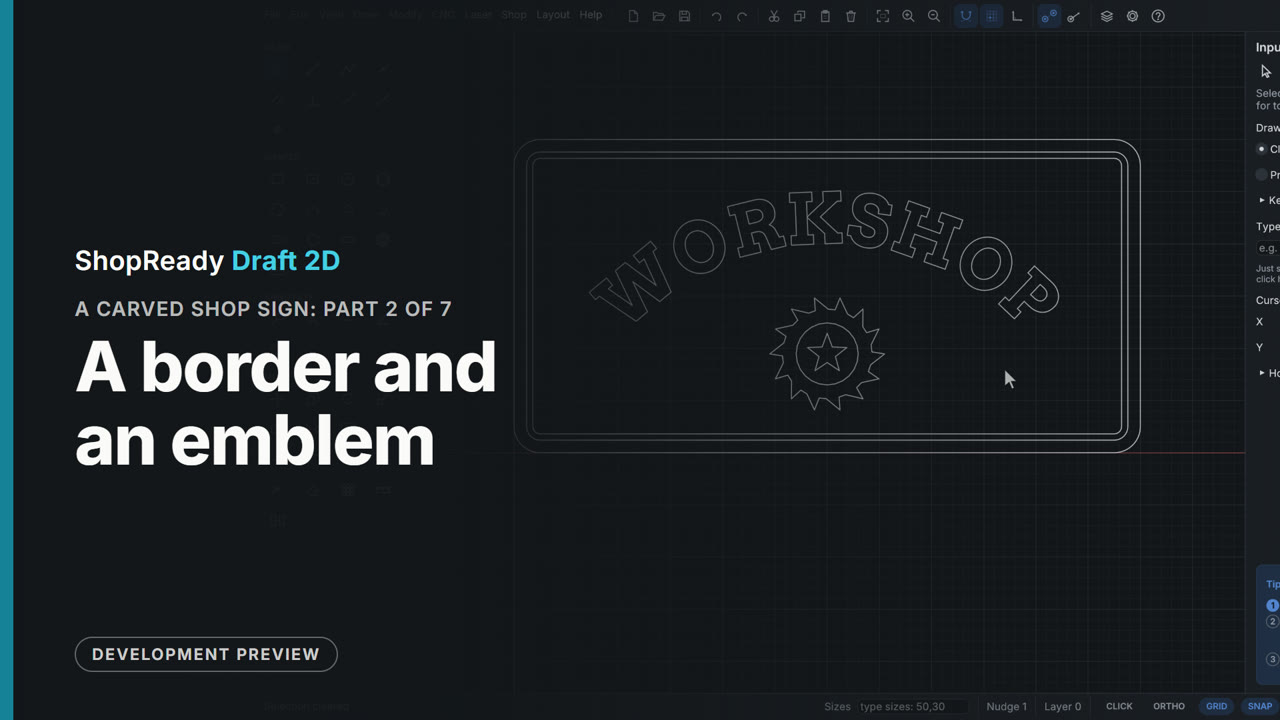 Chapter · 58 s
A carved shop sign, part 2 of 7: A border and an emblem
The board's edge is offset twice to make a border band 6 mm wide, and a saw-blade emblem is traced from a black and white picture, sized to 110 mm and set down under the lettering.
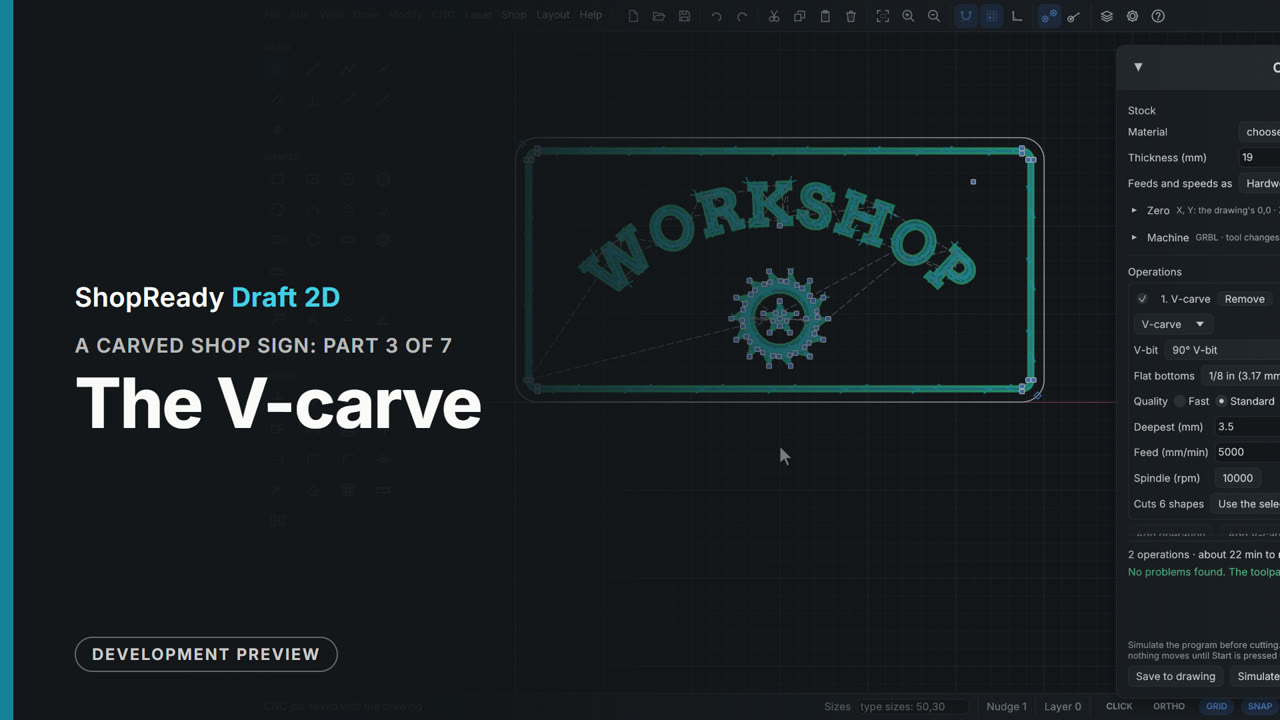 Chapter · 1:04
A carved shop sign, part 3 of 7: The V-carve
Lettering, border and emblem are selected with one window and V-carved: a 90 degree V-bit, a deepest cut of 3.5 mm, and a 1/8 in end mill to clear the flat floors, which takes the job from about 40 minutes to 22.
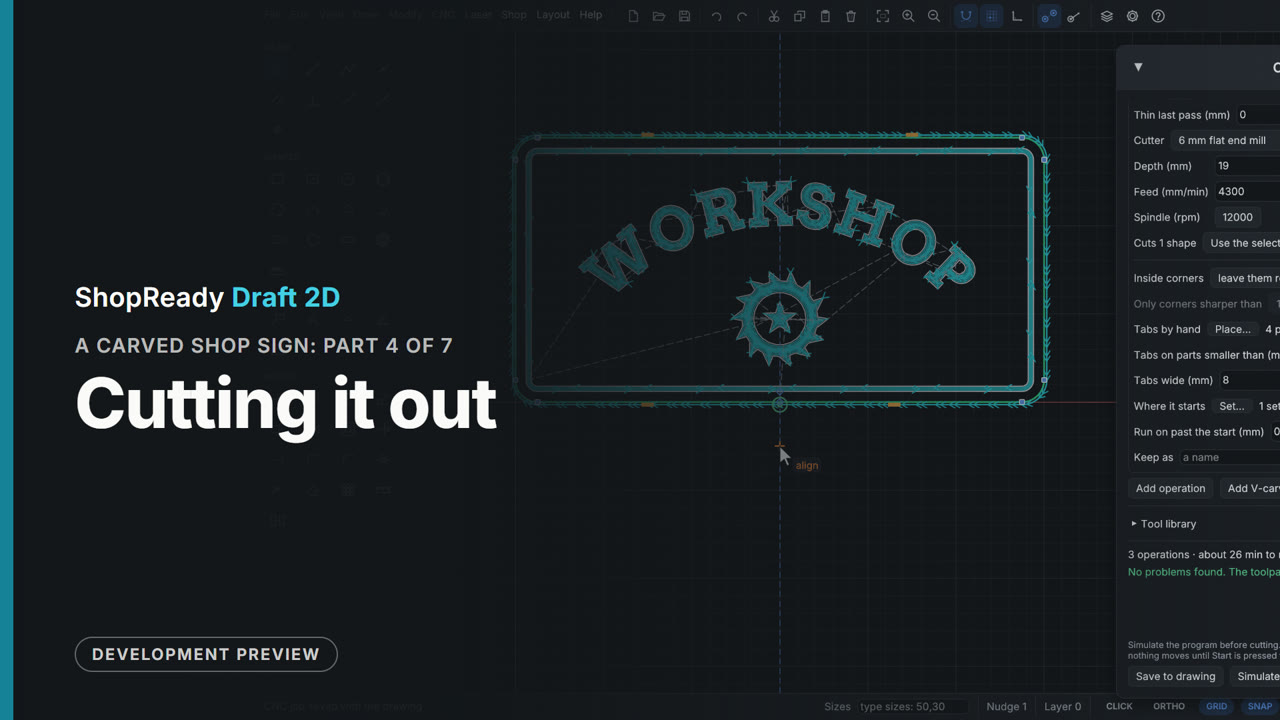 Chapter · 1:32
A carved shop sign, part 4 of 7: Cutting it out
The board's edge is added to the job as a profile right through the stock. The job warns when it would be cut before the carving, Put in cutting order mends that, and the cut is ramped in, held on four tabs placed by hand, and started on the bottom edge.
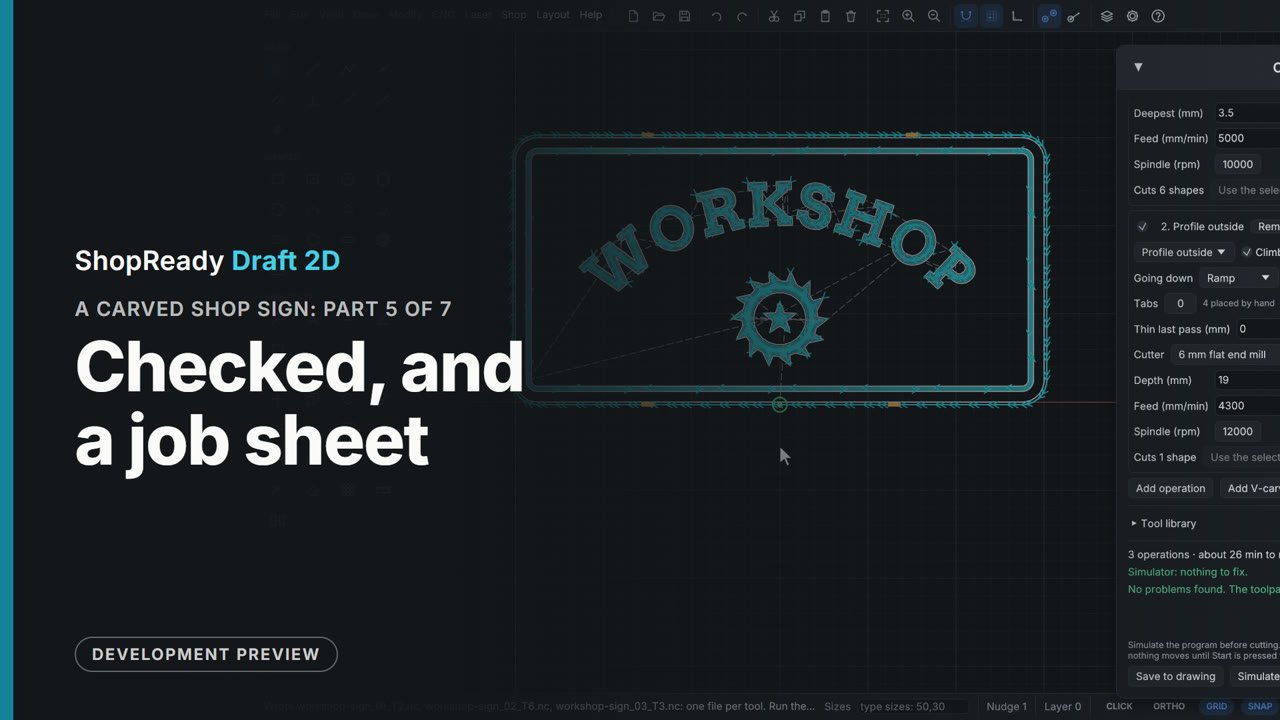 Chapter · 53 s
A carved shop sign, part 5 of 7: Checked, and a job sheet
Simulate carves the whole program out of sight and its checks come back to the job window: nothing to fix, about 25 minutes. Job sheet writes a page for the machine, and Export G-code writes three programs, one for each tool.
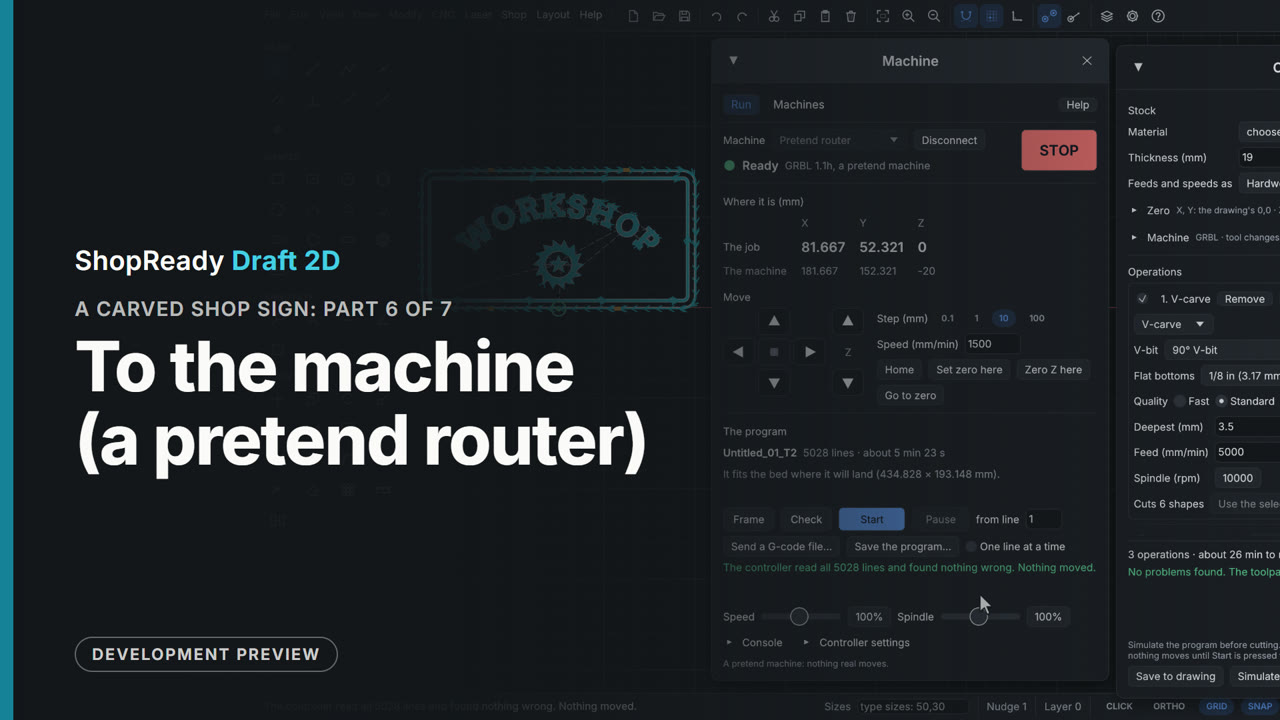 Chapter · 1:31
A carved shop sign, part 6 of 7: To the machine (a pretend router)
Send... hands the job's first program to the Machine window. A pretend router is added (a pretend machine, to try it with nothing plugged in), connected and homed; the head is jogged to the board's corner and zero is set; Frame runs the head round the program's box; Check has the controller read every line with nothing moving.
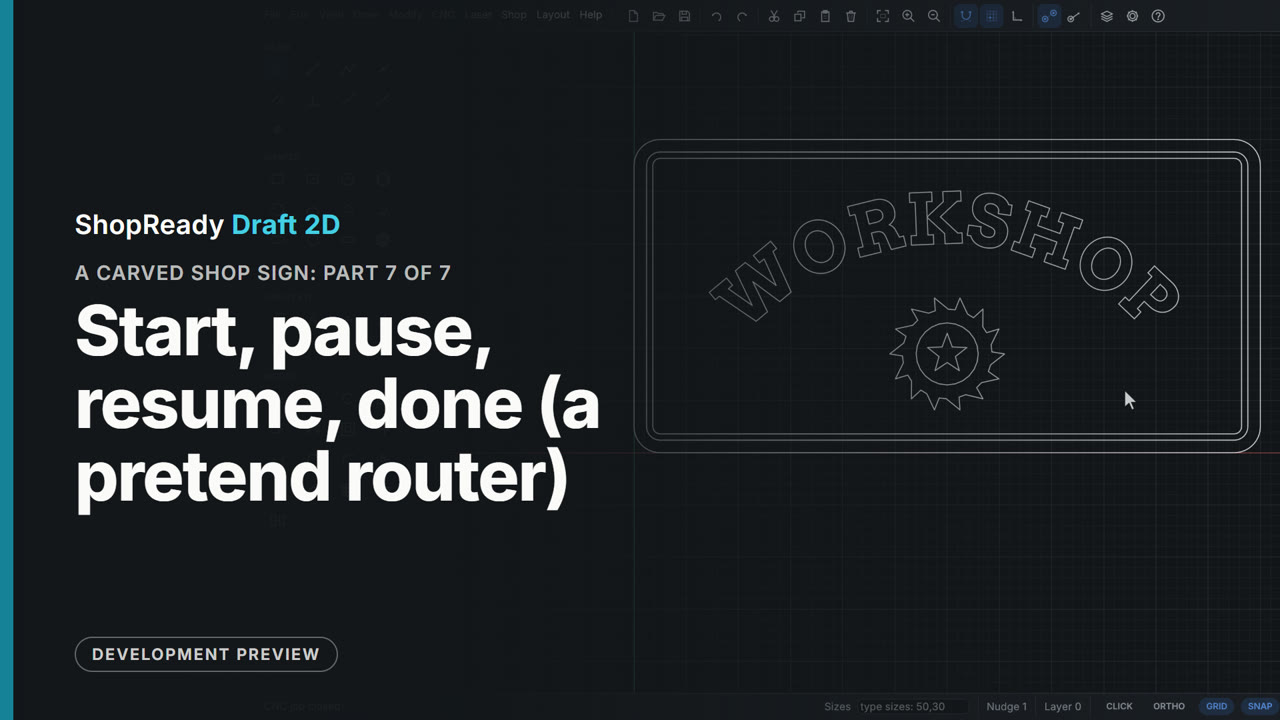 Chapter · 1:43
A carved shop sign, part 7 of 7: Start, pause, resume, done (a pretend router)
The check found nothing wrong. Start asks once, then the program runs on a pretend router: a bar shows the line it is on, the time gone and the time left; Pause holds the head, Resume goes on, and the Speed slider changes the feed as it runs. When it is done the next tool's program is already made ready, and the window says which bit to load. The film ends on the finished sign drawing.
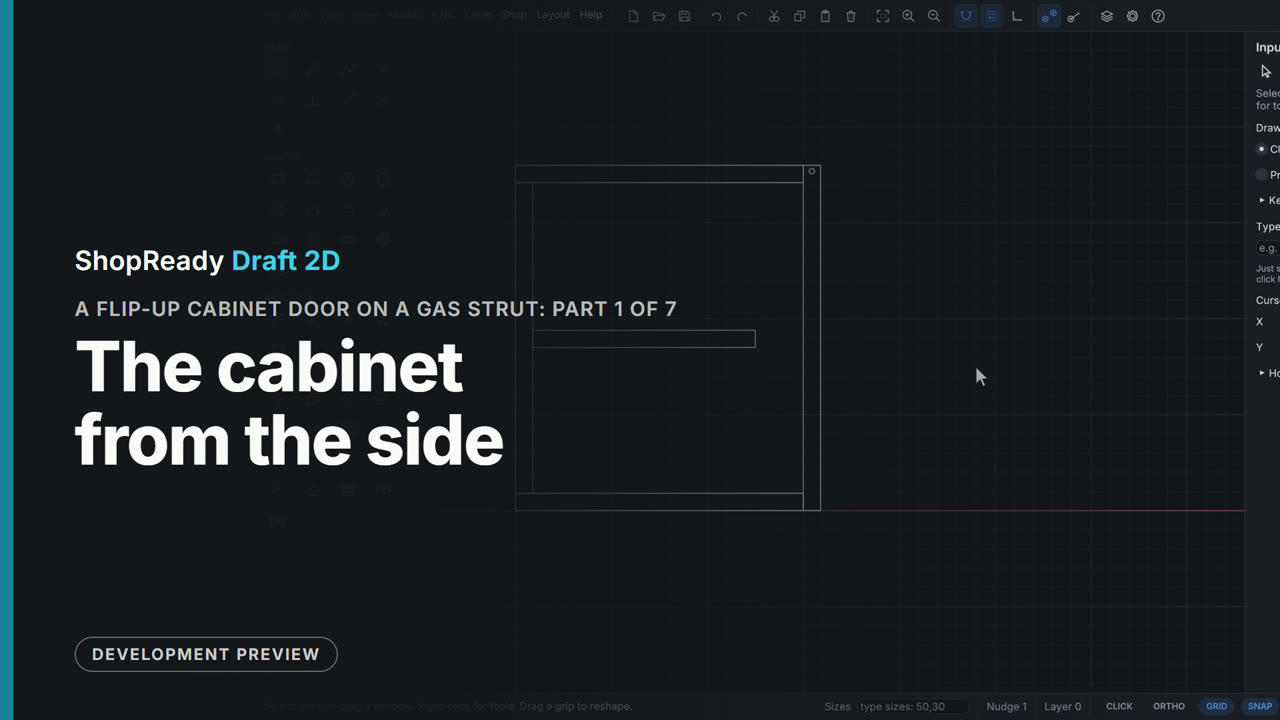 Chapter · 1:09
A flip-up cabinet door on a gas strut, part 1 of 7: The cabinet from the side
A wall cabinet drawn from the side on a blank drawing: bottom, back, top and shelf as rectangles with typed sizes, the door hung in front, and the hole for its hinge pin. Corners are clicked where they snap, and the top is the bottom copied corner to corner.
 Chapter · 52 s
A flip-up cabinet door on a gas strut, part 2 of 7: A pin, stops, and a pull by hand
The door is made a moving part: a pin on its hinge hole, a stop at shut and one at 100 degrees. Pulled by hand it will not open: the door and the cabinet top turn red, and a closer look shows the door's back corner digging into the top, as a door hung tight does.
 Chapter · 1:03
A flip-up cabinet door on a gas strut, part 3 of 7: Where it binds, and the fix
A motor on the hinge swings the door between its stops, and Check for hits plays it through out of sight and shows where the door first meets the cabinet top. The Clearance tool sets the door 2 off the cabinet. Checked again nothing hits, and by hand the door now opens to its stop.
 Chapter · 1:11
A flip-up cabinet door on a gas strut, part 4 of 7: Fixing points, weight, and a strut
The strut's two fixing points are drawn: a bracket and its stud on the door's back, and a stud on the cabinet's side below the shelf. Door, hole, bracket and stud are made one assembly, the door is given its weight of 3 kg, and a gas strut is placed by clicking the two studs.
 Chapter · 55 s
A flip-up cabinet door on a gas strut, part 5 of 7: The strut to buy
The door is lifted level by hand and Size it works out the push that holds it there: 71.6 N for this 3 kg door. The next size up, 80 N, is typed in. Let go, the shut door stays shut; started by hand, the strut takes it up to its stop at 100 degrees and holds it there.
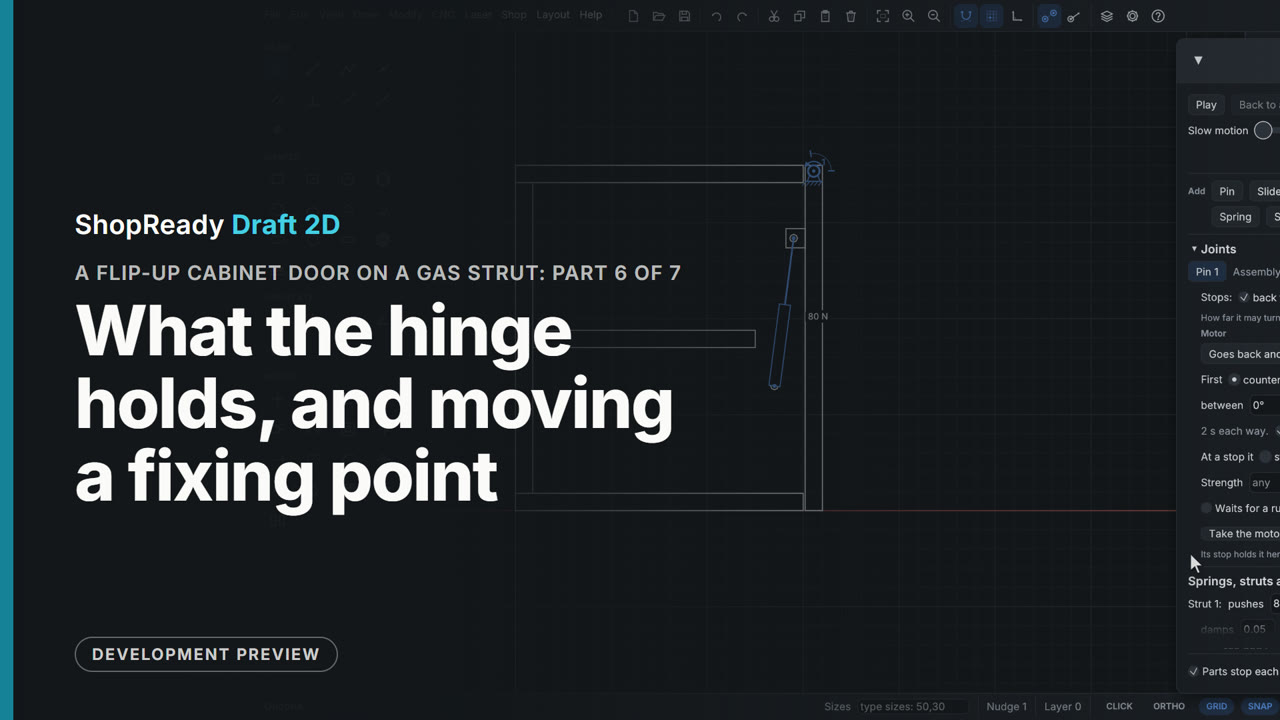 Chapter · 1:13
A flip-up cabinet door on a gas strut, part 6 of 7: What the hinge holds, and moving a fixing point
With the hinge's pin picked the window reads what it takes to hold the door, and the reading follows as the door is moved by hand: 0.945 N m keeps it shut, the strut lifts hardest near 60 degrees. Then the cabinet's stud is moved 40 further back with Move: the strut goes with it, the reading turns round, and let go the door opens by itself. Undo puts it back.
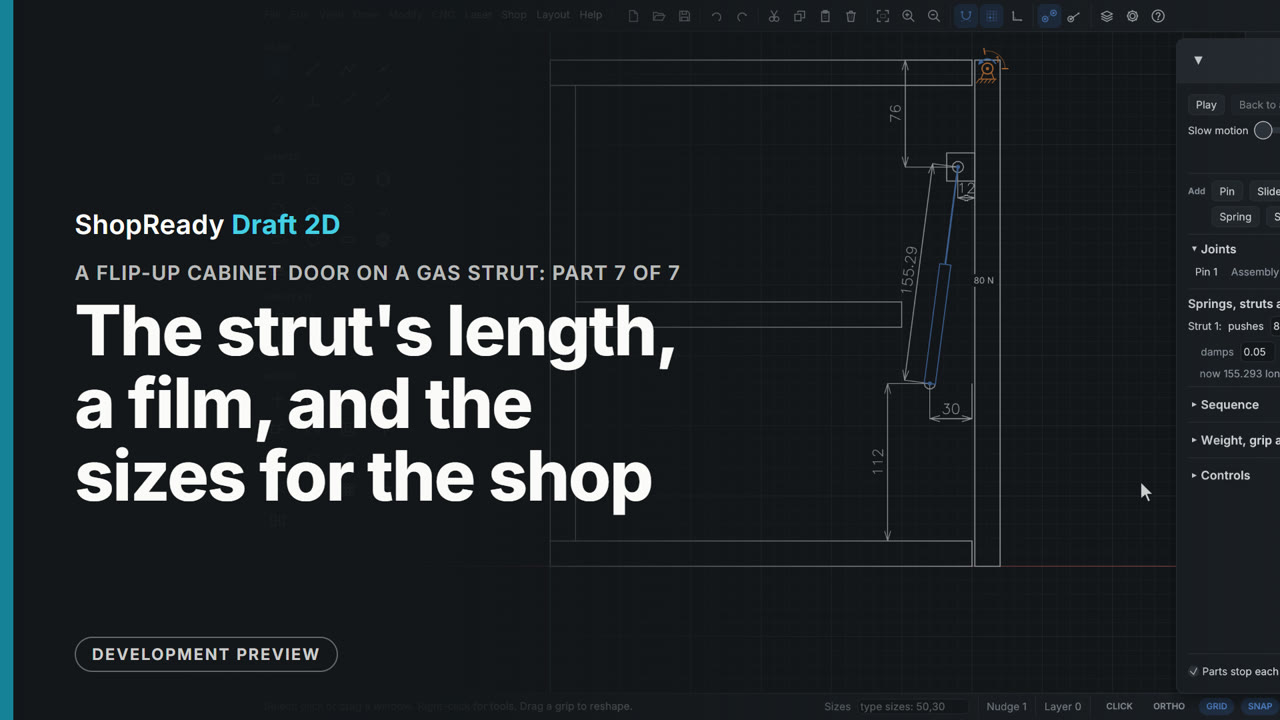 Chapter · 1:45
A flip-up cabinet door on a gas strut, part 7 of 7: The strut's length, a film, and the sizes for the shop
The strut's row gives its length shut (155) and, with the door let go and risen to its stop, open (244): with the 80 N from before, that is the strut to order. Save a film writes the door's swing as a GIF. Then the two studs' places are dimensioned from the cabinet's front, bottom and top, each second point found level or plumb with the first by the snaps, and the strut itself from stud to stud along its slope: 155.29. The numbers are set 7 tall so they read with the whole cabinet in view.
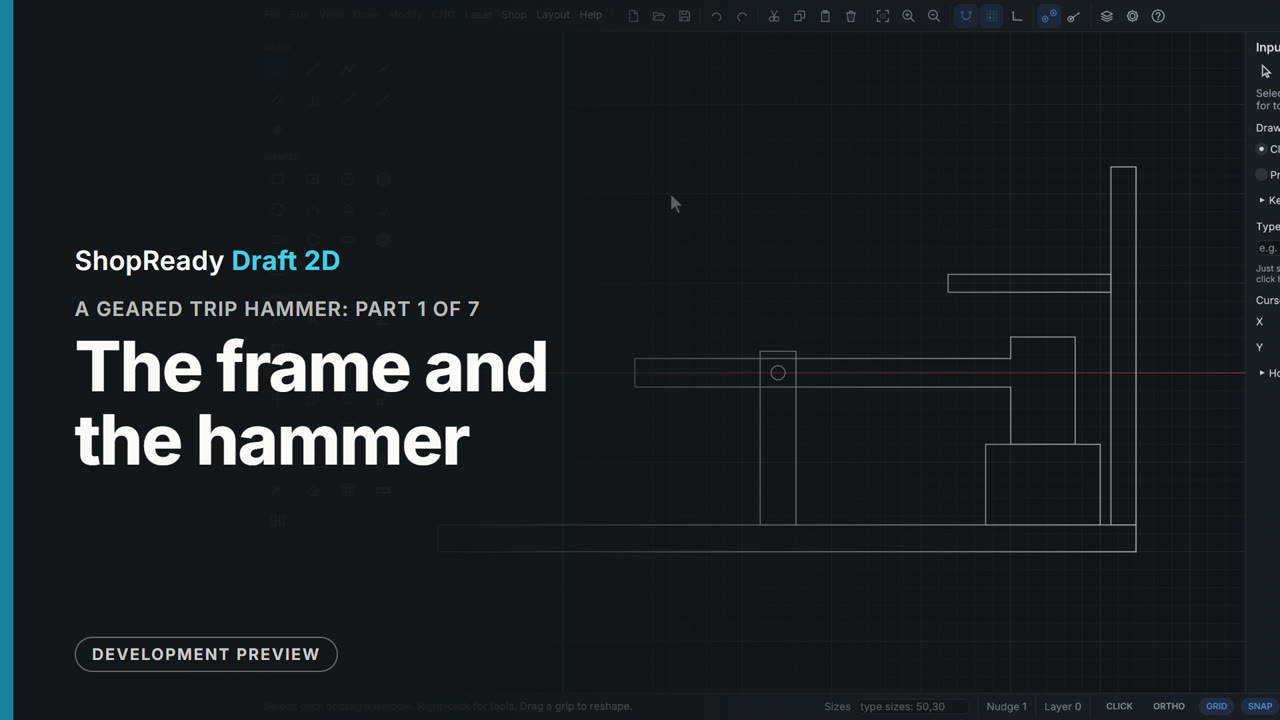 Chapter · 1:08
A geared trip hammer, part 1 of 7: The frame and the hammer
From a blank drawing: a bed, an anvil, two posts and a top beam as rectangles with typed sizes, then the hammer as an arm and a head welded into one part, with a pivot hole placed where a level line and a plumb line cross.
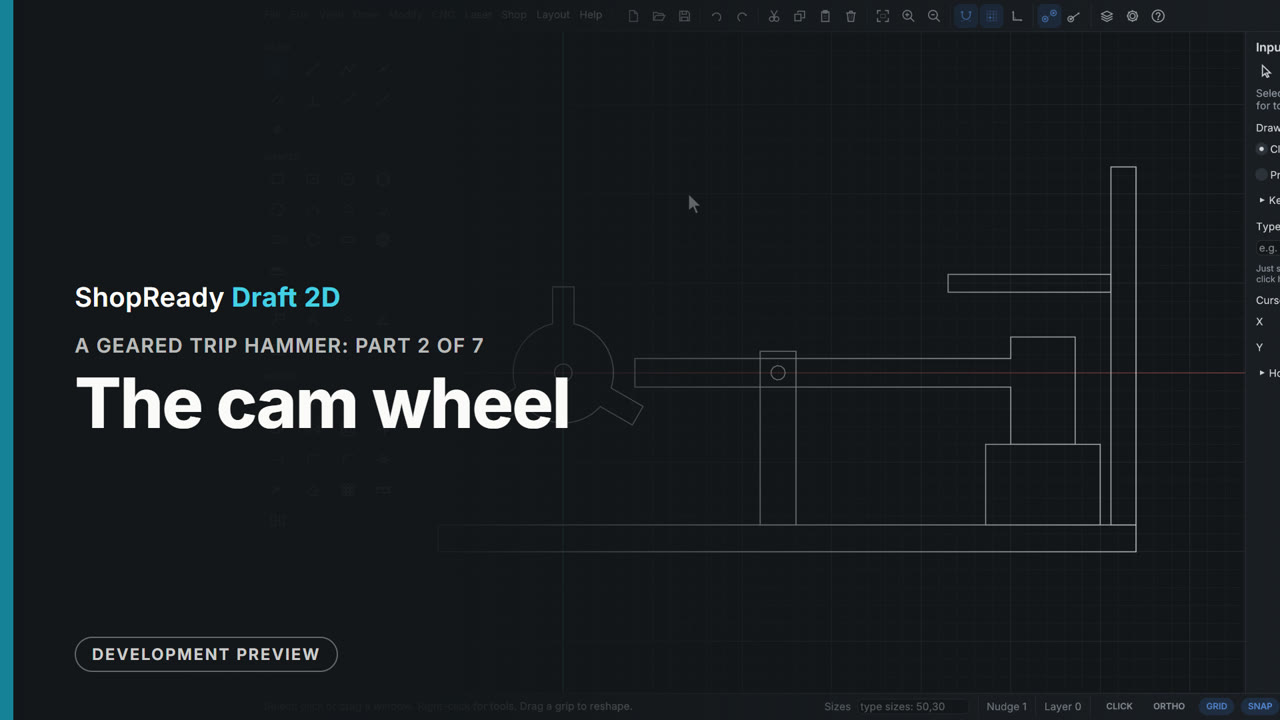 Chapter · 1:07
A geared trip hammer, part 2 of 7: The cam wheel
The wheel that trips the hammer: a hub drawn by typed center and radius, one lifting peg as a rectangle on the hub's top point, the peg repeated three times round the hub with Array, and all four welded into one cam wheel with a shaft hole.
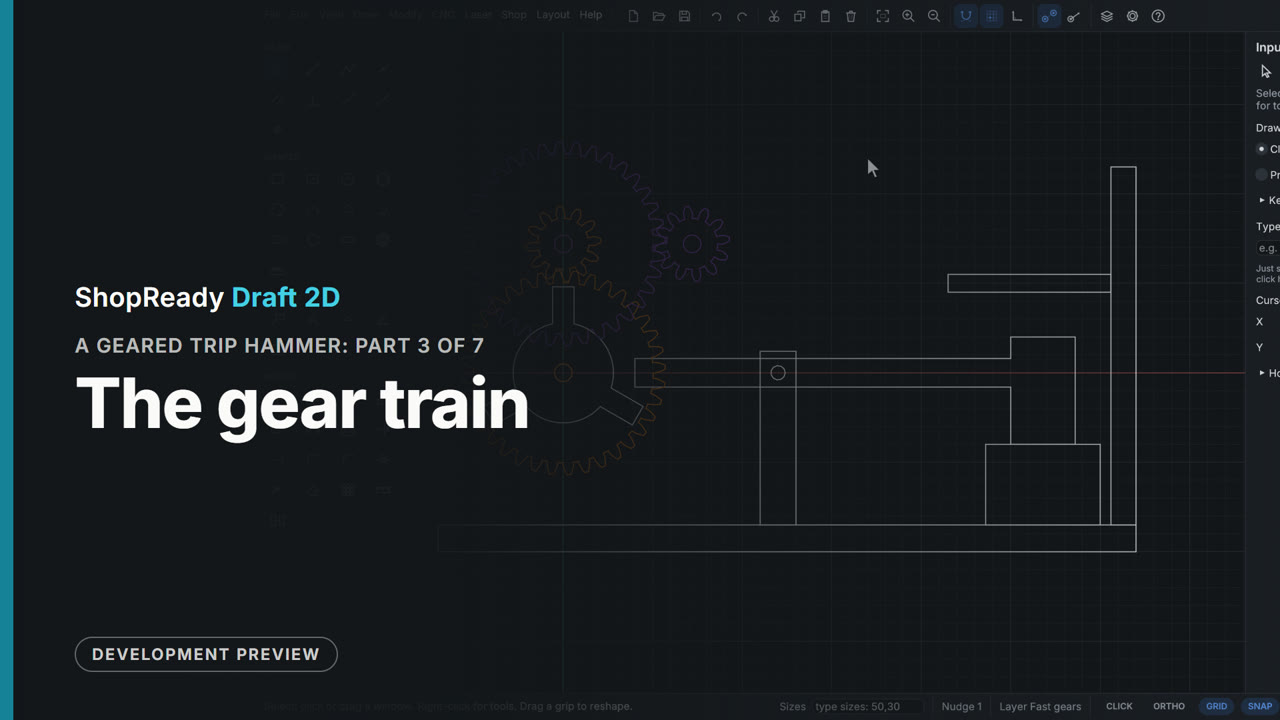 Chapter · 1:28
A geared trip hammer, part 3 of 7: The gear train
Four gears in two pairs, each pair on a layer of its own. The Gear tool takes teeth and module in the panel; the second gear of each pair is held on a dashed ring at the meshing distance and comes down with its teeth in the other's gaps, with no arithmetic.
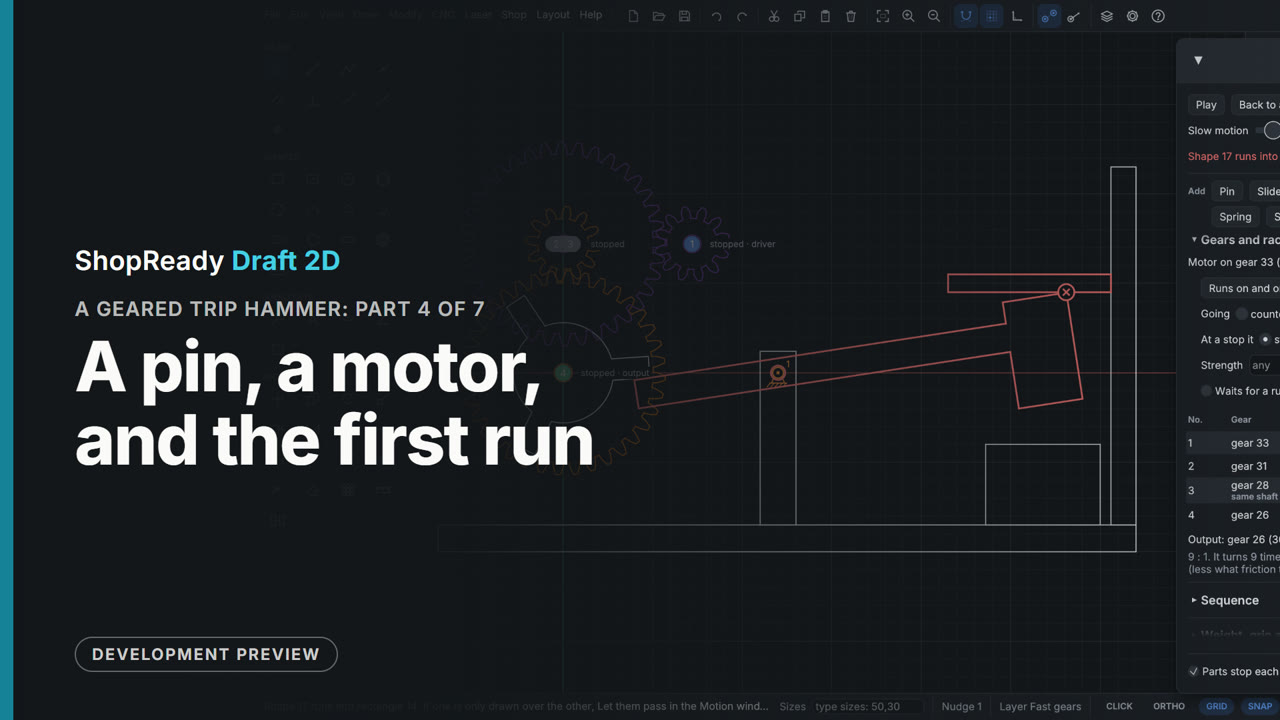 Chapter · 1:30
A geared trip hammer, part 4 of 7: A pin, a motor, and the first run
The drawing is made to move. The cam wheel and its gear become one assembly, the hammer is pinned at its pivot and dropped by its own weight with LET GO, and a right-click on the small gear gives the train its motor. The program sees that, the way it is set, a peg would run into the hammer, and waits for Play; set to clockwise, the Motion window lists every gear's speed and the 9 to 1 ratio. On Play a peg pushes the tail down, and the head runs into the top beam: both turn red.
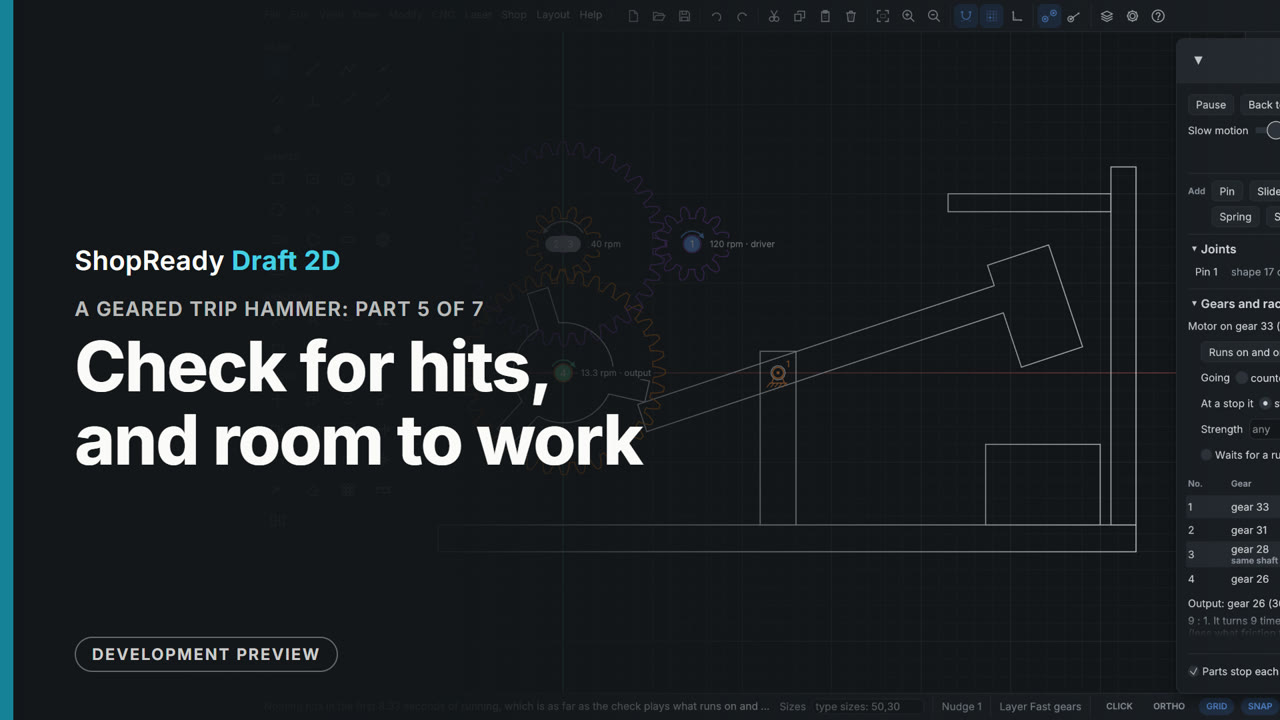 Chapter · 1:13
A geared trip hammer, part 5 of 7: Check for hits, and room to work
Check for hits plays the machine through out of sight and shows the hammer in the top beam, 1.08 seconds in. The Clearance tool sets the beam 70 above the head in two clicks, showing where it will stand first. Checked again, nothing hits, and on Play each peg trips the hammer and its weight drops it on the anvil.
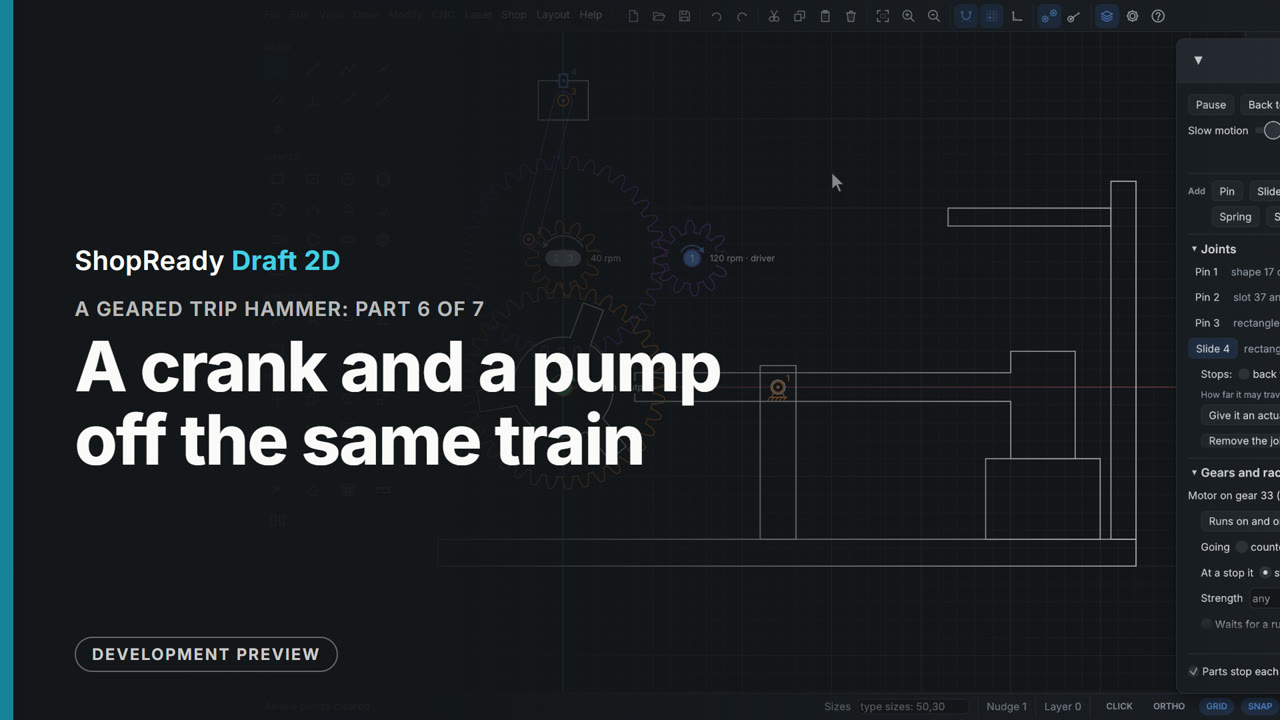 Chapter · 1:34
A geared trip hammer, part 6 of 7: A crank and a pump off the same train
A second job for the same motor. A crank hole on the big fast gear, a rod drawn with the Slot tool, and a block on layer 0. Two pins placed with one click each join gear to rod and rod to block, a slide keeps the block on a straight line, and on Play the pump goes up and down once for every blow of the hammer.
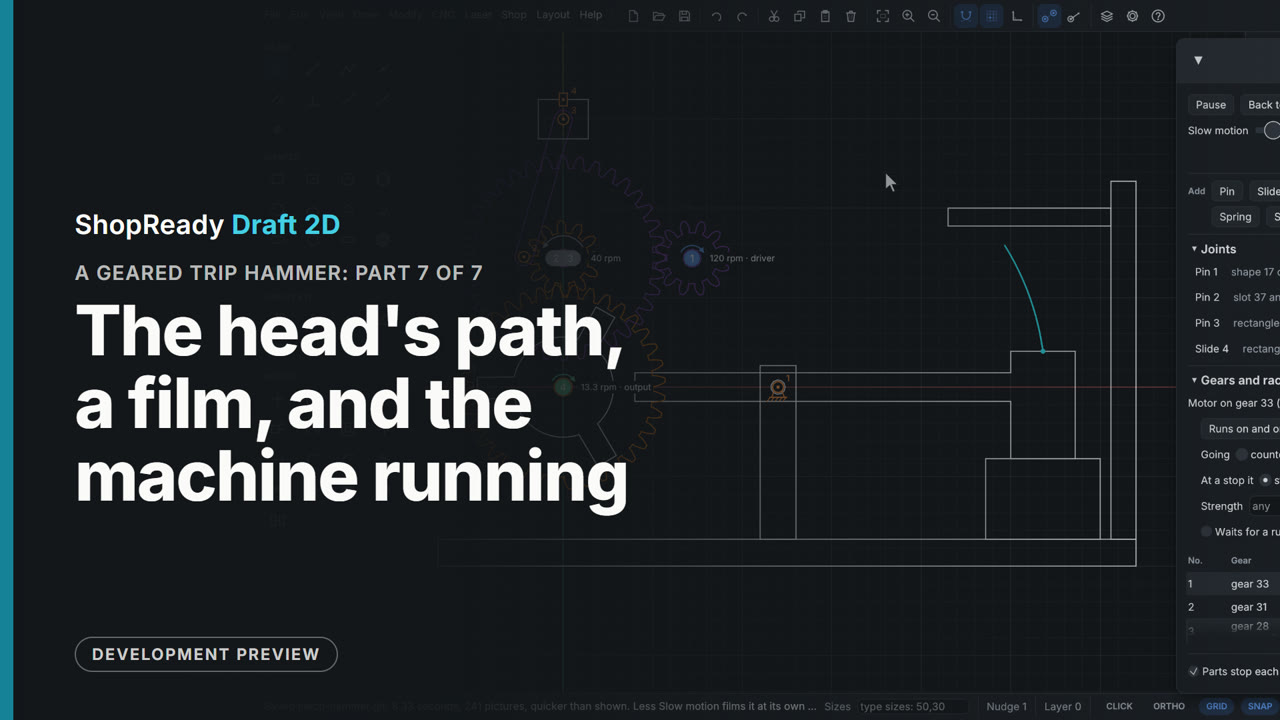 Chapter · 1:13
A geared trip hammer, part 7 of 7: The head's path, a film, and the machine running
Trace draws the arc the hammer's head takes as it lifts and falls. Save a film writes one round of the motion as a GIF. Then the finished machine runs: a motor, two pairs of gears, a cam wheel tripping a hammer that falls by its weight, and a crank working a pump.
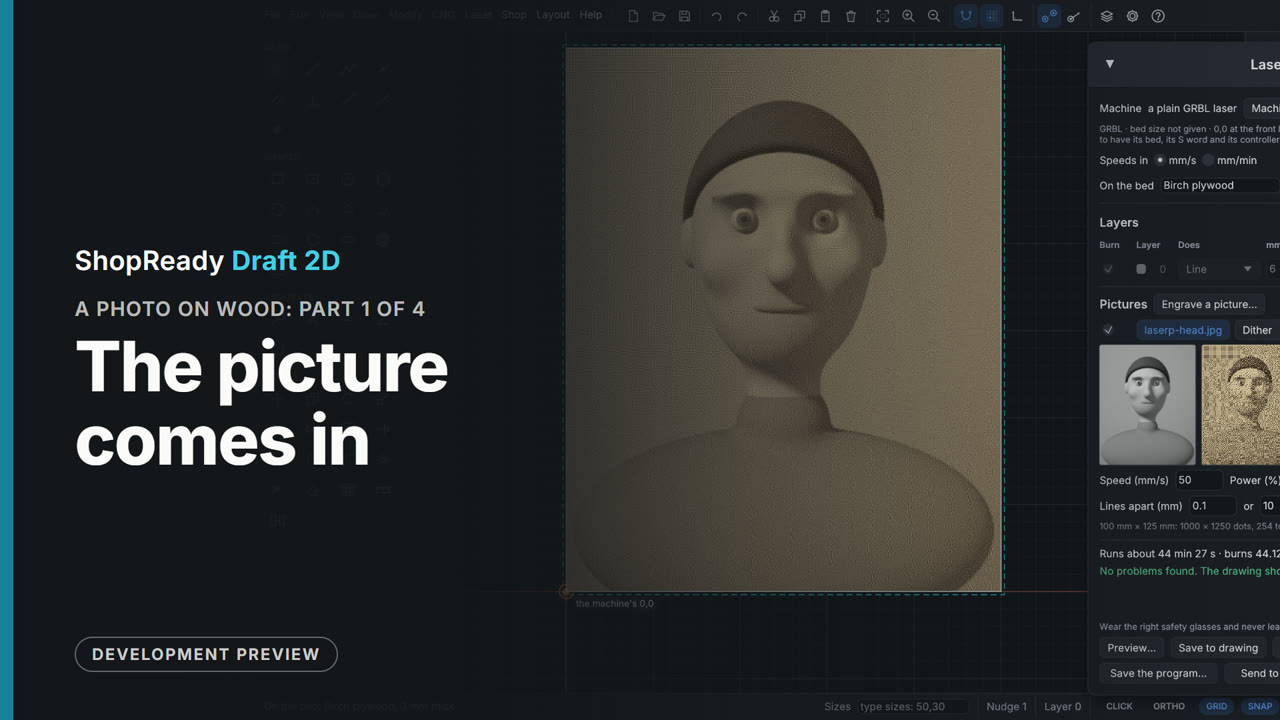 Chapter · 1:01
A photo on wood, part 1 of 4: The picture comes in
Laser > Engrave a picture... opens the picture window at its Laser choice with a head-and-shoulders picture. Its width is set to 100 mm, and Engrave it... puts it on the drawing and opens the Laser job with the picture in it. The drawing shows the picture as it will burn, the window shows it as it came and as dots, and the foot says how long it runs.
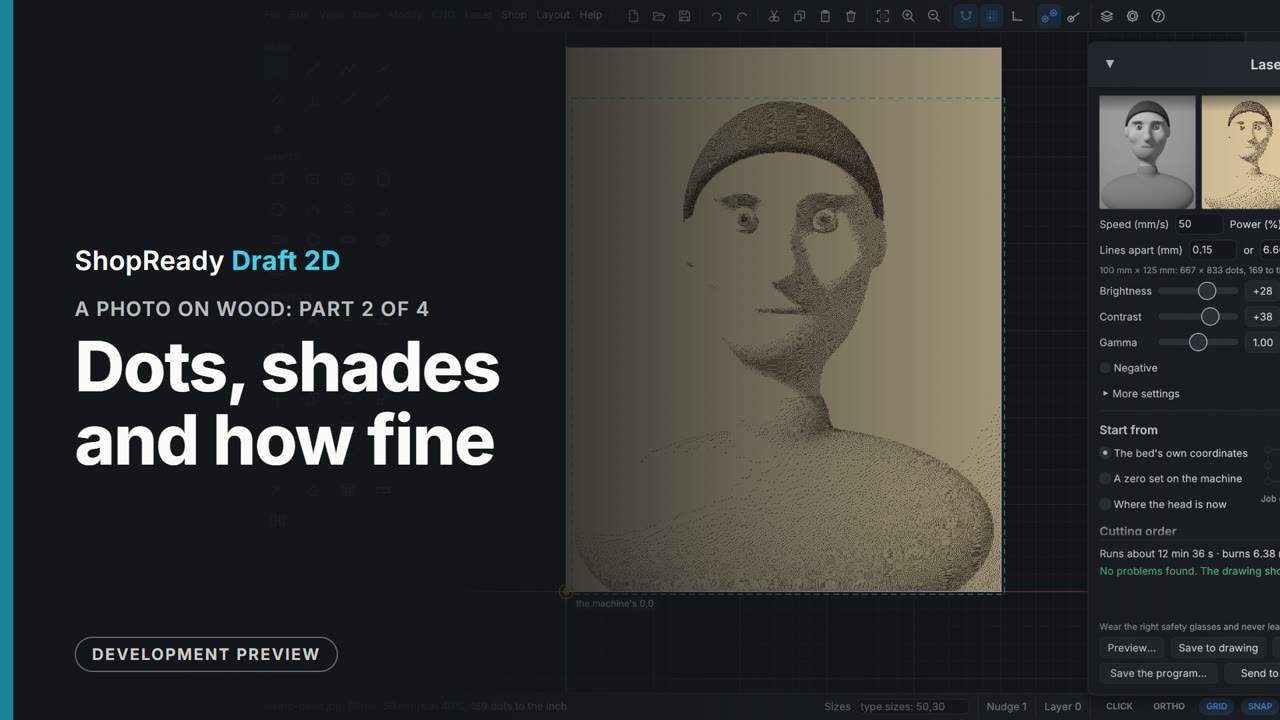 Chapter · 1:25
A photo on wood, part 2 of 4: Dots, shades and how fine
The picture's row in the Laser job is clicked and its way of burning is changed one after another, the small before-and-after pictures and the drawing following each time: Newsprint, Threshold, Grayscale, and back to Dither. Brightness and contrast are dragged up, which clears the background and shortens the run; Lines apart goes from 0.1 to 0.15 mm, which shortens it again. The drawing is zoomed in until the single dots show.
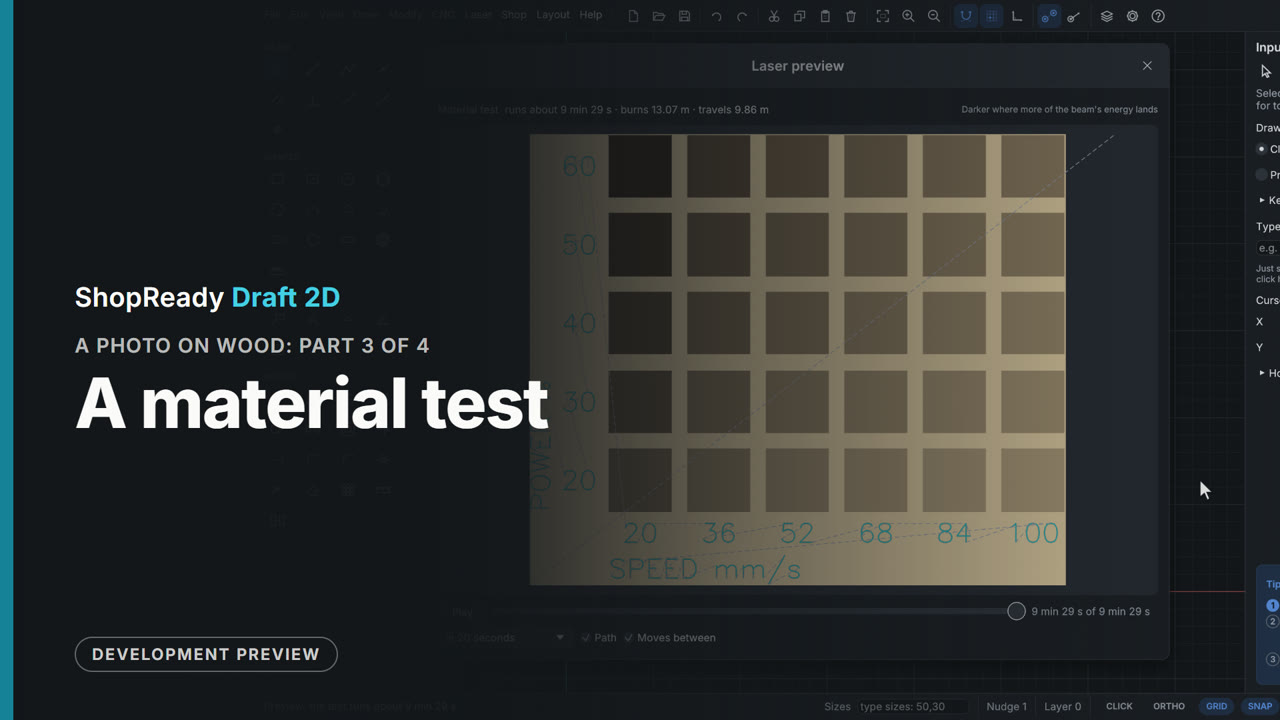 Chapter · 1:09
A photo on wood, part 3 of 4: A material test
Laser > Material test... makes a grid of small squares straight from its numbers, with nothing drawn: a speed for each column, a power for each row, and the numbers engraved beside them. It is set to six columns, powers up to 60% and lines 0.15 mm apart, as the photo will be burnt. Its preview is opened and played, square by square.
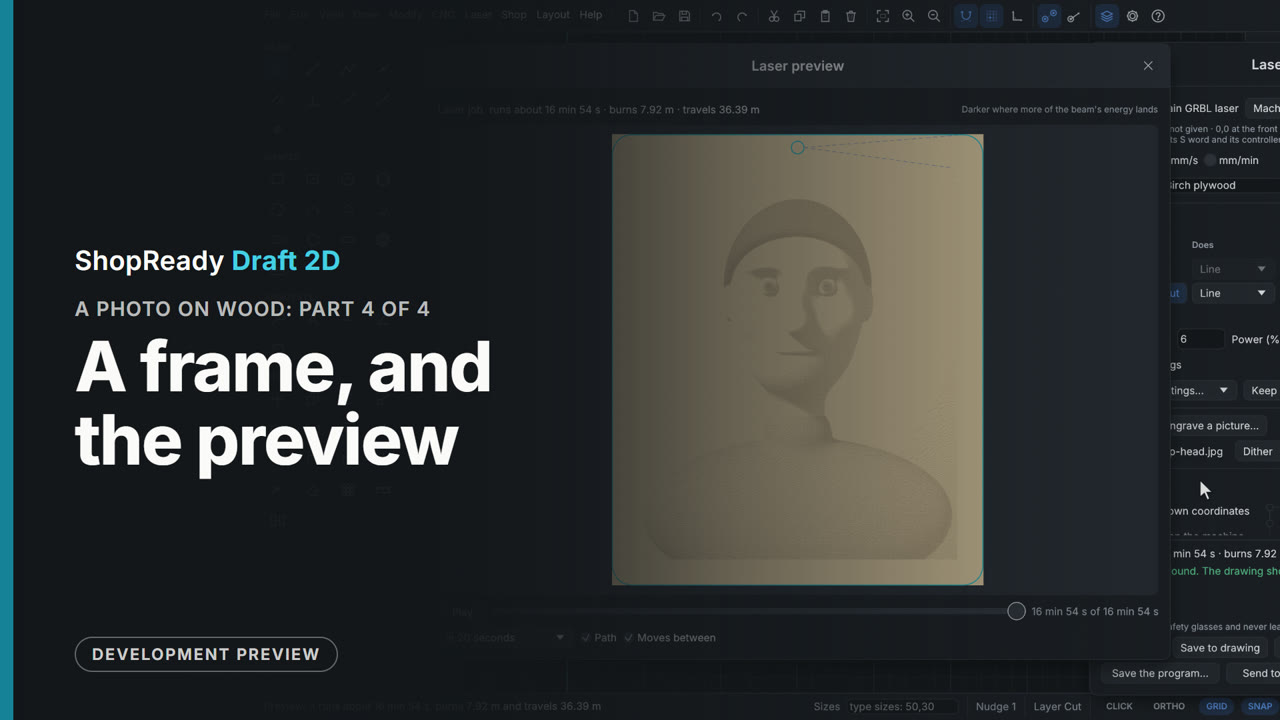 Chapter · 1:24
A photo on wood, part 4 of 4: A frame, and the preview
On the Cut layer a rectangle 8 mm bigger than the picture all round is drawn by typed corner and size, its corners rounded with Fillet, and a hanging hole added. The Laser job now lists Cut as a Line under the picture, which burns first. The preview is played and its clock dragged to the end: the picture scanned from the front, then the hole and the frame cut last.
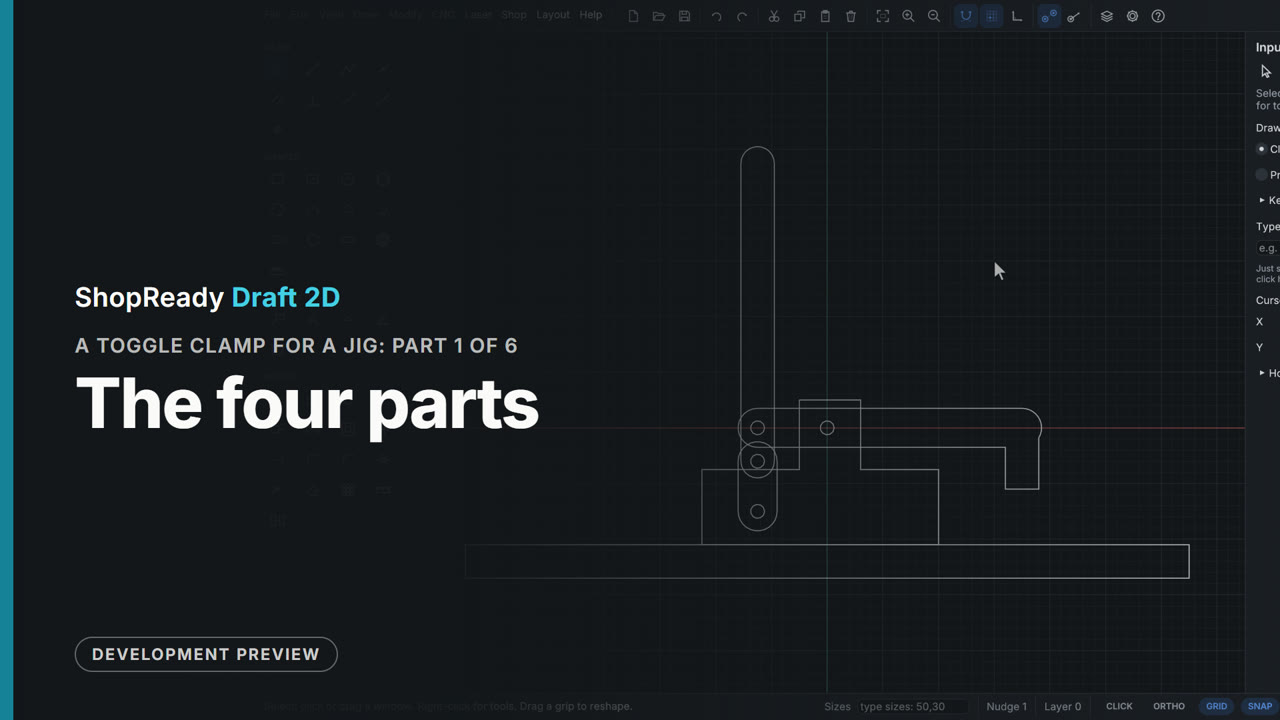 Chapter · 1:37
A toggle clamp for a jig, part 1 of 6: The four parts
A toggle clamp drawn from the side on a blank drawing: the jig's plate, a base welded from two rectangles, an arm, a handle and a link as slots with typed lengths and angles, a spindle welded to the arm, and one pin hole copied to the other three pins.
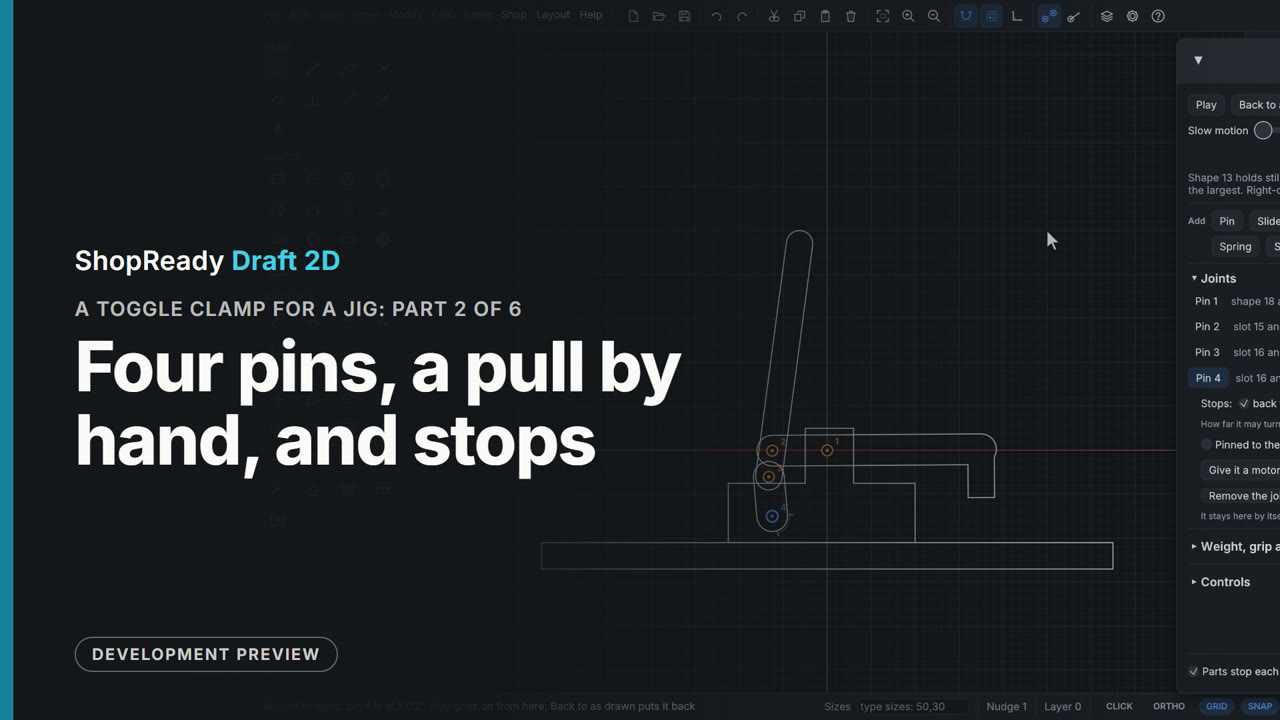 Chapter · 1:16
A toggle clamp for a jig, part 2 of 6: Four pins, a pull by hand, and stops
Four clicks pin the parts into a four-bar linkage: each click on a hole joins the two parts lying there. The handle is pulled back by hand and the arm lifts; pushed forward, it comes down. The link's pin is then given stops at 72 degrees back and 5 degrees past the straight line, and by hand the handle goes as far as each.
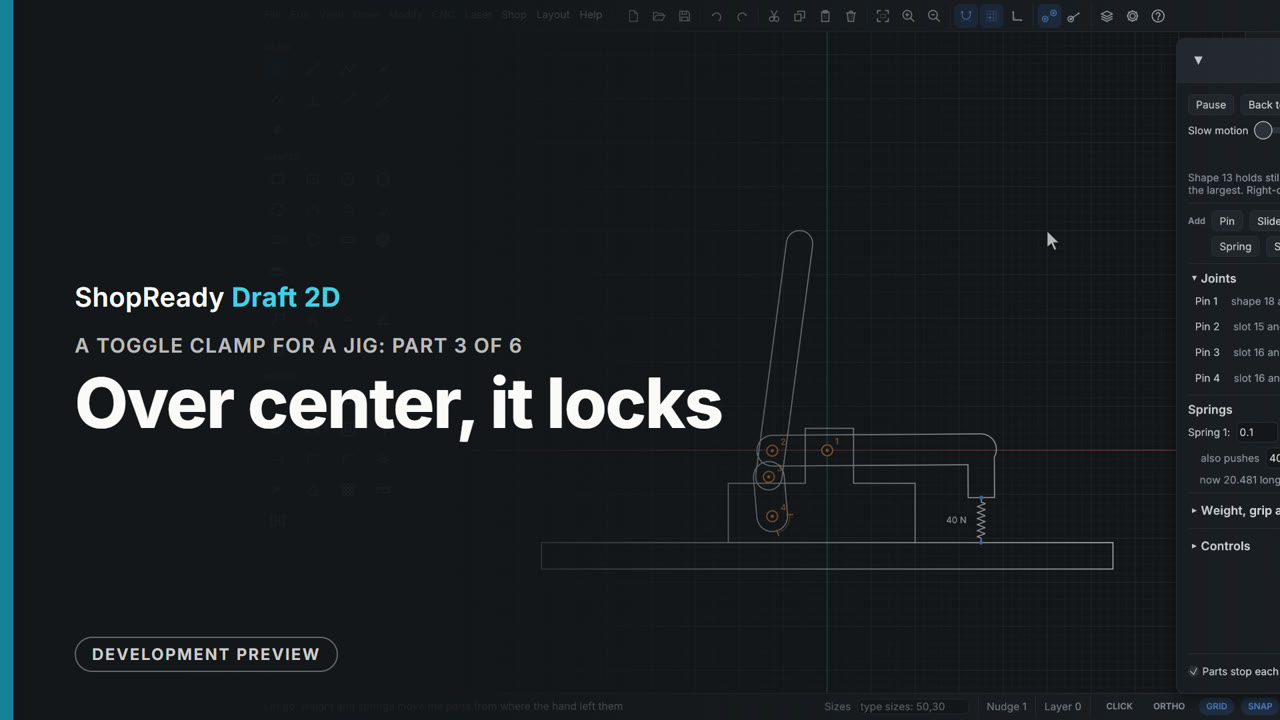 Chapter · 1:08
A toggle clamp for a jig, part 3 of 6: Over center, it locks
A spring under the pad, pushing 40 N, stands for the work pushing back. With the handle a little short of center, LET GO and the clamp springs open to its stop. With the handle pushed past center onto its stop, LET GO and the same push holds it shut.
 Chapter · 1:07
A toggle clamp for a jig, part 4 of 6: Room for the handle, and the pad's path
A fence is drawn on the plate behind the clamp. A motor on the link opens the clamp, and Check for hits shows the handle meeting the fence before it is half open. The Clearance tool sets the fence 60 from the clamp's base; checked again, nothing hits. Trace then draws the path of the pad's foot as the clamp plays: an arc, coming down at a lean.
 Chapter · 59 s
A toggle clamp for a jig, part 5 of 6: Set for thicker work
The test spring is removed, and its zigzag goes from the drawing with it. A dimension from the pad's foot to the plate reads 20: the work this clamp closes on. Stretch, with a window through the spindle's foot and @0,10 typed, shortens the spindle by 10; the dimension follows and reads 30, and the clamp still plays on its pins and stops.
 Chapter · 1:36
A toggle clamp for a jig, part 6 of 6: Copied to a second plate, and ready to cut
A second plate is drawn beside the first and the whole clamp is copied onto it: the copy comes with its own four pins and stops, and its handle pulls open by hand like the first. The plate is then drawn from above with a mounting hole copied and the pair mirrored, and Tidy up for cutting confirms nothing is drawn twice and no ends are loose.
 Chapter · 1:00
An inlaid box lid, part 1 of 4: The lid and its word
From a blank drawing: a 220 by 140 mm lid drawn by typing its size, its corners rounded, and the word TEA set in a heavy block font, 70 mm tall, centered on the lid.
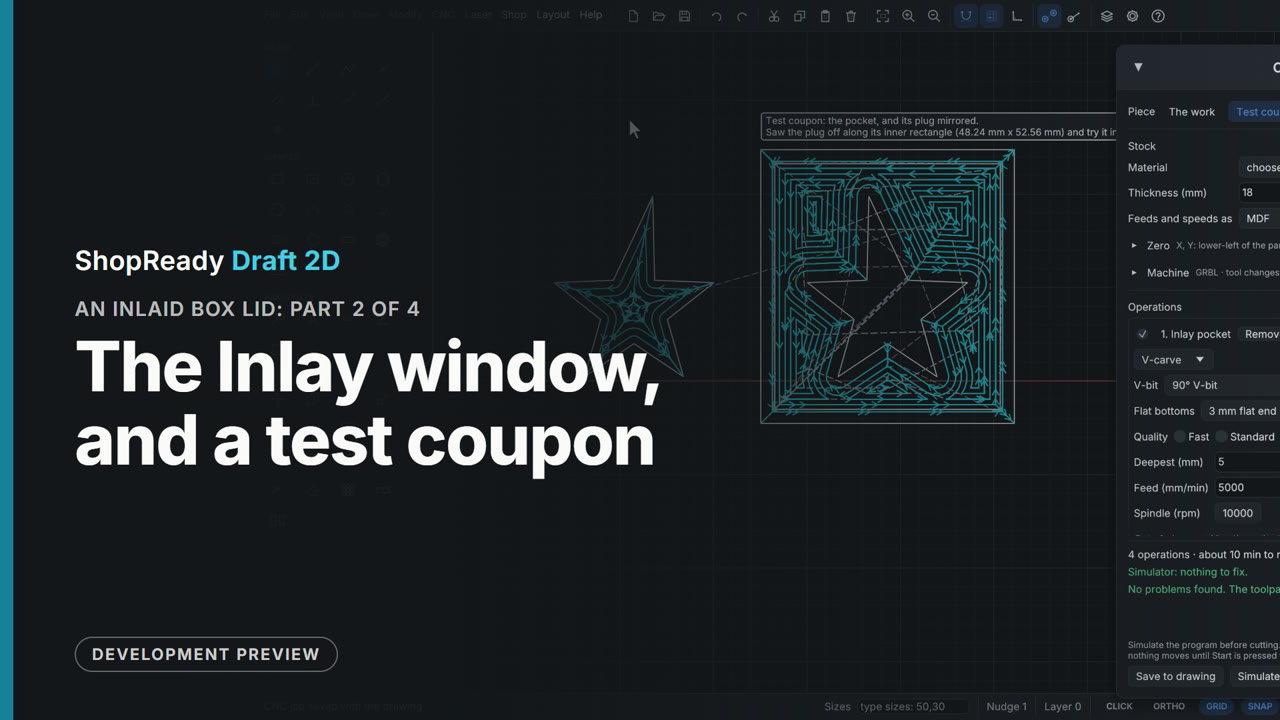 Chapter · 1:14
An inlaid box lid, part 2 of 4: The Inlay window, and a test coupon
CNC, V-carve inlay opens a window that draws the pocket and the plug seated, to scale: how far the plug goes in, the glue room under it, what stands proud to saw off. A test coupon, a star's pocket and its plug with the same numbers, is drawn beside the lid and simulated.
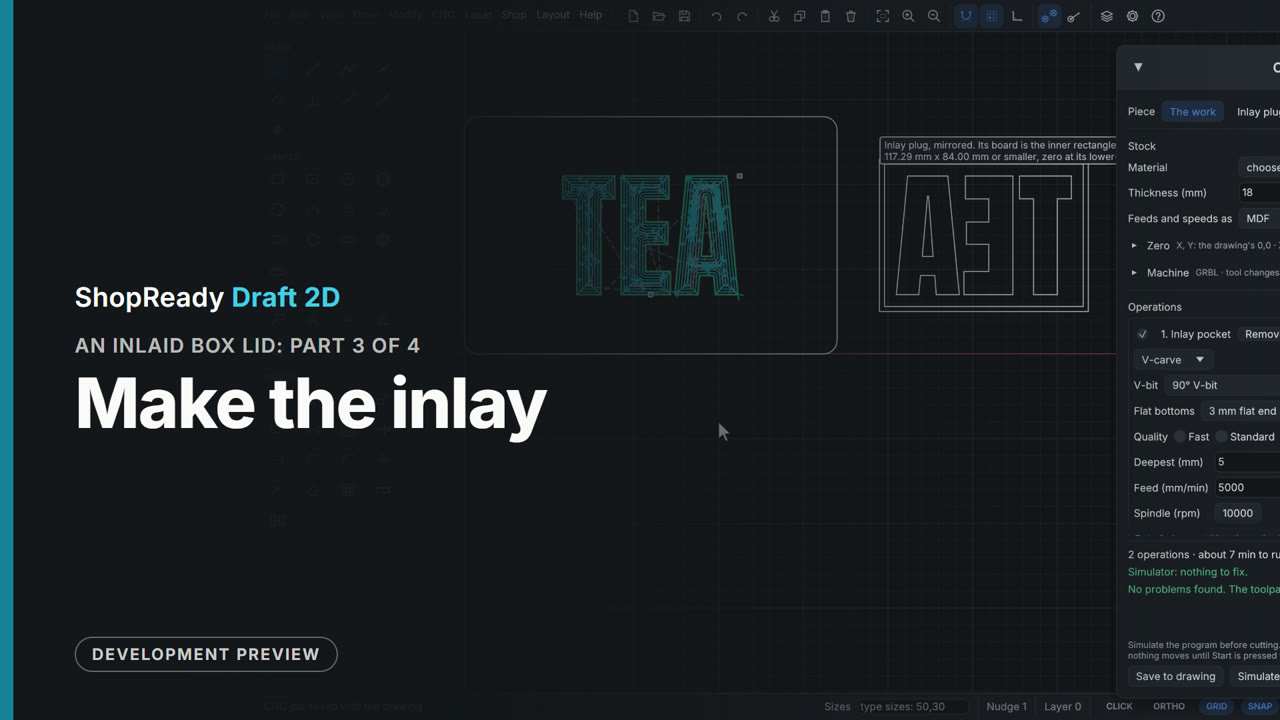 Chapter · 1:29
An inlaid box lid, part 3 of 4: Make the inlay
The test coupon is taken off again, and Make the inlay does the real thing: the pocket's carving on the lid, and the plug, mirrored, drawn beside it with a note of the board it needs. The job now has two pieces, each with its own zero and its own program, and each is simulated: nothing to fix.
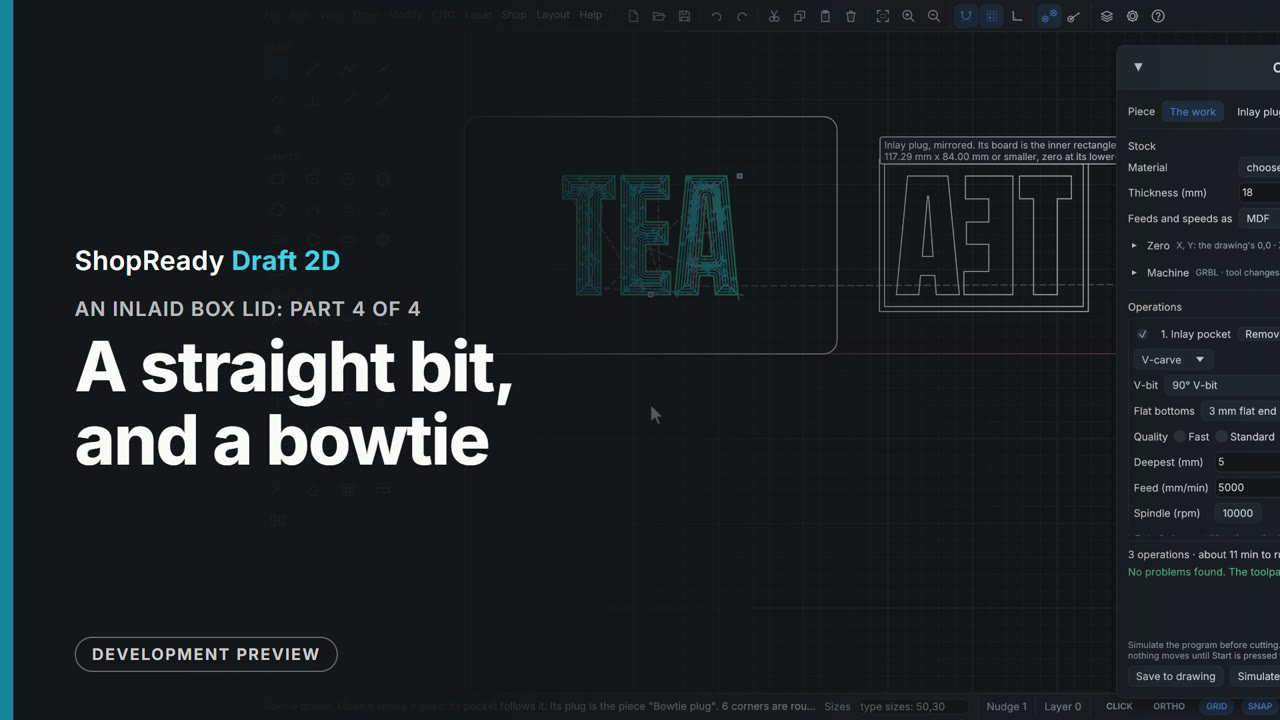 Chapter · 54 s
An inlaid box lid, part 4 of 4: A straight bit, and a bowtie
The same window with a straight bit instead of a V-bit: a pocket with upright walls and a plug a glue gap smaller, both with the cutter's round corners so they fit. Make a bowtie draws a butterfly key with its pocket and its plug. The film ends on the lid, its pocket and the plug that fills it.
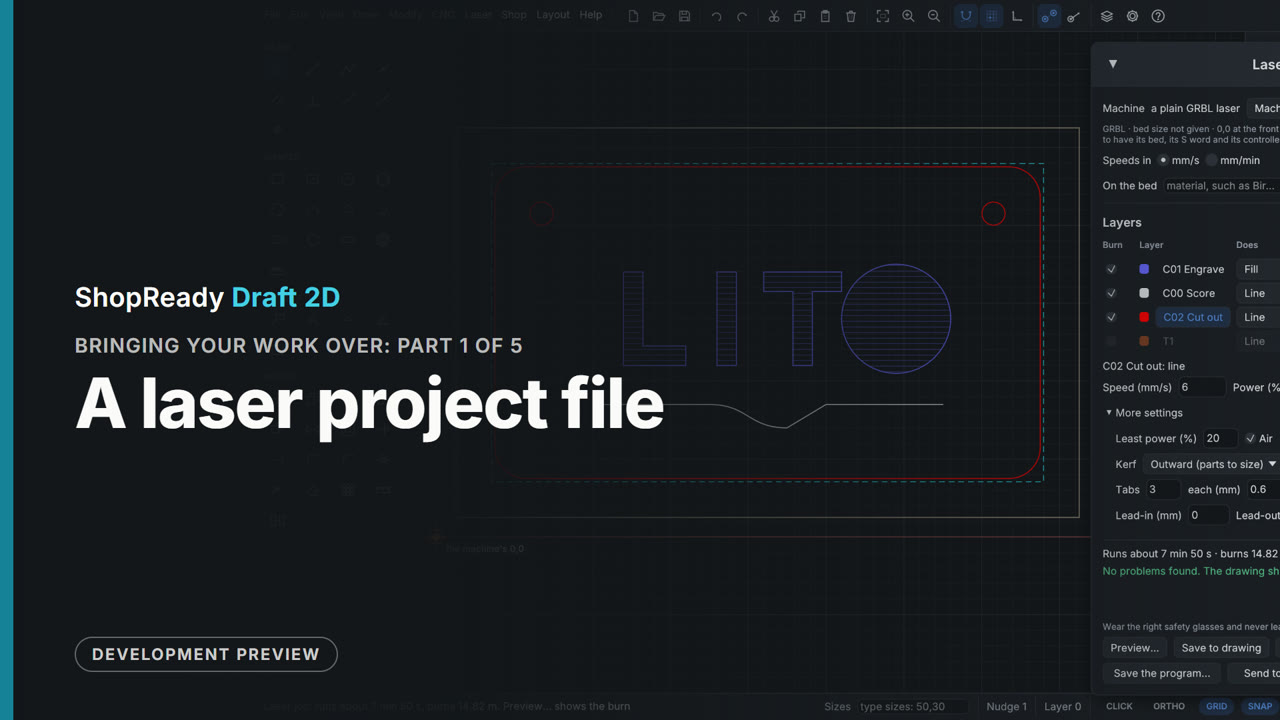 Chapter · 1:11
Bringing your work over, part 1 of 5: A laser project file
File > Open reads a laser project made in another program. A note above the drawing says what came in, that the sign is the right way up, and what had no home here. Laser > Laser job... shows the project's layers in their burning order with their settings already set: a Fill to engrave, a light Line to score, and a cut with two passes, kerf and three tabs.
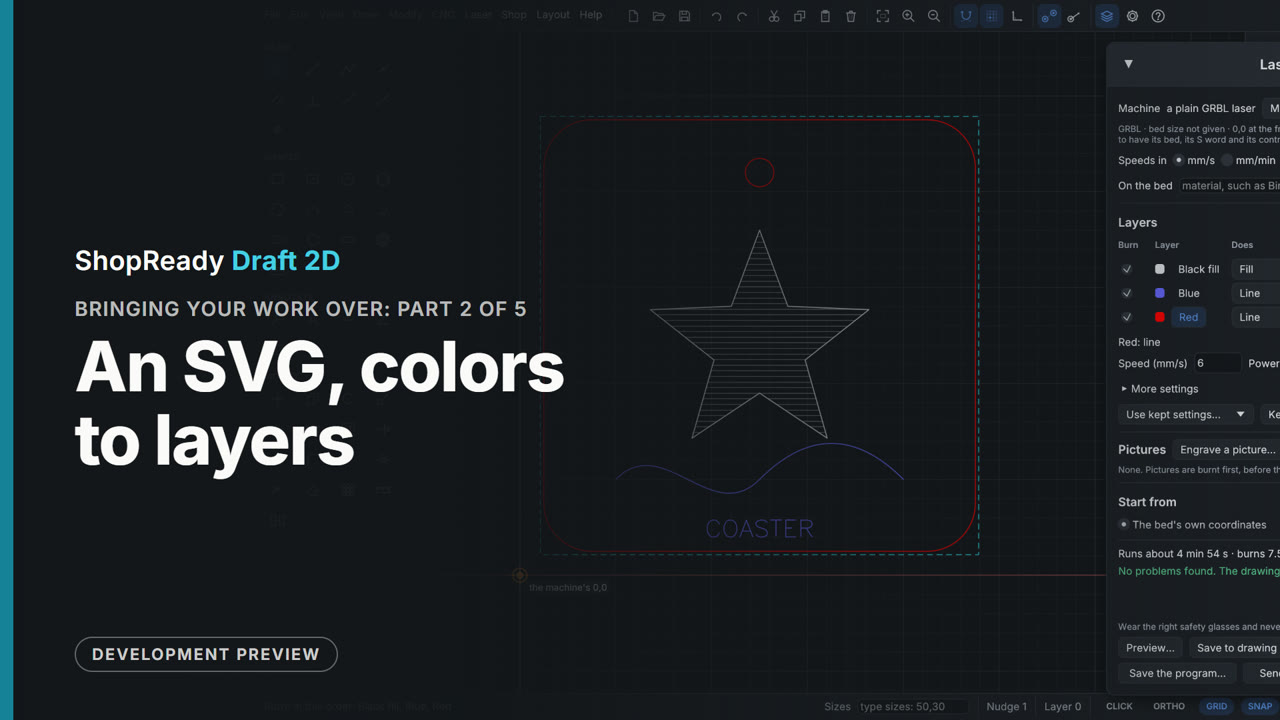 Chapter · 1:04
Bringing your work over, part 2 of 5: An SVG, colors to layers
An SVG file dropped on the window opens at its real size as a new drawing: a coaster with a red outline, a blue line and a black filled star. Each color is a layer, and the filled layer starts in the laser job as a Fill. The blue layer is made a light score and the order put right: engrave, score, cut last.
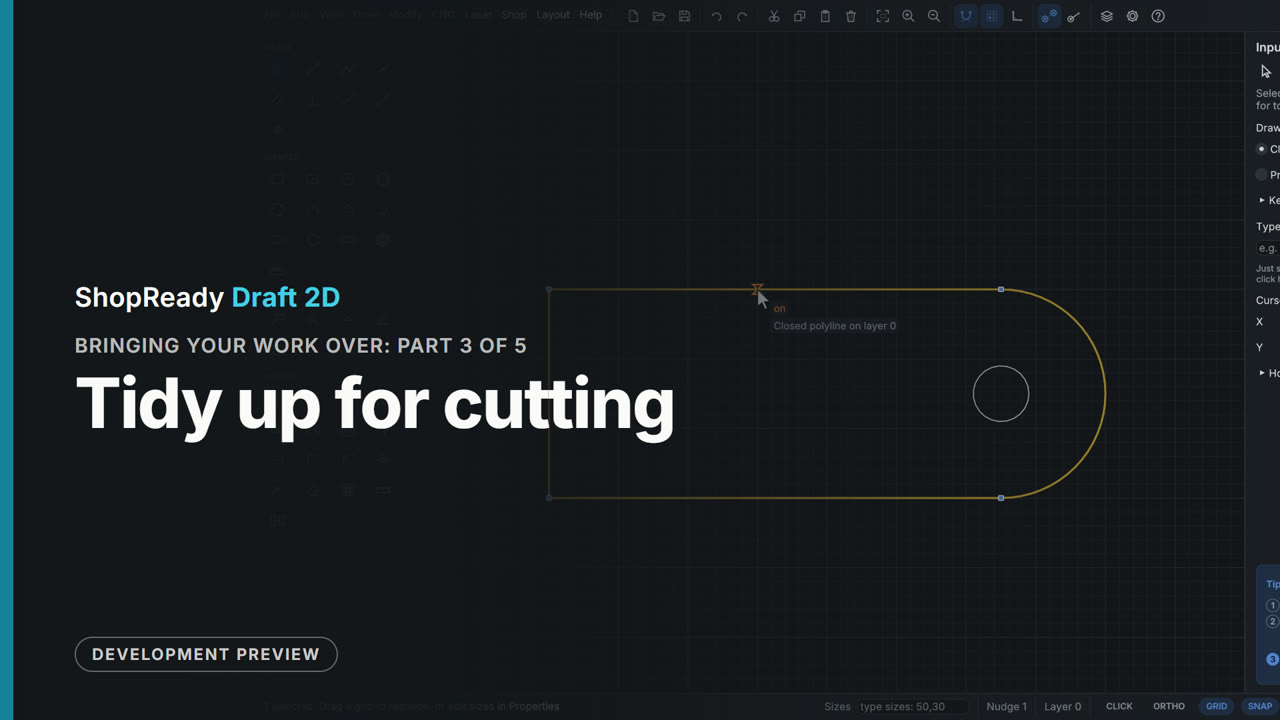 Chapter · 54 s
Bringing your work over, part 3 of 5: Tidy up for cutting
A key fob beside the coaster looks whole but is as drawings often arrive: loose lines, a corner left a hair open (seen by zooming in), and one side and the hole drawn twice. Modify > Tidy up for cutting takes out what is drawn twice, joins the pieces into one outline and closes it, and says so in the status line. A click then picks the whole outline.
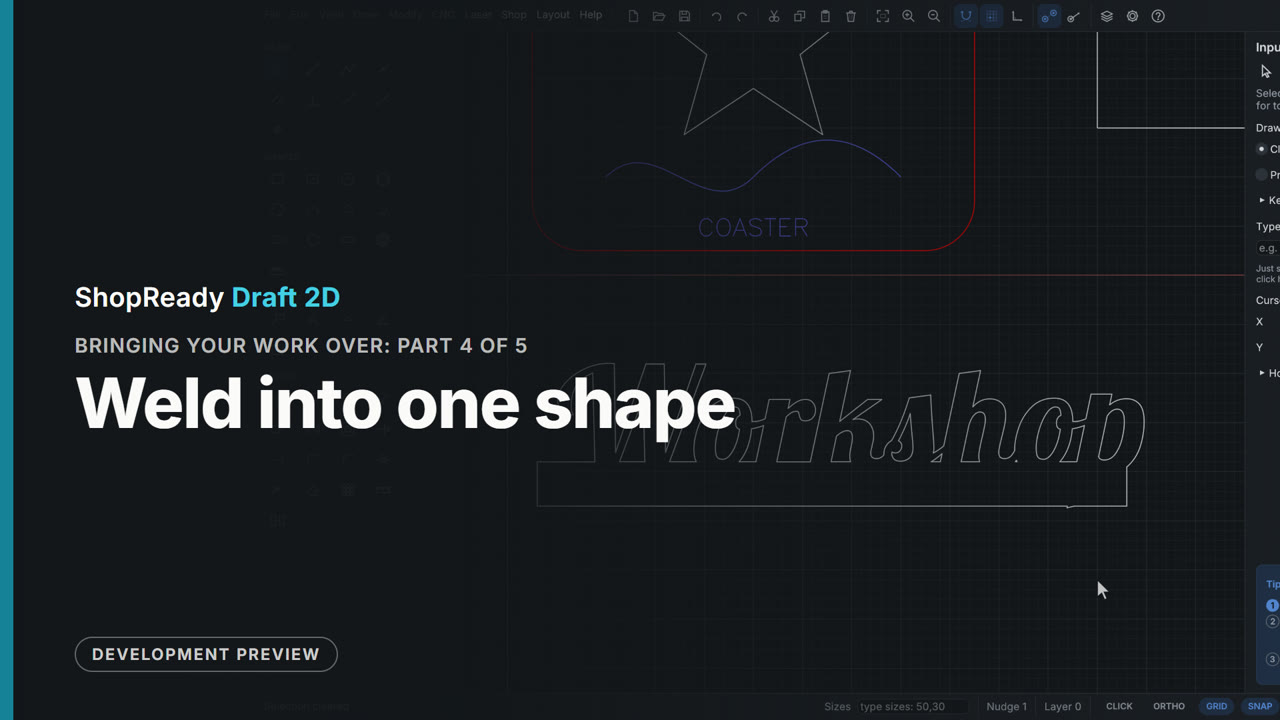 Chapter · 1:08
Bringing your work over, part 4 of 5: Weld into one shape
A name is typed in a script font with a bar drawn under it running into the letters' feet. Cut as drawn it would fall into pieces. Explode turns the text into shapes, a window selects letters and bar, and Modify > Weld into one shape leaves one outline round all of it with the letters' holes kept.
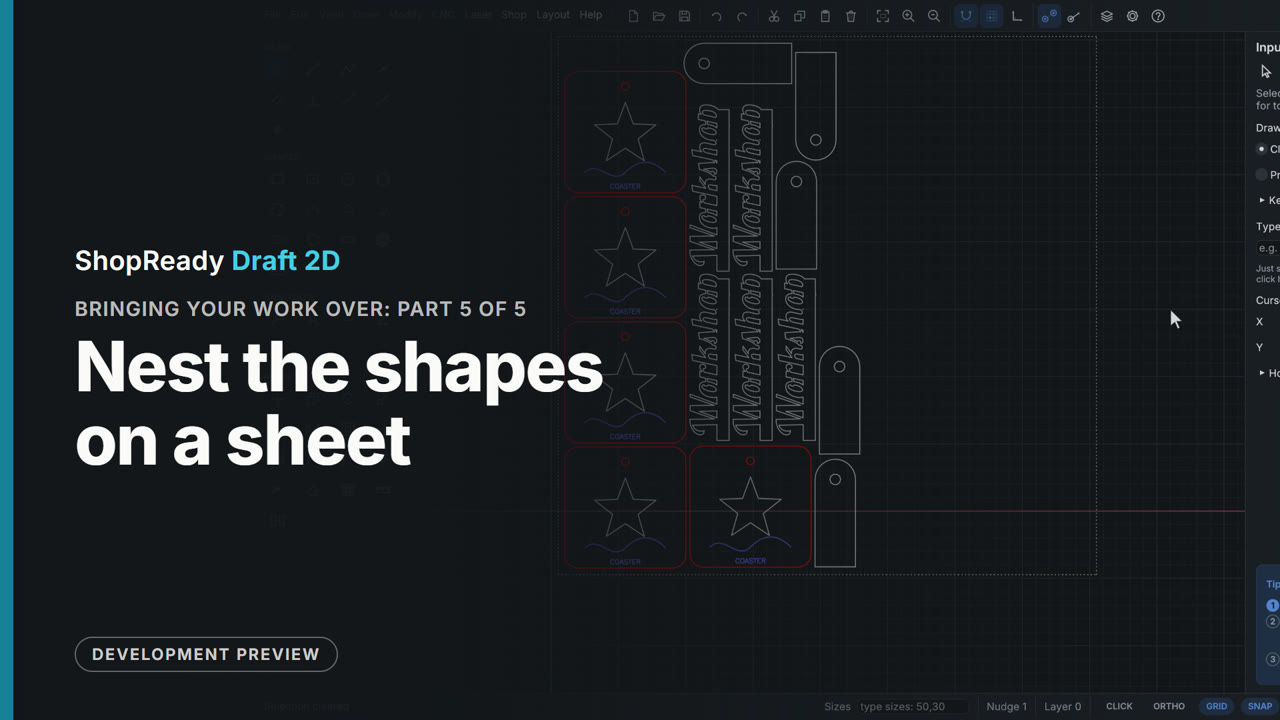 Chapter · 55 s
Bringing your work over, part 5 of 5: Nest the shapes on a sheet
The coaster, the key fob and the welded name are selected, and Shop > Nest the selected shapes... packs five of each into a sheet 400 by 400 mm, the size of a small laser's bed: fifteen pieces on one sheet, each by its true shape with what is drawn inside it, turned where that packs better. The window says what it will come to before anything moves.
 Chapter · 1:01
Cabinet parts, from cut list to sheets, part 1 of 8: The cut list
A base cabinet's cut list, saved as a CSV file, is read into the Parts tab: the columns are found by their headings, sizes are read as they were typed, and each part arrives with its count, material and grain.
 Chapter · 1:25
Cabinet parts, from cut list to sheets, part 2 of 8: Two parts with a shape
Two parts the cut list cannot describe are drawn: an arched toe valance, made by cutting a big circle out of a rail, and a corner gusset drawn as a closed polyline with typed legs. From selection adds both to the parts list, sized by their shapes.
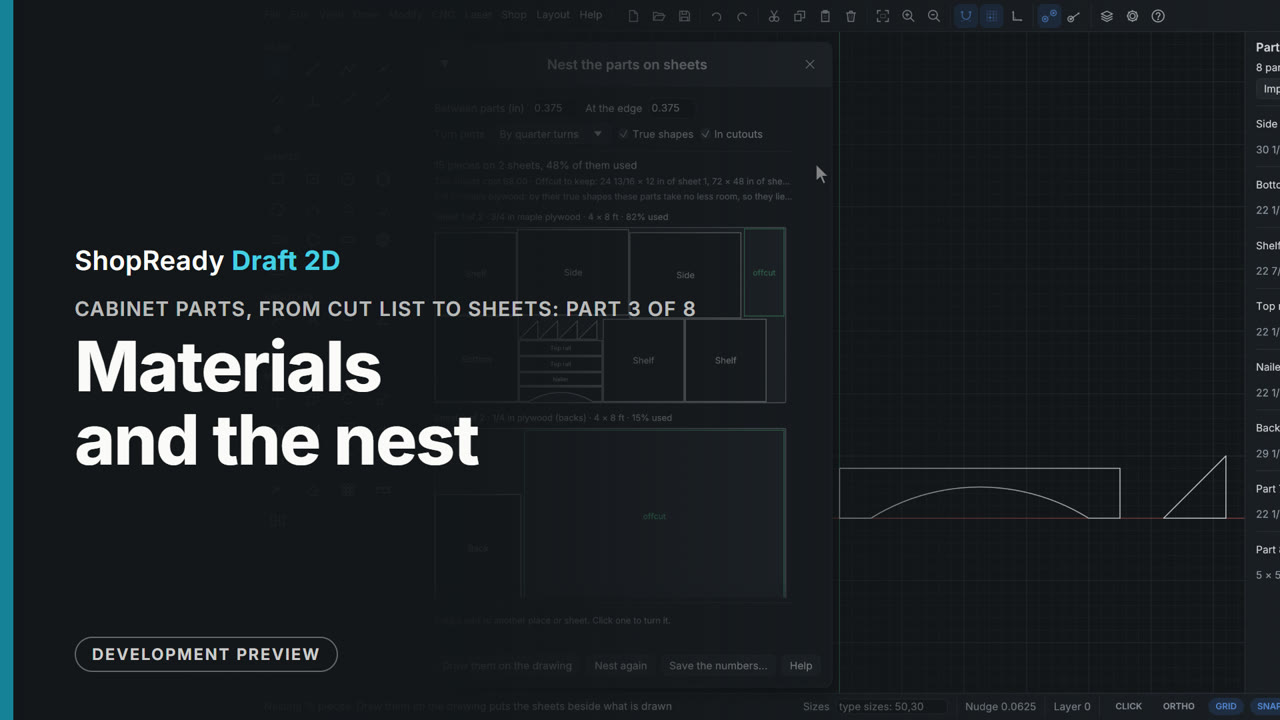 Chapter · 1:09
Cabinet parts, from cut list to sheets, part 3 of 8: Materials and the nest
The Materials window holds each sheet good with its measured thickness, its sheet sizes, its grain and a price. Nest the parts on sheets then lays the fifteen pieces out: the plywood parts on one 4 by 8 sheet at 82 percent, the back on a sheet of its own, the Sides kept along the grain.
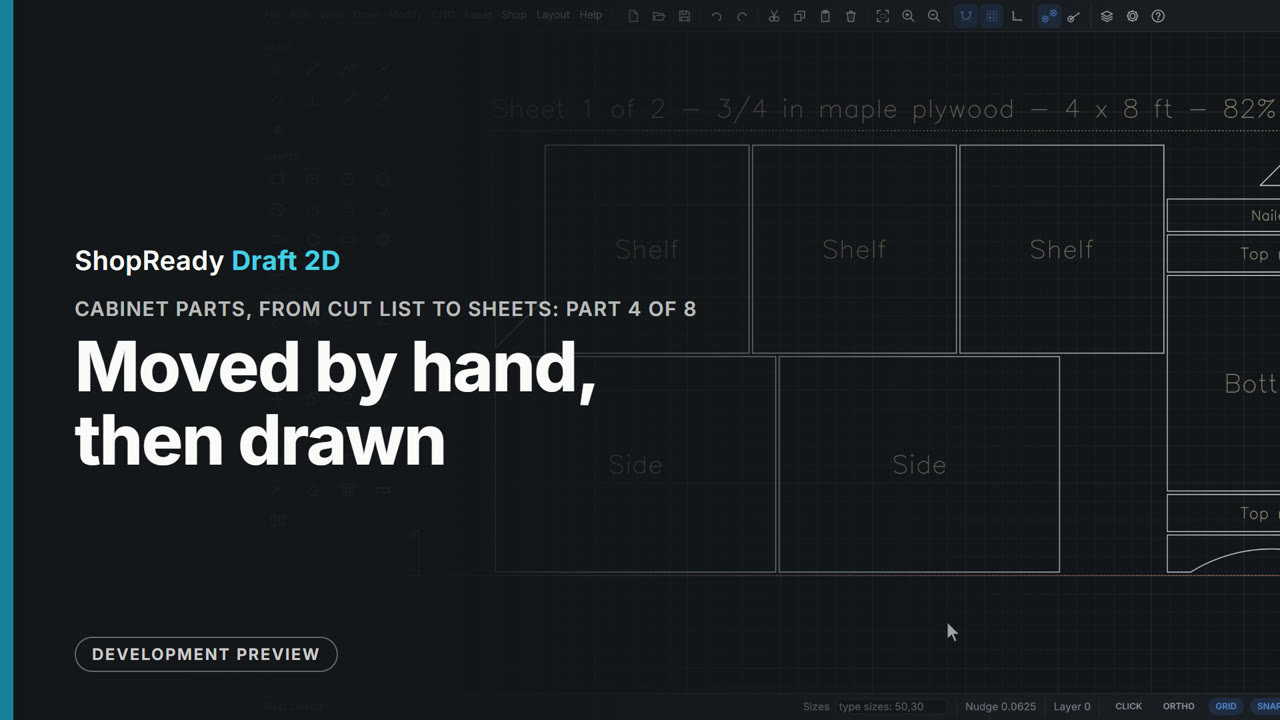 Chapter · 1:22
Cabinet parts, from cut list to sheets, part 4 of 8: Moved by hand, then drawn
Parts are dragged in the Nest window: a gusset into the sheet's corner, and Nest again packs the rest round it, two gussets back to back. Another is turned half round and tucked against the first by its true shape. A part dropped onto another turns both red and the window says which; once it is clear, Draw them on the drawing puts both sheets beside the drawing.
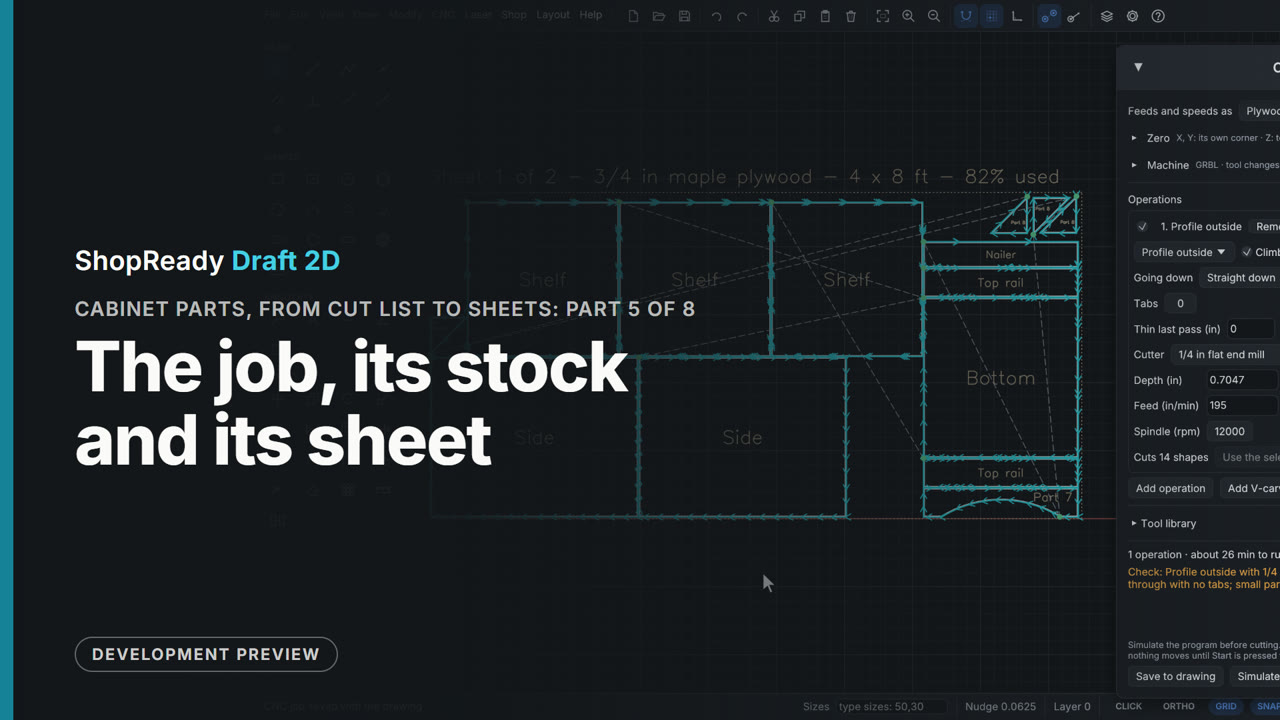 Chapter · 1:18
Cabinet parts, from cut list to sheets, part 5 of 8: The job, its stock and its sheet
With nested sheets on the drawing, CNC job comes ready: a piece for each sheet, its stock the sheet's own material at its measured thickness, zero at the sheet's own corner, and one profile round the fourteen parts of sheet 1 and nothing else. The chapter looks at what came set and at what is still the user's to check, and saves the job.
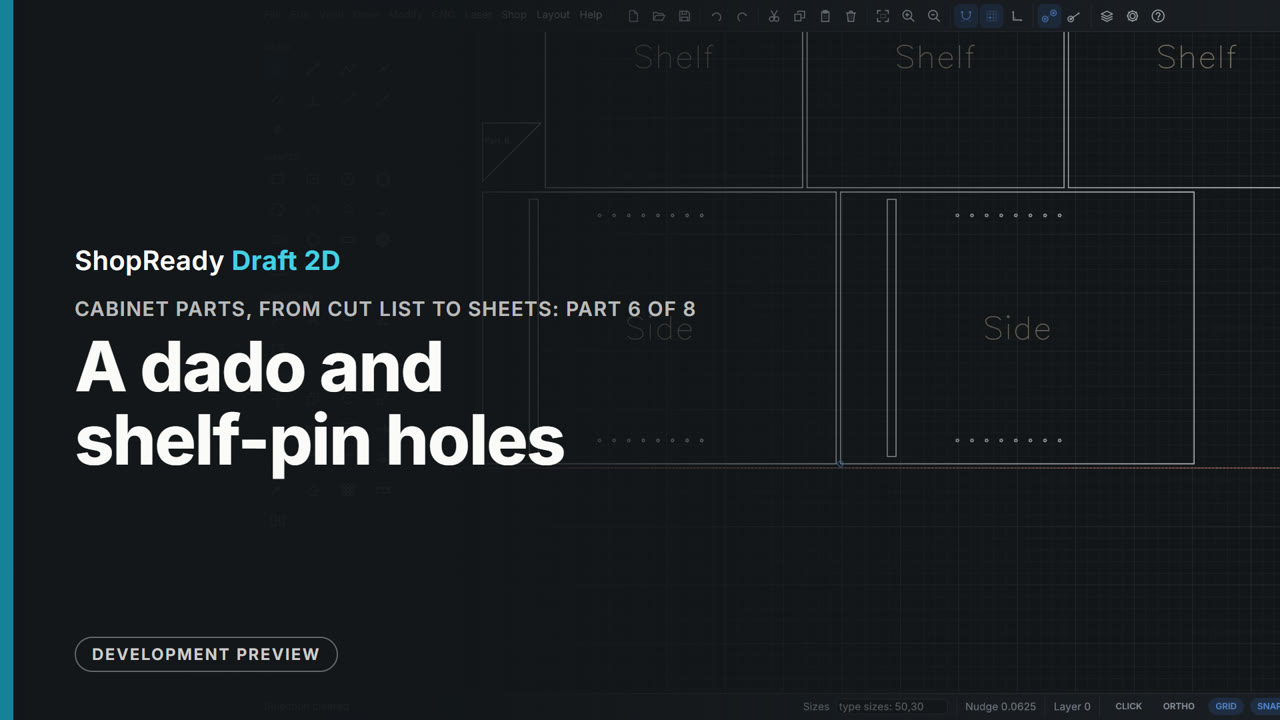 Chapter · 1:36
Cabinet parts, from cut list to sheets, part 6 of 8: A dado and shelf-pin holes
On a Side as it lies on the sheet: a stopped dado for the bottom, drawn from the part's own corner and moved in by typed distances, and a row of shelf-pin holes made with one circle and the Array window. Both are then copied to the other Side, corner to corner.
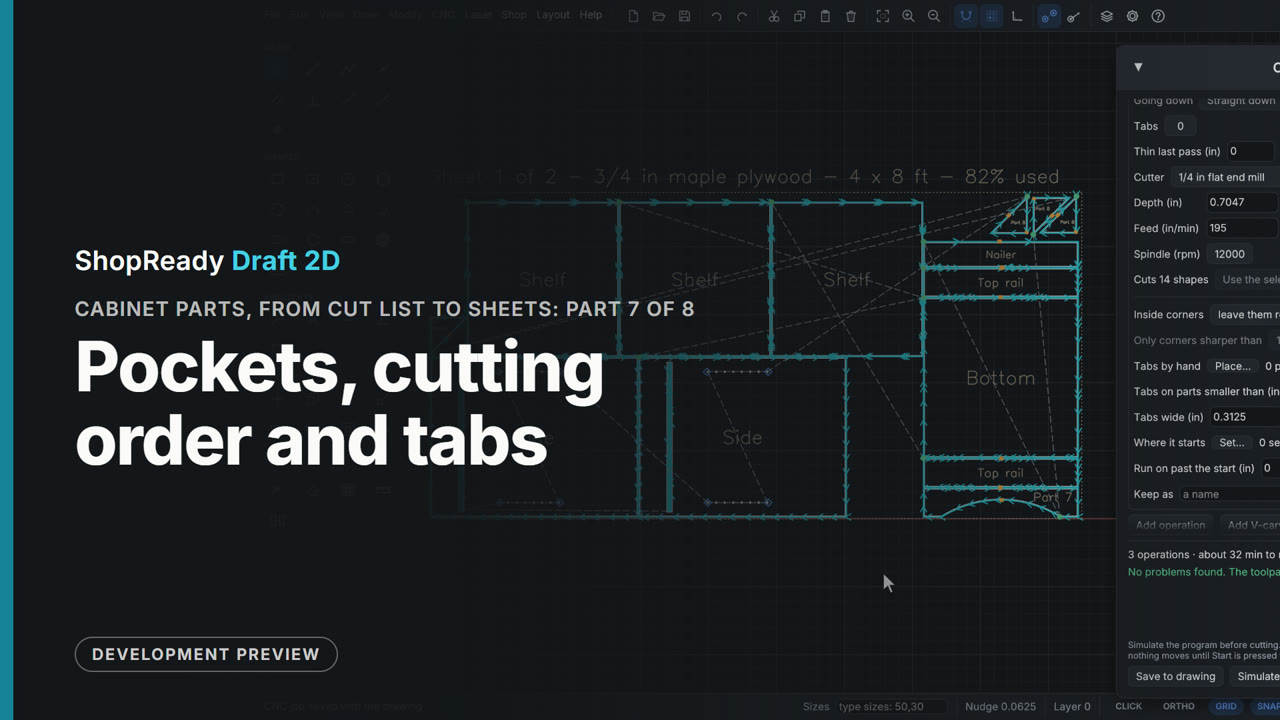 Chapter · 1:45
Cabinet parts, from cut list to sheets, part 7 of 8: Pockets, cutting order and tabs
Add operation guesses what the selected shapes are: the two dadoes come in as a pocket and the thirty-two pin holes as a drilling operation, each half the stock deep, and only the depths are typed. The pocket gets a dogbone in each corner so the bottom's square end fits. The job warns of cuts on parts already cut free, Put in cutting order mends it, and Tabs on parts smaller than holds the rails, valance and gussets in the sheet.
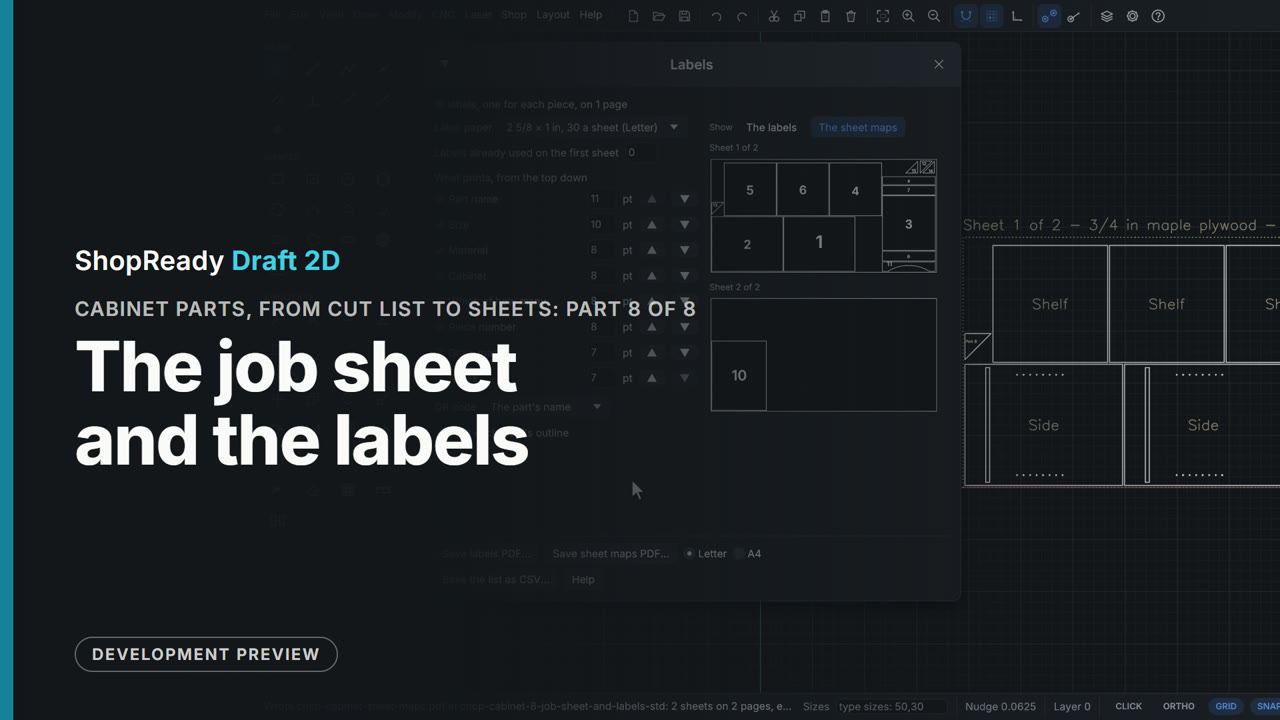 Chapter · 1:30
Cabinet parts, from cut list to sheets, part 8 of 8: The job sheet and the labels
The paperwork that goes to the machine with the sheet: Job sheet saves a page with zero, the tool, its depth and its time, and Shop, Labels makes a label for every piece with its name, size, material, number and a QR code, on common label paper, saved as a PDF with the list beside it as a table. The sheet maps show each sheet as it was nested, every piece with its label's number.
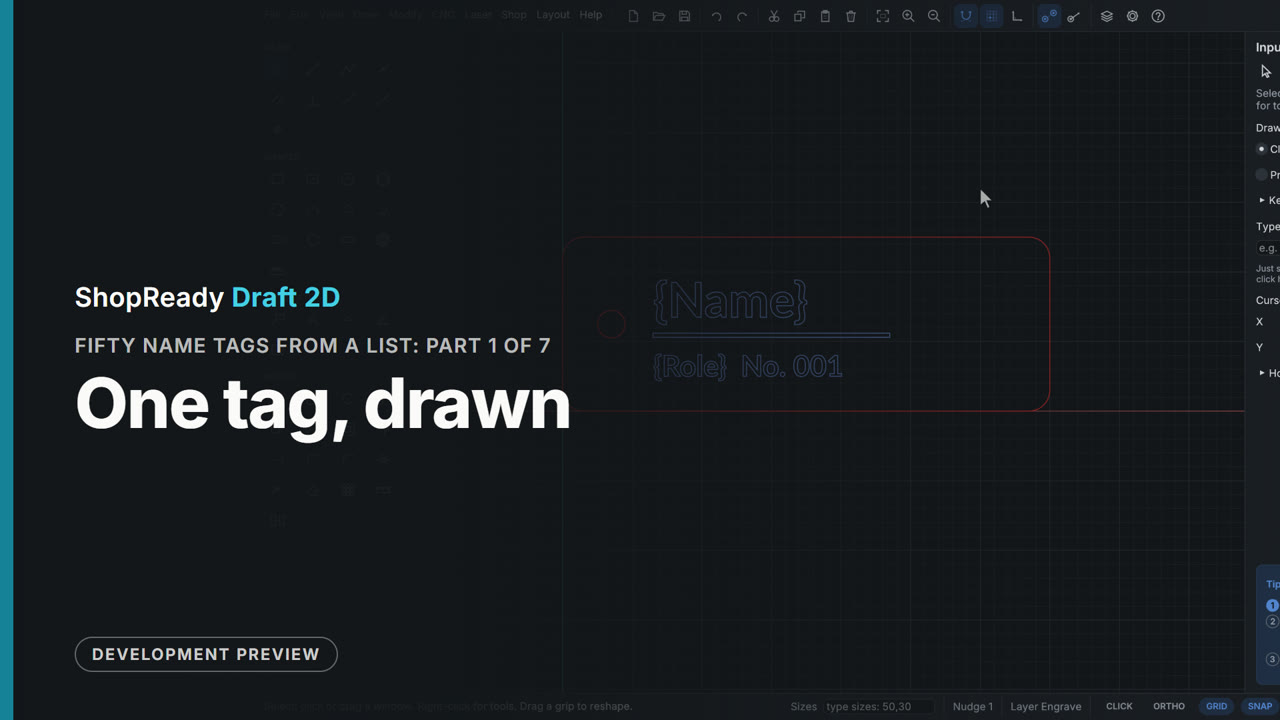 Chapter · 1:11
Fifty name tags from a list, part 1 of 7: One tag, drawn
From a blank drawing: a 70 by 25 mm tag with rounded corners and a cord hole on the Cut layer, and on the Engrave layer a name and a line of small letters whose words are fields in braces, with a thin bar between them. The serial number field shows 001 at once.
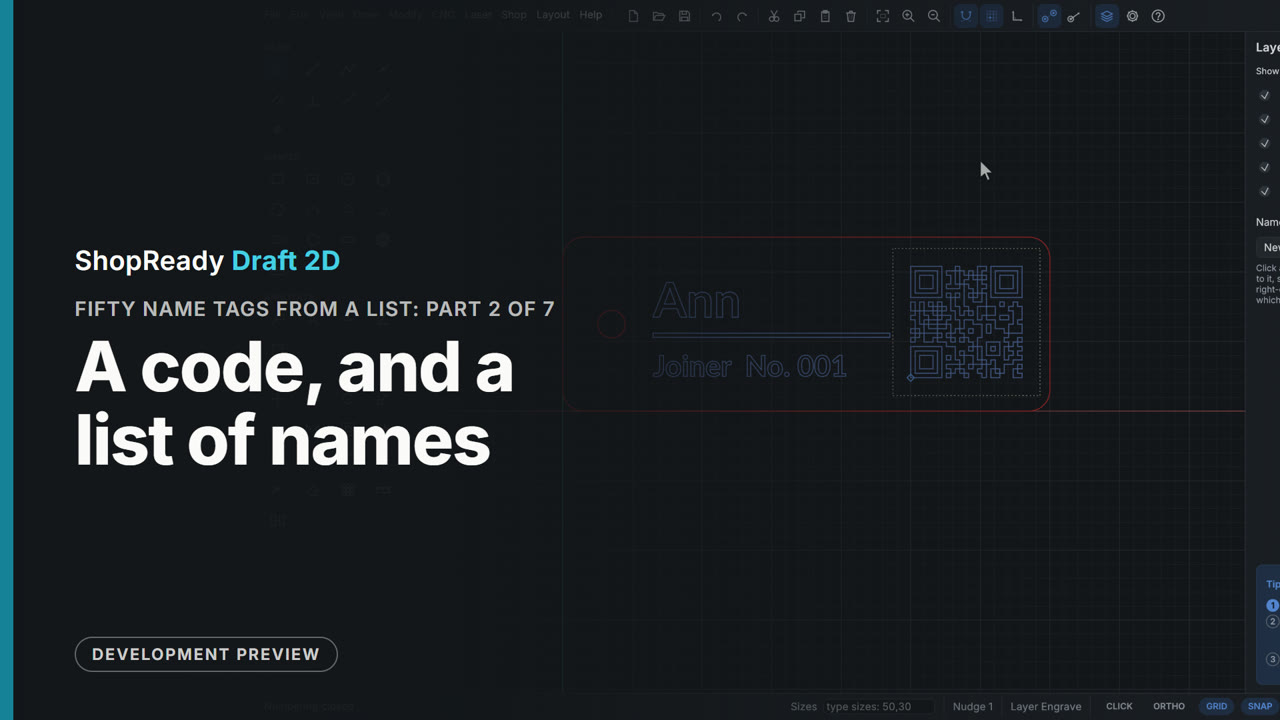 Chapter · 1:14
Fifty name tags from a list, part 2 of 7: A code, and a list of names
A QR code whose words are the tag's own fields is drawn and dragged into the tag. Then a CSV list of fifty names and roles is picked in Numbering and lists: the tag on the drawing fills in with row 1, and Next and Previous step through the rows with the code made again each time.
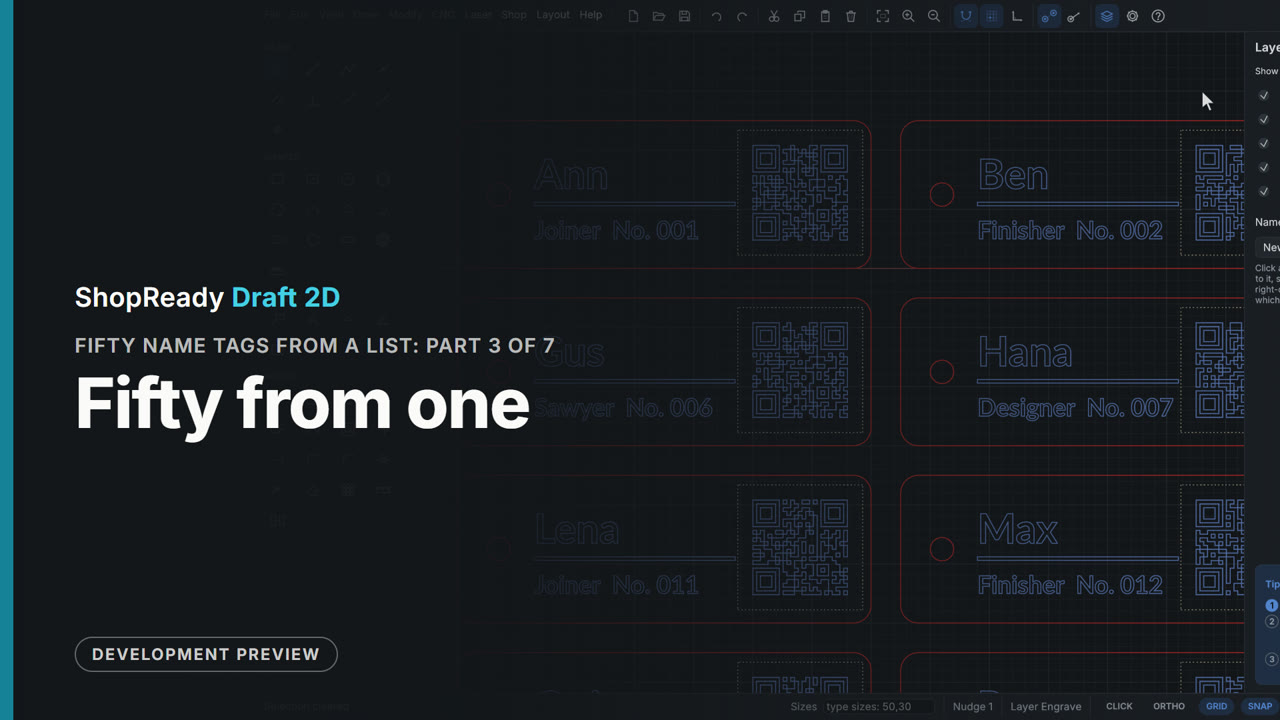 Chapter · 1:02
Fifty name tags from a list, part 3 of 7: Fifty from one
The one tag is selected, and Make many, at the foot of Numbering and lists, lays out a copy for each of the list's fifty rows in a grid five across with 5 mm between: 370 by 295 mm, inside a 400 mm bed. Each copy has its own name, role, number and code.
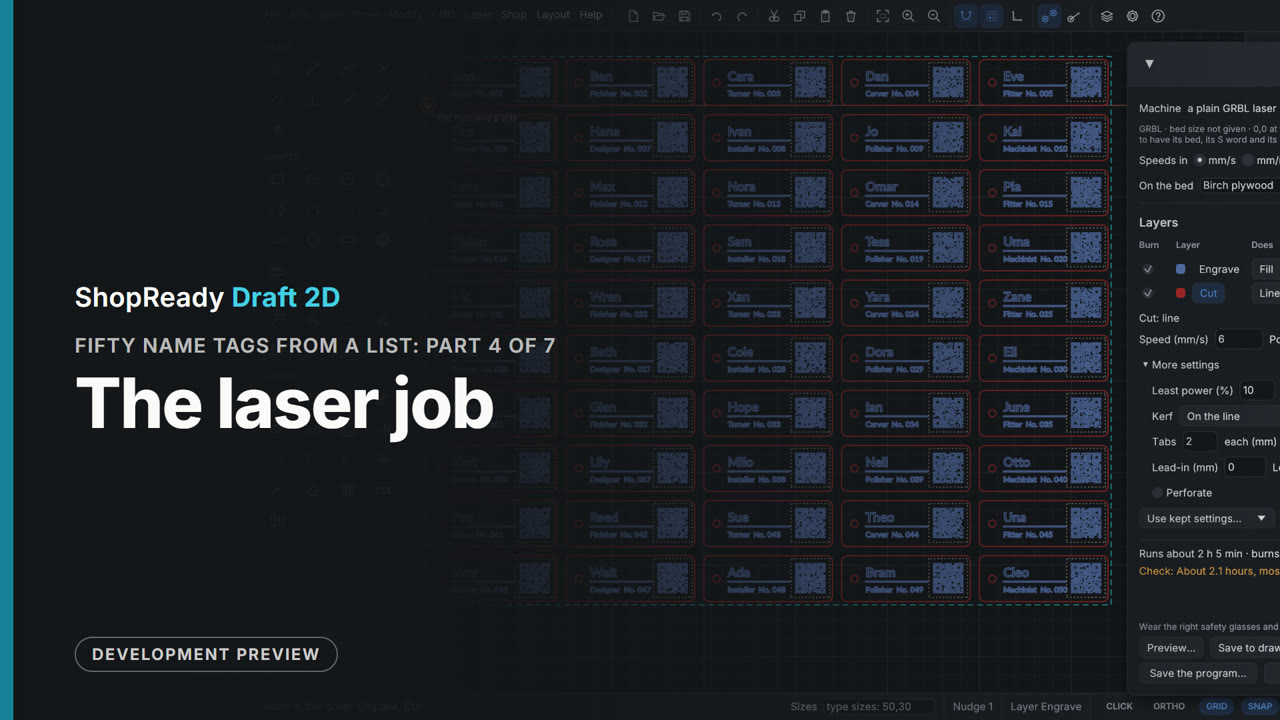 Chapter · 1:00
Fifty name tags from a list, part 4 of 7: The laser job
Laser > Laser job... on the sheet of fifty tags. The drawing's two layers are the laser's two layers: Engrave is set to Fill at 100 mm/s and 30% power, Cut stays a Line at 6 mm/s and full power with two tabs a shape so the tags stay in the sheet, and Engrave is put first in the order. The foot of the window adds up the run time, and Save to drawing keeps the job with the drawing.
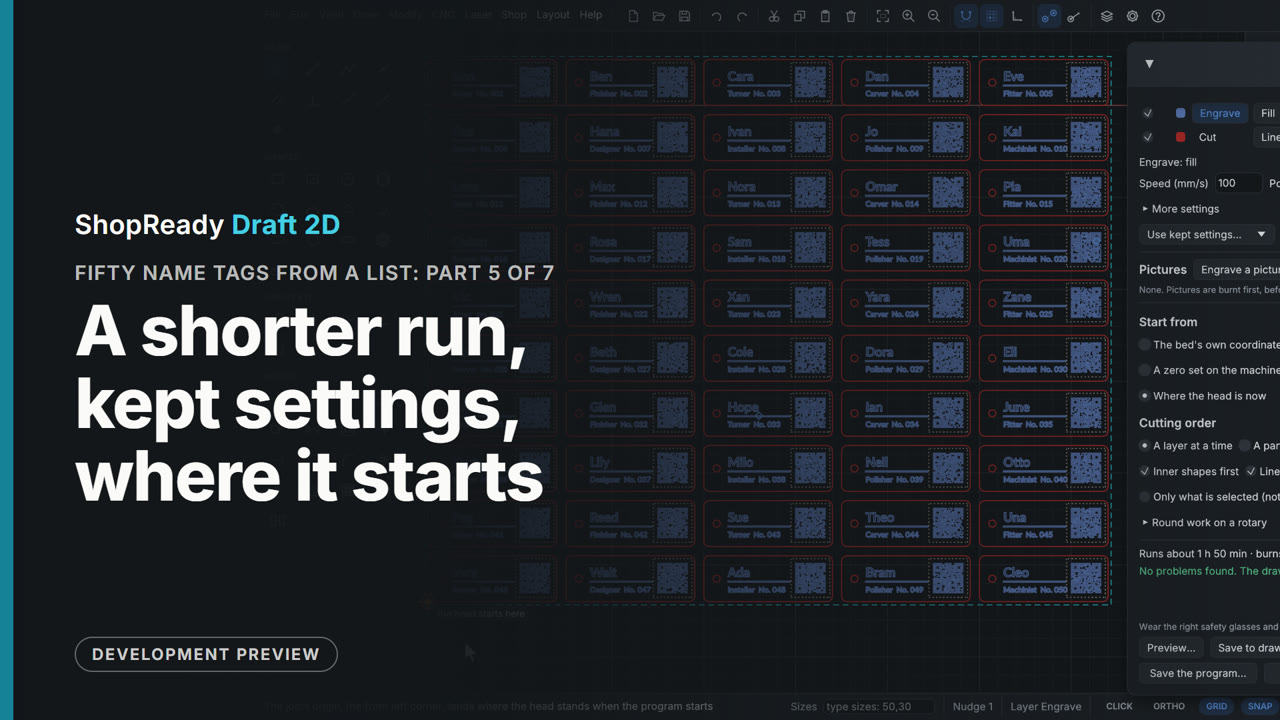 Chapter · 58 s
Fifty name tags from a list, part 5 of 7: A shorter run, kept settings, where it starts
The job's foot warned of a two-hour run. Setting the Engrave layer's Fill to Group by group, so each tag's words and code are scanned together, takes it from 2 h 5 min to 1 h 50 min and clears the warning. Keep these... keeps the Engrave settings under Birch plywood 3 mm for another day. Start from is set to Where the head is now, with the job's front left corner picked on the nine dots, and the drawing marks where the head starts.
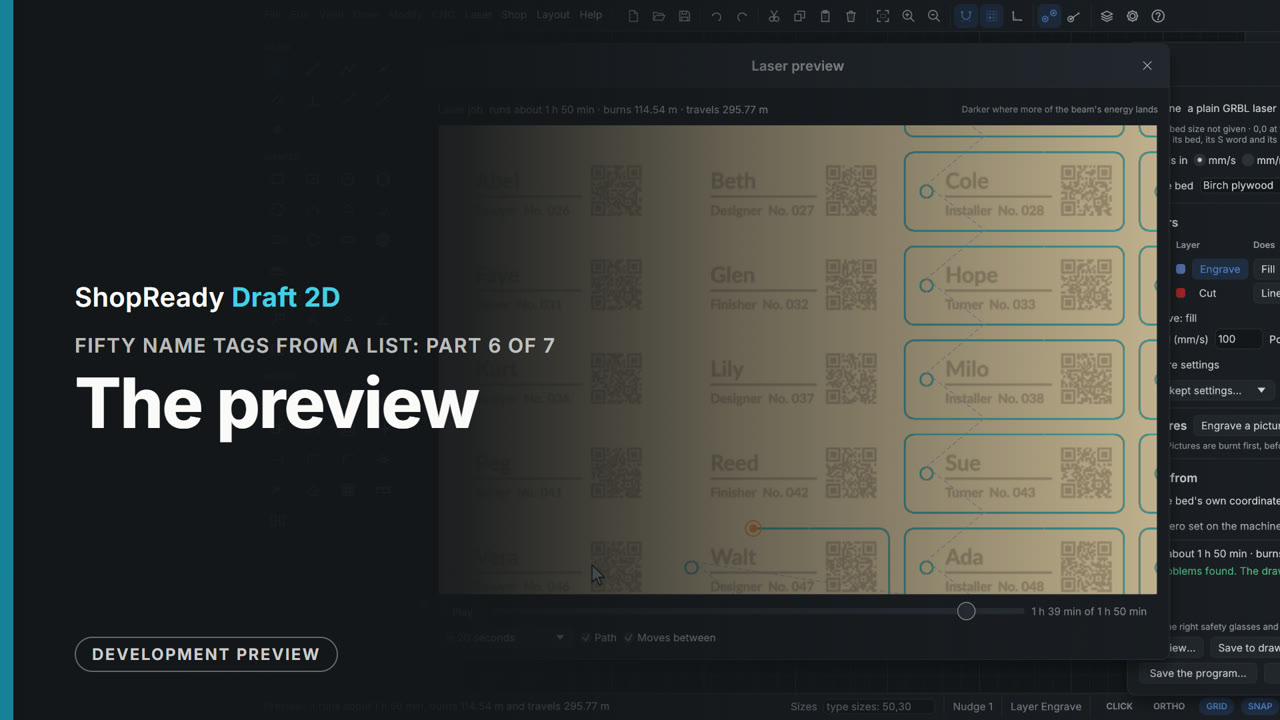 Chapter · 58 s
Fifty name tags from a list, part 6 of 7: The preview
Preview... shows the whole job as the program's own picture: the engraving on bare wood, the cuts as lines, the moves between as dashes. Play runs it in twenty seconds; the clock under the picture is dragged to the cutting; a scroll zooms in on single tags and a double-click shows everything again. Nothing is sent to a machine.
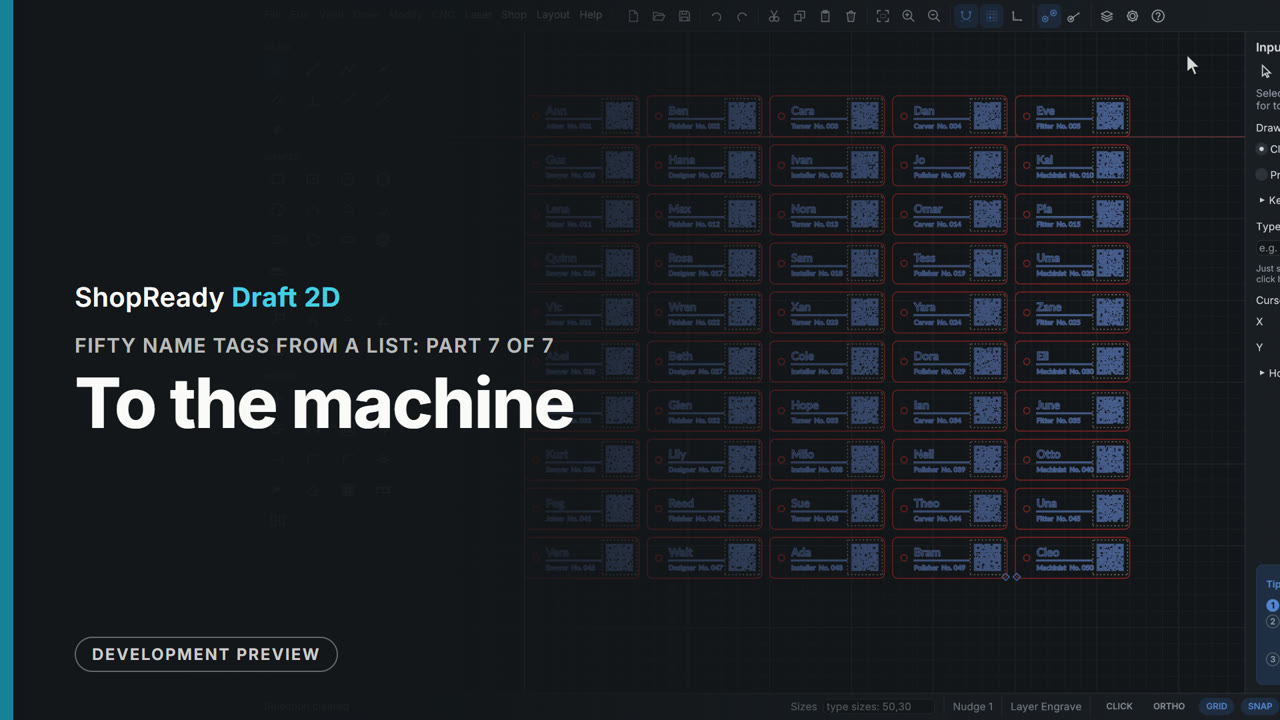 Chapter · 1:47
Fifty name tags from a list, part 7 of 7: To the machine
The Machine window: a pretend laser is added by hand (to try it with nothing plugged in) and given homing switches. One tag is selected and sent as a test piece with Only what is selected. Connect, Home out of the alarm a homing machine wakes in, Frame round the tag's box, Start (asked about once), Pause, Resume, and the program runs to its end. The film closes on the sheet of fifty tags.
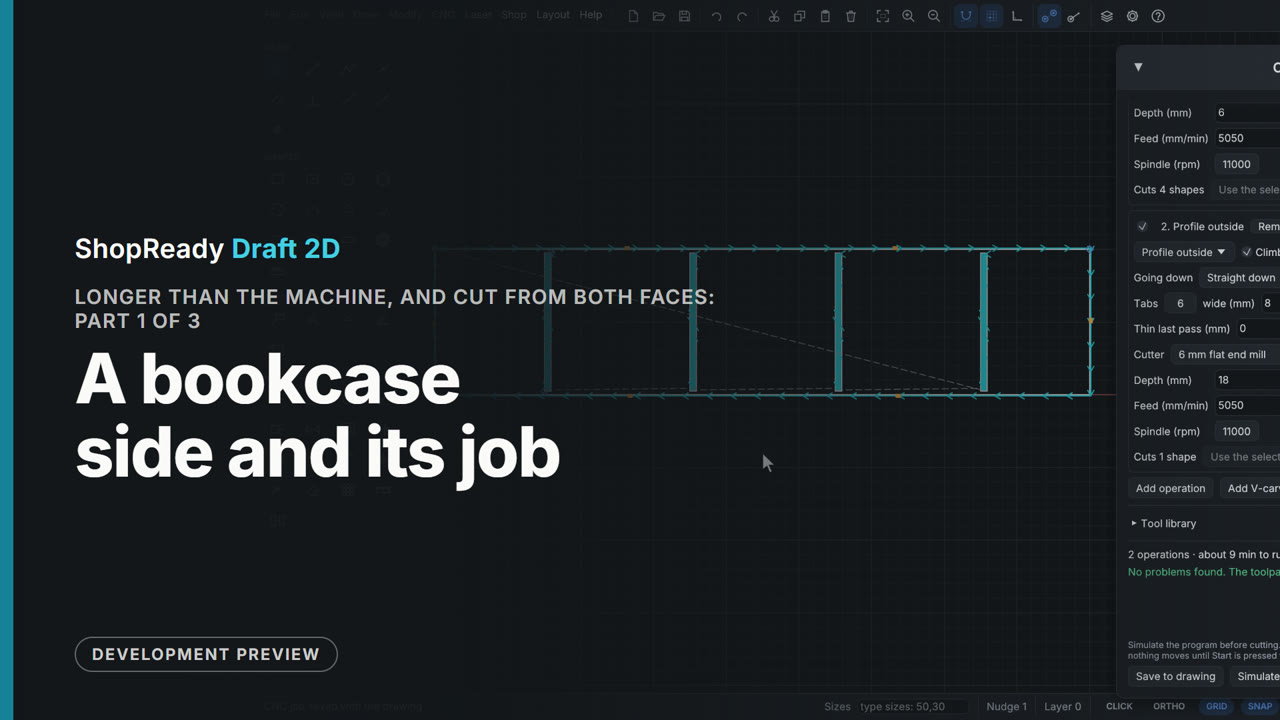 Chapter · 1:22
Longer than the machine, and cut from both faces, part 1 of 3: A bookcase side and its job
A bookcase side 1800 mm long is drawn by typed sizes with four stopped housings for shelves. The CNC job opens with a first guess at the cuts; the housings are made pockets 6 mm deep and the outline is given six tabs.
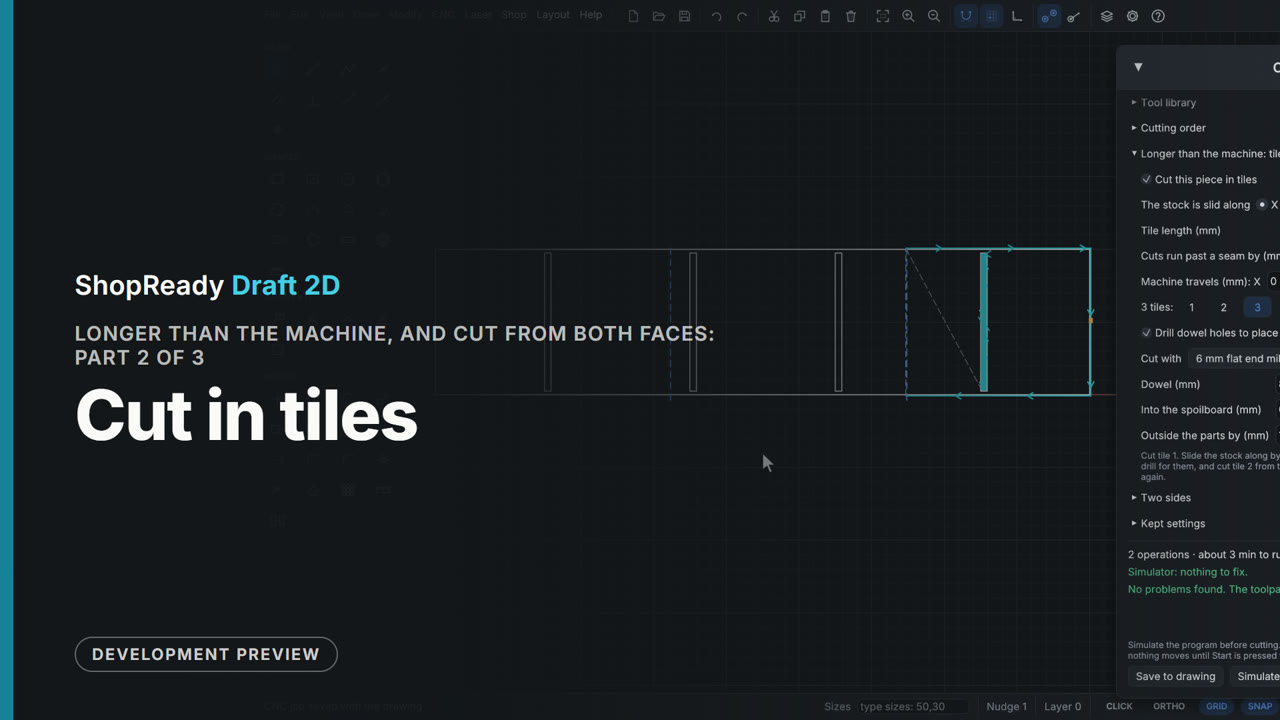 Chapter · 1:48
Longer than the machine, and cut from both faces, part 2 of 3: Cut in tiles
The 1800 mm bookcase side is cut a tile at a time. Cut this piece in tiles is ticked, the tile's length typed, and the seams appear on the drawing; each tile shows its own paths between its seams, dowel holes on a seam place the next tile, and the simulator checks the tile in hand.
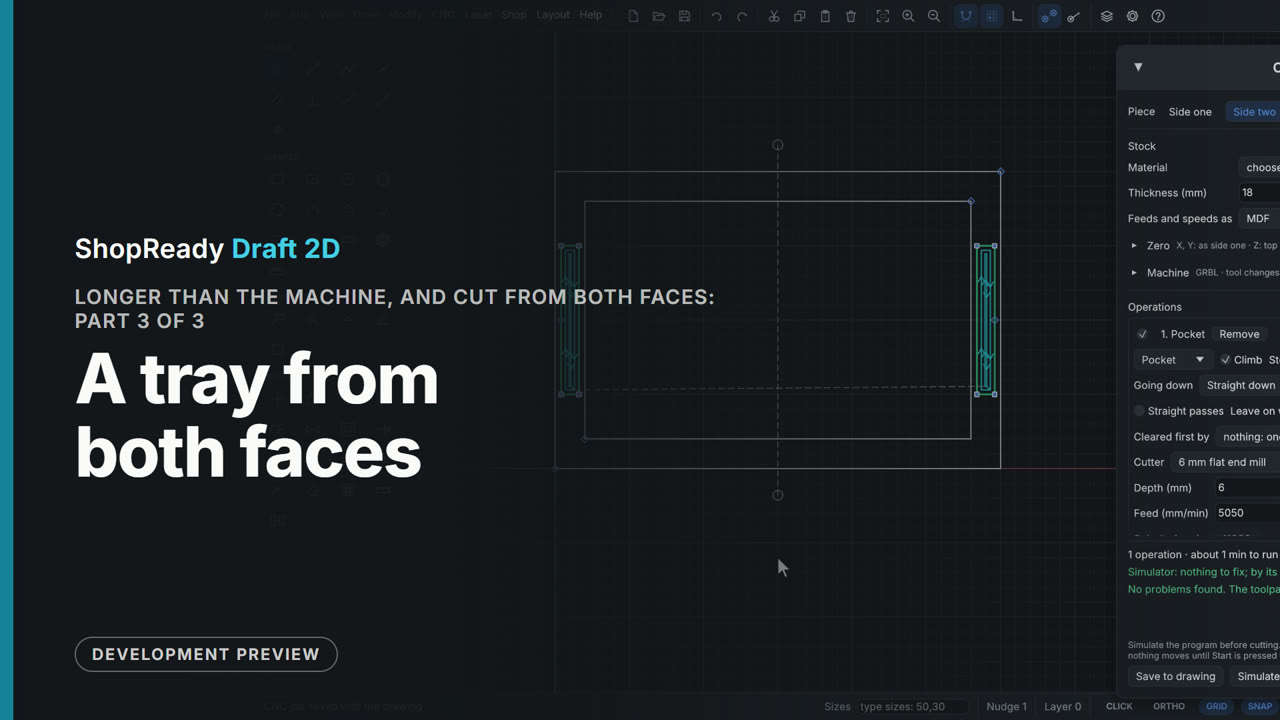 Chapter · 1:51
Longer than the machine, and cut from both faces, part 3 of 3: A tray from both faces
A new drawing: a tray with a well on top and two finger grips underneath. The well and the outline are cut from side one; Add side two makes a second piece for the board turned over, the grips' pocket is sent To Side two, side one drills two dowel holes on the line the board turns over about, and side two is simulated.
 Chapter · 1:42
Round work, and a cabinet laser, part 1 of 2: A band of lettering for a tumbler
A band of lettering is drawn flat on the Engrave layer: a line of capitals 10 mm high with a thin rule under and over it, 208 mm long. It is turned to stand on end, because on a rotary what goes up the drawing is laid round the work. In the Laser job the layer is made a Fill, and Round work on a rotary is set for a tumbler 76 mm across held in a chuck: the window first warns that the band is longer than a smaller work is round, then says the work is 238.76 mm round, so the band fits.
 Chapter · 1:28
Round work, and a cabinet laser, part 2 of 2: The same job for a cabinet laser
A pretend cabinet laser (to try it with nothing plugged in) is added by hand, and the Laser job is at once made for it: it checks the job against the laser's 600 by 400 bed and says the band is off its edge, which Start from: Where the head is now puts right; and it says this laser's rotary is set at its own panel. Save the program... writes the laser's own kind of file; Send to the machine hands the same file to the Machine window, which says plainly that the head is moved and the job framed at the laser's panel. Connect, Start (asked about once), and the whole file is on the pretend laser and started.