ShopReady Draft 3D · Features
Coming soonEvery feature, one clip at a time.
52 narrated clips, each about a minute. Every one is the program itself at work.
Snapping, planes and drawing
 Clip · 40 s
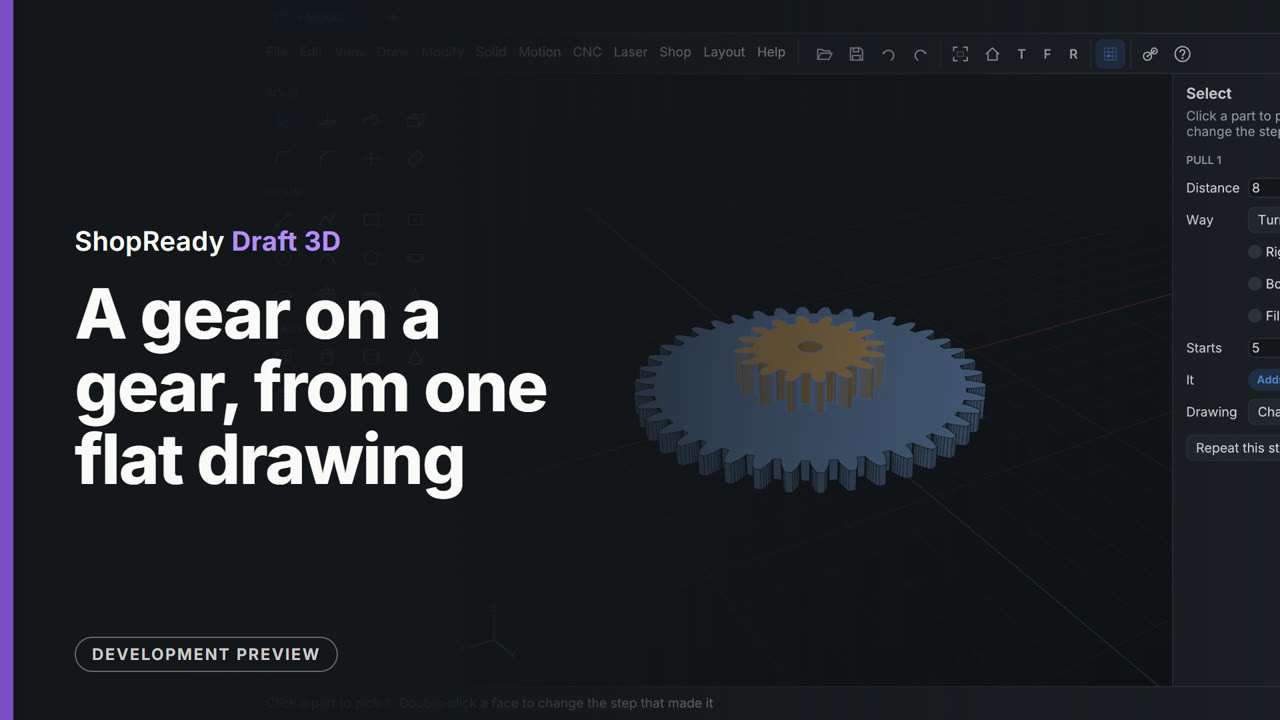
A gear on a gear, from one flat drawing
One drawing holds a big gear, a small gear drawn inside it about the same middle, and a shaft hole. The big gear is pulled 5 thick: the small gear inside it is no hole in it, and shows through its top. Clicked through the top, the small gear is taken up onto that face and pulled 8 from there, standing on the big one, with the shaft hole through both.
 Clip · 44 s
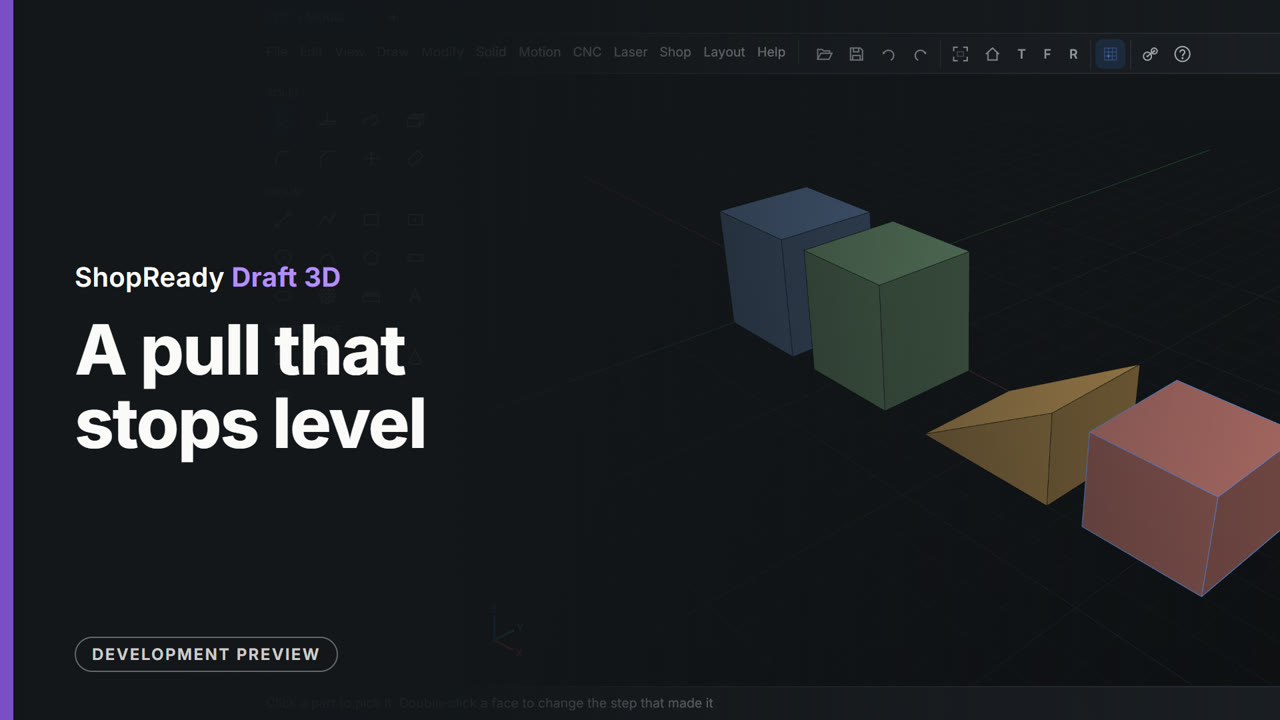
A pull that stops level
A square drawn beside a tall block is pulled up, and as it nears the block's top it stops there by itself: level with a face of Part 1, 35 mm. A second square is pulled with the pointer on the tip of a wedge, and stops level with that corner, 24 mm. No distance is typed.
 Clip · 57 s
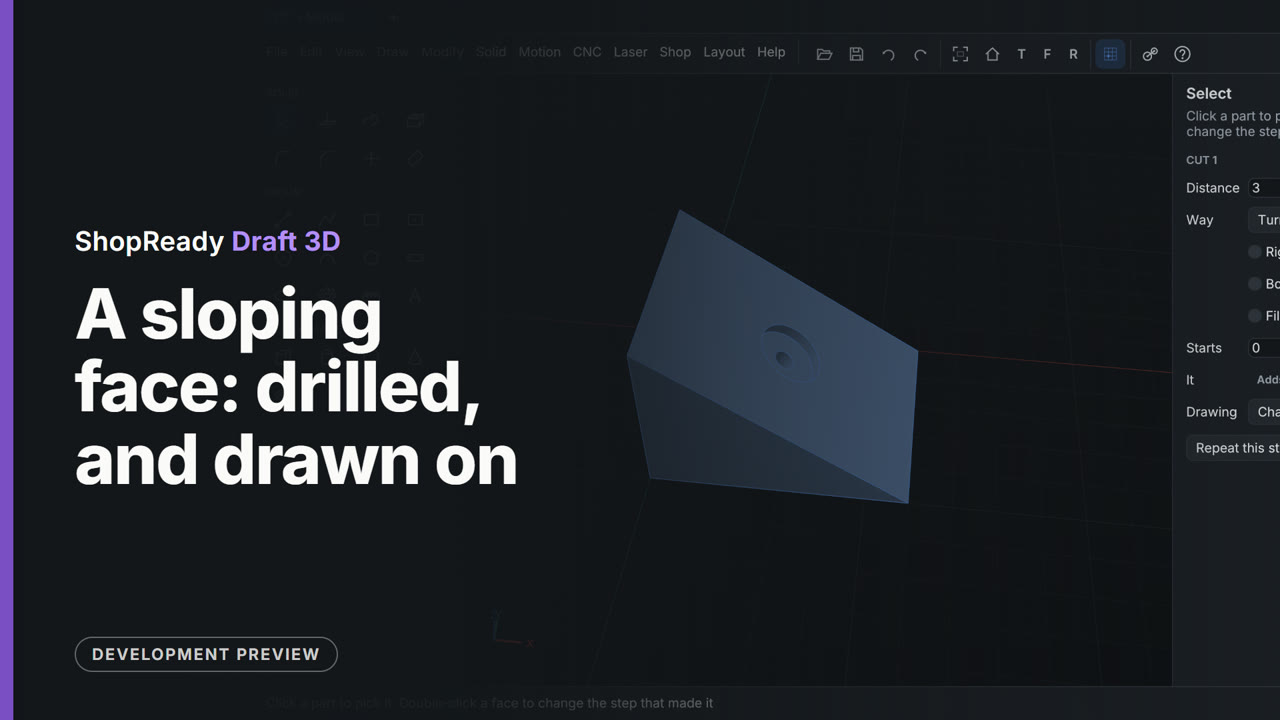
A sloping face: drilled, and drawn on
A wedge's sloping face is treated like any other. The Hole tool is drawn to the middle of the face and drills square into the slope. Then the circle tool is picked and the slope clicked: the view turns to look straight at it, the hole is there to snap to, and a circle of radius 8 is drawn about its center. Pull pushes the ring in 3 mm for a seat round the hole.
 Clip · 58 s
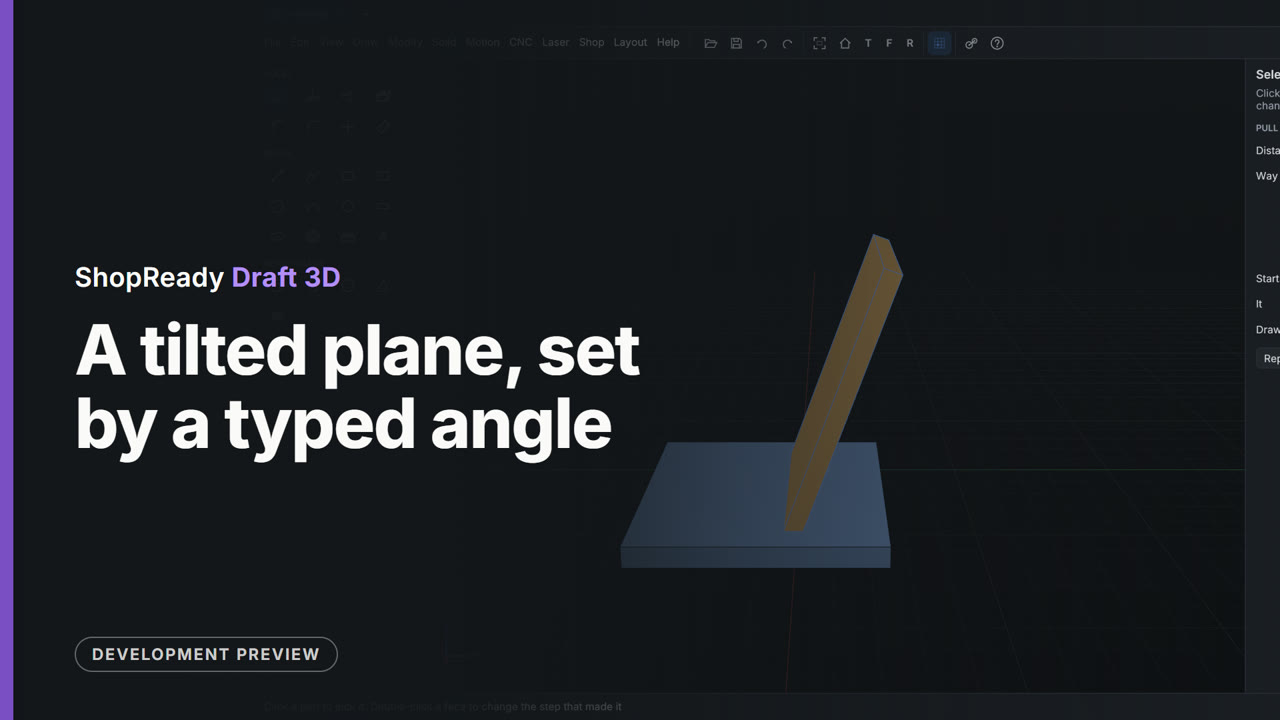
A tilted plane, set by a typed angle
A base plate wants a back rest leaning at 70 degrees, and there is no face at that angle to draw on. Draw, On a tilted plane opens a small window; 70 is typed and the plane shows in the view at that angle. Draw on it turns the view square to the plane, a rectangle 60 by 80 is drawn from the point the plane hinges on, and Pull makes it 5 thick.
 Clip · 55 s
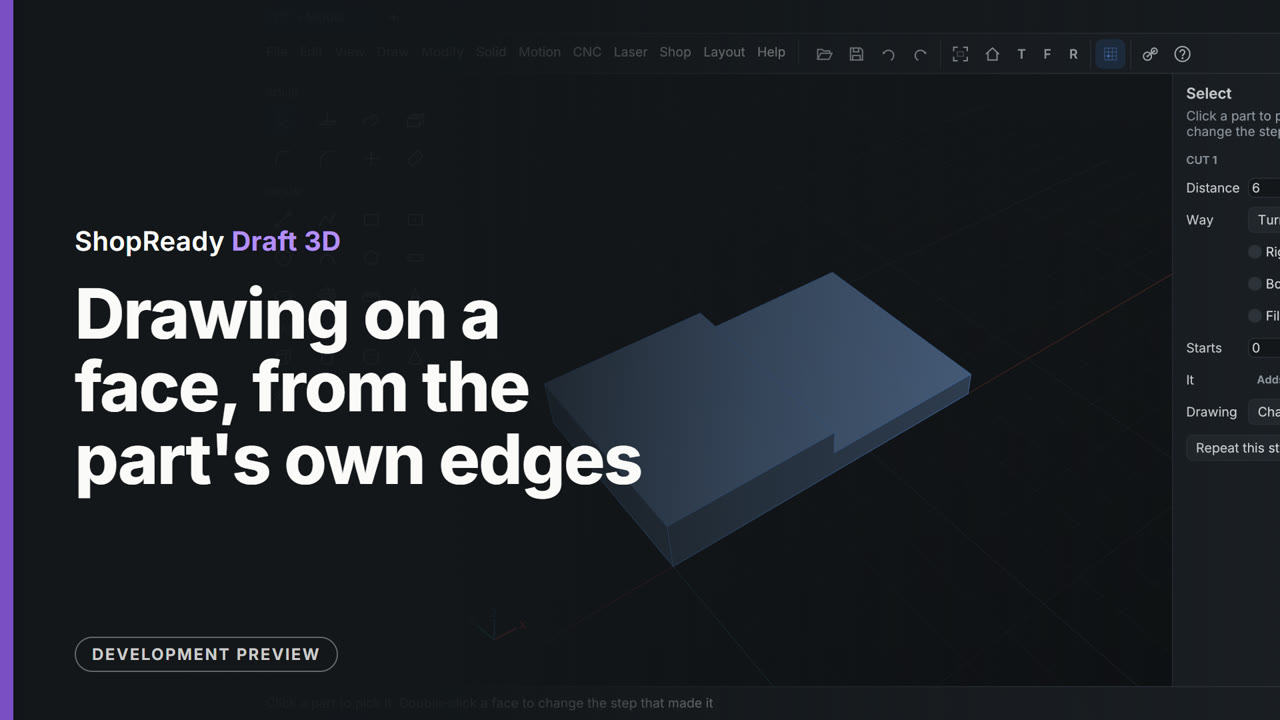
Drawing on a face, from the part's own edges
The rectangle tool is picked and the top of a plate is clicked. The view turns square to the face with the plate's edges there to draw from: the pointer is drawn to the plate's corner, then to the middle of its far edge, and the rectangle is half the plate exactly with no size typed. Pull pushes it in 6 mm for a half lap.
 Clip · 1:18
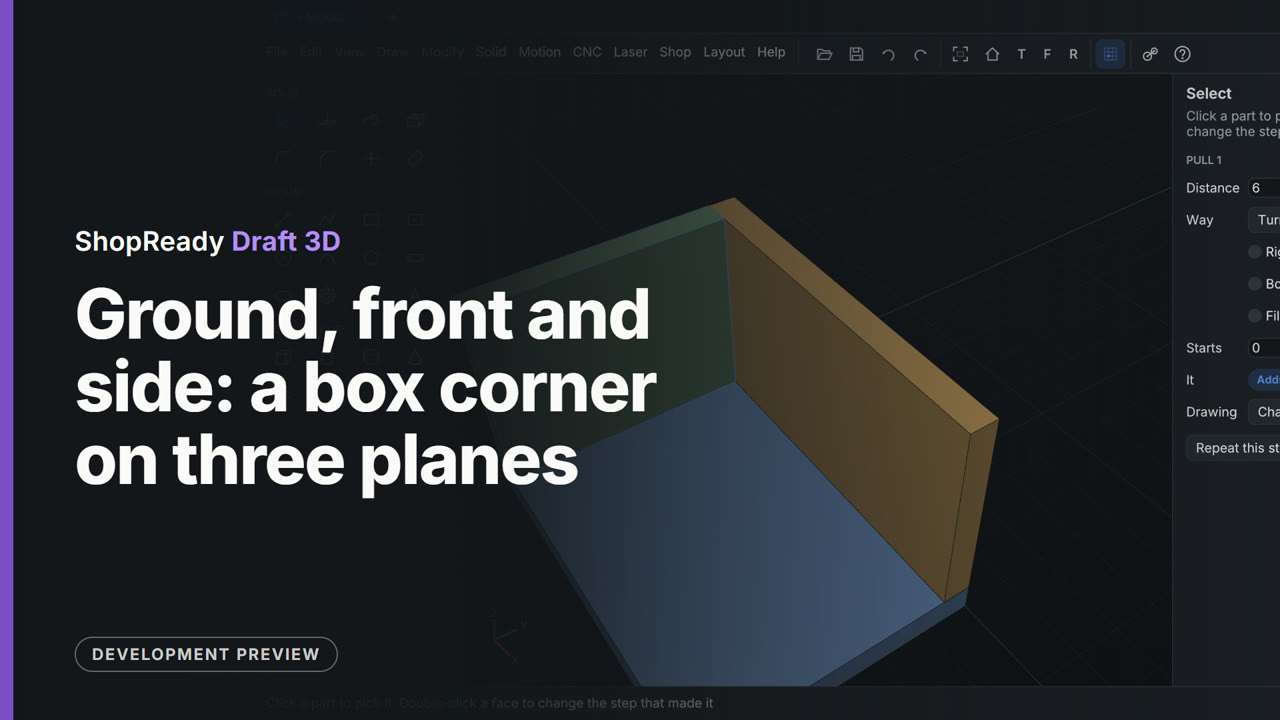
Ground, front and side: a box corner on three planes
Three boards of a box corner, each drawn on a plane of its own and pulled 6 thick. The floor is a rectangle on the ground. The back board is drawn with Draw, On the front plane, starting from the floor's edge. In the second clip the end board is drawn with Draw, On the side plane, from the floor's corner to the back board's corner with no size typed.
 Clip · 55 s
Holes that fall in line
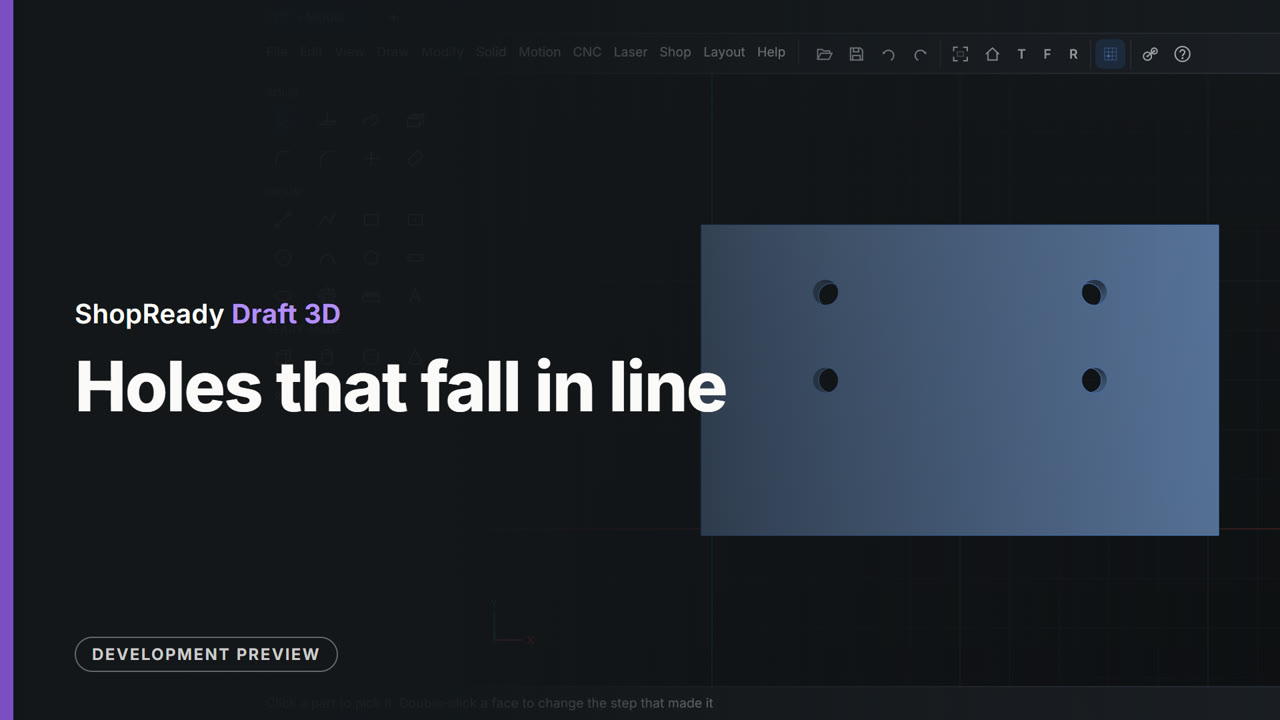
Four holes are drilled in a plate with the Hole tool. As the pointer nears a line through the middle of an edge or through an earlier hole, a dashed line appears and the hole is drawn into line: first one way, then the other, then both at once. Seen from the top, the four holes sit square to each other and nothing was measured.
 Clip · 47 s
Inches, typed as fractions
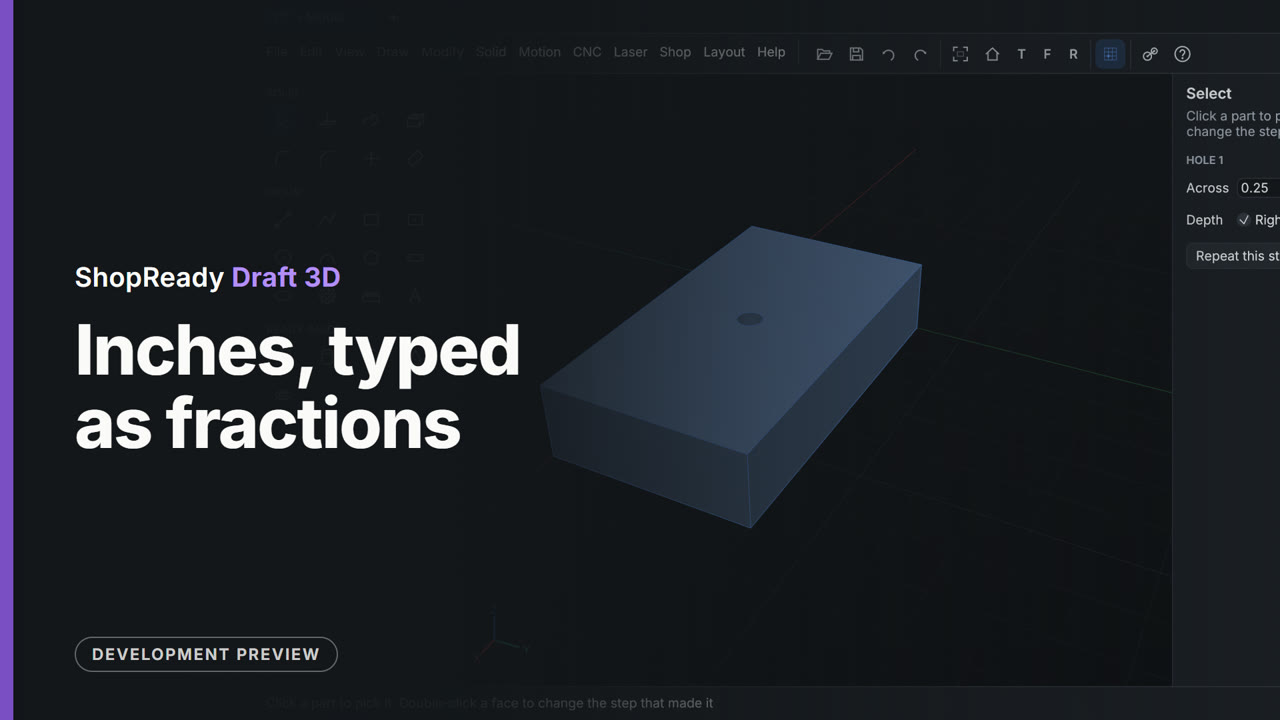
A model in inches. A rectangle is typed as 3 1/2,2 and pulled 3/4 thick; the status line answers Pulled 0.75 in. A hole, 1/4 across, goes at the middle of the face, and the Tool panel offers inch screw sizes.
 Clip · 42 s
One row of menus, over a model and over a drawing
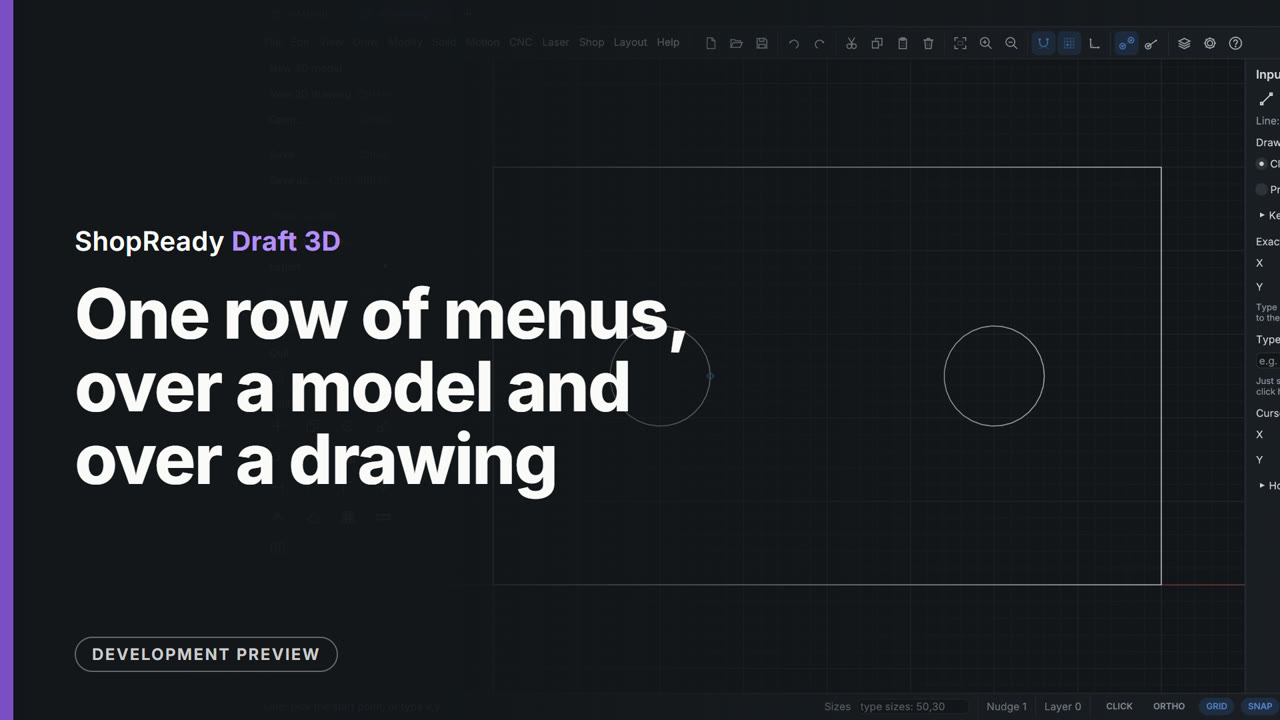
The File menu is opened three times: over a 3D model, over a drawing on the model's face, and over a 2D drawing in a tab of its own. The row of menus is the same each time, File to Help in the same places, and File holds the same lines.
 Clip · 46 s
Shapes inside shapes: holes, or filled in
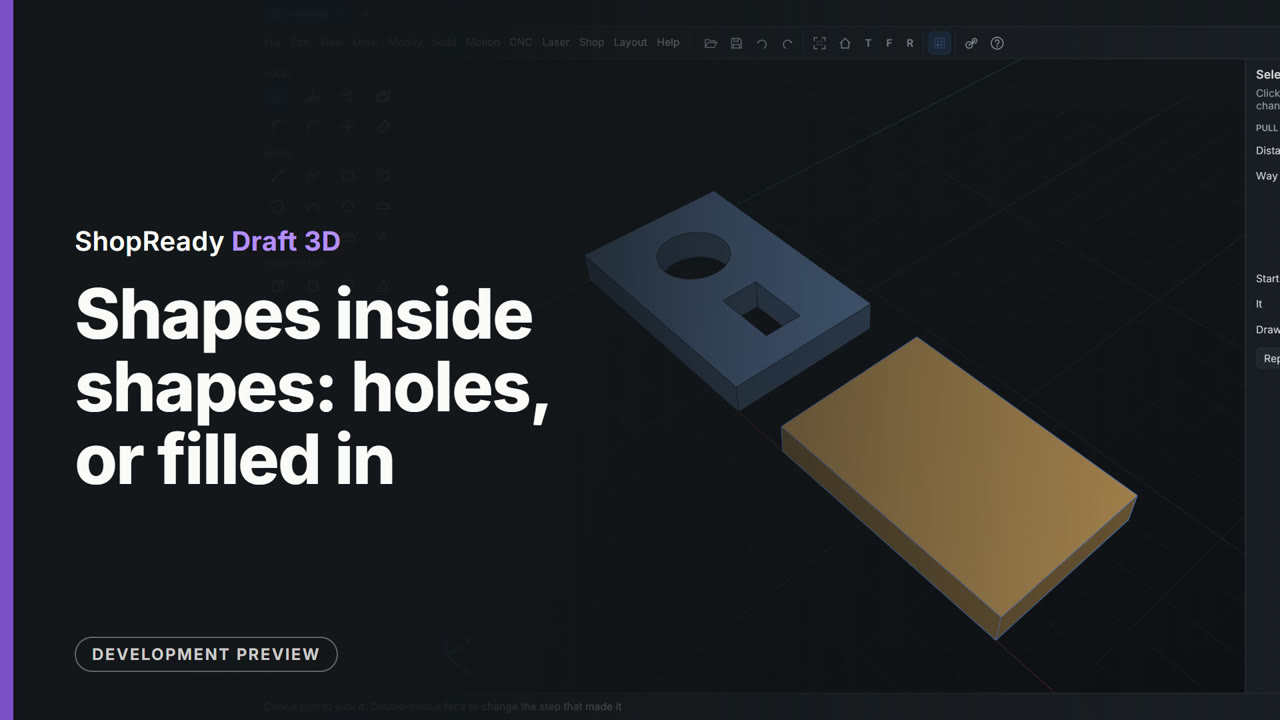
One drawing holds two rectangles, each with a circle and a small rectangle drawn inside. The first is pulled 8 mm and the shapes inside it are holes. Then Fill in what is drawn inside it is ticked in the Tool panel, and the second, drawn the same, is pulled solid.
 Clip · 56 s
Started in 2D, made 3D
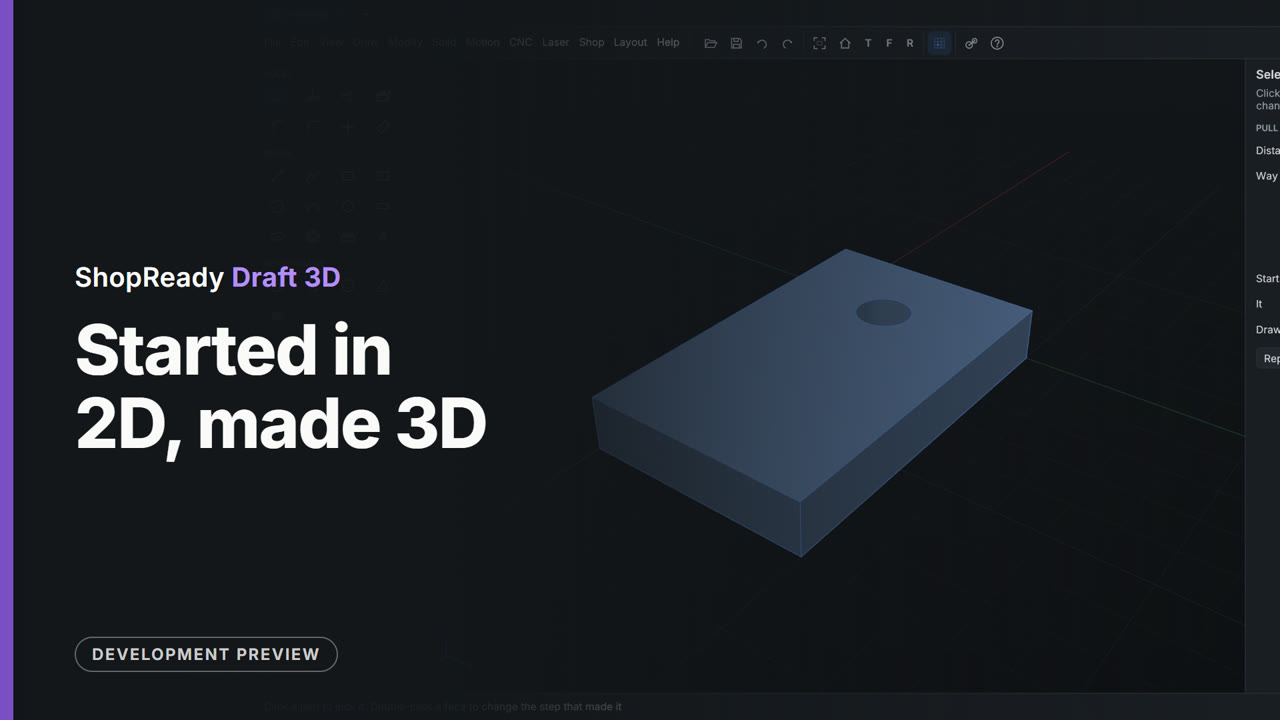
A plate with a hole is drawn in a 2D drawing's own tab, with the 2D tools and typed sizes. Solid, Make this drawing 3D turns the same tab into a 3D model with the drawing lying on its ground, and Pull makes the plate 12 thick with the circle as a hole.
 Clip · 36 s
The dark look and the light look
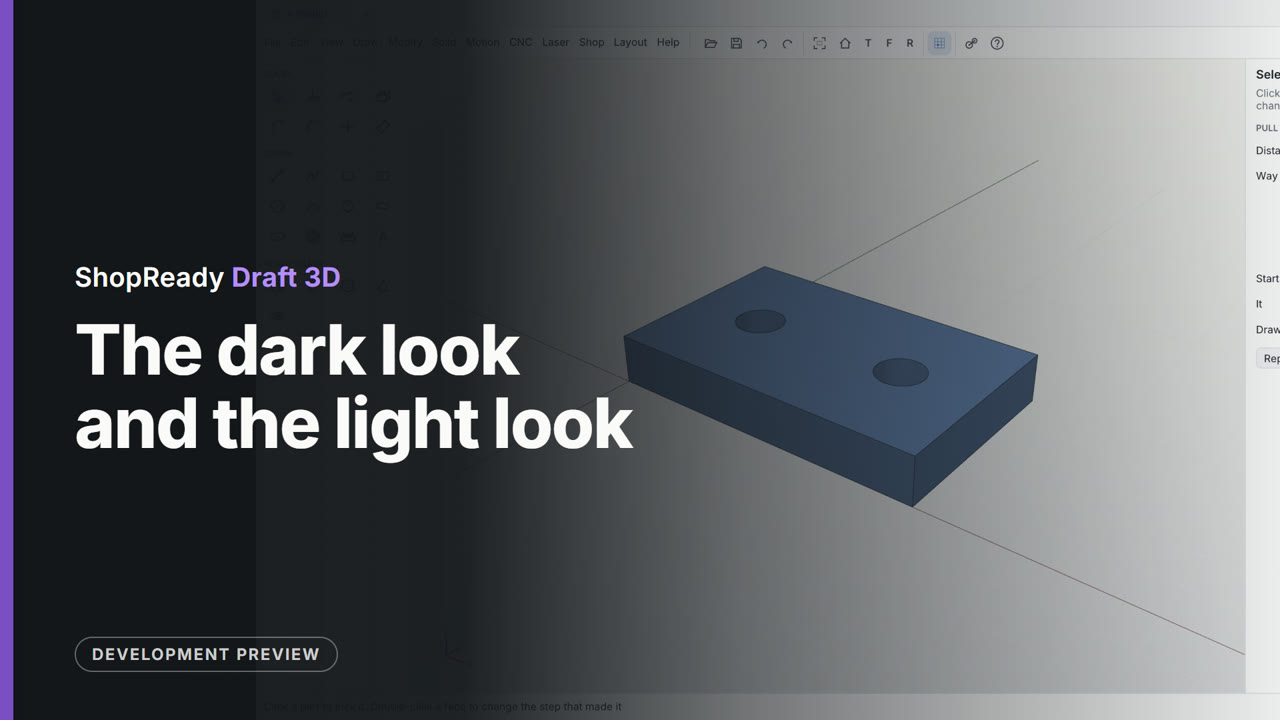
A plate's drawing is open in the dark look. View, Look, Light turns the whole window light, and after Done the 3D model is in the light look too. One clip that shows both looks, one after the other.
 Clip · 49 s
The four marks: corner, middle, center, middle of a face
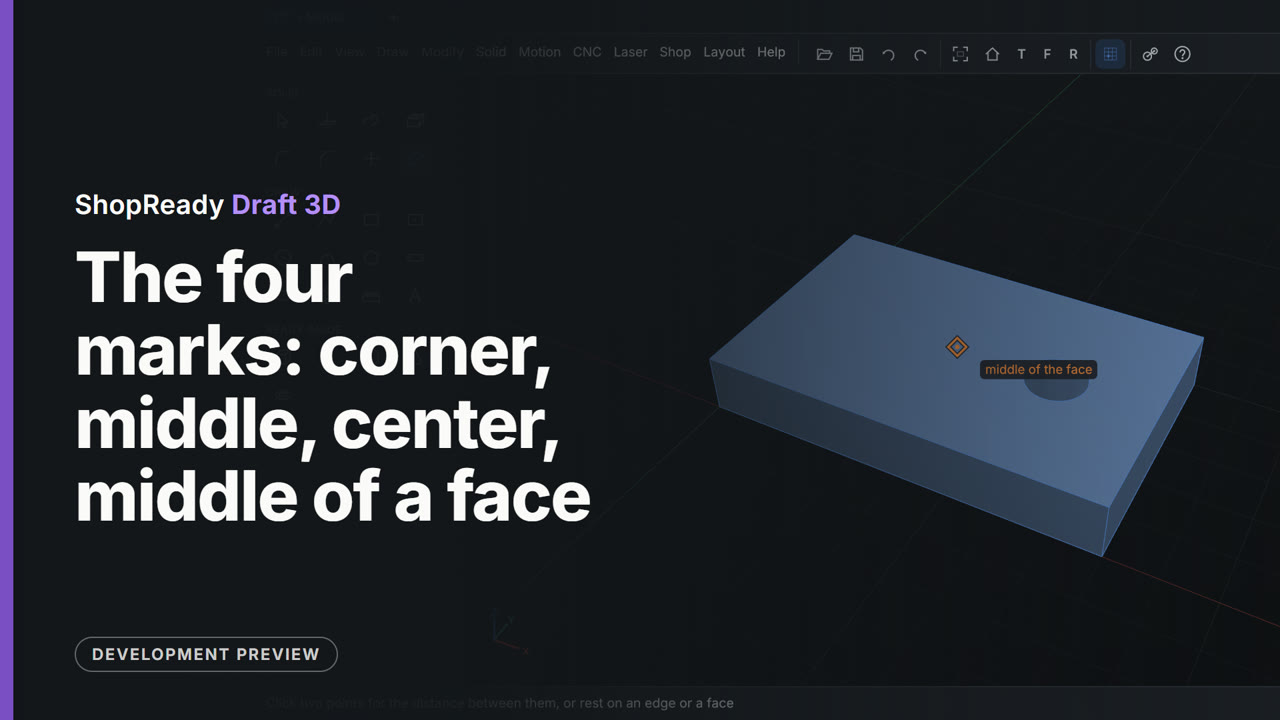
With Measure in hand the pointer rests near a corner, the middle of an edge, the center of a hole and the middle of a face, and each time the program draws its mark there and says its name. Then two clicks measure from the corner to the hole's center, exactly.
The tools, one at a time
 Clip · 37 s
A face opened as a 2D drawing
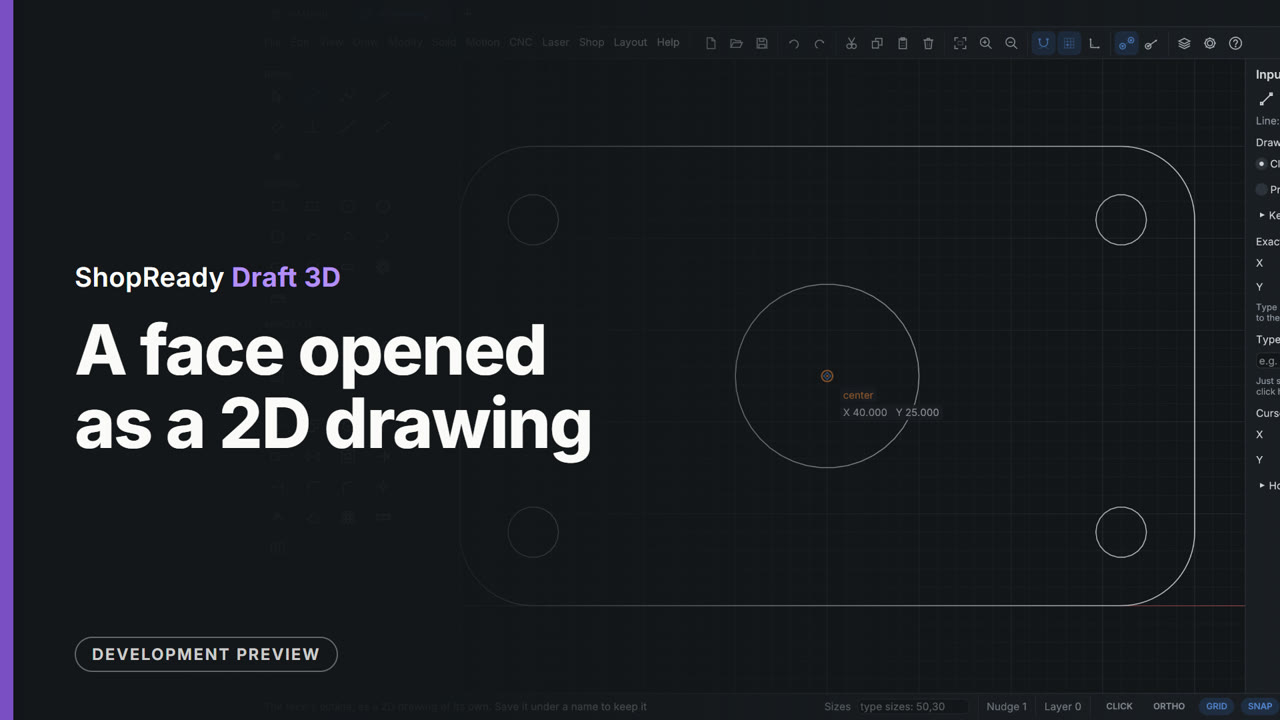
The top of a drilled plate is wanted as a flat drawing. A right-click on the face and Open this face as a 2D drawing gives its outline, as lines, arcs and circles, in a 2D tab of its own with every 2D tool; the model stays in its tab.
 Clip · 43 s
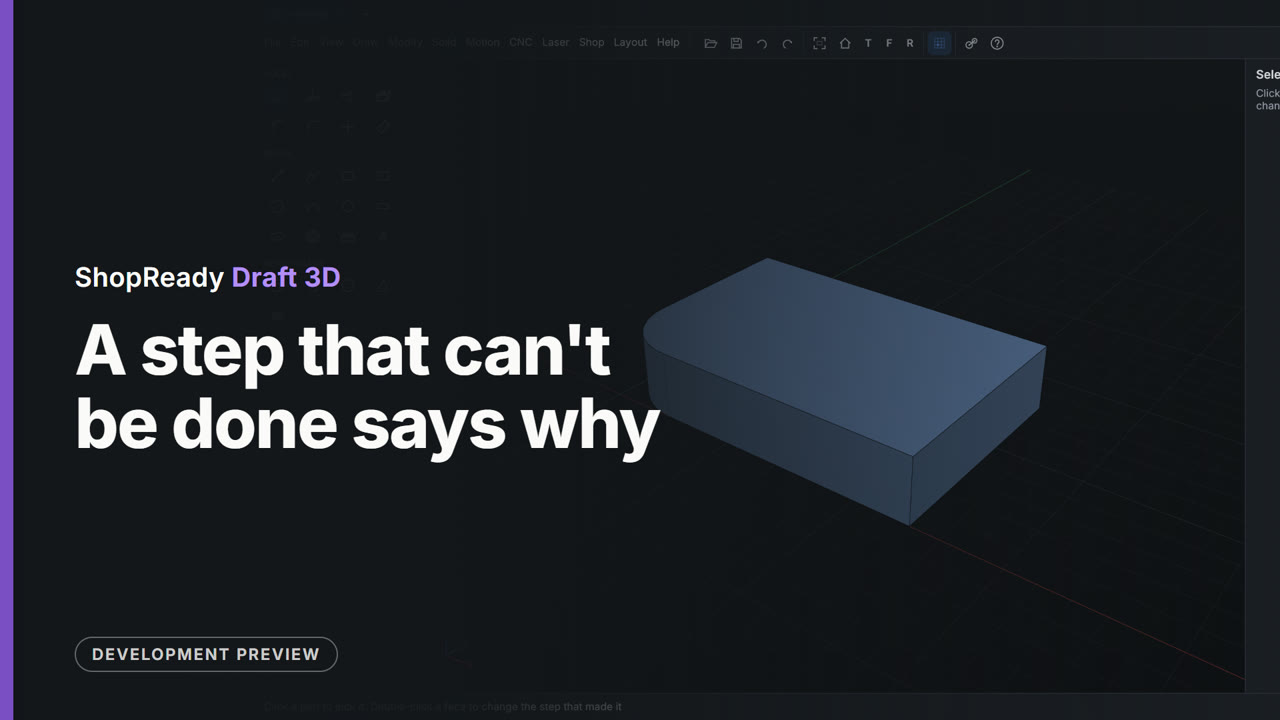
A step that can't be done says why
A round of radius 50 is asked for on a plate whose side is 40 long. It isn't made, nothing is spoiled, and the status line says why: too big for the faces beside the edge, 40 is the most that fits. The edge is still picked, so 12 is typed and the round goes in.
 Clip · 41 s
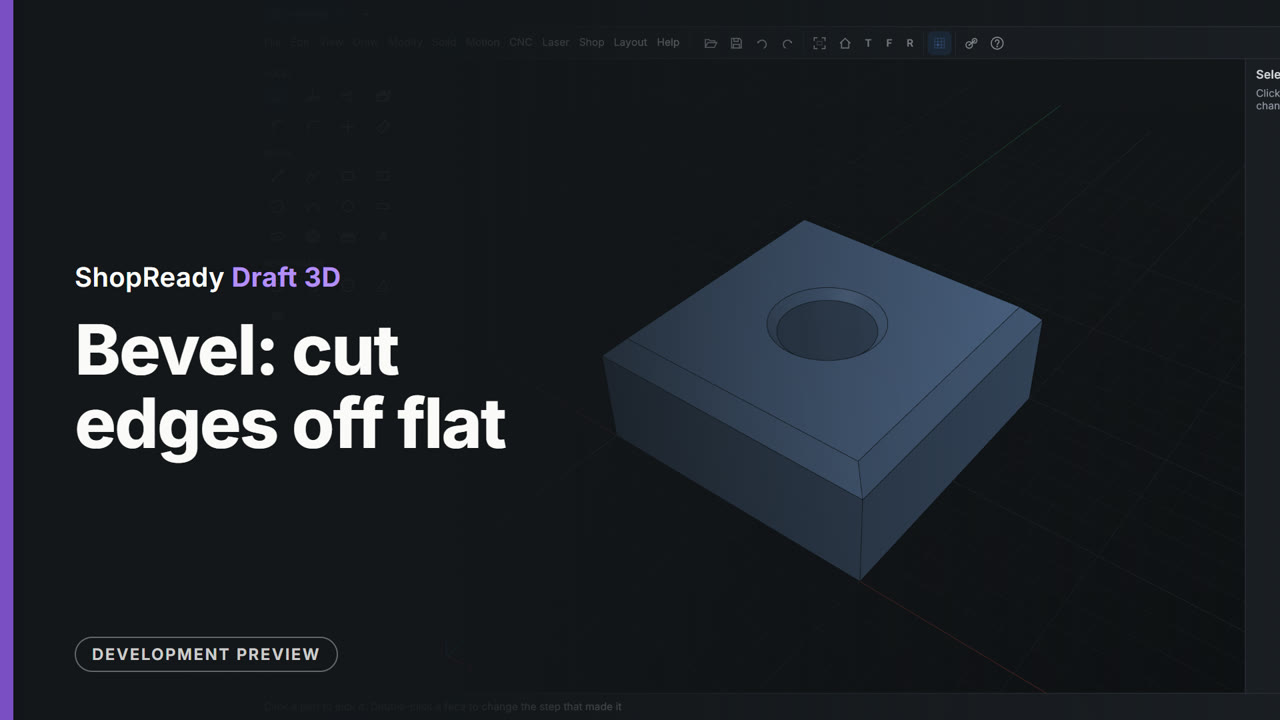
Bevel: cut edges off flat
The four top edges of a block are picked and beveled by 3, and the rim of the hole through it by 1.5. Bevel works the same way Round does: click the edges, type the size.
 Clip · 48 s
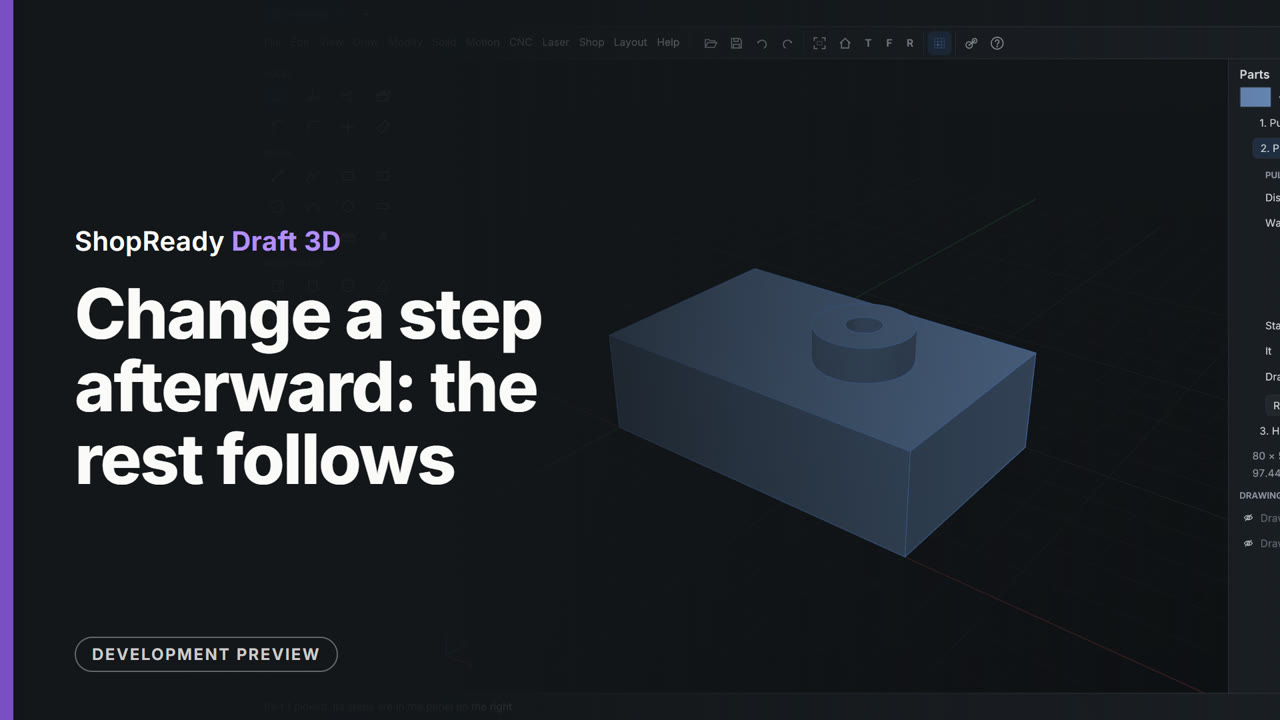
Change a step afterward: the rest follows
A part's steps are listed in the Parts panel. The first step's distance is typed from 12 to 24, and the boss and the hole made after it are worked out again on the thicker plate; then the boss's own step is typed from 18 to 8.
 Clip · 46 s
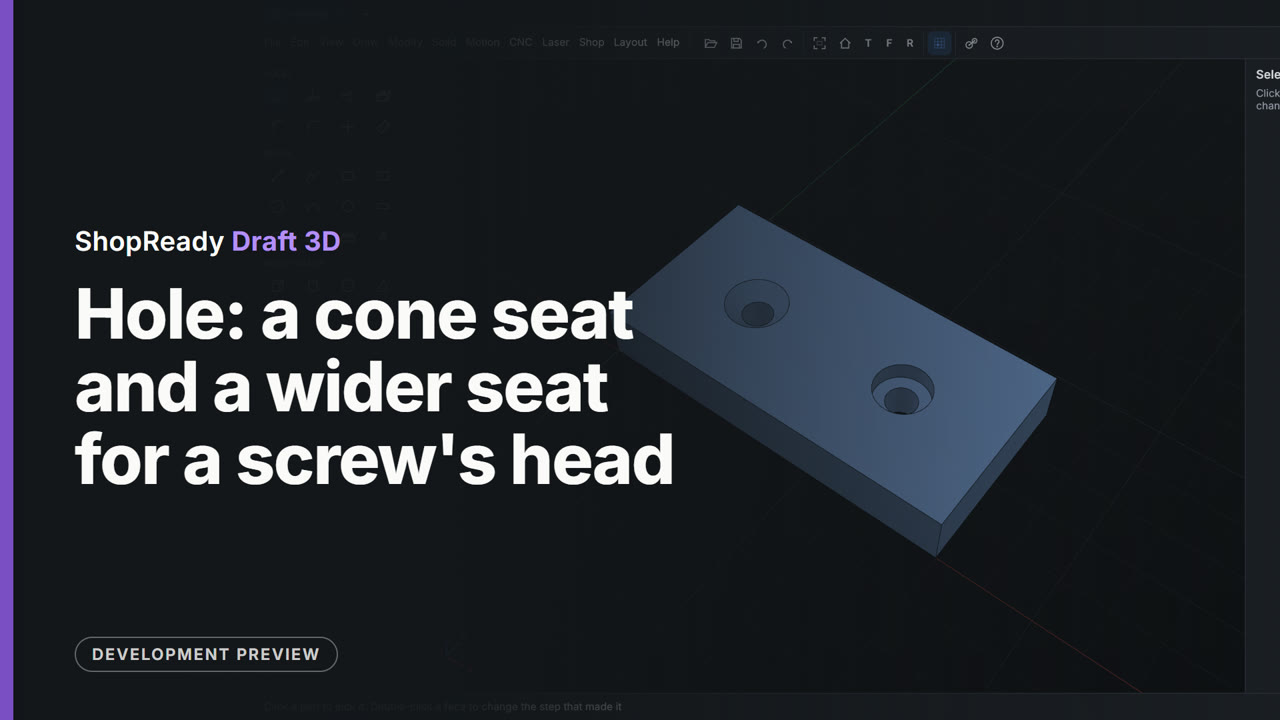
Hole: a cone seat and a wider seat for a screw's head
With M6 picked from the screw sizes, Cone makes a hole with a cone at the top for a flat-head screw, and Wider makes one with a flat-bottomed seat for a screw's head to sit below the face. Each is one click on the plate.
 Clip · 47 s
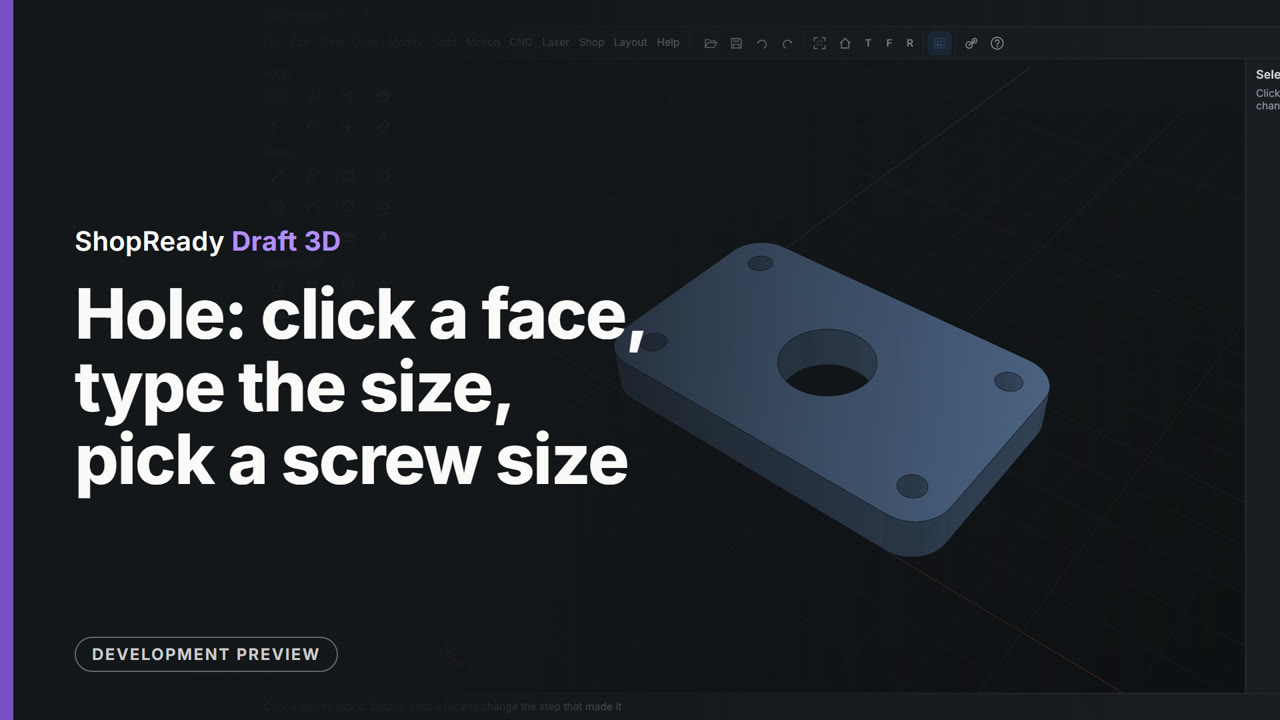
Hole: click a face, type the size, pick a screw size
The Hole tool drills the middle of a plate where the cursor is drawn to it, and 20 typed straight after changes its size. Then M5 is picked from the screw sizes and a hole goes at the center of each rounded corner.
 Clip · 42 s
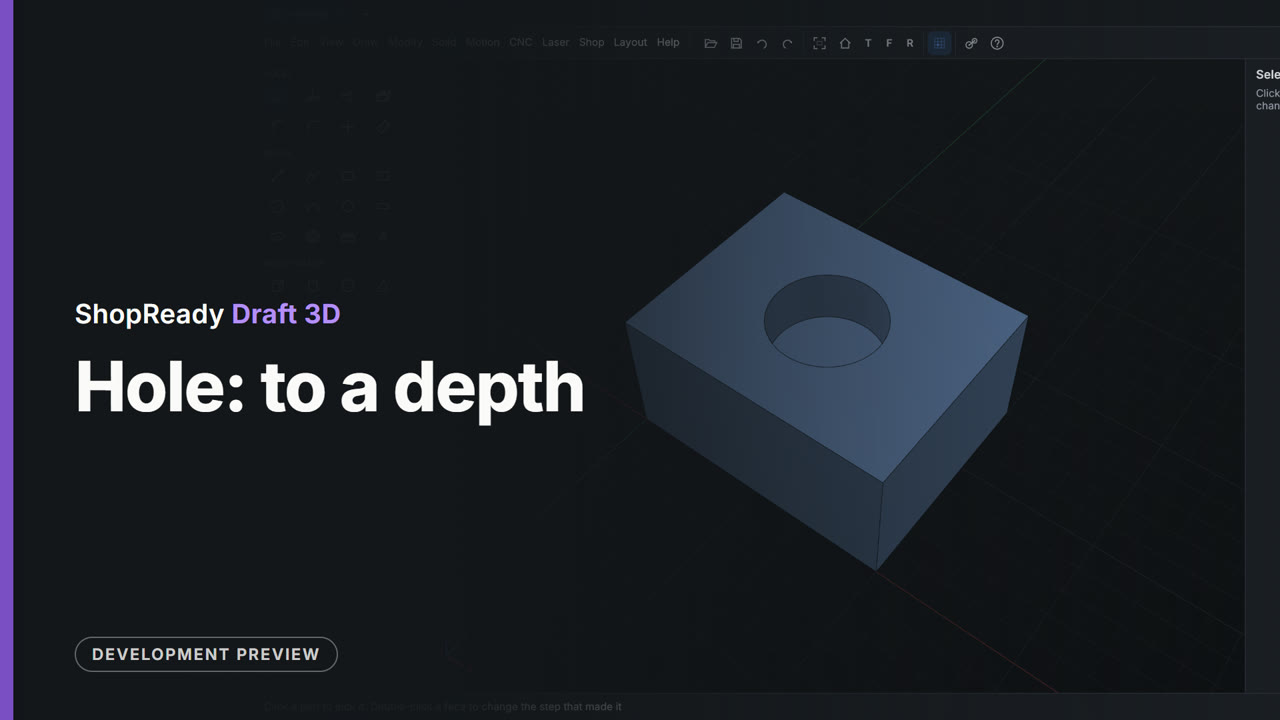
Hole: to a depth
In the Tool panel the hole's size is typed as 20, Right through is unticked and a depth of 10 typed; one click at the middle of the block's top then makes a hole that stops inside the block.
 Clip · 51 s
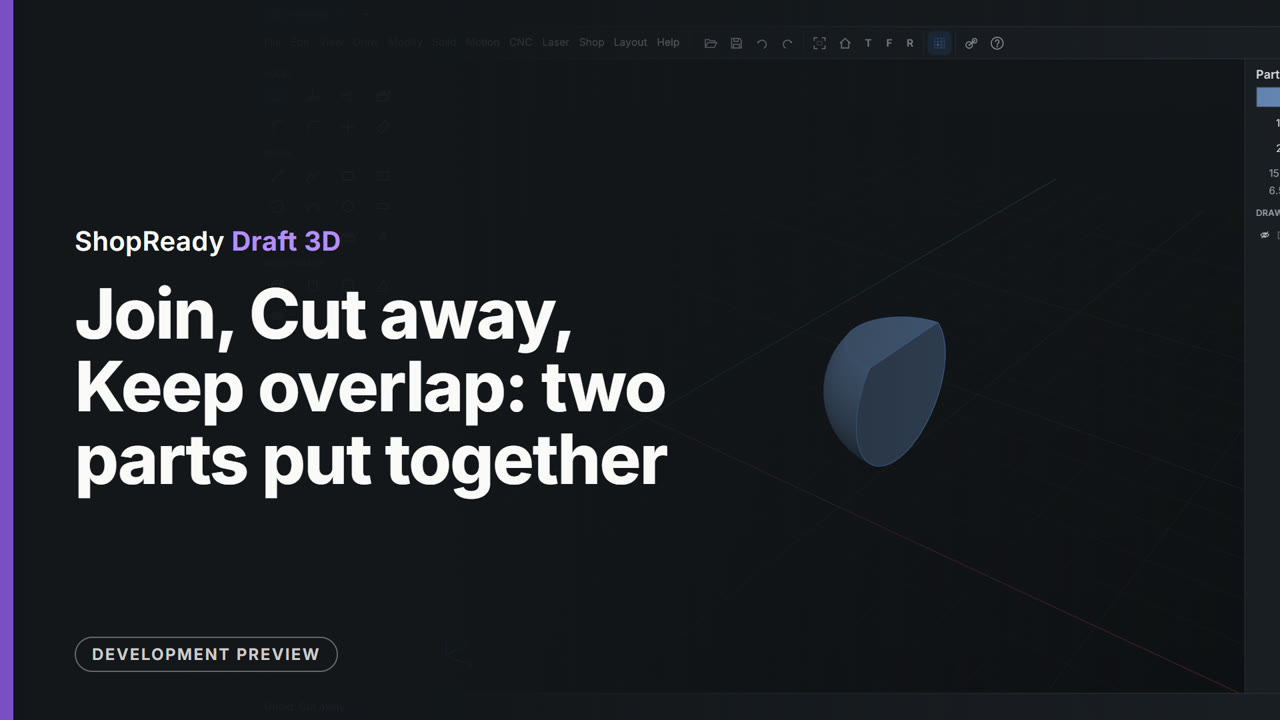
Join, Cut away, Keep overlap: two parts put together
A block and a ball overlap. With both picked, the Parts panel offers three ways to put them together, and each is tried in turn: Join makes one part of the two, Cut away takes the ball out of the block, and Keep overlap leaves only what the two share.
 Clip · 42 s
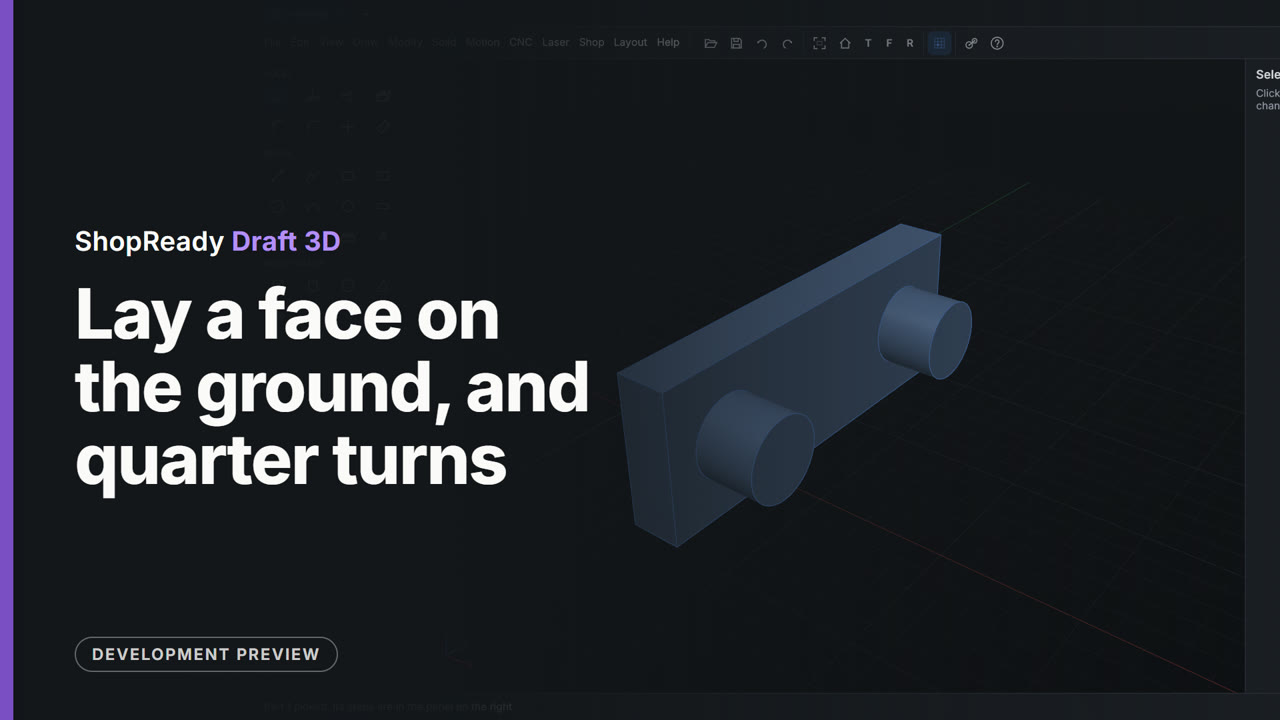
Lay a face on the ground, and quarter turns
A plate with two bosses is to be printed on its front. A right-click on that face and Lay this face on the ground turns the part and sets it down; Turn a quarter turn, About Z, turns it a quarter round. No angle is typed.
 Clip · 45 s
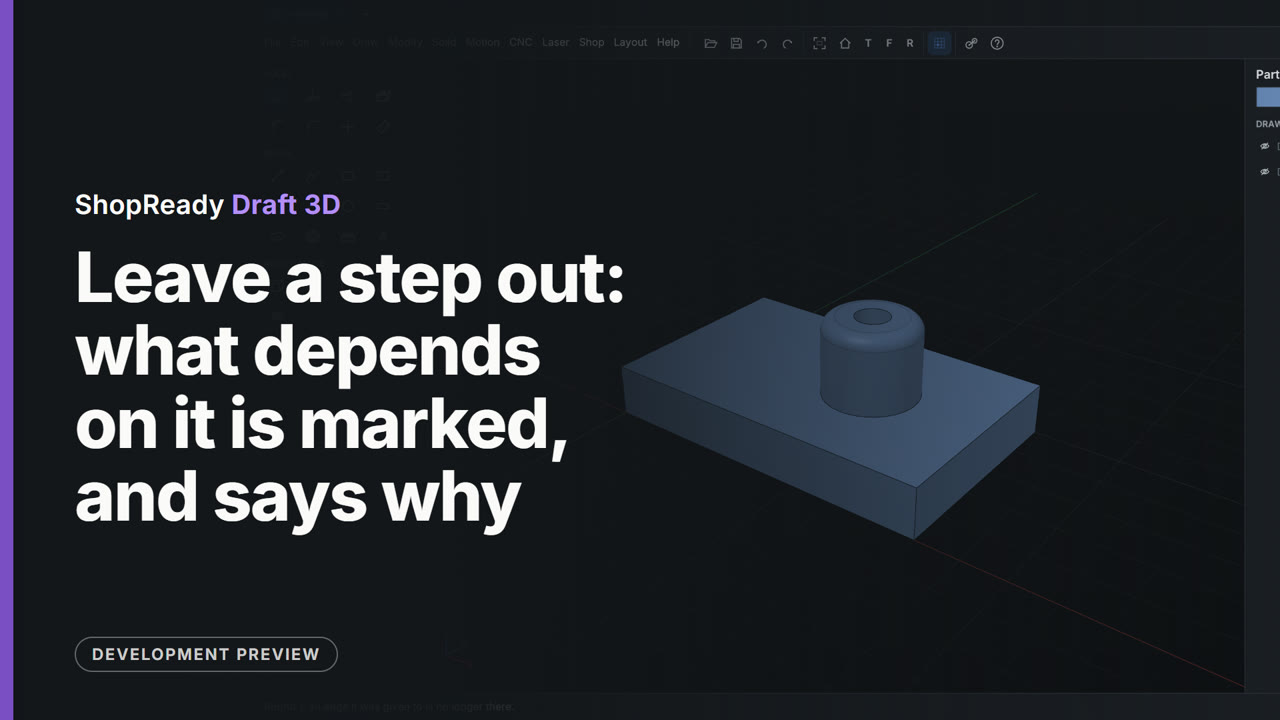
Leave a step out: what depends on it is marked, and says why
In the Parts panel the eye beside the boss's step leaves it out. The hole is still drilled, in the plate, but the round on the boss's rim has no edge to go on: its step is marked, and a click on it says why. The eye again puts the boss back, and everything after it is made again.
 Clip · 44 s
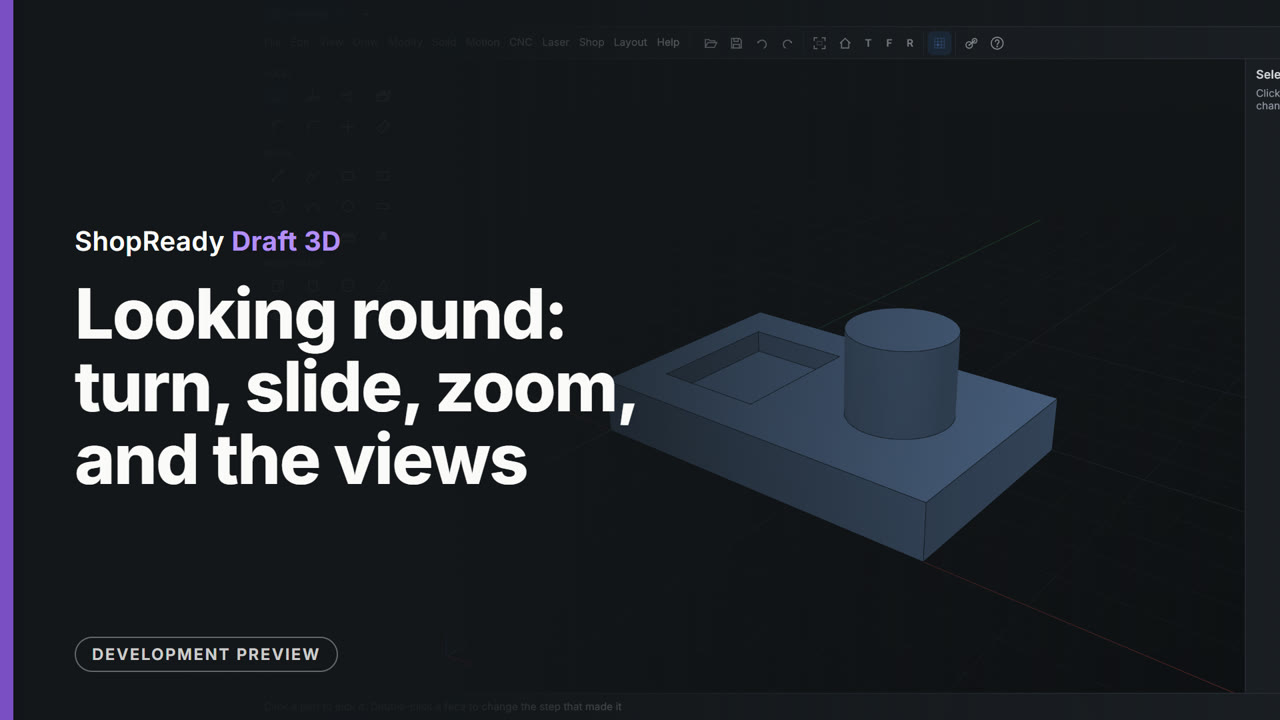
Looking round: turn, slide, zoom, and the views
The view of a part is turned with a right-drag, slid with a middle-drag and zoomed with the wheel toward what the pointer is on. Then T, F and R look from the top, the front and the right, and the house goes back to the view from front, right and above.
 Clip · 49 s
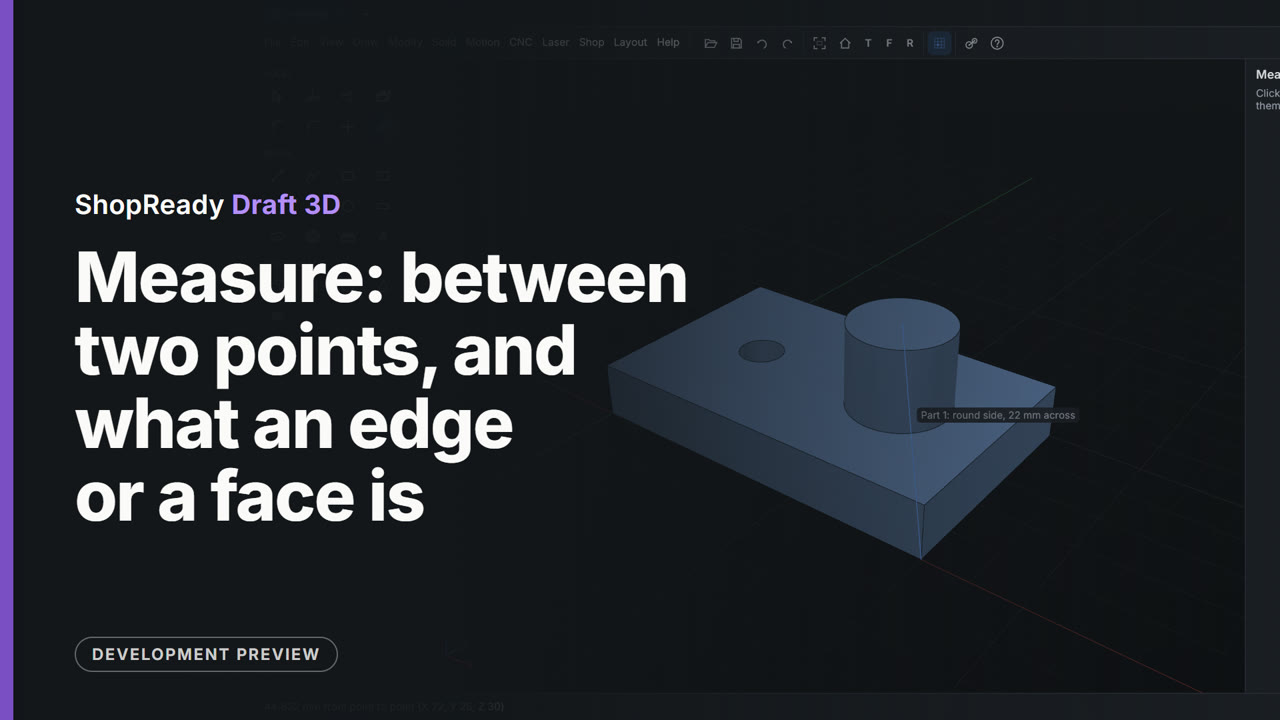
Measure: between two points, and what an edge or a face is
Measure is clicked from corner to corner for a length of 80, then from a bottom corner to the middle of the boss's top, where the status line gives the distance and how far along X, Y and Z. Resting on the boss's side, the hole's rim and an edge says what each is.
 Clip · 34 s
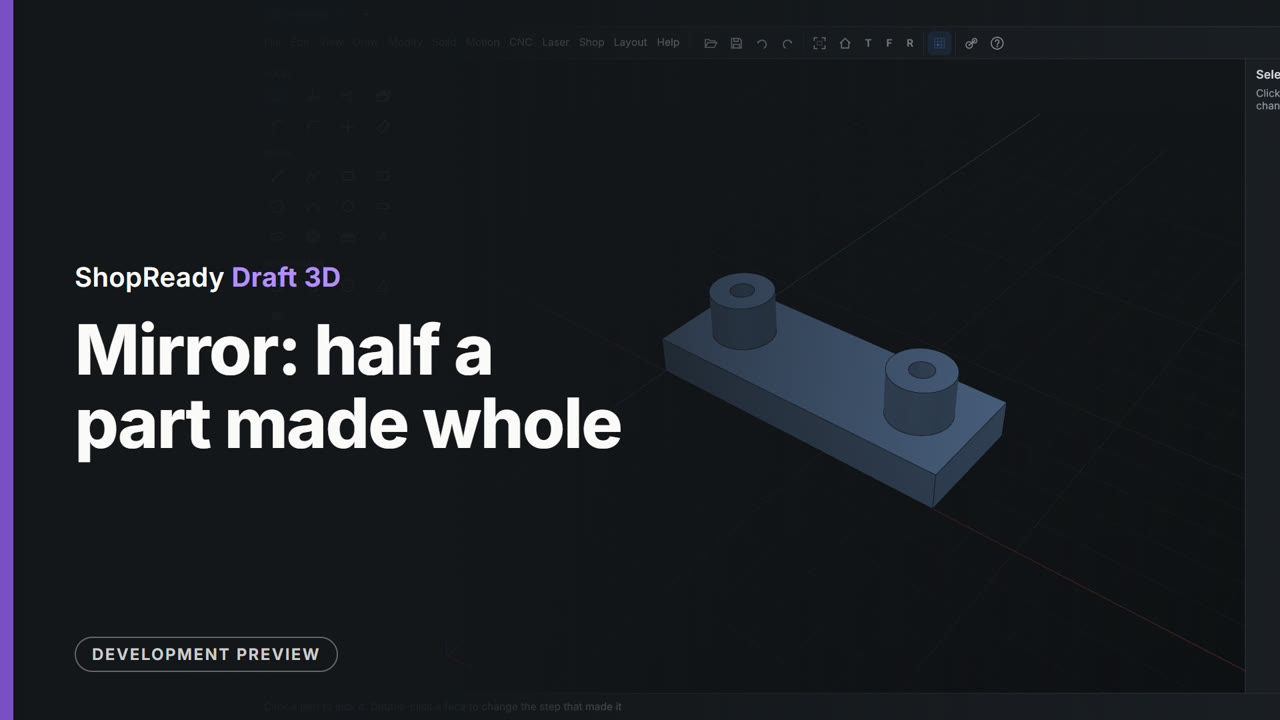
Mirror: half a part made whole
Half a part is made: a plate with a boss and a hole. A right-click on the face where the two halves meet and Mirror the part across this face makes the other half, as one more step.
 Clip · 47 s
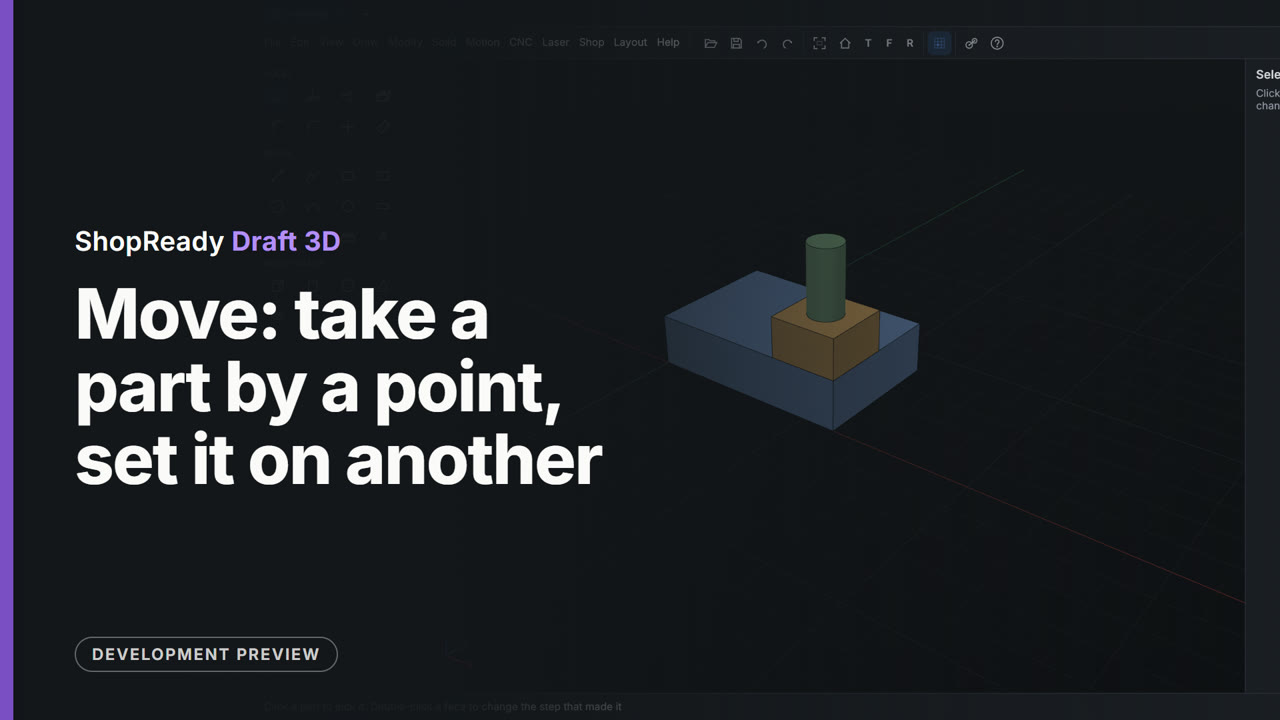
Move: take a part by a point, set it on another
A small block is taken by a bottom corner and set on a top corner of the base; then a peg is taken by the center of its foot and set on the middle of the block's top. The marks show which point the cursor has been drawn to, and nothing is typed.
 Clip · 41 s
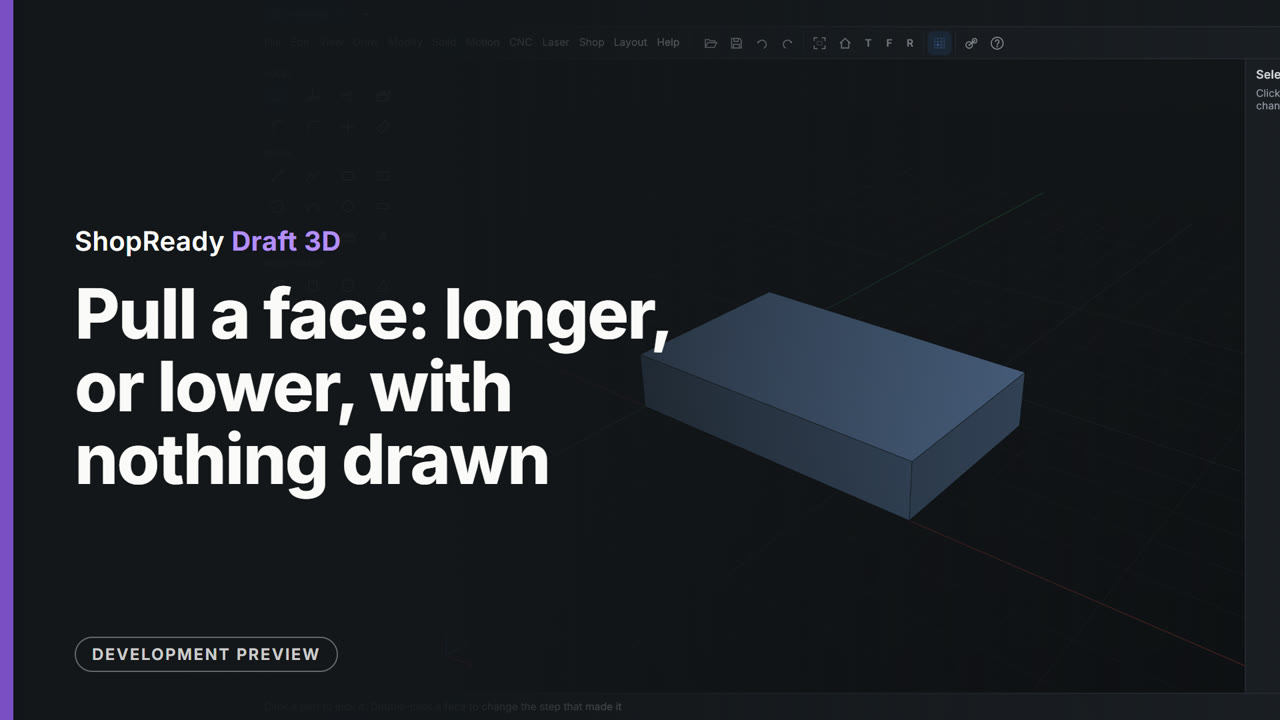
Pull a face: longer, or lower, with nothing drawn
Pull is used straight on a block's faces: the end face is pulled out 15 to make the block longer, and the top face is pushed down 8 to make it lower. No drawing is needed.
 Clip · 41 s
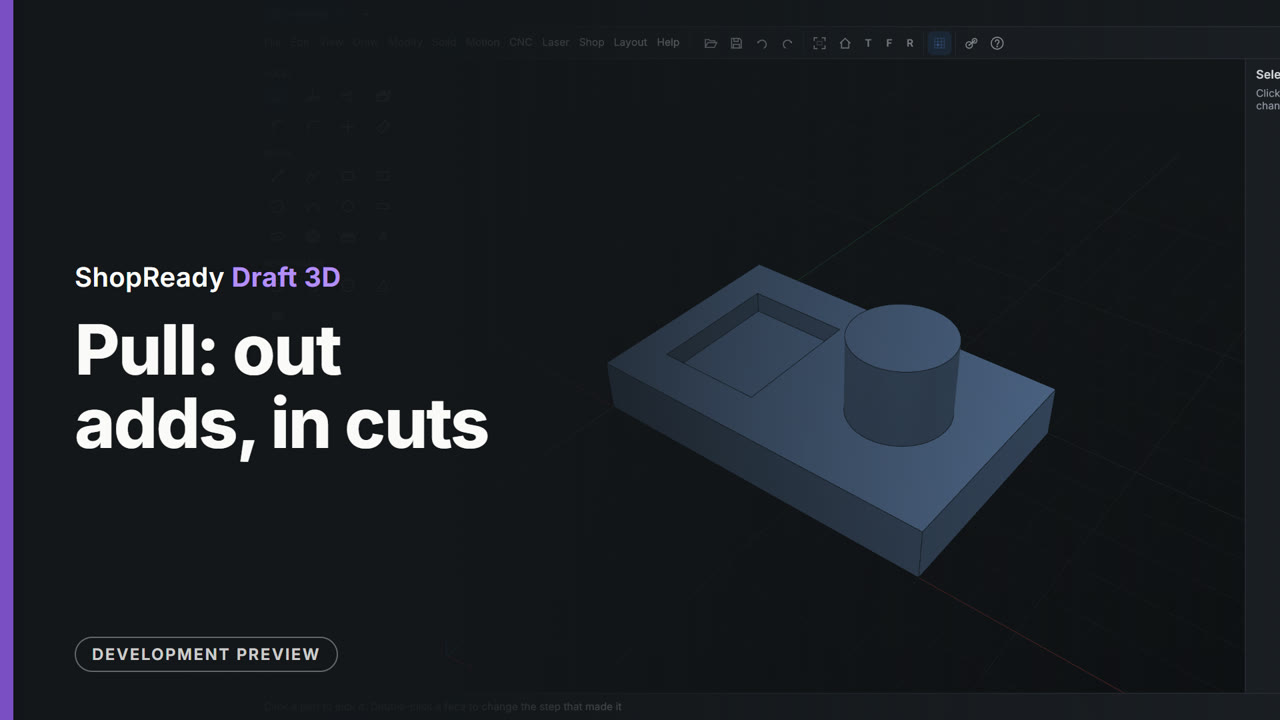
Pull: out adds, in cuts
A circle on a plate's top is pulled up 18 into a boss, and a rectangle beside it is pushed down 5 into a pocket. The same tool adds or cuts by which way it goes, and both distances are typed.
 Clip · 47 s
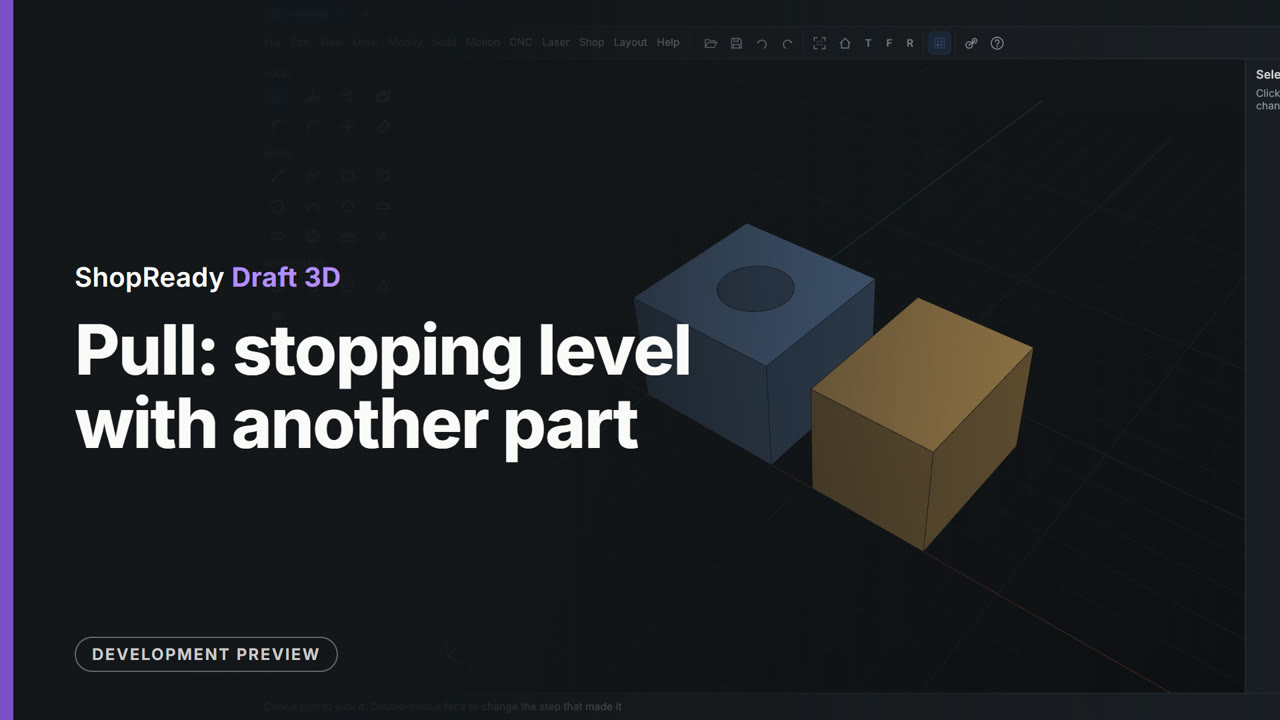
Pull: stopping level with another part
A rectangle on the ground is pulled up beside a block and stops level with the block's top; a circle on the block is pushed down and stops flush with its far side, making a hole right through. Neither distance is typed.
 Clip · 44 s
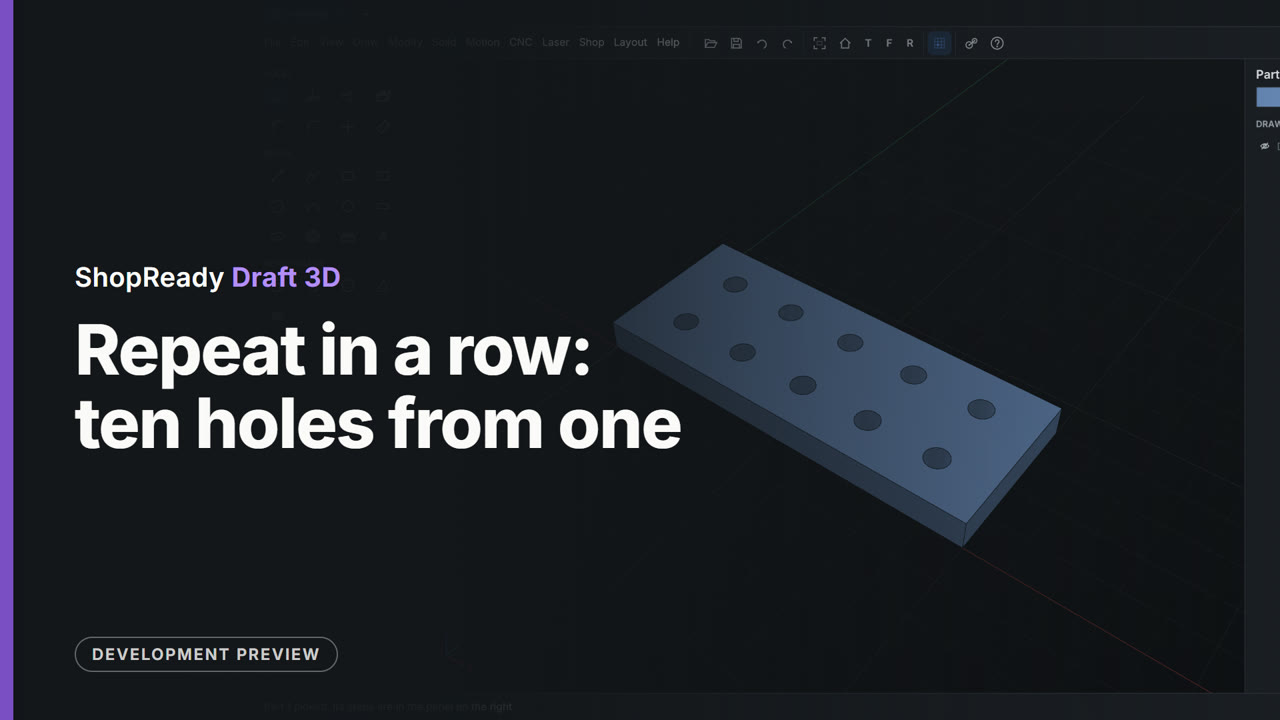
Repeat in a row: ten holes from one
A plate has one hole. Its step is found in the Parts panel and repeated in a row; How many and Apart are typed to make five holes 18 apart, and A second way makes a second row, ten holes in all, from one step.
 Clip · 33 s
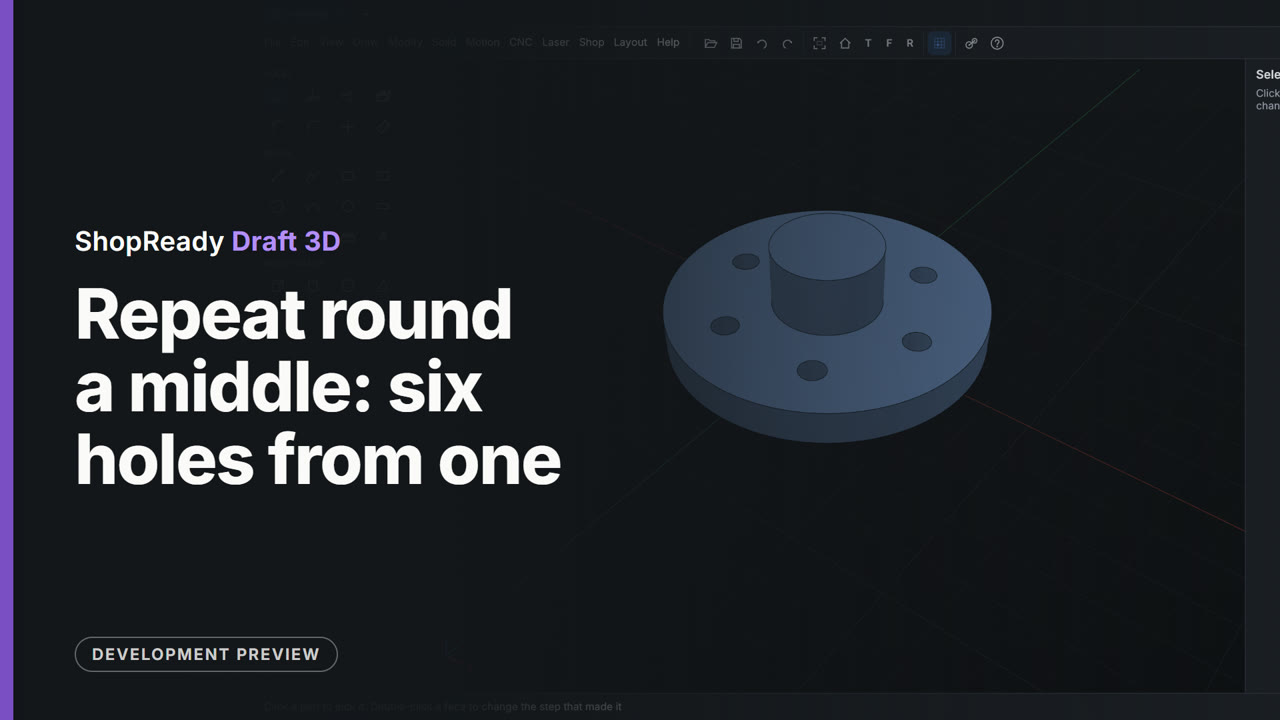
Repeat round a middle: six holes from one
A round flange has a boss in its middle and one hole. A right-click on the boss's round face and Repeat Hole 1 round this makes six, evenly spaced round the boss, as one step whose count can be changed.
 Clip · 43 s
Round: take the sharpness off edges
Two corners of a plate are picked and rounded to 10, then the rim of a boss is rounded over to 3 and its foot filled in to 2. Each round is an edge clicked and a radius typed.
 Clip · 40 s
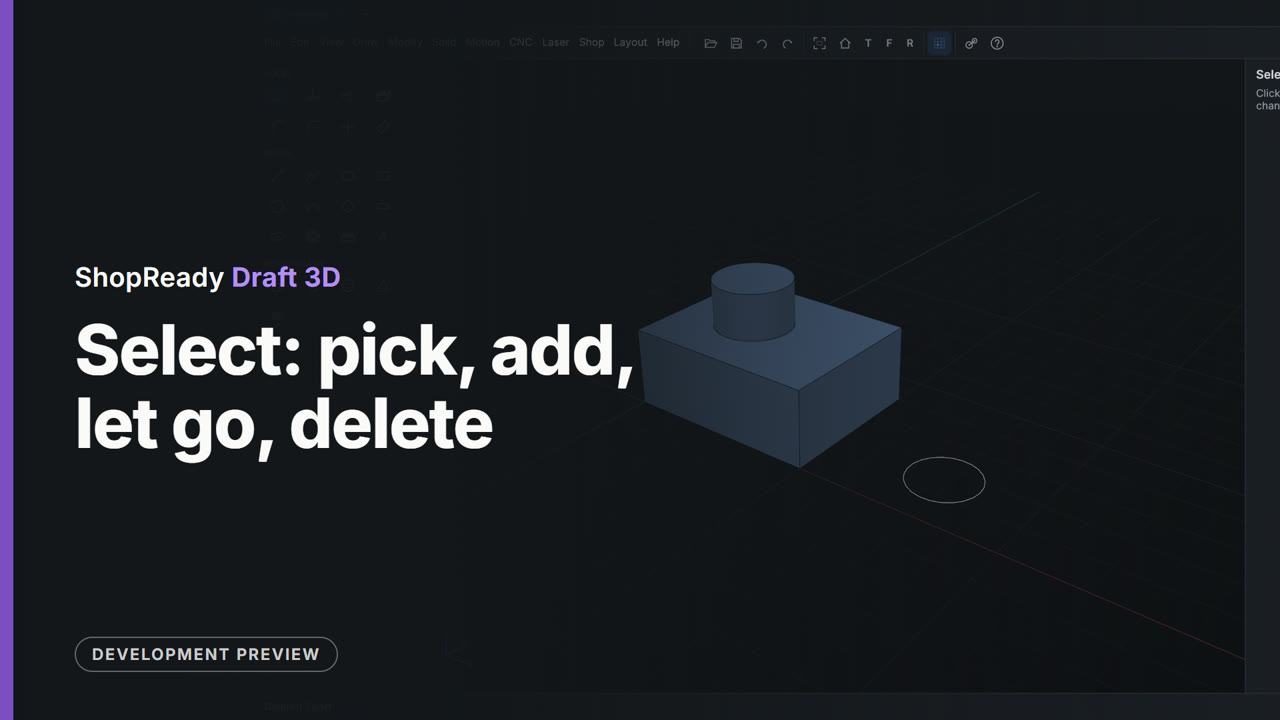
Select: pick, add, let go, delete
With the Select tool a click picks a part and a Shift-click adds another; Esc picks nothing. A picked part is deleted with Del and brought back with Ctrl+Z, and a click on the empty ground lets go of everything.
 Clip · 43 s
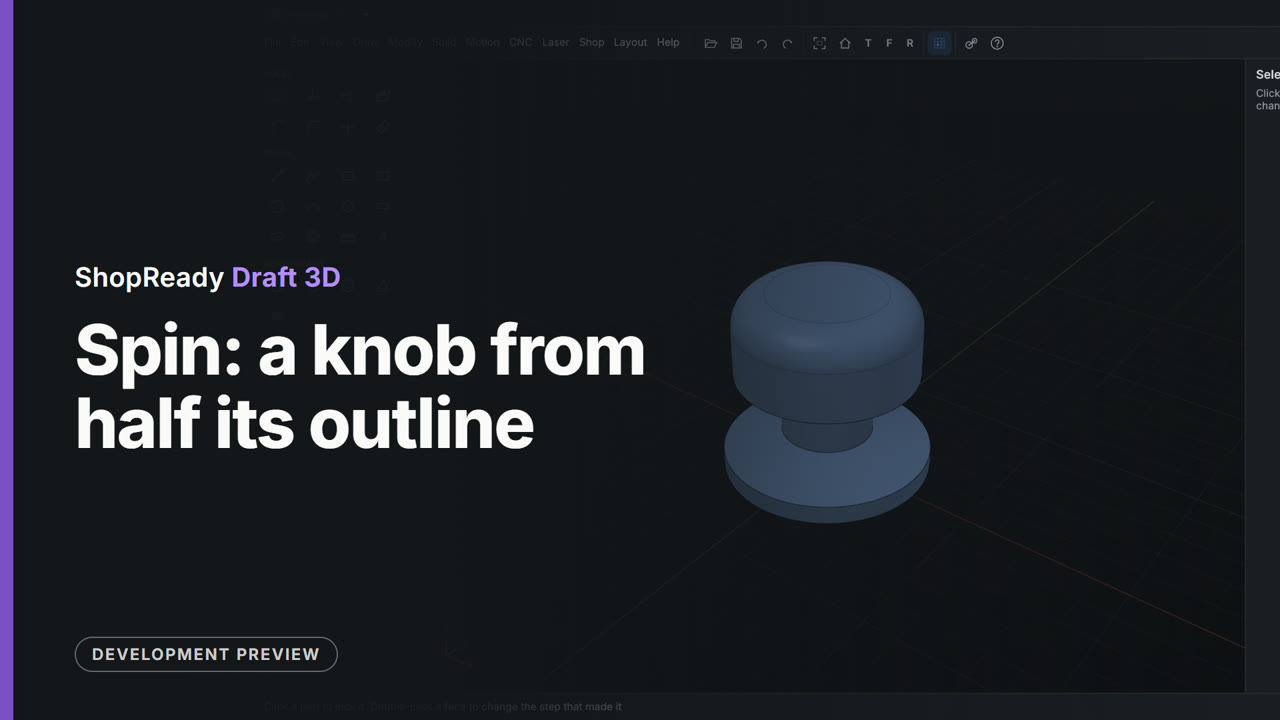
Spin: a knob from half its outline
Half a knob's outline stands on the front plane with a line where its middle is. Spin turns the shape about the line into a knob; 270 typed straight after makes it three quarters of a turn, and 360 makes it whole again.
 Clip · 32 s
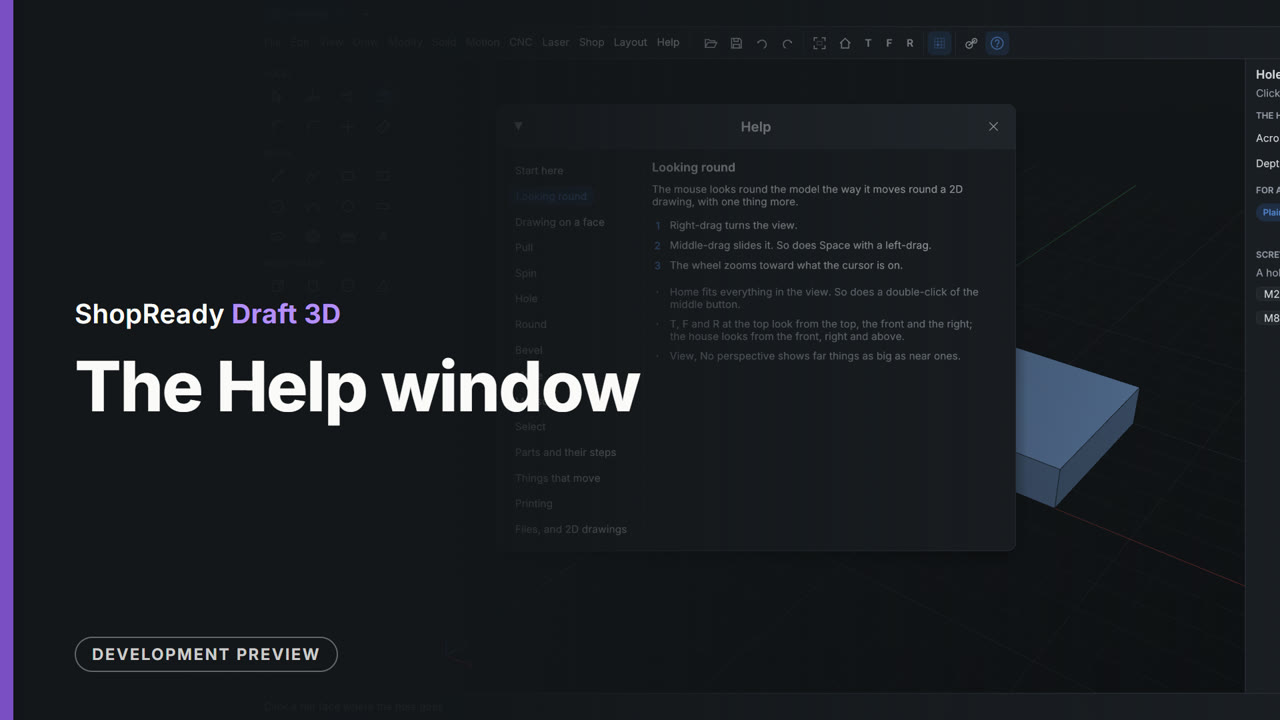
The Help window
With the Hole tool in hand, the Help button opens Help at the Hole page: what the tool is for, its steps, and what else is worth knowing. Other pages are a click away in the list on the left, and Esc puts the window away.
 Clip · 51 s
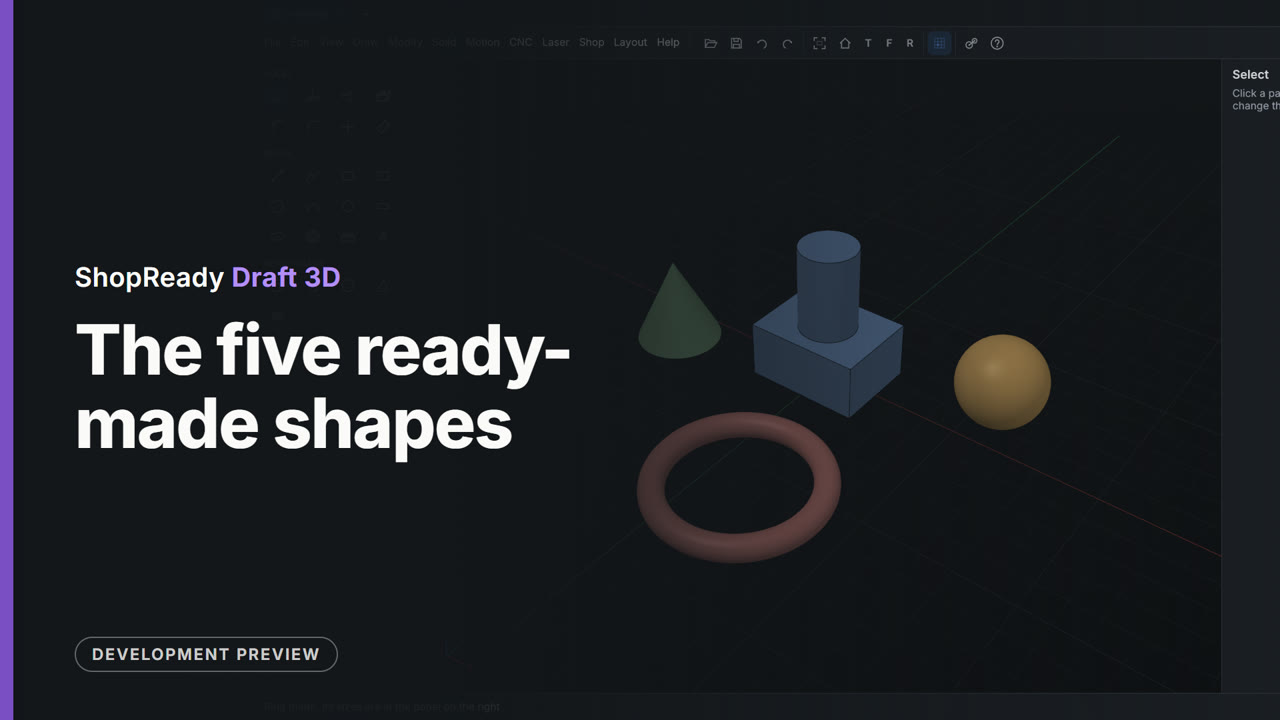
The five ready-made shapes
From an empty model, a block is set on the ground with one click, a rod is stood on the block's top, and a ball, a cone and a ring are set on the ground around them. The ring's size is then typed in the panel on the right.
 Clip · 41 s
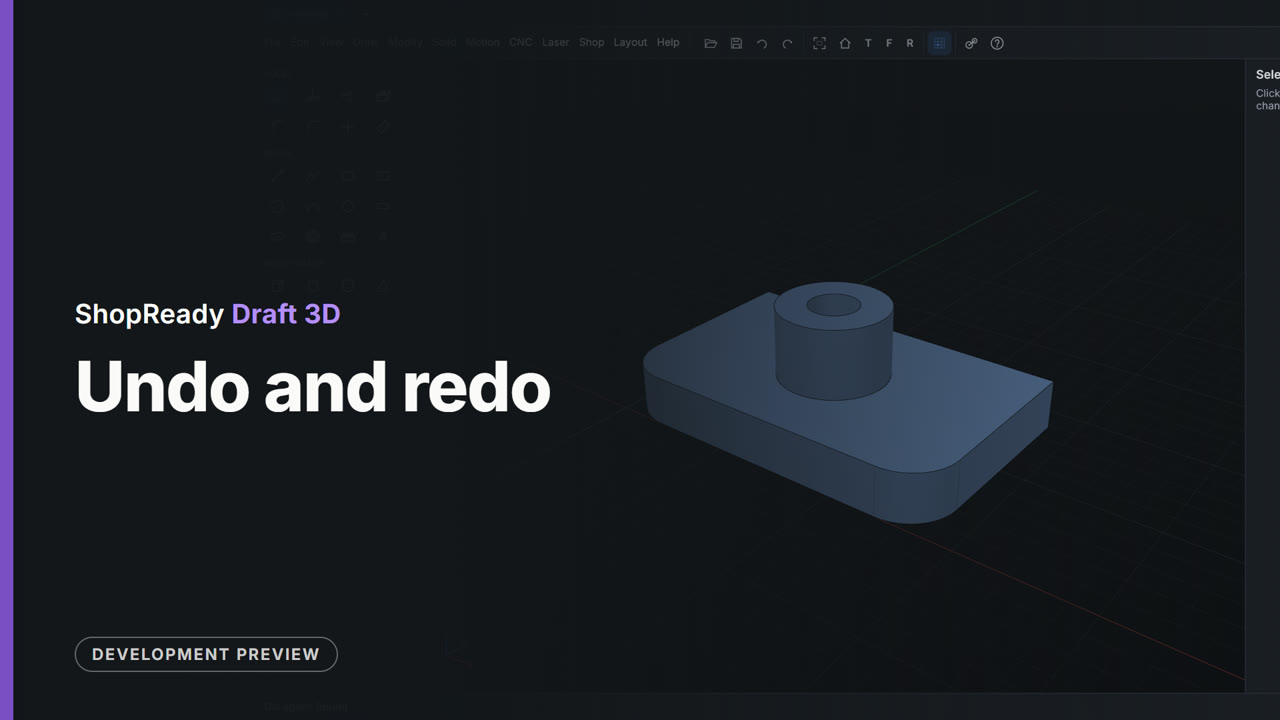
Undo and redo
A part four steps along is taken back three steps, with the Undo button and Ctrl+Z, to the bare plate; then Redo and Ctrl+Y put the boss, the hole and the rounds back one at a time. The status line names each step as it goes and comes back.
Things that move: gears
 Clip · 2:16
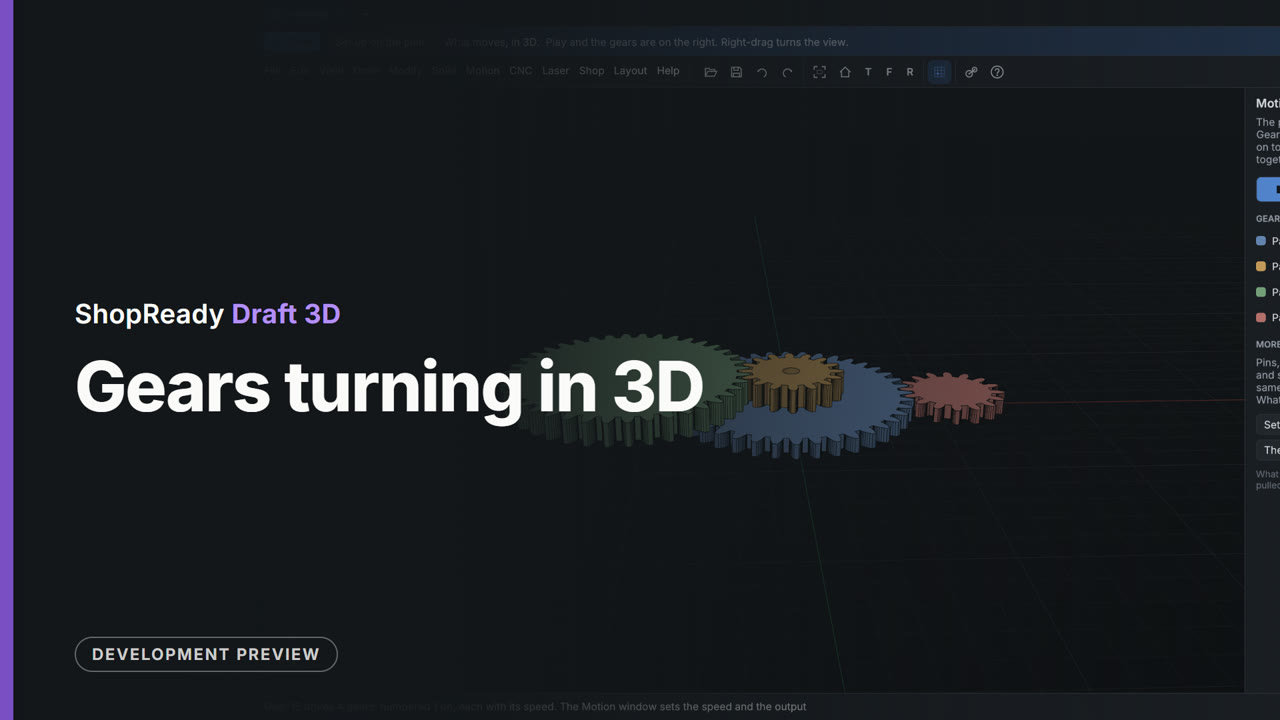
A gear train standing upright, as a clock's does
A back plate is drawn on the front plane and pulled toward the front. Four gears are drawn on its front face, their shaft holes pulled out into posts and the gears pulled round them on two levels. Set turning, the train moves in its own upright plane, and the flat plan stands upright with it: 9 to 1.
 Clip · 3:11
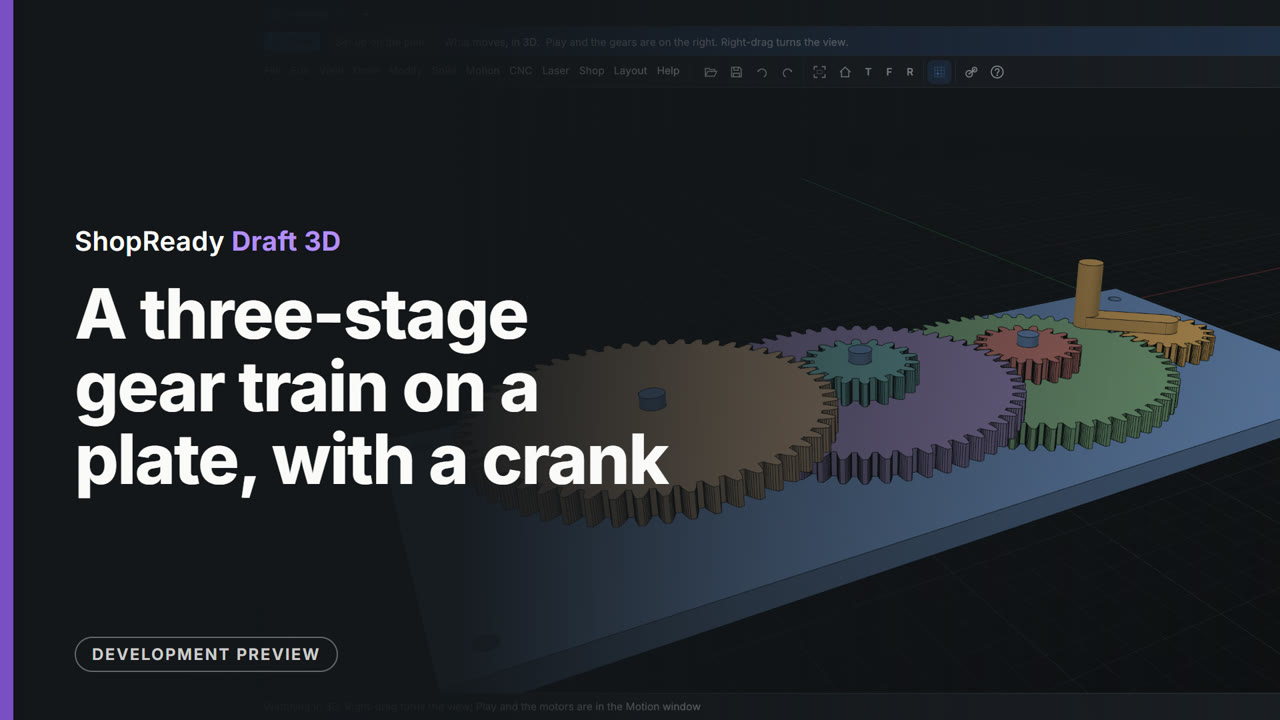
A three-stage gear train on a plate, with a crank
A base plate is drawn, pulled up and drilled for its screws. Six gears are drawn on its top face with the Gear tool, each held where it meshes; their shaft holes are pulled up into posts, the gears are pulled round the posts on three levels, and a crank is drawn on the first gear. The Motion tab turns the whole train: 27 turns of the crank for one of the last gear.
 Clip · 2:12
A two-stage gear reduction, 12 to 1
Four gears are drawn with the Gear tool on one flat drawing, each held at its meshing distance from the last and turned to mesh. They are pulled up gear by gear, two of them on one shaft, and set turning; the flat plan lists each gear's speed and the ratio.
Things that move: links, cranks and cams
 Clip · 3:12
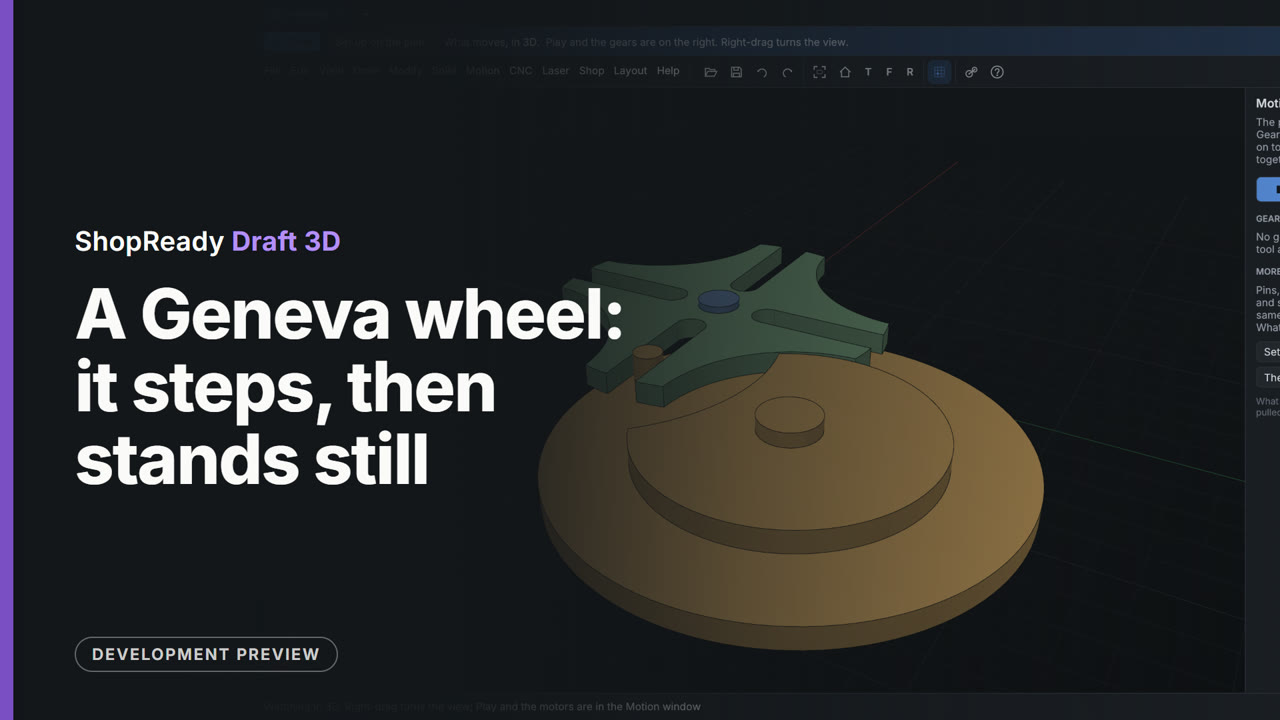
A Geneva wheel: it steps, then stands still
A wheel with four slots and a driver with one pin and a locking disc. Both outlines are made in the flat drawing by cutting simple shapes out of circles, then pulled into three parts and pinned on the flat plan. Nothing joins the wheel to the driver: the pin turns it a quarter turn by touching it, and the locking disc holds it still until the pin comes round again.
 Clip · 3:04
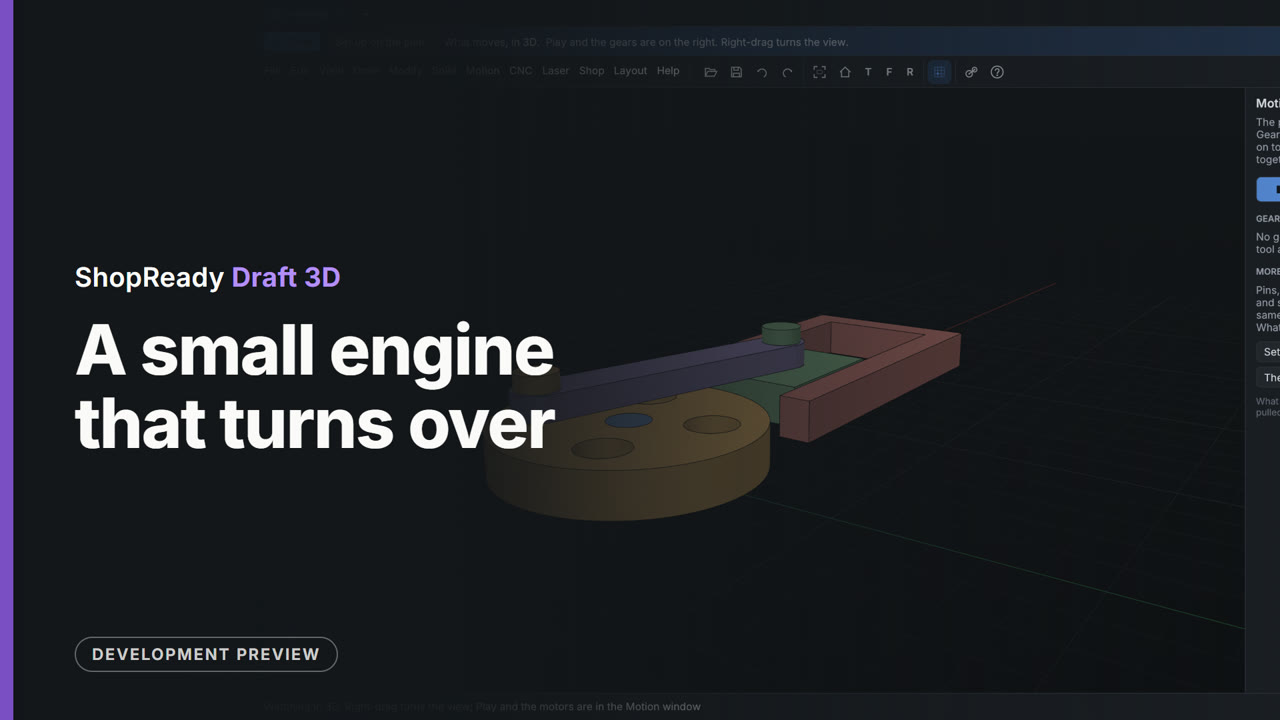
A small engine that turns over
A crank disc on its shaft, a connecting rod, a piston on its pin and a block open on top, all drawn in one flat drawing with every size typed, pulled into five parts, pinned on the flat plan and given a motor. The crank goes round and the piston slides in its bore, seen in 3D from every side.
Projects start to finish
 Clip · 2:14
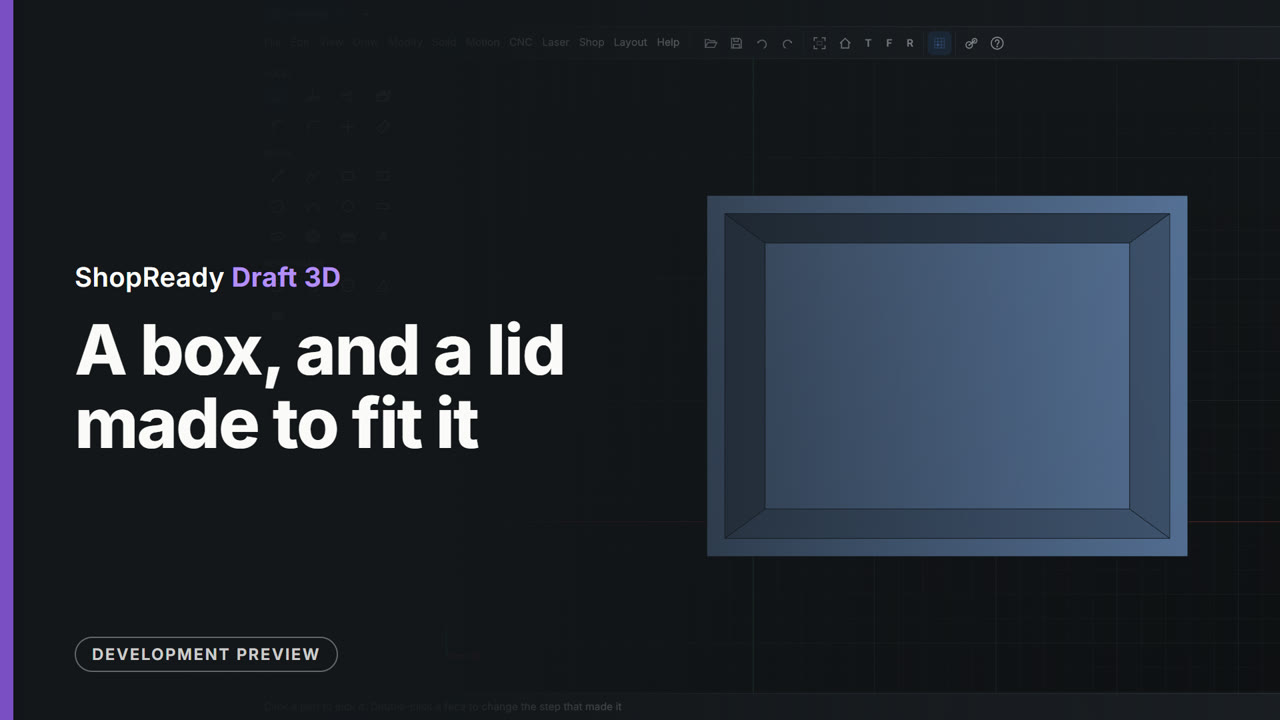
A box, and a lid made to fit it
A box 80 by 60 by 40 is hollowed with a center rectangle pushed down 37, leaving walls and a floor 3 thick. The lid is drawn on the box's own rim, its two corners snapped to the box's corners, and pulled up 3 as a part of its own. A lip 0.2 smaller each side than the hollow is drawn on the lid's top and pushed down through it. The eyes in the Parts tab hide each part in turn to show the lip and the hollow.
 Clip · 2:25
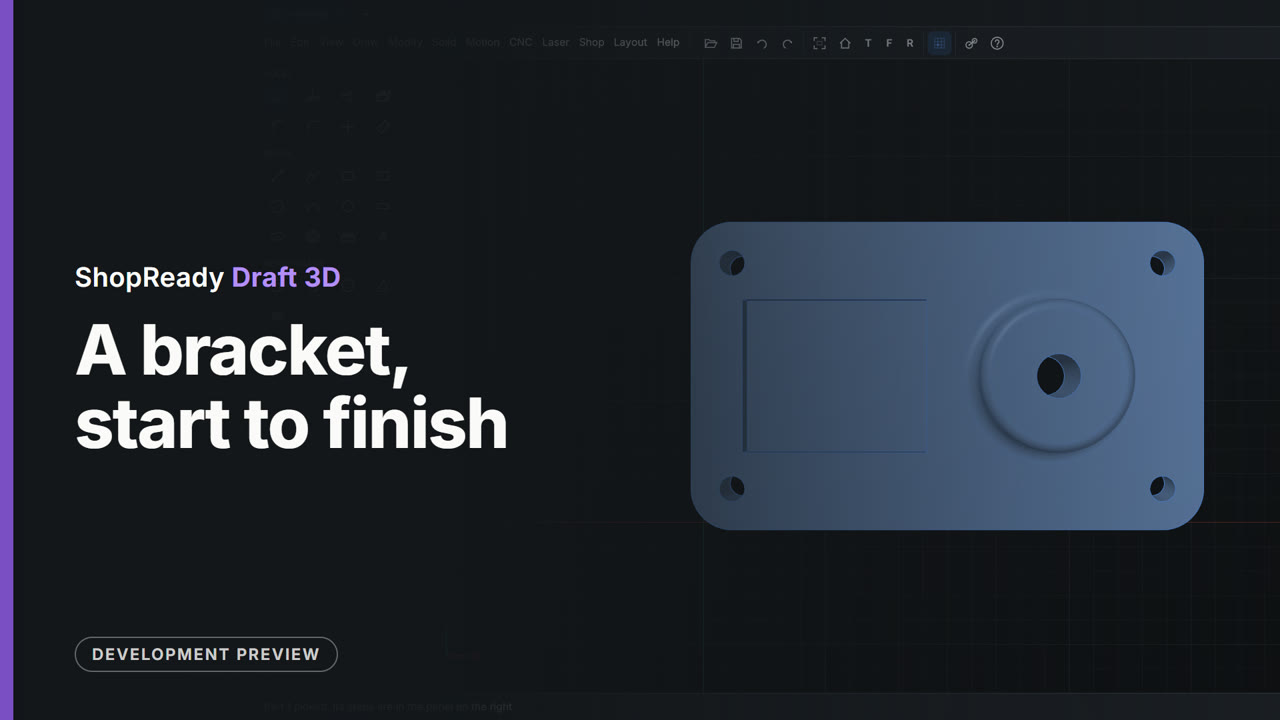
A bracket, start to finish
A mounting bracket is made from nothing in about two minutes: a plate 100 by 60 by 10, a round boss pulled up from a circle drawn on its top, a pocket pushed in, the corners rounded, a hole through the boss and four screw holes set out as a pattern. Every size is typed.
 Clip · 2:21
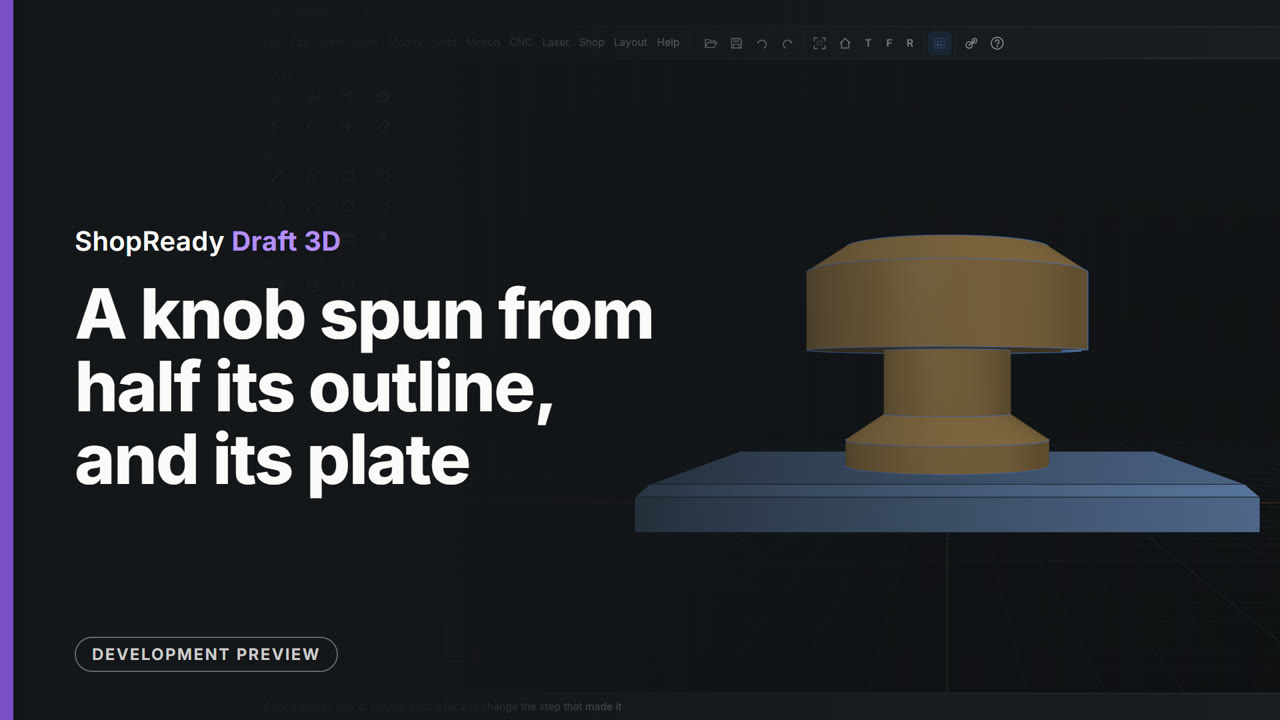
A knob spun from half its outline, and its plate
A plate 80 by 60 by 6 gets a hole in its middle and beveled edges. Then half a knob's outline is drawn standing up on the front plane, with a line up its middle, and Spin turns it into a knob whose stem stands in the plate's hole. Typing 270 opens it to show the section; a notch cut in its rim marks where it points.
 Clip · 2:19
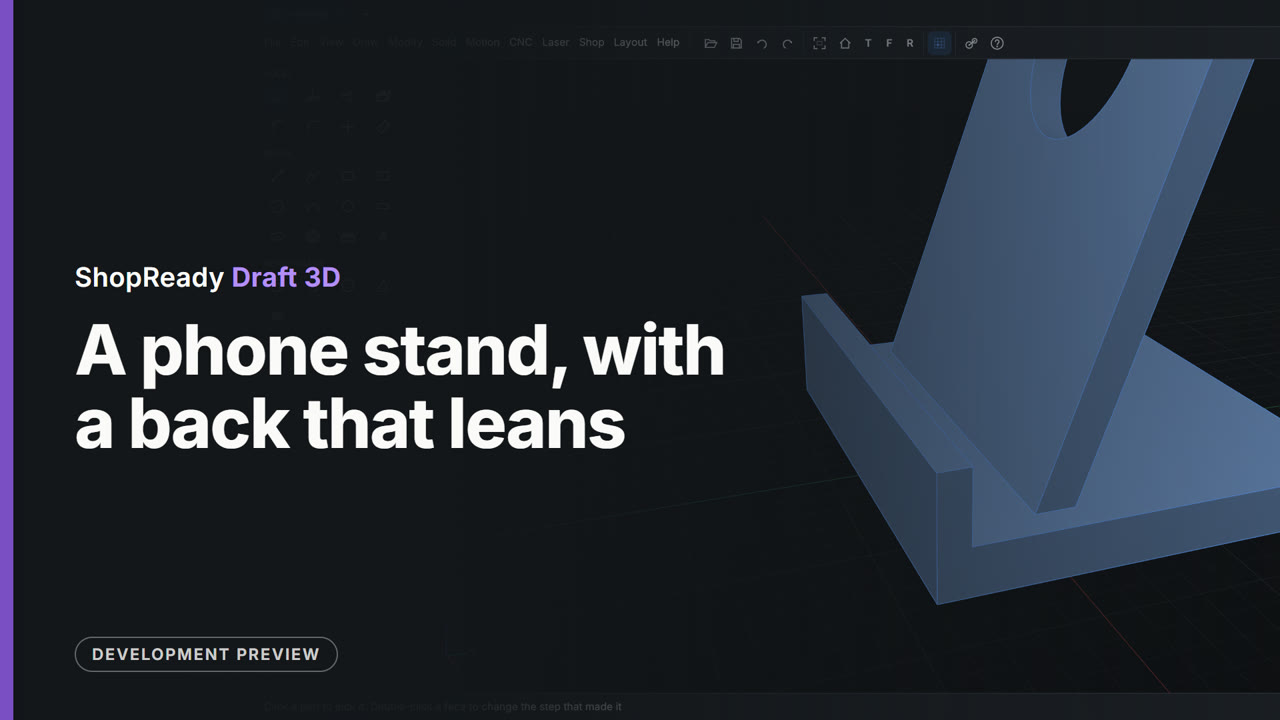
A phone stand, with a back that leans
A base 80 by 70 by 8 is pulled up from the ground. The back leans at 70 degrees, so it is drawn on a plane of its own, set up with Draw, On a tilted plane: a rectangle 70 by 110 with a round opening, pulled 6 thick. The two parts are joined, a lip is drawn on the base's top from the base's own corner and pulled up 12, and the back's top corners are rounded.
Printing
 Clip · 1:22
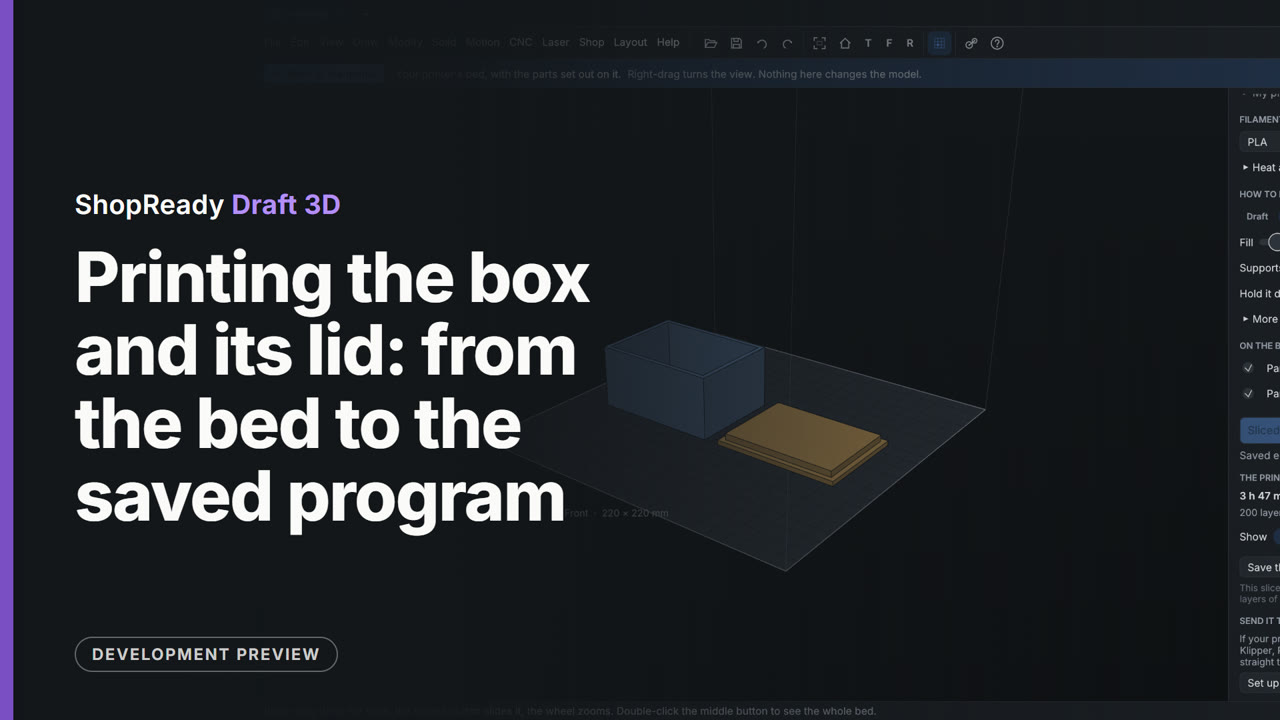
Printing the box and its lid: from the bed to the saved program
The Print tab sets the box and its lid out on the printer's bed. A printer is picked from the list, the lid is laid on its flat top so that nothing hangs in the air, and Slice works out 200 layers. The time, the weight and the length of filament are read off, the Layer slider is dragged down to look inside, and the program is saved as a.gcode file.
 Clip · 35 s
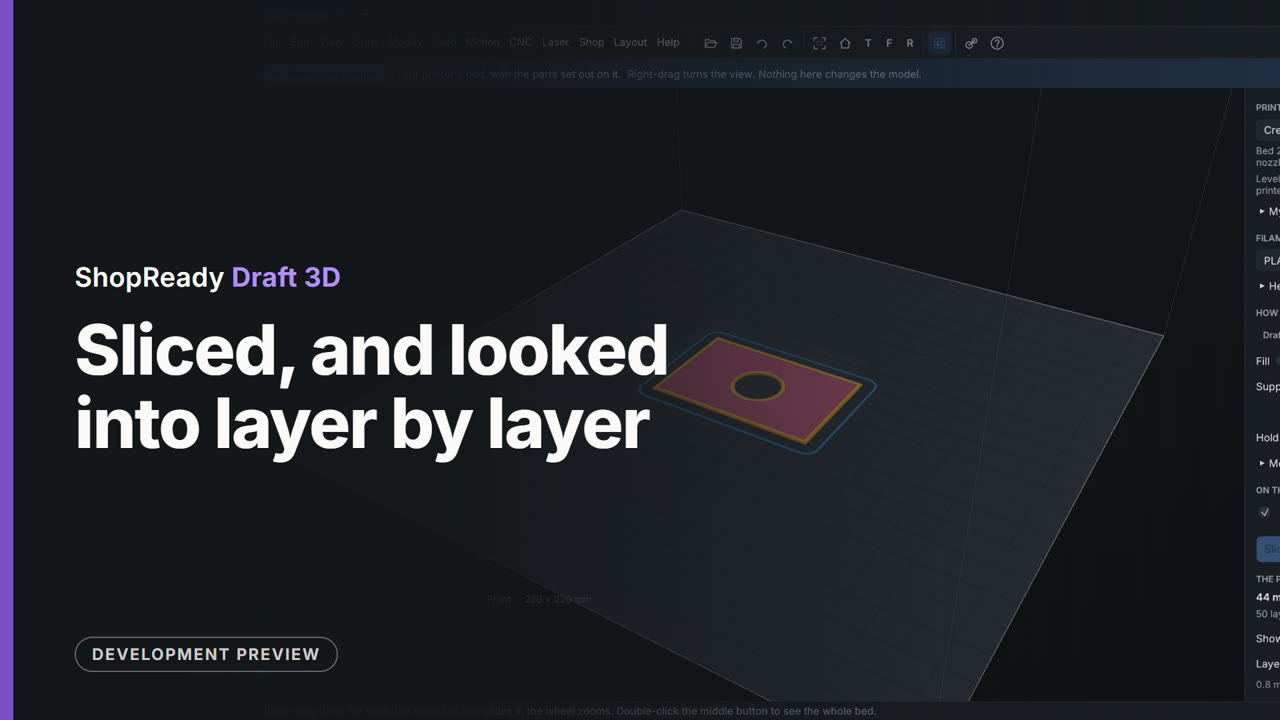
Sliced, and looked into layer by layer
A plate with a hole stands on the printer's bed. Slice works out its fifty layers, and the Layer slider is dragged down and back to see the walls, the fill and the hole as the printer will lay them.