ShopReady Draft 2D · Features
Coming soonEvery feature, one clip at a time.
82 narrated clips, each about a minute. Every one is the program itself at work.
Drawing
 Clip · 55 s
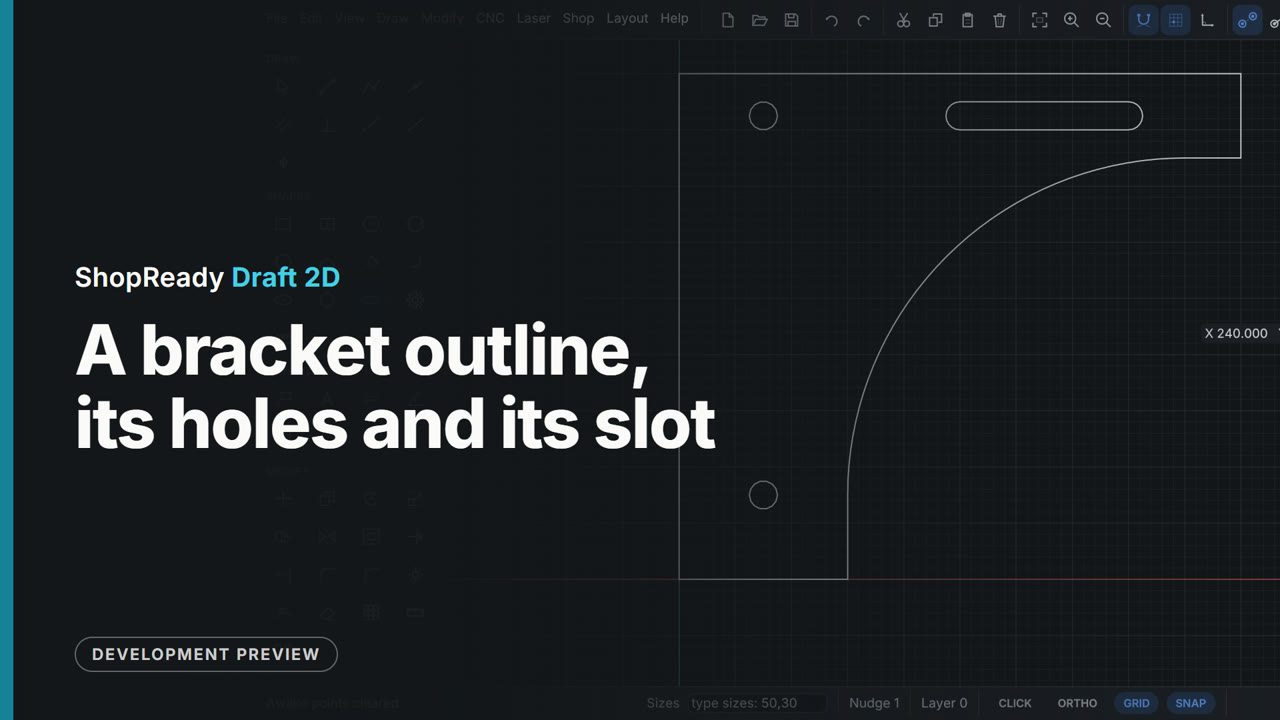
A bracket outline, its holes and its slot
A shelf bracket drawn from nothing: six polyline legs by pointing the mouse and typing each length, a tangent arc that sweeps from the tip down onto the first leg with no corner, and Join to make it one closed shape. Two holes and a slot are then set in it by lining up with points of the outline, with nothing measured.
 Clip · 55 s
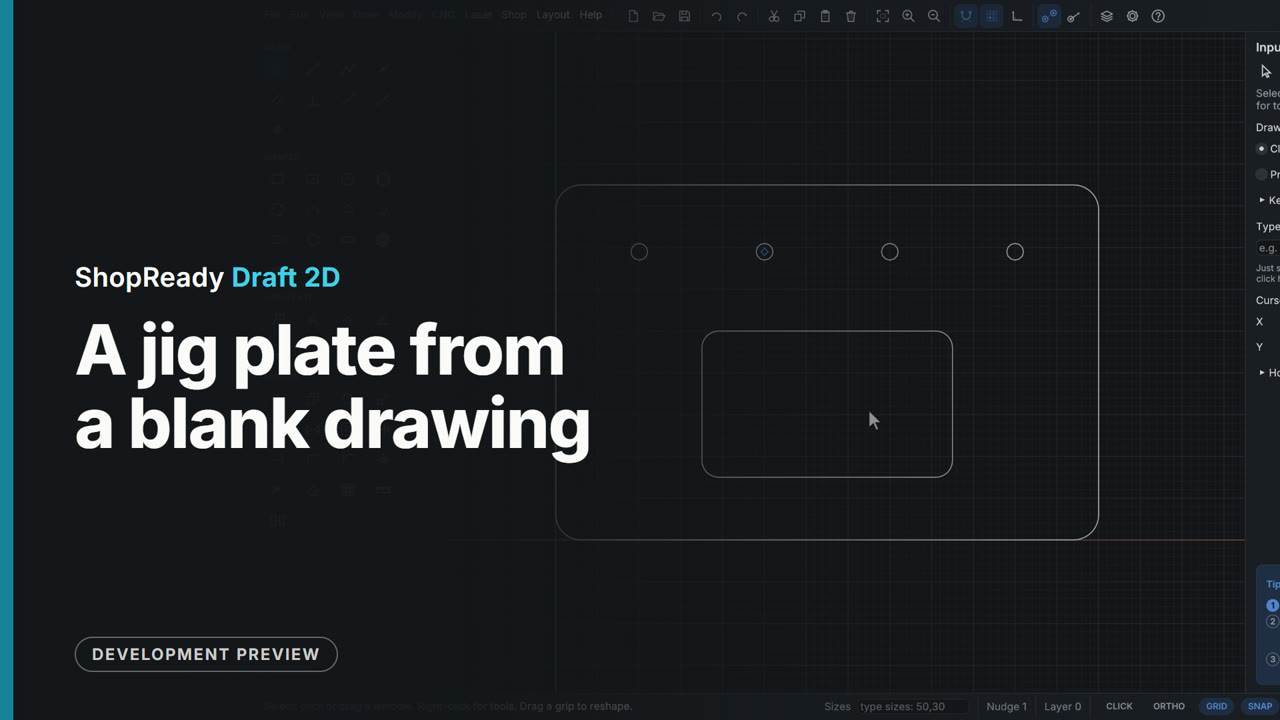
A jig plate from a blank drawing
A whole part drawn in well under a minute, every size typed: a rectangle, its corners rounded, a pocket placed by its corner and size, a dowel hole and three copies 60 apart. It is the plate the CNC clip then cuts, so the two run on as one start-to-finish film.
 Clip · 54 s
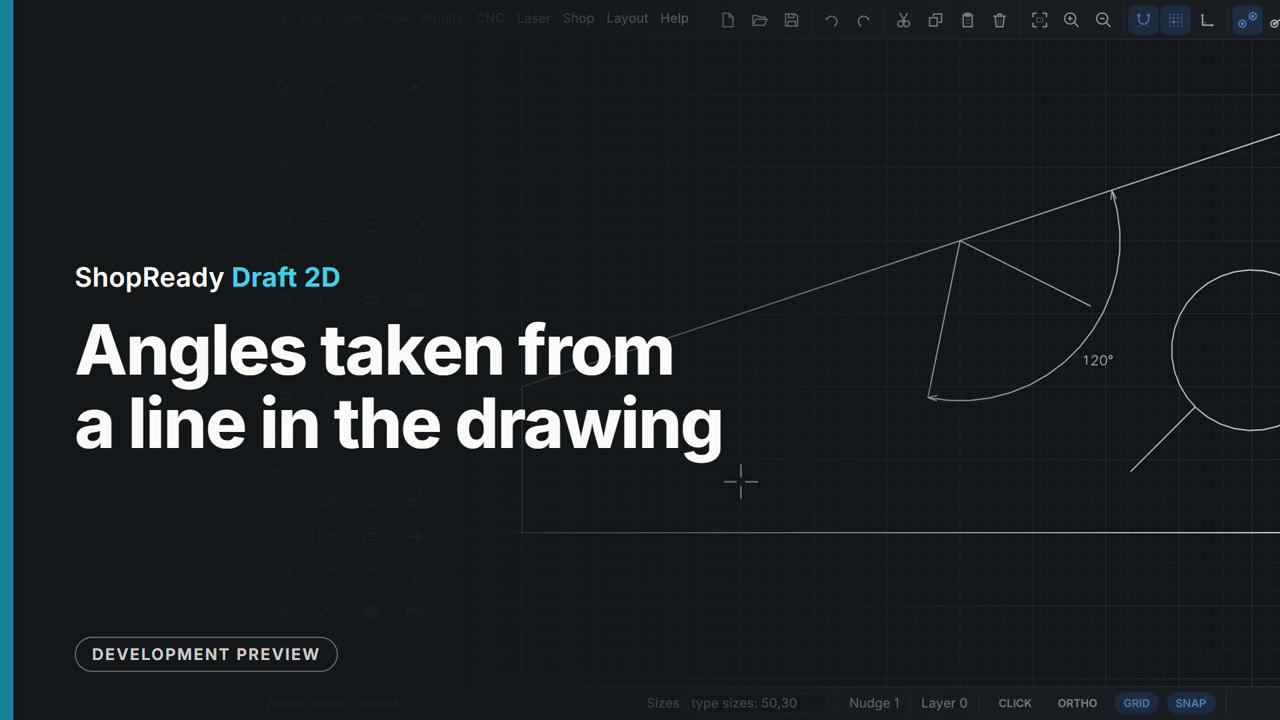
Angles taken from a line in the drawing
A line is started on a plate's slanted edge and the cursor travels along it: the edge turns purple and angles are counted from it instead of from the X axis. Typed 40,45 gives 45 degrees off that edge; typed 40,120 gives 120, an obtuse angle leaning back, not 60. A line started on a circle goes straight out, square to it, and the Angle tool puts a 120 degree dimension between the edge and the line.
 Clip · 50 s
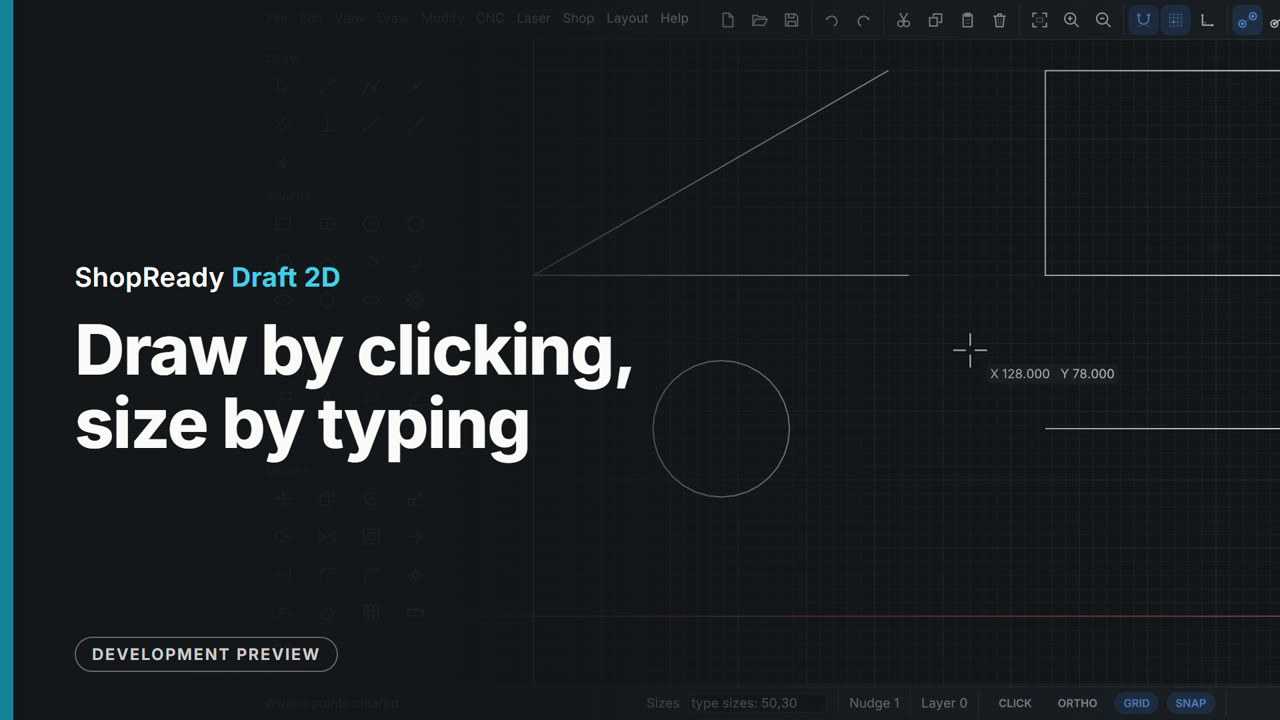
Draw by clicking, size by typing
A line by two clicks, a line by its typed length and angle, a rectangle and a circle by typed sizes, a rectangle resized by typing again, and a length locked with Tab while the mouse aims it. Sizes go in at any moment while drawing, with nothing to open first.
 Clip · 52 s
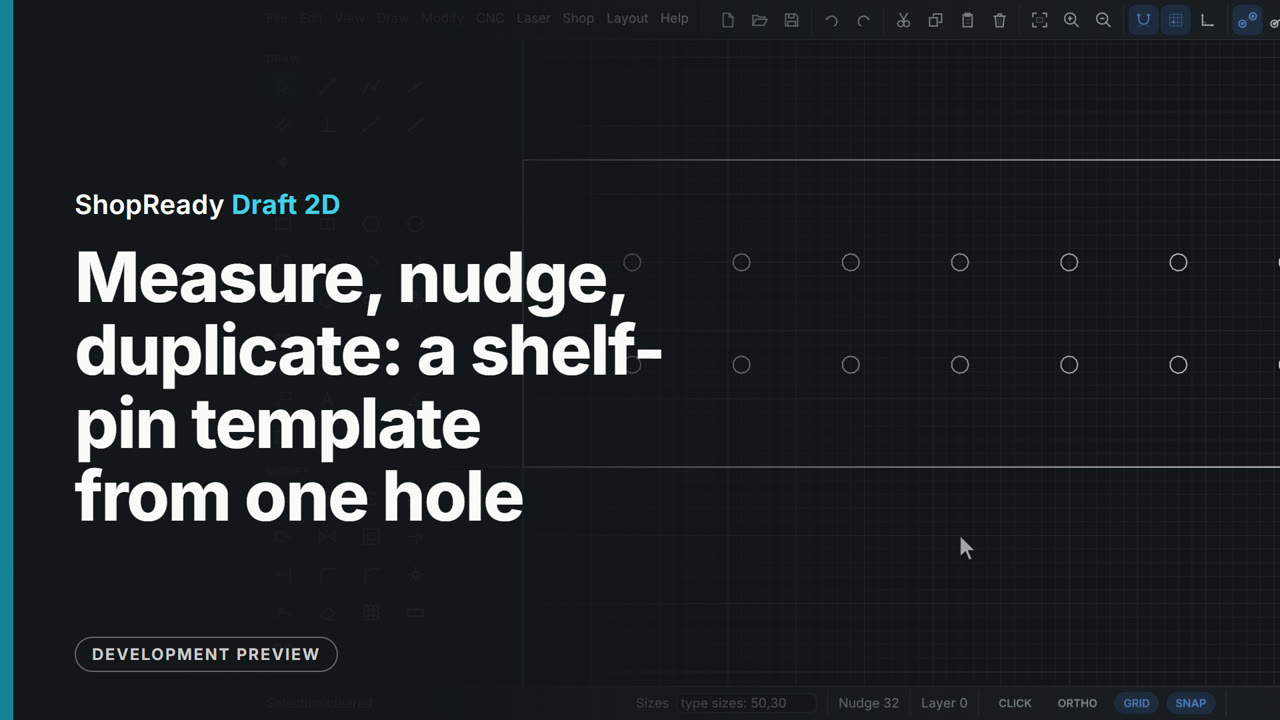
Measure, nudge, duplicate: a shelf-pin template from one hole
Keyboard work on a shelf-pin drilling template. Measure reads how far the first hole is from the corner; the arrow keys nudge it 1 mm a press; Ctrl+D duplicates it and Shift with an arrow moves the duplicate ten steps at a time; Ctrl+Z and Ctrl+Y undo and redo. With the step set to 32 mm in the status bar, Ctrl and the right arrow lays out two rows of holes, one copy a press.
 Clip · 35 s
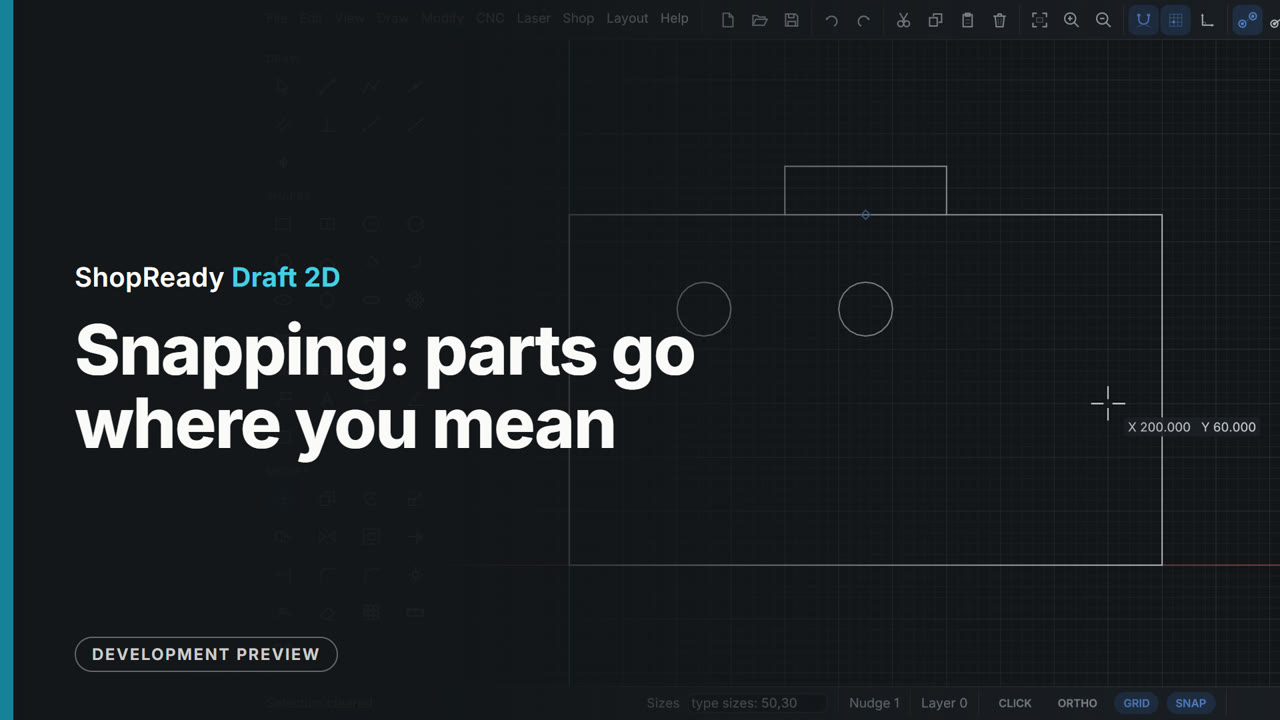
Snapping: parts go where you mean
Rest the cursor on a point and it wakes up; level and plumb lines run through awake points, so a hole lands level with one thing and plumb with another without a construction line or a sum. Then a part is moved by its own midpoint and snaps onto the middle of an edge.
 Clip · 43 s
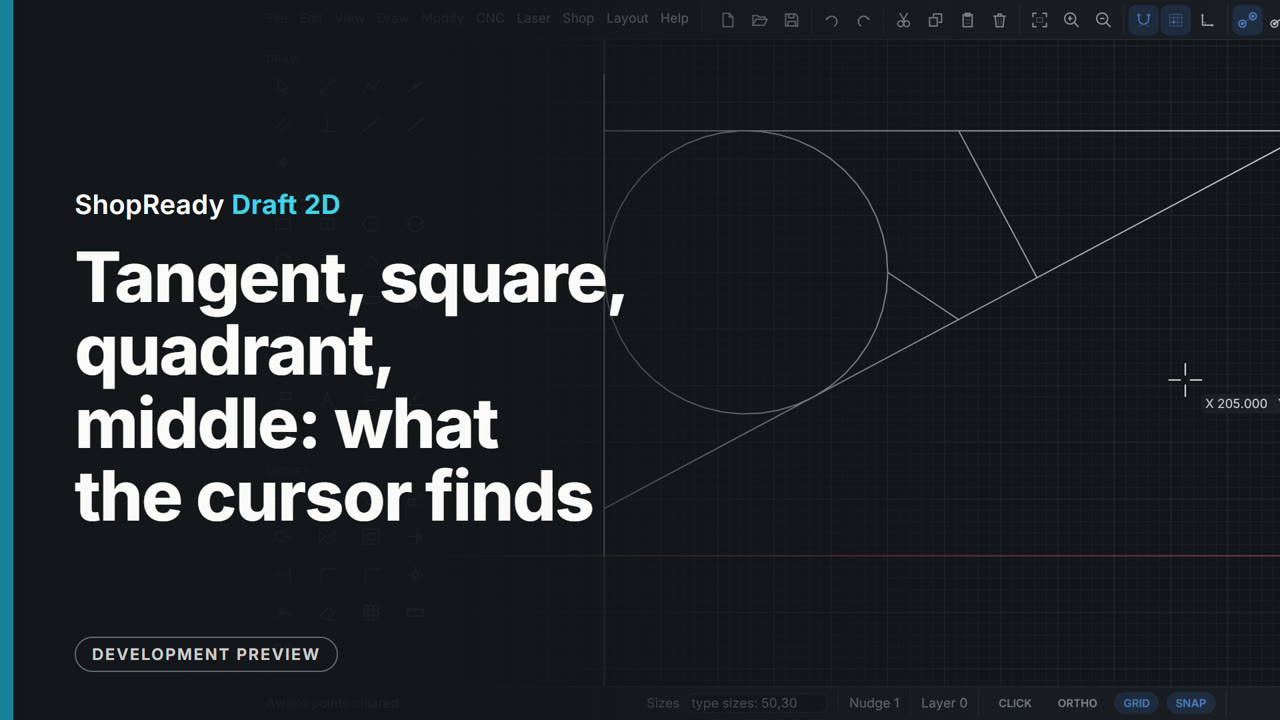
Tangent, square, quadrant, middle: what the cursor finds
A sign bracket is laid out with three lines, each landing on a different kind of snap: a brace tangent to the ring and carried on to the wall with Shift holding its direction, a strut square to the brace, and a tie from the ring's quadrant point to the brace's middle with M pressed so only a middle is taken. The label beside the cursor names what it has found each time.
 Clip · 57 s
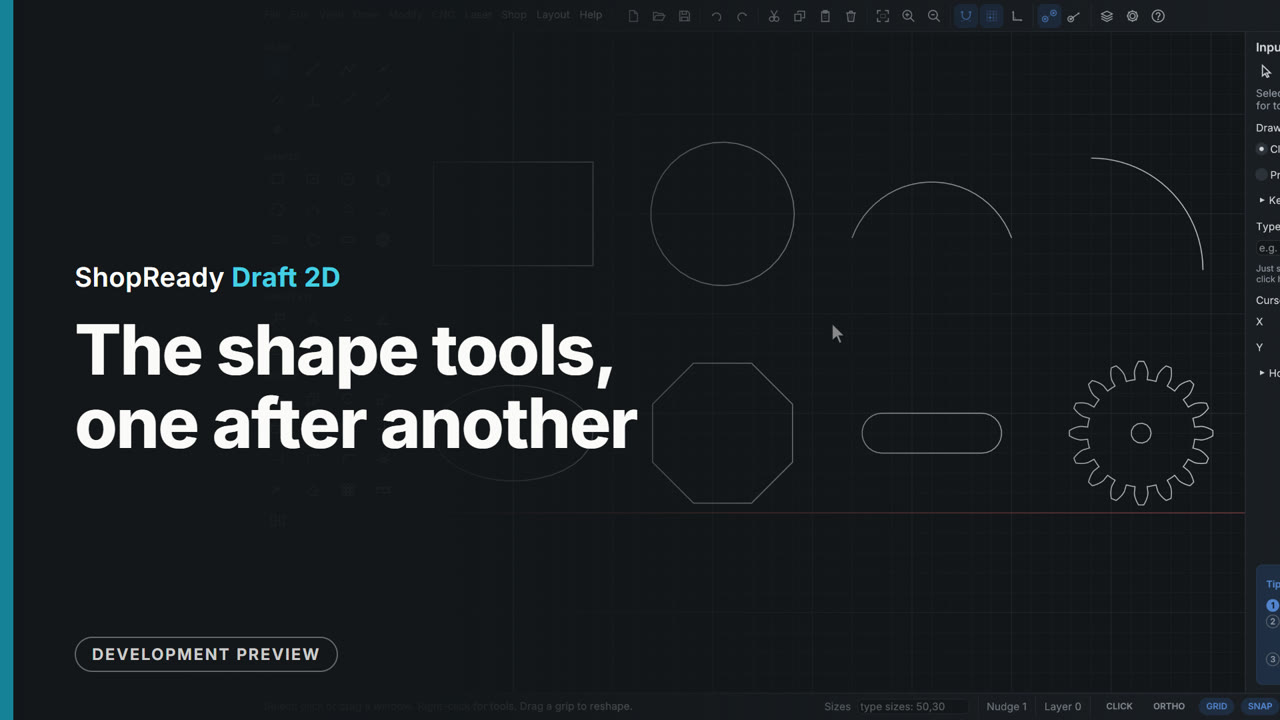
The shape tools, one after another
Eight shape tools each drawn once, in two tidy rows: a center rectangle, a circle through three points, an arc through three points, an arc from its center, an ellipse, an eight-sided polygon, a slot and a gear. The side panel is open: it takes the polygon's sides, the slot's width and the gear's teeth and module, and its tip card follows each tool's steps.
Editing
 Clip · 48 s
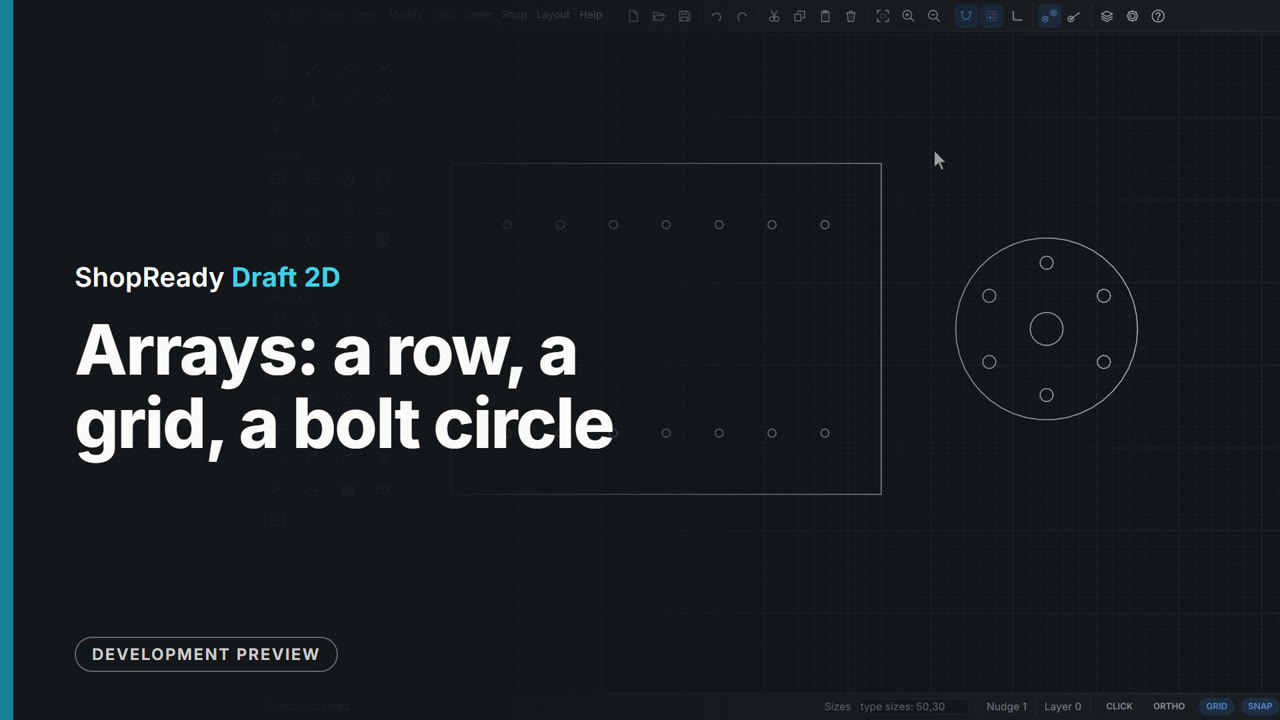
Arrays: a row, a grid, a bolt circle
One 5 mm shelf-pin hole in a cabinet side becomes a row of seven at 32 apart, then a grid with the back row 126 away; one bolt hole on a round plate becomes six round its center. The Array window shows every copy and its sizes on the drawing as the numbers are typed, before anything is made.
 Clip · 50 s
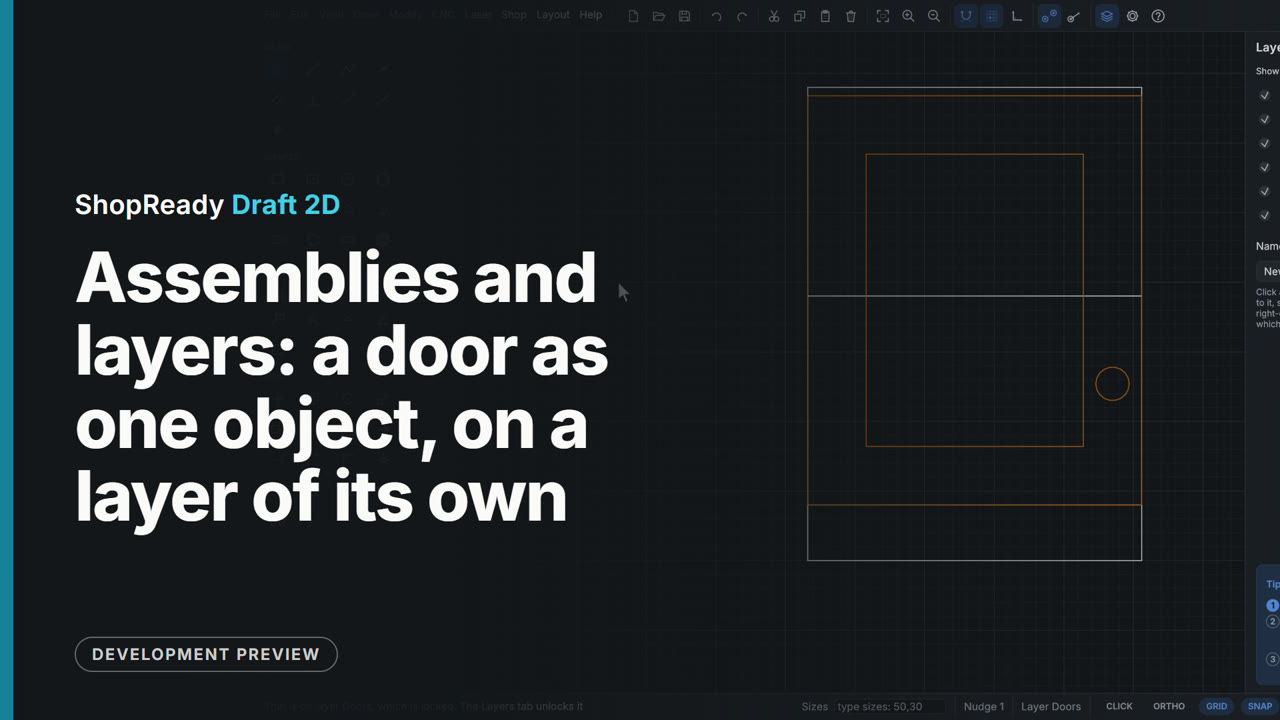
Assemblies and layers: a door as one object, on a layer of its own
A door drawn as frame, panel and knob is made one assembly from the right-click menu, picked with one click and moved onto its cabinet as one, then opened by a double-click to set the knob lower and closed with Esc. Put on layer in the right-click menu puts it on the Doors layer, and the Layers tab hides that layer to show the cabinet behind, shows it again and locks it.
 Clip · 37 s
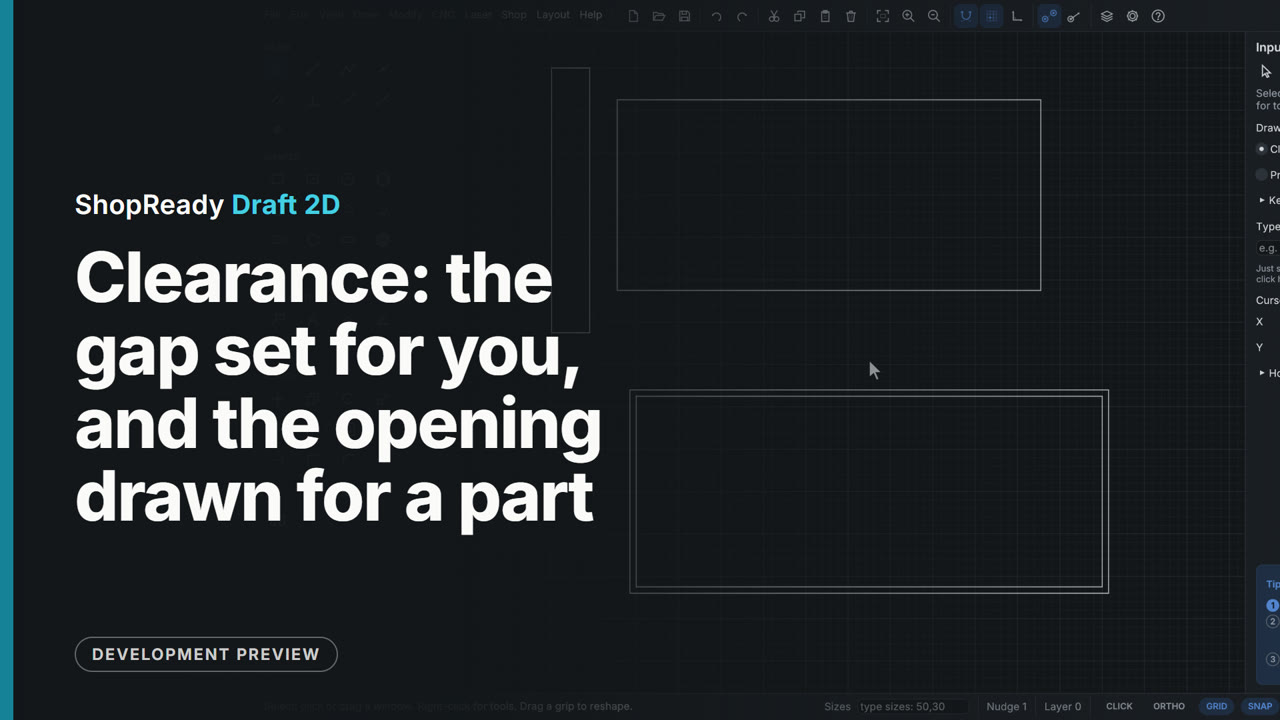
Clearance: the gap set for you, and the opening drawn for a part
A drawer box drawn any distance from the cabinet side is set exactly 13 from it: type the gap, click the drawer, click the side, and the drawer is shown where it will stand before the second click. Then Draw the opening for a part draws the opening for an inset drawer front, 3 bigger all round, with one click.
 Clip · 41 s
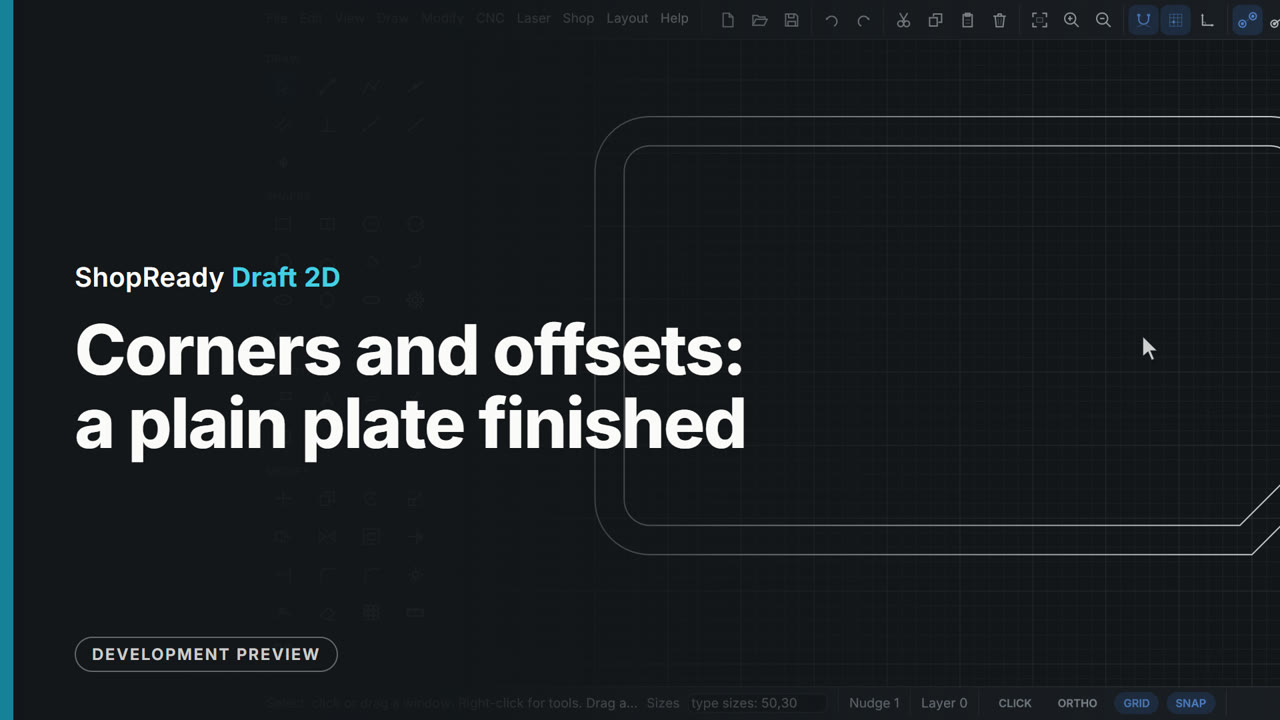
Corners and offsets: a plain plate finished
A plain 200 by 120 plate gets three corners rounded with Fillet, the fourth cut off with Chamfer, and an inner line 8 mm in with Offset. Each size is typed, and the offset follows the whole outline, round corners and chamfer included.
 Clip · 49 s
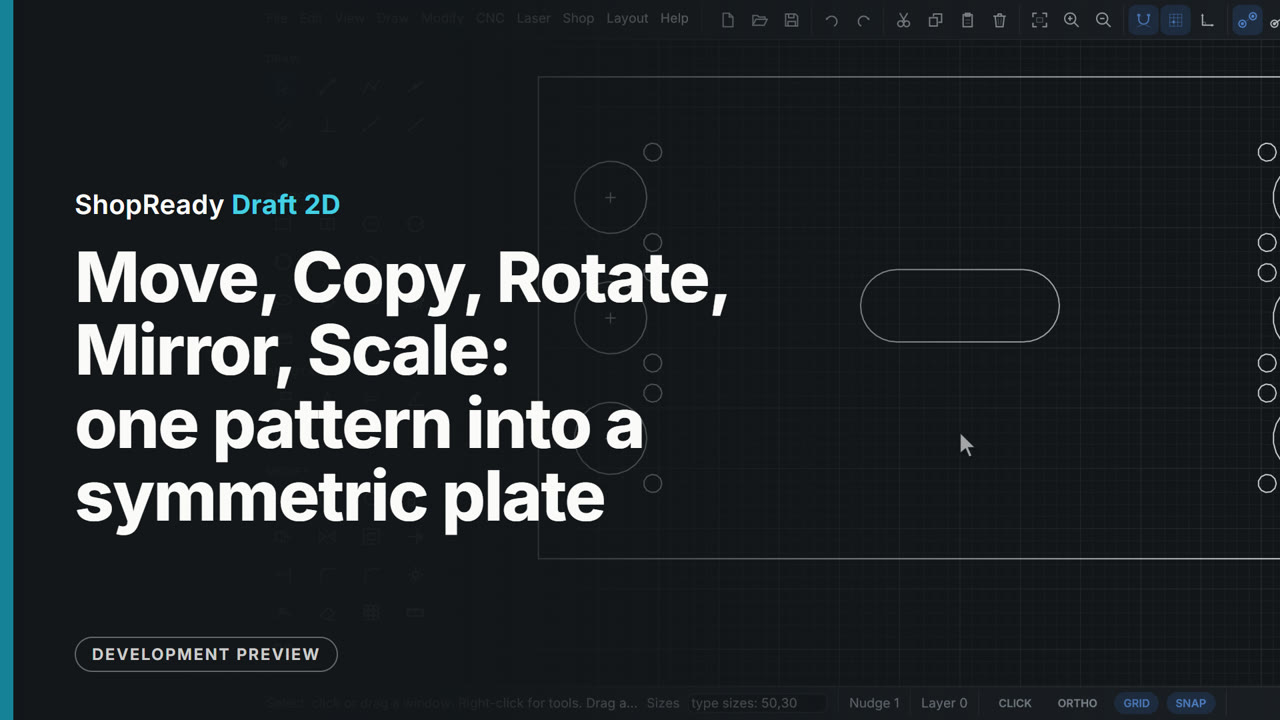
Move, Copy, Rotate, Mirror, Scale: one pattern into a symmetric plate
One hinge hole pattern (a cup and two screw holes) is turned 90 degrees about its own center, moved onto a center mark, copied to two more marks, and mirrored across the plate's center line; then the hand hole is scaled up by 1.5. Every point is snapped and every number typed, so nothing is placed by eye.
 Clip · 47 s
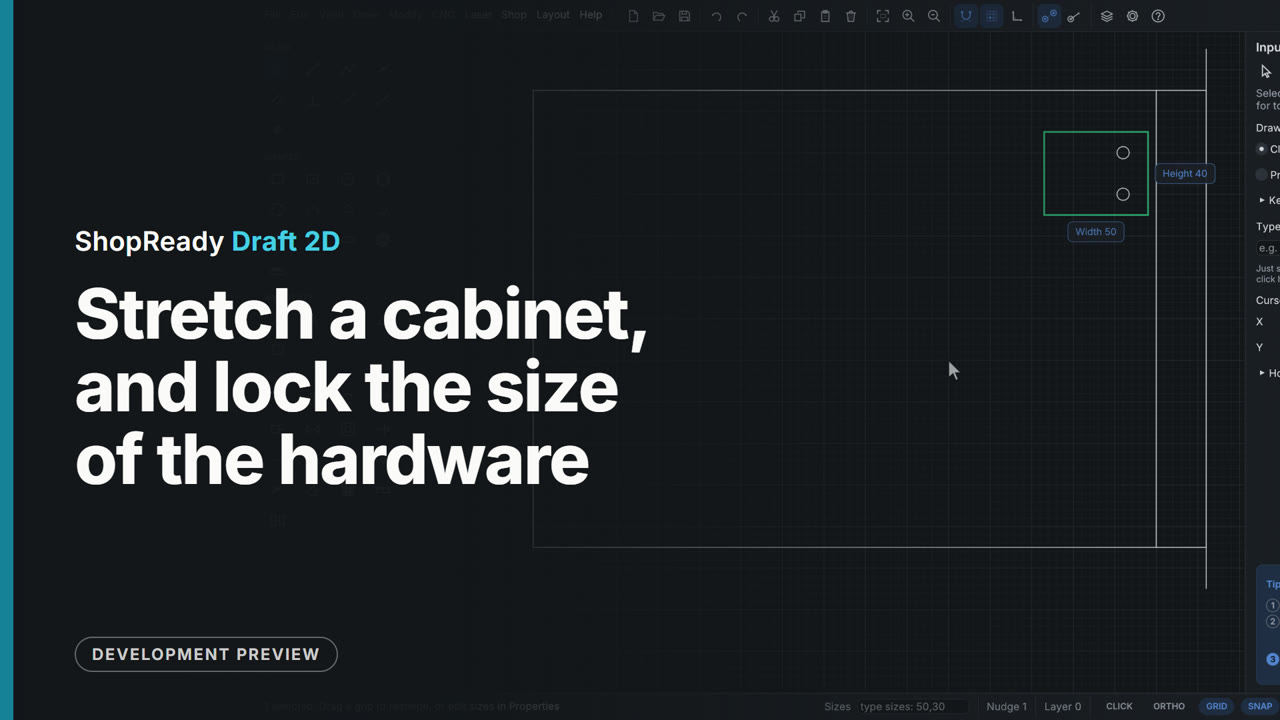
Stretch a cabinet, and lock the size of the hardware
A cabinet door is made 60 wider by dragging a window right to left through its end and then dragging what the window took onto the wall line: the door grows and the end panel moves. The hinge plate was cut by the window and grew too, so it is undone, the plate gets Lock size from the right-click menu, and the same stretch then carries the plate whole, still 50 wide.
 Clip · 43 s
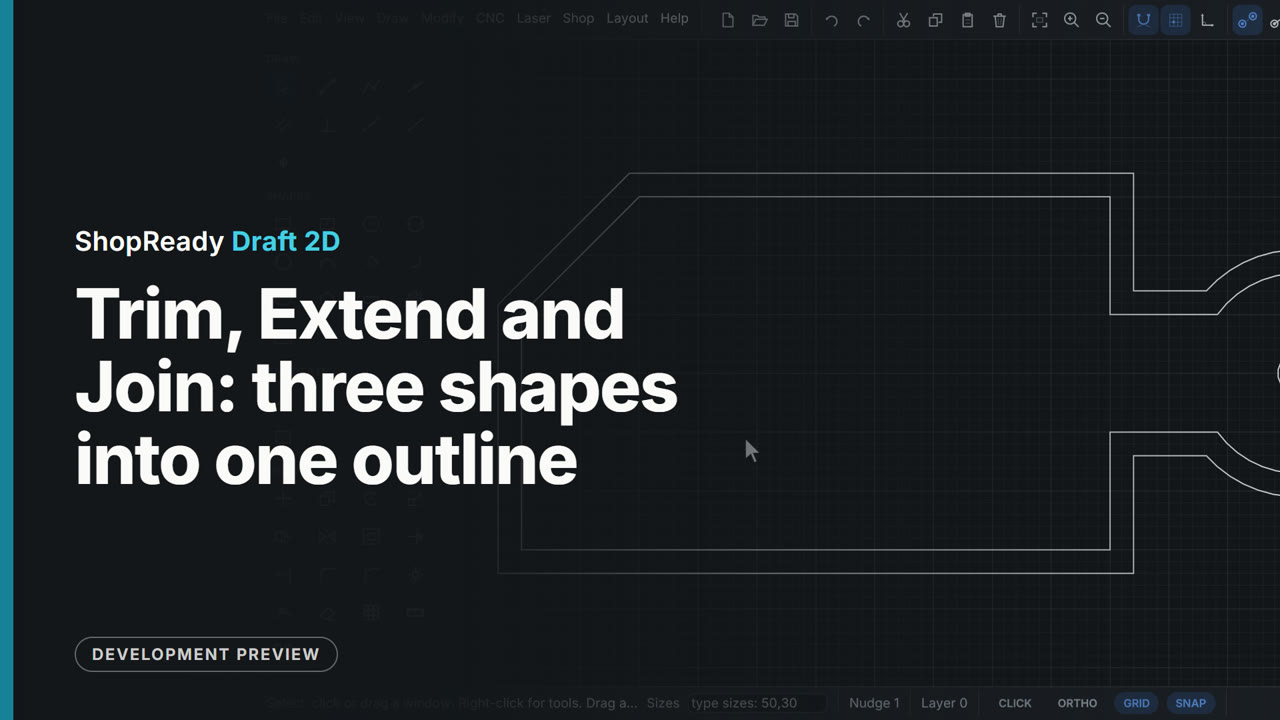
Trim, Extend and Join: three shapes into one outline
A serving board is laid out as a rectangle, a handle rectangle and a circle drawn across each other, with a corner line that stops short. Extend runs the line to the edge, Trim takes the corner with a click and four inside pieces with one drag, Join makes the pieces one shape, and one Offset goes all the way round it.
Shapes from shapes
 Clip · 46 s
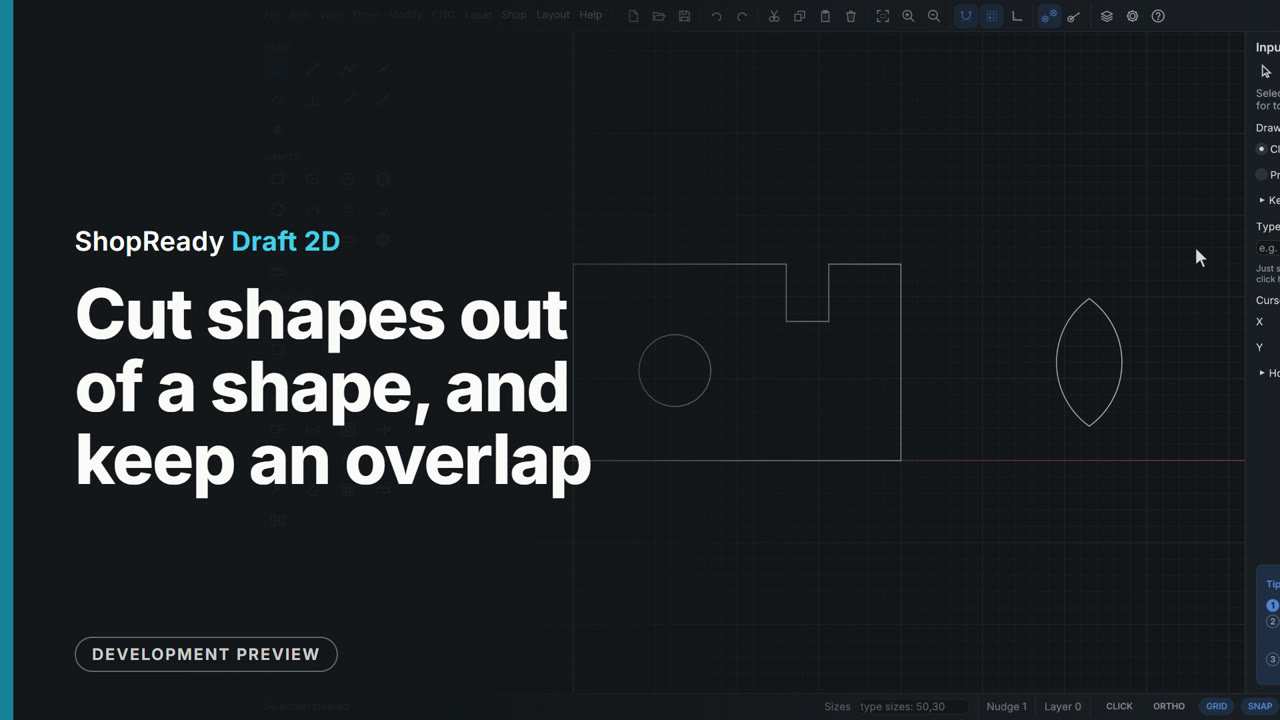
Cut shapes out of a shape, and keep an overlap
A cabinet divider gets a notch for a rail and a hole for cables by cutting a rectangle and a circle out of the board: the first shape picked is the one that stays. Then two overlapping circles are reduced to the leaf they share with Keep only the overlap.
 Clip · 43 s
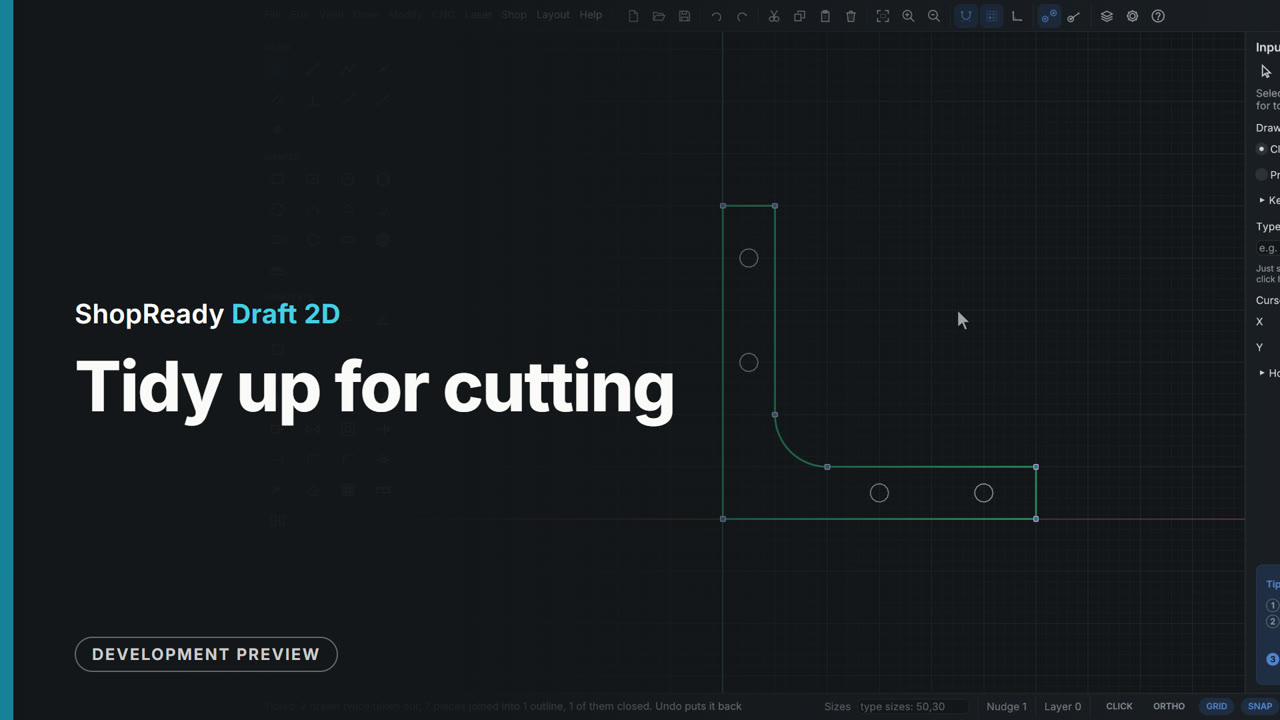
Tidy up for cutting
A bracket as another program left it: loose lines, a side and a hole drawn twice, and a corner open by 0.04 mm. Modify, Tidy up for cutting takes out the doubles, joins the pieces and closes the corner, so the outline can be pocketed, filled or cut out once.
 Clip · 32 s
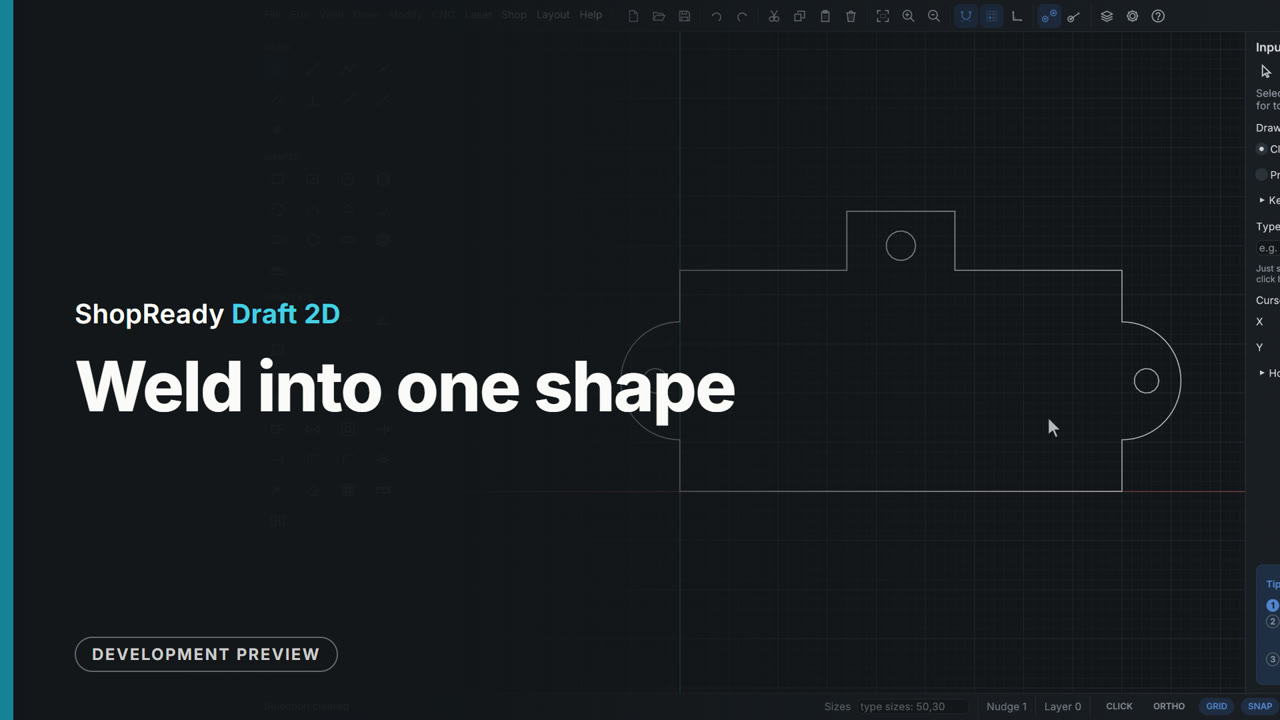
Weld into one shape
A key rack's back plate is drawn as four shapes that overlap: the plate, two round ears and a hanger tab. Modify, Weld into one shape makes them one outline, so the part cuts out as one piece with no lines across it.
Dimensions and notes
 Clip · 49 s
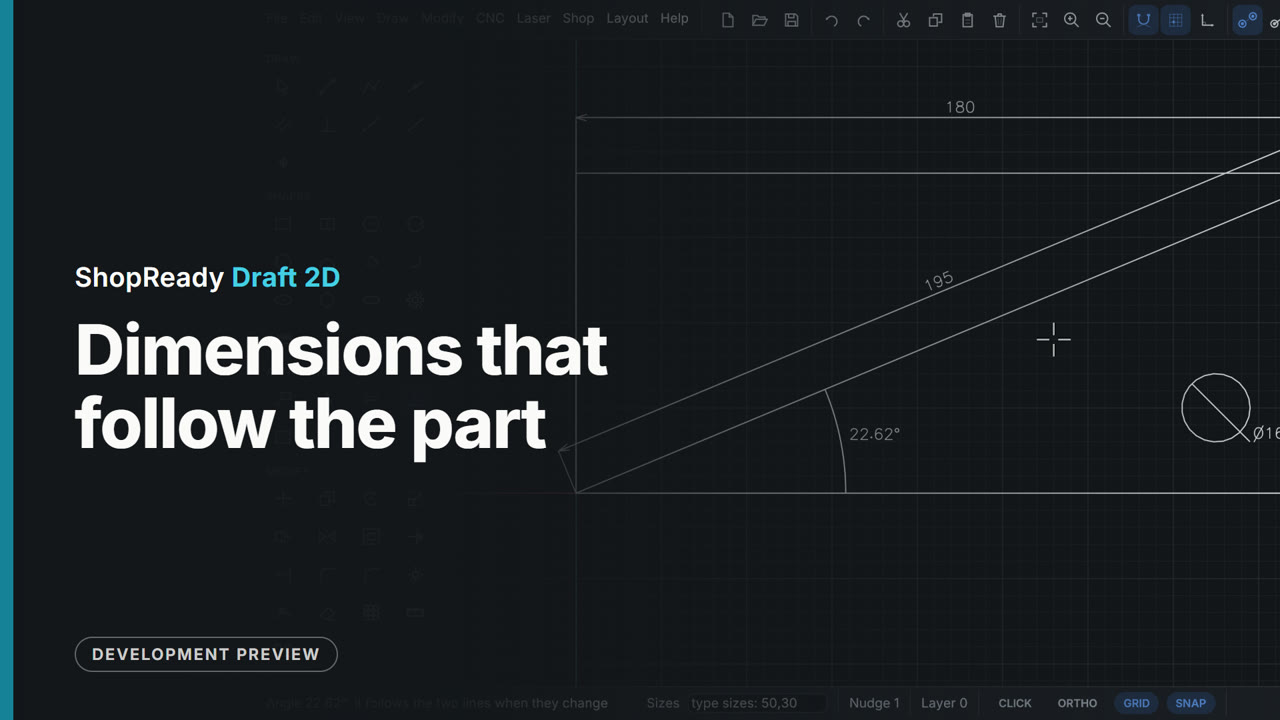
Dimensions that follow the part
Three dimensions go on a bracket blank: between two corners, on its cut line, on its hole. Then the part is stretched 80 wider and the hole typed to a new size, and every dimension reads the new size without being touched. An Angle dimension between two edges ends it.
 Clip · 51 s
Hatch a section, put it on a sheet
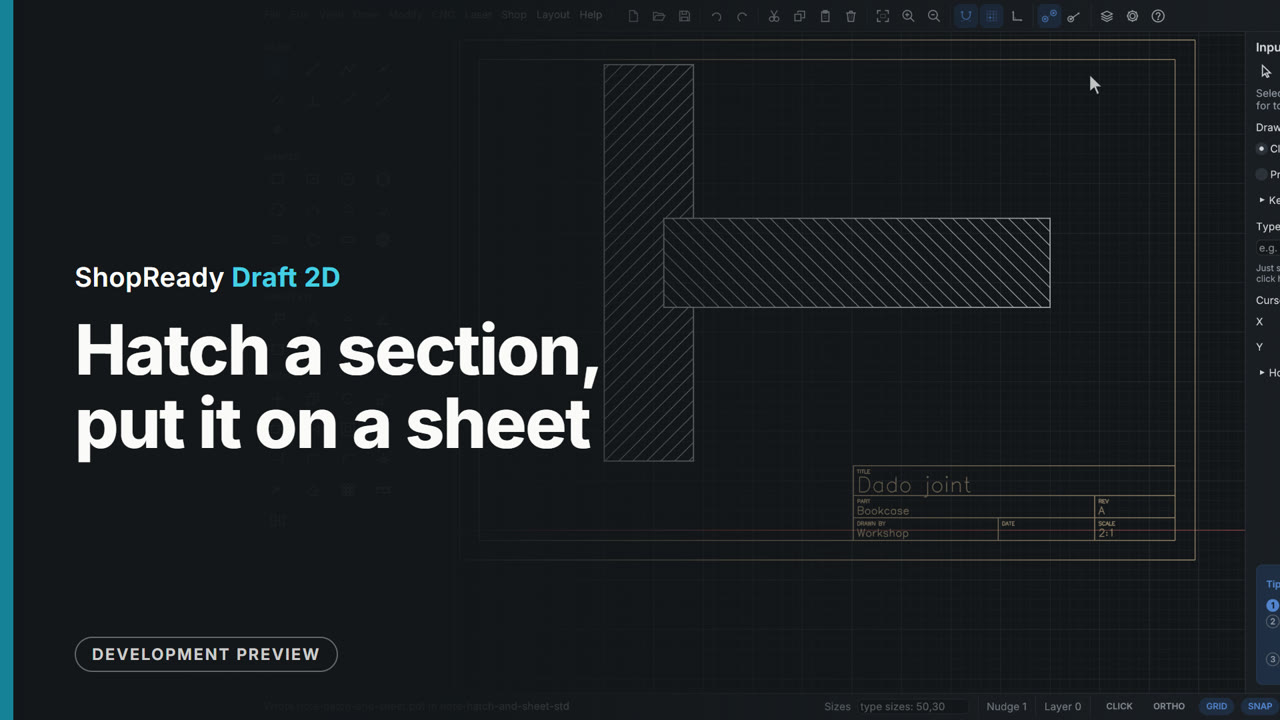
A section through a dado joint is hatched with one click in each part, the shelf at 135 degrees so the two parts read apart. Layout, Sheet and title block then puts the drawing on an A4 sheet: the scale is set to 2:1, the title, the part and who drew it are typed into the title block, Center it puts the joint in the middle of the paper, and Export sheet PDF writes the sheet as it is drawn.
 Clip · 47 s
Notes and callouts that are never cut
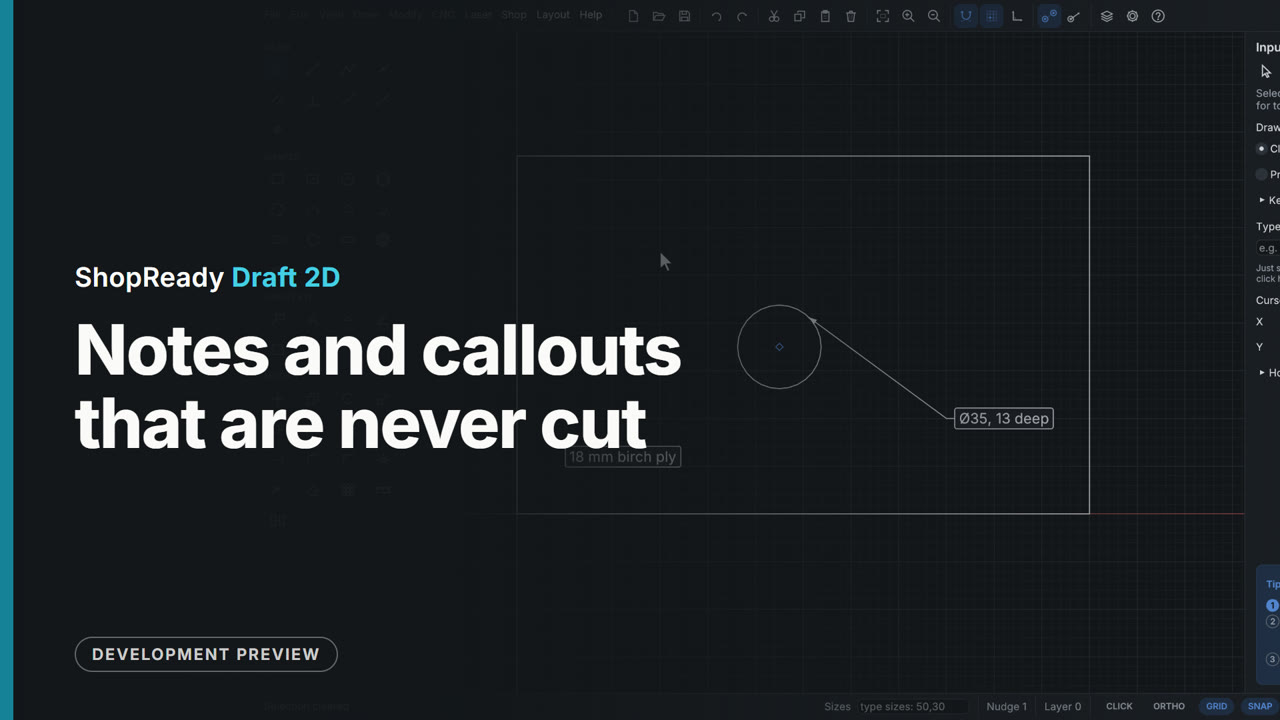
The Note tool pressed on a hinge-cup hole and dragged out makes a callout that offers the hole's size; a click elsewhere makes a plain note. The card is dragged to move the words, double-clicked to change them, and when the hole is moved the callout goes with it. Notes keep their size at any zoom and never reach a cutting file.
Lettering
 Clip · 52 s
Lettering for a carved sign
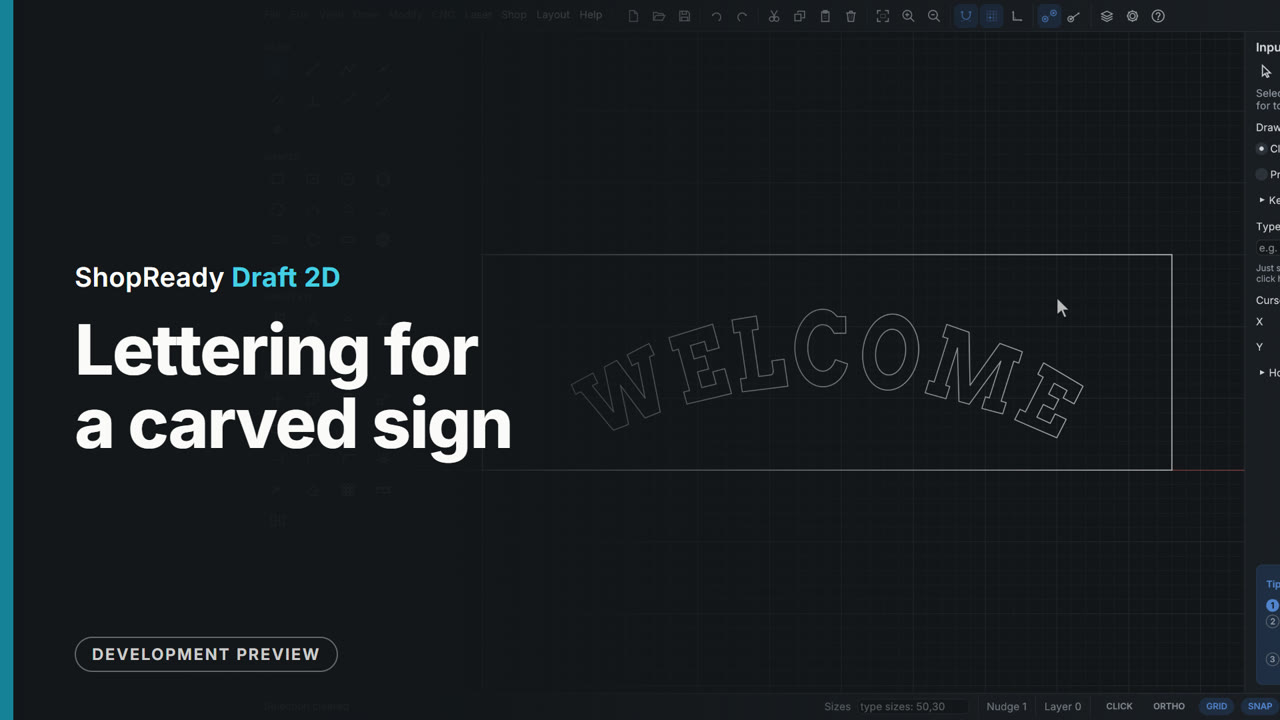
The Text tool opens a box on the sign board: the words go in, the font comes from a list of carving fonts that are built in, and the size from the heights a shop uses. While the box is open, the tool's own panel sets the letters round an arc, bulges the middle, opens the spacing and mirrors them; Enter sets them down, and a double-click changes the words where they stand.
 Clip · 45 s
Letters along any curve
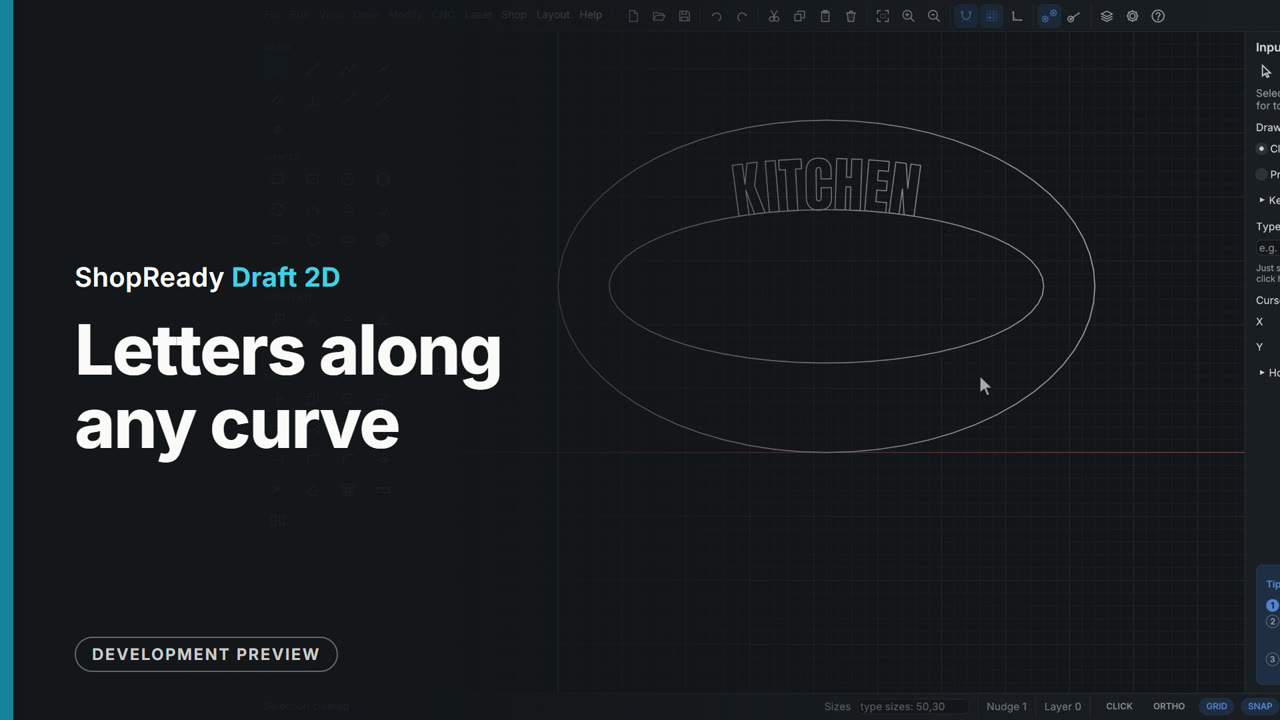
On an oval sign the word and an inner oval are selected together, and a right-click sets the letters along the oval. The oval is reshaped by a grip and the letters are shown following it while the grip is still held. Then the words are opened by a double-click and the gap between two letters is set by hand from the keyboard, with the caret on the drawing standing in that gap.
Pictures and reliefs
 Clip · 44 s
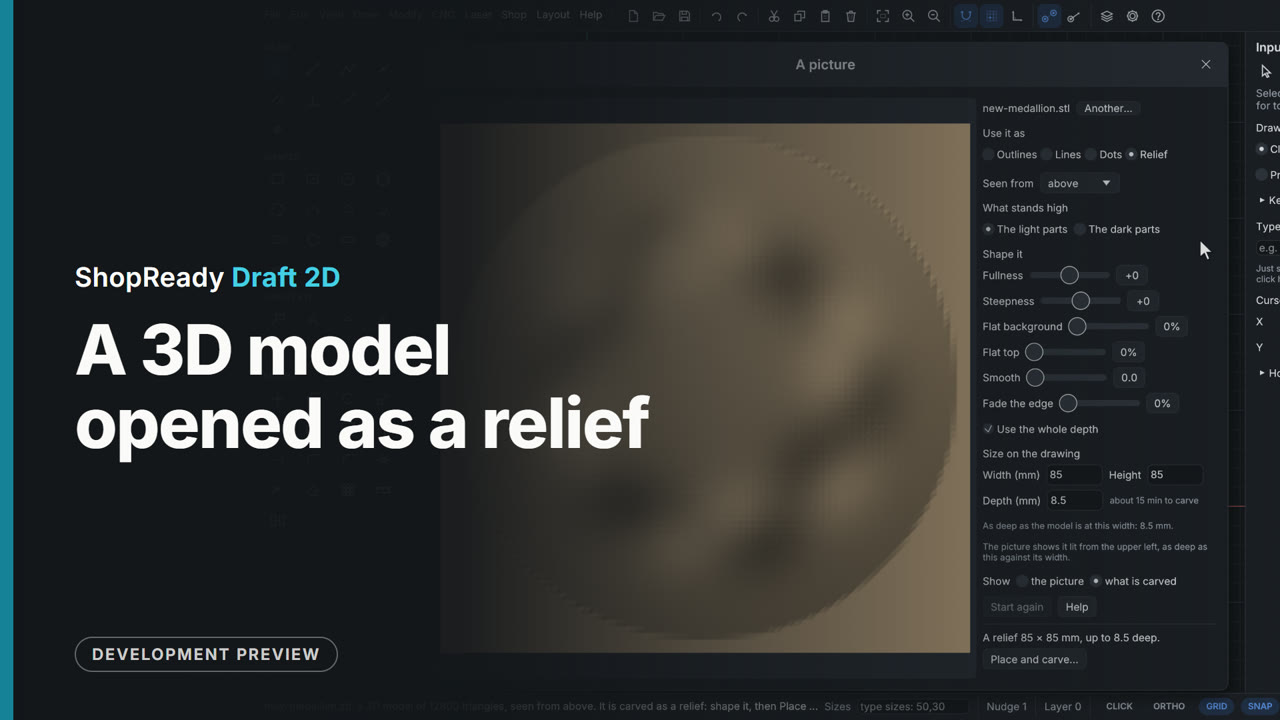
A 3D model opened as a relief
CNC, Carve a picture opens an STL file in the picture window: the model comes in as a relief, the surface nearest the eye, as deep against its width as the model is. Seen from picks which of its six sides faces the cutter: the clip looks at it from the front and from below, then from above again.
 Clip · 39 s
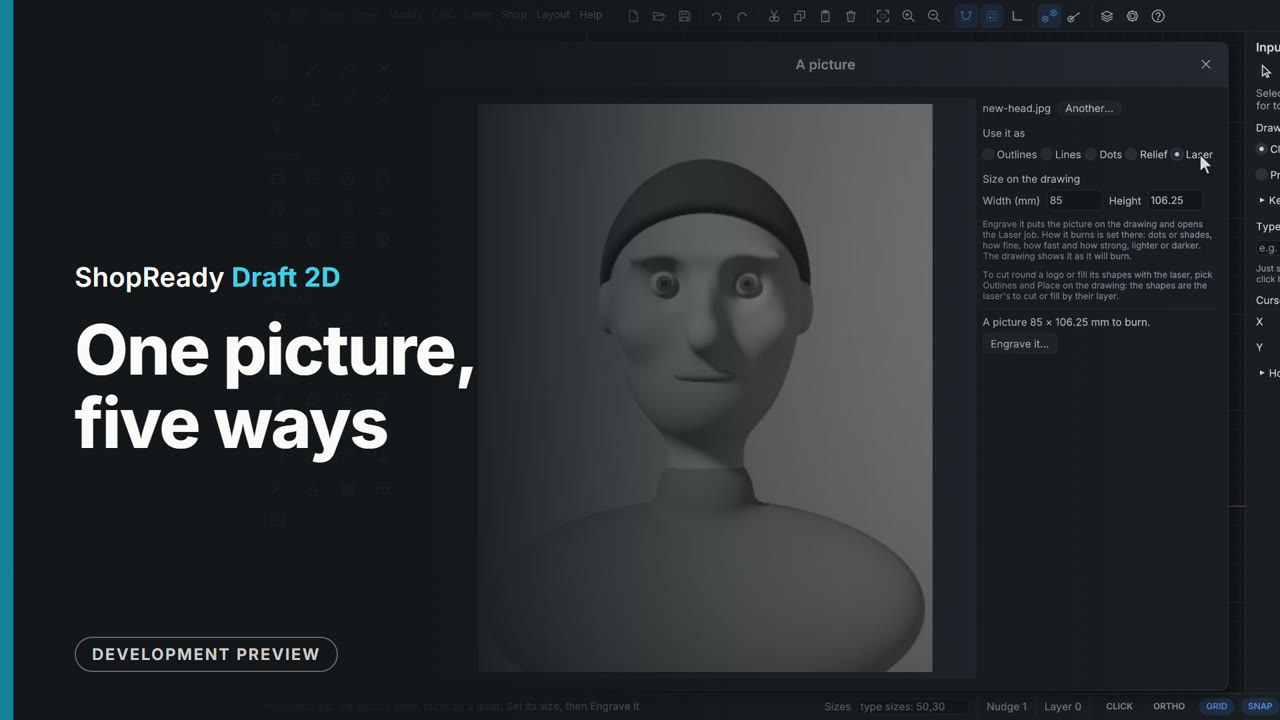
One picture, five ways
CNC, Carve a picture opens a photo in the one picture window. One row of choices turns the same picture into shading lines, outlines, dots, a relief shown lit, or the picture itself for a laser, each with its own settings under it.
 Clip · 39 s
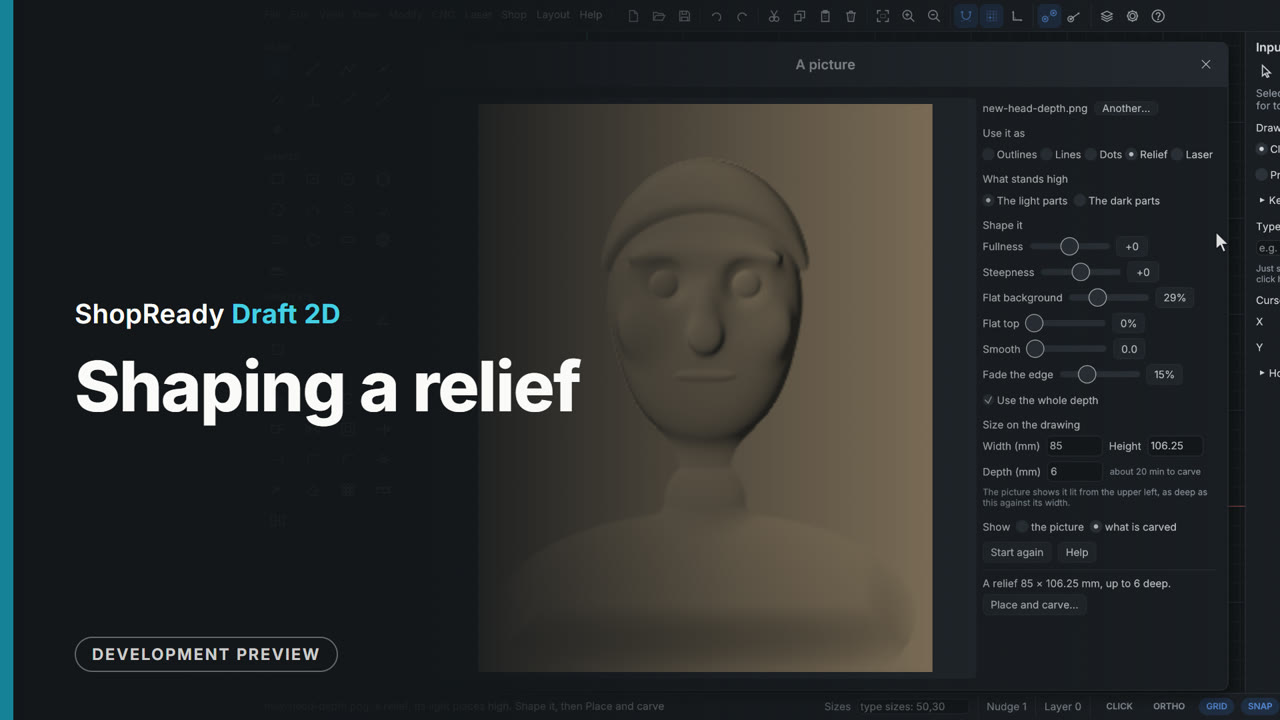
Shaping a relief
A depth picture of a head and shoulders is carved as a relief and shaped in the picture window, which shows it lit as it will carve. Fade the edge lets the shoulders fall away to the floor, Flat background cuts the low places to one clean floor, and What stands high turns it over into a mold.
CNC
 Clip · 1:01
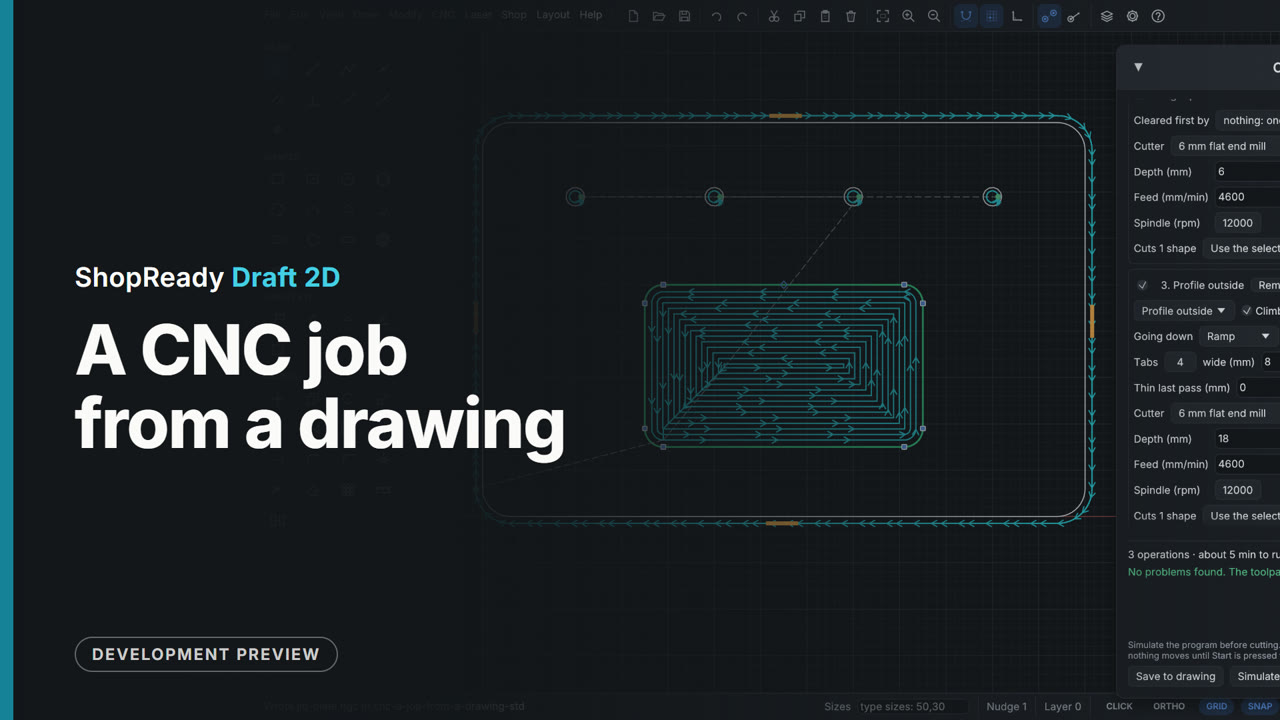
A CNC job from a drawing
A jig plate that is already drawn becomes a program for the router: stock, controller, an operation each for the holes, the pocket and the outline, the pocket moved ahead of the outline with Earlier, the toolpaths drawn over the part, the run time, and Export G-code.
 Clip · 39 s
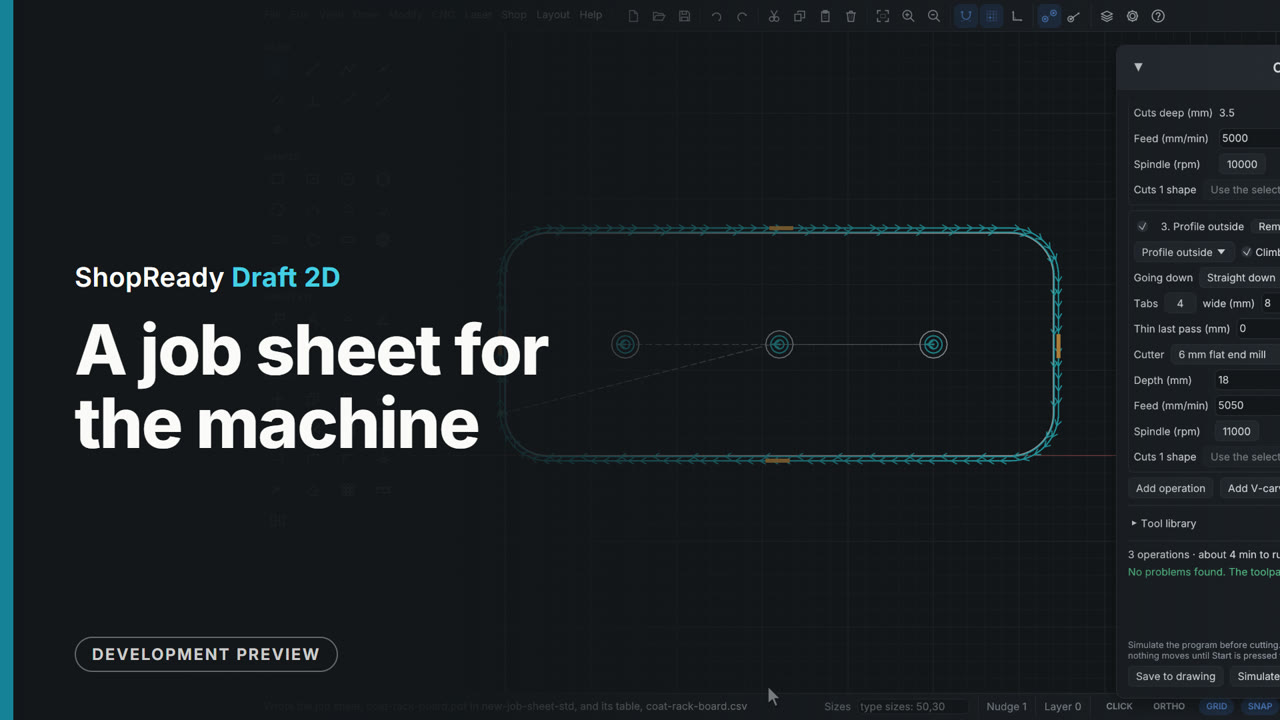
A job sheet for the machine
A coat rack board's job has three operations and two cutters. Job sheet..., on the Add operation row of the CNC job window, saves a one-page PDF for whoever runs the machine, and the same as a table: where zero is with a picture of the part, each tool in turn with how deep it goes and how long it takes, and the program files' names in the order to run them.
 Clip · 50 s
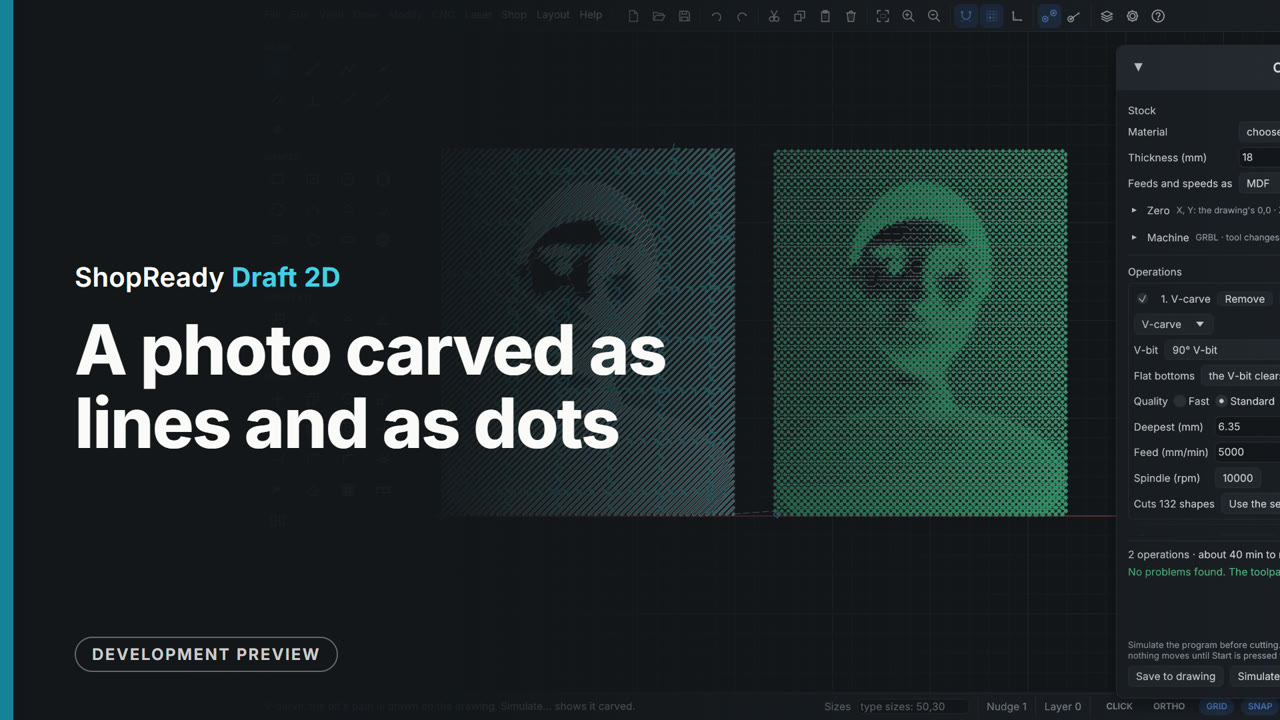
A photo carved as lines and as dots
A picture with a photo's tones is carved two ways with a V-bit: as lines that are wider where the picture is darker, and as dots like old newsprint. The picture window shows each as it will carve, and both end up side by side on one board, in one job, with its run time.
 Clip · 56 s
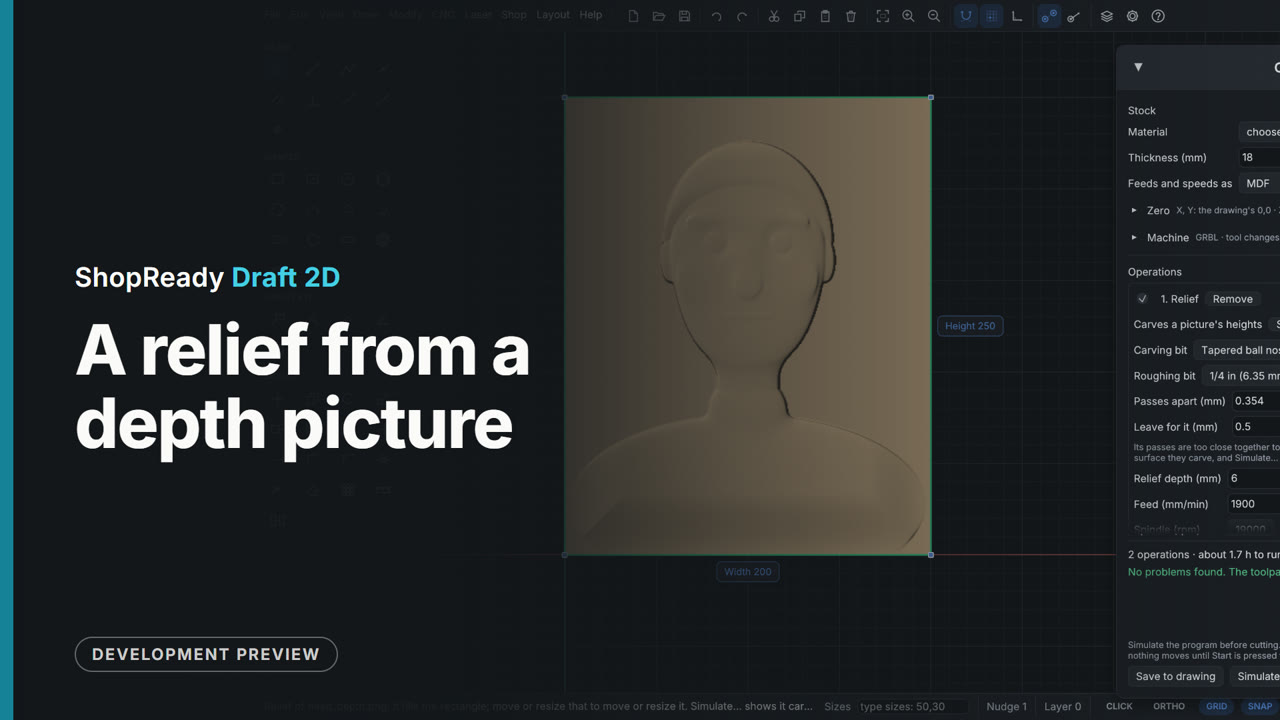
A relief from a depth picture
CNC > Carve a picture opens a picture of heights (light is high, dark is low), and the Relief choice shows it lit, as it will carve. Two settings shape it, then Place and carve draws its rectangle on the drawing and opens the CNC job: an end mill roughing, a tapered ball nose finishing, and the run time.
 Clip · 40 s
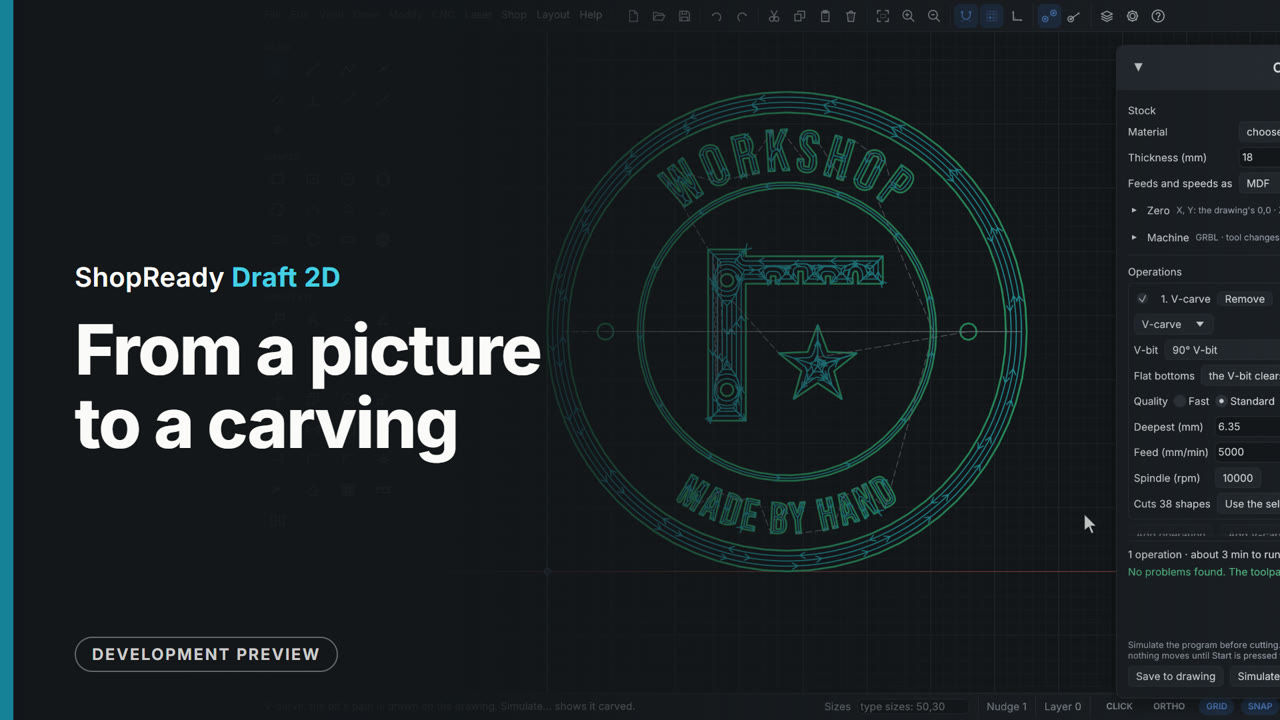
From a picture to a carving
A phone photo of an emblem on paper is opened from the CNC menu and comes in already traced into outlines. The picture window shows what will be carved, one setting is loosened, and Place and V-carve puts the shapes on the drawing with a V-carve job ready to run.
 Clip · 50 s
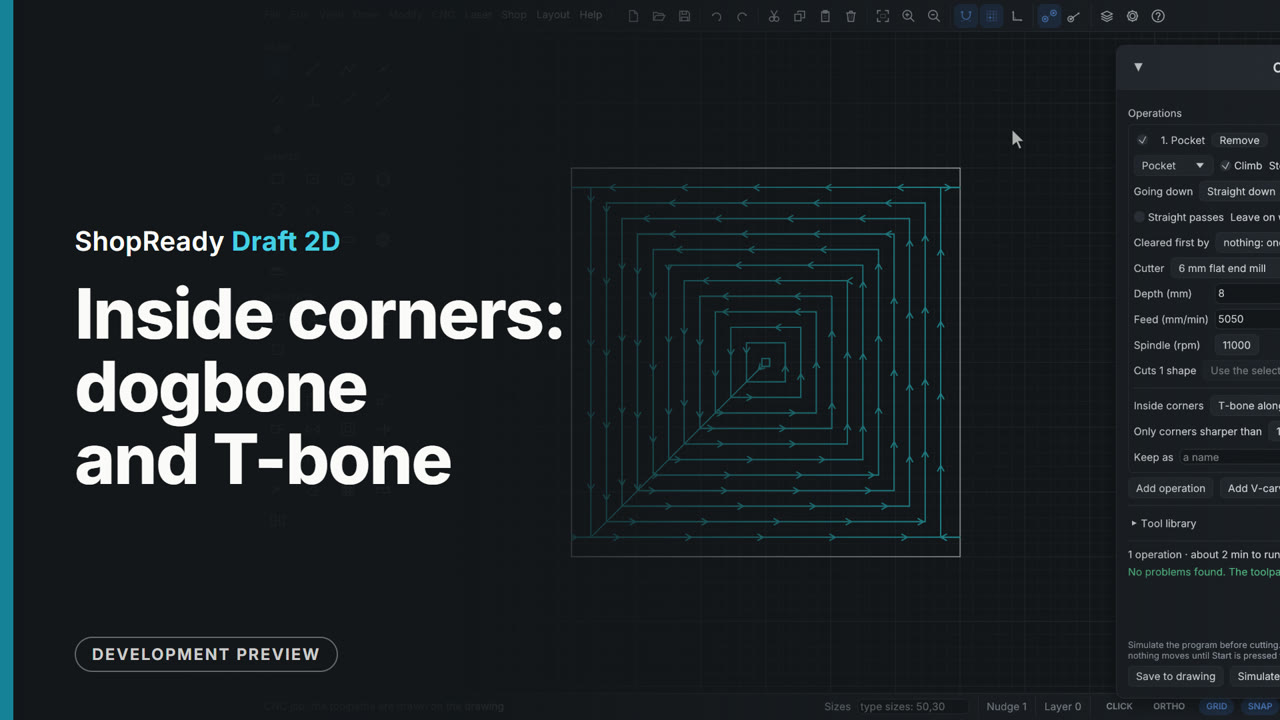
Inside corners: dogbone and T-bone
A pocket that a square foot must fit is cleared with a 6 mm cutter, which leaves every inside corner round. In the operation's More..., Inside corners is set to Dogbone and each corner of the path gets a spur out along its middle; set to T-bone, the spur runs along one side. The drawing stays the part as designed: only the cutter's path changes.
 Clip · 50 s
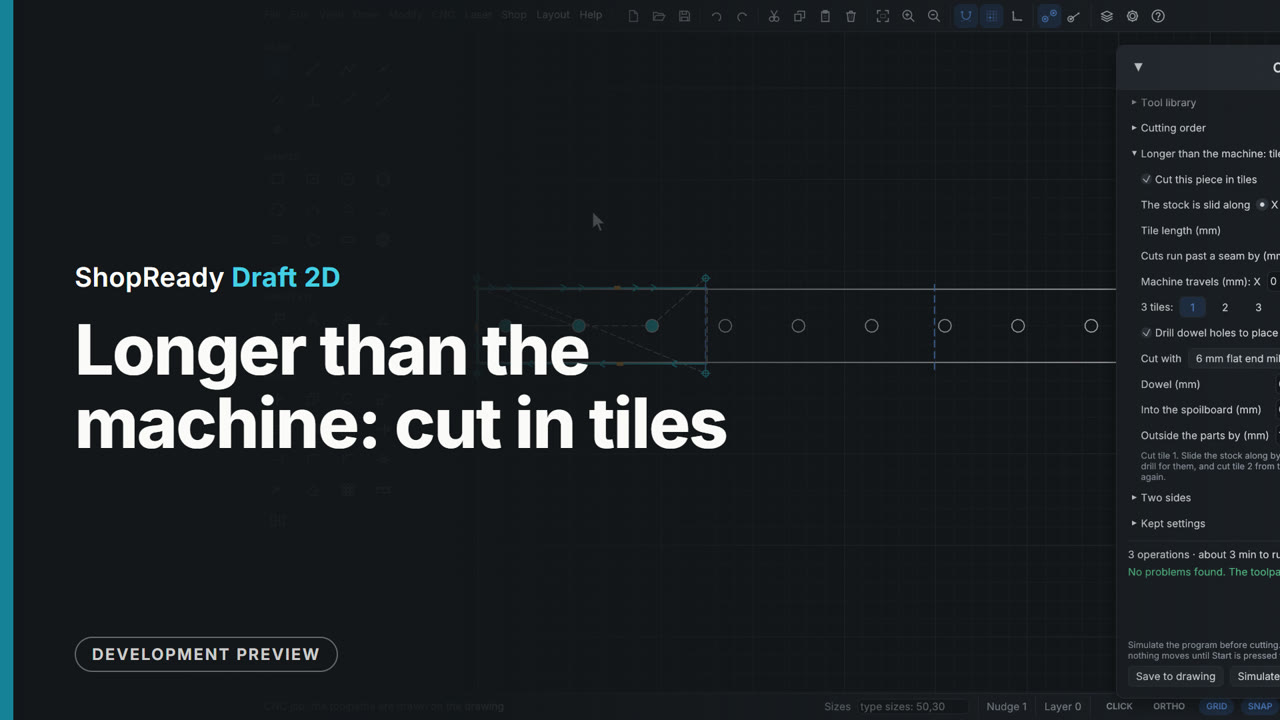
Longer than the machine: cut in tiles
A peg rail 1400 mm long is cut on a machine that reaches 500. In the CNC job's More..., Longer than the machine: tiles is ticked and the tile length typed: the seams are drawn on the rail and each of the three tiles is its own program, shown by clicking its number. Dowel holes drilled with tile 1 place the stock for the next tile.
 Clip · 52 s
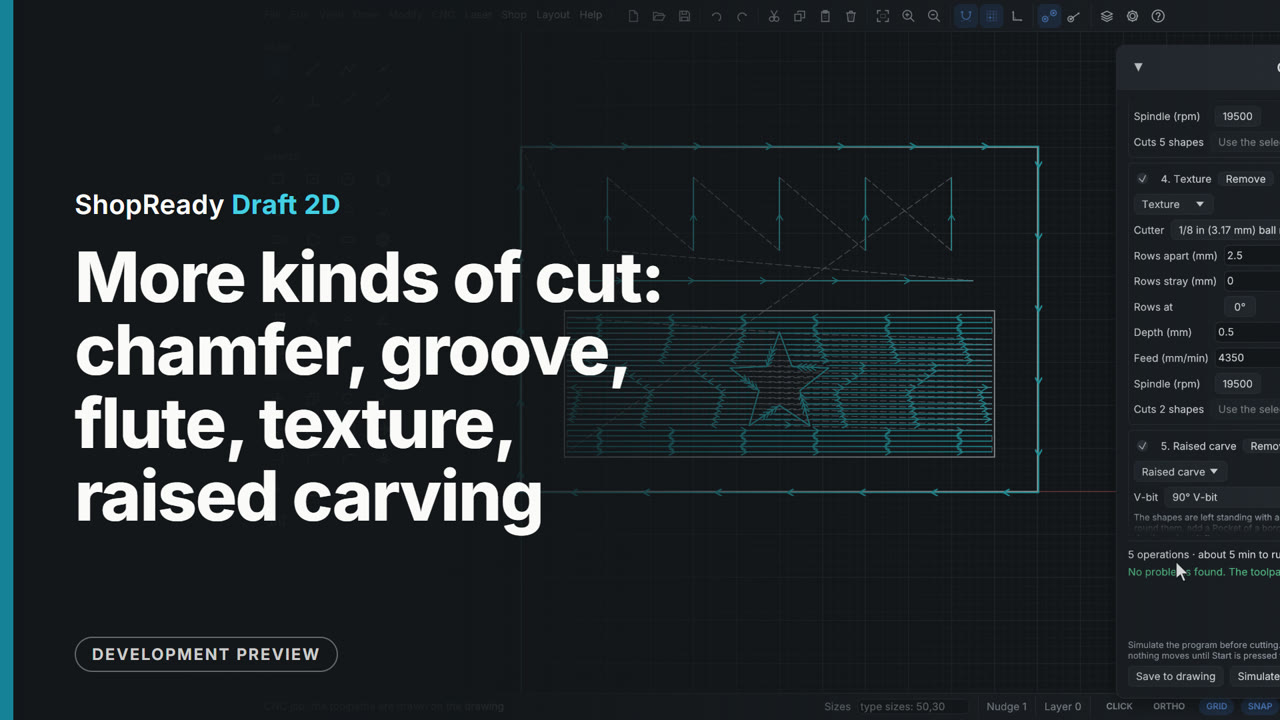
More kinds of cut: chamfer, groove, flute, texture, raised carving
One small sample panel carries the five newer kinds of cut, each switched on in turn in the CNC job window so its path is drawn alone and then with the rest: a chamfer along the panel's edge, a groove on a line, flutes along five short lines, a texture of scoops on a ground, and a star left standing as a raised carving.
 Clip · 54 s
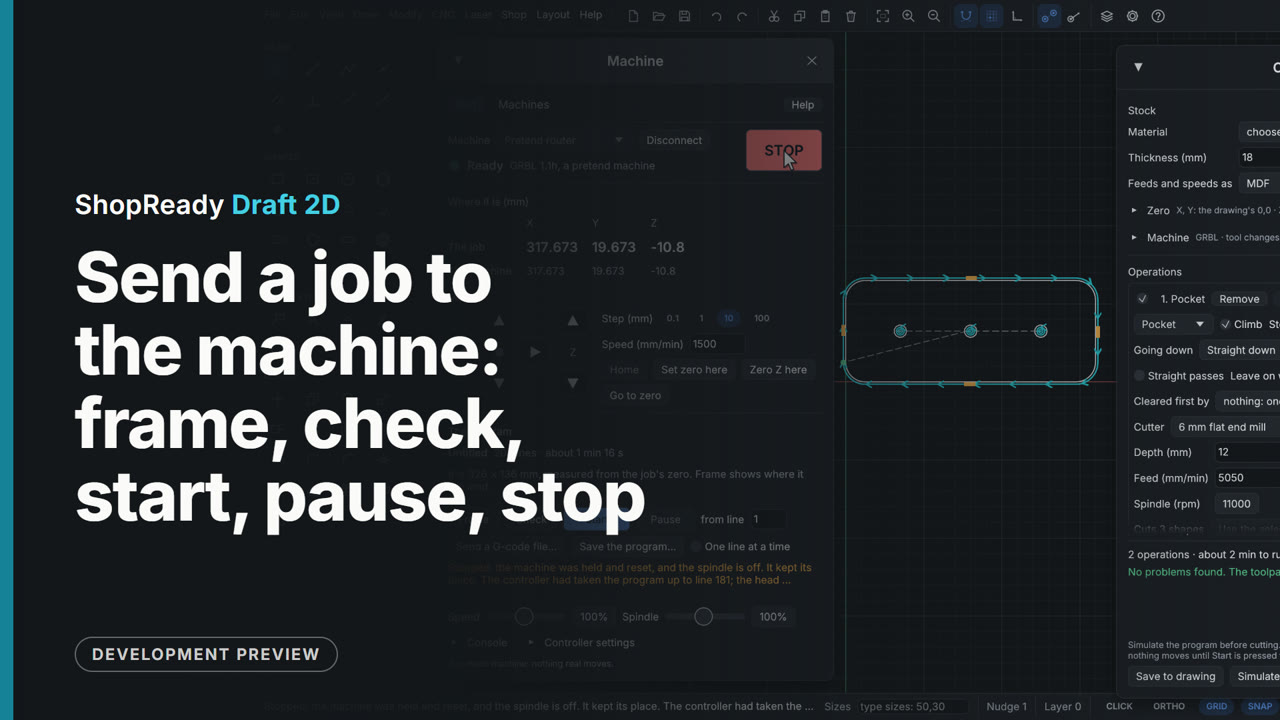
Send a job to the machine: frame, check, start, pause, stop
From the CNC job window, Send... hands the program to the Machine window, where a pretend router is connected (it behaves on screen as a real one does, with nothing plugged in). Frame runs the head round the program's box, Check has the controller read every line with nothing moving, Start asks once and sends, Pause holds it, Resume goes on, and STOP ends it.
 Clip · 51 s
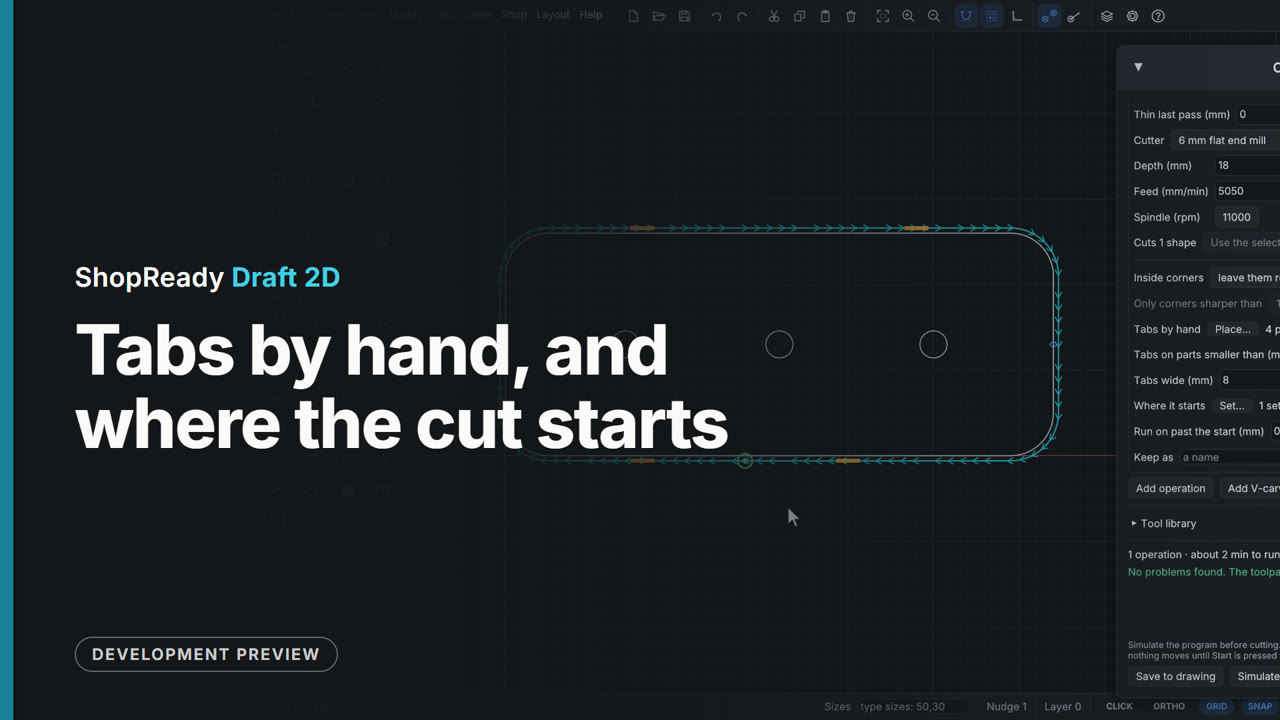
Tabs by hand, and where the cut starts
A coat rack's back board is cut free by a profile, which the job warns has no tabs. In the operation's More..., Tabs by hand, Place... puts a tab wherever the outline is clicked; one is dragged along the edge and one is clicked off. Where it starts, Set... puts the start of the cut on the bottom edge, between two tabs.
 Clip · 51 s
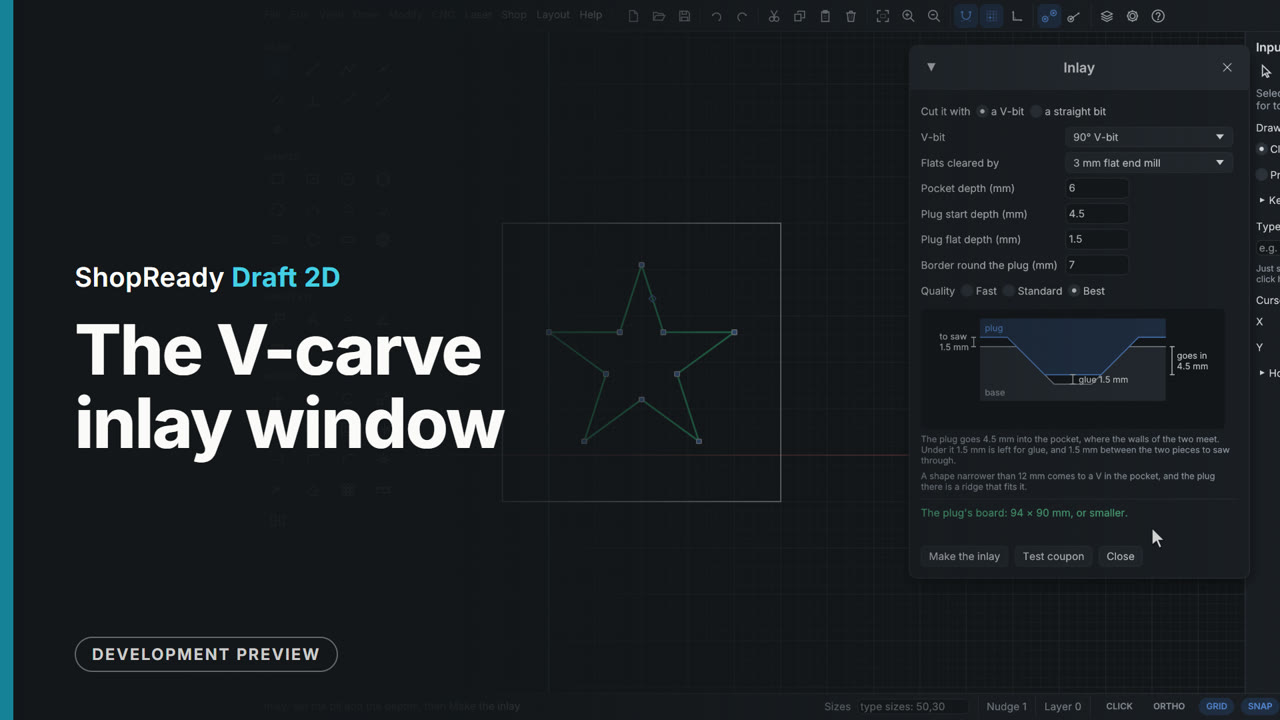
The V-carve inlay window
A star is selected and CNC, V-carve inlay opens the Inlay window, which draws the plug seated in its pocket to scale. As the pocket depth, the plug's start depth and its flat depth are typed, the cross-section and its three sizes follow: the glue room, how far the plug goes in, what is left to saw off. A pocket deeper than the V-bit can cut is refused in plain words.
 Clip · 47 s
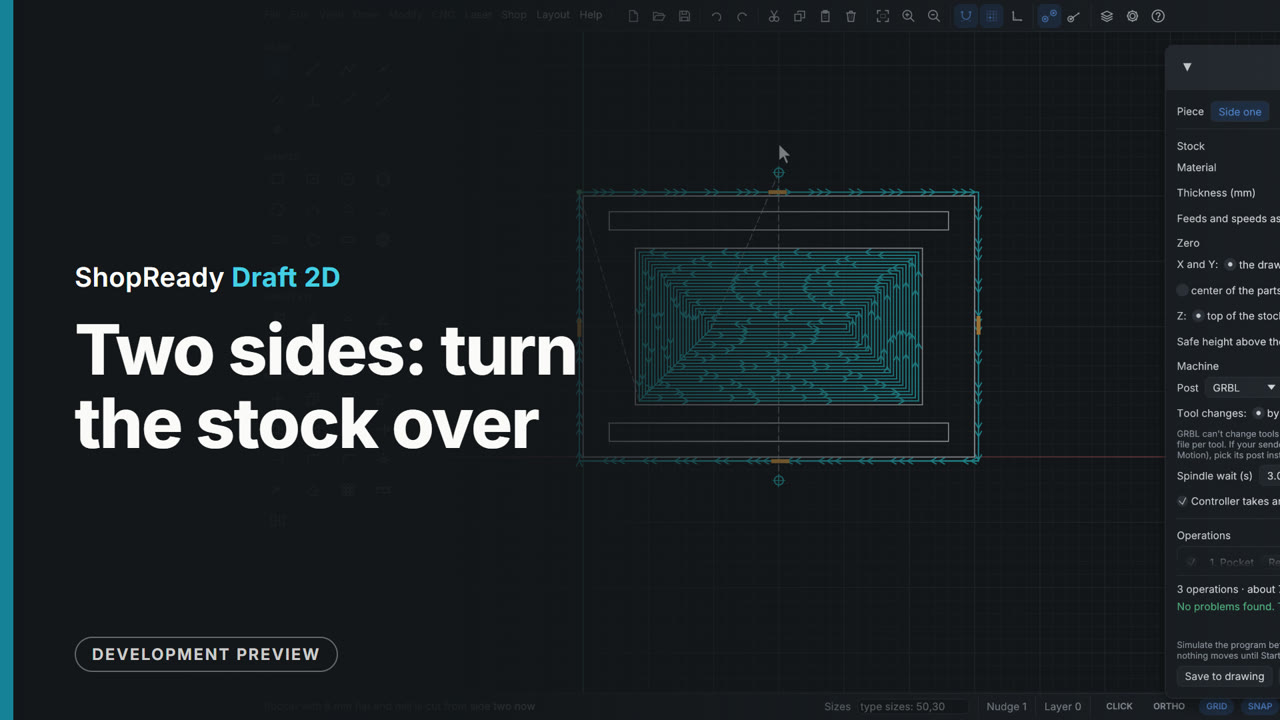
Two sides: turn the stock over
A tray has a recess on its face and two runner grooves on its underside, drawn where they are as seen through the stock. In the CNC job's More..., Two sides, Add side two makes a second piece of the job; the grooves' operation is sent To Side two, and the Piece row at the top switches between the sides. Side one also drills two dowel holes on the turn-over line, to place the stock when it is turned.
 Clip · 51 s
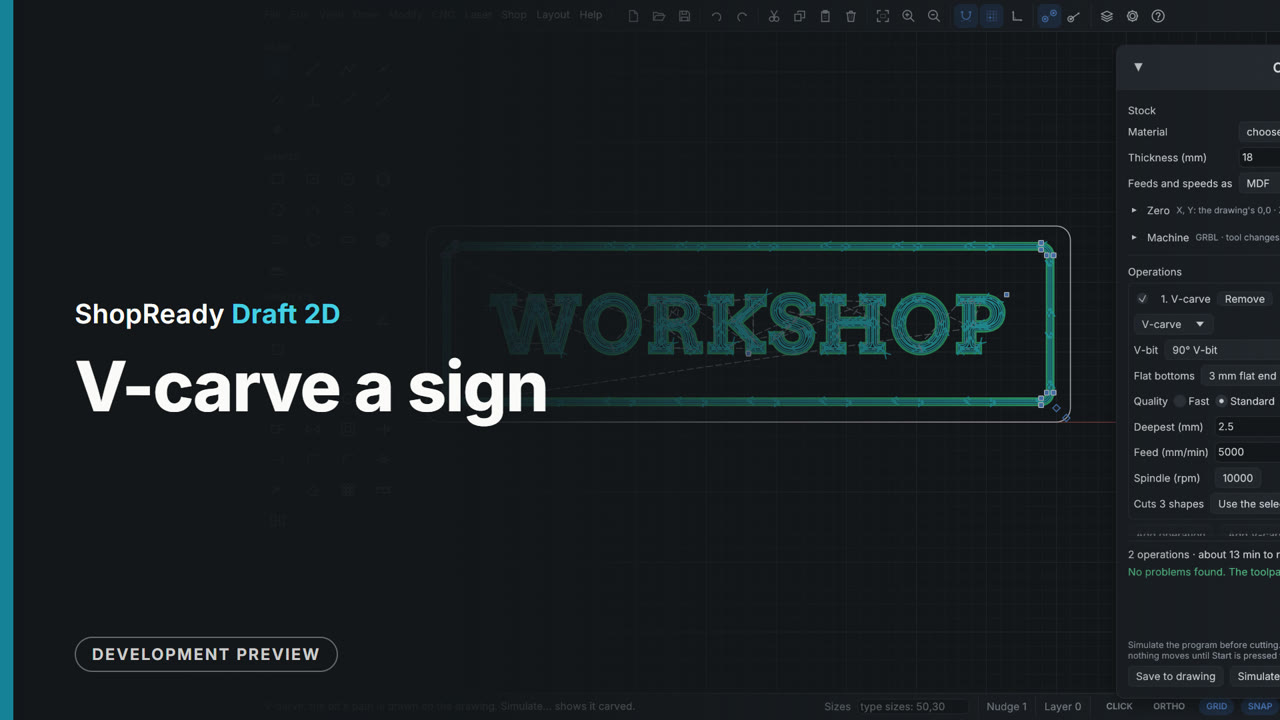
V-carve a sign
WORKSHOP in a carving font inside a border is selected and V-carved from the CNC menu. The bit's paths are drawn on the sign, inside corners come to a point, and the job window sets the bit, the deepest cut, what clears the flat bottoms and the quality, with the run time following each change.
The simulator, cutting each job
 Simulator · 31 s
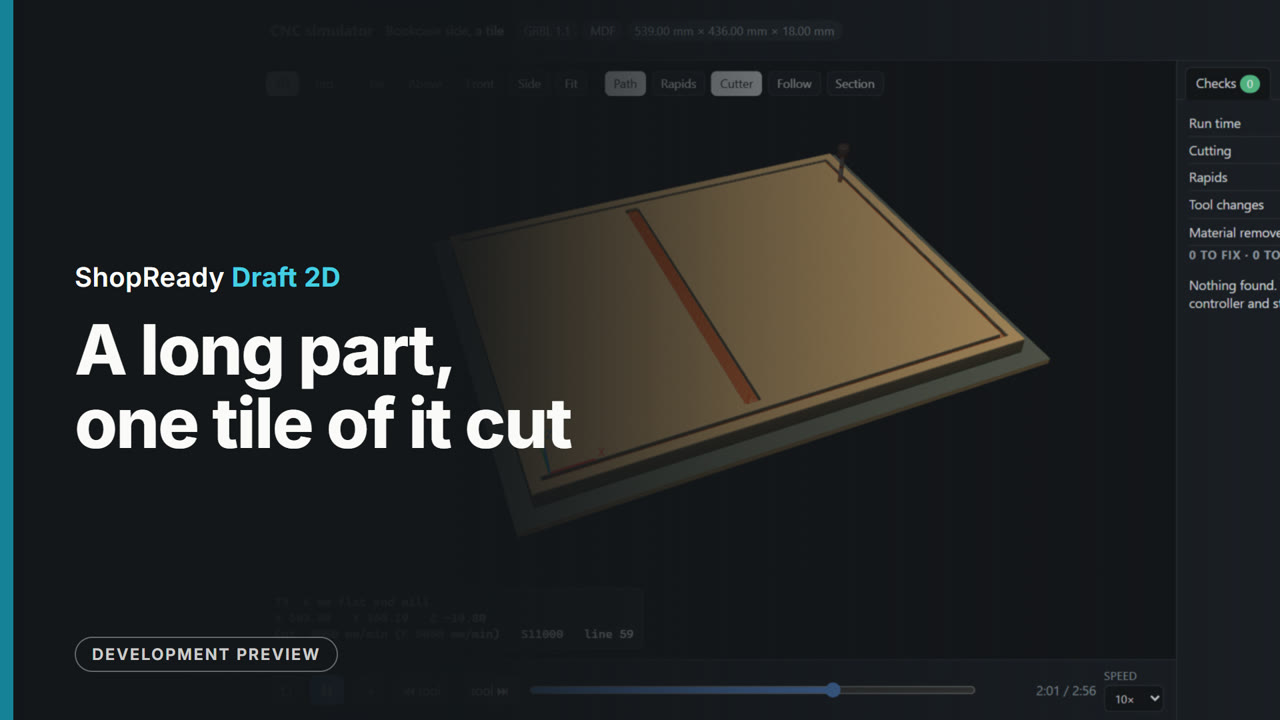
A long part, one tile of it cut, in the simulator
One tile of the 1800 mm bookcase side, 10 times real speed: the part is longer than the machine's bed, so it is cut a tile at a time and moved along on dowel holes.
 Simulator · 37 s
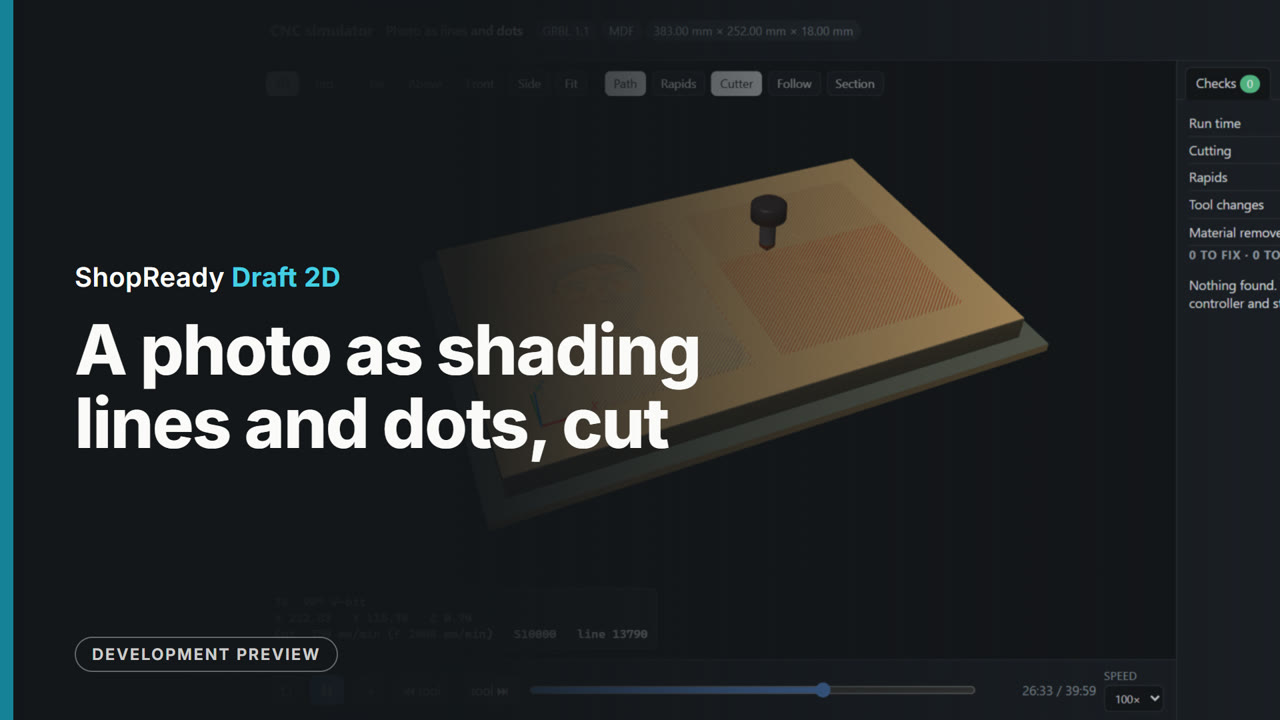
A photo as shading lines and dots, cut, in the simulator
The test head carved twice with a V-bit, 100 times real speed: as lines that are wider where the picture is darker, and as dots like old newsprint.
 Simulator · 32 s
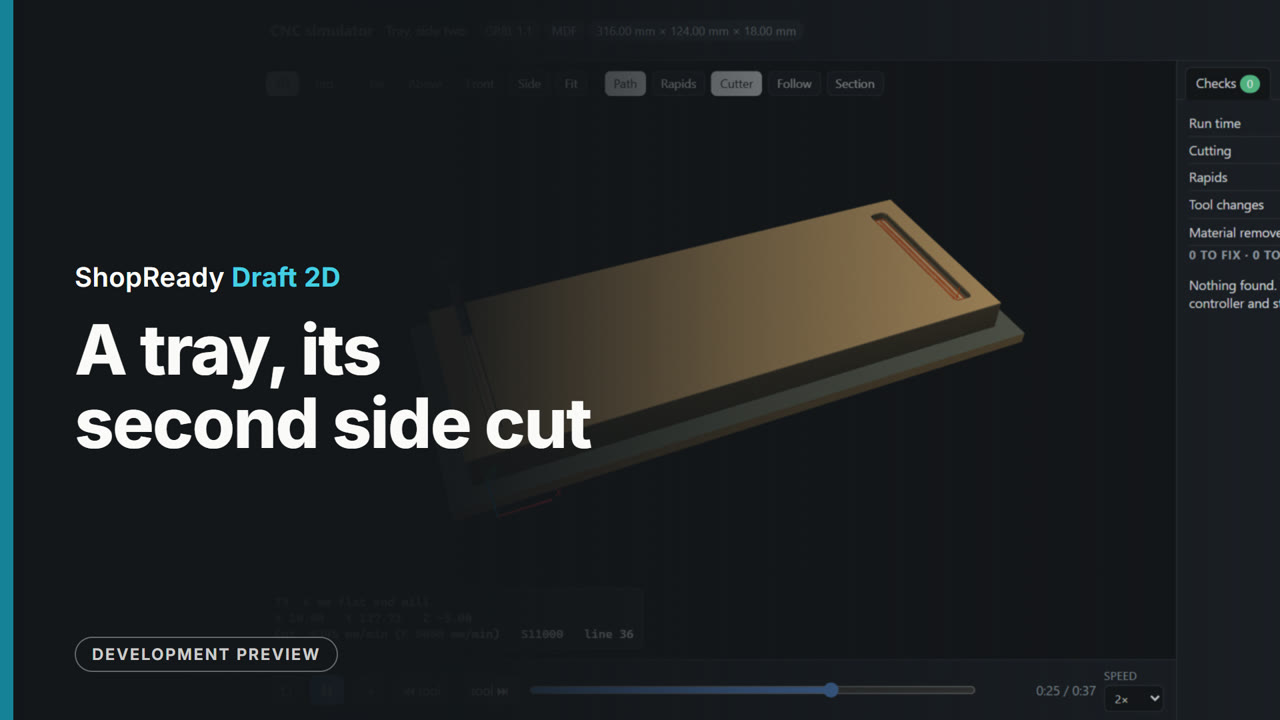
A tray, its second side cut, in the simulator
Side two of a tray cut from both faces, twice real speed: the board is turned over on its dowels and the underside is cut.
 Simulator · 27 s
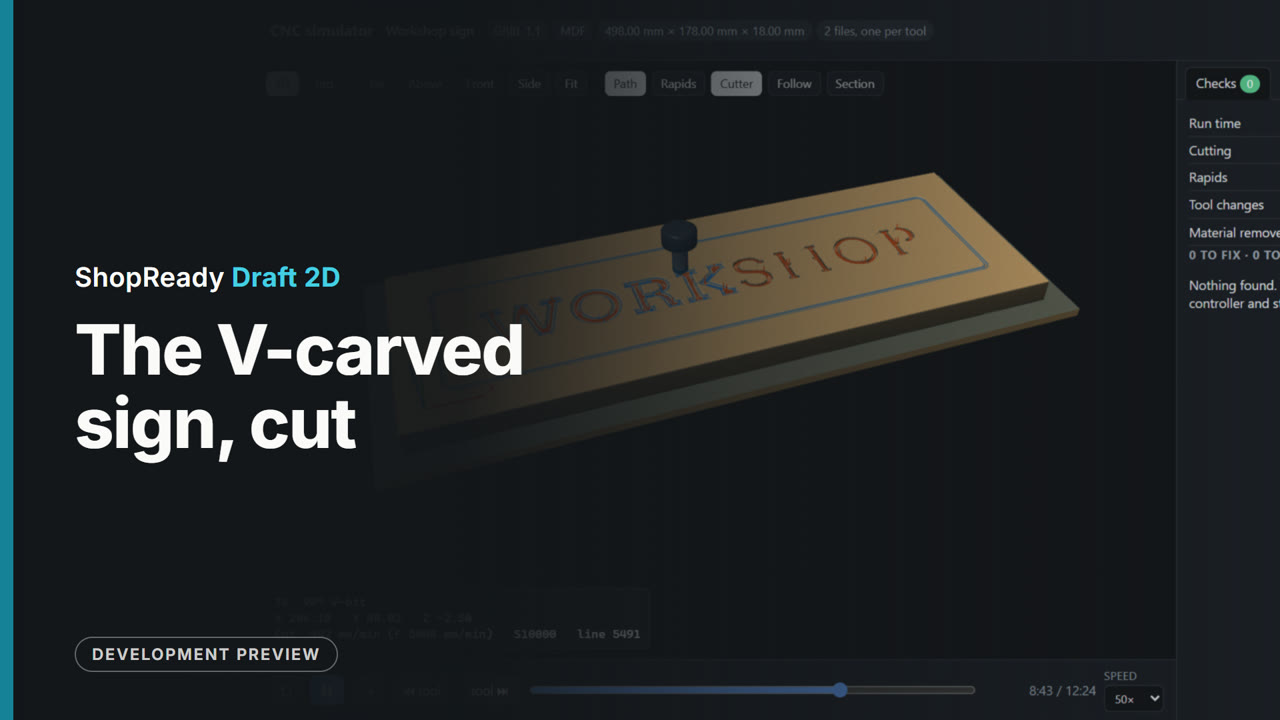
The V-carved sign, cut, in the simulator
WORKSHOP and its border carved with a V-bit, 50 times real speed: the bit rises into each inside corner so it comes to a point.
 Simulator · 50 s
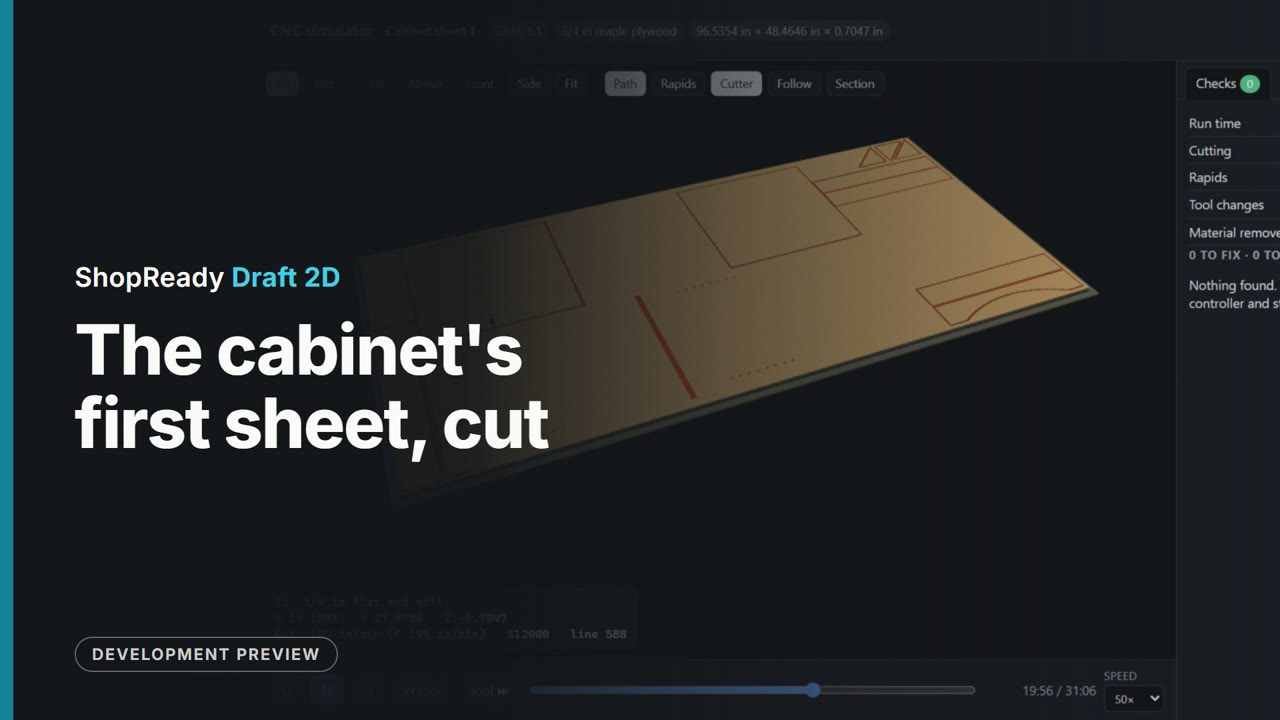
The cabinet's first sheet, cut, in the simulator
Sheet 1 of the nested cabinet in the simulator, 50 times real speed, a job in inches: stopped dadoes as pockets with dogbone corners, thirty-two pin holes drilled, then fourteen parts cut out in order, the small ones on tabs.
 Simulator · 30 s
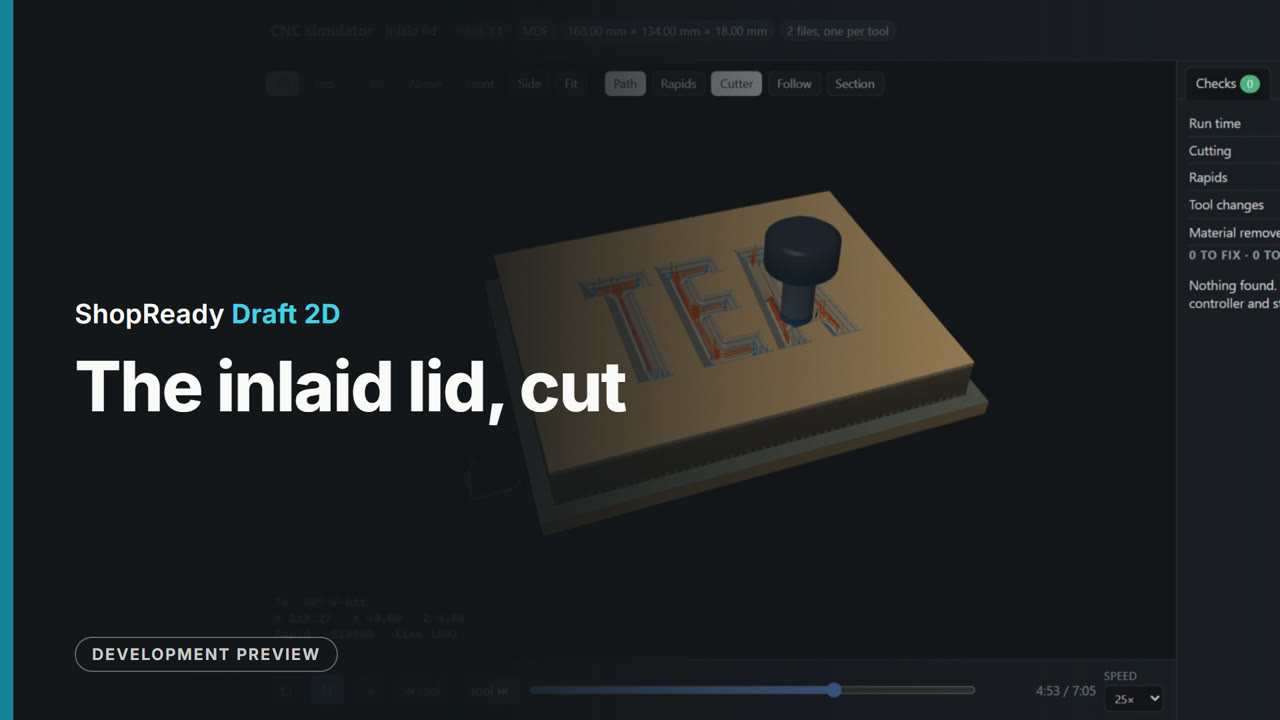
The inlaid lid, cut, in the simulator
The lid's V-carved pocket for the word, 25 times real speed. The plug is the job's second piece, cut from its own board.
 Simulator · 35 s
The inlay's test coupon, cut, in the simulator
The small test piece the Inlay window makes, 25 times real speed: a pocket and its plug, to try the fit in a scrap before the lid is cut.
 Simulator · 23 s
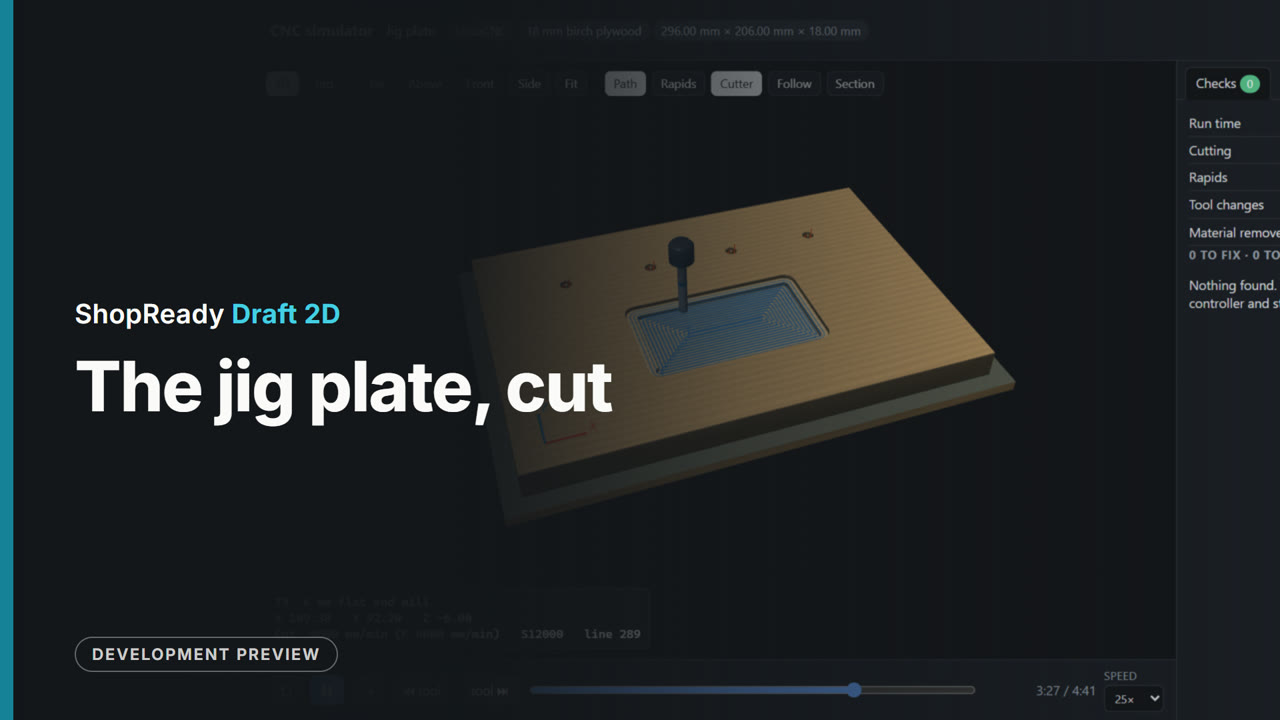
The jig plate, cut, in the simulator
The job from the CNC clip in the simulator, 25 times real speed: four holes with the 3 mm end mill, the pocket cleared, the outline ramped in and left on four tabs. The checks find nothing to fix.
 Simulator · 36 s
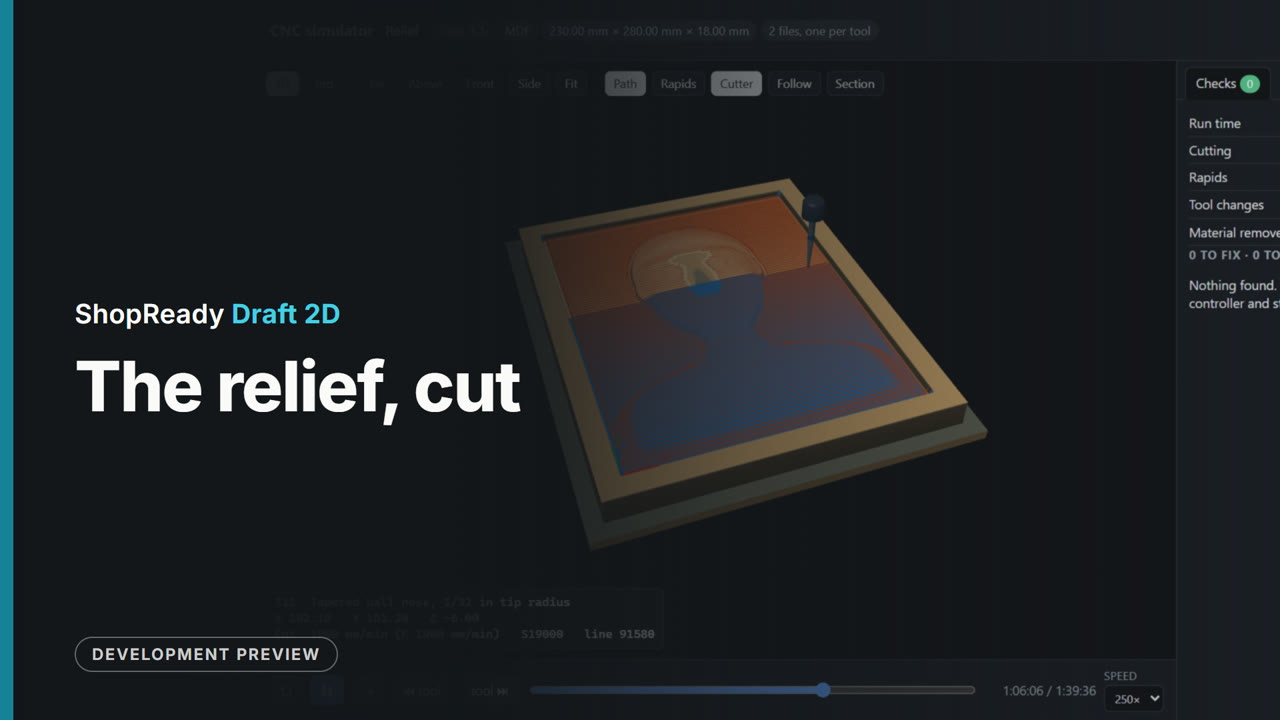
The relief, cut, in the simulator
A relief from a depth picture, 250 times real speed: level layers with an end mill, then finishing passes with a tapered ball nose.
 Simulator · 34 s
The relief, roughed and finished, in the simulator
The raised head from the relief project, 100 times real speed: the roughing bit takes the bulk in level layers, then the tapered ball nose carves the finishing passes.
 Simulator · 44 s
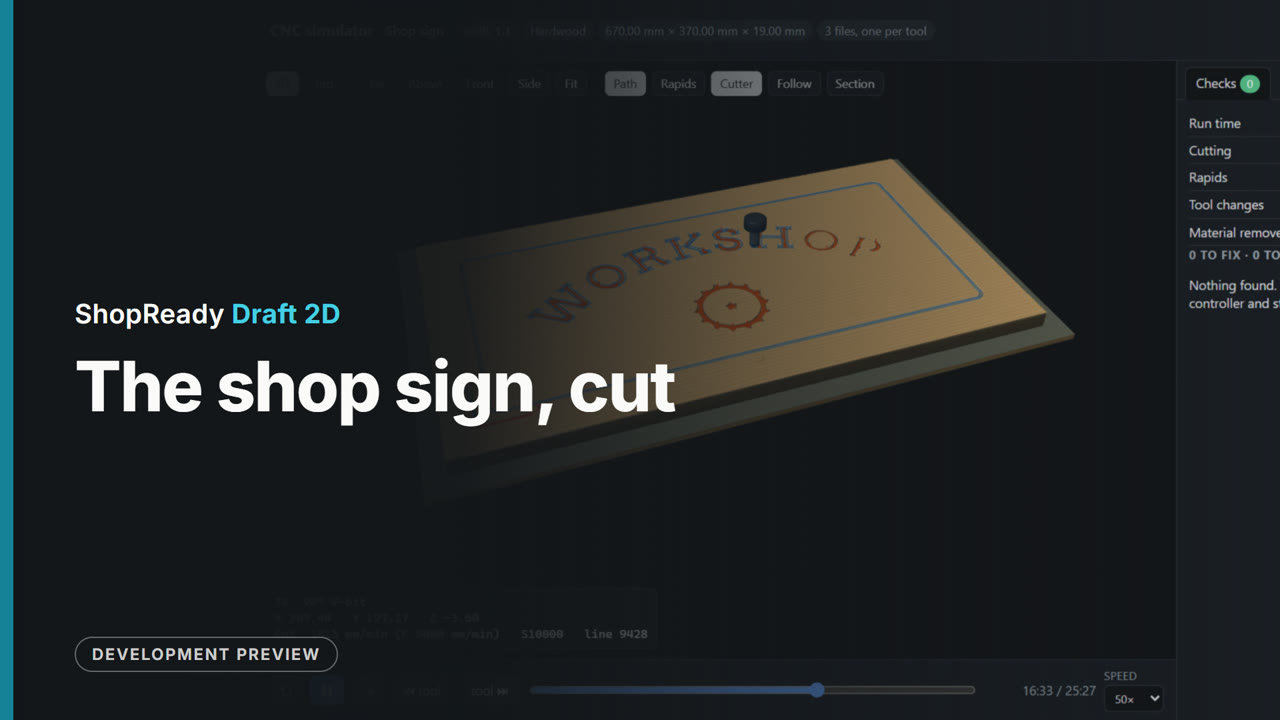
The shop sign, cut, in the simulator
The sign from the project in the simulator, 50 times real speed: the lettering, border and emblem V-carved, an end mill clearing the flat floors, then the outline ramped in and left on four tabs. The checks find nothing to fix.
 Simulator · 29 s
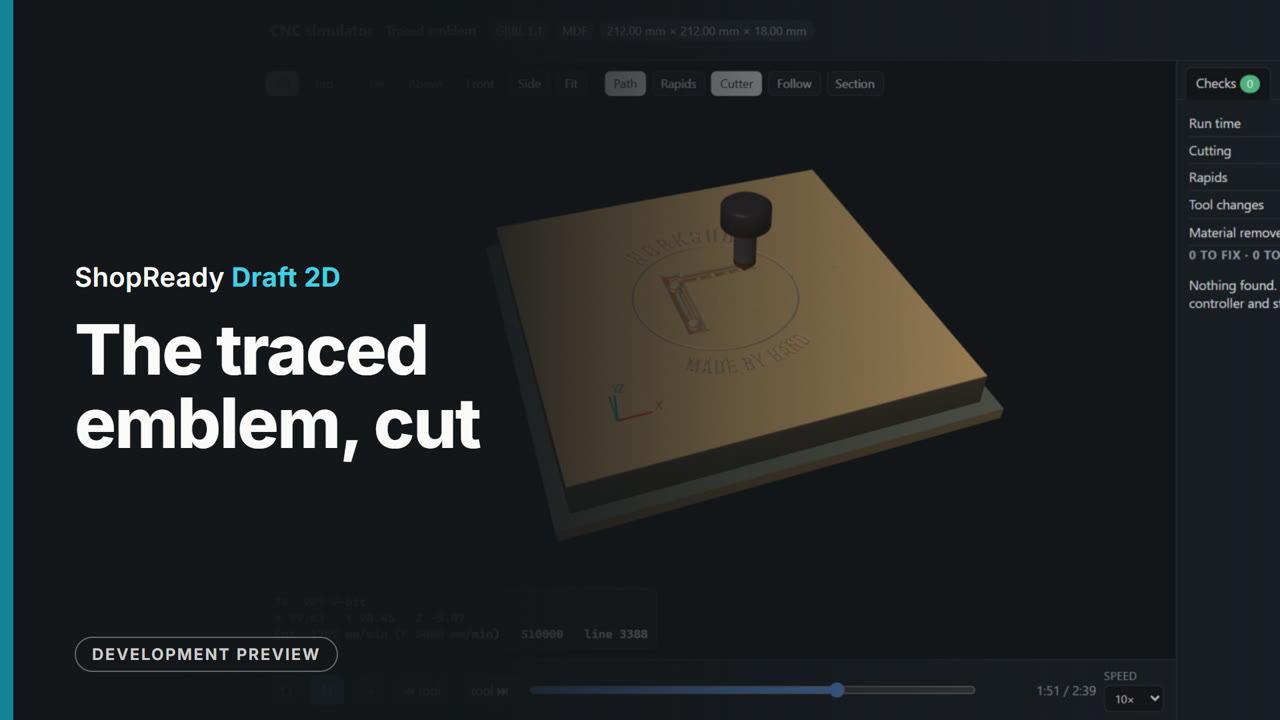
The traced emblem, cut, in the simulator
The emblem traced from a photographed picture, V-carved, 10 times real speed.
Laser
 Clip · 52 s
Only what is selected, and lead-in and lead-out
A strip of three key tags is in the laser job, and one more of the middle tag is wanted. With that tag selected, Only what is selected, under Cutting order, burns just it, with a box, an origin and a run time of its own. Then Lead-in and Lead-out, under More settings, are set to 3 mm, and the preview shows each cut starting and ending a little way off in the waste: outside the tag's edge, inside its hole.
 Clip · 41 s
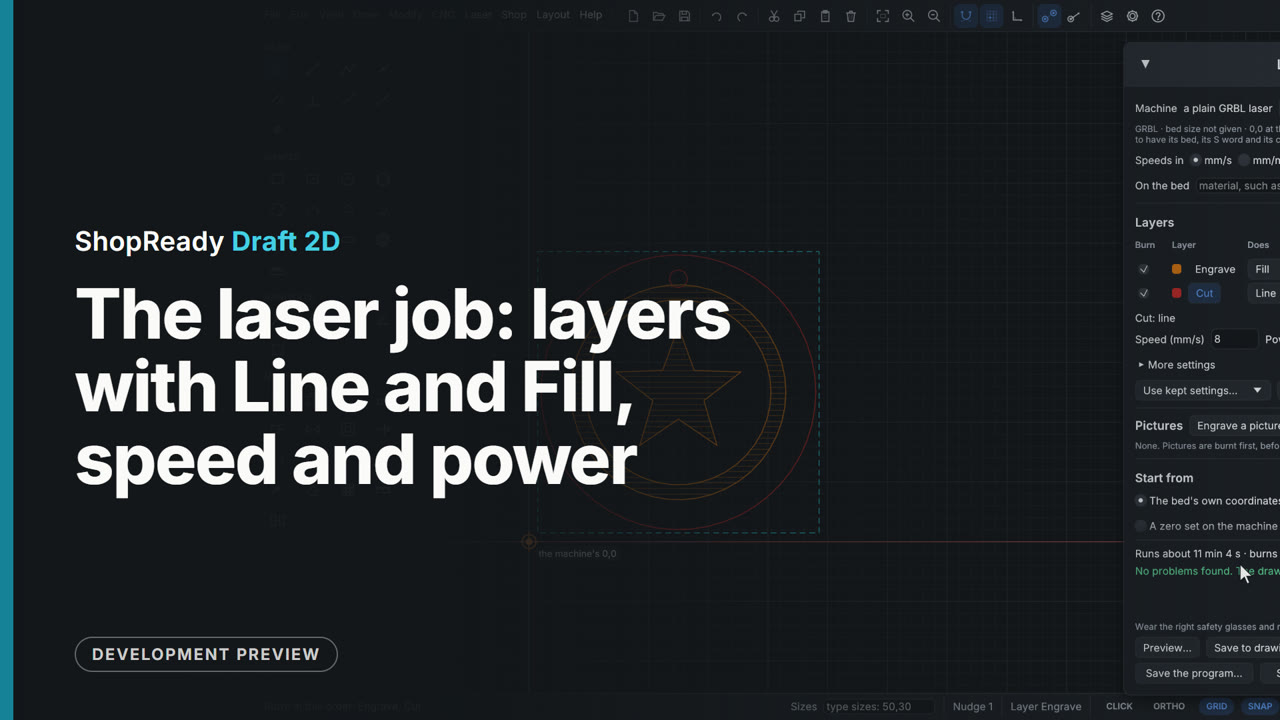
The laser job: layers with Line and Fill, speed and power
A coaster has its edge on a Cut layer and a ring and a star on an Engrave layer. In Laser, Laser job... each layer is a row: Engrave is set to Fill at 100 mm/s and 30%, and the drawing shows its fill lines; Cut stays Line at 8 mm/s and 100% with two passes. The arrows put the engraving first, and the foot of the window says how long the job runs and how far it burns and travels.
 Clip · 46 s
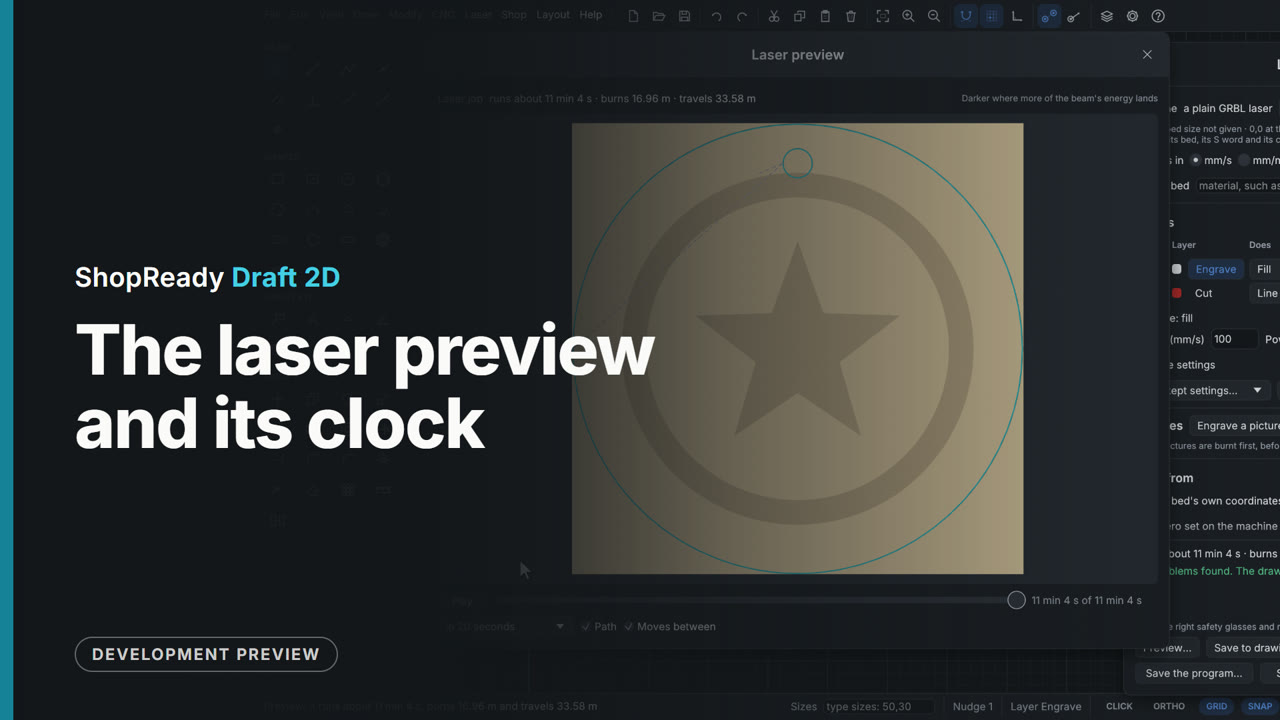
The laser preview and its clock
From the coaster's laser job, Preview... shows the finished burn on the sheet with how long it runs and how far it burns and travels. The clock beside Play is dragged back to the start and forward again: the picture shows what is burnt by each moment and a dot shows where the head is. The engraving's fill builds up line by line, the cut comes last, and Play runs it on from where the clock stands, at the rate of the whole job in 20 seconds.
 Clip · 47 s
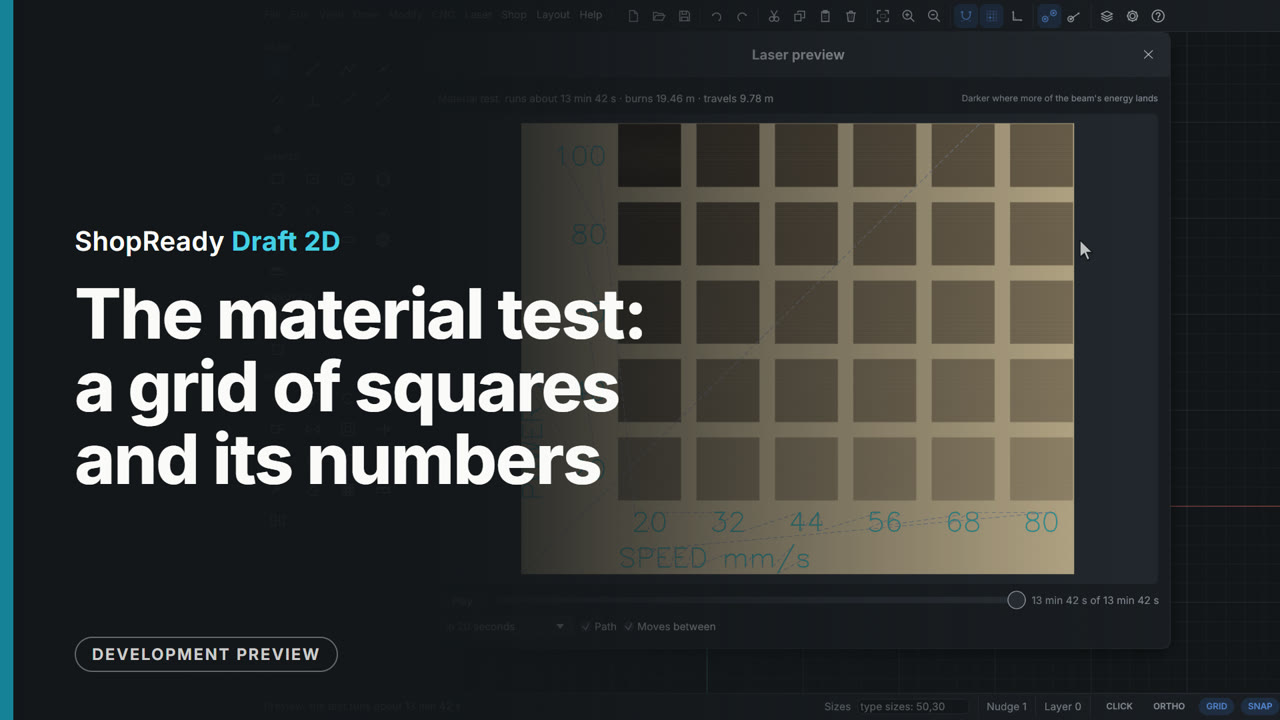
The material test: a grid of squares and its numbers
Laser, Material test... makes a grid of small squares to burn on an offcut, each at its own speed and power, with the numbers engraved beside them. The window shows the grid as it is set: six columns, speeds from 20 to 80 mm/s, powers from 20 to 100%. The squares can be filled or cut round, and Preview... shows the whole test with its numbers and how long it runs.
Machines
 Clip · 53 s
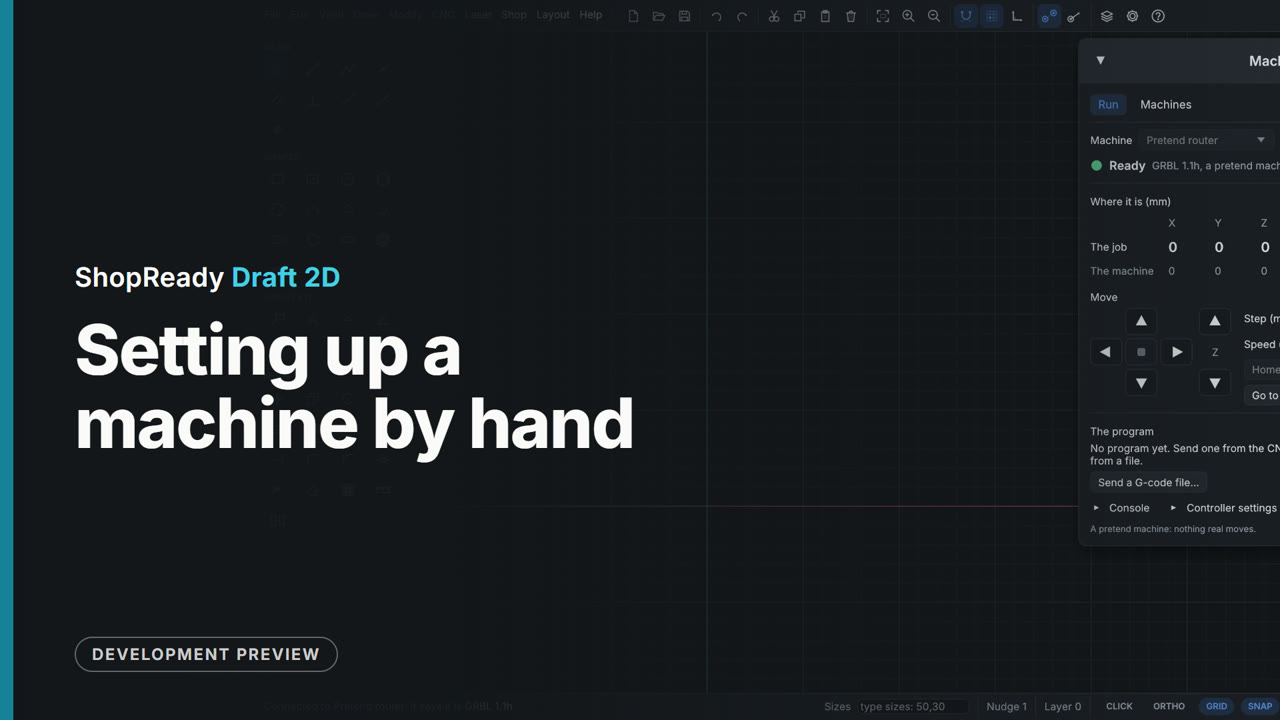
Setting up a machine by hand
CNC, Machine... opens the Machine window. Add one by hand lists a laser, a CNC router and three pretend machines; a pretend router is added, which behaves on screen as a real one does with nothing plugged in. Its page says what it is, its controller and how it is linked; the bed is set to 600 by 400 and the rear left corner made its 0,0. Then Go to Run and Connect: the lamp says Ready.
 Clip · 56 s
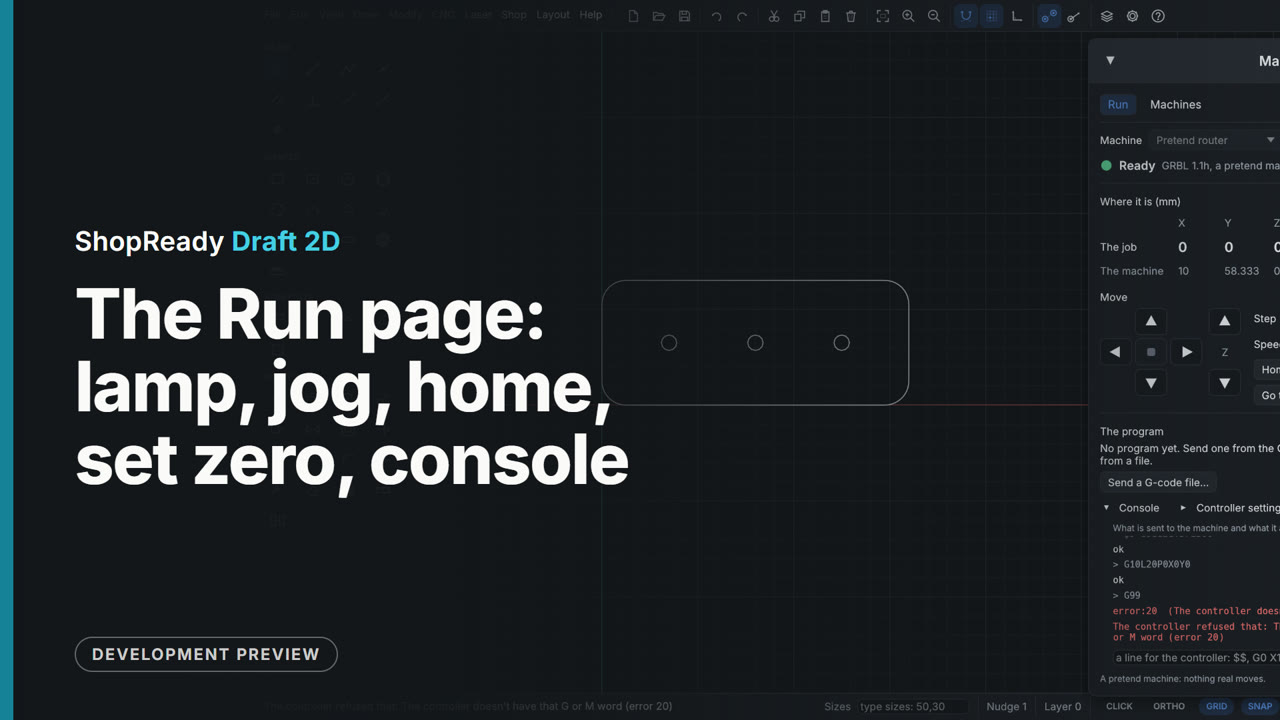
The Run page: lamp, jog, home, set zero, console
The Machine window's Run page with a pretend router (it behaves on screen as a real one does, with nothing plugged in). Connect only asks the machine how it is; the lamp says Alarm, what that means and which button clears it. Home clears it and the lamp says Ready. An arrow jogs the head one step at a click and keeps it moving while held; Set zero here makes where it stands the job's 0,0. The console lists what was sent and answered, and a refused line comes back in plain words.
Shop
 Clip · 51 s
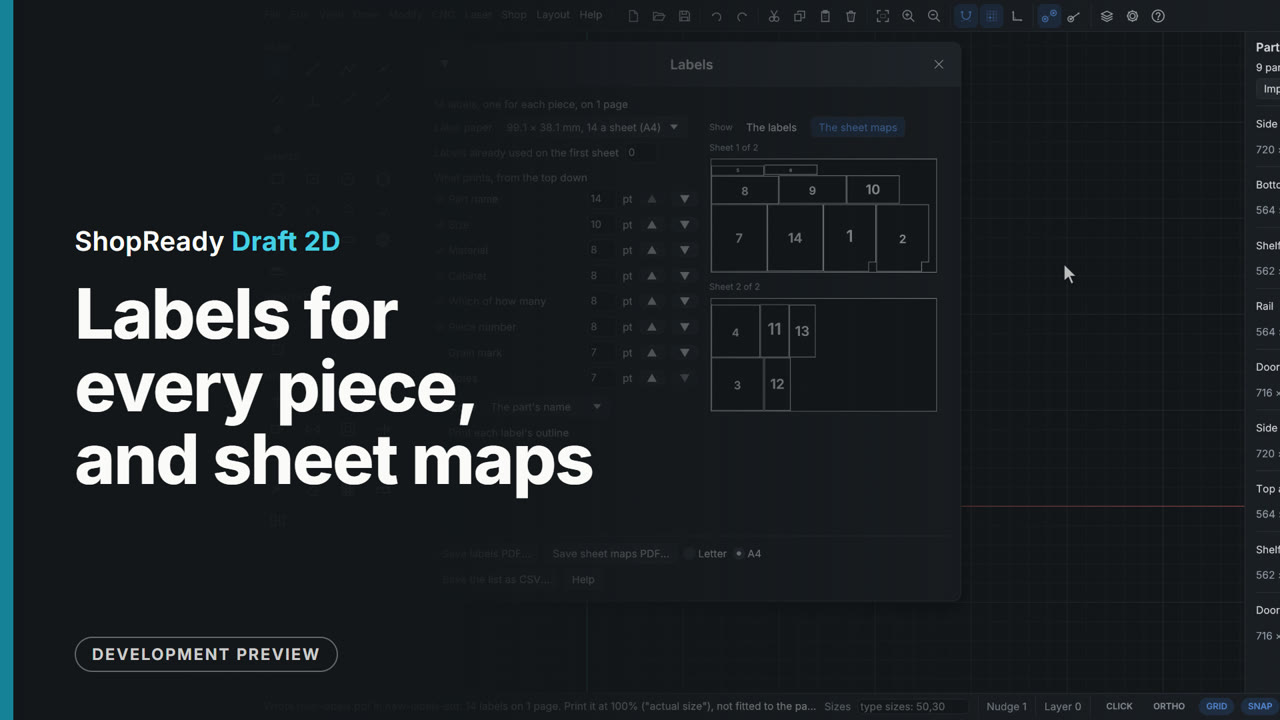
Labels for every piece, and sheet maps
Two kitchen cabinets make 14 pieces. Shop, Labels... makes a label for each one: its name, size, material, cabinet, which of how many, a number and a QR code. The label paper is picked by the size of a label and how many are on a sheet, the lines that print are ticked and sized, and Save labels PDF... writes the page. The sheet maps show each sheet the parts nest on, each part in its true shape (the base cabinet's sides have their toe-kick notch), with every piece numbered as its label is.
 Clip · 47 s
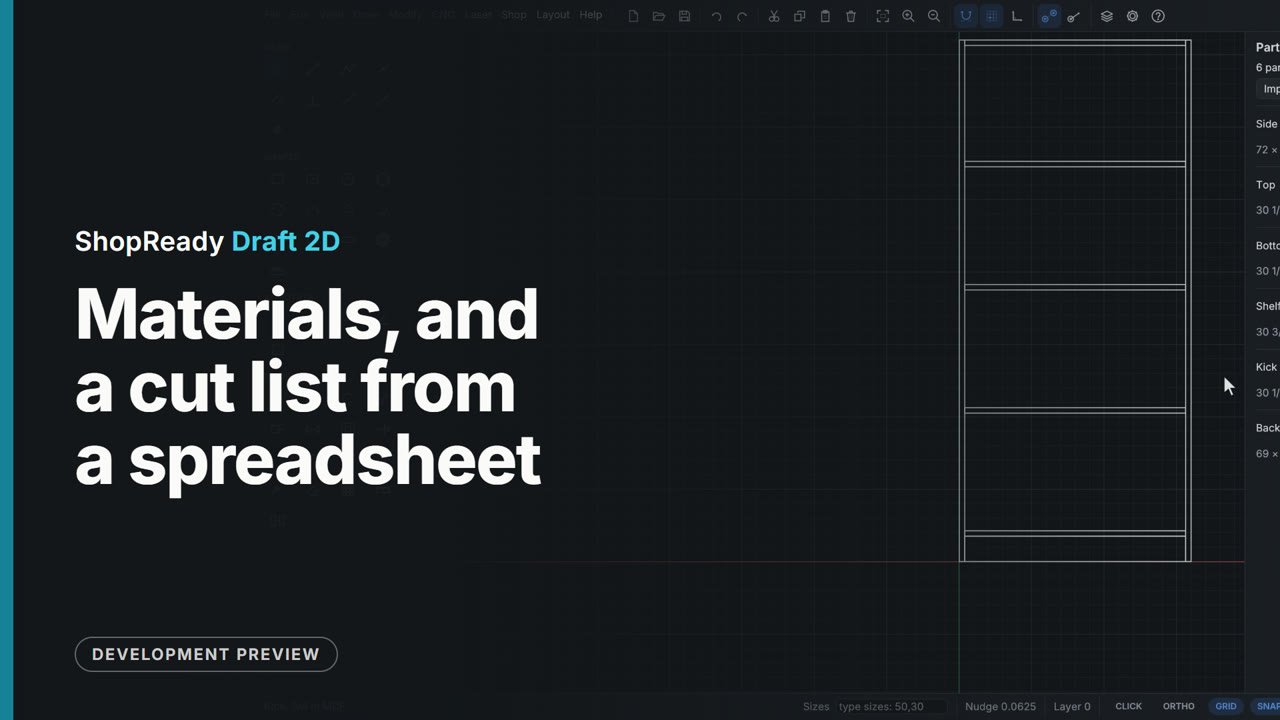
Materials, and a cut list from a spreadsheet
The Shop menu opens the Materials window: each sheet good with its measured thickness and the stock sheets it comes in. Then the Parts tab takes a bookcase's cut list straight from a spreadsheet file: the columns are found by their headings, six parts come in with their sizes, counts, grain and material, and a part's material is changed from the shop's own list.
 Clip · 40 s
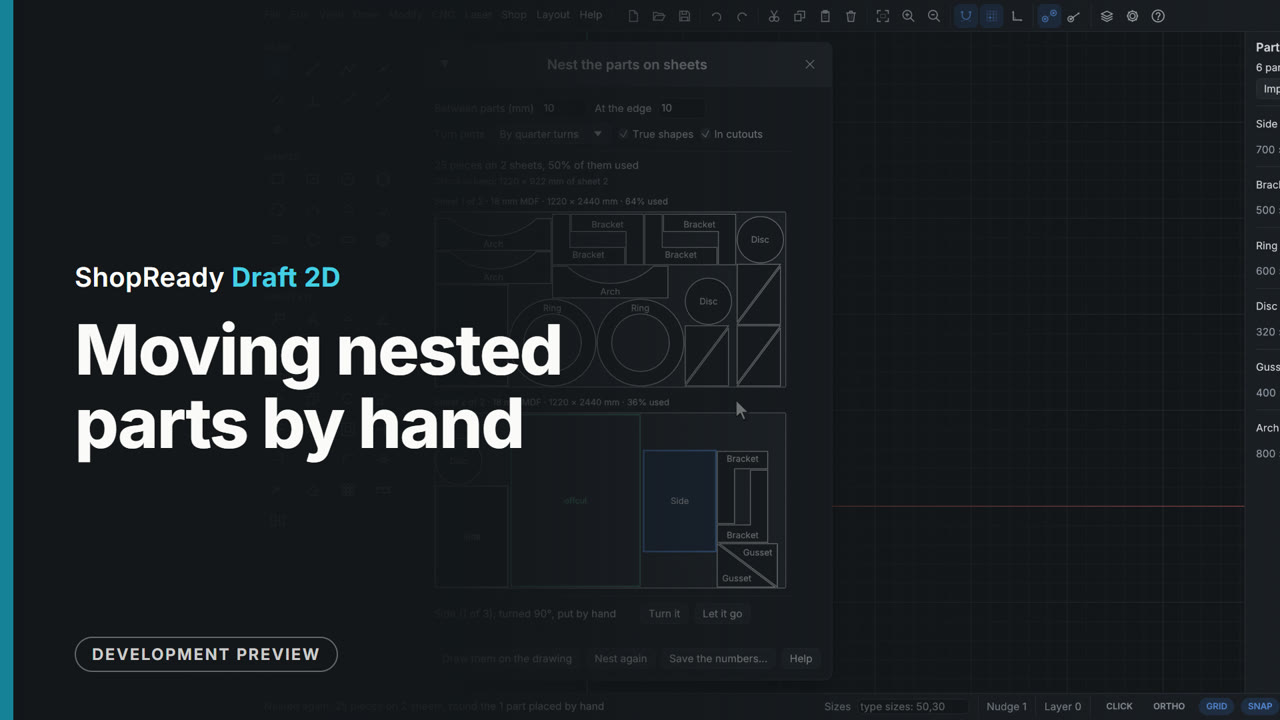
Moving nested parts by hand
In the Nest window a part can be dragged to another place or another sheet. A Side is dragged onto the Side beside it: both turn red and the window says which two are too close. Dragged again to the free end of sheet 2 it stays where it is put, in a color of its own, and Nest again packs the other 24 pieces round it.
 Clip · 47 s
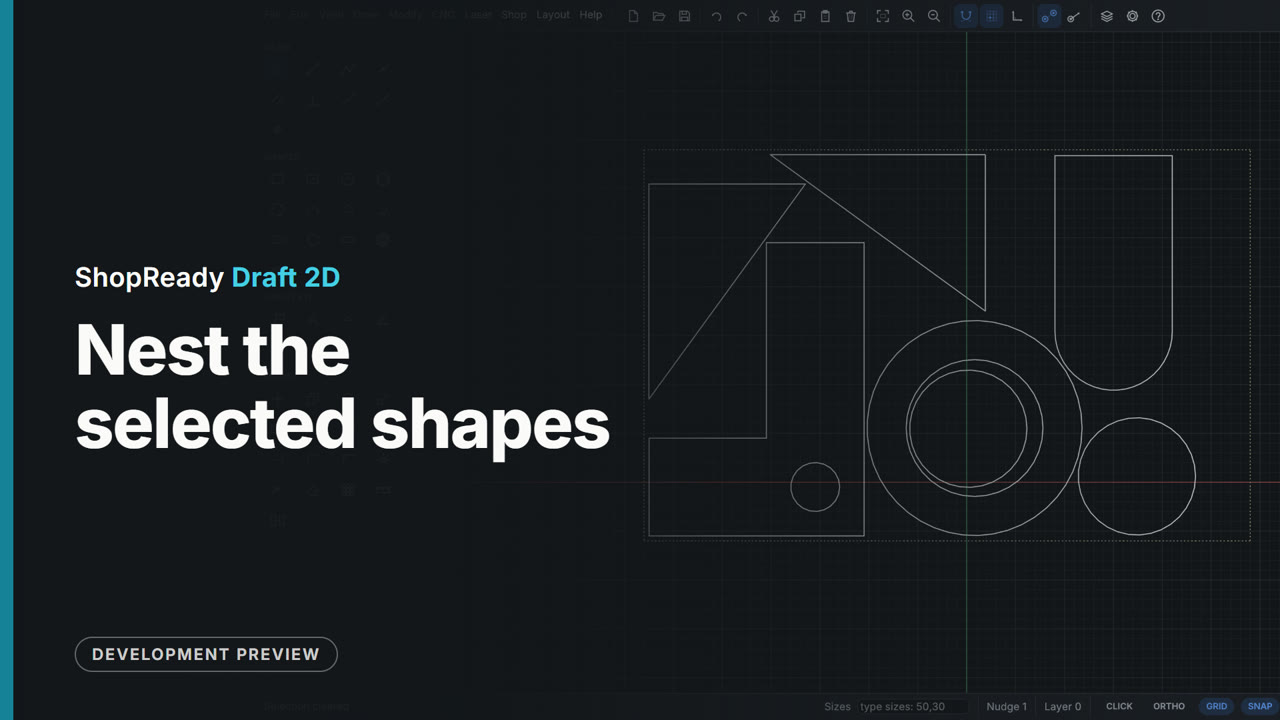
Nest the selected shapes
Parts for a toy box are drawn wherever there was room, with no parts list. They are selected with a window and Shop, Nest the selected shapes... is given the sheet's size, an offcut 620 by 400. The window says all seven pieces fit on one sheet before anything moves; Nest them packs them into the sheet where they are, each with what is drawn inside it: the disc goes inside the ring and the L keeps its hole.
 Clip · 46 s
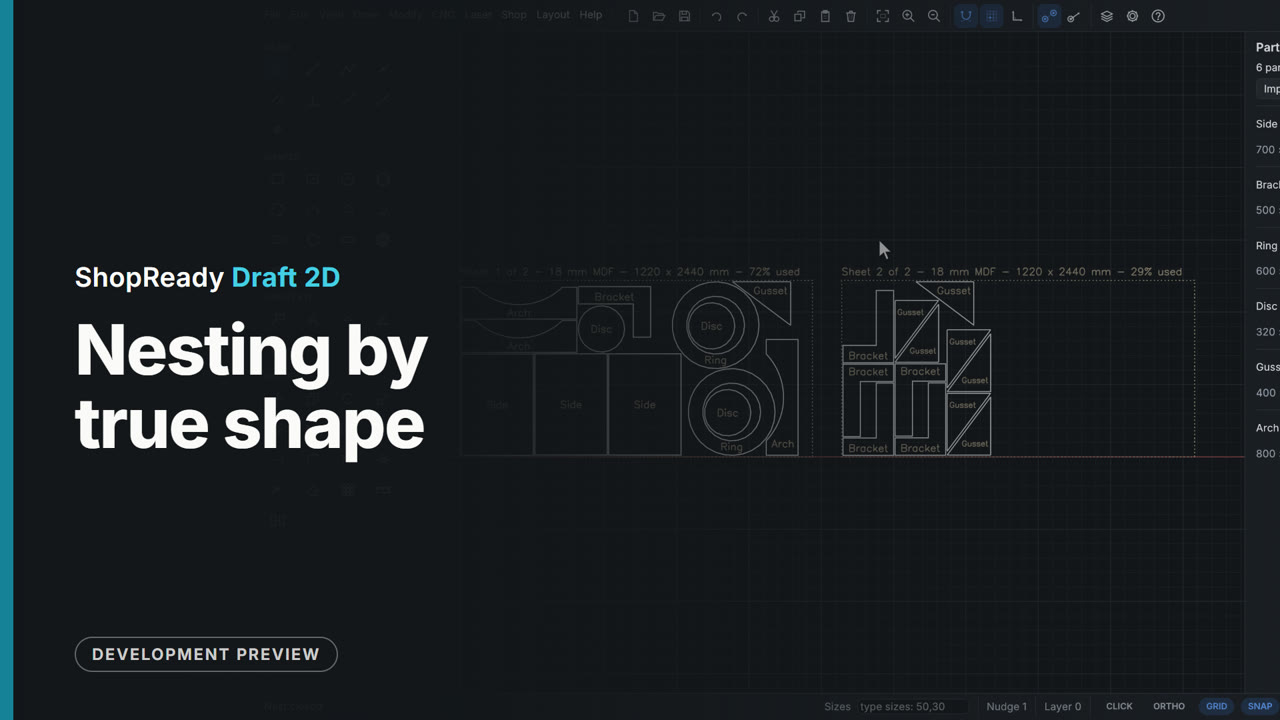
Nesting by true shape
A parts list holds plain sides and shaped parts: L brackets, rings, discs, gussets and arched rails. Shop, Nest the parts on sheets... lays all 25 pieces on two sheets by their true shapes: a disc goes inside each ring's cutout, an arch nests into an arch, an L into an L, and the offcut worth keeping is marked. Draw them on the drawing puts the sheets beside the drawing, each part drawn as it lies.
Codes and numbering
 Clip · 55 s
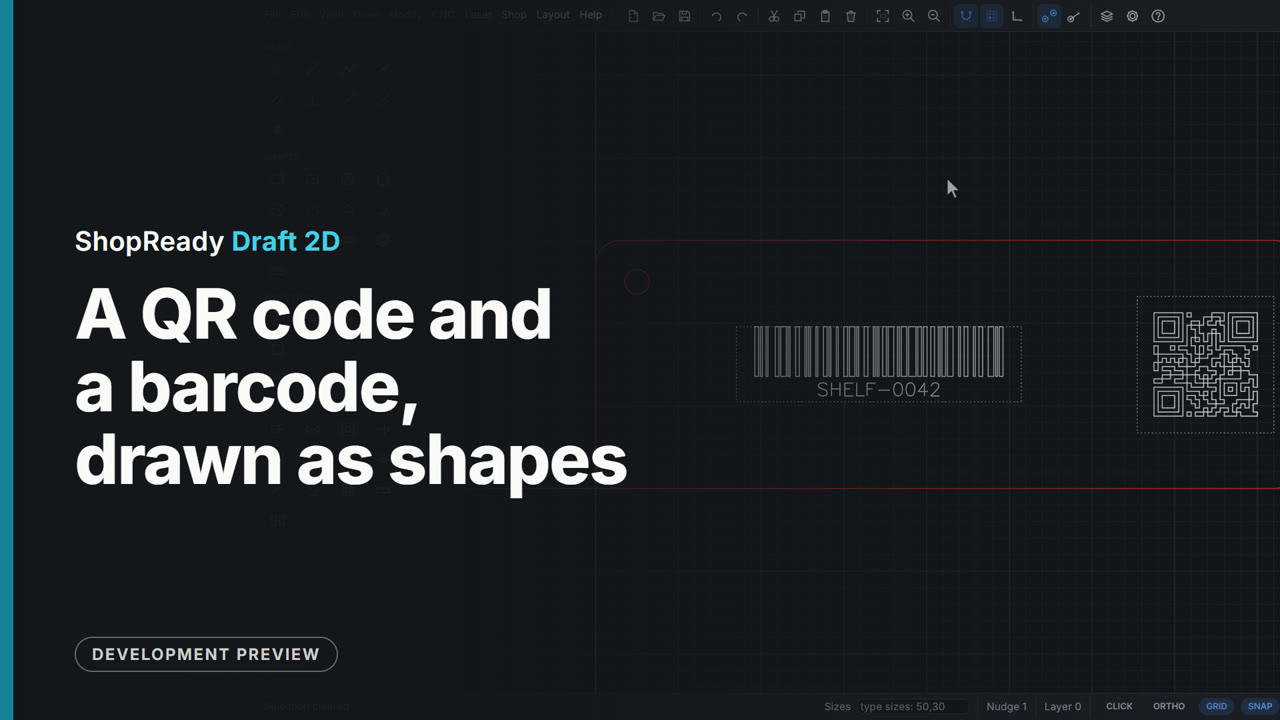
A QR code and a barcode, drawn as shapes
A bin tag gets two codes. Edit, A QR code or barcode... takes what the code says and shows it with the size of its squares; Draw it puts it on the drawing as closed shapes, selected, with a guide rectangle for the clear margin a scanner needs, and it is dragged onto the tag. The Kind is changed to Code 128 for a part number, which comes with its words under the bars. Both are shapes to burn, V-carve or cut.
 Clip · 40 s
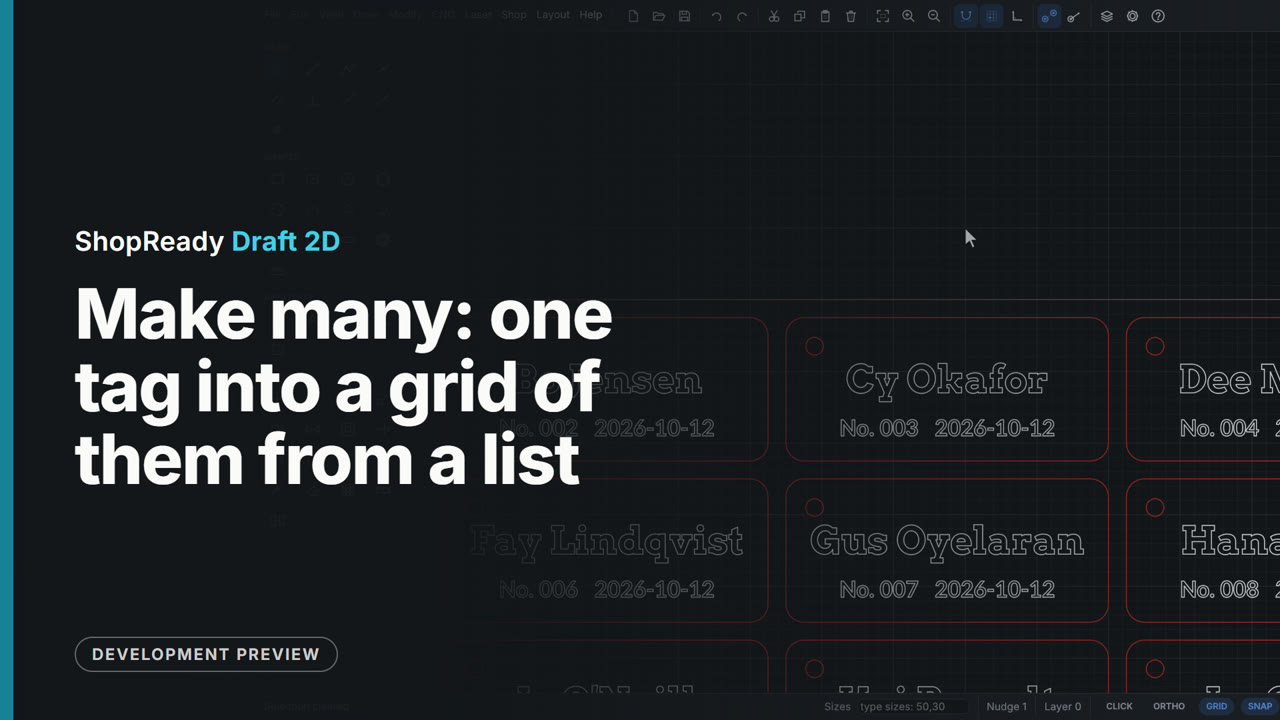
Make many: one tag into a grid of them from a list
One locker tag has fields in its text and a list of twelve names is read in. The tag is selected, and Make many, at the foot of the Numbering and lists window, is set to one for each row of the list, four side by side. Make them lays twelve copies out in a grid under the pattern, each with its own name and number as plain text. One undo takes them all back.
 Clip · 47 s
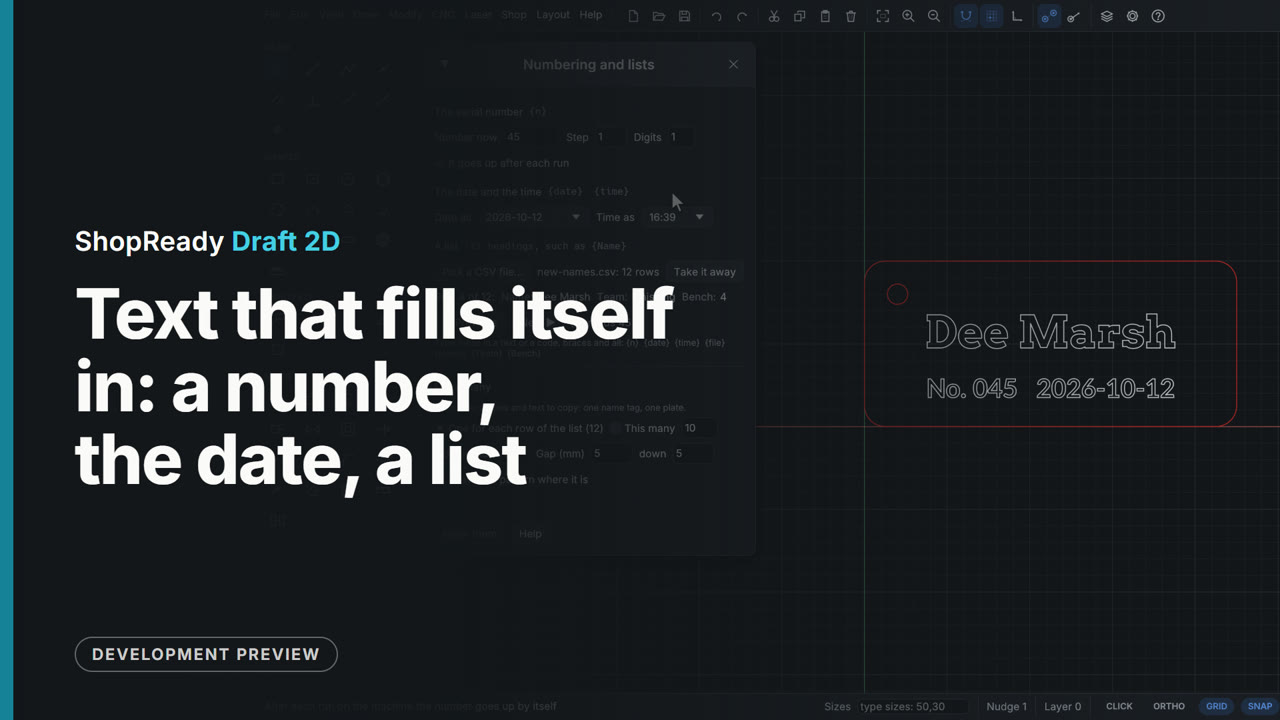
Text that fills itself in: a number, the date, a list
A locker tag's text holds fields in braces: {Name}, {n:3} and {date}. The drawing shows them filled; the braces show while the text is typed. Edit, Numbering and lists... sets the number now, and the drawing follows at once. A CSV file is picked and each of its headings becomes a field, so {Name} reads the first row's name; Next brings the next row and the next number. Ticked, the number goes up by itself after each run on the machine.
Motion and physics
 Clip · 51 s
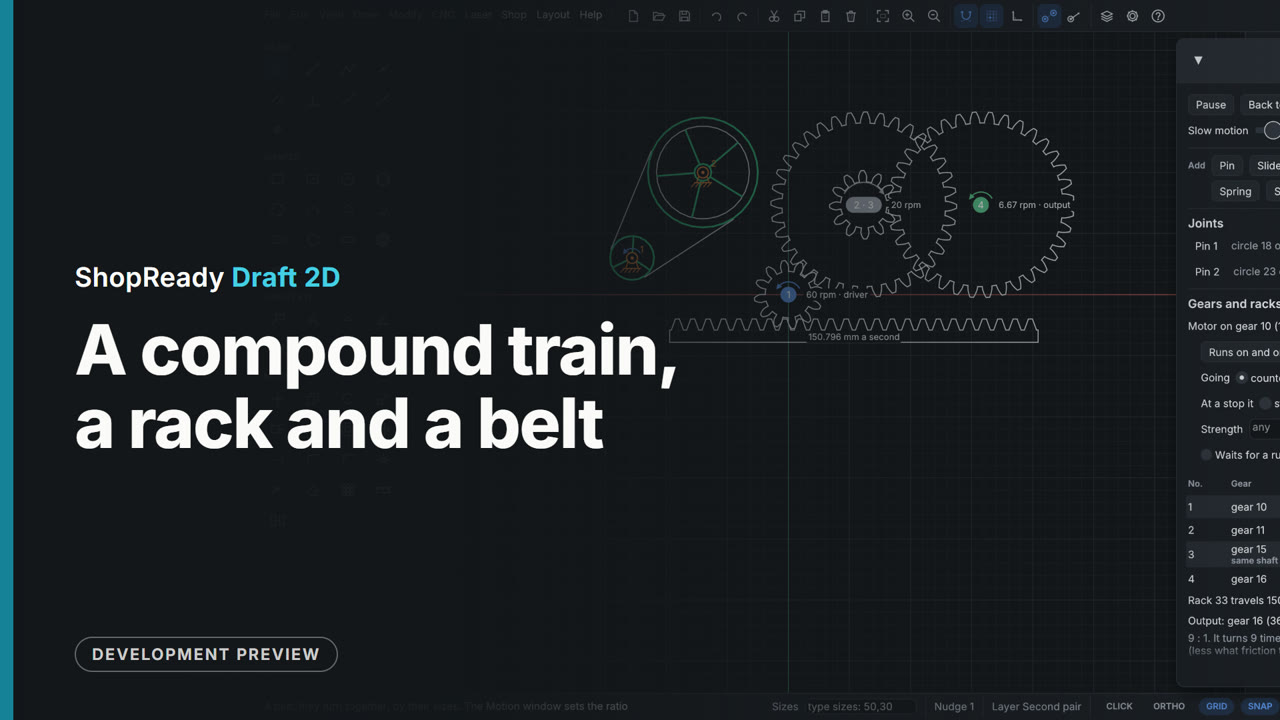
A compound train, a rack and a belt
A compound gear train (two gears on the middle shaft) is driven from its first gear and reads 9 to 1 at the last. A rack is added to the gear from the right-click menu and slides with it as far as its end, where the train stops while a wheel on a motor of its own runs on; set to turn back at a stop, the rack slides out and back. Then two turning wheels are selected and joined by a belt, so the motor on the small one turns the big one.
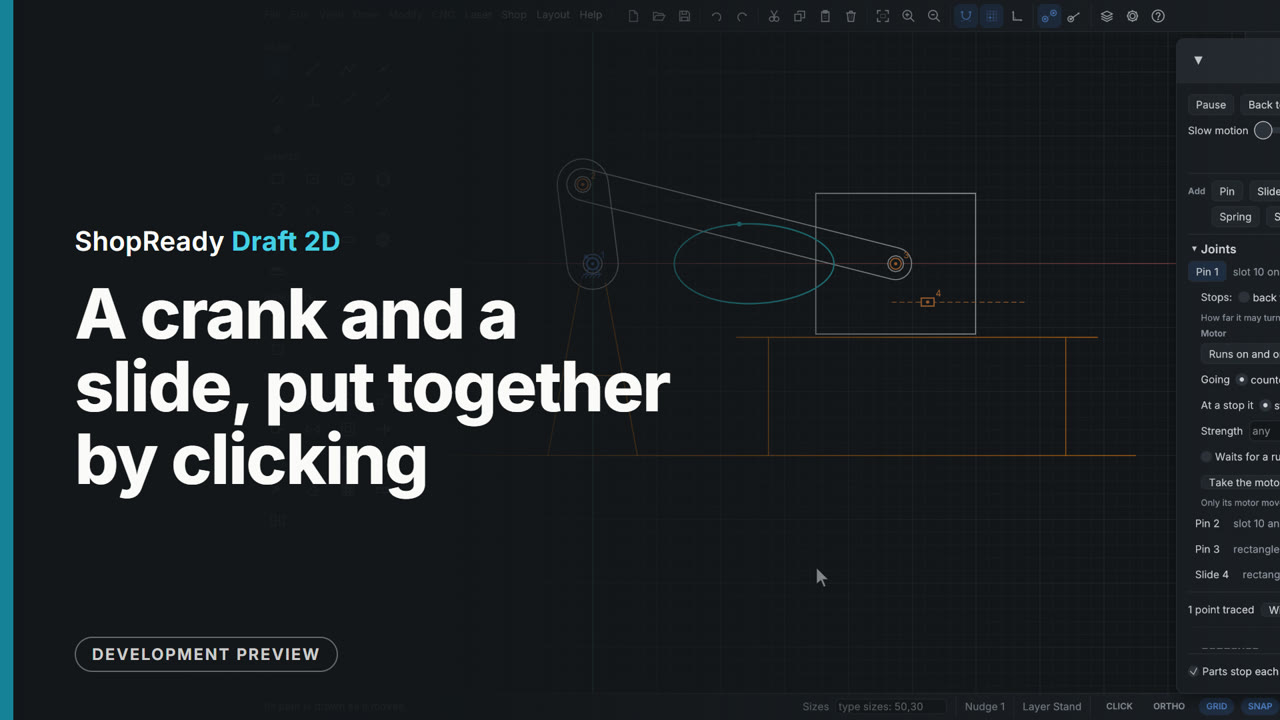 Clip · 48 s
A crank and a slide, put together by clicking
A crank, a rod and a block on a stand are made into a mechanism with the Motion window's buttons: three pins, each a click where parts turn, and a slide by two clicks. The crank's pin is given a motor and the block goes back and forth; then Trace draws the path a point of the rod takes.
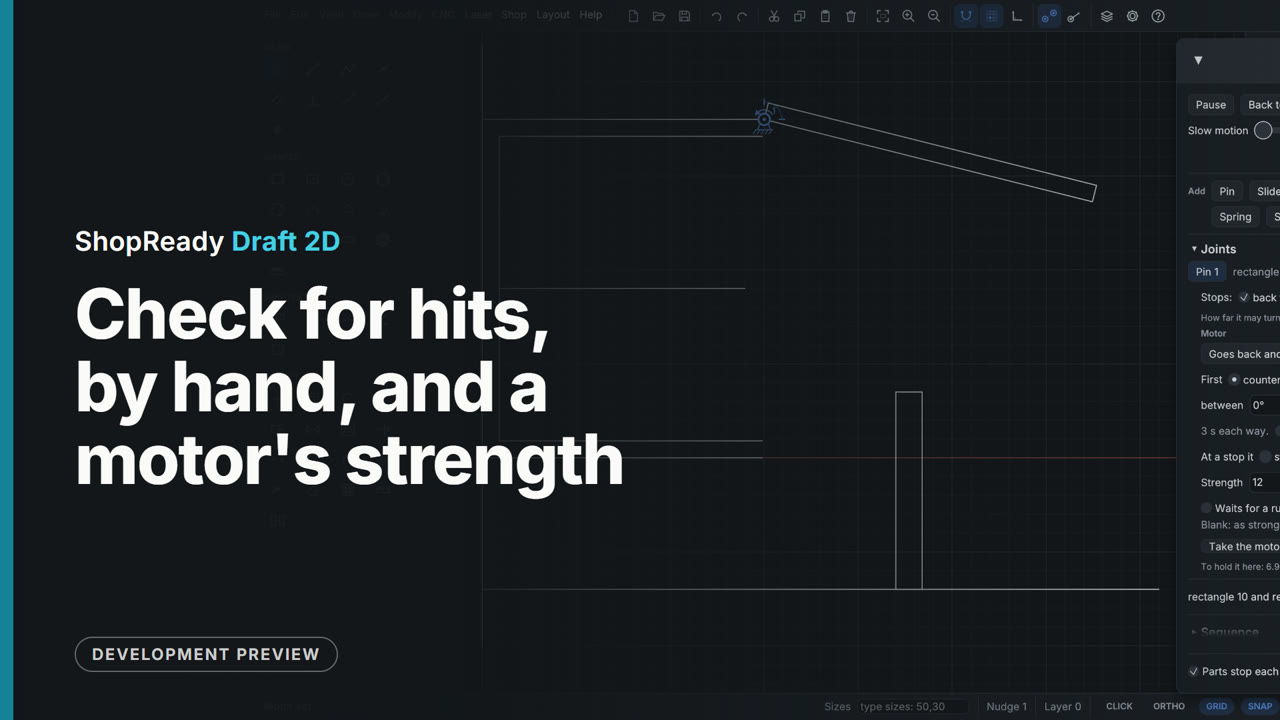 Clip · 50 s
Check for hits, by hand, and a motor's strength
A wall cabinet's lift-up door on a motor. Check for hits plays the motion through out of sight and shows where the door runs into a post; Let them pass, and nothing hits. Save a film writes one round of the motion as a GIF. Dragged by hand the door goes as far as its stop. Then the motor is given a strength: at 4 N m it is too weak for the 4 kg door and says so, at 12 N m it lifts it and says how hard it is working.
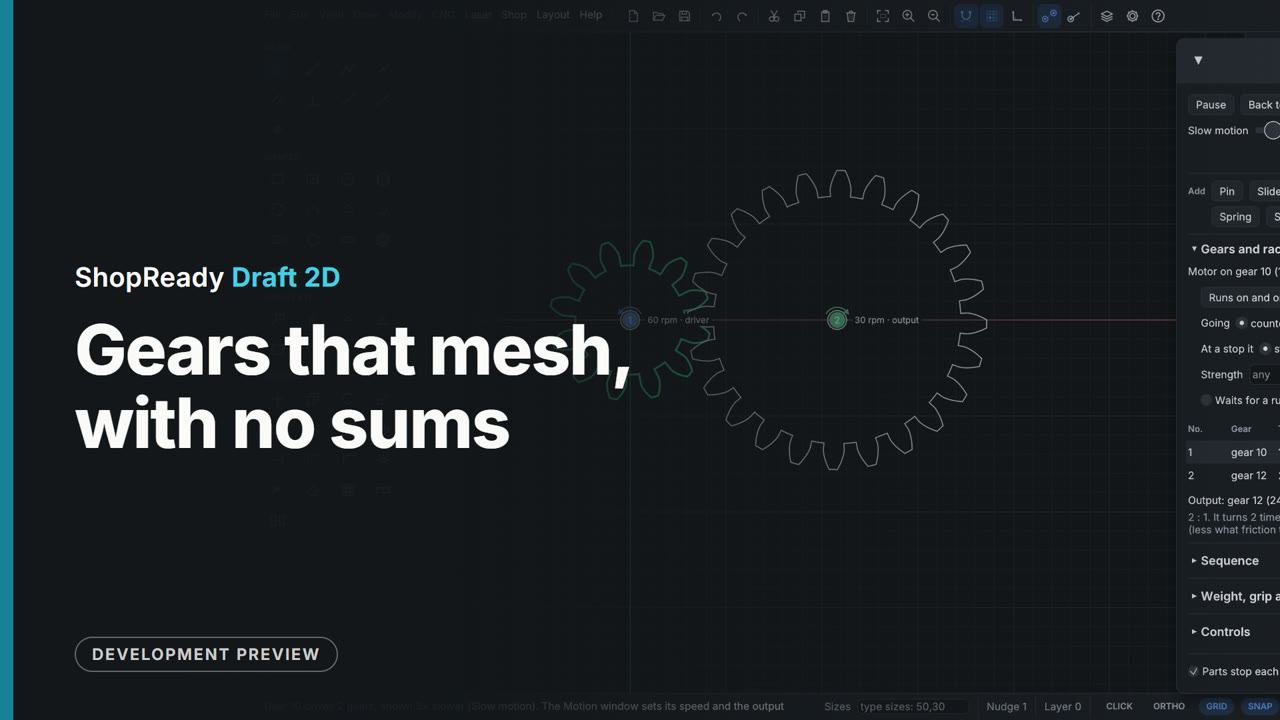 Clip · 51 s
Gears that mesh, with no sums
A 12-tooth wooden gear is drawn with the Gear tool, teeth and module typed at the top of the Input tab. The 24-tooth gear brought near it is held on a dashed ring at the meshing distance and comes down meshed with one click. Right-click, Motion, Drive this gear, and both turn on the drawing with their speeds, the output read at the last gear.
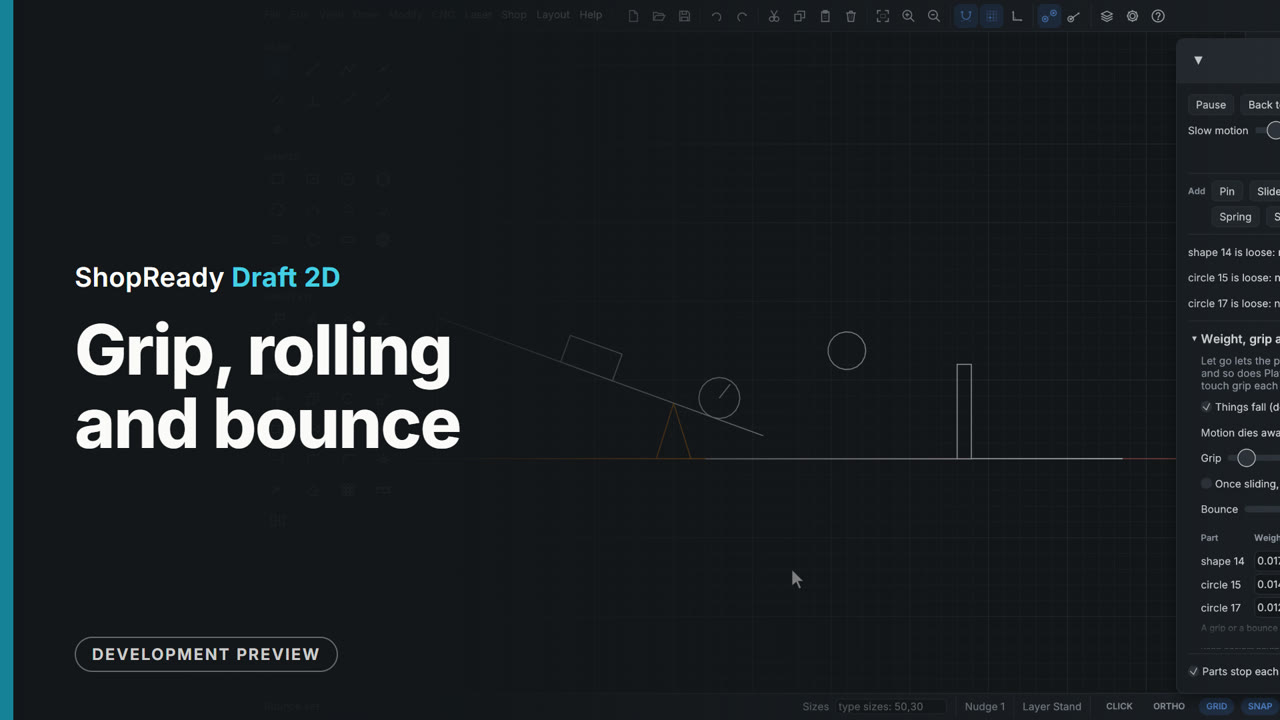 Clip · 43 s
Grip, rolling and bounce
A block and a wheel on a ramp and a ball over the floor in the wheel's path, all loose. With a grip of 0.5 the block stays on the ramp while the wheel rolls down, runs into the ball that has landed dead and pushes it to a stop board. Grip turned down to 0.2 and the block slides too; bounce turned up to 0.7 and what lands comes back up.
 Clip · 50 s
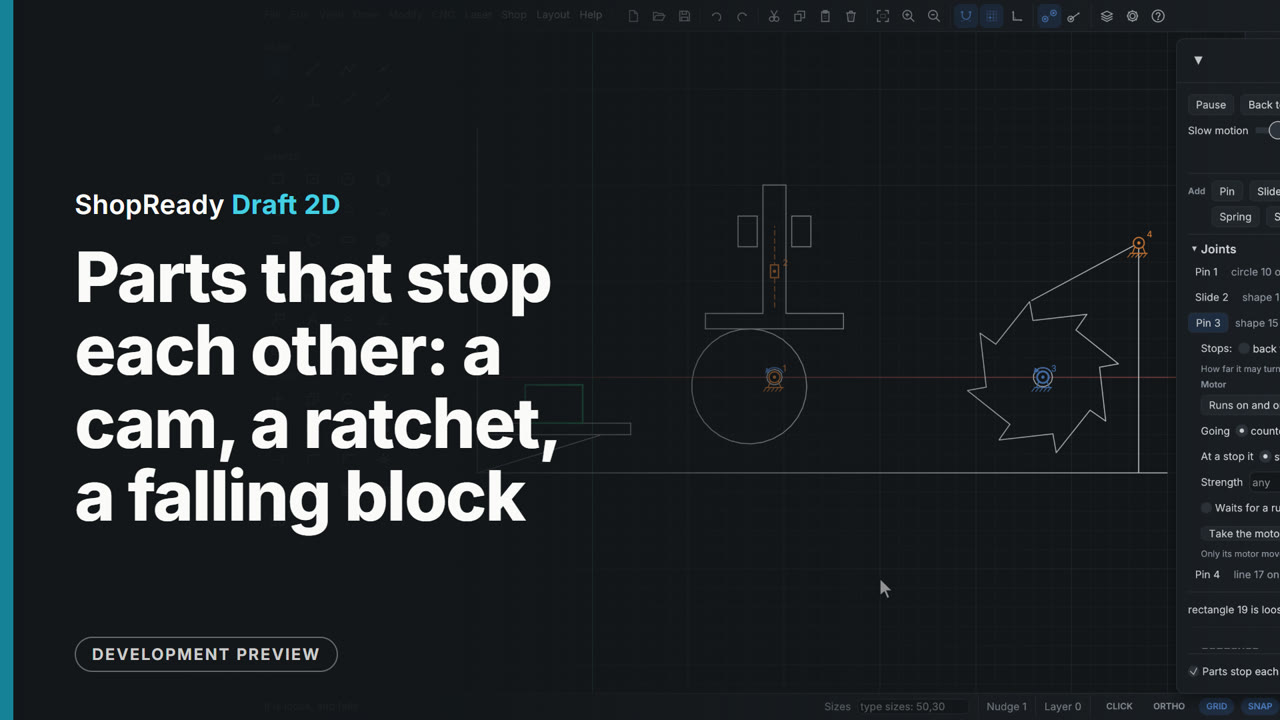
Parts that stop each other: a cam, a ratchet, a falling block
Three things that work by touching, with no joint between the parts. A round cam on an off-center shaft lifts a follower that only rests on it. A ratchet wheel turns one way under a pawl that rides its teeth by its own weight; turned the other way a tooth meets the pawl and the wheel stops, the Motion window says which two parts met, and the cam on its own motor turns on. A block made loose from the right-click menu falls and lands on a shelf while everything runs.
 Clip · 47 s
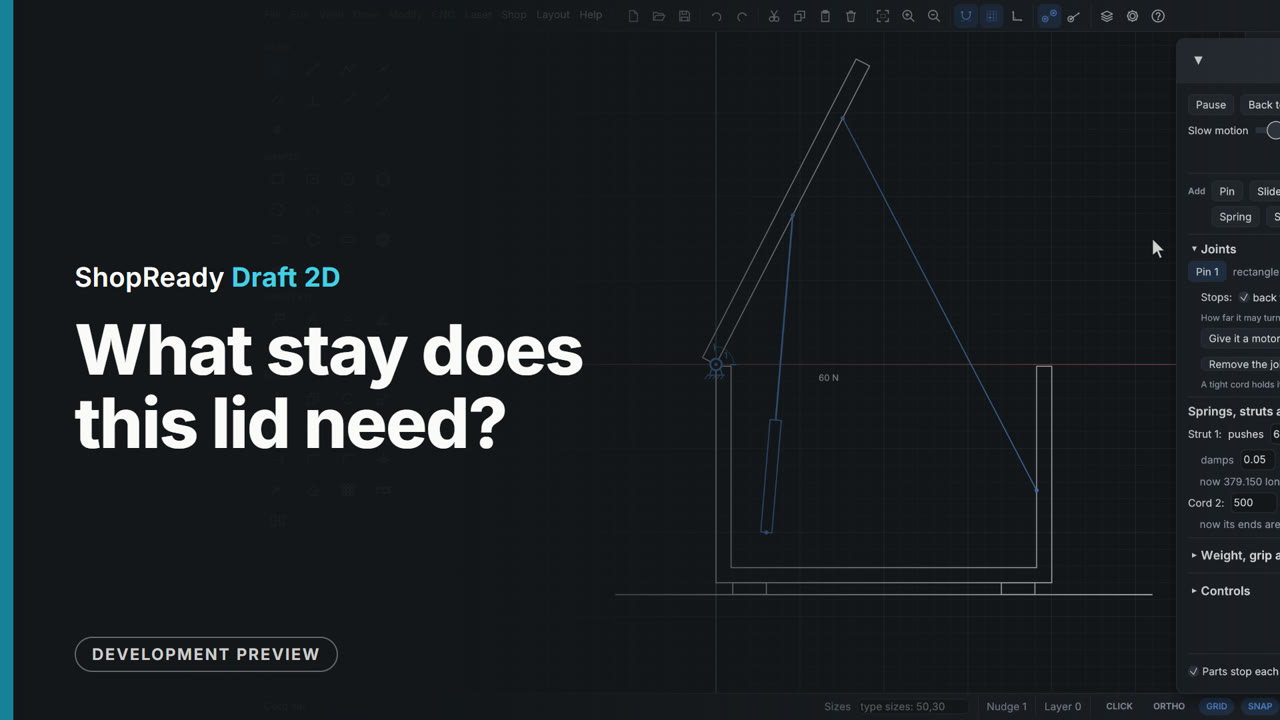
What stay does this lid need?
A chest lid of 4 kg on its hinge. A click on the hinge's pin and the Motion window says what it takes to hold the lid there. A gas strut placed by its two ends comes with the push that holds the lid as drawn, 47.9 N; with a little more push and a chain to stop it, LET GO lifts the lid until the chain is tight.
Motion and control
 Clip · 39 s
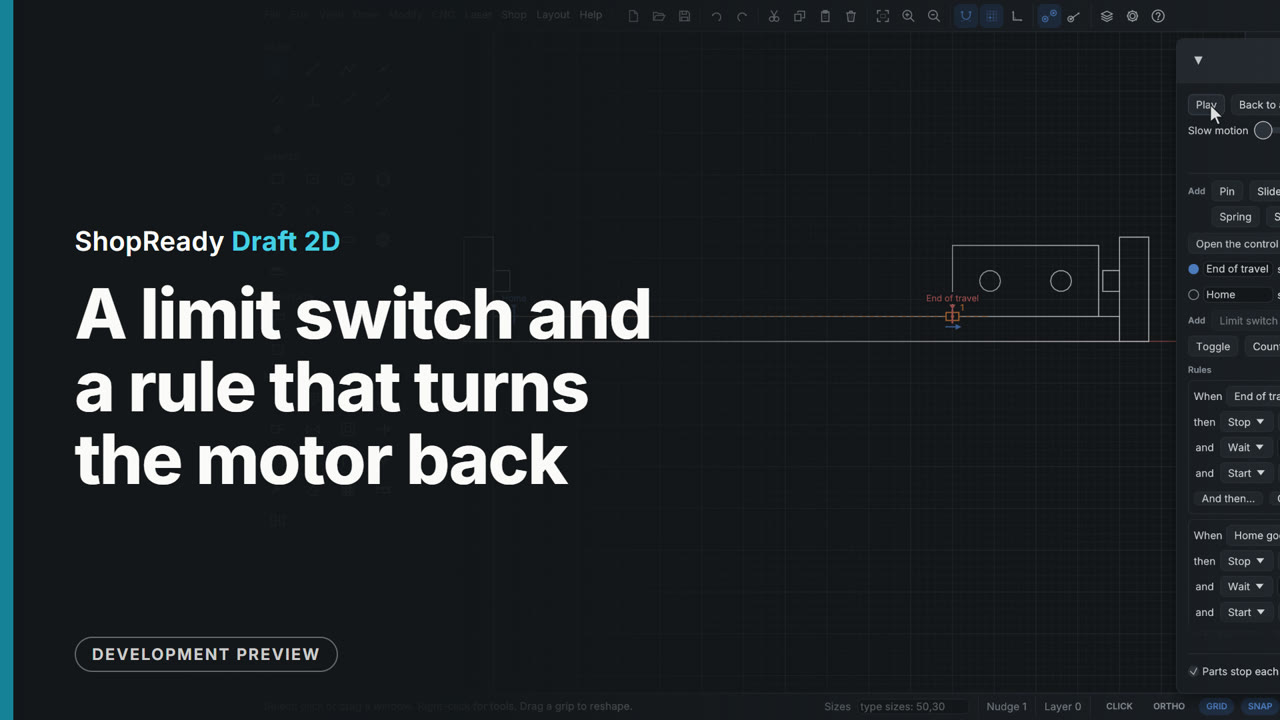
A limit switch and a rule that turns the motor back
A carriage on a slide runs on a motor between two limit switches. Controls, at the foot of the Motion window, lists the switches with a lamp each and the rules they set off: when a switch goes on, stop, wait, and start the other way. On Play the carriage trips each switch at its place, the lamp lights, and the rule sends it back.
 Clip · 37 s
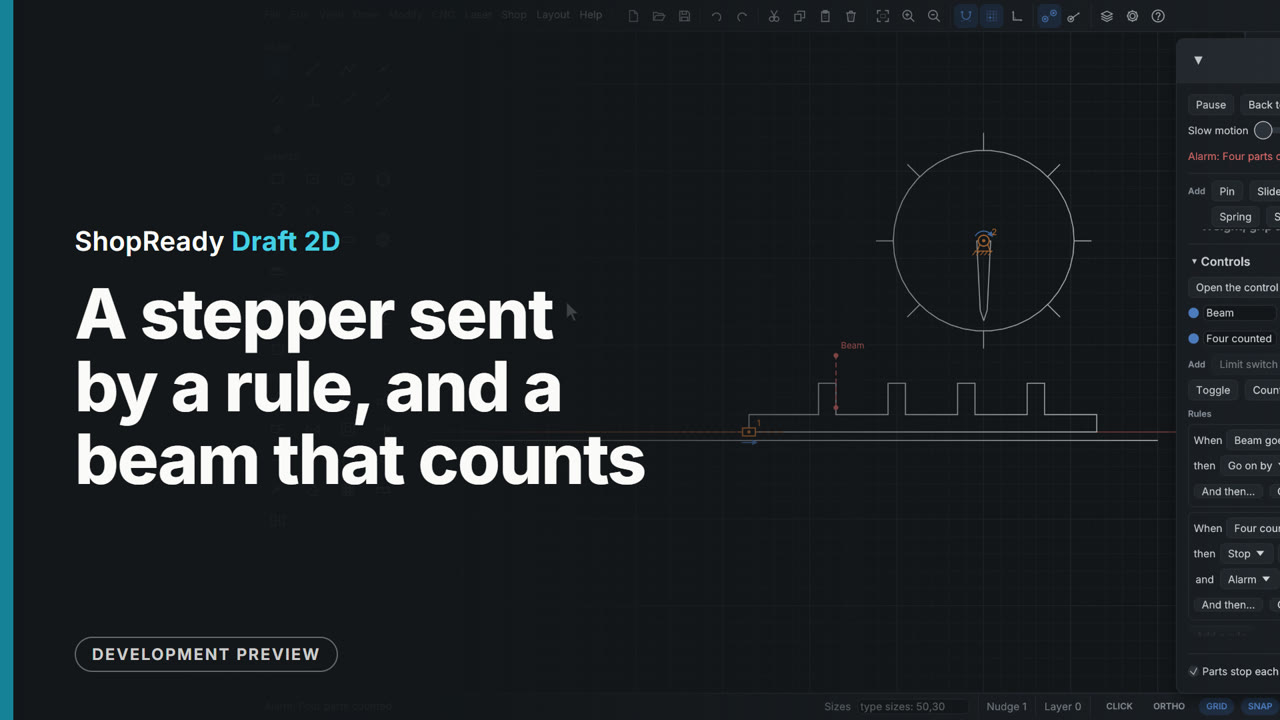
A stepper sent by a rule, and a beam that counts
A feed bar carries four pegs through a light beam. The beam is a gate; each time a peg breaks it, a rule sends a stepper 25 steps of 1.8 degrees and the dial's pointer moves on an eighth of a turn. A counter counts the crossings, and at four its rule stops the feed and sounds an alarm.
 Clip · 52 s
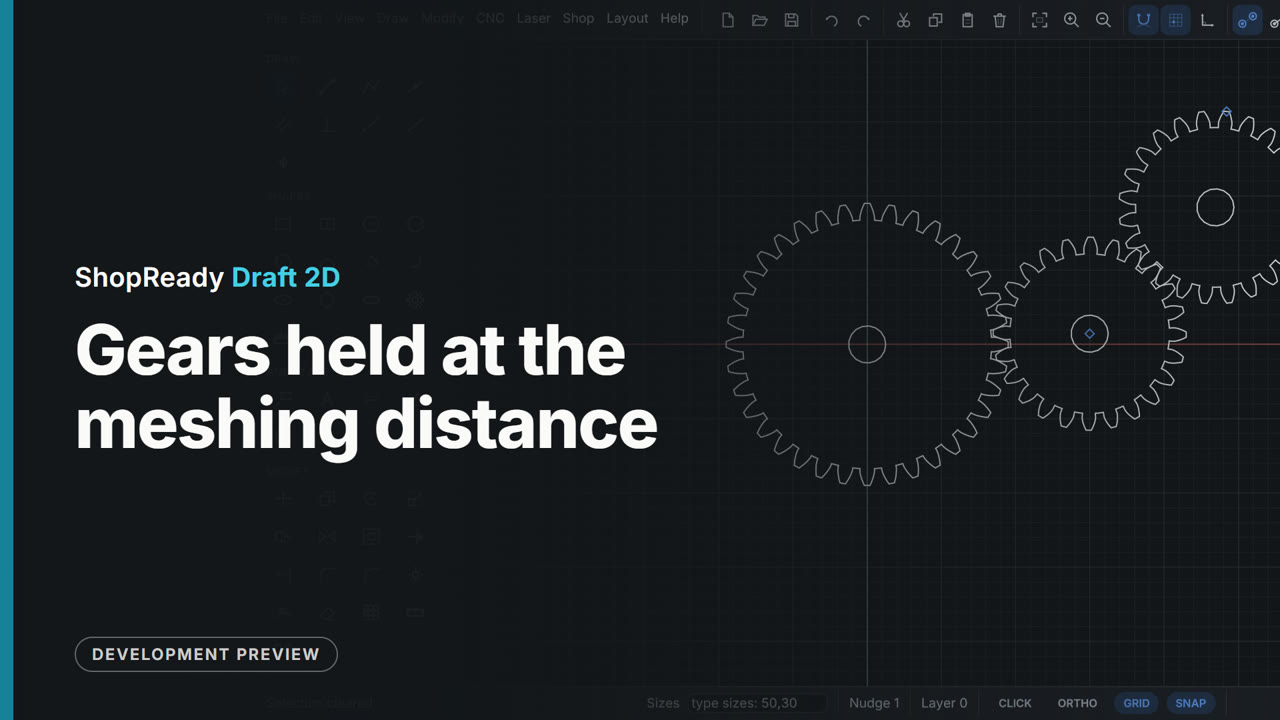
Gears held at the meshing distance
With one gear drawn, the Gear tool holds the next on a dashed ring round it: anywhere on the ring is the meshing distance. One click places it with its teeth turned into the other's gaps, and a third gear goes on the second one's ring the same way. Then the third gear is clicked and dragged by its outline: it moves whole, held on the ring round its neighbour, and comes down in mesh again.
 Clip · 48 s
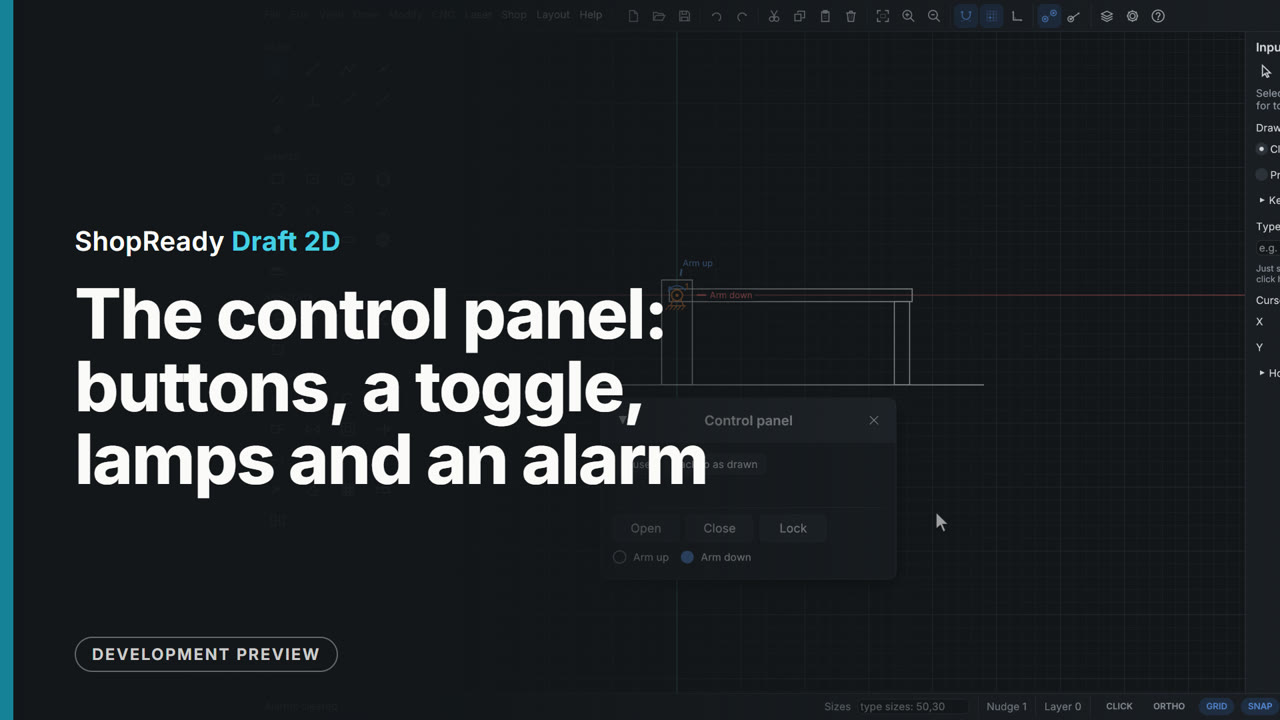
The control panel: buttons, a toggle, lamps and an alarm
A barrier arm on a servo is run from the control panel, a small window of its own that stays up with the Motion window closed. Open and Close are buttons whose rules send the servo to a place, two lamps follow the limit switches, Lock is a toggle, and pressing Open while it is locked sounds an alarm in red.
Files
 Clip · 46 s
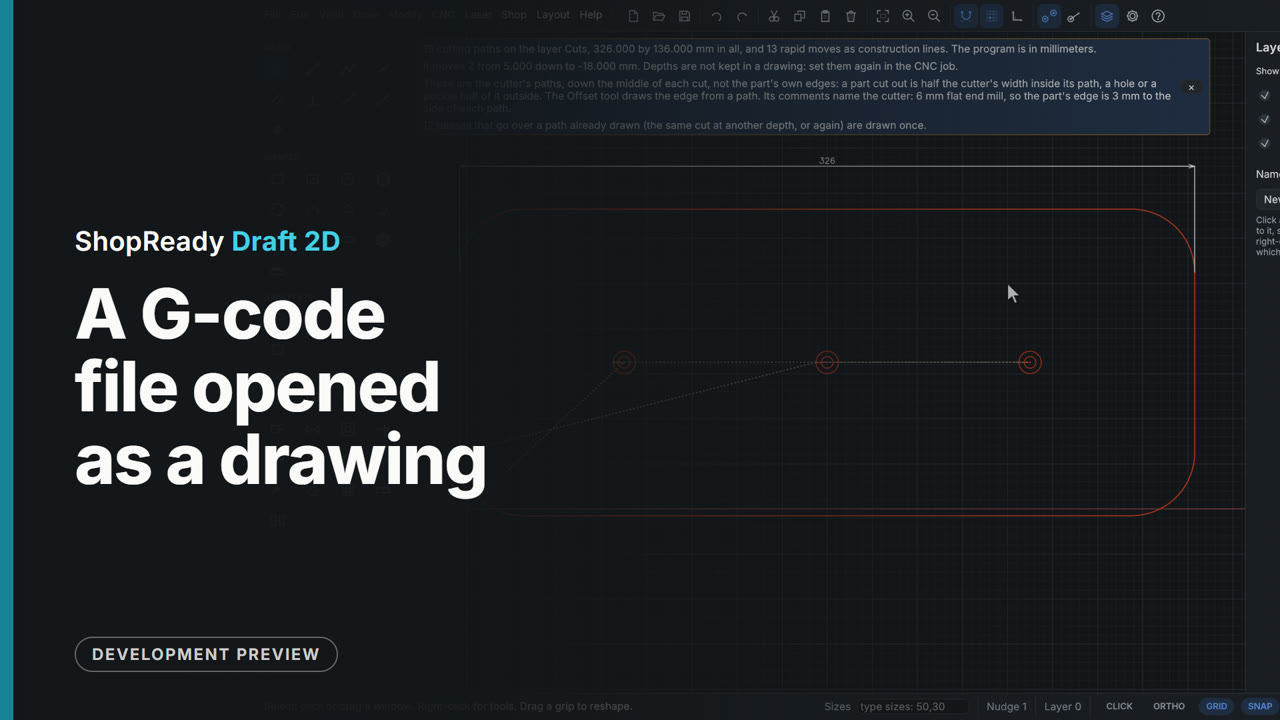
A G-code file opened as a drawing
File, Open reads a G-code program from an old job and draws it: its cuts as lines and arcs on a layer called Cuts, its moves between cuts as guide lines. A note above the drawing says how many paths there are, how big it is, how deep it went, and that passes over the same path are drawn once. Because it is a drawing, it can be measured: a dimension across the outline reads 326, the 320 part and its 6 mm cutter.
 Clip · 49 s
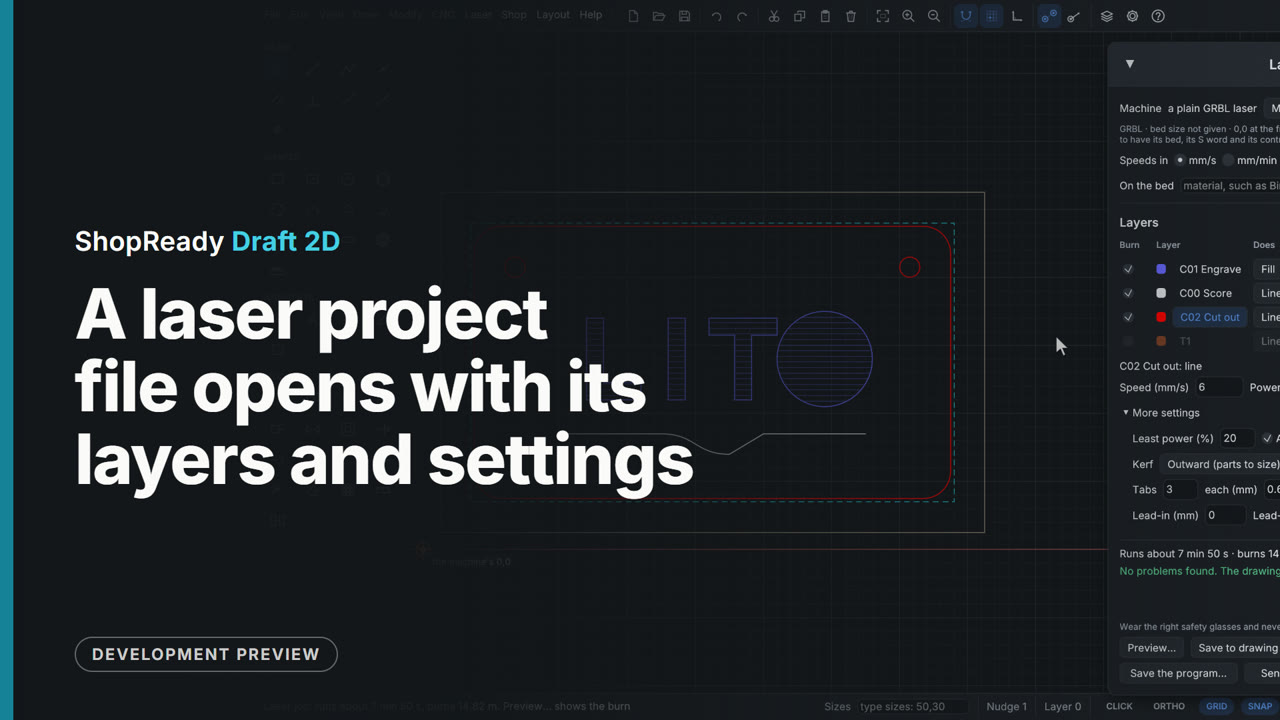
A laser project file opens with its layers and settings
File, Open reads a laser project file made in another program. The sign comes in the right way up as a new drawing, and a note above it says what came in, what was changed and what was left out. The Layers tab has the project's layers with their names and colors, and Laser, Laser job... shows each layer with the speed, power and kind of burn the project gave it: the cut-out layer still has its two passes, its kerf and its three tabs.
 Clip · 48 s
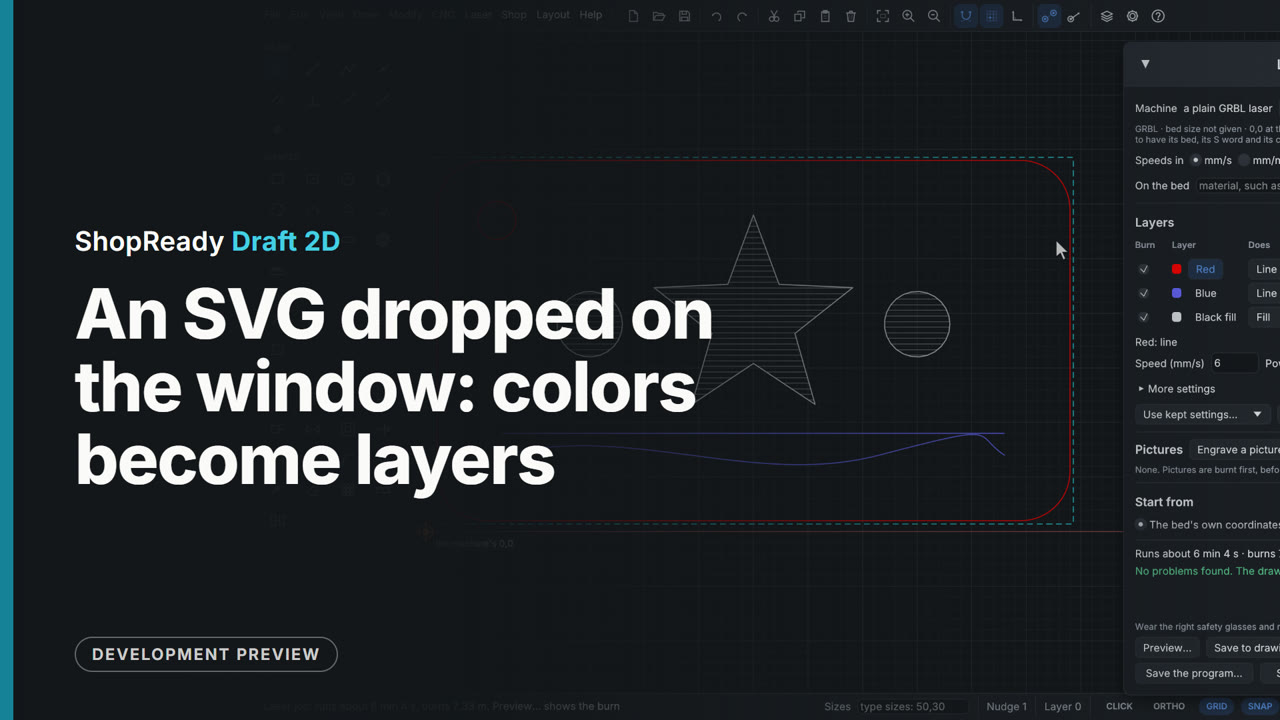
An SVG dropped on the window: colors become layers
An SVG file dropped on the window opens as a new drawing at its real size, with a note of what came in. Each color in the file is a layer, fills apart from lines: here Red, Blue and Black fill, as the Layers tab shows. In Laser, Laser job... the black filled shapes start as a fill to engrave and the red and blue start as lines, to cut and to score.
Help
 Clip · 51 s
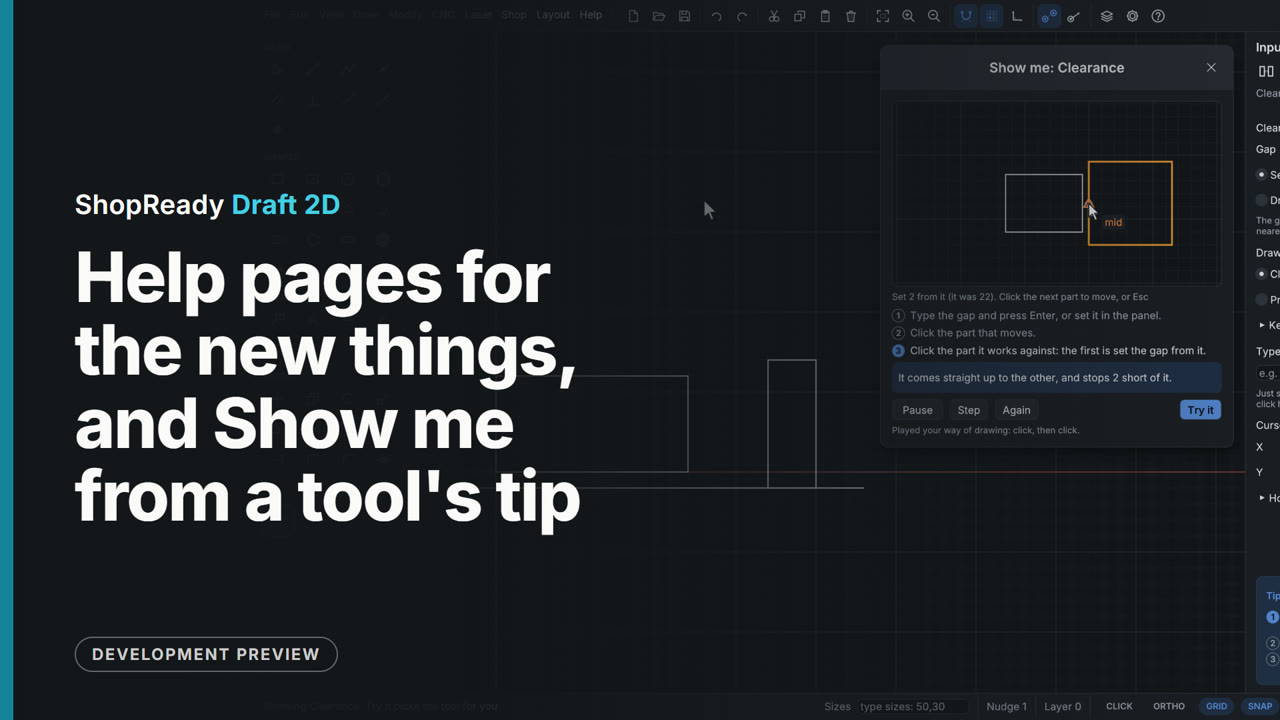
Help pages for the new things, and Show me from a tool's tip
The Help menu has a page at its foot for each of the new parts of the program: Laser, Machines, Inlays and more cuts, Sheets and shapes, Codes, Router, and Work from other programs. The clip opens three of them, each written in plain words. Then the Clearance tool is picked with its key, B: its tip card has Show me, which plays the tool on a scratch drawing in a window of its own, a step at a time, and offers Try it.
 Clip · 54 s
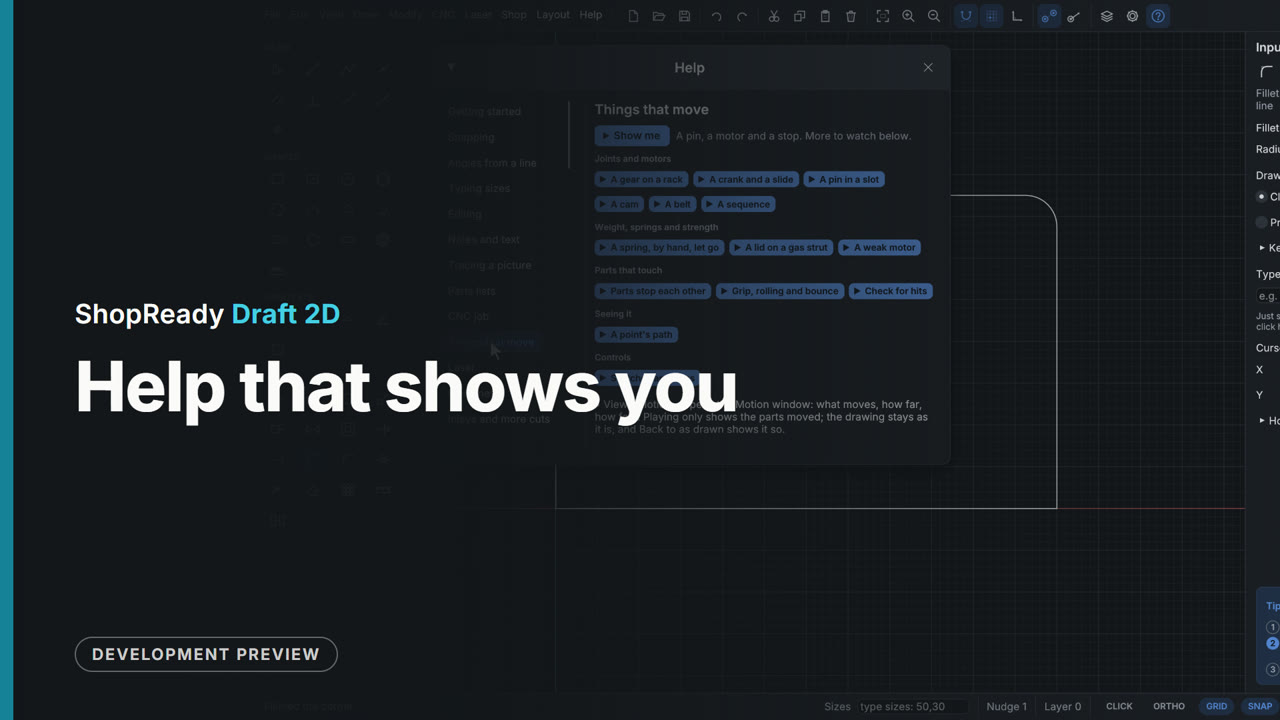
Help that shows you
The tip card marks the step you are on as you work, Show me plays any tool on a scratch drawing, Try it hands the tool over, and Help has a page for every tool and subject. No manual to read first.